

Three tests after activation
An eSIM holds a digital mobile plan. Check model and carrier support, see how many lines can stay active, and test calls, SMS and data after setup.
Key Takeaways
- An eSIM lets a compatible phone download a mobile plan without a removable SIM card.
- Check the exact phone model, the country it came from, and your carrier’s support for your plan.
- A phone can store several profiles and still have a limit on how many lines it can use at once.
- Keep your old phone and service within reach until calls, texts, and data work on the new phone.
An eSIM is a built-in digital SIM. Your carrier sends your phone a profile that lets it connect to the mobile network. With a physical SIM, you insert a card. With an eSIM, you download the profile on a phone that supports it. The same phone number can move to the new setup when your carrier supports that transfer.
Maybe the phone you want comes without a SIM tray. Before you buy it, ask a more useful question than “Does this phone have eSIM?” Ask whether it can use your number on your current plan. That answer depends on the exact phone and the carrier that provides your service. Here is how to check both before you rely on the new phone.
What is an eSIM profile?
Think of the eSIM as the part already in the phone. The profile is what the carrier adds to it. The profile identifies your mobile line to that network. A phone that supports eSIM may arrive with no plan set up, just as a phone with a SIM tray can arrive with no card in it.
The phone still needs a mobile plan. It also needs the carrier to finish any checks tied to that plan. A phone maker can tell you whether the hardware supports eSIM. The carrier can tell you whether it can use that hardware with your line.
Apple’s setup guide describes several ways a profile can reach an iPhone. A carrier can assign the plan to the phone, for example. You might also see a transfer option, get a QR code, or use the carrier’s app. These paths serve the same purpose. Pick the one that your carrier gives you for the line you want to use.
The order makes a difference. First, check the plan. Next, get the setup route from the carrier. Then, follow that route on the intended phone. If the carrier says it will send a setup alert, you can wait for the alert or seek help if it fails to arrive. A missing QR code by itself tells you little about the state of the line.
Compare an eSIM with a physical SIM
The most useful difference shows up when you move service. With a physical card, you can often take it out of one phone and put it in a compatible replacement. An eSIM profile usually moves through a carrier’s transfer or activation process. The carrier determines when the replacement takes over the line.
| What you want to do | Physical SIM | eSIM |
|---|---|---|
| Add a mobile line | Get a card and put it in the tray | Download a carrier profile |
| Move service to a spare phone | Check the card size and phone support | Check the spare’s eSIM support and the carrier’s transfer options |
| Use a second line | Check the number of SIM slots and which lines can stay on | Check which profiles can be active together |
| Get help when setup fails | Check the card and the line status | Check the profile and the line status |
If you move a SIM into an old spare phone now and then, check that spare before you switch. Can it download an eSIM? Does the carrier accept it? Can you get into your carrier account when your main phone is off? Write down what you learn. You may want that answer most when the main phone is lost or needs repair.
If you add a line for work or travel, the eSIM route can save a trip for a card. It can also keep the tray free on a phone that has one. First check the mix of lines your phone accepts. A listing that says “Dual SIM” may leave out whether it uses two eSIMs, a card and an eSIM, or two cards on that model.
Will it improve speed or signal?
Judge the plan and coverage on their own. An eSIM by itself is a different way to set up mobile service. For a phone change, you may also change the network, the bands the phone can use, or the plan’s data limits. Any of these can affect what you see.
For instance, imagine you switch to an eSIM and a new carrier on the same day. Your calls get clearer near home. Ask what changed in that area, such as network coverage or your phone model. That does a better job of explaining the change than crediting the digital SIM for the result.
Check the model, carrier, and line together
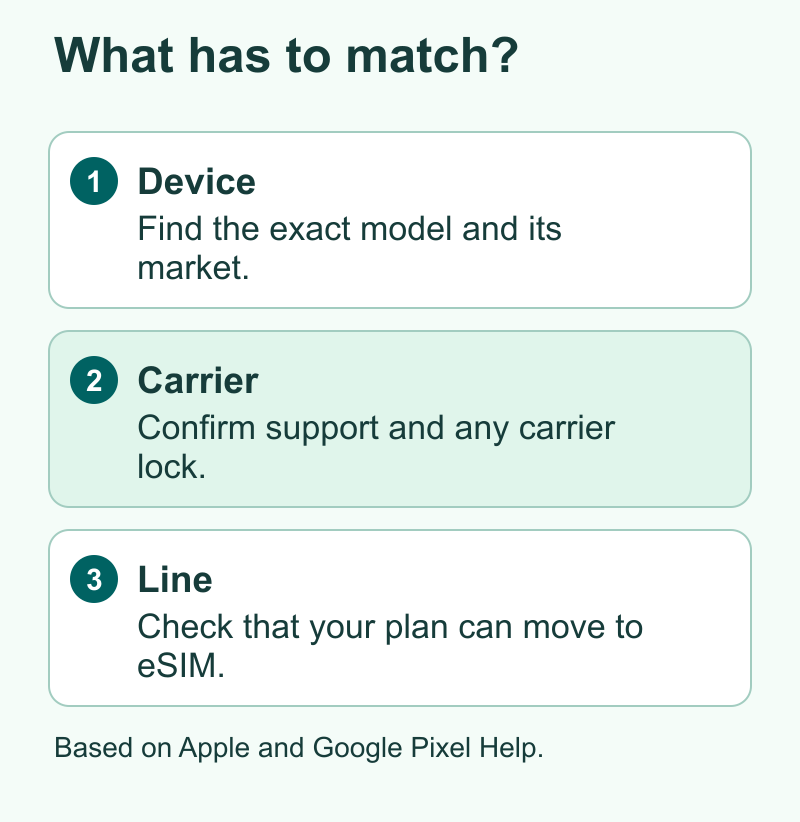
Start with the model number. Two phones with the same brand name can have different SIM options based on where they were sold. An imported phone may have a tray where another version has none. Ask a seller for the exact model and sales region before you order.
Google’s Pixel help gives a concrete example. It says that, in the U.S., Pixel 10 or later phones are eSIM only, with an exception for Pixel 10 Pro Fold. The same guide asks users to check what their carrier supports. That is a reason to read the exact model note instead of using a broad rule like “all Pixel phones have a tray.”
Then check the carrier. A network may list the phone as compatible and still need to confirm that your plan can use the route you want. For example, a work line may need help from the person who manages the account. A plan with a reseller may have different support from a plan the network sells itself.
Finally, decide what you are moving. You might want to change your current physical SIM to an eSIM, add a second number, or take your existing number to a new carrier. Each is a different request. Say which one you want when you contact support. You can avoid adding a new line when your aim was to keep an old one.
A short script to use with support
Share the exact phone model and market with your carrier through its official support channel. Then ask four questions.
- Can I use my current plan and number as an eSIM on this exact phone?
- Should I start in the phone settings, in your app, or with your support team?
- When will service stop on the old SIM, and what should I do if the new phone cannot receive a call?
- If I use two lines, can I keep my current pair active at the same time?
Write down the steps that apply to your line. Leave setup codes, account codes, and device identifiers out of any note you might share. If the carrier asks for a device ID, provide it in the carrier’s app, site, or official support channel.
What to check in India and the United States
In India, check the operator that owns your line before you start. Jio’s eSIM page offers a device checker and a path through MyJio. Its current support page describes a two-hour wait for the documented switch from a Jio SIM to an eSIM. It says the existing line can still be used during that time. Allow time for the steps after the wait as well.
That timing is a detail about Jio’s documented process. Treat Airtel or Vi as separate checks. Visit the operator’s current help page and ask if your device and plan qualify. If someone else oversees your plan, find out who can approve the move. This is useful to check while your current phone still works.
In the U.S., look up the line directly with your provider. If you bought a phone through a carrier, ask about its lock status before adding a plan from another network. If you use a prepaid provider, look up its own rules. Our Boost Mobile guide in References shows one carrier’s process. Check your own device and plan with your carrier before you start.
Apple introduced a timely case with the iPhone Duo. Its September 2026 announcement says the device uses eSIM only worldwide. Apple names Airtel, Jio, and Vi among the operators that support eSIM in its India announcement. The news makes the support check concrete. For any trayless phone, confirm your local line and get the transfer route before you give up a working phone.
Keep your plan info handy
It helps to have three details in one place during a shop visit or support call. Write down your exact model, your current carrier, and the last four digits of the line you want to move. If you have a travel or work line too, give those lines names in your notes. The goal is to make it clear which line you want to change.
Only trust the device and plan checks you can match to your real setup. For example, a store might confirm that the phone works on its network. You might still need to ask whether that answer applies to a plan issued by another provider. Take the extra minute to ask while you have a choice about the purchase.
Work out how many lines you need active
A saved profile is one the phone can store. An active line is one you have turned on for use. When you shop, ask how many lines the phone can use at the same time. That is the count that matters if you want your work and home numbers to stay reachable.
Google says a Pixel 7, Pixel 7 Pro, or later model can use two eSIM profiles at once if the carrier allows it. Its guide also shows how to pick SIM preferences for calls, texts, and data. Treat that pairing as an example. Check your own device and both carriers before you make plans based on it.
Imagine that you add a second line to a phone with two active lines. You want calls to use your work line and your data to use the personal line. After you set the defaults, make a call and read the line name shown. Next, check which line the phone uses for data. Give the lines clear labels so you can spot a mix-up.
For travel, first decide whether your home number needs to receive plain texts abroad. Then check what the second plan includes. Some travel plans offer mainly data, while some local plans include a number. Apple’s travel guide describes both choices. It also explains how the lock on an iPhone can limit use with another carrier.
If you only need one line, you can skip the dual SIM math. Focus on the old phone, the new phone, and the point when service changes over. Keep a way to contact your carrier if one device stops working before the other comes online.
Test the line before you put the old phone away
Use a time when you have Wi-Fi and can reach the carrier. Keep the old phone nearby, powered on, and signed in where needed. If a setup step needs a code or an approval, you want to receive it yourself through the normal process. Avoid making the switch right before a flight, a work call, or a store trade-in.
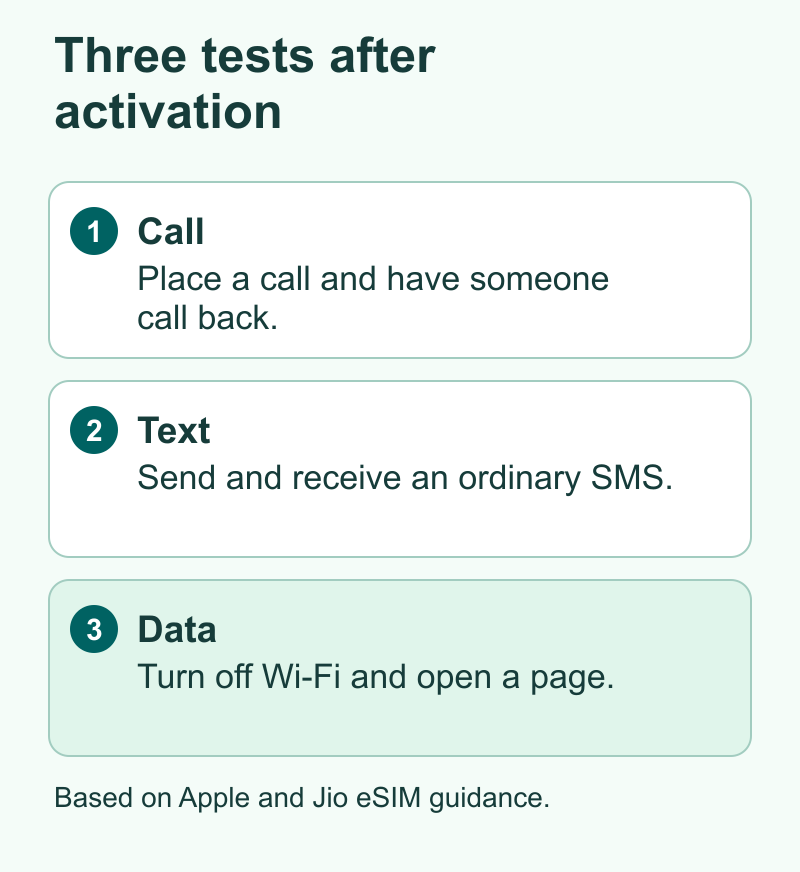
Run three checks after the new line shows up.
- Make a call to someone you know. Ask them to call back so you can check incoming calls too.
- Send and receive a normal text with someone who can help. Make sure it is a carrier text if you need to check SMS.
- Briefly turn off Wi-Fi and load a light web page over mobile data. Then turn Wi-Fi back on if you still need it.
When you have more than one line, look at the name the phone shows for each check. A call may work even if it went out over a different line than the one you meant to test. Data can also use a different choice from the one for calls.
If one check fails, work with the carrier on that symptom. “I can call out, but I cannot get an SMS on the new phone” is more useful than “My eSIM is broken.” Note the time and the message you saw. Keep both phones handy until the carrier can tell you which one has your line.
Apple cautions against erasing an eSIM for troubleshooting unless your carrier tells you to do it. Erasing the profile may mean asking for a fresh one. If you need to sell or trade in the old phone, confirm the new phone works first. Then follow the device maker’s instructions for preparing the old one for its next owner.
Write down which line will do which job
Make a note before you add another plan. Record which line has your usual number, which line you want for data and which should place calls by default. Give the lines those names in your settings if your phone allows it. You can then compare what the phone actually selected with what you planned. If you expect a call on the usual number, test that line while the other one provides data. This is a useful trial for a phone you will take abroad or share between work and personal use.
Did You Know?
Your carrier might ask for an EID, the identifier for the eSIM hardware in your device. Google lists it separately from the IMEI in its Pixel help. Jio’s setup guide asks for the EID of the phone that will receive the plan. Match the identifier the carrier asks for to the new device.
Conclusion
When you ask “What is an eSIM?”, start with the simple answer. It is a digital SIM that lets a phone download a carrier profile. The choice comes down to whether your exact device and plan work together and whether you can move the line when you need to.
Look up your phone’s model and ask your carrier for the right setup route. Then choose a time to switch when you can keep the old phone close. Test your calls, texts, and data before you trade it in or put it away.
FAQs
Does my phone need a SIM tray to use an eSIM?
No. A phone that supports eSIM can use it without a SIM tray. Some phones support a card as well. Check the exact model and region on the maker’s spec sheet. Then check your plan with the carrier, even when the phone lists eSIM support.
Will I lose my phone number if I change from a SIM card to eSIM?
You can keep your number if the carrier moves your existing line and your account qualifies. Ask for a SIM change or line transfer. Confirm the number on the new phone before you end the old setup. If you change providers at the same time, ask for their number transfer procedure.
Can a phone have one eSIM and one physical SIM active?
Some phones can keep that mix active. Google, for instance, documents it for supported Pixel models, with regional limits. Check the model, both providers, and the line settings. Decide which number should handle your calls and texts and which line should handle mobile data.
Is it safe to delete an eSIM that says it is still activating?
Leave it in place while you find out what the carrier expects. Apple says to erase an eSIM for troubleshooting only when directed by the carrier. If it has been stuck longer than expected, share the exact status message with official support. Ask whether they need to reissue the profile.
Do I need a new data plan to use eSIM?
Ask whether your current line can switch to eSIM before you buy another plan. Many switches focus on moving the same line to a digital profile. If you want a second number or a separate travel data allowance, check the cost, end date, and coverage of the extra plan first.
References
- Apple Support — Set up eSIM on iPhone
- Apple Support — Use eSIM while traveling internationally with your iPhone
- Apple Support — How to erase the eSIM on your iPhone
- Apple India Newsroom — Apple unveils iPhone Duo
- Google Pixel Help — How to use dual SIMs on your Google Pixel phone
- Google Pixel Help — Find your IMEI and other Pixel phone ID numbers
- Jio — How to move my existing Jio SIM to eSIM
- Jio — eSIM and device compatibility
- Techchahiye — Boost Mobile eSIM activation
- Techchahiye — Mobile plans, telecom, and OTT guide
