

Is the new line ready?
Use iPhone eSIM Quick Transfer, carrier activation or a QR code where supported. Verify your number and service before you hand over your old phone.
Key Takeaways
- Keep your old phone, SIM and carrier account available until calls, texts and data work on the new iPhone.
- Use eSIM Quick Transfer when your carrier and both iPhones support it. A carrier-issued activation or QR code may work when Quick Transfer is unavailable.
- When an iPhone transfer activates your plan on the new device, the previous SIM is deactivated. Plan ahead if you need text codes right away.
- Verify the right number and test services on Wi-Fi and cellular before you erase or trade in your old phone.
The new iPhone is ready. The old one holds the number people call and the account codes you still need. If you want to know how to set up eSIM on iPhone, do the number move while you still have both devices and access to the carrier account. Keep the old phone until you can receive a call and a text and get online with Wi-Fi off on the new one.
Start by identifying the job. You can move an existing number from another iPhone, convert a physical SIM on the same phone, or add a new line. Each may use a different carrier process. The steps below help you pick the right route and check that your everyday service has actually moved.
Check the Devices and Line Before You Start
Find the new iPhone’s model and the country where it was sold. Apple lists eSIM support and regional exceptions in its setup guide. Check your mobile plan with the carrier, too. Its support for eSIM may vary by plan type and the kind of move you are making. An imported or carrier-locked iPhone can need an extra compatibility or unlock check before it can use your intended carrier.
Keep both phones charged. Make sure you know the passcode or screen lock for the phone you are moving from. Have an internet connection that will keep working even while the number moves. For example, use home Wi-Fi or a separate hotspot instead of sharing mobile data from the line you are about to move. If you have a physical SIM in the old phone, leave it there while using the carrier’s transfer process unless your carrier tells you to move it.
Make a short list of what depends on the number. Include work apps, bank sign-ins and messages you expect. Check the carrier’s published rules for a temporary service gap and use a time when you can wait. Save an approved alternative way to sign in where your account supports one. If text access matters for a payment or a trip that day, complete that activity first or plan an activation time that gives you room to check.
You may need the EID or IMEI from the new iPhone for some carrier routes. Find them in Settings, General and About. The EID identifies the eSIM hardware. The IMEI identifies the device for use on the mobile network. Match what the carrier requests and submit it only through its trusted app, site or store. Keep activation codes, QR codes and account PINs private.
| What you want to do | Start here | When to ask the carrier |
|---|---|---|
| Move a number from a nearby iPhone | eSIM Quick Transfer on the new iPhone | Your number does not appear or the plan requires separate approval |
| Move from Android | Ask whether your device pair and carrier support direct transfer | A transfer option is missing or you no longer have access to the old device |
| Convert a physical SIM on the same iPhone | Check for the carrier’s Convert to eSIM route | Your settings do not offer it or your account requires a separate process |
| Add a new line | Follow your carrier’s activation steps | The activation sends a different plan or the device cannot use it |
If the phone number belongs to a company or a family plan, make sure an authorized person is available. An account owner may need to approve the change. Ask only for the access you need to do the transfer through the provider’s normal setup route.
Use eSIM Quick Transfer From Another iPhone
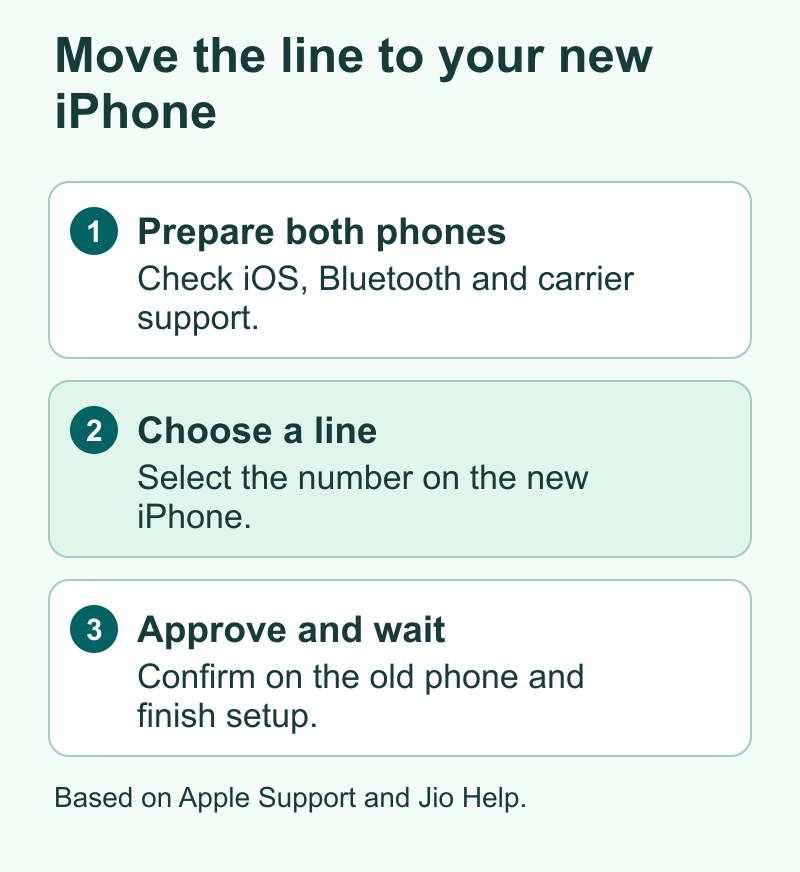
Apple’s current setup page says Quick Transfer requires a carrier that supports it, both iPhones on iOS 18.4 or later, and the same Apple Account on both. Keep the old iPhone unlocked, bring the devices near each other and turn Bluetooth on. Read the carrier’s requirements for your particular plan as well.
You may see a phone number transfer during the new iPhone’s setup. Check the number displayed and follow the prompts on both phones. If you have set up the new iPhone already, use its settings.
- Open Settings and then Cellular, Mobile Service or the local equivalent.
- Select Add eSIM or Set Up Cellular.
- Pick the line you want to move. Use the nearby iPhone transfer option if the phone offers it and you need to bring up the list.
- Approve the transfer on the old iPhone. Follow the directions if the phones show a verification code.
- Wait for the new line to activate. If the new iPhone shows a prompt to finish setting up with your carrier, follow that prompt through the carrier’s official page.
Apple says the previous SIM is deactivated when the plan activates on the new iPhone. This is expected. You can still keep the old iPhone as a Wi-Fi device during testing. Test the new service before handing the old one over. If you use two lines, note which one finished and which one remains on the old phone. Test each transferred line on its own.
AT&T’s U.S. iPhone 15 instructions show its nearby iPhone transfer path for a phone that is already set up. If you have another device or plan, check the instructions that match your account. A prepaid plan, work plan or activation from another carrier may have different steps.
Follow Carrier Activation or Use an Official QR Code
If Quick Transfer is missing or your carrier takes a different route, confirm which method it offers. Apple documents an activation notification, a carrier link or app, a QR code and manual entry as possible options. Use the route issued for your line. Keep access to the carrier account in case it asks you to confirm an action before completing it.
With carrier activation, you may get a notification on your iPhone that a plan is ready to install. Open the notification or the matching setup item in Settings. Read the plan name or number before you complete setup. If the carrier sent a QR code, follow the provider’s directions. You may need to display the code on another trusted screen or use an iPhone option supported by your version of iOS. If the carrier also provided a confirmation code, use it only in the activation flow you requested.
Your carrier may give you details to enter by hand. Copy each value from its official message into the right field. Avoid swapping the old and new device identifiers if the provider asks for both. If the phone says the code is expired or already used, contact the carrier through a known channel. It can tell you whether a profile is already installed or whether you need a new activation.
Apple says some carriers and phone makers support a direct move from Android. Check your exact devices and software versions. Check your plan with the carrier as well. If your phone does not offer this route, ask the carrier how to reissue or move the line. Let its process finish before you erase the Android phone. Moving your photos and apps is a separate task from moving your number.
Plan Around Your Carrier’s Timing
Jio’s current transfer instructions show a nearby iPhone route. Jio asks you to turn on passcodes, keep the number active with a registered email address, use Wi-Fi or a different hotspot and enable Bluetooth. On the new iPhone, use Mobile Service and Add eSIM, choose the nearby iPhone transfer option and confirm on the old phone. Jio’s transfer page says SMS service may be unavailable for up to 24 hours. Read that note before you plan a bank payment or account change for the same day.
Jio also has a separate page for requesting a physical SIM to eSIM conversion. Its alternative conversion steps may include a carrier call and a two-hour processing window. Check which Jio route your device and plan offer. The waiting time for one route does not describe when an SMS will be available with another.
If you use a U.S. plan, start with the carrier’s steps for moving a line. Ask what details it needs and how it verifies you. Use its official site, app or store to handle any account checks. Keep your protections in place as you follow the process. If you are also moving to another carrier, ask about number porting before you cancel anything. A transfer within a provider and a move between providers are different account changes.
When you start the request, record the time and any estimate the carrier gives you. If you have a deadline, leave room for a retry through its support line. It is easier to check activation at home where you still have Wi-Fi than in a busy shop parking lot with a phone that has not joined the network.
Check Your Number and Each Service Separately
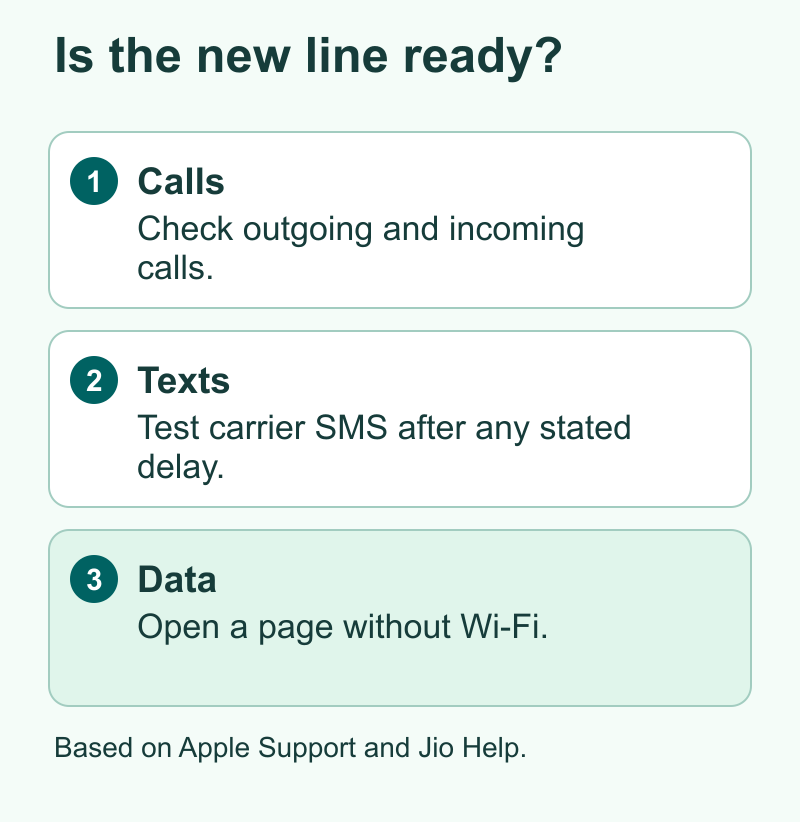
When the new iPhone shows a cellular plan, check the line label and the number. If you have two lines, choose the line you expect to use for calls and verify the data selection. Make an ordinary outgoing call on that line. Ask someone to call the number back and note which phone receives it. If you are testing a work or family line, use a person who is expecting the call.
Next, ask that person to exchange an ordinary carrier text and verify it is an SMS test. iMessage and other messaging apps can work over the internet while the carrier SMS service is unavailable. If your carrier warned of a temporary SMS gap, plan to retest after its stated interval. If one service’s login code is missing but regular texts work, investigate the account’s own sign-in and recovery options.
Finally, turn Wi-Fi off and open a simple webpage on the iPhone. Check the selected data line first if you have more than one. Then turn Wi-Fi back on for normal use. An eSIM can be installed before service finishes, and these checks help you tell when calls, texts and data are ready. If you need tethering for work, check it separately under your carrier’s plan terms.
| Test | Result you want | If it fails |
|---|---|---|
| Outgoing and incoming call | Both connect using the intended number | Check the line is on and activation is complete |
| Ordinary SMS | The other phone receives it and your reply arrives | Check the carrier’s timing and whether the app used a data-based message instead |
| Webpage with Wi-Fi off | The page loads over the data line you picked | Check line selection, coverage and the plan’s data status |
| Your normal account access | You can sign in when needed using an approved method | Use the service’s recovery options if its code does not arrive |
If Your eSIM Is Stuck on Activating
Read the exact message first. A phone that offers to finish a step with the carrier needs a different response from one with a plan installed that says it has no service. Check Wi-Fi and whether the carrier still lists the request as in progress. Check the date and time of the request against the expected processing time.
If the number is missing, check the Apple Account and iOS version on each phone. Check the passcodes and Bluetooth too. If those are right, ask whether your carrier and plan support the transfer. If the option remains unavailable, use the carrier’s alternative activation method. If the phone shows a plan with the right number, check that the line is on. Keep the working old device while you wait for the carrier to finish.
If the old line stopped and the new one cannot connect, use a separate connection to reach the carrier. Tell support which method you used, when you approved it, whether there was any final prompt and which services passed a test. Share the device identifiers only if the carrier requests them through its legitimate support channel. If you regularly use a separate line or landline, keep its contact details handy for this kind of issue.
Apple advises against erasing an eSIM to troubleshoot unless the carrier directs you to do so. An erased profile may require another activation. Before touching Remove or Delete, see whether the problem is a pending account change, a wrong line for data or a temporary loss of service. Give the carrier the exact error rather than starting several activation requests for the same number.
Keep the Old Device Useful Until the Move Is Done
You may have work approvals, an authenticator app or an account where the old phone is still marked as trusted. Put those on your handoff list next to the SIM tests. If an app needs its own setup on the new phone, finish it while both devices are available. An iPhone with Wi-Fi can still help you through a transfer even after its mobile line has moved. Keep it charged and make sure its contents are protected until you are ready to give it up.
If a trade-in must happen at a shop, ask when the shop needs the old phone. A trial with your usual line can take place before you hand it over if the carrier and shop allow it. For a delivery trade-in, leave enough time to check at home. Record the services you tested so you know which checks still need to happen after a carrier hold ends.
Did You Know?
The new phone can be ready for calls while carrier texts are still pending. Jio warns about a possible SMS gap after its transfer process. Seeing the new phone ring is one check. If you use the number to sign in, test ordinary carrier texts as well and follow the carrier’s stated timing.
Conclusion
Choose the setup route that matches your device, carrier and existing number. Keep both phones, line access and a separate internet connection available through the transfer. On the new iPhone, check the intended number, test calls and ordinary texts, and load a page with Wi-Fi off. When those services and your important sign-ins work, you can prepare the old phone for its next owner.
FAQs
Can I keep my number when I turn my physical SIM into an eSIM?
Yes, when the carrier converts your existing line, the number can move to eSIM. Use the provider’s conversion process and verify the number and plan during setup. Adding a new plan is a separate action that can come with a different number.
How do I move eSIM after setting up my new iPhone?
On a supported plan, open cellular settings, choose Add eSIM and start the nearby iPhone transfer. Keep the old iPhone unlocked and follow its confirmation prompt. If the carrier doesn’t support the route, use its activation or reissue process.
Can an eSIM QR code be used again?
That depends on the carrier’s activation policy. If the iPhone reports the code has already been used, check for the installed plan and speak to the carrier. Keep the code and any confirmation details private.
Why does iMessage work when regular SMS fails after my transfer?
iMessage can send over an internet connection. Regular texts use the carrier’s service. Test ordinary SMS separately and check whether your carrier has a temporary hold after the line moves.
When is it safe to erase the old iPhone?
Test calls both ways. Test ordinary texts and mobile data on the lines you moved. Check that you can sign in to your important accounts. Check that your personal data and any other lines you want are available before you prepare the old device for trade-in.
References
- Apple Support on iPhone eSIM setup, Quick Transfer and carrier activation
- Apple Support on erasing a device’s eSIM
- Jio eSIM transfer instructions and SMS timing
- Jio instructions for converting an existing line to eSIM
- AT&T nearby iPhone eSIM transfer instructions
- Techchahiye’s guide to mobile plans and telecom
