

Where the cable goes
Measure Wi-Fi near the router and in a weak room. Test node placement, wired backhaul and your ISP setup before buying more hardware.
Key Takeaways
- Use the same device to test near the router and where Wi-Fi fails. A slow result in both places points to a different problem from one weak room.
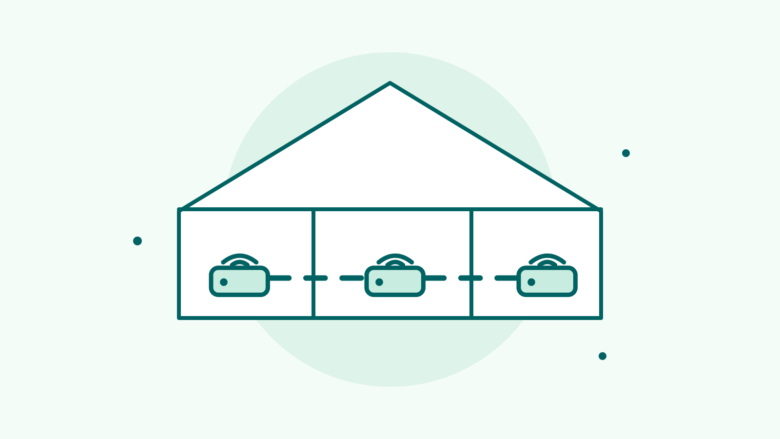
- Put a wireless mesh node where it can still reach the rest of the mesh. Try the space between the router and the dead zone before placing a node at the far end.
- Use wired backhaul if the system supports it and you have a suitable Ethernet path. Backhaul is the link between the mesh units.
- Test each change in the rooms that need it before you buy another unit.
You buy a mesh kit for the room where video calls keep dropping. You plug a unit into that room and the laptop shows full Wi-Fi bars. The call still freezes. The bars describe the link from the laptop to the nearby node. What matters next is how well that node reaches the rest of the network.
The best place to start with a mesh Wi-Fi system for home is a short test in two spots. Check the connection next to the main router, then run the same test where it fails. If the second spot is weak, move a mesh node to a place where it can still hear the router and reach the room you want. It may be a hall, stair landing or shelf away from the desk where the trouble shows up.
Mesh units use wired or wireless links to work together. Your room layout, the surfaces between units and the way your internet comes into the house determine how much hardware you need. Here is how to figure out whether the first node fixed the problem and when an extra one makes sense.
Measure the Problem Before You Shop
Pick a place and a task. A work call from a back bedroom gives you something concrete to fix. A streaming TV at the other end of the house may have a different requirement. Write down when the problem happens, which devices see it and whether the rest of the home has trouble at the same time.
Use the same phone or laptop to run a test near the main router and in the problem room. Keep the device on your Wi-Fi network and turn off mobile data when it can hide a weak link. Use the same app and similar conditions for both runs. Repeat if the results vary. For a work call, try a short test call from the room too. The experience you need to improve is more useful than a single fast download number.
If you have a wired computer, you can use it to check the connection at the main router as well. If speed is poor both by wire there and in the distant room, look at the provider connection and router first. You may get good results by wire and on Wi-Fi by the router. If the room is still slow, check what sits between it and the router. Look for a long path, thick walls or something else that can affect the signal.
| What you see | What to check first | What to try next |
|---|---|---|
| Slow wired and wireless speeds near the router | Broadband plan, service status and router connection | Repeat the wired check and contact the internet provider if needed |
| Good performance near the router and poor performance far away | Wi-Fi coverage and the path between rooms | Try a more central router location or a mesh unit along the path |
| The mesh app reports a weak link to a node | Wireless backhaul to the rest of the mesh | Move the node closer or see whether wired backhaul is possible |
| Only one phone or laptop has trouble | Device settings and the access point it is using | Compare with another device in exactly the same spot |
For a before-and-after note, record the room, device, time and action you tested. Keep separate notes for download, upload and whether the call worked. If you change three things at once and the result improves, you may need to guess which one did it. Try one move at a time and keep the placement that helps more than one test.
Place a Wireless Node Where It Has a Good Link
A node gives nearby devices a place to connect. It also needs a route back to the main unit. The link between mesh units is called backhaul. A wireless backhaul goes through the same home layout that made the distant room difficult in the first place. If the node sits past several thick walls, it can struggle even though the laptop is close to it.
Google’s guide suggests a spot partway toward the weak room. Pick an open spot where the node can still reach the router or another point. That is a useful way to think about other wireless mesh systems too. Follow the instructions for your gear. Walk the route from the router and look for an open shelf or landing with power. Avoid a closed cabinet and try a spot with fewer obstacles between the units.
Connect the main mesh unit where the internet feed reaches it. If you can move it toward the centre without making a cable run unsafe or blocking a doorway, test that first. A metre or two or a higher shelf may change how much wall or furniture the signal crosses. Keep the power and network cables secure, and use a place where the device can vent heat as intended.
For a hypothetical long Indian flat, the provider connects a router in the living room. Two inside walls and a kitchen sit between it and the home office. Try the node on an open shelf near the approach to the office, while it can still reach the main unit. Test from the desk. A move toward the living room may improve the link between units even if the desk sees one less bar.
For a hypothetical two-storey U.S. home, the internet feed ends in a corner downstairs. You need service above it at the far end. Try a spot near the stair opening before putting a node in the far upstairs room. Compare results there and in the rooms on either side. If the mesh app reports weak connections from both positions, look for an Ethernet route or move the main unit before buying another node.
Measure Backhaul and Room Performance Separately
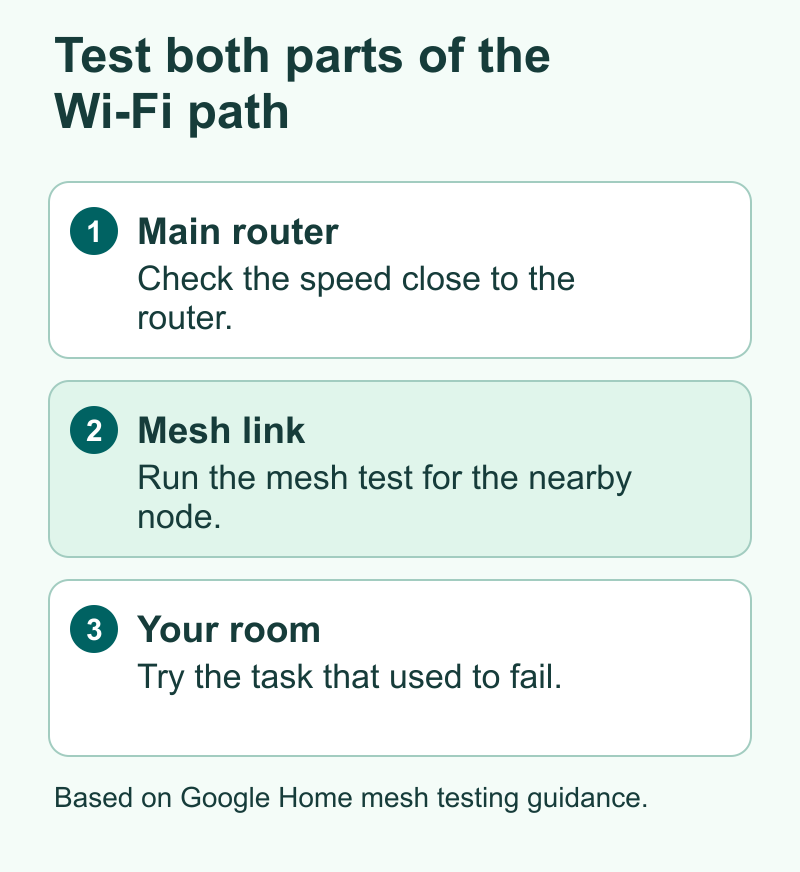
If your system has a mesh test, use it after adding a unit. Google describes its mesh test as a way to check the link between the router and another point. It can point out which unit needs attention. It measures a different part of the path from a call or download you run on your laptop.
Let the units settle after a move and run the mesh test again. See if the result improves, then use the phone or laptop in the target room. Check which node the device uses if your app shows it. A phone may hang on to a connection with a more distant unit. Try disconnecting and joining Wi-Fi from the test spot, then check again. That gives you clearer evidence for the location test.
Use an ordinary test case from the room after you change the placement. Sit at the desk and hold a short video call, play a stream where the TV sits, or move a file the way you normally would. Repeat around the time you would usually see trouble. Compare the result close to the main unit again if the whole house feels slower that day. The baseline can change with other activity and provider service.
Check where the change helped beyond the original room. A node that improves one spot can overlap with a different unit and leave another floor exposed. Walk your important areas with your phone after the first change. If the entry and the desk now work, you may already have the coverage you need. A room you barely use may be fine with less speed than a shared workspace.
Use Ethernet Backhaul Where It Fits
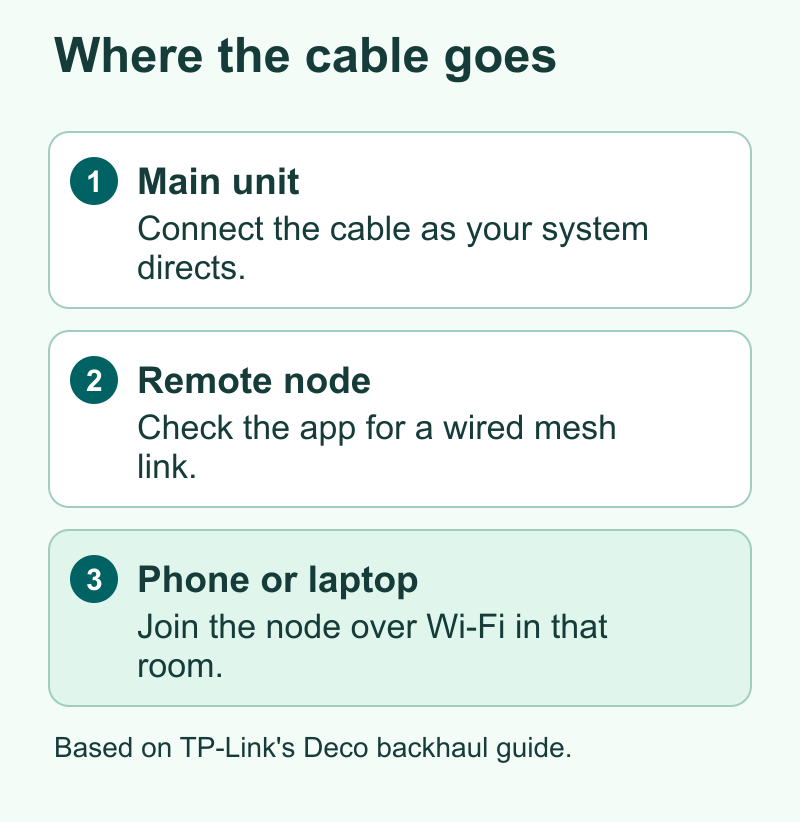
If you have Ethernet between rooms and the mesh models support it, you can give the nodes a wired path. TP-Link’s Deco support guide describes how Ethernet backhaul works on compatible units and how to connect them based on the mode in use. The phone or laptop can still join the node using Wi-Fi. The wires carry traffic between parts of the network.
Check the exact device model and port speed, then follow the maker’s diagram. Some systems expect satellites or switches to connect on a particular side of the main router. Start with one cable and see whether the mesh app reports a wired connection where it shows that detail. Try a known working cable if the units stay on wireless. If you connect through a wall jack, verify that both ends are connected and working.
In a hypothetical home office with an existing Ethernet socket, the link can let you place the access point inside the room. The open shelf between two rooms matters less for its path to the main unit. You still need a reasonable radio path to your laptop and other Wi-Fi devices. Try moving the unit off the floor or out of a cabinet if the local signal needs help.
You can often check the value of a permanent cable run before arranging one. If it is safe to do so for a short test, put a unit at the intended location and connect it by a temporary cable you can keep out of foot traffic. Compare the same room tests with the wired and wireless route. The difference tells you something about the connection in your own house.
Decide What Your ISP Router Will Do
Many fibre or cable connections come with a provider router or other gateway device. Before you unplug or reconfigure it, check which services depend on it. It may handle a phone line, a TV service or an account setting you need. Ask the ISP how to add your own Wi-Fi system and whether it supports a passthrough, bridge or equivalent setup if you need one.
One option on supported systems is to keep the ISP router and use the mesh equipment in access point mode. The ISP router remains in charge of managing your local network. The mesh adds Wi-Fi coverage. TP-Link documents this mode for its Deco hardware and says the upstream router supplies addresses in that setup. Some features on the mesh system may change in access point mode, so check what you use before deciding.
Another option, when your provider and mesh support it, is to have the mesh router handle the home network. Follow the provider’s instructions. If you connect one router behind another without planning the setup, two devices can each try to manage traffic for their own local network. This may still let you browse the web. It may be harder to find a printer across the two networks. Check your games and any remote access you need, too.
Check printer, casting and any wired devices after you make a change. A phone on one Wi-Fi network and a TV on another can lose a connection they had before. Keep a note of the old working setup so you can restore it if an ISP feature stops. If you are comfortable with the mesh and everything is reachable, review which Wi-Fi names you still want people to join.
Jio provides its own extender help for some home connections in India. Check your Jio device and compatible options before buying a kit, including any provider setup or support terms. Do the same for equipment supplied by a U.S. internet provider. A provider option can be convenient if it fits the home and you want one company to help with it. An independent setup may fit if you need a different mode or already own the hardware.
Buy Another Node Only When You Know Where It Will Go
Use the results from the rooms you measured. If moving one point gives you a good mesh link and stable service at the desk, keep that setup for a few normal days. If another area remains weak, look for a spot where a new point could reach the network. Check which units can work together before expanding. A new name or Wi-Fi generation on the box does not prove compatibility with your existing kit.
If there is only one device in a distant room, consider whether a wired link to that device or an access point on existing cable would address it. If several rooms need better Wi-Fi and family members move between them, a compatible mesh can help with coverage through one system. A simple extender might be enough in part of a home if it can get a good connection and you can live with how it handles network names and movement.
Compare the price for the setup you need. Include the number of units, any Ethernet cable or switch, and the time to install and test them. Check the retailer’s return conditions if you are buying hardware to solve a layout problem that is hard to predict. A kit with three boxes is a useful purchase if you can place the three parts where they help. Your test results can tell you whether the third box has a job.
Make a small record for the next time Wi-Fi slows down
Draw a simple map with the main router and the spots where the other units ended up. Mark which node uses a cable and which ones connect by radio. Keep a note of the rooms and test device that gave useful results. If someone moves a shelf or swaps the router later, you can repeat those checks and see what changed. It is a better place to begin than assuming the first fix needs more hardware.
Did You Know?
A mesh app and your phone may each say the connection is strong while measuring different links. Your phone can have a strong connection to a node. The mesh app can show how well that node links to the rest of the system. Check both if you see good Wi-Fi bars and poor results in apps.
Conclusion
Test near the main router and in the room you want to fix. Place a wireless mesh node where it can reach both areas, then test the mesh link and the actual task you care about. Use cable for backhaul when you have a suitable route and compatible hardware. Add another unit when you can identify the room it will serve and the path it will use.
FAQs
Does mesh Wi-Fi make my home internet plan faster?
It can improve the connection available in parts of your home that had weak coverage. Your provider plan still limits the internet speed coming into the house. Test by the router as well as in the distant room to tell which part needs help.
Where should I put a mesh Wi-Fi node?
Start partway toward the weak area in a place with power and an open path. Check the link back to the rest of the mesh, then test with the device you use in the room. A node with working wired backhaul can have other placement options.
How many mesh units do I need?
Start with the main unit and enough hardware to test a useful path toward the weak room. Add units if the results show a need and you can find a suitable location. Walls, floors and your wiring matter more than floor area by itself.
Can I use mesh Wi-Fi with an ISP router?
Often you can, depending on the provider and hardware. Check whether the mesh offers access point mode or the provider supports another approved setup. Verify phone, TV, printer and other local network services after changing the arrangement.
What is the difference between mesh Wi-Fi and an extender?
A mesh system uses compatible units that work together under one system. An extender can add coverage in part of the house and its setup and roaming behaviour depend on the model. Either choice needs a working route back to the main network.
References
- Google Home Help on placing mesh Wi-Fi points
- Google Home Help on testing connections between mesh units
- TP-Link on Ethernet backhaul for compatible Deco units
- TP-Link on Deco access point mode and upstream router settings
- Jio Help on JioExtender and traditional repeaters
- Techchahiye’s earlier coverage of the Jio Wi-Fi Mesh Extender
