

Compare the full year
Compare free and paid password managers by device support, recovery, sharing and export. Use a few low-risk logins to see which features you need.
Key Takeaways
- Start with the devices and browsers you use. A built-in password manager can be enough if it works across your routine.
- Pay for a feature you can name and test, such as emergency access, shared vaults or access across a mix of devices.
- Check how you will get back into the manager if your phone goes missing. Do this before moving your important logins.
- Read the export and cancellation terms before you switch. Passwords, passkeys, notes and files may move in different ways.
You have passwords in your browser, a few in your phone and one important login you always have to reset. A password manager for individuals can make this simpler. It saves your logins in a vault and offers to fill them when you come back. The right choice is the one you can use consistently and get back into after a bad day.
Before paying for one, pick three accounts you use often and try the manager on the devices you already own. Check whether you can open the saved login, fill it on the correct site and reach it from a second device. Then look for a gap. Compare a paid plan if you can name a gap it would fill. You might need a way for a trusted person to help in an emergency. You might want a shared place for household logins.
Start With the Devices You Have
Write down the phone, computer and browser you use most. Add the one you expect to replace soon. This list is more useful than a list of password manager awards. A person with an iPhone and a Mac can try Apple’s Passwords app where they already work. A person who uses Chrome across several platforms can try Google Password Manager. A mix of browsers and operating systems can make a separate app or extension worth a closer look. Check actual support for each device on your list.
Open the sign-in page for a routine account on your phone. Check how the manager offers to fill the account and what you need to do to approve it. Repeat on your computer. If you have two accounts on the same service, check whether the manager lets you pick the right one easily. Saving one account and finding it again six months later is more important than a feature you would rarely use.
Next, think about the type of item you use. A password is a secret you enter or fill. A passkey is a sign-in method the service can check using your device or manager, usually after you unlock it. One service can use several sign-in methods. Keep whichever method you already depend on while you test a new setup. Look up which password and passkey features are available on your device and in the manager you choose.
If this is a personal account on a work device, check what your employer allows you to install and which data belongs on that device. If you mainly sign in using a shared family tablet, plan for separate profiles or other access controls. A manager that feels simple on your own phone can be a poor fit for the way you share a computer.
Try the Included Features Before Buying More
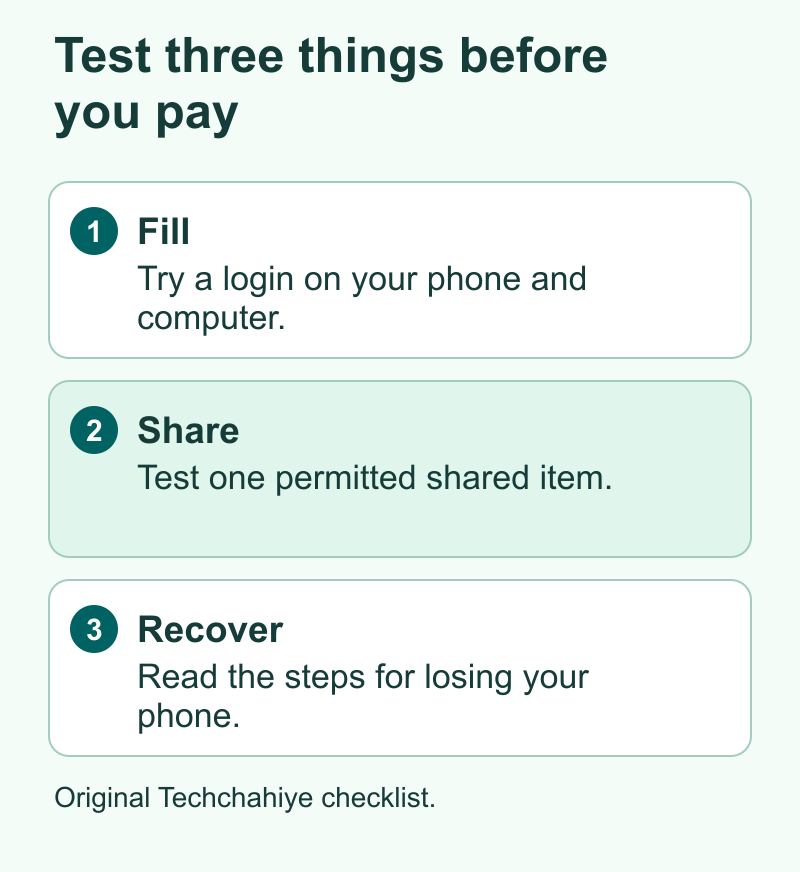
Apple documents password and passkey management in the Passwords app and ways to share supported items. Google documents saving, filling and checking credentials through Google Password Manager. Try the option that fits your routine with a few low-risk accounts first. Then see whether you already have what you need for most sign-ins.
A free standalone manager may also cover a mixed set of devices. For example, Bitwarden lists a free personal tier and higher tiers. Its Premium plan can give a contact access in an emergency. It can also store files and make codes for some two-step sign-ins. Check the full current feature list and what the free tier does for you before taking a trial. A paid item in one tool can be a built-in feature in another.
| Need | First thing to test | When to compare paid plans |
|---|---|---|
| Save and fill a login across devices | Add a harmless account and try it on your phone and computer | You rely on a browser or platform your current manager does not cover |
| Share a few household logins | Check built-in sharing and whether the service permits sharing | You need several people or separate groups with their own access |
| Get help after losing a device | Read and test the documented recovery route | You want a named contact to have controlled access in an emergency |
| Keep other private items | Check whether you can store the item and what export retains | You need attachments or item types that a basic vault cannot handle |
| Move to another manager later | Try a small transfer or read the supported formats | You need format support beyond basic website passwords |
The goal is to find a feature you would use. If you only have trouble with old reused passwords, start by replacing those with unique ones. You can do that without buying an advanced plan. If your trouble is that a login lives in a browser you cannot use on your phone, test a manager that spans both before you spend time moving the entire vault.
Choose a Recovery Plan Before You Need One
You need a way to reach the vault if the phone goes missing or you get a new computer. That plan depends on the tool. For a vault connected to a wider account, check that account’s recovery options. For a separate manager, read its rules for the account password, recovery code and any registered second factor. Ask what happens if you lose the device that holds both the manager and a code generator.
Put the recovery instructions somewhere you can safely reach. A recovery code that is saved only inside the vault it unlocks leaves you in a loop. A printed copy in a secure place or another approved storage option may be useful depending on the service. Treat codes and setup files as private. If several people can reach your desk drawer, pick a location that protects access.
1Password’s support page explains recovery codes and the conditions for using them. Bitwarden’s emergency access guide describes a different process. Eligible users can make arrangements with a trusted contact, who can request access under the set permissions and wait period. Neither process will arrange itself after your phone is lost. Set up the option you intend to use and review who can reach it.
You can check a recovery route without locking yourself out. Read the current steps. Check that you can reach the trusted email or device they call for. Then make sure you can find any code or other material you would need. If the provider offers a test you can safely complete, use it with nonessential records. Do not remove the only working method just to see what the next screen does.
Check what recovery will still require
Think through a concrete scenario. Suppose you travel with one phone and carry no laptop. If it goes missing, can you reach the email address a recovery flow uses? What happens if that email asks for a text to the missing phone? Can a trusted device or recovery code help? A subscription that adds an emergency feature can be useful here. It still depends on how you set it up and what the person helping you can access.
Update the plan after a number change or when you sell an old phone. If another person can request vault access in an emergency, make sure they understand their role. Revisit that permission if your household changes. A plan that stays current can help you avoid relying on an old device or phone number you no longer control.
Decide What to Share and With Whom
A household may need to share a streaming login or a utility account. Use only accounts that the service permits you to share. Check whether the service lets each person create a separate login or use a household feature. A login for an account that belongs to one person may include more access than the recipient needs.
Before paying for a family plan, list a few entries you would share and name who should access each. Then see whether the current manager can do that. Apple explains shared groups in its Passwords documentation. Standalone plans can offer several vaults or collections. Verify which sharing limits your plan would remove and how to take access away if you need to.
Test with a harmless shared item. See what the recipient needs to install, which account they need and how the item appears. If someone can view the password, removing the shared entry later may leave them with a copy. Change the password where needed when access ends. A sharing tool helps you manage entries, and the website still controls which credentials open the account.
If you simply want someone to be able to help you after an emergency, review emergency access separately from daily sharing. A person who helps pay a household bill may only need one item today. A trusted contact allowed to request emergency access can have a different reach. Pick the smallest scope that meets the job and confirm it in the actual plan settings.
Work Out the Cost Over a Year
Compare the annual total, renewal terms and currency. A price that looks monthly might be billed as one payment for the year. A price for a first term can renew at a different rate. In India, check the amount charged in rupees or how a foreign currency charge will appear on your card. In the U.S., check any taxes and the difference between paying by month or year. Use the live checkout for the account you intend to buy.
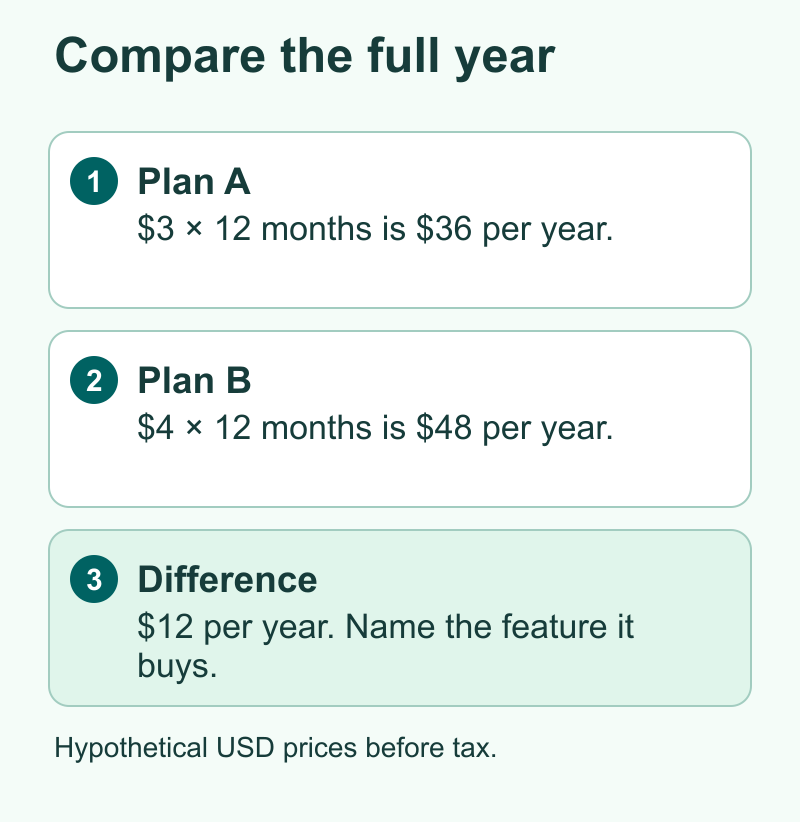
Here’s a hypothetical example. Plan A is $3 per month billed annually, or $36 before tax. Plan B is $4 per month billed annually, or $48. The difference is $12 for the year. If Plan B gives your chosen contact emergency access and Plan A does not, decide whether that setup is worth $12 and whether the contact can use it. If both plans fill the same logins and you would use neither extra feature, you can make a simpler choice.
If two people expect to need separate accounts, compare two solo prices with one family price. Verify the number of people included and whether each can have a private vault. Find out who pays, who can change settings and what happens to accounts if the subscription ends. Those details matter much more than the number of features on a pricing page.
Read the trial terms before you start. Choose one feature to test and set a time to decide whether you need it. If you keep using the same sign-ins and cannot think of a paid feature you used during the trial, it may be easier to stay with a free option. Make sure you can still reach your saved items if you let a plan lapse. Check the provider’s current policy so you know which actions will be available.
Check How Your Records Can Move
Start with a small transfer before deciding whether to move an existing vault. List the kinds of records you care about. Website passwords are only one part. You may have private notes, attachments or passkeys. Some export formats cover passwords while leaving out other information. Read both the old manager’s export guide and the new one’s import guide for each item type.
Treat any export as sensitive. A plain CSV can show site names, account names and passwords in a file. Keep it off shared drives and message threads and use a trusted device for a transfer. If an encrypted export is supported, read its limits. Bitwarden can make an encrypted file you can only put back into the same account. Before you use this option, read the rules in its guide about what happens if your account key changes. A password-protected export has a different use. The tool receiving the data still needs to support the format.
Match the logins in the new manager and try a few ordinary sign-ins on the right devices. Try password filling and check that saved site addresses are what you expect. Then check items with a second factor, passkeys or attached documents separately. If an old account was saved twice, resolve the duplicate while you still know which entry works. Keep the working access path available through the change.
When you are ready to stop using the old tool, check the account, app and browser settings separately. Removing an extension and cancelling a plan are different actions. Avoid having two managers fill the same fields as a default if that makes it hard to tell where new logins go. Choose the one you plan to use each day and confirm where an updated password is saved after you change it.
Check How the Manager Fits a Normal Week
Choose a few low-risk tests that match your week. Sign in to one site on a phone and then on a computer. Save two different users for one service if you have them. Save a new password after changing it and make sure the old entry is easy to find and retire. Next, check that you can lock the app when you walk away and open it again with the method you expect. If you only try the vault from one familiar screen, you may miss the problems you wanted a separate app to fix.
When a provider offers a security report, pick one result and check what it means before you act. A report about a reused password points to accounts that may benefit from new, unique passwords. A report for a login you no longer use is an invitation to verify the account and decide what it needs. A shorter list of active logins you can keep current can help more than a report you open once during a trial.
Did You Know?
A vault can be easy to unlock on your phone and still be hard to set up again on a new one. Face or fingerprint access often helps you open a device that is already set up. Check how you would sign in on a new device. Read the steps for getting back in while you still have access.
Conclusion
Try a manager that fits your devices with a few ordinary accounts. Make sure you can recover access and move the items you care about. A paid plan makes sense when a specific feature solves a problem you still have. Once you choose, save unique passwords for your accounts and check the recovery route before switching devices.
FAQs
Is a free password manager enough for one person?
It can be if it saves and fills your logins on the devices you use and gives you a recovery route you can reach. Test those basics before paying for more features.
Should I pay for a manager just to use passkeys?
First check the passkey support in the tools and devices you already use. Compare a paid plan if it makes passkeys work across a mix of devices you rely on or offers another feature you would use.
Can a trusted contact get my vault if I lose my phone?
Only if you use a service that supports the feature, have arranged it in advance and follow the service’s access rules. Review the permission and wait period. Keep the owner’s recovery options ready as well.
Can I transfer every item if I change managers?
That depends on the item type and export and import tools. Check passwords, notes, attachments, passkeys and shared records separately. Test a few low-risk items before you remove a working setup.
Does a family plan make sense for two people?
Compare two individual subscriptions with the plan’s actual annual cost and sharing features. See whether both people can keep private items. Ask what happens if either person leaves or you stop paying.
