

What goes in the checklist?
Set up Notion AI Meeting Notes with consent. Verify decisions, people and dates, then share a short checklist in the tool your team already uses.
Key Takeaways
- Use the Notion desktop app for a remote call when it needs to hear both the microphone and the audio from the computer.
- Get clear permission from everyone before you transcribe. Check where the transcript will live and who can open it.
- Review names, dates, numbers and decisions against the transcript or with the people who made them.
- Give each confirmed action one owner and a due date. Keep proposals and open questions separate.
The meeting ends. Your notes say the team discussed the launch, the budget and the help page. The next morning, two people think they own the same task and nobody knows when the launch decision will be made. A transcript could give you the full discussion. What your team needs next is a short list of decisions and work.
Use Notion AI Meeting Notes to make a draft from the call. Then check what the team decided, ask people to confirm the work they own and put each accepted task where your team already tracks it. You can keep the source note for context when access permits. The team can use the checklist without reading the whole conversation.
Choose a Meeting That Is Worth Transcribing
Start with a regular meeting that produces decisions and has a small group that can agree on how to use the notes. A product handoff, a brief project call or a weekly meeting with a short action list gives you a clear way to see whether the notes help. For a call about sensitive matters, use your team’s approved method. You can keep a written action list without creating a transcript if recording is unsuitable.
Notion lists AI Meeting Notes on Business and Enterprise plans. Some mobile plans that include Notion AI also have it. Check what your own account shows before you host the call. Ask your workspace owner about any limits that apply to storage, access and recording. If somebody else on the call can start notes in a shared workspace, agree on whose note will become the team’s record.
Decide who will review the result. For a small project, the person who runs the meeting can do it. For a longer handoff, the people who own the main tasks can review their part. A summary needs someone to check it. If nobody can do that, ask the person who made the decision for a short recap.
Get Permission and Check Who Can See the Note
Tell everyone you plan to transcribe the call, why you want to do it and who will be able to read the result. Obtain their consent before you start. If somebody joins after you start, pause and get their agreement before you resume. Check your organization’s rules and use manual notes if your participants or policy call for that. This is particularly important when a call crosses locations or includes people outside your team.
For example, a project lead in Pune and a designer in Chicago might agree to share a list of decisions with their small project team. The raw transcript could include private client details they do not need to share. Decide where each goes before you start. If the only need is for the project team to know who will update a help page, the team may only need the confirmed task and due date.
Notion offers ways to share notes and an option to share certain calendar-based notes with internal participants. Its guide also says that a note inside a database can inherit access. Before the call, check your meeting database or parent page, who can open it and whether auto-sharing applies to this meeting. Turning off one sharing option can leave other access in place.
Check the location of audio and text separately. Notion says it handles sound in different ways on a phone and a computer. It also offers an option to keep audio on the device. It also distinguishes a file you upload from a recording made within AI Meeting Notes. Read the current help and your workspace settings before you send a recording for processing. If someone asks you for audio or text later, use the sharing arrangement your participants agreed to.
Set Up the App to Hear the People You Need
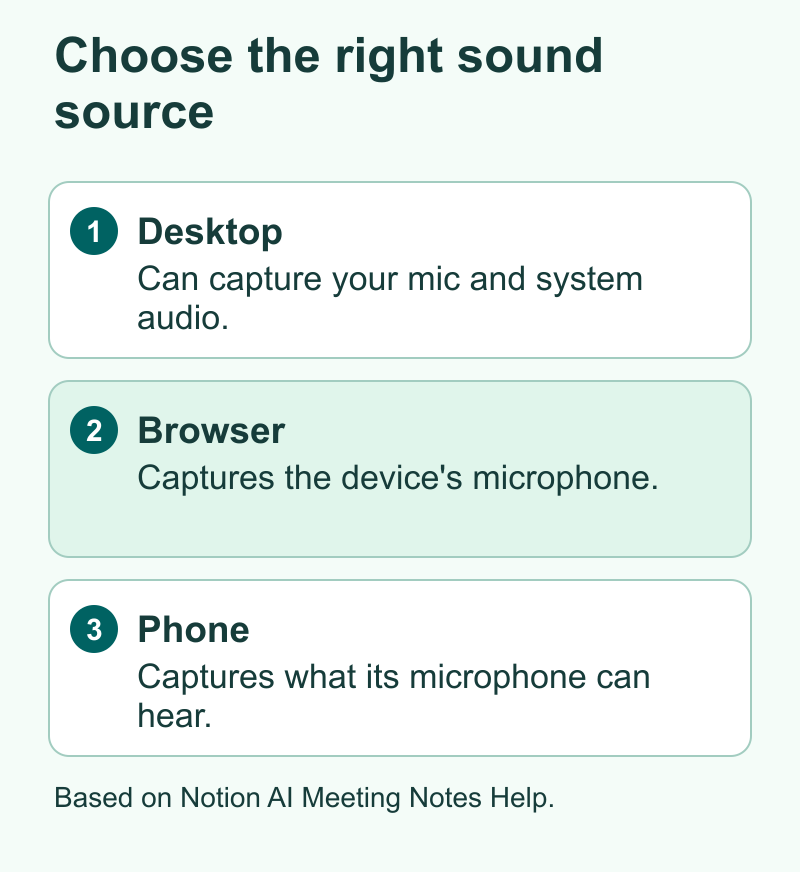
The desktop app can capture both your microphone and system audio, according to Notion. That makes it suitable for many remote calls, including when you use headphones. The web app takes audio from the microphone. On the phone, Notion uses the phone’s mic and does not pick up other voices playing only through headphones connected to that same phone. If everyone has agreed, start with a short test on the device and software you will actually use.
| Meeting setup | First choice to check | What to verify |
|---|---|---|
| Remote call with headphones | Notion desktop app | Mic and system audio permissions, then voices on both sides |
| In-person team around one desk | Mic capture from a suitable device | People far from the mic can be understood when they speak |
| Call running on the same phone as the notes app | Desktop or a separate approved setup | Whether the other voices can actually reach the transcription device |
| Call you already recorded with permission | The relevant upload option, if allowed | Permission for this use, stored audio and who can read the notes |
On an eligible Notion setup, open the page where you want the note and type /meet to add the meeting notes block. You can also use the meeting notes area from the sidebar if you want a separate page. Check the destination before recording. If Notion asks for system audio or screen recording access, read why it needs it and check your team’s device rules.
Before the call, add a short agenda to the Notes area. Notion says it uses those notes when creating the summary. A good agenda can be three lines, such as naming the decision you need, the deadline and which team is involved. Avoid putting old assumptions in the notes if the purpose of the meeting is to question them.
After everyone consents, start transcription. End it when the meeting ends or if the discussion moves into something you agreed to keep out. Notion says it needs at least one minute of recorded audio to generate a summary for a live meeting. If the app says it has little or no usable audio, take the agreed action notes yourself and check the recording setup later.
Check the Summary Before Acting on It
Start by reading the generated summary and find the items people could act on. A suggestion, an option and a decision are different things. If the notes say a Friday release was approved, look for the part of the transcript where someone made that decision. A phrase like “let’s aim for Friday” could leave a decision open.
Notion says some summaries contain citations that point to places in the transcript. Use one to see the words around a key statement. Check that the sentence refers to the right team, work item or date. Speaker labels can help. Notion says they work better in some setups. Check whether it supports labels in the language you use. If a name or assignment is uncertain, ask the person before putting it in the task list.
Give dates a second pass. People talk about tomorrow, Thursday and next week in a way that makes sense during a call. Write the full date and add a time zone if the time matters. A U.S. teammate and an Indian teammate can use the same calendar day or time of day differently. Read a deadline aloud before leaving a cross-market call and put the agreed date and time in the written note.
Review important numbers, product names and words that can sound alike. If the team decided on a budget or a software version, cross-check it with the relevant proposal or ticket. Do people switch languages on the call? Check names and product terms with care, especially when someone switches languages. Let the speakers confirm their words if the transcript is unclear. A clean summary can still contain a simple error that changes what someone does next.
You can review it in three passes.
- Highlight decisions and mark questions that remained open.
- Verify each action, owner and date against the discussion and ask about gaps.
- Share the short list with the people who need it, using the agreed access and storage.
Turn One Meeting Into Three Small Lists
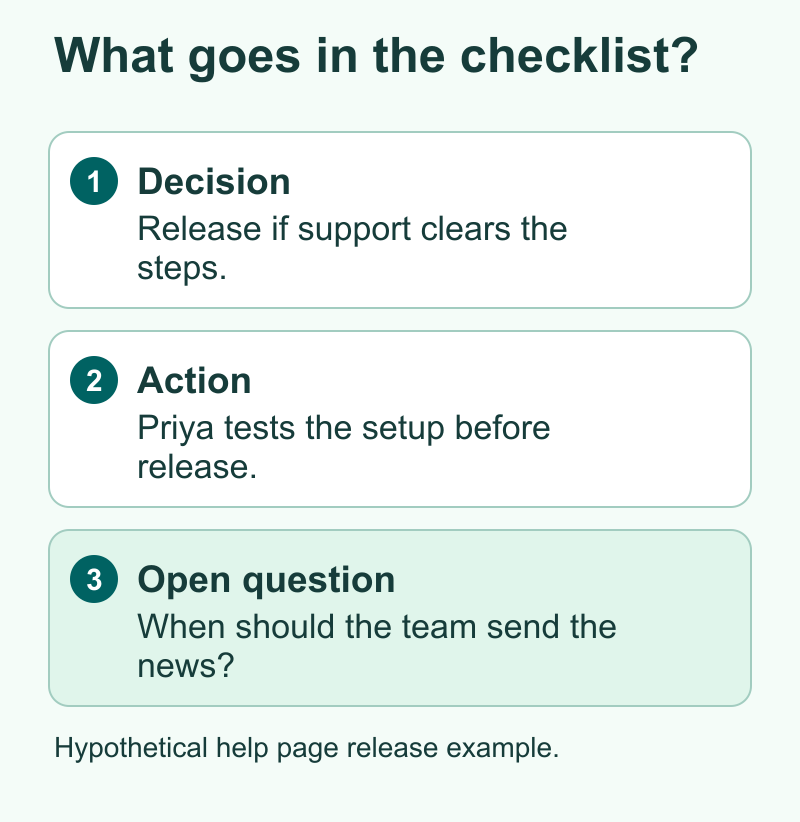
Create a Decision list, an Action list and an Open Questions list. A decision records what the team selected and what it applies to. An action names a person and an outcome you can see. An open question records what is missing and who’s going to get the answer, if the team assigned someone. Keep the lists short enough to read while getting ready for another call.
Here is a hypothetical example. A product team agrees to release an updated help page on Monday after support reads it. Sam offers to revise screenshots. Priya agrees to check the instructions. Nobody picks a date to send the announcement.
| Type | What you could write after checking with the team | Status to keep |
|---|---|---|
| Decision | Publish the help page on Monday if support clears the instructions | Confirm the exact date and the condition |
| Action | Sam replaces the three images before support reviews the page | Agree on the deadline with Sam |
| Action | Priya checks the setup steps and marks the help page ready for release | Set a review date with Priya |
| Open question | What day should the announcement go out? | Leave open until someone owns or decides it |
Notice what the list gives the team. You can see the work, the person who will do it and the condition that must be met. You also know the announcement date is still open. An automatic summary might turn the rush to launch into one long note. A person can keep the pieces separate and make each action easier to verify.
For each action, use an outcome you can check. “Look at the help page” could mean editing it, commenting or approving it. “Mark the help page ready after testing the five setup steps” gives the reviewer a clear end point. If a task needs somebody else’s work first, keep that dependency visible rather than setting the same due date for everything.
If you need a reusable form, give each action fields for title, owner, due date, ready condition and source. Use a space for a task with no agreed date and ask that person to help settle it. If an owner says they only offered to help, update the task before it goes into the team’s normal list.
Share the Checklist in the Place People Already Work
Put each confirmed task into the tool your team checks for tasks. That could be a Notion database or a separate project tracker. When it is useful and authorized, add a link to the source note for people who can see it. Keep the task clear enough to act on without asking those readers to open the transcript.
Avoid tracking the same work twice in two places. If the team already has a task to revise screenshots, update that task rather than creating a second one. Choose one location for the real due date and use the meeting note to capture the reason for the change. At the next call, the team can check the list of work rather than argue over which copy is current.
Send the smallest view that fits the audience. A project group may need decisions and due dates. Outside participants may need facts that apply to their own work. A manager following several projects may need just one status and a remaining risk. Share the transcript only with the people and purpose you set when you obtained consent.
After a few meetings, compare the work you confirmed with the work you did. See whether names and dates are easier to find, whether open questions still have no owner and how much review time you spend. Keep the parts of the workflow that help. If you get better results by stating decisions aloud at the end of the meeting, keep doing that even if you also use AI notes.
Use a Short Review for Recurring Meetings
Instead of editing a fresh wall of text each week, make a simple end-of-call habit. Leave two minutes to read back decisions and actions. Ask the owner of each task to confirm what done means. Ask who will get the answer to any open question. If there is no deadline, say so. These points give the note reviewer clear things to check. The team can also fix any mix-up while everyone is there.
At the start of the next call, review only the tasks that changed or need help. Someone waiting on another team can state what they need and when they need it. Someone who completed a task can show the outcome. If all you need is a status check and nobody wants a record of the discussion, decide whether transcription adds anything. The goal is to make useful choices and complete work.
Here’s another hypothetical example. A small shop holds a Thursday call on website changes. A task from last week says the payment page needs a test on Android before Friday. At the end of this week’s call, the owner says the test passed on one model and a second device is due next week. Record that as a partial result and update the existing task. If the summary says payment testing is done, fix that wording before anyone treats it as release approval.
Did You Know?
A transcript can show a sentence that supports a summary while still leaving out what happened just before it. If a cited line says “that works,” read the prior lines to see what “that” refers to. This small check is useful before you turn a summary item into an assignment or a deadline.
Conclusion
Use Notion AI Meeting Notes to capture a meeting with permission and produce a first draft. Verify decisions, people and dates, then write a short checklist with one owner per action. Publish those tasks where your team already checks them and share the source note only under the arrangement you agreed on.
FAQs
Can I use Notion AI Meeting Notes on a free workspace?
Notion lists Business and Enterprise. It also lists some mobile plans that include Notion AI. Check your plan and the options on your device. If you do not have access, you can use the same decision and action checklist with manual notes.
Why did Notion record only my voice?
Check where you started transcription. A browser or phone app listens through its microphone, which may not hear other people when they are in your headphones. For a virtual meeting, check the desktop app’s permissions and run a short test with consent.
Should I share the full transcript with everyone who attended?
Use the arrangement agreed with participants and check your workspace rules and the note’s inherited access. A short recap can be enough to give people the decisions and tasks. Share the transcript only where the audience has permission and needs it.
How do I check who owns a task in the AI summary?
Read the referenced part of the transcript and check who agreed to the task. Confirm with them if the speaker or decision is unclear. Add a name to the task only once the team has agreed on the owner.
What should I do when nobody agreed on a due date?
Leave the date open and ask the owner or team to set it. You can keep the action in the task list if the work is confirmed. If the work itself is uncertain, leave it under open questions until the decision is made.
