

Prepare the right phone and number
Confirm the exact device, eSIM support and carrier-lock state. Keep old service active during a number transfer. Install through the correct phone guide. Then check calls, texts and data. Review the transfer result too.
Key Takeaways
Boost Mobile eSIM activation needs a supported phone and the right account setup. A phone having eSIM hardware is only one part of that check.
- Confirm Boost’s current eSIM support for the exact model and market.
- Check the carrier lock before starting a move from another network.
- Keep the old service active while transferring your number.
- Use the phone maker’s install path after Boost activates the line.
- Check calls, texts and mobile data after setup. An installed profile is not the whole test.
Boost Mobile eSIM activation can put a new line on a supported phone without a physical SIM card. Start with the carrier’s device checks. Then choose whether you need a new number or a transfer from your current provider.
Those choices change what you need to prepare. A supported phone can still have a carrier lock. A ready eSIM profile can still leave a number-transfer question to resolve. Work through each part in order rather than treating every delay as a broken phone.
This guide covers Boost Mobile in the United States. It uses Boost and Apple support pages checked on October 26, 2026. Use the current device checker and account instructions for your own line. Plan prices, offers and support rules can change.
Check Boost Mobile eSIM Compatibility First
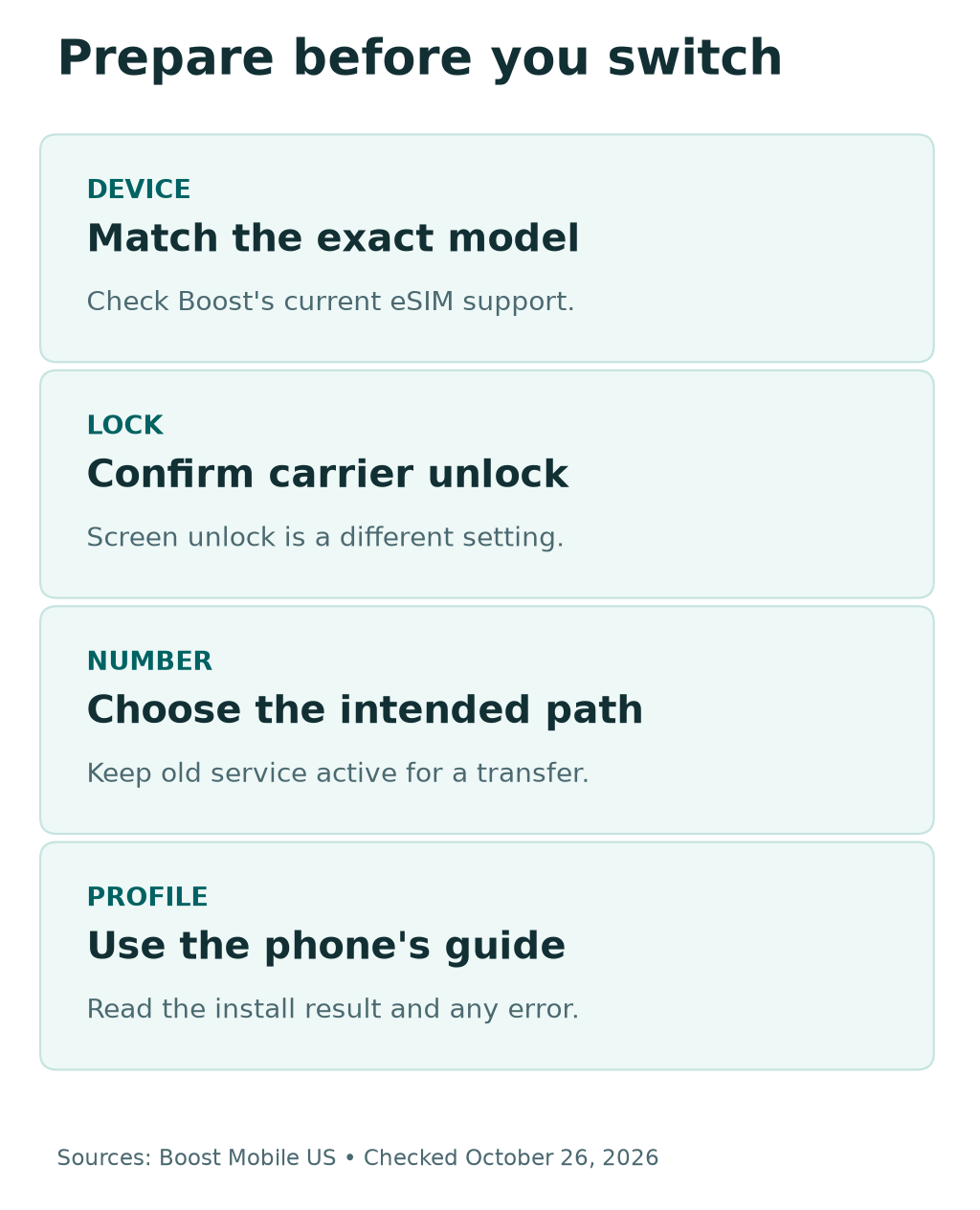
Open Boost’s current eSIM-supported device list. Find the exact model, including any regional version. Then use the carrier’s device checker for the phone you intend to bring.
Network support and eSIM support are different checks. Boost’s bring-your-own-phone guide gives broad examples of compatible phones. Its eSIM list is more specific. Do not use the broad list as proof of eSIM support.
For example, Boost’s current eSIM page lists US iPhone 12 models and newer. Its general setup checklist gives iPhone XR as a bring-your-own-phone example. Those statements describe different checks. They do not mean every listed phone uses the same SIM method.
This matters for an imported phone too. A model sold in India may differ from a US variant. Start with the exact device and regional model. Do not assume a US support entry covers an imported handset with a similar name.
| Check | What it answers | What it does not answer |
|---|---|---|
| Network support | Whether Boost supports the phone on its network | Whether that variant supports Boost eSIM |
| eSIM-supported list | Which listed devices have that activation option | Whether your current carrier has unlocked the phone |
| Carrier-lock state | Whether the phone can use another carrier | Whether a number transfer has finished |
| Installed eSIM profile | Whether the plan is on the phone | Whether every service test succeeds |
| Completed number transfer | Whether the requested number moved | Whether you selected the right line for data |
Read any result from the device checker before buying a plan for that phone. Keep its result for your own records. Do not force an unsupported model through another phone’s setup instructions.
Check the Phone’s Carrier Lock
Boost says a phone you bring must be unlocked. A carrier lock limits use with another provider. It is separate from your screen passcode, fingerprint or face unlock.
On iPhone, Apple shows the lock state under Settings, General and About. Look for Carrier Lock or the local label for that setting. Apple uses “No SIM restrictions” for an unlocked iPhone.
If the lock remains, contact that carrier. Apple says it cannot perform that carrier unlock itself. Check the provider’s current rules. Avoid unknown websites that promise an instant change.
Do not assume paying a bill instantly changes the lock state. Boost’s guide notes that unlock requests can take time. Confirm the completed state with the old provider before treating the phone as ready.
For Android, use the previous carrier’s supported way to check the lock. Menu names and policies differ. A generic Add eSIM button is not proof that the device will accept another carrier’s service.
Keep this step separate from activation troubleshooting. A carrier lock can block the setup. The same eSIM download will not remove that lock. Check the unlock request. Is it still pending? Does another condition apply?
Choose a New Number or a Number Transfer
Decide which outcome you want before you start. A new number and a move of your existing number are different tasks. Read the activation screen carefully so you select the right path.
For a transfer, Boost lists several details from the previous carrier. These include the account number, account owner’s name, billing address and number-transfer PIN. Gather them through the old carrier’s official app, bill or support process.
Ask for the PIN used to transfer a number out. Do not assume the phone’s screen passcode is that PIN. If the provider uses a separate transfer process, follow its current instructions.
Check that the account details match the line you want to move. A household can have several lines and more than one account owner. Confirm the right phone number privately. Keep those details out of public help posts.
Boost’s number-transfer guide says to keep the old service active. Do not cancel it before completing the Boost activation process. Canceling first can complicate the move you are trying to make.
If you have a shared or business account, confirm who may approve the transfer. Use the account’s normal process. Do not borrow another person’s credentials or start moving a line you do not control.
Before leaving this stage, you should know three things. Which number do you want? Which account holds it? Do you have the current transfer details? Resolve an uncertain answer before starting again with new information.
Keep your old service active during a transfer
Use the previous carrier’s current account details and transfer PIN. Check the intended line and account owner. Boost says not to cancel old service before completing its activation process. Keep private transfer details out of public help posts.
Prepare the Phone and a Reliable Connection
Boost’s preparation guide asks you to update the phone’s software. Do that before installing the new profile where possible. Leave enough time for the update to finish and for the phone to restart.
Have a reliable internet connection for setup. Apple’s eSIM troubleshooting starts with Wi-Fi or a hotspot for most setups. Use a connection you can keep while you follow the carrier’s prompts.
Charge the phone and keep its charger nearby. A device shutting down mid-setup makes it harder to tell which stage finished. Choose a time when you can complete the checks without rushing to leave.
Keep another way to reach the carrier’s official help if needed. This can be a computer on your Wi-Fi connection. You do not need to send passwords or transfer PINs to a stranger offering help in a comment thread.
Boost’s current bring-your-own-device page has an Android-specific note. It directs users with Android phones bought elsewhere to its Boost Config app. Follow the official link and your device guide. Avoid unrelated app download sites.
Finally, keep your current line intact until the transfer process tells you otherwise. Do not delete every existing SIM profile to make the setup screen simpler. First identify which line each profile belongs to.
Start the Official Boost Mobile eSIM Activation
Use Boost’s official activation site or app route from its support page. Choose the right number path and device. Review the account and plan details before you submit anything that starts service.
The carrier’s account step and the phone’s profile install are separate checks. Boost’s install guides describe a alert after the line activates. Follow the guide for your phone maker when that profile is ready.
Do not treat an order confirmation as a completed phone setup. An order, a line’s account state and an installed cellular plan can be different screens. Read what each one actually confirms.
Here is a simple record you can keep privately:
- Device checker result for the right phone.
- Carrier-unlock confirmation, if you are moving networks.
- Whether you chose a new number or a transfer.
- Current activation or transfer state shown by Boost.
- Phone’s eSIM-install result and any exact error message.
This is a record of your setup, not a promise of a fixed timeline. Boost says many activations take a few minutes. Your number-transfer state and any unresolved account detail still need their own check.
Avoid starting several duplicate attempts while one request is pending. First read the current state or ask official support about that attempt. A second order may add confusion without fixing the original detail.
Install the Boost eSIM on iPhone
Boost’s iPhone guide describes a Finish Cellular Setup alert. It appears after the line activates on a compatible phone. Open it and follow the displayed steps to install the cellular plan.
If you dismissed that alert, use the route in Boost’s guide. It points to Settings, Cellular and Set Up Cellular or Add eSIM. Labels can vary with software and region.
Check the plan you are adding before you confirm it. Keep the phone online while it downloads and installs. Read any message that appears instead of assuming every setup uses a QR code.
Boost documents an automatic profile path for this setup. A missing QR code does not alone prove something is wrong. Use the current instructions attached to your activation and phone.
After installation, review the cellular-line list. Confirm which entry belongs to Boost and which number it shows. If you use two lines, choose the right defaults for calls and data.
If setup fails, Apple’s support guide suggests checking the line state and restarting. It also describes checking carrier settings. Work through the current steps and read the result after each one.
Do not erase an eSIM as a first response to an error. Apple advises doing that for troubleshooting only when the carrier directs it. You may need the carrier to provide another profile after erasing one.
Install on Samsung or Google Pixel
Boost has separate eSIM guides for Samsung and Google Pixel. Use the one for your phone. A menu from another Android brand can look close but lead to a different setup path.
For Samsung, Boost describes a Boost Cellular Plan Ready alert. If it is missing, its guide points to Connections and SIM card manager. From there, use Add mobile plan as shown by the device.
For Google Pixel, Boost describes the same readiness alert. Its fallback route uses Network & Internet, SIMs and Download a new eSIM. Follow the current on-screen steps for the supported model.
Check the profile result before changing another setting. Does the phone show the right Boost line? Is there an install error? Keep that exact state in your notes for support.
For other supported brands, open their link from Boost’s eSIM installation hub. Do not apply a Samsung path to a Motorola or TCL phone merely because both use Android.
Did you buy your Android phone elsewhere? Review Boost’s Config app guide too. Keep the software and account stages separate. A supported phone still needs the carrier’s required setup steps.
Test Calls, Texts and Mobile Data Separately
Once setup completes, check the services you intend to use. Make an ordinary call, check texts and open a normal webpage on mobile data. Do the checks in a place with suitable coverage.
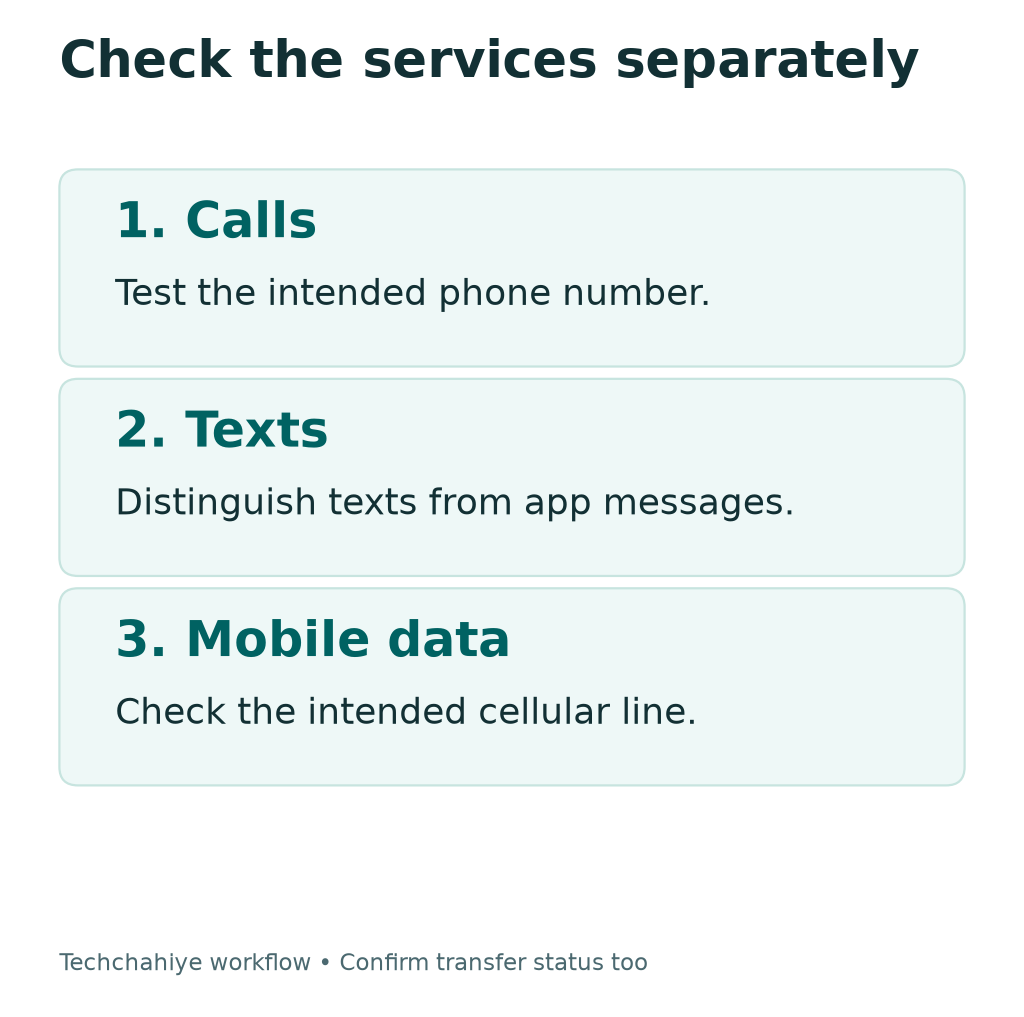
For the data check, confirm which line supplies data on a dual-SIM phone. Wi-Fi can hide a mobile-data problem. Turn Wi-Fi off for that brief check if it is safe to do so, then restore your preferred connection.
If you transferred a number, check incoming service for that number too. A profile appearing in settings does not by itself confirm the entire transfer. Review Boost’s transfer state alongside the phone test.
Keep text delivery separate from an app’s chat feature. A messaging app can use its own internet path. Describe whether the problem concerns a normal text or a particular app when asking for help.
If one service works and another fails, note that difference. “Calls work, mobile data fails on the Boost line” is useful. It points support toward a narrower check than “activation failed.”
Boost’s basic troubleshooting includes checking account status and restarting the phone. Use that current guide if service remains unavailable. Do not edit hidden network settings or copy APN values from an unrelated carrier as a guess.
Resolve a Delay Without Losing the Working Line
Start with the first stage that lacks confirmation. If Boost rejects the phone, return to the device checker. If the lock remains, contact the old carrier. If a transfer has a mismatch, review its account details through official support.
If the line is ready but the phone has no profile, use its install guide. If the profile is present but service fails, describe the call, text and data results. Each case needs different information.
Keep any active old service until the transfer finishes as Boost instructs. Do not cancel it simply because a new plan appears on the phone. Confirm the right number and successful move first.
Use Boost’s official Support Teams page to find current activation help. Check the contact details there rather than relying on an old search ad. Have the exact message ready, but keep private account details out of public posts.
If you are moving an existing Boost line to another phone, identify that task clearly. A device change is not the same as transferring a number from another carrier. Follow Boost’s current route for that line before deleting its working profile.
Did You Know?
An Add eSIM button does not prove a phone supports every carrier’s eSIM. Boost publishes its own device list. Check both the exact regional model and the carrier result before starting service.
Conclusion
Begin Boost Mobile eSIM activation with the phone, not the download button. Confirm support, carrier unlock and the number path. Keep the old service active while moving your number.
Then install the profile through the right phone guide. Test calls, texts and data, and check the transfer state if needed. Your next step is to verify the exact device on Boost’s official site.
FAQs
Which iPhones support Boost Mobile eSIM activation?
Boost’s current eSIM list names US iPhone 12 models and newer. Check the exact device with Boost before starting. General bring-your-own-phone support and eSIM support are separate checks, especially for imported models.
Do I need an unlocked phone for Boost eSIM?
Boost says a phone you bring must be carrier-unlocked. On iPhone, Apple shows that state under General and About. If the lock remains, contact the relevant carrier. Confirm the unlock before continuing.
Should I cancel my old plan before moving my number?
No. Keep old service active until setup finishes. Boost explains this in its transfer guide. Gather the correct account details and transfer PIN. Review the transfer state before ending any working service.
Where is my Boost Mobile eSIM QR code?
Your setup may use a readiness alert and automatic profile download. Boost documents that route for supported phones. Follow the current guide for your device. Not every setup needs a QR code.
Should I delete the eSIM if activation fails?
Do not use deletion as your first troubleshooting step. Apple says to erase an eSIM for troubleshooting only when the carrier directs it. Read the error and contact official support about the existing profile first.
References
- Boost Mobile US — Prepare for activation
- Boost Mobile US — Supported eSIM devices
- Boost Mobile US — Number transfer guide
- Boost Mobile US — Bring your own device
- Boost Mobile US — Install an iPhone eSIM
- Boost Mobile US — Install a Samsung eSIM
- Boost Mobile US — Install a Google Pixel eSIM
- Boost Mobile US — eSIM installation hub
- Boost Mobile US — Basic service troubleshooting
- Boost Mobile US — Current support teams
- Apple Support — Carrier-unlock checks
- Apple Support — eSIM setup troubleshooting
- Apple Support — When to erase an eSIM
- Techchahiye — 5G not working on iPhone or Android
- Techchahiye — Android and iPhone guide
