

Keep the links you still need
Use the bookmark controls for your device. Check each address and export important computer bookmarks before a large cleanup. Review account-saved links separately from open tabs and History.
Key Takeaways
- Remove a saved link from Chrome’s bookmark list. A tab, a History entry and a bookmark are different items.
- Check the Chrome profile and the full address before you delete a link. Matching names do not prove that two entries are the same.
- The computer, Android and iPhone controls differ. Use the steps for the device in your hand.
- Export important computer bookmarks before a large cleanup. Keep that file private and give it a clear date.
- Google warns that deleted bookmarks cannot normally be recovered. Its iPhone guide describes a brief undo prompt; use it when it appears.
To delete bookmarks on Chrome, open the bookmark list. Find the saved link and use its delete control. On a computer, start in the bookmark manager. On a phone, start in Chrome’s bookmark list.
The hard part is often choosing the right item. Two saved links can have the same name but lead to different pages. A work profile can also hold a different set from your home profile. Use the guide below to remove the links you no longer need while keeping a useful route back to the ones you do.
Choose the item you want to remove
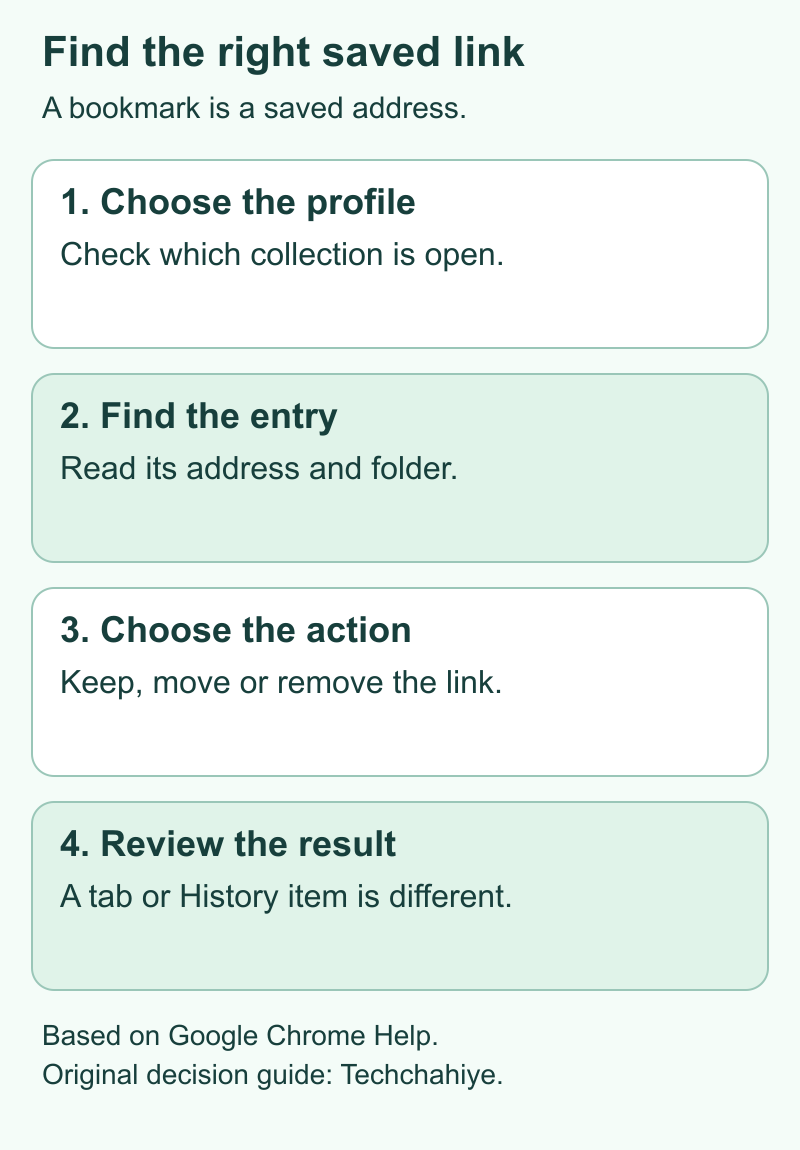
A bookmark is a saved address. It gives you a way back to a page. A browser tab is a page you have open now. History is a record of pages you visited. Start by naming which of those you want to change.
For example, closing a shopping tab deals with the page on screen. Removing an old store bookmark deals with the saved route to that store. Neither task is the same as closing your account with the store. Each has a different place in the browser or website.
Google’s browsing-data guide describes History and other stored browser data as separate controls. For this task, work in the bookmark list. That keeps the scope of your cleanup clear.
| Your goal | Item to find | What to check first |
|---|---|---|
| Remove an old saved link | Bookmark | Its address and folder |
| Close a page on screen | Open tab | Whether work on the page is saved |
| Review a past visit | History entry | The date and website |
| End a service account | The service’s account settings | The site’s own process |
This distinction is useful when a page appears in more than one place. A saved link and a past visit can point to the same address. You may see that address again in History. That alone does not show that a deleted bookmark returned.
Check the Chrome profile before a cleanup
Google’s profile guide says that separate profiles keep browser information apart. This includes bookmarks, History and passwords. On a shared computer, check the profile name or picture before you change a saved collection.
Think of a person who uses one profile for work and another for home. A folder called Research could exist in both. The familiar folder name is not enough to identify which collection is open. Check the profile first, then the links inside the folder.
Use the same approach when a bookmark seems to be missing. Open the profile that held the link. Search there before you build a new copy in a different profile. That makes the later cleanup easier to understand.
A profile is also different from a website login. A page can show one account while the surrounding browser uses another profile. Look at Chrome’s own profile control when the question is about browser bookmarks.
Delete a bookmark on a computer
Google’s current computer instructions use the bookmark manager. Open Chrome’s three-dot menu, choose Bookmarks and lists, then Bookmark manager. Find the saved entry. Open the menu beside that entry and choose Delete.
Read the entry before that final step. Check its title and address. A short label such as Portal can hide the difference between a work service and a personal site. The address gives you a stronger basis for the choice.
Google also describes a view that shows all bookmarks in a side panel. That is another route to the saved collection. Use whichever view lets you clearly see the folder and entry you intend to change.
The bookmarks bar is only one view of saved links. A link outside the bar can still exist in another folder. Review the manager when the bar alone does not explain what you are seeing.
For a large collection, search before you remove a whole folder. Start with a site name or a word from the saved title. Review the results as individual entries. A matching word is a useful way to find candidates; it is not a reason to remove every result.
Delete a bookmark on Android
Google’s Android guide places saved links under Chrome’s bookmarks area. Open the browser menu and enter that list. Find the folder and link you want. Use the three-dot control beside the bookmark, then choose the delete option.
The same guide describes a search field for saved bookmarks. Use it when you remember the site but not its folder. If a folder opens first, go back through the folder list to review the wider collection.
Take care with the menu beside the item. That is the control for the saved entry. The menu for the current webpage serves a different purpose. Reading the item name before you act helps keep those two menus clear.
Google warns that you cannot get a bookmark back after you delete it on Android. Do not rely on a recovery tool for this step. Keep an address elsewhere first when you still need it. If you mainly want a neater list, moving the saved link to a useful folder is another choice.
Delete a bookmark on iPhone or iPad
Google’s iPhone and iPad guide uses the Chrome bookmark list too. Open that list from the browser menu and find the relevant folder. For a single link, swipe left on its entry and use the delete control.
For several entries, the same guide describes a selection control at the bottom of the list. Choose the entries you intend to remove, review the selection, then delete them. Keep the group small enough that each title still has a clear reason to go.
Google says an undo prompt appears after deletion on this platform. Use that prompt at once if you removed the wrong entry. Once that chance has passed, its guide describes adding the bookmark again as the way to get it back.
This is why a cleanup method from a computer should not be copied blindly onto a phone. Follow the controls the current device presents. Stop at the item you meant to change, then review the remaining list before you choose the next group.
Export computer bookmarks before a large cleanup
Google’s import and export guide describes saving computer bookmarks as an HTML file. In the computer bookmark manager, open its menu and use the export option. Choose a file location you will be able to find again.
Give the file a useful name with the date and profile. For example, a name such as Home-bookmarks-before-cleanup-2026-11-10 makes its purpose clear. That is an example naming scheme, not a file Chrome creates by default.
Treat the export as a list of saved links. Do not assume it is a copy of the content behind each address. A webpage can change, move or require a login. Save important documents through the website too. Use its save or download controls.
Store the file with your private browser records. Titles and addresses can reveal what a collection is about. An export from a work profile can include links you would not put in a public folder. You can make these choices yourself. You do not need to upload the file to a cleanup website.
Google also documents importing an HTML bookmark file. That gives an existing export a clear purpose after a mistake or browser move. Review the imported folders before deleting more items. Find the copy that holds the links you need first. Do not keep importing files while you search.
Review folders by purpose, not just by age
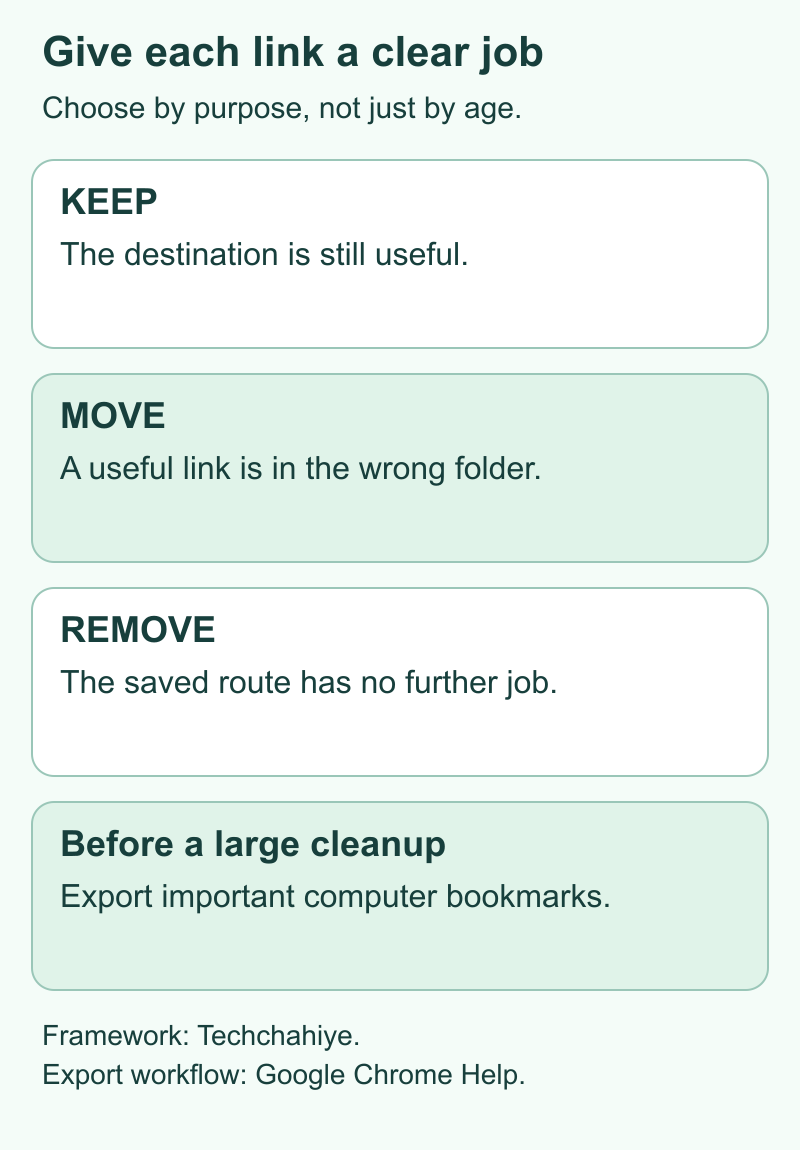
A folder is useful when its name tells you why its links belong together. Course notes, household bills and trip planning are examples of purposes. A long folder called Misc gives you much less help when deciding what to keep.
Use three choices for each candidate: keep it, move it or remove it. Keep a link you still use in a place where you will look for it. Move a useful link that sits in the wrong group. Remove an entry only when you have decided that its saved route is no longer useful.
Age alone is a weak rule. An old guide can still contain the one detail you need. A newer saved link can already be a dead end. Open an uncertain entry and read what it now points to before deciding.
Duplicate names need the same care. Compare the addresses rather than guessing from the title. Two pages from one website can have different jobs. A support page and an account page do different jobs. Matching company names do not make those links the same.
Even two entries with the same address can serve different folders. Decide whether that extra route helps you. The goal is a list you can use, not a smaller number for its own sake. This approach also gives you a reason for each change when you return to the collection later.
Understand account-saved and device-only links
Google’s guide describes two places to save browser data: a Google Account or just the device. It says that bookmarks saved to an account can be available on other devices using that account. Check those settings when more than one device is part of your cleanup.
This matters when a computer and a phone show different lists. Check the account used by Chrome on each one. Then compare the folder and address. The two screens may look different. Compare their contents before you delete more links.
Also check whether you are looking at a saved link or another browser item. A page can remain open in a tab after you change a bookmark. A visited address can still appear in History. Identify the list before treating the result as a failed removal.
Review one account and collection at a time. On a shared computer, finish the home collection first. Then open the work profile if that is your next task. For a work device, keep any questions about managed settings with the person who runs that device.
There is no useful universal waiting time for every account or device setup. Verify the result you can see. If a second device disagrees, record the account, folder and exact address that differ. These details give support a clear example to check. They explain more than a broad claim that all bookmarks came back.
When a bookmark seems to return
First, find the entry in the bookmark list again. Compare its address with the one you removed. If you saved the same page in two folders, the remaining entry can look like the old one. Check the containing folder as well as the title.
Next, consider any import you performed. A copied bookmark file can add a collection of links. Review the file and the imported folders first. Extra copies alone do not prove a browser fault. Treat this as a question to investigate, not proof of what happened.
Use a small written example when the problem is hard to describe. Note the profile, the folder and the address. Record whether you removed one entry or a whole folder. Leave private page tokens out of a public help post.
Google’s reset guide says a normal Chrome settings reset keeps saved bookmarks. A reset is therefore a poor way to try to empty a bookmark collection. It also changes other browser settings. Stay with the saved-link controls for this job.
If the device is managed by work or school, describe the issue to its support team. Give the narrow example you recorded. Avoid changing unrelated account or browser settings while the cause is still unclear. That keeps the remaining evidence useful.
If you removed the wrong saved link
On iPhone or iPad, look for the undo prompt Google describes. If it is still present, use it before moving on. Treat that brief opportunity as different from a permanent bookmark recycle bin.
When no undo option remains, work from what you still have. An earlier export can help you find the saved address. A message, document or browser History entry can also help identify the website. None of those routes guarantees that every lost entry is available.
If you find the page again, check that it is the right destination before adding a new bookmark. Give the new entry a name you recognize and put it in a useful folder. That is a new saved route; it is not proof that Chrome restored the exact old folder arrangement.
For example, a folder can contain a mix of old receipts and links to active accounts. The folder name alone does not tell you which is which. Review the entries with their actual purpose in mind, then choose the right action for each.
Use a small cleanup plan you can finish
Here is an illustrative plan for a folder with ten links. You decide to keep four, move one to a better folder and remove five. Those counts belong to this example. Choose a split that fits your own links.
Write the keep and move choices first. Make sure those useful destinations have a clear home. Then review the five removal candidates. If one is uncertain, leave it for another pass instead of changing the plan just to reach a number.
After the cleanup, open a few retained links you actually need. Check that the titles still lead you to the expected pages. Review the folder names too. A smaller collection is only helpful if its remaining links are easier to find.
Keep browser performance as a separate question. Removing a saved address is different from managing open pages. For help with active tabs, read our Chrome Memory Saver guide in References. It explains what that setting changes. Judge that task by the behavior of the tabs, not by the bookmark count.
Did You Know?
Google lists a limit of 100,000 bookmarks saved in a Google Account. Its guide covers using those links across devices. That limit covers bookmarks saved in the account. It does not set a limit for every device-only collection. For a large set, Google suggests removing unused links or exporting them. For a routine cleanup, focus on the links you use. There is no need to aim for the limit.
Conclusion
Delete a bookmark from the saved-link list on the device you use. Check the profile, folder and address first. Export your links before a large computer cleanup. If the iPhone undo prompt appears after a mistake, use it at once.
A good result is a collection that helps you find the pages you still need. Keep useful links, move poorly placed ones and remove entries with a clear reason. Does a change look wrong? Check that entry before changing more links.
FAQs
Does removing a bookmark close my account with the website?
A bookmark is a saved address. Removing that entry changes your saved route to a website. Closing an account is a separate task at the service itself. Use that site’s account controls when that is your goal, and review its confirmation. Keep these tasks separate. A clean bookmark list does not show that a website account is closed.
Can I repair a saved address instead of deleting the link?
Yes, when you have found the site’s correct new address. Google’s iPhone guide lists the name, folder and address as fields you can edit. Check the replacement destination before changing the entry. On another device, review the bookmark’s edit controls or save the verified new page. Keep a useful route working before you remove the old one.
Can an export from another browser help me rebuild the list?
Google explains how to import bookmarks from Firefox or Safari into Chrome. The process uses an HTML file. Use the other browser’s own export process first. Then follow Chrome’s import controls and review the resulting folders. Check which links the file contains. A file made after the deletion may lack the missing links too.
Can I use my computer to organize bookmarks I also use on my phone?
Check how those links are stored. Google says you can use account-saved bookmarks across devices. Sign in to Chrome with the same account to use that feature. Confirm that the computer shows the right collection before editing or exporting it. A device-only collection is a separate case. Review the account settings on each device. Do not assume they all share the same saved links.
Why can I not drag a link along my Android tablet’s bookmarks bar?
Google says you cannot drag links to reorder them on the Android tablet bookmarks bar. It directs readers to the bookmark manager to arrange their links. That is a platform difference rather than proof that the saved entry is damaged. Use the controls the tablet offers. Computer steps can differ from phone or tablet steps.
References
- Google Chrome Help — Create, find and edit bookmarks on a computer
- Google Chrome Help — Create, find and edit bookmarks on Android
- Google Chrome Help — Create, find and edit bookmarks on iPhone and iPad
- Google Chrome Help — Import and export bookmarks
- Google Chrome Help — Manage Chrome with multiple profiles
- Google Chrome Help — Get bookmarks and other information on your devices
- Google Chrome Help — Reset Chrome settings to default
- Google Chrome Help — Delete browsing data
- Techchahiye — Chrome Memory Saver
- Google Chrome official website — original icon reference
