

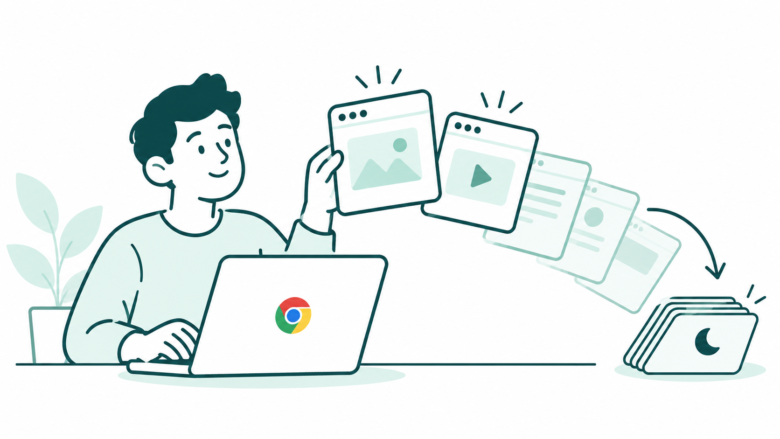
Tune one thing and check the result
Start with a clear symptom. Choose a Memory Saver mode, keep narrow site exceptions and save work through the website. Review reloads as well as memory use.
Key Takeaways
- Chrome Memory Saver can deactivate unused desktop tabs. Returning to an inactive tab reloads it.
- Choose Moderate, Balanced or Maximum based on your workflow. Google does not publish a universal timeout for each mode.
- Keep a small list of sites that must stay active. Save important work through the site itself.
- Check tabs, extensions and other apps before blaming one setting.
Chrome Memory Saver helps reduce memory use from unused tabs. The tradeoff is simple: an inactive tab reloads when you return. Choose a setting that suits how you work, then check the result.
Start with one clear problem. Perhaps tab switching feels slow. Perhaps the whole computer struggles during a call. Those symptoms can have different causes. A memory setting is useful only when it addresses the actual problem.
This guide uses Google Chrome Help checked October 25, 2026. It covers desktop performance controls, not the mobile Chrome app. The examples are suggested checks, not measurements or promises about a particular computer.
Check That You Are Using Desktop Chrome
Google says these performance settings are not available on Android or iOS. Use the desktop instructions on the appropriate computer. A similar setting in another browser may have a different name and behavior.
Note the operating system and Chrome version before troubleshooting. This helps you find the right current instructions. Support can use those details to explain a menu difference.
Google’s update guide explains how to check About Google Chrome. Save work before any relaunch. The guide says Incognito windows do not reopen after a browser restart. Do not depend on a restart to preserve an unfinished private session.
An update and a performance setting are separate changes. Complete one, confirm the result and then continue. That makes later comparisons easier to understand. It avoids guessing which of several changes affected your browsing.
Understand What Chrome Memory Saver Changes
Google says Memory Saver deactivates tabs that you are not using. It helps free memory for active work. When you access an inactive tab, Chrome reloads it.
That is different from deleting a bookmark or closing your account. The tab can remain in the strip while its active page state changes. Read the current explanation in Settings so you know what a return visit can involve.
A reload may matter more for some tasks than others. A reference article is different from an unfinished web form. A page whose data is safely saved on the service differs from temporary text held only in the browser.
Make that distinction before judging a mode. The best choice is not automatically the one with the most aggressive name. It is the one that balances memory use with the tasks you need to resume reliably.
Find the Memory Saver Control
Open Chrome’s More menu, then Settings and Performance. Review Memory Saver and its current mode. Use the setting in your installed version. Avoid an unofficial flag or extension.
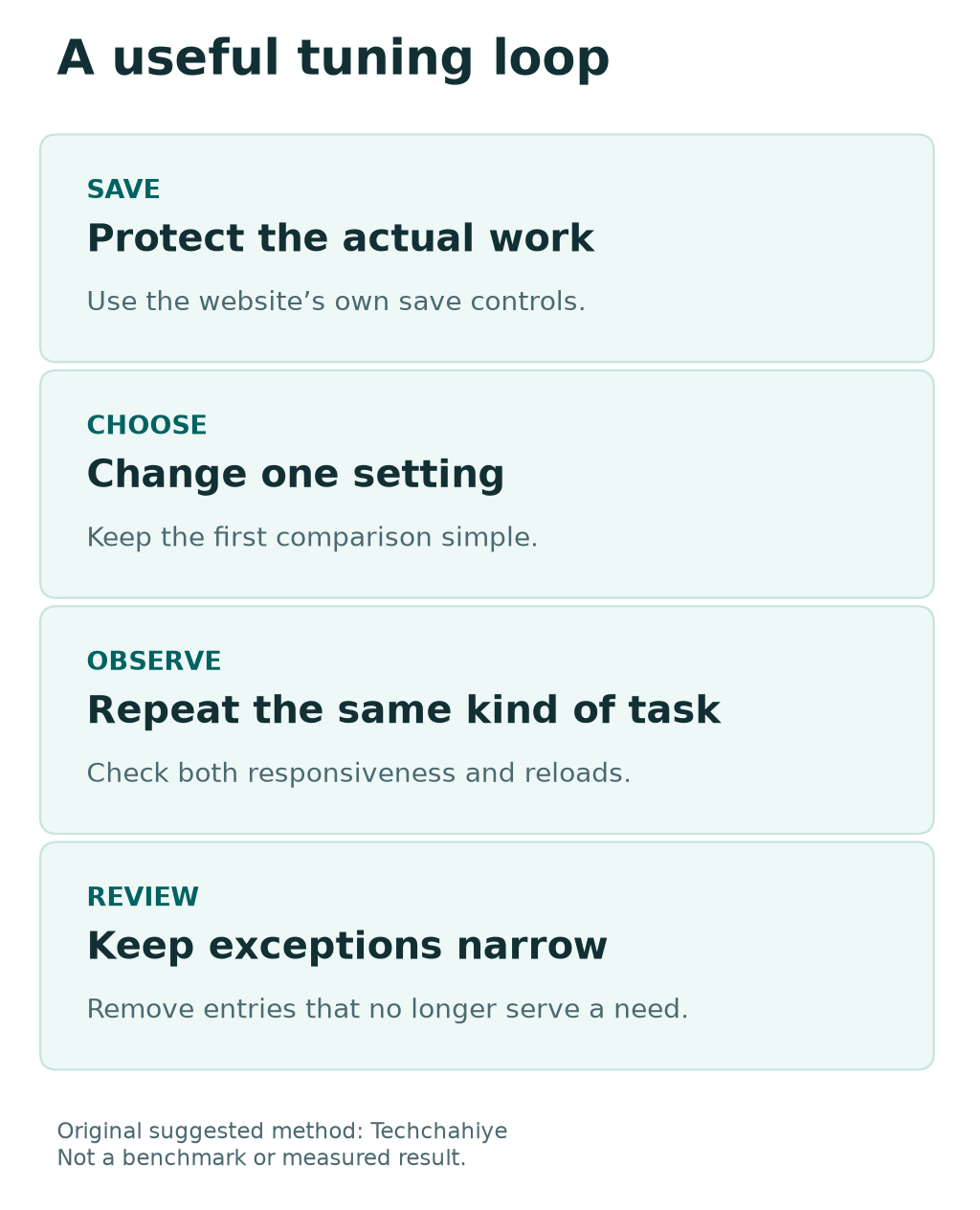
- Save current work through each important website.
- Open Chrome Settings on the computer.
- Select Performance.
- Review whether Memory Saver is on.
- Choose the mode you want to try.
- Return to normal work and observe the result.
Keep the first change small. If you change the mode, do not also remove several extensions and restart the PC immediately. You will lose the chance to learn which action helped.
Write a short note about the symptom and chosen mode. Include the date and the task you were doing. A clear note is enough. You do not need a complex benchmark sheet to compare everyday behavior.
Compare Moderate, Balanced and Maximum
Google describes the three modes by relative timing. Moderate keeps unused tabs active longer. Balanced is the recommended middle option. Maximum makes unused tabs inactive sooner.
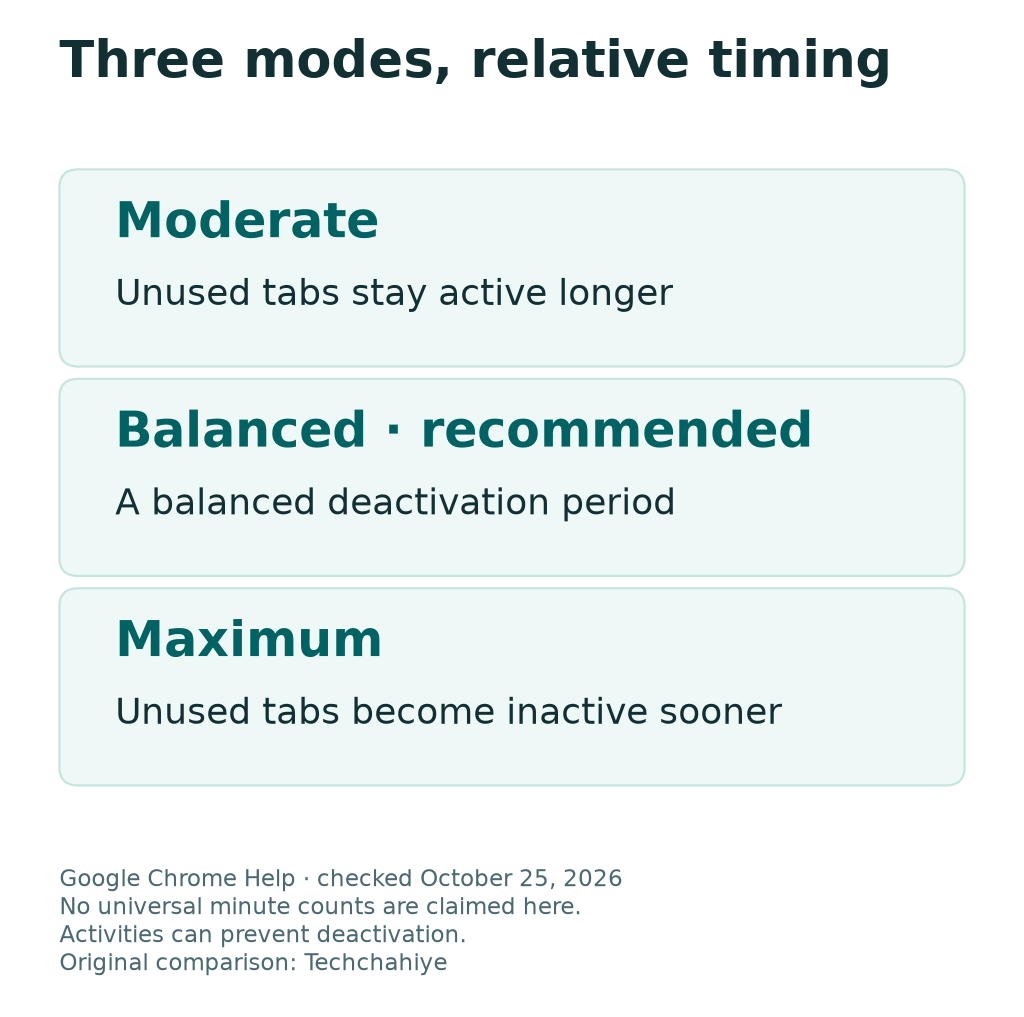
| Mode | Google’s stated direction | What to observe |
|---|---|---|
| Moderate | Longer before tabs become inactive | Whether memory pressure still affects active work |
| Balanced | A balanced deactivation period | Whether normal return visits remain comfortable |
| Maximum | Shorter before tabs become inactive | Whether more reloads interrupt your workflow |
These descriptions are not fixed minute counts. Do not convert the labels into an invented schedule. Chrome’s actual behavior can depend on activity and the conditions described by Google.
If you do not have a specific reason to choose otherwise, try Google’s recommended option. Then judge the task you care about. A mode that suits research tabs may feel different during a busy web-app session.
Keep Essential Sites Active Selectively
Google provides an Always keep these sites active list. Use it for a site that needs an exception. Check the intended address and the saved entry after adding it.
Keep the list narrow. Adding every site defeats the purpose of making unused tabs eligible for deactivation. Choose based on an actual need, then review old entries when the work changes.
For example, a team might keep a particular work dashboard active. A reference page that is easy to reload may not need the same treatment. This is a suggested distinction, not proof about either website’s internal behavior.
Ask what would be lost or delayed by a reload. If the answer is unclear, check the site’s save state first. An exception can support a workflow, but it is not a backup or an autosave guarantee.
Know Why Some Tabs Stay Active
Google lists activities that may prevent deactivation. These include audio or video, screen sharing, downloads and partially filled forms. Pinned tabs, notifications and connected devices can also matter.
Use that list to interpret what you see. A tab that remains active may be doing something Chrome recognizes. It does not automatically mean Memory Saver is broken.
Check the actual tab activity before changing more settings. Is a call running? Is a download still in progress? Is the page waiting on an unfinished form? Answer those questions without exposing private content in a screenshot.
Do not interrupt a call or download merely to prove a point. Review a harmless reference tab instead. Keep any experiment limited to work you can safely reload or close.
Protect Work Before Testing a Reload
Save drafts using the website’s own controls. Look for its saved status or reopen the saved item through the service. A browser tab is a place to work, not an independent record of every change.
For a long form, use the site’s draft feature where available. If you need a separate copy, store it through an appropriate secure tool. Avoid placing private form data in a casual shared note.
Google says partially filled forms can prevent deactivation. Still, use a reliable saving process for important work. Protect work against crashes, lost connections and accidental closes. Do not rely on one browser behavior.
Test return visits with harmless content first. Open a public page you can find again. Leave it unused while doing normal work, then return. Note whether a reload occurs and whether that behavior suits your needs.
Read Memory Use Without Treating It as a Score
Chrome can show memory use in tab hover previews. Google places the control in Appearance settings. Its wording can vary by operating system. Use the reading as a clue, not a ranking of good and bad websites.
Memory use changes as a page works. A video editor and a text article have different jobs. A large reading may be expected for one task and unusual for another.
Compare like with like. Record the same task at a similar stage. A page just opened to its homepage is not comparable to the same app editing a large project.
Keep units with any number you record. Do not mix a tab reading with total browser or system memory. Those values describe different scopes. A single tab’s figure cannot explain every process on the computer.
Use Chrome Task Manager for a Specific Question
Google’s speed guide points to More tools and Task Manager. It describes sorting tasks by Memory. Use that view to identify a task worth examining rather than guessing from the number of open tabs.
Read the task name before acting. A tab, extension and background page can have different roles. Make sure you know which task you selected and whether it contains unsaved work.
Google warns that End Process loses unsaved work in that task. Save first. Do not end an unfamiliar task simply because it appears near the top of the list.
A useful question is whether one unwanted task explains the symptom. If it does, address that task through its normal controls. If it does not, keep investigating instead of ending processes at random.
Check Extensions Before Adding Another Optimizer
Extensions can add useful features, but they also add work. Google’s speed guide recommends turning off or removing unwanted extensions. Start with tools you no longer need.
List what each extension does. Note whether you still use it. Review permissions through the normal extension settings. Avoid unknown optimizer apps. They add another tool to diagnose.
For a comparison, change one extension at a time where practical. Repeat the task that caused the problem. Record whether the symptom changed. Use that result when deciding what to keep.
A performance problem does not prove an extension is malicious. Avoid unsupported claims about a developer. Describe the behavior you observed and the conditions under which it occurred.
Separate Memory Saver From Energy Saver
Memory and battery use are related, but they are not identical goals. Google’s Energy Saver setting reduces certain background work on eligible battery-powered devices. It has its own conditions and tradeoffs.
Check which setting you are changing. If the problem appears only on battery power, note that. The PC may struggle while plugged in. A battery-focused setting may not explain that problem.
| Symptom | Useful starting check | Avoid assuming |
|---|---|---|
| Many unused tabs use memory | Memory Saver and tab activity | Every tab should sleep on a fixed timer |
| Heavy background work on battery | Energy Saver and running tasks | Battery settings are a RAM benchmark |
| One tab freezes | Task and page-specific troubleshooting | The whole browser needs a reset |
| All apps struggle | System memory and other apps | Chrome is the only workload |
Keep the goal attached to each change. A better battery reading and a smoother active tab are different outcomes. Measure or observe the one you actually need.
Treat Preloading as a Separate Choice
Google also offers page preloading within Performance. It aims to make likely visits faster. It is a different control from deactivating unused tabs.
Read the current description before changing it. Google says preloading can involve cookies. It can also involve Google services in some cases. A speed preference can have data-use implications worth reviewing.
Do not enable every performance option just because they share a settings page. Choose the option that addresses your task. Keep a note of the original state if you plan a comparison.
If your problem is high memory use, test that question directly. Faster navigation to a predicted page does not establish that the browser uses less RAM. Keep the claimed benefit and the observed result separate.
Run a Small, Honest Comparison
Use an everyday task you can repeat. For example, open the same set of public research pages and a saved work document. This is a suggested method, not a test we performed.
Record the mode, browser version and rough task stage. Note other large apps that are open. Keep the workload similar enough that a later observation means something.
Then record what changed in plain language. Did the active tab respond better? Did return visits reload more often? Did an essential site need a narrow exception? A useful result can include both a benefit and a cost.
Do not turn one casual session into a percentage claim. If you need a measured benchmark, define the method and collect comparable readings. A label such as Maximum is not evidence of a specific RAM saving on your computer.
A compact observation note
Record the version, mode and task. Note other large apps and the scope of each memory reading. Check whether return visits reload. Keep observations separate from benchmark claims.
Work Through a Research-Session Example
Imagine a student with a saved document and several public reference tabs. This is a made-up workflow. It does not describe a measured device or a guaranteed result.
The student starts with Balanced and keeps the saved document’s service under review. They leave reference tabs eligible for deactivation. When returning to a reference page, they expect a possible reload.
One essential site may lose useful state. They first check its saving behavior. Then they decide whether that specific site needs an active-site exception. They do not exempt every website after one inconvenience.
At the end, they close references they no longer need. The next session begins with a smaller set of purposeful tabs. Memory Saver supports that habit; it does not make an unlimited collection of tabs free to run.
If Chrome Still Freezes or Crashes
Move from tuning to the relevant troubleshooting guide. Google recommends checking tabs, extensions and other apps when memory may be exhausted. Keep the exact error message and the task that triggered it.
A single failed page needs a different investigation from Chrome not opening at all. State which problem you have. This helps avoid a broad reset for a narrow website issue.
Save work before a restart or process change. If the browser cannot stay open, use Google’s current crash instructions. Avoid deleting profile data or reinstalling without understanding what needs to be preserved.
For support, give the version, operating system, symptom and steps already tried. Keep private pages and account details out of general reports. A clear description is more useful than a screenshot full of unrelated personal tabs.
Did You Know?
Google lists pinned tabs among the conditions that can prevent Memory Saver deactivation. If a tab stays active, check whether it is pinned before treating the behavior as a fault.
Conclusion
Chrome Memory Saver works best as part of a clear browsing routine. Choose a mode, save important work and keep only necessary active-site exceptions. Review the result during your actual tasks.
If the problem remains, inspect tabs, extensions and other apps. Keep memory, battery and loading-speed questions separate. Make a small change and verify it. Do not enable every setting without checking results.
FAQs
Is Chrome Memory Saver available on Android or iPhone?
These desktop controls are not available on Android or iOS. Google states this in its guide. Use the appropriate mobile guidance instead. Do not look for a matching desktop menu in the mobile app.
Will Maximum make every unused tab inactive after a fixed time?
Google describes relative timing, not a universal minute count. Activity and other conditions can affect deactivation. Check the current setting description. Avoid treating a label as a fixed timer for every page.
Does an active-site exception save my unfinished work?
No. It is an exception from deactivation, not a backup. Save important work through the website’s own controls. Check the saved result rather than relying only on an open tab.
Should I end every high-memory task in Chrome Task Manager?
No. Identify the task and save its work first. Google warns that End Process loses unsaved work. A demanding task may be doing the work you requested. Investigate the symptom before stopping it.
Can I claim a percentage saving from one browsing session?
A single casual session is not a sound benchmark. Keep any observation tied to its actual conditions. For a numerical comparison, define a repeatable method and use comparable readings. Do not turn a mode name into a performance claim.
