

Read the mode before changing the limit
Match the protection mode and selected percentage to your phone's software. Plan for essential tasks, and check heat or charging faults separately.
Key Takeaways
- Read the mode on your phone’s Battery protection screen first. A charging stop may fit that choice.
- Basic, Maximum and sleep-based protection serve different charging needs. Names and limits vary by software and model.
- An 80% charging limit is a setting. It does not mean your battery has only 80% health.
- Choose a limit that leaves enough charge for your day. Use separate checks for heat, unusual drain and charging faults.
Samsung Battery protection lets a supported Galaxy phone manage when charging stops. Start in Settings, open Battery, then look for Battery protection. Read the mode and limit shown on your phone. A device that stops at its chosen limit may be doing exactly what you asked.
The harder choice is how much charge to leave available. A desk worker with a nearby charger has different needs from someone using maps all day. Use this guide to compare modes and software changes. Then check why charging paused. It covers Galaxy phones, rather than Galaxy Book laptops.
Find Samsung Battery protection on your phone
Start with the screen you have, rather than a screenshot from another model. Samsung’s One UI 6.1 guide gives Settings, then Battery, then Battery protection as its route. It warns that the feature varies by model. Treat that path as a starting point, then match the controls on your installed software.
- Open Settings and look for Battery. If needed, use Settings search for Battery protection.
- Open the protection page. Look at both the main switch and the selected mode.
- Read any limit displayed under Maximum. A selected mode and its percentage are separate details.
- Choose the supported option that fits your needs. Read any notice before accepting a related service or permission.
- Return to the page and check that your choice remains selected.
Before changing anything, note the original choice. This makes it easier to undo a change that leaves too little charge. You do not need a third-party battery app simply to read this setting. Start with the built-in controls and the help for your model.
If the page is absent, record your phone’s model and One UI version. One UI is Samsung’s software interface for Galaxy devices. Check the guide for that model and software release. The absence of one search result does not establish that a phone has a broken battery.
Compare Basic, Maximum and sleep-based protection
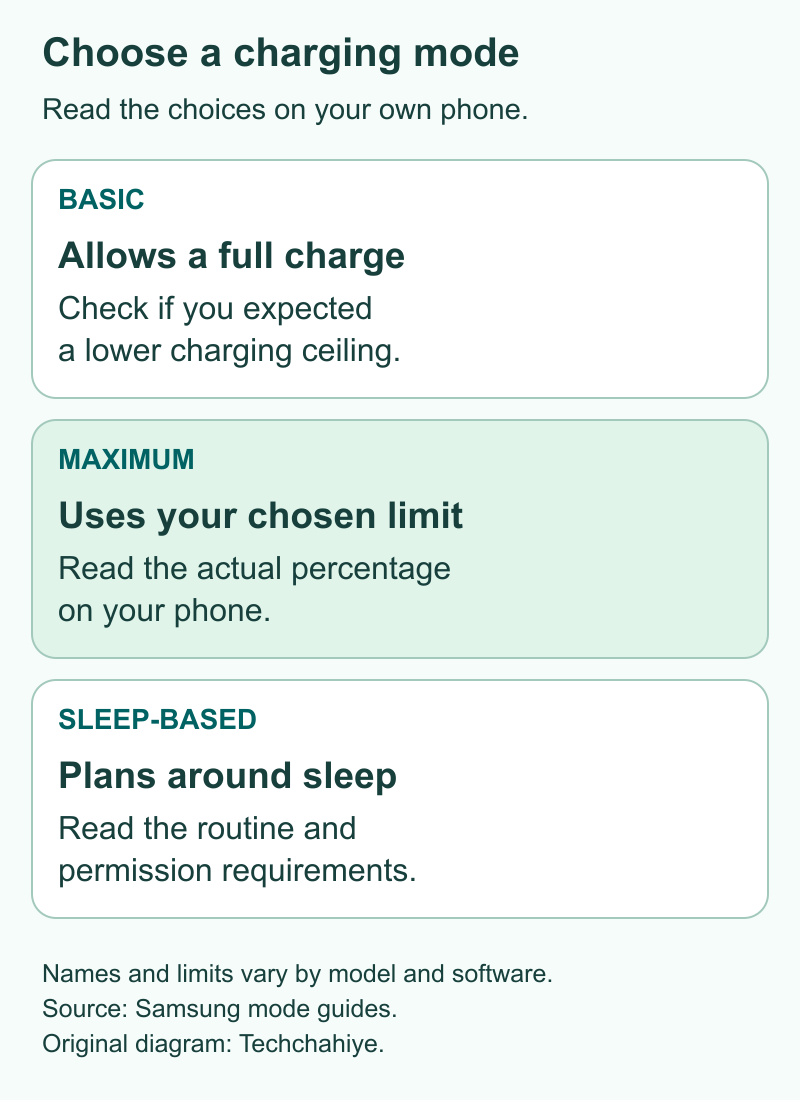
The setting names describe different goals. Basic allows a full charge, while Maximum uses a chosen ceiling. A sleep-based option aims to delay the last part of charging until nearer waking. Choose by the result you need, rather than assuming that every protection mode stops at 80%.
Samsung’s April 2024 Singapore guide explains Basic mode. It charges to 100%. Charging starts again at 95%. It describes Maximum stopping at 80% on the covered One UI 6.1 software. Adaptive uses an estimated sleep pattern. Those are version-specific descriptions, useful for reading older guides.
| Choice | Main purpose | What to check on your own screen |
|---|---|---|
| Basic | Allow a full charge while managing later top-ups | Whether you expected a lower hard limit |
| Maximum | Stop at the supported selected ceiling | The actual limit, not just the mode name |
| Adaptive or Sleep time protection | Adjust charging around an estimated sleep pattern | Availability, routine and any stated requirements |
For a simple decision, ask whether you need the phone to remain below a chosen ceiling. If yes, inspect Maximum and its limit. For a full charge near waking, inspect the sleep-based option. If you choose Basic, reaching 100% is not by itself evidence of failure.
These choices do not provide a battery-health score. They tell you how charging should behave. Keep the setting question separate from how long the phone lasts after unplugging. Keep those questions apart. A normal stop should not send you straight to a repair or reset.
Why guides mention 80%, 85%, 90% and 95%
Samsung has changed this feature over time. Its older regional One UI 6.1 guide describes an 85% limit on software below that release. Later software added more control. A number that was right for one release can therefore be wrong for another.
Samsung’s SM-S711U1 release notes explain a One UI 7 change. Owners could choose a maximum between 80% and 95%. This is a model-specific example, not a statement about every Galaxy phone. The page warns that changes can vary. Model, country and phone carrier can all matter.
Read a guide in this order: device, software version, mode, then percentage. If two instructions disagree, compare their scope before changing your phone. Check the software, too. A newer guide can still show steps for a different version. Your phone may also have different labels after an update.
Use a short note when asking for help: “My phone shows Maximum with a selected limit of 90%.” That describes a real setting. “Samsung phones should always stop at 80%” goes too far. The release notes show why that rule can fail.
Do not install an app or make an unsupported system change just to copy a missing percentage. A supported limit that meets your needs is a better starting point. Still unsure? Ask Samsung which choices your exact model and version support.
Choose a Samsung charge limit around your day
Work backward from the next useful charging chance. List when you leave home, when you can next charge and what the phone must do in between. Tickets, calls and directions may matter more than an optional video session. This turns the decision into a practical plan.
For a hypothetical desk day, you might have a charger available at lunch. A lower starting limit may leave enough room for your normal tasks. On a travel day, delays and long map use may change the plan. These examples illustrate the choice; they are not measured Galaxy endurance results.
Keep some room for a day that goes longer than planned. A limit that works while sitting near a socket may not suit a day outdoors. Review it before leaving, while there is time to charge. Changing a setting at the station cannot instantly supply the charge you did not store.
Try one supported choice during a normal day. Note the charge when you next reach a charger. Did it cover the tasks you needed? If you did not, reconsider the limit or your charging plan. There is no single percentage that guarantees the right balance for every owner.
A higher limit also cannot explain every case of short runtime. If the phone drains unusually fast, investigate use, conditions and battery status separately. Otherwise, you may keep raising the starting level. That can hide why the day now uses more charge.
Measure daily charge use without misleading yourself
Write down the unplug time, starting percentage, later percentage and main tasks. Note every top-up. A desk top-up changes the result. Without that note, the day can look easier than one spent away from power. Keep the record short enough to use.
Here is a hypothetical comparison using displayed charge readings. On Day A, the phone starts at 80% and finishes at 25%. On Day B, it starts at 100% and finishes at 45%. Both readings change by 55 percentage points. The ending numbers differ because the starting numbers differ.
That calculation does not prove equal energy use. It does not measure battery capacity or predict another day’s runtime. The display gives a charge estimate. Tasks, phone signal and temperature can differ between days. Use the example to label the arithmetic, rather than present it as a battery test.
| Note to keep | Why it helps |
|---|---|
| Start and finish times | Shows the length of the observation |
| Start and finish charge | Shows the displayed change |
| Any charging in between | Prevents a top-up from hiding the change |
| Main tasks and unusual conditions | Gives context when two days differ |
Also record whether the phone met your needs. A neat chart can miss a key need. You may need directions at the end of the trip. Judge the setting by that outcome. Do not sacrifice an essential task just to reach a lower charging target.
Understand a stop just below the selected limit
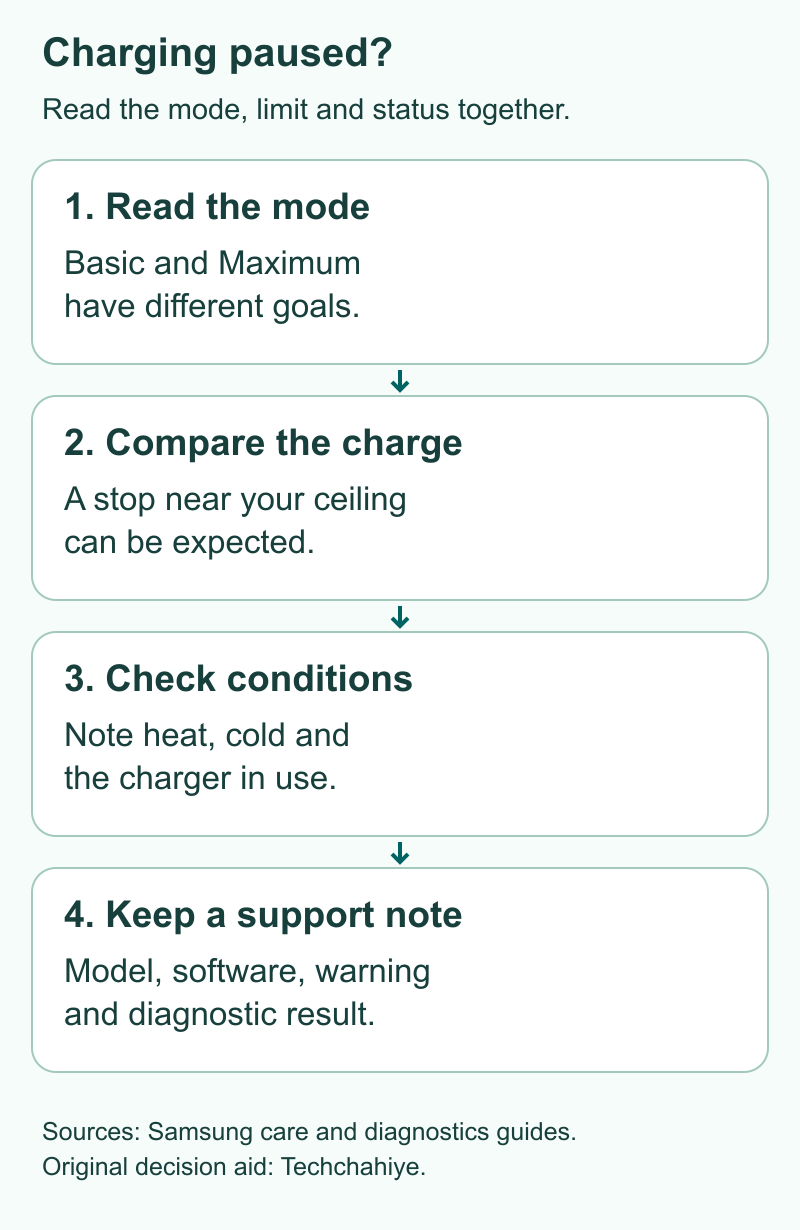
A phone need not show the exact selected number at every moment to be working normally. Samsung’s current Canadian guide describes a small restart gap in Maximum mode. Its example uses an 80% limit, with charging starting again at 78%. The result varies with device, software and conditions.
That regional example helps explain why a reading of 79% is not enough to diagnose a fault. First compare the selected setting, the guidance message and the current level. Then note whether the phone is still connected and what it is doing. A single number provides only part of the picture.
Avoid unplugging and reconnecting over and over to chase one percentage point. You will change the conditions while trying to understand them. Instead, observe the built-in status and write down the result. Does it keep working differently from your model’s guide? Share the record with support.
A pause near the ceiling is one issue. A phone that will not charge from a low level is another. The first may fit a chosen limit. The second needs a charging check. Do not let the presence of a protection switch explain away every charging problem.
Match Adaptive protection to your sleep routine
Adaptive battery protection uses a pattern. Read how the screen says it works. Samsung’s older Singapore guide says Adaptive learns from use. It may work poorly when sleep times change. Do you work changing shifts? Mention that when asking why the morning charge was different.
Newer regional documentation uses the name Sleep time protection. Samsung’s Canadian guide describes permission and Customization Service requirements for that option. Read the notice on your phone and make your own choice about those services. You do not need to accept a new service merely to follow this article.
If you want a simpler ceiling, inspect Maximum instead. If you use sleep-based protection, note when you plug in, when you unplug and the displayed charge. A statement such as “it was at 80% when I left earlier than usual” gives useful context. It does not establish that the battery is damaged.
Do not treat your alarm time as the complete explanation of the feature. Compare the actual screen description with your routine. Change one thing at a time. Keep other sleep and battery settings as they were. That makes it hard to know which change affected the result.
For a week with changing hours, plan around reliable access to power. A smart charging feature is one part of that plan. It should not be your only preparation for a long shift or early trip. Check the charge before leaving. A prediction may miss a change in your plans.
Keep heat and charging equipment in the picture
Samsung’s US care guidance lists 32–95°F, or 0–35°C, as its optimal usage range. It says temperature safeguards can limit charging outside a suitable range. If charging pauses, think about where the phone has been. Check the setting as well.
Was the phone in the cold or a hot car? That gives the pause a different context from normal indoor use. Follow the device’s temperature warning and care guidance. Let it return to suitable conditions. A charge-limit adjustment is not a substitute for addressing an unsuitable environment.
Google’s Android guide says the charger matters. An unsuitable adapter may charge slowly or not at all. Use the supported equipment for your device. If the problem happens only with one cable, pad or adapter, record that detail. It helps separate a connection question from a limit question.
Make one useful comparison at a time. Keep the setting the same while checking a supported charger. Or keep the charger the same while you review the setting. Changing both makes the result harder to interpret. Do not buy a new accessory solely because the phone stopped at its selected ceiling.
Also avoid repeated full discharges as a way to force a limit to work. Google says you do not need full-to-empty training. You do not need to teach the phone its battery capacity this way. A displayed limit is a software choice to inspect. Draining the phone does not show why the chosen limit failed. Read the setting and status first.
Check battery health when the symptoms point there
Battery percentage and battery health answer different questions. The percentage describes the current displayed charge. Health concerns the battery’s condition. A phone stopping at an 80% charging limit does not show that it has lost 20% of its original capacity.
If you see frequent shutdowns or a lasting change in runtime, gather more evidence. Samsung’s US care page recommends a service check for frequent shutdowns. Include the model, software version and warning text. Say when the issue happens. A clear description helps more than a guessed diagnosis.
Samsung’s US diagnostics guide describes Phone diagnostics in Samsung Members. Open Members, look for Diagnostics on Discover or Support, then Phone diagnostics. Choose an available relevant test and follow its instructions. Menus and available tests vary. Record the actual result rather than interpreting an unfinished test as a pass.
A diagnostic result is evidence to discuss with support. It does not make a short observation into a precise capacity measurement. If the issue persists, use the appropriate Samsung support route. Back up important data before a repair handoff. Preparing for repair is a separate task.
Our Samsung Maintenance mode guide covers that later handoff step. The restart guide can help with a separate frozen-screen problem. Both are in References. Each guide serves a different task. A normal charging stop alone does not call for a repair or restart.
Did You Know?
An 80% starting charge and a 60% ending charge differ by 20 percentage points. The relative drop from that starting value is 25%, calculated as 20 divided by 80. Neither number measures lost battery health. Clear units keep a simple charging note from suggesting a result it cannot prove.
Conclusion
Choose Samsung Battery protection by reading the mode and limit on your own phone. Match that choice to your next charging chance and the tasks you must complete. If a stop fits the selected ceiling, it may be expected. If charging or runtime remains unusual, check conditions and gather support evidence separately.
FAQs
What happens if I set a limit below the current charge?
Selecting a lower ceiling does not mean the display must instantly fall to it. Samsung’s Canadian guide describes this case. The phone keeps its current level without more charging. Check your model’s on-screen guidance. Do not drain the phone just to make its number match a setting.
Is Battery protection the same as Power saving?
No. Battery protection controls charging. Power saving helps manage use of the charge you have. Samsung’s model-specific release history discusses these as separate controls. If you need the phone to last until evening, review runtime needs as well as the starting limit. One control does not replace the other.
Why did a mode or percentage disappear after an update?
An update can change the screen. Read the new labels and your model’s release notes first. Compare the installed version with the guide you are following. If a previous option is missing, ask Samsung about that exact model. A missing label alone does not prove a hardware fault.
Can I change the limit for a travel day?
Use the supported choices on your phone to plan for the day ahead. Review the setting early enough to charge before leaving, and allow for delays. Then restore your usual choice if it still fits. This is a planning decision, not a promise of a particular runtime or long-term health result.
Does stopping at 80% mean my battery health is 80%?
No. An 80% stopping point can simply be a selected charging ceiling. It does not measure the battery’s remaining original capacity. Look at the mode first. Does it also shut down or run out of charge too soon? Use diagnostics and Samsung support. The stopping point alone cannot tell you its health.
References
- Samsung Canada — Battery protection tips and mode operation
- Samsung Singapore — Galaxy Battery protection in One UI 6.1, April 2024
- Samsung — SM-S711U1 software update history
- Samsung US — Galaxy battery care and maintenance
- Google Android Help — Get the most life from your device’s battery
- Samsung US — Check your Galaxy device status and run diagnostics
- Techchahiye — Samsung Maintenance mode before a repair
- Techchahiye — Restart a Samsung phone when the screen freezes
