


Check the feature you need and the bill that follows
Compare CleanMyMac, Sensei and CCleaner for Mac Professional against the built-in options you can test for free.
Key Takeaways
- Compare cleaners on the Mac task you do often, such as app removal or storage review.
- Look for file paths, sizes and a clear way to leave items out of a cleanup.
- Compare the renewal price, number of Macs and upgrade terms before you pay.
- Check Apple’s built-in tools against the paid app. Use the same folder and task in each test.
You have a list of Mac cleaners open. One offers a score for your Mac’s health. Another shows a large pile of files it can clear. What you want to know is simple. Will it help with your job, and what will it cost you next year?
To choose the best Mac cleaner software for your needs, compare the tasks you can finish with each app. CleanMyMac brings several cleanup jobs into one app. Sensei pairs storage tools with system monitoring. CCleaner for Mac Professional adds paid features to a tool with a free option. Use the plans and features the vendors list, then test one job you can verify.
The guide compares the tools by their own product and support pages. It uses no vendor claim about how much space you will save. Read the bill and the review screen in your own copy before you choose.
List the Jobs You Would Pay to Make Easier
Think about the last three times you cleaned your Mac. Did you need to remove old apps? Did you have to sort project files? Did you need to see what else was using drive space each week? Choose the job that took the most time. Compare tools on that job first.
If you use the tool once for one file, native Storage and Finder may be enough. Use the app that owns the data when you need to manage cache or work files. A paid suite can still make sense if it helps you do several jobs you repeat and shows what it will change. Test that value with your own workflow.
| Option | Documented features to compare | Main question to ask |
|---|---|---|
| CleanMyMac | Junk and clutter review, app removal, large and duplicate files | Can you review each type and skip what you want to keep? |
| Sensei | System monitoring, cleanup and uninstall tools | Will you use the monitoring as well as the file tools? |
| CCleaner for Mac Professional | Paid features such as review of similar or poor-quality photos | Which options does the paid Mac plan add to the free one? |
| macOS Storage and Finder | Built-in view by type and lists by file size | Can these views handle the job you need? |
Pick a first test that gives you a clear result. A file list with paths can help you review a folder. A claim about a faster Mac is harder to tie to one action. Choose a feature that can show what it found and what you chose to change.
CleanMyMac for Several Cleanup Jobs in One App
MacPaw lists tools that find likely junk, large files, duplicate files and other clutter. It also lists app removal tools. This can fit someone who needs to review more than one kind of file and wants to do it within one app.
Start with the task you have. If you want to find large files, see whether the app can show the full path and size. If you need to uninstall apps, check the review list for data tied to each one. Use the app maker’s own uninstaller when it has one and check your work files before you clear app data.
MacPaw describes one-time purchases as well as monthly and annual plans. Its one-time option covers updates and fixes for the major version you bought. Check what happens if you move to a new macOS version or want the next major release. Compare the plan that fits the Mac you intend to use.
Read the feature list for the edition you can buy. A suite can have tools you will never open. List the features that repay the time you spend learning it and checking each action. A simple rule helps. Keep a feature on the list only if you can name the job it would do in your week.
Sensei for Monitoring and Cleanup Together
Cindori describes Sensei as a Mac system monitor that also includes cleaning and app uninstall tools. The monitor can show data about the Mac while you work. Look at this tool if you want those views as well as a way to review files.
A monitor helps when the issue happens often and you want to know what the Mac is doing at the time. For example, a drive may fill during a large export. A view that helps you track storage can be worth more to you than another way to remove cache. Use one task you know to check whether the monitor makes the change easier to spot.
Check the store for the current price and license for your Macs. Cindori has help for orders and licenses. Read how you would move your license if you replace a Mac. A plan that covers your current computer can have different terms when you add a second one.
If the only step you need is to sort a few files, compare its cleanup workflow with Finder or a storage analyzer. The monitoring features can be useful if they answer other questions you have. They may be extra if your job ends when you find and move one file.
CCleaner for Mac Professional for a Free-to-Paid Check
CCleaner’s Mac product page compares editions. It lists features for browsing data and file cleanup. It also describes photo review features in the Professional version. If part of the reason you are looking at the paid app is a photo tool, check that feature in the Mac plan table.
Look at the free edition and the paid listing side by side on the vendor’s Mac page. Check each feature you intend to use. The Windows and Mac versions can have different tools. A bundle name can also cover more devices or platforms than the app on your Mac alone.
Review similar photos with care. Two photos can look alike even when they show a different moment. A low-quality label can point to the only photo you took of a scene. Open both images and check whether you want to keep them. Make sure your photo library or backup plan works before you clean a large set.
Be clear about browser data too. A browser can have a control for cached files, cookies and history. A paid helper can group checks across browsers, but you still want to know which data you have selected. Keep sign-ins or history when you need them. Do one small test before you do a large clear.
Compare What You Will Pay Over Time
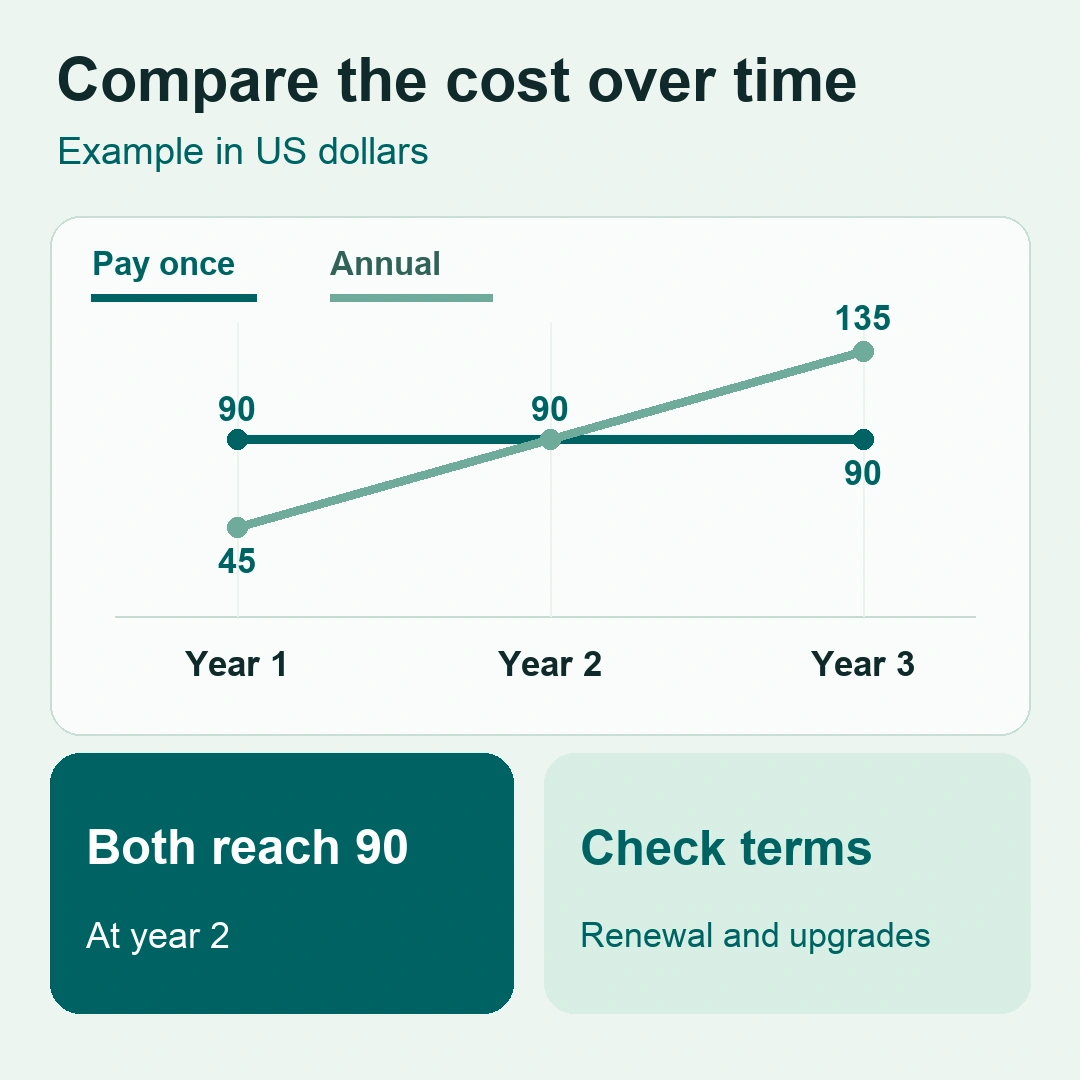
Write down the price you see for your region, the currency and the number of Macs it covers. Then look for the next bill. A low first price can give way to a higher renewal price. Check the price at checkout and read the vendor’s terms. Compare prices from the same date where you can.
Use a small cost example
Imagine one plan costs 90 dollars once. Another costs 45 dollars per year. With those sample prices, two years of the annual plan would also cost 90 dollars. This example leaves out tax, changes to the renewal price and the cost of a major upgrade. It is a way to compare two offers, not a price for a named app.
Check what a one-time license covers. For example, MacPaw says its one-time CleanMyMac option covers the major version you bought. The app still has to work on the Mac you use. Think about whether you will change Macs or update macOS while you plan to use it.
If you buy a plan for more than one Mac, write down which devices you will use. Check if the plan can switch a license to a new device and how you would do that. If you have a work Mac, check which app sources and access your admin allows before you count that Mac.
Look at what happens after a trial
Read the checkout page and look for the trial end date, the first bill and the renewal date. A free download may give you a scan. A trial may give you paid actions for a set time. Choose the plan only if it covers the step you need and you know the cost if you keep it.
Use the trial on a small task you can repeat. Keep a note of what you checked. If the app saves time, say how. For example, it may show the largest items and open them in Finder. If you still need several extra checks to act, count those too. You can use this test to compare it with work you already do for free.
Check Access and the Review List Before You Clear Anything
An app can ask for access to a folder or a part of the drive. Decide whether that access fits your task. If you just need to review old downloads, choose a tool that can start there. An advanced scan may see more. Check which files it found and which areas you want it to leave alone.
Look for clear names and paths in the removal list. Read what each group includes. A tool may list erase, move to Trash or other actions. Those choices can affect whether you get a chance to restore the item. Check your backup and restore path for files you cannot replace.
Choose one item at first. Check what the tool says it did. Open Storage and see whether free space changed on the same drive. If an app claims a large find, read it as a list of candidates. Only after you check the drive can you say how much room the change gave you.
Pause if the tool lists a backup, a library or a file with no clear owner. Ask the app that made it, or read the vendor’s guide for that file type. Keep the item until you can say what it does and where a copy lives if you need to get it back.
Set a Decision Rule for Your Own Mac
List the one or two features you will use often. Write the price over the time you expect to use them. Check whether you can get the same file view or result with the built-in tools. Then ask which tool makes it easiest to see what will change.
For a one-time job, a specific free tool can be enough. For weekly app and folder review, a suite may help if the steps are clear and you can use it within the access you want. Keep your answer tied to the tasks you can verify. A list of features is a start, but your daily work decides what the app is worth.
Use the Same Small Test for Each App
Start with a folder you can inspect on your own. You can make a test folder with a few copies of files you are allowed to use. Write down the file names and sizes. Open Finder and sort it by size. This gives you a result you can check before you compare the paid tools.
Run the app’s scan for that folder if it can limit the scan there. Make a note if it can only scan a full drive. Check how you get from the first screen to the file path. A large colored group can be easy to see. The next step matters more if you need to find the same file in Finder.
See how the app deals with an item you want to keep. If there is a review list, use it to set aside one of your files. Read what will happen to the remaining items. An exclusion that lasts one scan can work for a test. A setting that lasts across scans may work for a project folder you always keep. Check which one the app offers.
Write down any limits. You may find out that the free scan can show the path but cannot make changes. You may find that some parts need permission you prefer not to give. Both are fair results for your test. You can compare how much useful work the tool does with the access you have.
Use your own time for a count if that helps. For example, say Finder took two minutes to find five sample files, and the app also took two minutes once you included the review. Those are made-up figures. On your Mac you may find a different result. Time only the work you need, from opening the tool to finding a file you can verify.
Check one result you would use at work
Pick a file type you deal with often. If it is a photo, compare two copies you know. If it is a video export, check the name and folder along with its size. If it is app data, check the app’s own help before you try a removal. This is a better test of fit than a large scan across files you cannot name.
Also check how help works. A guide can explain what the categories mean and how to undo a change. A support page can tell you which build it covers. Check that the guide applies to the edition you plan to use. If you work on more than one Mac, check that the same method works within the policies for each one.
Decide what would make you keep the tool after the test. You might need a weekly list you can review, a way to handle old photos or a clear app removal view. Write that need in one line. When you compare the bill, use the same need for each tool. It will be easier to see whether the plan costs more than the part of the workflow it improves.
Did You Know?
A tool can show a large scan total even when you decide to keep most of the files it found. A scan reports what the tool saw. Your own review decides what can go. Compare free drive space after the action to see the change.
Conclusion
Compare paid Mac cleaner software on the job you need to do. Check the current plan, renewal terms and what the tool lets you review. Run one small test with files you know. Keep the option that gives you a result you can check at a cost you understand.
FAQs
Is paid Mac cleaner software worth it for everyone?
It depends on the work you do. Finder, Storage and app controls cover many one-time tasks. Try a paid app on a task you do often and see whether it saves steps you can name.
Which of these tools can help review old photos?
CCleaner for Mac Professional lists review of similar and poor-quality photos. MacPaw also lists similar-photo and duplicate search in CleanMyMac. Open photos before you remove them and check your backup.
Is a one-time purchase the same as all future updates?
Check each vendor’s terms. MacPaw says one-time purchases get fixes and updates for the major version you bought. A future major upgrade may have a separate price.
Can a Mac cleaner tell me whether a file is safe to remove?
It can show the kind, name or path of a file. Use those details to see which app uses it and whether you have a copy you can open. Keep files with a role you cannot explain.
How should I compare the free and paid editions?
Look for the exact action you want in the vendor’s Mac feature table. Then test a small example that you can check. Read the renewal terms if that action needs a paid plan.
References
- Apple — Change Storage settings on Mac
- Apple — Delete or uninstall apps on Mac
- MacPaw — CleanMyMac product features
- MacPaw — CleanMyMac purchase options
- Cindori — Sensei monitoring and cleanup tools
- Cindori — Store and license options
- CCleaner — Mac editions and features
- Techchahiye — Best free Mac cleaner apps
- Techchahiye — Best Mac storage analyzers
