


Find the space your task needs
Check the right drive, open Finder or Storage and review a few files. Measure free space before you try the job again.
Key Takeaways
- Start with macOS Storage and Finder. They can help you make room with no new download.
- Work on the drive the blocked job needs. Check free space there before and after you act.
- Move or remove a few files you can verify. Keep the copy you need and check that it works.
- Use an analyzer or a cleaner for a clear job once you have room to use it.
Your Mac has so little space that it cannot finish an update or save a new file. A cleaner app may sound like the fastest answer. But it needs room to download and run, and its scan may give you more files to review than you have time for.
For a nearly full Mac drive, use Storage and Finder first. Find a few large files you know and can replace or move. If a video app grew a large cache, use its own controls. Once the Mac has room to work again, choose a disk analyzer or a cleaner only if you still need one.
The first goal is to make enough room to finish your task. Check the drive you need, make one change and measure what moved. Then decide whether to keep going.
Find the Drive That Needs Space
Read the error from the app or update. It may say where it needs room. If you are exporting video, the file you send might go to an external drive while the app uses your Mac’s drive for other files. If you are updating macOS, you are concerned with the startup drive. Write down the name of the drive and the task you were doing.
Open System Settings > General > Storage on a recent Mac. Apple shows the space in use and the space you can use. Take a note of the figure. If you also use an external drive, select it in Finder and press Command-I for Get Info. Check its available space too when the job uses it.
Decide how much room you need
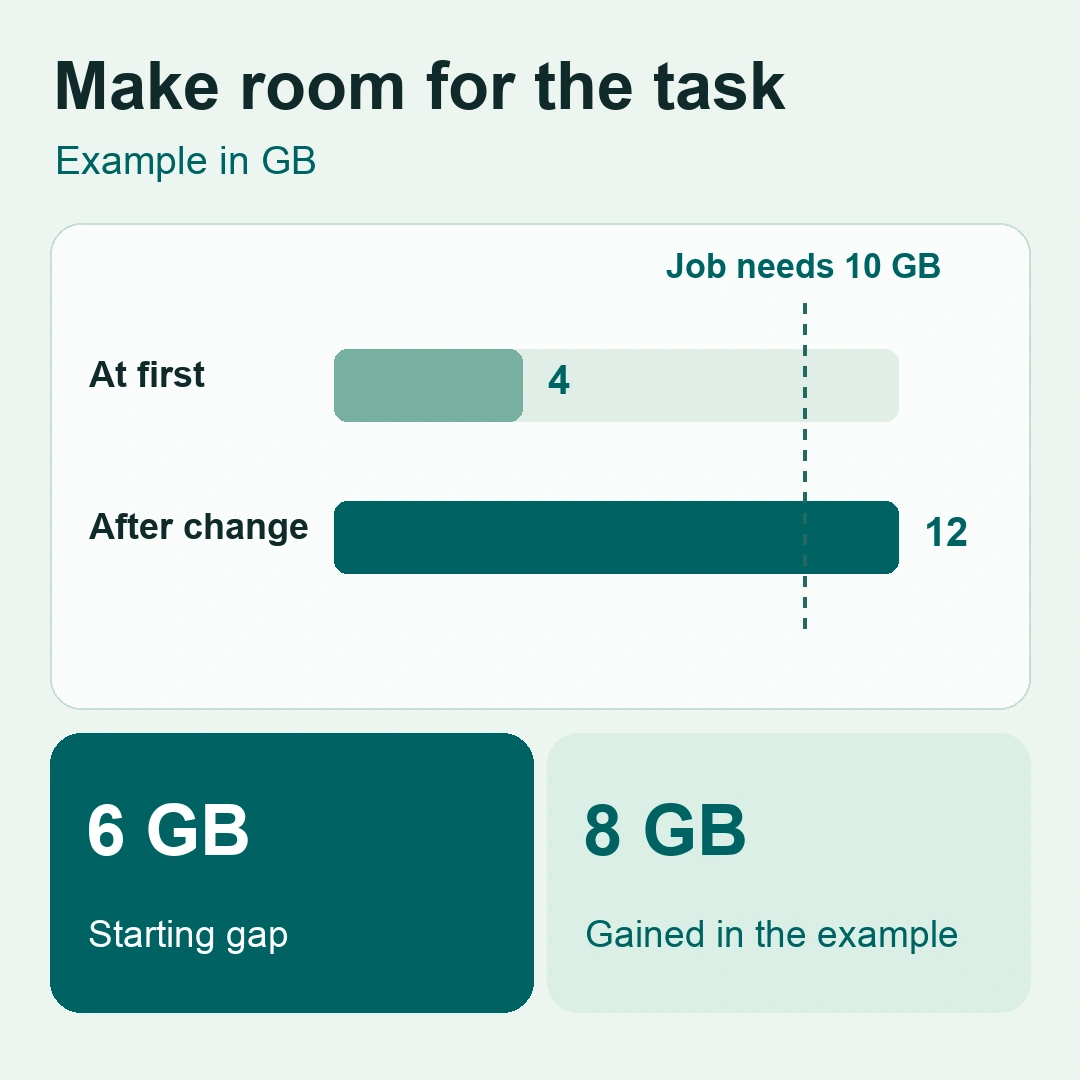
Start from the amount the task asks for if it gives you one. For example, suppose the app needs 10 GB and the drive has 4 GB free. The gap is about 6 GB. The app may need more working room while it runs. Notice which number the app gives you and which drive it means.
There is no one amount you must clear for every Mac and every task. An update may need a set amount. A video job can use more or less depending on the clips and settings you choose. Make enough room for the actual task and check that it works before you widen the cleanup.
| What is blocked | Where to start | Check first |
|---|---|---|
| A Mac update | Storage on the startup drive | The space the update requests |
| A large export | The export drive and the app’s storage settings | The destination and where the app keeps temporary files |
| A copy to an external drive | Get Info for the external drive | Space, access and whether the Mac can write to it |
| A Mac with almost no space | Finder or the built-in Storage view | A few large files you can check with no new install |
Save what you can before you clear anything
If an app lets you save the open file to a second drive, use a drive you trust and check the copy. Some apps can save a smaller test export while you work out the problem. Save what you can and close work that is safe to close. Keep a note of the error.
Avoid starting another large download while the space is low. Wait for copies you need to finish before you act on their files. When you keep working with a nearly full drive, one new export or download can use the room you just made. It helps to finish one job at a time.
Make the First Space With Built-In Tools
Open Downloads in Finder and sort by size in List view. Look for old installers, copies of a ZIP you already opened, and video exports you can make again. Check each file’s name and location before you remove it. You can use the Large Files view in Storage to find more candidates.
Apple’s Storage view can show a file in Finder. Open the folder and check what the file belongs to. A large file may be one part of a project. If you cannot tell what it does with a quick check, move on to something else. A few files you know are enough to get started.
Move a file you still want to keep
Copy the file to a different drive that has room. Wait for the copy to finish. Open that copy from the new drive. If the file needs other parts, check those too. The copy of a video project may open its main window while it still looks for clips on your Mac.
Make sure the copy is on the drive you plan to keep it on. A new folder on the same drive will not give you extra space. Apple also notes that two volumes in one APFS container can share space. Check which drive you are using before you count a move as room you gained.
If the item is important, check which backup covers it. A single copy on a second drive can still be lost if that drive fails. Keep the original until you can open the copy and know how you will get it back later. Choose a spare download instead if you need room right now and cannot check an important file.
Review Trash when you need the space
A file in Trash can still use space. Apple says that the space is made available once you empty Trash. Review what is there before you empty it. Restore items you want to keep and check the list again if the Mac has more than one drive attached.
If there is a file in Trash you might need later, use the chance to put it back or save a copy. Make room by acting on a file you can replace. The free-space figure gives you a way to see what you gained from a small group of changes.
Check the App That Grew the Drive Use
If the trouble began in one app, look at that app’s storage. A video editor may show where it keeps cache or render files. A media app may list copies for offline use. Read which files the control will clear and which ones the app can make again.
Premiere has a Media Cache control with options for unused or all media cache files. Adobe documents the options and when to close projects. Check where the cache lives. If it is on a second drive while your Mac’s startup drive is full, clearing the cache may help the other drive instead.
If a cloud file has a local copy, read the sync state before you act. In iCloud Drive, Apple documents Remove Download for files stored in iCloud. Use it when you want to clear the local copy and keep the file in iCloud. Keep the download when you need the file away from the internet.
Check the copy or project again after a change. A cache can start to grow when you open an app. If you freed room for an export, check the free space as the app works. If you did not gain enough, return to a folder or drive you can check before you clear more data.
Pick a Tool That Fits a Nearly Full Drive
A disk analyzer can show which folder uses space. A cleaner can also list data it can remove. The right tool is the one that lets you finish a task you can check. With very little space, use a tool you already have before you start a new download.
When a map or size list can help
If you have room to run an analyzer and still do not know what filled the drive, choose one folder you can inspect. GrandPerspective can show its files in a map. OmniDiskSweeper can show items in a list sorted by size. The tool docs in References explain what those views show.
Use a scan to make a short list. Read the path and size of the largest items you recognize. Check one in Finder and see whether the tool pointed to the right place. An analyzer helps when you can find a file after you see it in the scan. It has less to add when Finder already shows the file you need.
When a cleaner can help with a specific task
Some cleanup apps let you inspect a class of files before you take action. Open the details and check what the app can see, which drive it covers and what it plans to clear. Skip packages, libraries or backup files you cannot explain. Use an app’s own tool for its data when you know which app made it.
You can compare paid and free tools when the drive has enough room to work. Think about what you need after this cleanup. A built-in view may be enough for a one-time search. A separate tool may save steps if you often have to review many folders and want a view that helps you do it.
If you cannot install or open a cleaner
Start from Finder and Storage again. Check for recent downloads, old copies and exports you can verify. Check any external drive you already have. If a browser or another app struggles to start, use built-in views you can still open. Try one small change and measure it.
Apple says safe mode can clear some system caches and can help make room for a short task such as an update. Its steps differ for Apple silicon and Intel Macs. Read the current safe mode guide for your Mac. Restart normally to leave safe mode. Since these files can come back as the Mac needs them, keep this as a way to get through a task.
Keep the Drive From Filling Again While You Finish
Reopen Storage after each change and check the same drive. For example, imagine you started with 4 GB free and now have 12 GB. That is a gain of about 8 GB. If the task needs 10 GB, try it while you have the room. These are example readings. Your task and available space may differ.
Watch the drive during the work if that is when the error occurred. Some tasks need space while they prepare output. If the free space falls again as you work, check where the app keeps the files it uses. Use its settings when it offers a way to choose a drive with more room.
Once the task works, put the finished copy in the place you mean to keep it. Use a clear folder for downloads and a different one for work you need later. When you review the drive next time, you can look at those places first.
Check what happens if the drive fills during a copy
Stop starting new tasks and see whether any transfer is still running. Check both drives. A partly copied item can look like a finished file if you only read its name. Open the destination copy once the app or Finder says the transfer is complete. Keep the source until you have checked it.
If you cannot write a small file to an external drive with room, read the error. Apple lists space, format and permissions as things to check. Use the separate guide for that problem. Avoid reformatting a drive as a quick test while it holds work you need.
Leave a short note for the next check
Write down which change gave you room and what stayed on the Mac. A short entry such as “copied June exports to the archive drive and opened a copy” can save time later. If the drive fills again, compare the time with the work you did. You can often trace a repeat issue to one folder or app.
If a task failed after more room became available, save the error and check its own help. More storage can solve a space error. A fault that remains may need a different action in the app or on the drive. Your notes can help you find the next step without repeating the same cleanup.
Choose What to Do When Every Candidate Matters
Sometimes the largest files are all part of the job that needs room. Keep those files in place and look for another way to finish. The app may let you change the output folder, export one part at a time or use another drive for a temporary copy. Read the app’s guide and check a small test before you trust the new setup.
If your drive is full because you are working with copies of large files, label which copy belongs to the active job. Look at the file path when you open the project. A work folder on another drive may hold the right file with the same name as one on the startup drive. Keep both in place until you know which one the project reads.
You may be able to finish a job on another Mac or drive you already use. If you move the job, check the file format, the apps you need and any links to other files. Do not expect the move to fix a task that still needs space on the first Mac. Open the copied project at the new place and try a small part of the work.
Use the result to plan the next cleanup. If you use the same app each week and need the same room, change where that app stores its work when it allows it. For a one-time job, you may only need to move one checked file. The goal is room to finish the task without losing access to the files that make it possible.
Did You Know?
A drive can have free space and still block a new file. Apple notes that macOS may be able to read a drive in Windows NTFS format but lack the ability to write to it. Check the format and the error message before you make space or change the drive.
Conclusion
Use Finder and Storage when your Mac drive is nearly full. Find a known file you can move or clear, check the copy if you need it, then measure free space on the same drive. Try the blocked task once you have room. If the drive still fills, choose a tool for the folder or app that needs a closer look.
FAQs
What is the fastest cleaner to use when I can barely save a file?
Start with Finder or Storage. Both are already on the Mac. Find a few large downloads or exports that you can check and move or remove.
Can installing a cleaner make low storage worse?
An app uses room for its download and installed files. It can also have other files of its own. Make room with built-in tools first when the drive has little space. Use a cleaner when it can help with a task you can describe.
Is safe mode a permanent way to get space back?
Apple describes it as a way to free some space for a short task. The Mac can make the cleared cache files again if it needs them. Use the current safe mode steps for your Mac and check space after a normal restart.
Why does my Mac say the drive is full when my external drive has room?
An app may still use the internal drive for the job or some of its work files. Check the error, export destination and the app’s storage settings. Compare both drives before you decide where to make space.
How can I tell when I have cleared enough?
Look at the free space on the drive and the amount your task needs. Try the task again when it has enough room. If it works, you can stop the cleanup or review other files later.
References
- Apple — Free up storage space on Mac
- Apple — Change Storage settings on Mac
- Apple — Start up your Mac in safe mode
- Apple — If your Mac cannot save files to an external drive
- Apple — APFS volumes and shared space in Disk Utility
- Apple — Work with folders and files in iCloud Drive
- Adobe — Clear media cache in Premiere
- GrandPerspective — Mac storage map
- The Omni Group — OmniDiskSweeper
- Techchahiye — Best Mac storage analyzers
- Techchahiye — Best Mac cleaner software compared
