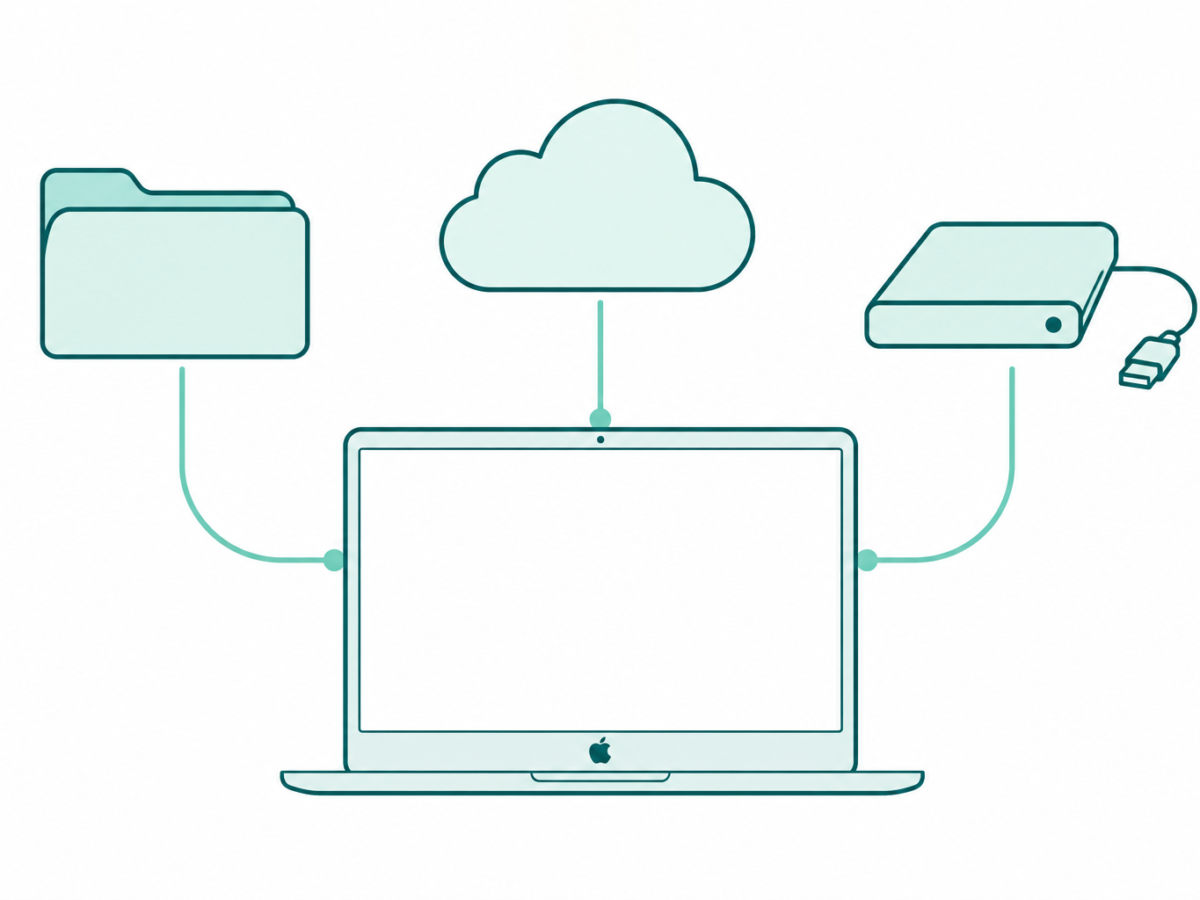

Free up space on Mac with Apple’s native storage tools. Review downloads, external copies, iCloud downloads, Photos libraries, System Data, and Trash.
Tag: Mac
Mac computers can share a familiar look while differing in ports, chips and software support. This archive focuses on practical tasks: freeing storage, connecting a monitor, checking a battery and working through keyboard or heat problems. Choose the guide for your model before making a change that affects files or connected hardware.
Start with the task and the model
For a MacBook display setup, identify the chip and the monitor connection first. A cable that fits a port is only part of the question. Our monitor guide helps you sort the details instead of treating every laptop and screen as the same setup.
Mac settings also depend on macOS. If a menu in an older image differs from your screen, check the system version before assuming that a feature has disappeared. The wider Apple archive connects computer topics with the rest of the device family.
Read battery and storage information in context
Our cycle-count guide pairs the count with battery health. Apple’s official cycle information explains how charge cycles work and why limits vary by model. One number should be read as part of the battery picture, rather than a diagnosis on its own.
Storage and reset tasks need a different plan. Decide which files you want to keep, move or remove before using a cleanup or erase guide. Confirm a usable backup before a reset. A restart, an app cleanup and erasing a computer are different actions.
Choose app help that fits the computer
Mac apps appear in our coverage of writing tools and browsers as well as system tasks. The Microsoft Edge archive provides context for the browser’s earlier Mac launch. A report about an early download is not a recommendation to install an old or unofficial file today.
For Mac troubleshooting, note the symptom and when it happens. A hot computer under a heavy workload and a keyboard that fails in one app need different checks. Read Mac updates with their dates in view, and use our iPhone archive when the problem is on a phone instead. Browse the guides below for the next task-specific step.