
Learn how to delete bookmarks on Chrome. Follow computer, Android and iPhone steps. Export useful links and check what you can recover.
Tag: Google Chrome
Google Chrome should help you get a task done, rather than leave you searching through menus. This archive collects our guides to tabs, site controls, downloads and privacy. It also keeps past release news in view, so you can tell a current how-to guide from an early feature test.
Start with the problem you want to solve
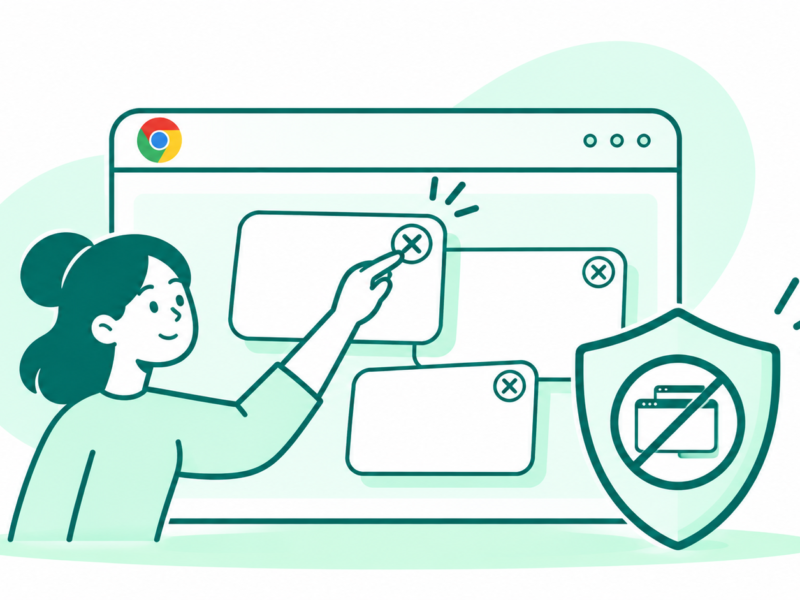
For unwanted Chrome pop-ups, begin with our guide to blocking them without breaking useful sites. Google’s pop-up help makes an important distinction: a pop-up window and an alert from a site are different things. That is why one switch may not stop every message on your screen.
Chrome settings also cover your download folder and what sites can do. Before you change several controls, name the result you want. For example, saving a download in a new folder is a different task from stopping a site from opening a new window.
Manage tabs and check privacy choices
Our coverage of Chrome tabs includes groups, page previews and ways to reduce clutter. Chrome Memory Saver gets its own practical guide. Google’s performance help explains that Chrome can deactivate inactive tabs to save memory. Those tabs reload when you return. Check the desktop or mobile scope before following those steps.
For Chrome privacy questions, browse the articles on site alerts, saved passwords and safer browsing. The Chrome Enhanced Protection archive focuses on that specific protection option. Read what a setting changes before enabling it, especially when a choice changes the browsing data Chrome shares.
Chrome extensions can add tools, but an extra tool is not always the first fix for a browser problem. Use the article that matches your task and check its date. An older guide may show menus that have since moved.
Explore the wider browser picture
Our Chrome browser features archive focuses on earlier tools and release changes, including page sharing and web apps. If you are comparing browsers, Firefox and Microsoft Edge provide other routes through the coverage. Compare the tasks and settings that matter to you instead of treating an old feature list as a speed test or a ranking.