

Start with the kind of interruption
Keep automatic pop-ups blocked. Review site exceptions and check notifications on their own. Allow a useful window for a site and task you know.
Key Takeaways
- Keep Chrome’s pop-up block on. Allow a site when your task needs a window.
- Site alerts use a separate control. Check notifications if alerts keep coming.
- On iPhone, turn Block Pop-ups on. On Android, turn Pop-ups and redirects off.
- Check further if search settings change or new tabs keep opening. One switch cannot fix every cause.
To block pop ups on Chrome, open the pop-up settings. Keep the default block in place. Then check the sites you allowed before. If the message is a site alert, check its notification permission too.
A box over an article can look like a new window. An alert at the edge of the screen can feel the same. Yet each may need a different control. Change the one that fits what you can see.
Start with your device and the kind of message. This guide covers computers, Android, iPhone and iPad. It also shows how to allow a useful window for one task. You can do that without letting every site open windows.
Identify what appeared before changing settings
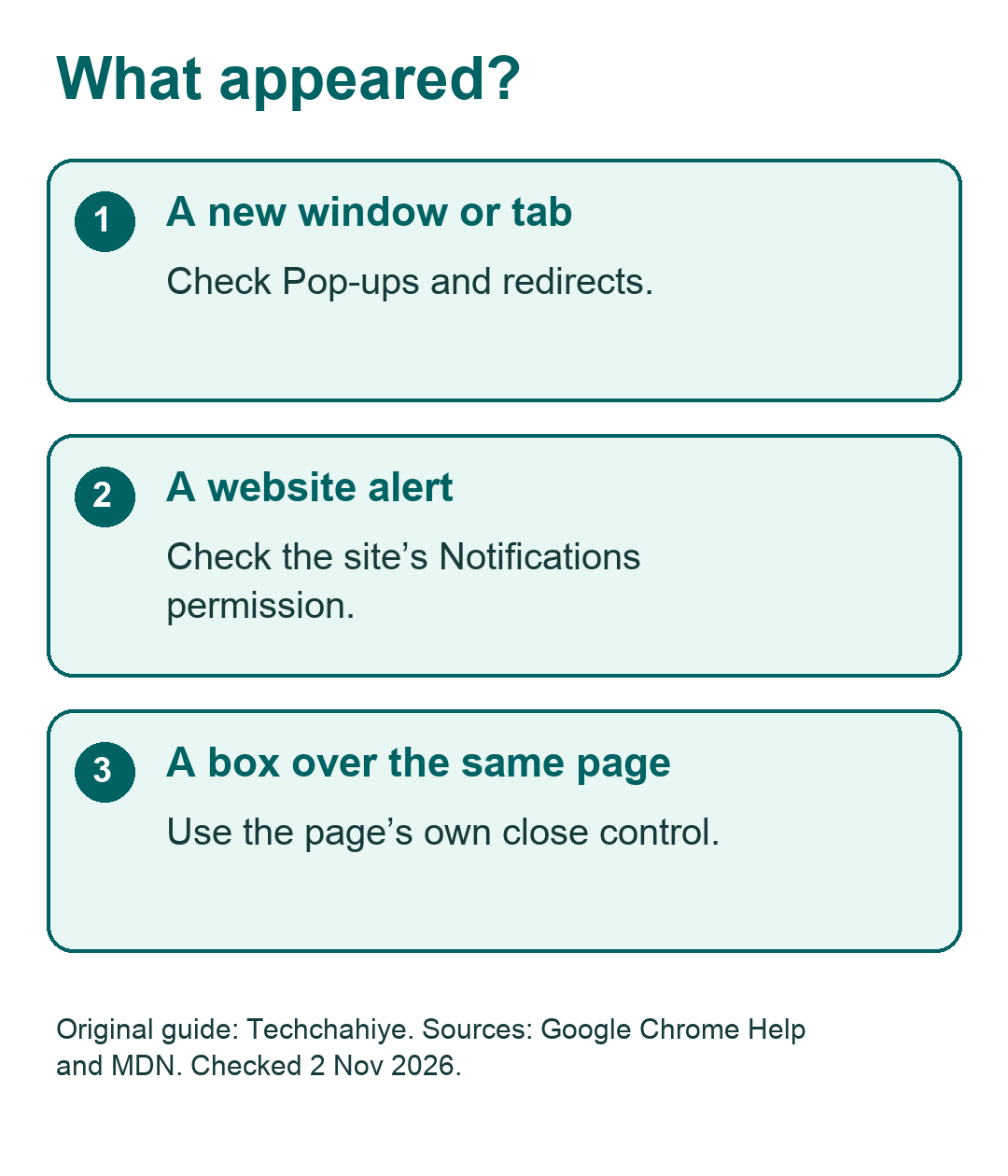
First, look at where the message lives. Did a new tab open? Is there a new browser window? Did your device show an alert? Or does a box cover the page you were reading?
Chrome Help gives pop-ups and site notifications their own controls. Google’s pop-up guide also points to unwanted software. That is one possible cause when the problem keeps coming back. A pop-up block does not set every other permission for you.
Use the table to choose where to start. These are clues. They do not prove what is wrong with a site or device.
| What you see | Check first | A useful result |
|---|---|---|
| A new tab or window opens on its own | Pop-ups, redirects and site exceptions | The unwanted window stops; the page still works |
| An alert names a site | That site’s notification permission | The site can no longer send alerts |
| A box covers the same article or form | The page’s close or dismiss control | The box closes |
| Search, startup pages or extensions change | Unwanted software and browser settings | You find and review the cause |
An in-page box needs a closer look. MDN explains how a site can open a browser window. It also describes the HTML dialog element. That element can show a dialog within the page. It does not need a new browser window. A pop-up blocker cannot remove all items placed over a page.
Imagine a newsletter form over a news story. The tab and address stay the same behind it. Look for the form’s close control. Turning off site alerts is a separate choice. It will not target that form because both interrupt your reading.
This first check can save repeated work. Give the problem a plain name. “New tab,” “site alert” or “box inside the page” is enough. You can refine that description as you learn more.
Block pop ups on Chrome for Windows, Mac and Chromebook
On a computer, open Chrome’s More menu. Choose Settings, then Privacy and security. Open Site settings. Select Pop-ups and redirects. Choose the default that stops sites from sending pop-ups and using redirects. Google lists this route in Chrome Help.
Read the full setting label first. You want to block the action. The color or position of a switch is not the best guide. An older screenshot may also look different from your current screen.
Next, review the allowed sites. A default block can exist alongside a site exception. If you allowed the site causing trouble, block it there. Do not assume that changing the default removed your earlier choices.
Google also describes how to add a site to the blocked list. Use its actual address. Check the name before you select the entry. A similar-looking name is not enough to identify the site you want.
Keep the change focused when one site causes the issue. Your work portal may open a report in a new window. A shopping site may open offers you do not want. You can review the shopping site’s permission and keep the report working.
Return to your original task after the change. Use the page you chose to visit. Check that its normal content loads. There is no need to click an unwanted ad as a test. If a message returns, note what kind of message it is.
Keep a short note if you need help later. “A new tab opens when I visit this page” gives support a clear start. Add the site’s address and the step that came before the new tab. Leave passwords and private account details out.
Block pop-ups in Chrome on Android
Start in Chrome on Android. Open More, then Settings. Choose Site settings. Open Pop-ups and redirects. Turn that option off to block them. This is Google’s Android route; it begins in the browser.
The switch wording can be confusing across devices. Android asks whether to allow pop-ups and redirects. Turning that permission off blocks them. The iPhone control reads Block Pop-ups. Turning that block on has the same goal. Read what the control does.
If a site still sends alerts, review its notification permission. Google gives a separate route for this. Open the site and tap Page info beside the address. Then choose Permissions. Do not keep repeating the pop-up step for a site alert.
Use the sender’s address to identify the site. A headline may use a product name or a warning. That wording alone does not tell you who sent it. Check the site behind the message before you decide which permission to change.
On a shared phone, agree which alerts to stop. Someone may use a known site for a school notice or an appointment. A block for one unwanted sender is easy to explain. Turning off every alert may affect a task someone still needs.
Then visit a normal page and continue your work. A box over that page may be an in-page dialog. Treat it as that kind of problem. If strange pages open across several unrelated sites, use the wider checks below.
Block pop-ups in Chrome on iPhone and iPad
In Chrome, open More and Settings. Choose Content Settings, then Block Pop-ups. Turn Block Pop-ups on. Google lists this path for iPhone and iPad. Use the Chrome controls for this task, since another browser has its own settings.
A useful page may be blocked too. Chrome can show Pop-ups blocked at the bottom of the screen. Google’s guide describes an Always show option there. Check the site and the content before you choose it. The window should fit a task you asked to do.
For example, you may ask a document service for a preview. First, confirm that you opened the right service. Then check that the blocked window follows that preview action. An unexpected demand for an app or payment is a different case.
Google’s iPhone guide also covers a page dialog that will not close. It suggests airplane mode, quitting Chrome and closing that tab. Think about other calls or online tasks before using airplane mode. It affects more than the one browser tab.
Your goal is to leave the troublesome page. You do not need to enter details or download a file to do that. You also do not need to follow the dialog’s own instructions. Resume from a known page when you are ready.
If you ask for help, state where you got stuck. “The dialog covers the page” is a useful clue. “The browser opens another window” points to a different control. A clear description helps someone give you the right route.
Allow one useful window without allowing all pop-ups
Google notes that useful sites can use pop-up windows. A pop-up describes how content opens. It does not, on its own, prove that the content is harmful. Keep useful tasks working with a small, clear exception.
On a computer, look for the Pop-up blocked icon in the address bar. Google’s guide says you can inspect the blocked link there. It also offers an Always allow choice for that site. The mobile guides describe Always show for a blocked page.
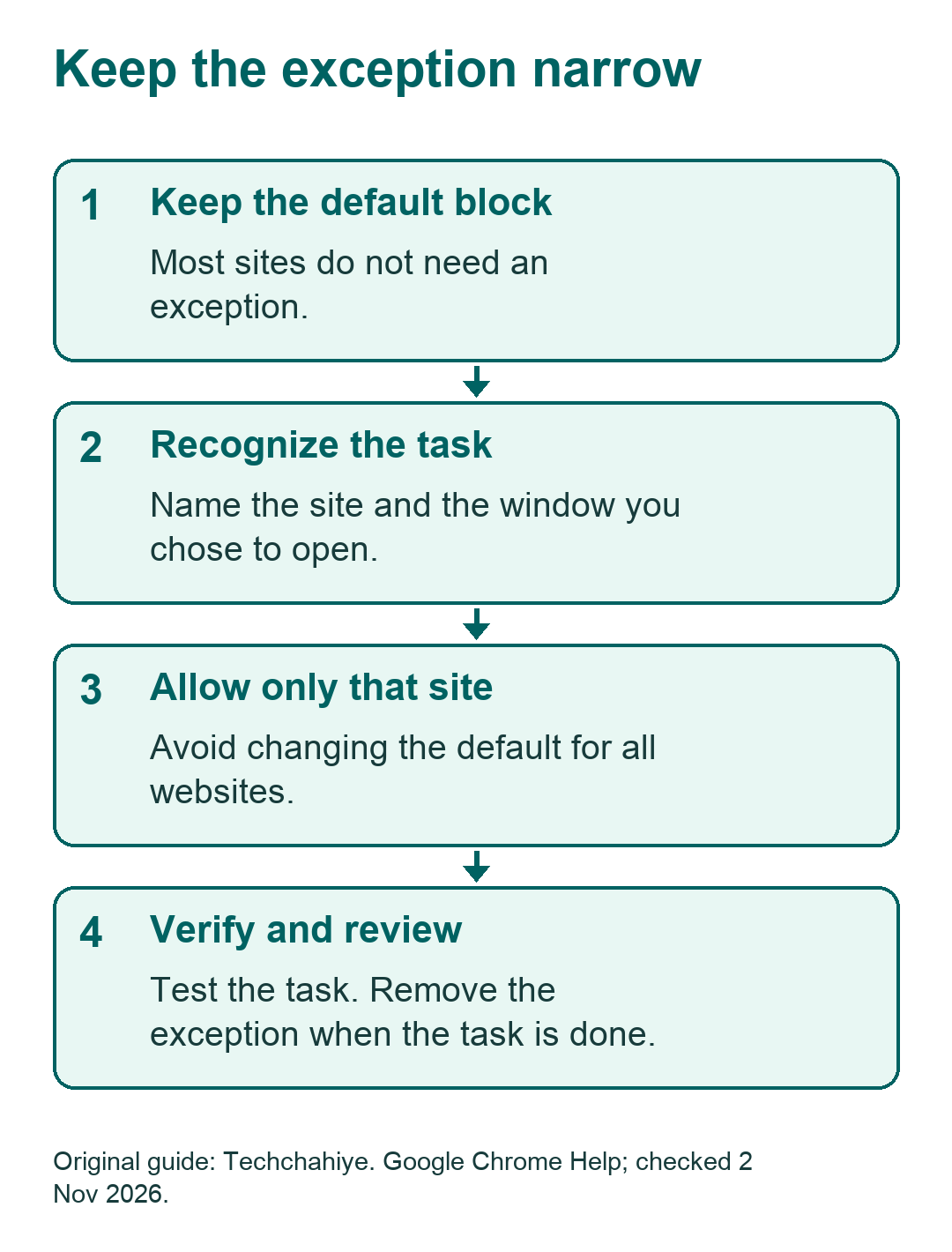
Ask three questions before allowing a window. Which site is asking? What did you choose to do? What should open next? If the answers do not fit, go back to the service through an address you trust.
Here is a hypothetical example. You choose Print receipt on a store’s order page. The blocked window could be the receipt you requested. Now imagine a prize page that appears as soon as you arrive. It does not follow a task you chose. The extra window alone is not the whole story.
Allow the known site for the task you need. Keep the default block for other sites. After the task, decide whether you still need the exception. A recurring report may justify keeping it. A one-time task gives you a reason to review it again.
If the window still fails, do not widen access at random. Note the step and the result. Ask the site what should open after that step. Its support team may need to explain the flow. Allowing everything will not tell you which permission the task needs.
Stop website notifications that look like pop-ups
A site alert does not need a new browser window. Google’s notification guide describes a separate permission system. Sites, apps and extensions can use it. Chrome may also block disruptive alerts or remove permissions for unused sites.
On a computer, open Settings and Privacy and security. Choose Site settings, then Notifications. Review the allowed sites. Block the sender you no longer want. You can also inspect a site’s permissions beside its address.
Open those controls yourself. Avoid pressing a button in an unwanted alert to find settings. The browser menu gives you a route you chose. It also helps you keep the sender’s message separate from your permission choice.
Decide what you want to stop. One choice is to block one sender. Another is to limit new permission requests more broadly. A nuisance site does not make all site alerts useless. A known service may still provide reminders you need.
The right scope depends on the device. You may want no site alerts on a shared tablet. You may want a few on a work computer. Make that choice based on the actual tasks, then review the list of allowed senders.
If someone says an alert returned, check the source. Was it the same site? Was it in the same browser and on the same device? Another app’s alert does not show that Chrome changed its setting back.
A site may also disappear from the allowed list. Google’s guide says Chrome can remove unused-site permissions. Check whether you still need those alerts before adding it back. An old choice is a reason to review the setting, rather than keep it forever.
When the pop-up block does not solve the problem
Google lists several signs that need a wider check. They include repeated tabs, search changes, returning extensions and redirects. The guide covers unwanted software. Those signs do not prove one cause. They show why a site permission may be too narrow a fix.
First, note the scope. Does it happen on one page? Does it happen on unrelated pages? Does it start as soon as Chrome opens? Check whether another browser has the same issue. Keep observations apart from guesses about a virus.
Next, review recent changes you know about. You may have added an extension or installed a program. Note its name and the date if you know them. Two events close together are a clue to inspect. They do not prove that one caused the other.
Google recommends checking for unwanted programs before a Chrome reset. Use its instructions for your operating system. Avoid a cleanup tool offered by the pop-up you are checking. That message is part of the problem you are trying to understand.
A work or school device may have managed settings. Google’s pop-up guide says an administrator can control the setting. If you cannot change it, ask the administrator about your site and task. Explain what Chrome blocked. Do not try to work around the management control.
Keep a support report short and specific. State the page, your action and what happened next. Add the device type. Include the Chrome version if you have it. That gives support a clear question without exposing a full browsing history.
You do not need to prove the cause before asking for help. It is fine to say that several sites trigger new tabs. It is also fine to say that you do not know why. An accurate limit is more useful than a confident guess.
Understand a reset before using it
A Chrome reset changes more than one site’s pop-up setting. Google’s reset guide says it does not delete or change saved bookmarks and passwords. Several browser settings do return to defaults. The guide also says the reset does not cover every preference.
Read the list before you confirm. You may have startup pages or pinned tabs you need to review later. One annoying page does not, by itself, tell you to reset the whole browser. Match the step to the scope of the problem.
For a work profile, ask your administrator if a reset fits. For a personal profile, note the settings you want to check afterward. Keep that note free of passwords. You can record a preferred startup page without copying any secret.
After a reset, check the original symptom first. Then restore optional choices one at a time. Adding everything back at once makes the result hard to interpret. You would not know which change went with the problem’s return.
Use a small record: what changed, what you tried and what appeared. For example, a page may stay quiet before one extension returns. That is an observation to investigate. It is not proof of what the extension does on every device.
A quiet page is useful, but it is not a security check of the whole computer. You may still have concerns about account activity or installed software. Use the support route for that issue. A silent browser does not answer every separate device question.
Check the result without creating another problem
Use three checks. First, revisit a normal page where the issue appeared. Next, try the useful task you need, such as a document preview. Then inspect the site’s permission. Confirm that it matches your choice.
Look for both results: fewer unwanted windows and a task that works. If a report fails, note the report action. Do not turn off the default block to see what happens. If an alert remains, find its sender before repeating the pop-up step.
There is no need for risky tests. Use a page and action you intended to use. Stop if a message asks you to follow an unrelated route. The point is to verify your normal task, not explore each offer that appears.
For a shared device, explain the final choice. “This site can open reports; that site cannot send alerts” is clear. It also tells the next person where to look if a task changes. “All pop-ups now work” gives them less useful detail.
Keep the site exceptions worth keeping. Review others when you no longer need their tasks. This makes the list easier to understand the next time you use it. You do not need another tool to keep a clear record of your choices.
Did You Know?
Google says Chrome blocks automatic pop-ups by default. You may need to remove an old exception or stop a site’s alerts. Check the control involved before adding a pop-up-blocking extension.
Conclusion
To block pop ups on Chrome, keep the default block and review site exceptions. Check alerts on their own. A box inside a page may need the page’s close control. Allow a useful window for a site and task you know. Then check that the task still works.
FAQs
Why do alerts continue after I block pop-ups?
They may be site notifications. Find the sender and check its notification permission. A page overlay is another possibility. If new tabs open across several sites, use the wider checks. Name what appeared before you repeat the same setting change.
Should I install an extension to block pop-ups?
Start with Chrome’s own controls. Google says it blocks automatic pop-ups by default. Review site exceptions and alerts first. An extension is another software choice. It does not replace the need to find out what kind of message you are seeing.
Why does a trusted site’s print or preview window fail?
The site may use a pop-up for your task. Inspect Chrome’s blocked-window message. Confirm the site’s address and what you asked it to open. Then choose a focused exception if it fits. Ask the site’s support team if the task still fails.
Can I change the pop-up setting on a work computer?
Your administrator may control it. A work or school user may not be able to change the setting alone. Give the administrator the site, task and blocked result. They can review that need against the device’s rules. Avoid bypassing the control.
Does resetting Chrome erase my saved passwords?
Google says a reset does not delete or change saved passwords and bookmarks. Other settings return to defaults. Read the full reset guide first. A reset does not cover every preference or prove that unwanted software is gone. Check the original symptom again afterward.
References
- Google Chrome Help — Block or allow pop-ups on a computer
- Google Chrome Help — Block or allow pop-ups on Android
- Google Chrome Help — Block or allow pop-ups on iPhone and iPad
- Google Chrome Help — Use notifications to get alerts
- Google Chrome Help — Remove unwanted ads, pop-ups and malware
- Google Chrome Help — Reset Chrome settings to default
- MDN — Window open method
- MDN — HTML dialog element
- Techchahiye — Private DNS on Android
