

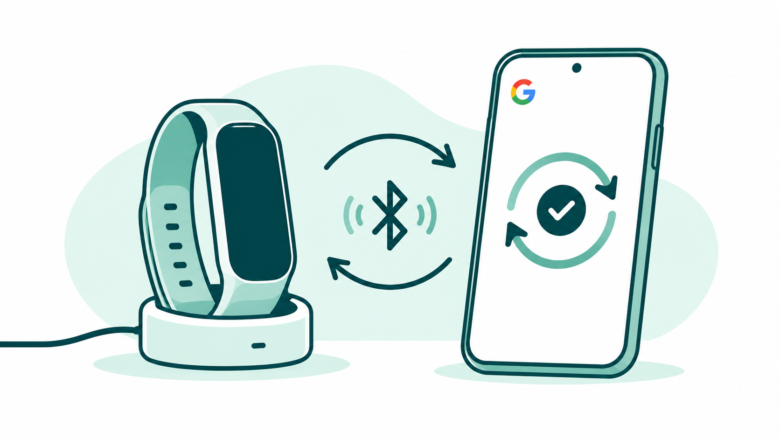
Find where the sync stops
Try one manual sync and read its result. Check the account, charge, Bluetooth and network. Review needed permissions. Confirm phone support before a reinstall. Check partner links as a separate step.
Key Takeaways
Fitbit not syncing is a connection problem to investigate in stages. Start with the device, phone and current Google Health app.
- Keep the tracker near the phone, charged and linked to the intended account.
- Try one manual sync and check the last-sync time.
- Review Bluetooth, network access and the app’s needed permissions.
- Restart using the instructions for your exact model. A restart is different from an erase.
- Check phone support before uninstalling the app. Older software may prevent a reinstall.
Fitbit not syncing can leave the app showing yesterday’s details. Start by opening Google Health with your tracker nearby. Try a manual sync, then look at the last-sync time for that device. That gives you a clear result to work from.
Google’s current support pages use the name Google Health for the app. Older guides may still say Fitbit app and show different menus. Use the labels on your current version. An old screenshot may show another path.
This guide covers tracker and watch connections. We checked Google Help on October 26, 2026. It does not assess fitness measurements or medical symptoms. The aim is to restore the data connection and protect data while you diagnose it.
First Find Where the Fitbit Sync Stops
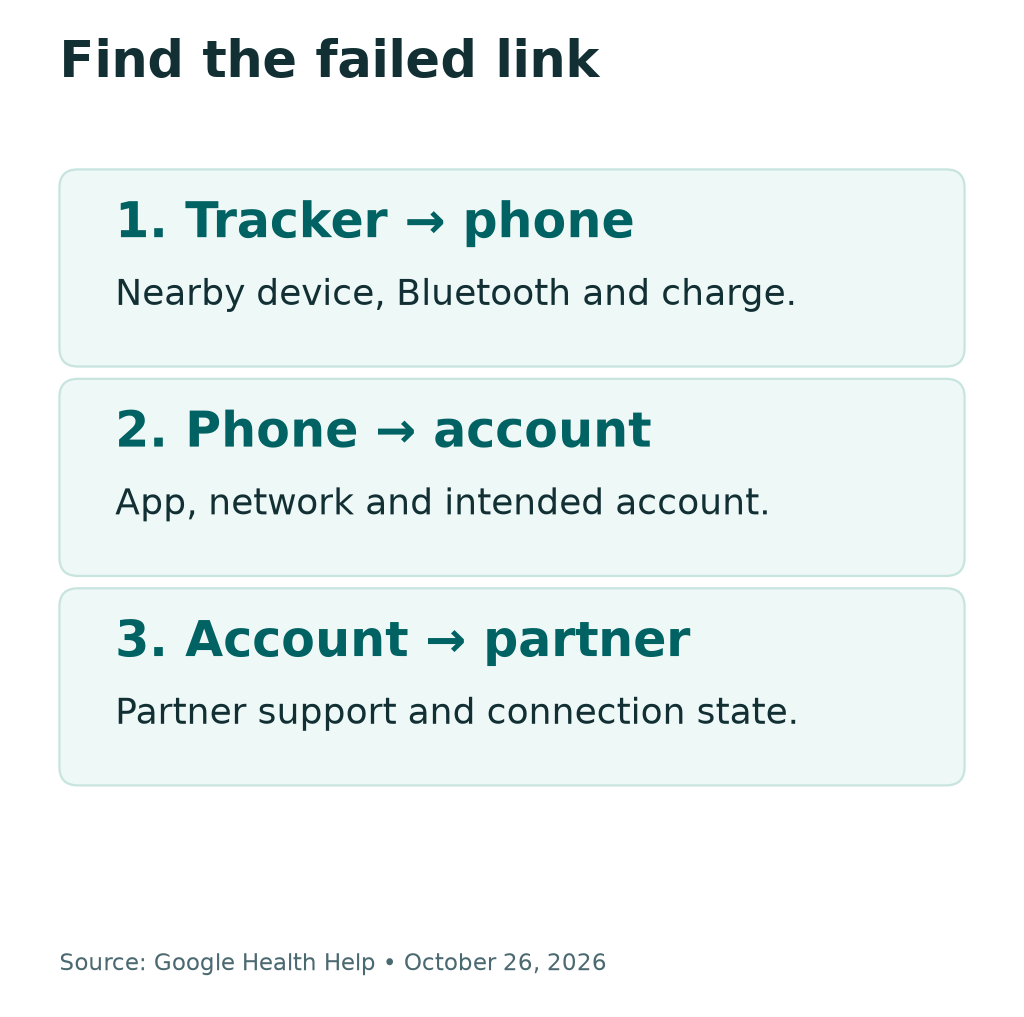
There are several links in the chain. The tracker connects to the phone. The app uses the intended account and network. A separate partner app may then receive data through its own connection.
If the tracker updates Google Health but a partner app stays stale, those links differ. Re-pairing the tracker may not fix the partner link. Find the first place where the expected update is missing.
Open the device page in Google Health and note its last-sync time. Google places device information under Connections in the current app. Choose the intended tracker, especially if the account lists more than one device.
Check a simple, recent result. Did that timestamp change after your manual attempt? Did an error appear? Keep the exact words if it did. A clear note beats a guessed diagnosis such as “the watch is dead.”
| What you see | What to check first | What to avoid assuming |
|---|---|---|
| Last-sync time stays old | Nearby device, charge and connection | Old data alone does not identify a broken tracker |
| Sync reports an error | Exact message and failed stage | Every error does not call for a reset |
| Google Health updates but a partner does not | Partner-app connection | The tracker may already be syncing correctly |
| Old history is missing after a recent move | Account and migration state | Re-pairing does not prove it restores history |
| Clock is wrong too | Last sync and time settings | A wrong clock is not always a hardware fault |
Write down the tracker model and phone software as well. Those details help you choose the right steps. You do not need to share private activity records to describe a connection error.
Check the Current Google Health Requirements
Google’s current setup page lists Android 14 or later, or iOS 26 or later. It also calls for a Google Account. Check that page again when troubleshooting, since app requirements can change.
These are phone software versions, not tracker model numbers. A new tracker does not update an old phone. Likewise, the phone’s brand name alone does not tell you which system version it runs.
Read this rule before you uninstall the app. Google’s help warns that an older phone may keep an existing app but fail to reinstall it. Deleting a working app can add a new problem to the sync fault.
Use the phone’s system information to identify its version. Then review the app’s official store listing for available updates. Keep account access ready before a later reinstall. Keep your password and codes private from anyone helping you.
If the phone cannot run a supported version, identify that limit directly. Repeated Bluetooth pairing will not change it. Review supported options with Google. Avoid unofficial app files from strangers.
Some phones can have model-specific compatibility issues as well. Meeting the stated software version is a starting check. It is not a promise that every phone and tracker pairing behaves the same way.
Try a Manual Fitbit Sync and Read the Result
Place the tracker near the phone and open Google Health. Google’s current instructions offer a pull-down refresh on the Today tab. They also describe a Sync option under Connections. Use the route shown by your app.
Let the attempt finish before you start another. Watch for a progress state or error. Then open the intended device page and read the last-sync time again.
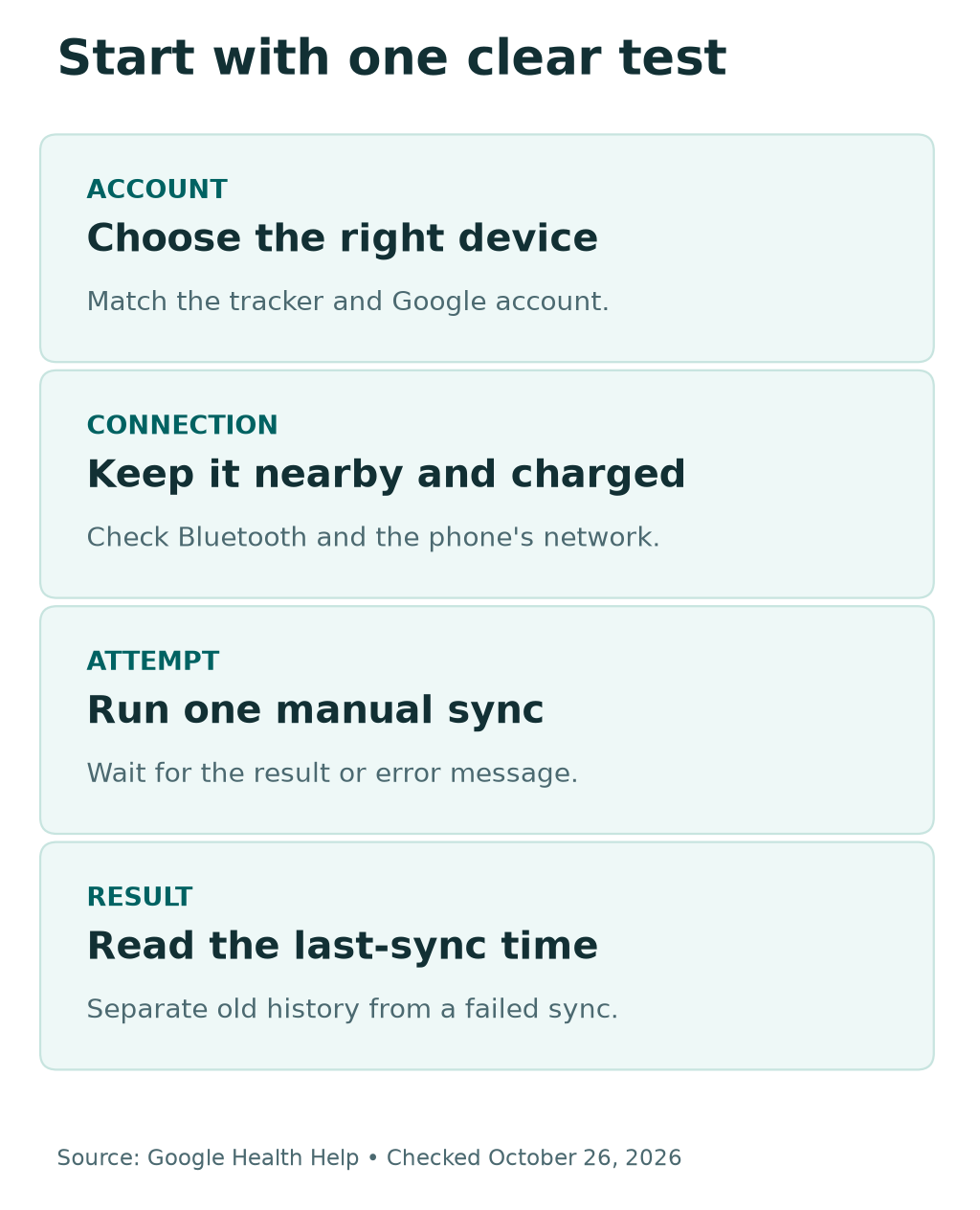
Use this short sequence:
- Confirm the intended account and tracker.
- Keep the two devices close together.
- Start one manual sync in Google Health.
- Wait for its result or message.
- Check whether the last-sync time changed.
If that time updates, you have evidence of a completed sync stage. If a certain item still looks absent, investigate that item separately. Do not assume the whole Bluetooth connection has failed from one missing card.
Google notes that a recent account move can delay old history. Large historical transfers may take up to 48 hours. That note concerns a recent migration. It is not a blanket instruction to wait two days for every connection error.
Keep recent sync and old history separate in your notes. “Last sync updates, older history missing after move” is useful. It tells support something different from “manual sync returns the same error.”
Check Bluetooth, Charge and the Network
Google says the Fitbit must remain near the phone to sync. Bring it within easy reach for the check. Do not test from another room while changing several settings on the phone.
Make sure the tracker has charge. Google suggests trying a sync while it is charging. Use the charger meant for the device and check that it actually begins charging.
Then check Bluetooth on the phone. Google’s troubleshooting includes turning it off briefly and back on. This can interrupt other connected accessories. Choose a good moment for that break.
The phone also needs a network connection for the account’s data flow. Check Wi-Fi or mobile data with a normal task. A Bluetooth connection and a working internet connection are separate checks.
If you recently changed phones, keep the old phone in mind. Google’s guide discusses other nearby devices using the same account. An old pairing can complicate the handoff. Review that device before adding repeated pairings on the new one.
Do not change every Bluetooth accessory at once. Focus on the intended Fitbit and phone. Keep a note of which pairing you removed if the official steps call for that later.
After each change, try one sync and read its result. This lets you see whether charge, proximity or the phone’s connection mattered. You can then track each change during a longer session.
Fitbit Not Syncing on Android
On Android, open the phone’s app settings for Google Health. Review its permissions and background access. Names differ by phone maker, so use your device’s own settings labels.
Google’s help points to Location and Nearby devices permissions for the connection. Read what the app asks for and why. Choose which needed access to allow. Leave unrelated permissions alone.
Next, review battery and data limits for the app. Google says restrictions can affect background syncing. A sync that works only while the app is open is a different clue from one that never works at all.
For example, imagine a phone that completes a manual sync each evening. During the day, its app has little background access. This is a made-up troubleshooting example. Check the app’s background rules before deciding the tracker cannot connect.
Review battery-saving modes on both devices where relevant. Battery saver and bedtime modes can limit background data. Google notes this in its current sync guide. Restore normal connectivity for a test and check the result.
Do not remove a work profile or device-management policy to change a setting. A managed phone may block a needed feature. Ask its administrator about the supported setup. A personal tracker does not justify bypassing those controls.
Once you make an allowed change, reopen Google Health and try again. Record whether manual sync works and whether normal background updates return. That gives you a better result than “I enabled everything.”
Fitbit Not Syncing with iPhone
On iPhone, check the current Google Health app and phone software first. Review Bluetooth access and the app’s settings. Use Google’s iPhone instructions. Android permission names differ from iOS.
Google’s location guide explains its role in clock and weather updates. It shows While Using the App for the iPhone location setting. Review the reason and choose the access you are comfortable granting.
If permission prompts keep returning, follow that guide’s current steps. Do not keep accepting unrelated requests from other apps. A prompt belongs to a particular app and permission, not to the tracker in general.
Try a manual sync with the phone and tracker close together. Then check the device’s last-sync time. If the app works in front of you but not later, review its background behavior as a separate stage.
Before reinstalling, confirm that the phone meets the current rule. Google’s support warning about older software matters here too. A fresh download may not be available to a phone that kept an older installed version.
If you move from an old iPhone to a new one, check the old pairing. Use the account you intend to keep and follow Google’s handoff steps. Do not create another account merely to make a connection prompt disappear.
Restart the Fitbit Without Erasing It
Google says a restart turns the device off and on without losing activity data. Use the restart instructions for the exact model. Button and charger steps differ across tracker and watch families.
A restart is not a factory reset. A reset can erase local data that has not synced. Read the option’s name. Check what it will erase or clear before you confirm it.
Google also warns about small holes on some devices. They may be sensors, not restart buttons. Do not push a pin or paper clip into the tracker because an unrelated model used a tool somewhere else.
Open the official restart guide and choose your model section. Follow it once, let the clock face return and then try a sync. Keep the phone near the device during that check.
Restarting the phone is another normal step in Google’s sync guide. After it restarts, open Google Health and test again. Note the result before proceeding to more disruptive steps.
If a device stays unresponsive, give support its exact model and behavior. Do not guess at charger-button sequences from a different Fitbit. A clear model match matters more than trying every reset video you find.
A restart and an erase are different actions
Use the restart steps for your exact Fitbit model. A normal restart does not erase activity data. A factory reset can erase unsynced local data. Do not put a pin into a sensor hole or follow another model’s button sequence.
When a Partner App Needs a Different Fix
A tracker-to-phone sync and a partner-app connection are different paths. If Google Health updates normally, check the partner’s connection before re-pairing the tracker. Use the official app and its account settings.
Google’s current third-party connection page gives an October 30, 2026 deadline. It says the Fitbit Web API connection is retiring. Affected partner apps need to support the new Google Health connection.
The change leaves Health Connect connections as they are. The same is true for Apple Health. Check which path your partner app uses. Do not assume every linked app needs the same action.
In Google Health, review Connections and Partner Apps. Google says affected entries appear under Needs Action. Follow the indicated route, which may send you into the partner app to reconnect.
Read the requested data access before agreeing. A reconnect can be a real sharing choice. Review the permissions for the purpose you want. Keep account credentials private.
The partner may not have released its new connection yet. Tracker resets will not create it. Check the partner’s official support information. Keep the working device-to-Google Health path intact while you resolve that separate issue.
Know When to Stop and Contact Support
If the simple checks fail, keep a short record of the result. Include the phone model, system version, tracker model and app version. Add the exact error and the last-sync time you observed.
You can describe that time without sharing a full health-data screenshot. Hide private details that support does not need. This includes activity, sleep, location and account details. Use the official support channel for any private information it requests.
Before a later reinstall or re-pair, review current compatibility again. Know the account you need to return to. Read what removing the device affects. Preserve unsynced data where the product allows it.
A checklist alone is a poor reason for a factory reset. Google’s model guide treats an erase as a different action. Ask support for the right next step if data remains unsynced and the connection will not recover.
Finally, bring the first failed stage to that conversation. A manual-sync error, missing old history and a partner-app delay need different help. The notes you made let support start at that stage.
Did You Know?
A Fitbit can show an incorrect clock when it has not synced. Google’s help lists this as a possible connection symptom. Check the last-sync time and relevant time settings first. Then decide whether the screen itself has a fault.
Conclusion
For Fitbit not syncing, start with one manual attempt and its result. Check the account, proximity, charge, Bluetooth and network. Then review the current app requirements and the phone’s needed permissions.
Use a model-specific restart before considering disruptive steps. Keep partner-app links separate from the tracker connection. Open the device page now and note where the sync process actually stops.
FAQs
Why is my Fitbit not syncing with Google Health?
Possible causes include the connection, permissions, battery limits or unsupported phone software. Start with a nearby, charged device and one manual sync. Check the last-sync time and exact error before choosing the next step.
How do I manually sync a Fitbit now?
Open Google Health with the tracker nearby. Use the Today tab’s pull-down refresh or the Sync option under Connections. Then check the intended device’s last-sync time to see whether the attempt completed.
Will restarting a Fitbit erase its data?
Google says a normal restart does not erase activity data. A factory reset is different and can remove unsynced local data. Follow the official guide for your exact model. Read the option before you confirm it.
Should I uninstall the app to fix Fitbit syncing?
Check simpler steps and phone compatibility first. Google’s current requirements list Android 14 or later and iOS 26 or later. An older phone may not be able to reinstall the app after you remove it.
Why does a partner app stay stale after Fitbit syncs?
The partner connection may need its own check. Review Partner Apps and any Needs Action notice in Google Health. Google’s Fitbit Web API change is due October 30, 2026. It affects partners using that API. Health Connect keeps its current path. So does Apple Health.
References
- Google Health Help — Fix syncing issues
- Google Health Help — How Fitbit devices sync data
- Google — Current Google Health app setup requirements
- Google Health Help — Use the app on Android
- Google Health Help — Location permissions on iPhone
- Google Health Help — Restart your exact Fitbit model
- Google Health Help — Third-party devices, partner apps and the October 30 change
- Techchahiye — Android and iPhone guide
- Techchahiye — Apps and productivity guide
