

Prepare while the phone is with you
Check the requirements and the current protection setting. Review trusted account routes and keep a separate plan for Find My and Lost Mode.
Key Takeaways
- Stolen Device Protection on iPhone adds checks for certain sensitive actions. Set it up before a phone goes missing.
- Check your passcode, Face ID or Touch ID, account security and Find My first.
- Some actions need a biometric check. Other changes can involve an hour-long security delay.
- If a phone is stolen, use Apple’s current lost-device steps. The protection setting does not replace Lost Mode.
Stolen Device Protection on iPhone helps protect sensitive account and device changes. It is designed for a difficult situation: someone has your phone and knows its passcode. Check the setting while the phone is still in your hands.
The useful goal is a complete setup, not a switch that looks reassuring. Know which account owns the device. Check the recovery routes. Locate Apple’s loss guidance. Prepare those details before an emergency.
This guide follows Apple’s documentation checked October 25, 2026. Apple’s main protection guide was updated October 22. The examples below explain a planning process. They are not theft tests or promises that a phone cannot be misused.
Understand the Problem Before Changing Settings
A screen passcode remains an important part of phone security. However, a person might see it being entered. They might then obtain the device. That is a different problem from a stranger holding a locked phone without the code.
Stolen Device Protection adds requirements to selected actions. Do not treat it as a new name for every security feature on the iPhone. A backup, Find My and a strong passcode still serve their own purposes.
Write down the outcome you want. For example: protect account changes if my phone and passcode are exposed. An extra check may appear for a sensitive change. Ordinary phone use may still work.
Keep a record of your setup without recording the secrets themselves. A note can say which recovery route you checked and when. Keep passwords and codes out of that note. Do not store a list of secrets beside the device.
Check the iPhone and Its Current Software
Apple lists iOS 17.3 or later for this feature. Check the installed version in Settings. A recent-looking phone may still run older software. A model name and a software version answer different questions.
If an update is needed, plan it as a separate task. Allow time, power and a reliable connection. Follow the device’s normal update guidance. Do not begin a major update just as you need to leave with the phone.
Also confirm that you are viewing the right device and account. A family may have several similar phones. Security notes copied from another handset can make a setup look complete when it is not.
When you finish the check, note the date and installed version. If a control is absent, that record gives support a useful starting point. Avoid random resets or unofficial configuration profiles to make a missing option appear.
Review the Required Security Foundations
Apple names several requirements in its setup guide. These include a passcode and Face ID or Touch ID. Two-factor authentication and Significant Locations are also required. Find My must also be on. Review those foundations before changing the protection setting.
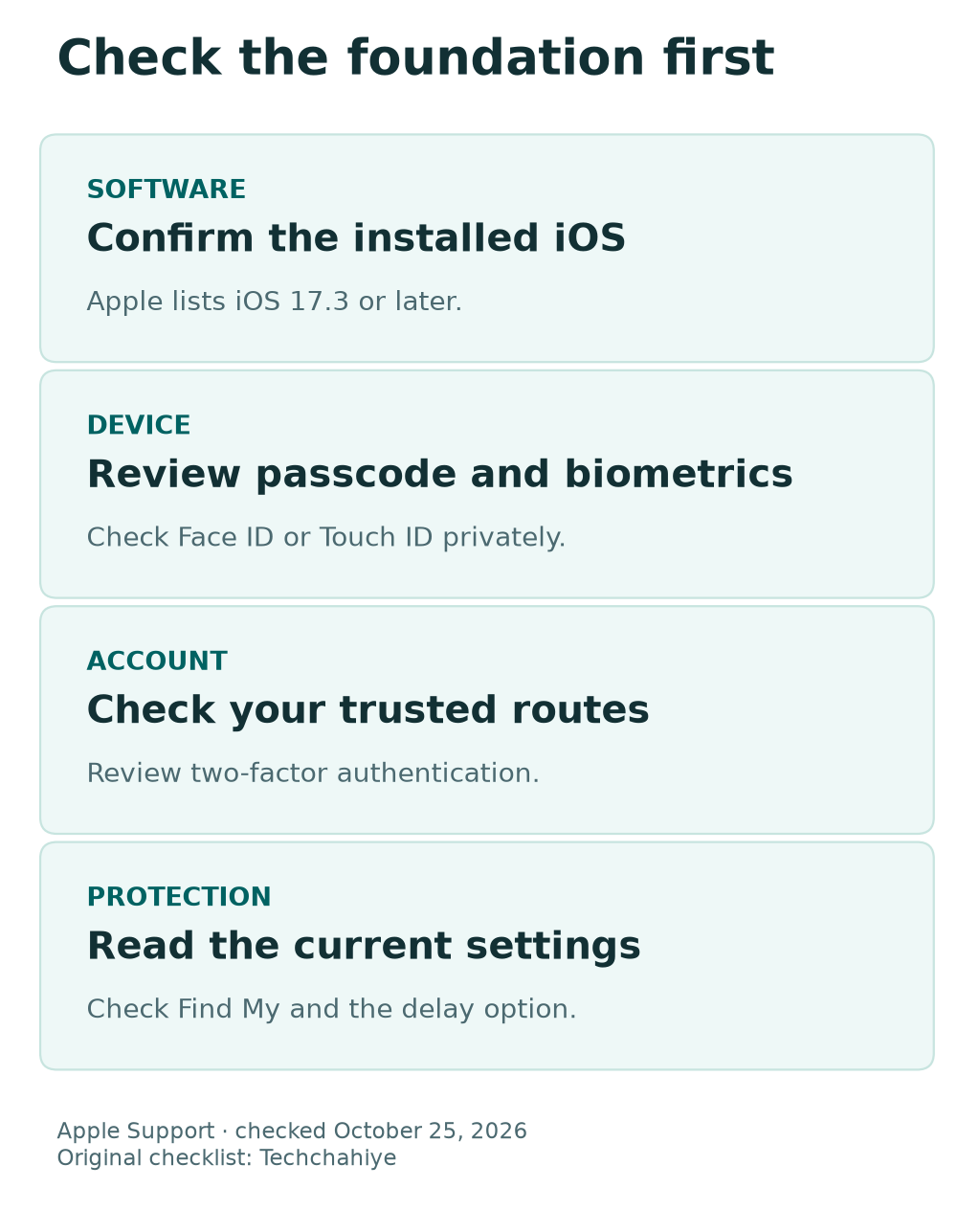
Treat each check as its own question. Can you unlock the phone? Is the intended biometric method set up? Do you recognize the Apple Account? Can you use its normal trusted-device or trusted-number route?
| Check | What to establish | Useful record |
|---|---|---|
| Device and software | Correct phone and supported iOS | Model and installed version |
| Passcode and biometrics | Owner can authenticate normally | Date checked, without the code |
| Apple Account | Correct owner and trusted routes | Account identity kept securely |
| Find My | Device appears in the intended setup | Date checked |
| Protection setting | Current state and delay choice | On/off state and chosen option |
Do not borrow another person’s biometric setup or account as a shortcut. If ownership is unclear, resolve that first. A security feature cannot make an unknown account into the correct owner of your phone.
Find Stolen Device Protection on iPhone
Apple places the control under Face ID & Passcode or Touch ID & Passcode. Open the relevant menu on your own phone. Read the current state before changing it; Apple says the feature may already be enabled.
- Open Settings on the intended iPhone.
- Open Face ID & Passcode or Touch ID & Passcode.
- Enter your device passcode privately.
- Open Stolen Device Protection.
- Review whether it is enabled and which delay option is selected.
- Follow the onscreen steps to enable it if needed.
Make one deliberate change at a time. Afterward, return to the setting and confirm the result. A tap that opened an explanation is not the same as a completed setup.
If a requirement is missing, use Apple’s linked instructions for that requirement. Avoid guessing which unrelated setting might fix it. Keep the exact message. Explain the problem without exposing your passcode or account details.
Understand Biometric Checks and the Security Delay
Apple describes two kinds of added checks. Certain actions require Face ID or Touch ID without a passcode fallback. Some critical changes have three stages. Complete a biometric check, wait an hour and authenticate again.
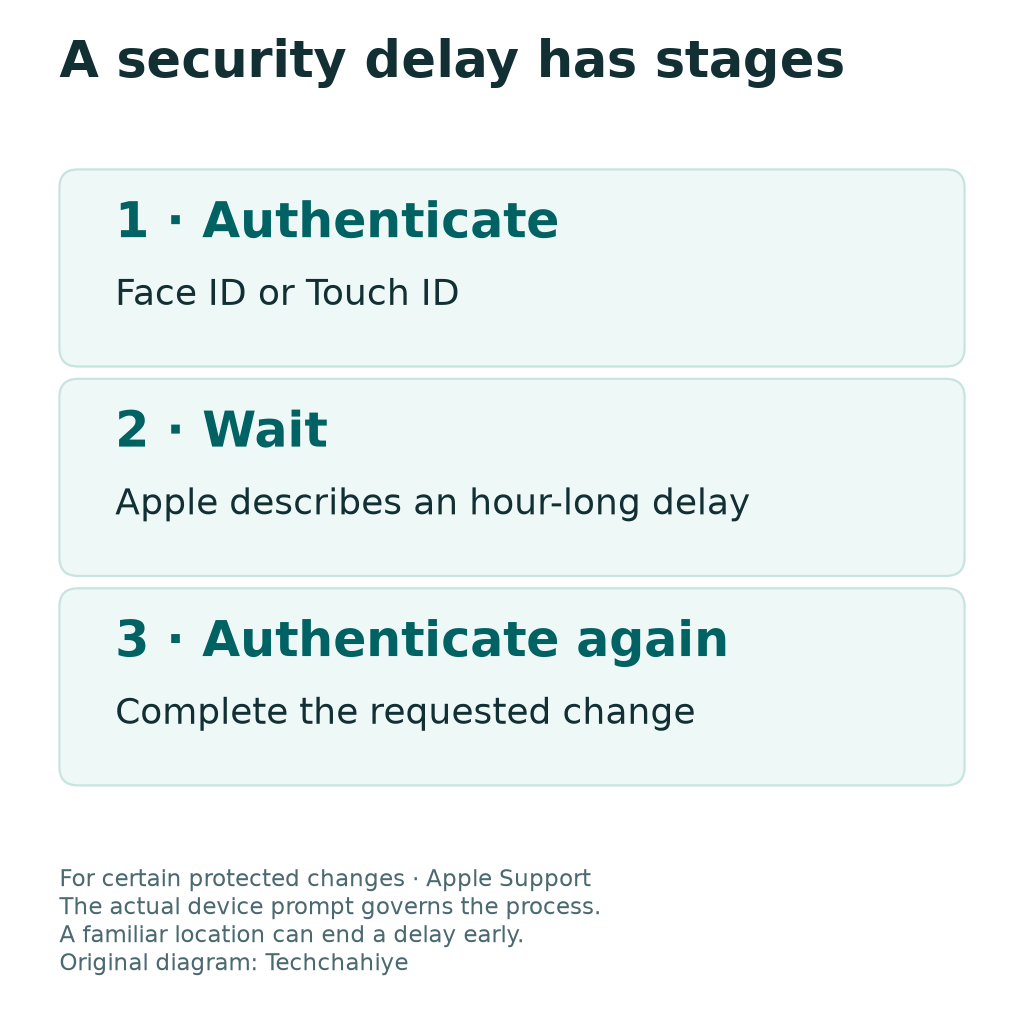
Think about the difference in terms of the action. One task accesses protected information. Another changes account security. They are different tasks. Read the specific prompt. Each sensitive action may have its own sequence.
The delay is not an invitation to keep retrying. If a legitimate change has started a timer, note what you requested and when. Use the phone’s normal instructions to continue after the required period.
Do not depend on a precise countdown from a third-party article. The current device prompt controls the actual process. A simple diagram can explain the idea, but it cannot replace the live security state on your phone.
Choose Between Familiar Locations and Always
Apple’s default behavior applies the added measures away from familiar locations. The Always option extends them regardless of location. Read the description on your device before choosing the option that fits your needs.
A useful planning question is where you want the extra checks to apply. Consider routine account changes at home as well as use during travel. You are choosing a security behavior, not merely a label for where you live.
If you choose Always, plan legitimate changes with the extra steps in mind. Allow time before a device handoff. Do not leave account changes until the last few minutes.
Avoid testing the difference by weakening other protections. You do not need to expose a passcode or disable Find My to understand the choice. Review the setting and Apple’s explanation, then leave the phone in the state you intend to use.
Keep the Passcode Private During Everyday Use
The setup guide does not make passcode privacy irrelevant. Enter it with care in public. If someone is watching, change your position. Wait until you can use the device privately.
Apple’s passcode guide offers numeric and alphanumeric options. Choose a code you can remember securely without making it easy for another person to guess. Avoid using a public birthday or a repeated pattern merely because it is quick to type.
Do not share the code to let someone inspect a photo or make a call. Find a way to complete the narrow task without handing over full device access. A convenience request should not become open-ended access to personal apps.
Act if you think the code was exposed. Use Apple’s current guidance to review the situation. Make changes privately on a device you control. Do not tell a caller either code. A claim to help does not establish trust.
Review Account Access Before Travel
A phone often holds the very tools used to sign in elsewhere. Plan for account access before a trip. How would you reach it without this phone? Use the official account settings and guidance, not a memory of an old number.
Apple’s two-factor guide explains trusted devices and trusted phone numbers. Check which ones belong to you and are still usable. A trusted number that was cancelled years ago is a weak recovery plan even if it still appears in a note.
Keep travel preparation narrow and practical. Confirm the account and device list. Locate the official Find My route. Store essential information securely. Choose a place you can reach without this phone.
Do not start a risky account overhaul at the departure gate. If a check reveals an unresolved issue, allow time to fix it through Apple’s normal process. A rushed change can leave you less certain about access than before.
A compact travel-readiness note
Record the device model, account owner, date checked and the official loss-help location. Store it securely. Keep passcodes, passwords and verification codes out of that general note.
Prepare for a New iPhone or Device Transfer
Apple says protection settings can return through an iCloud restore or direct transfer. A new device may take time to recognize familiar locations. Review the new phone’s actual settings. Do not assume its behavior will match immediately.
After a transfer, separate data checks from security checks. First verify that important information reached the new device. Then check the account owner and biometric setup. Review Find My and the protection setting too.
Keep the old phone until you have completed the checks required for your transfer plan. Do not erase a working source device merely because the new phone shows a home screen. A visible app icon does not prove its data is ready.
For a sale or trade-in, follow Apple’s dedicated preparation guide. It covers backups, transfer and removal of personal information. Plan enough time for any security delay before the handoff. A sale is different from a theft response.
Distinguish Protection, Lost Mode and Activation Lock
These controls belong to the same wider safety plan, but they do different jobs. Use a short map so you know which problem you are trying to solve.
| Situation | Relevant concept | First question |
|---|---|---|
| Prepare while you have the phone | Stolen Device Protection | Are sensitive changes protected as intended? |
| A device has gone missing | Find My and Lost Mode | Can you mark the correct device as lost? |
| Someone wants the device removed from Find My | Activation Lock | Is this a legitimate owner-controlled handoff? |
| You are selling your own phone | Apple’s transfer and sale process | Are the backup and transfer checks complete? |
Apple’s theft guidance says to mark a stolen device as lost even with protection enabled. Do not assume the setup switch replaces a response when the phone disappears.
Likewise, do not follow a stranger’s demand to remove a missing phone from Find My. Verify the request through the official process you opened yourself. A message that knows your phone model is not proof that its sender is Apple.
If Your iPhone Is Stolen, Change the Task
Once a phone is stolen, stop treating the situation as a setup exercise. Open Apple’s current stolen-device guidance. It directs owners to mark the device as lost and to report the theft through the relevant channels.
Use a device and connection you trust. Type the official address yourself or use a known bookmark. Do not begin from a link in an unexpected text that claims the phone has been found.
Apple warns owners not to retrieve a stolen phone themselves. This includes an unfamiliar map location. Contact local law enforcement instead. Your immediate physical safety is more important than following a moving dot.
Keep a concise incident record. Note when the phone was last in your possession, its model and the actions you completed. Keep account secrets out of any general incident note that other people may need to read.
Contact the carrier using a verified channel for the affected account. Ask about the appropriate loss response for that service. US and India readers should use their own carrier’s process. A number from another market may not work.
Recognize Follow-Up Messages That Ask for Secrets
Apple will not contact you to announce a found iPhone. Its support guidance states this. Stop if someone asks for a passcode, password or verification code. Verify the request through a trusted route.
A convincing message may use urgency. It may claim that you must act now to save photos or prevent a sale. Do not let that deadline choose the website for you. Open the official service through a route you trust.
Avoid sending screenshots that expose account details or codes. Use the official support channel. Provide only the requested information. A public social reply is not a suitable place for private recovery details.
Preserve suspicious messages if you need them for a report. Do not forward their links as if they were verified instructions. Tell family members that you are using official loss channels. Explain how to recognize suspicious follow-up requests.
Build a Calm Setup and Review Routine
A useful review can happen after a major software update, a new phone or an account change. The purpose is to confirm that the setup still fits. It is not to toggle protection off and on as a daily test.
Check the state of the intended device. Review the account routes you depend on. Locate the current loss guidance. Keep the record short enough to repeat when something meaningful changes.
For a family, help each owner understand their own device. Do not collect everyone’s passcodes in one shared message. Name who will help contact the carrier. Keep account secrets out of the shared plan.
Finish with a simple question: could I begin the official loss process without this phone? If the answer is no, improve that part of the plan while you still have time and access.
Did You Know?
Apple links these two controls. Find My stays on while Stolen Device Protection is enabled. Treat an instruction to disable these controls as a significant change. Are you preparing a legitimate sale? Or did the request come from an untrusted source?
Conclusion
Stolen Device Protection on iPhone is worth reviewing before a loss. Check the requirements, enable it if needed and understand the delay option. Keep the passcode private and the account’s trusted routes current.
Then prepare a separate loss plan. Know how to open Find My and where to find Apple’s current instructions. Keep both a clear setup and a calm response plan. One security setting cannot cover every situation.
FAQs
Can I turn on Stolen Device Protection after my phone is stolen?
Apple says it must be enabled before the device is lost or stolen. If the phone is already missing, use the official lost-device workflow. Do not delay that response while looking for a remote setup shortcut.
Does every action require a one-hour delay?
No. Apple distinguishes biometric-only checks from changes that involve a security delay. Read the prompt for the action you are taking. An ordinary unlock differs from a saved-password check. An account-security change may follow another process.
Why might the behavior change after I transfer to a new iPhone?
Apple says a restored or transferred setup can include protection settings. The new device may need time to recognize familiar places. Check its actual state and prompt. Do not disable protections merely to make a new phone behave like the old one.
Should I remove a stolen iPhone from Find My?
Apple’s theft guidance says not to remove it. Removal affects Activation Lock and can help a thief resell the device. A legitimate sale uses a different owner-controlled process. Follow the current instructions for the situation you are actually in.
Is this the same as a backup of my photos and files?
No. Added security checks and data backups serve different purposes. Review both. Confirm that important files have the copies you intend to keep. Do not infer a complete backup from the presence of a security setting.
References
- Apple Support — About Stolen Device Protection for iPhone
- Apple Support — If your iPhone or iPad was stolen
- Apple Support — How to find your lost iPhone or iPad
- Apple Support — Two-factor authentication for Apple Account
- Apple Support — Use a passcode with your iPhone or iPad
- Apple Support — Prepare an iPhone or iPad for sale or trade-in
- Techchahiye — Android and iPhone guide
- Techchahiye — Google Photos Free up space and copy checks
