

Check each tool on your own phone
Record supported features and their states. Check the screen lock and Remote Lock setup. Prepare Find Hub, account access and backups.
Key Takeaways
- Android theft protection has several controls. Check each feature on your actual phone.
- A supported phone still needs the right screen lock and account setup.
- Remote Lock, Offline Device Lock and Theft Detection Lock respond to different situations.
- Prepare Find Hub, account access and backups before a phone goes missing.
Android theft protection can add useful ways to lock a phone. The important part is knowing which tools your device supports. Open the settings while you still have the phone and time to review them.
Do not assume that one switch covers every loss. A motion-based lock, an offline lock and a remote request have different conditions. Keep a strong screen lock too. Check account access and backups.
This guide follows Google’s Android Help pages checked October 25, 2026. It explains a setup and review process. It does not report a theft test or promise that every stolen phone will lock or be recovered.
Start With Your Actual Phone and Software
Android devices do not all expose the same security features. Google says support varies by model. Its theft guidance lists version limits. These controls exclude Android Go devices, tablets and wearables.
Record the phone model and installed Android version. Keep these details separate. Two phones can have similar menus. Their sensors, services and security features may still differ.
If a control is absent, look up the manufacturer’s guidance for that exact model. Do not install an unknown app to force missing settings on. A missing feature may be a support limit, not a setup error.
Use the current settings page as the starting point. A launch article from a previous year can explain a feature’s history. It cannot confirm what your phone supports today or whether the setting is enabled.
Find the Android Theft Protection Settings
Google’s documented route starts in Settings. Open Google, then All services. Look under personal and device safety for Theft protection. Menu names can vary by device and software.
- Open Settings on the intended phone.
- Open Google and All services.
- Find Theft protection.
- Read the current state of each listed control.
- Review any requirement or explanation before changing it.
- Return to the page to confirm the saved state.
Make a short checklist using the names you actually see. Mark a feature as enabled, disabled, unsupported or unresolved. Those states are more useful than a single note that says security done.
Google says some protections may already be on by default. Check before tapping. Leave an enabled control on. You do not need to cycle it off and on.
Separate the Lock Features by Their Job
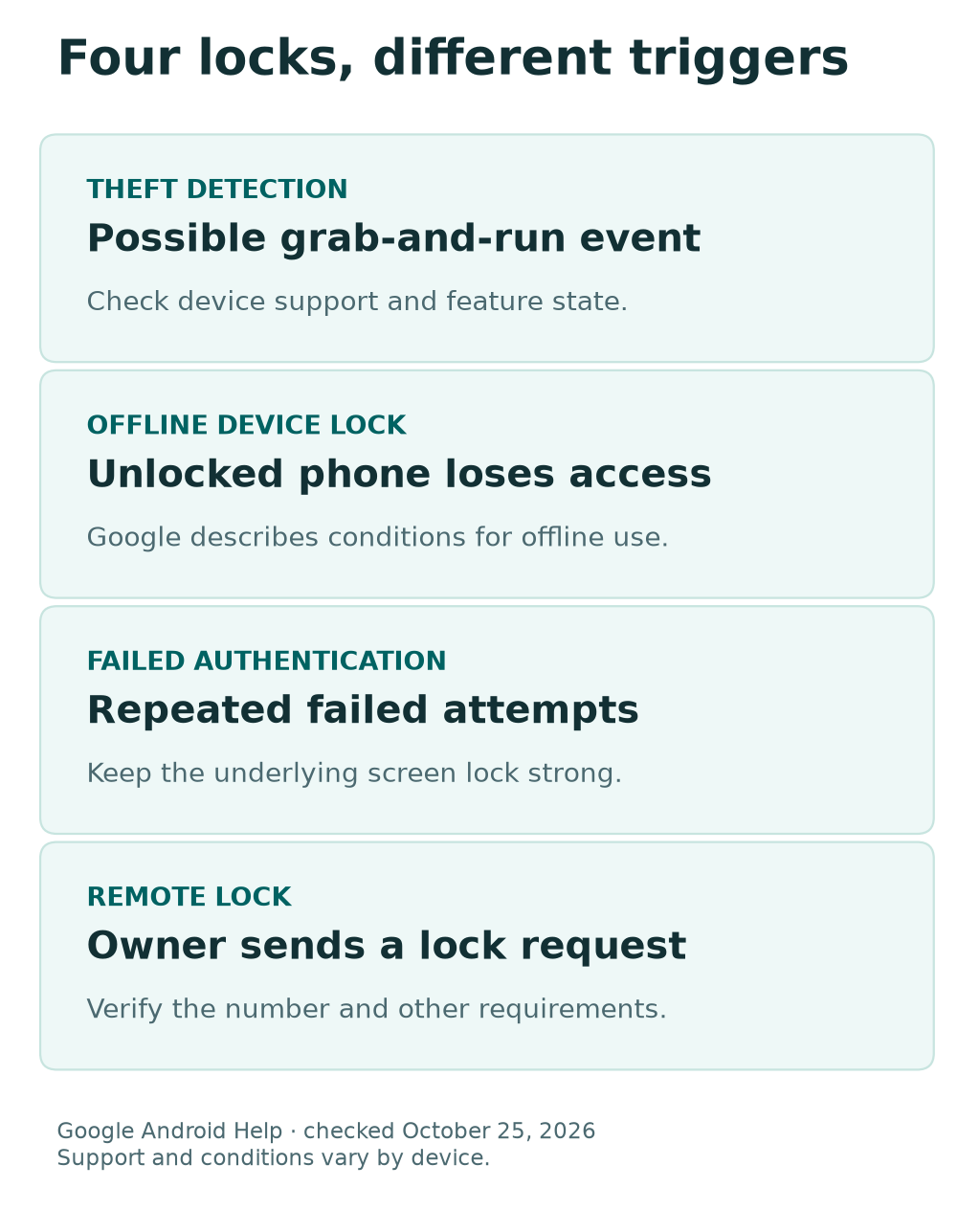
Think of the controls as responses to different events. The table is a map to the current documentation, not a claim that every device offers every row.
| Feature | What it addresses | What to review |
|---|---|---|
| Theft Detection Lock | A possible grab-and-run event | Device support and current state |
| Offline Device Lock | An unlocked phone loses connectivity | Conditions described in the setting |
| Failed Authentication Lock | Repeated failed authentication | Availability and screen lock setup |
| Remote Lock | An owner sends a lock request | Verified number and other requirements |
| Identity Check | Certain sensitive actions | Supported device and trusted-place setup |
Choose the feature by the problem, not by how reassuring its name sounds. A remote request is not the same as an automatic local response. A setting for sensitive changes is not a photo backup.
Keep this distinction in your notes. If something later fails, the exact control helps support trace the issue. Saying that Android protection did not work leaves several different questions unanswered.
Review Theft Detection Lock Without Risky Tests
Google says Theft Detection Lock uses device signals to identify a possible snatch. If the phone detects that event, it can lock the screen. The guide also describes conditions where it may not trigger.
Do not test it by asking someone to grab your phone and run. That is not a controlled evaluation. That could damage the phone or confuse bystanders. It would not show clearly what the device detected.
Instead, review whether the control is available and enabled. Google explains the grayed-out state. It means the phone does not support Theft Detection Lock. Keep that result separate from a setting that simply needs to be turned on.
Treat the feature as an added layer. Continue to lock the screen when you finish using the phone. Keep the device secure in public. Do not rely on an automatic response to every movement.
Understand Offline Device Lock
Offline Device Lock addresses another condition. Google describes a phone that is unlocked when it loses internet. The phone is then used offline for a short time. The screen then locks when the feature’s conditions are met.
That is different from a promise to lock at the instant Wi-Fi drops. Do not invent a countdown from the phrase short period. Read the current device explanation. Normal network loss is not a controlled test.
Google documents up to two locks in a 24-hour period for this feature. That limit matters when interpreting repeated experiments. Do not toggle settings endlessly to judge the feature. That does not recreate every theft scenario.
After a normal lock, use your own screen lock to continue. Record unexpected behavior during ordinary use. Note the time, feature state and network conditions. Give support a clear example without publishing private account details.
Prepare Remote Lock Before an Emergency
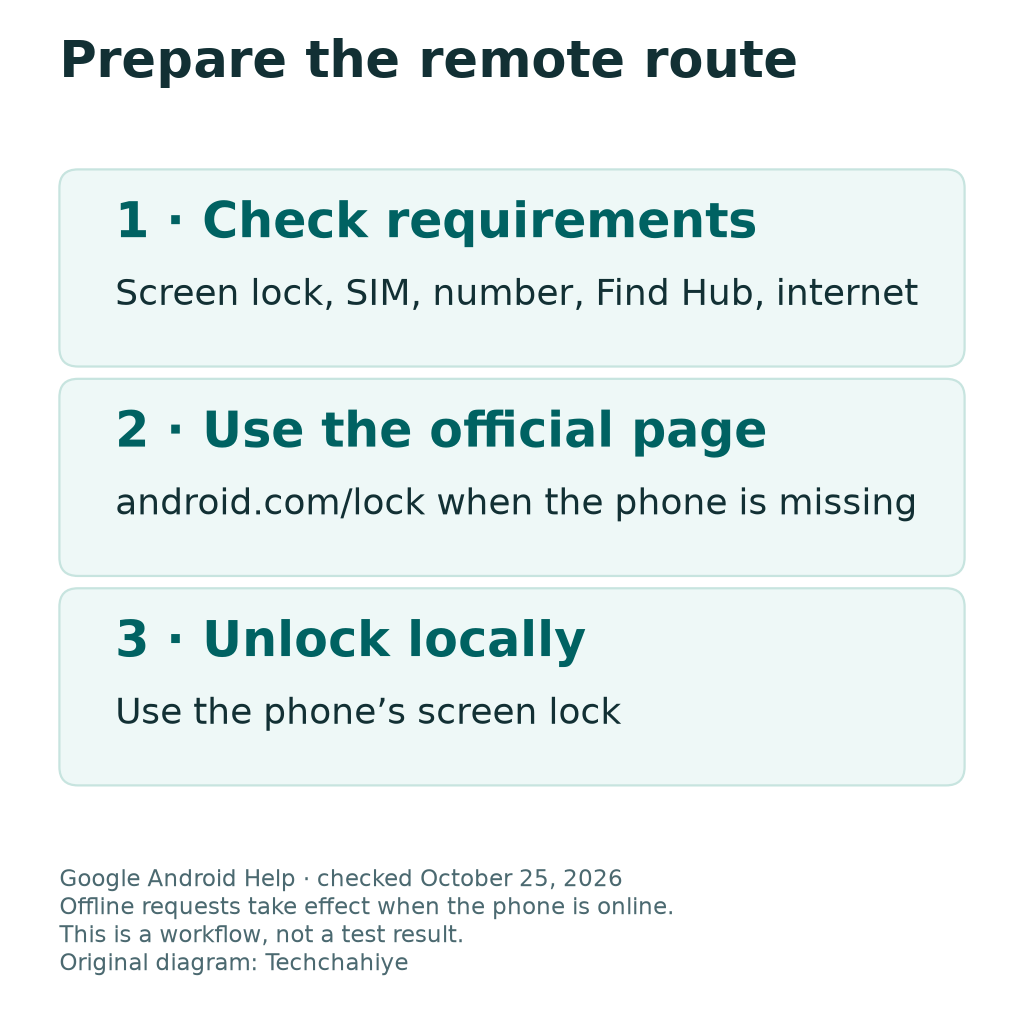
Remote Lock needs preparation. Google lists several requirements. These include a screen lock, an active SIM and a verified number. Find Hub and internet access are also needed. Check each requirement on the actual phone. A working call does not prove the whole setup is ready.
Open Remote Lock within the theft settings. Review the phone number and activation state. Follow the normal verification flow if it is required. Keep verification codes private. Enter them only into the expected official setup.
A useful preparation note says which number is associated with the phone. Store that note securely. Keep the number and account screenshots out of public help threads. Explain the setup problem without sharing those details.
If you use more than one SIM or number, take extra care over the selected identity. Confirm what the service actually shows. Avoid assuming that any number you have used in the phone will work for a remote request.
Know What a Remote Lock Request Does
Google directs owners to android.com/lock. The official flow asks for the phone number and may require a security answer or CAPTCHA. Open that address through a trusted route when the need arises.
If the phone is offline, Google says the request takes effect when it comes online. A submitted request is therefore different from a confirmed lock on an offline phone. Read the service’s actual response.
After a remote lock, the device unlocks locally with its screen lock. Google also documents a limit of two remote locks in 24 hours. Do not use repeated requests as a substitute for checking the wider loss response.
Remote Lock is a locking tool. Locating a phone, reviewing its account and deciding on an erase are separate tasks. Move to the appropriate official Find Hub guidance when you need those functions.
Review Identity Check if Your Phone Supports It
Identity Check concerns selected sensitive actions and account changes outside trusted places. Google says it is available only on certain devices. If it is not listed, do not assume the rest of your theft setup has failed.
Read the full setup on the phone. Check the intended account, biometric method and trusted places. These are security choices. Make them when you can review the consequences without rushing.
Avoid adding a place just to dismiss a prompt you do not understand. First establish which action requested the check and why. A broad exception can outlast the minor inconvenience that caused you to create it.
Keep the feature’s role clear. It can protect certain changes under its supported conditions. It does not make every app safe or give every file an independent backup. Review those needs through their own settings.
Keep a Strong Screen Lock at the Center
Google lists screen-lock methods in its guide. A PIN, pattern or password differs from no lock and swipe. A swipe alone does not provide protection. Review the actual lock method rather than the appearance of the lock screen.
Choose a secret that is hard for another person to guess. Keep it out of casual messages and shared notes. Biometrics can help with routine use. You still need to protect the underlying screen lock.
Watch how you enter the code in public. A strong code loses value if someone observes it clearly. Change your position or wait until you can use the phone privately when needed.
Do not weaken the lock just because another protection is enabled. Android theft protection is a set of added layers. It is not a reason to make the basic unlock path easier for an unauthorized person.
Check Find Hub and Account Access Separately
Google’s readiness guide walks through the account, Location and Find Hub settings. Follow that guide on your device. Review the privacy implications of location settings as part of the choice.
Also check how you would sign in without this phone. The readiness guide discusses backup routes for two-step verification. A recovery plan that depends entirely on the missing device can be difficult to use during a loss.
Keep any backup codes in an appropriate secure location. Do not place the only copy in an unlocked note on the phone they are meant to help replace. Follow Google’s current instructions for creating and storing them.
When checking your device list, identify the correct phone. An old handset with a similar name can cause confusion. Keep a clear model name and review date. They help you choose the right device during a loss.
Keep Locking, Finding and Reset Protection Distinct
Reset protection addresses ownership after a factory reset. Google’s guide describes the account or screen-lock checks that can apply. It serves a different purpose from locking a phone that is currently in use.
| Goal | Review this area | Do not assume |
|---|---|---|
| Limit immediate access | Screen lock and theft controls | Every lock triggers under every condition |
| Locate or secure a missing phone | Find Hub | A local lock is a location update |
| Preserve data for another device | Backup and app-specific copies | Security settings create every backup |
| Prepare an owner-controlled reset | Google’s reset guidance | A reset fixes an account-access problem |
Never factory-reset a phone simply to test its security. That can remove data and create a new ownership-verification problem. Establish account access and backup status before any legitimate reset process.
Check the handoff process before buying a used phone. Verify that the seller can complete it. Do not seek a bypass for an unknown account. A cheap device that you cannot set up is not a useful purchase.
Review Backups Before You Need a Replacement
Google says not every app backs up or restores all of its data. Check important apps individually. A general backup label should not be treated as proof about every local file and app account.
Make a list of the data you would most need after a loss. That may include photos, contacts, messages and files. For each category, identify its backup service and the account that owns it.
Open a small sample through the intended backup route where possible. Check dates and file contents, not merely folder names. A folder called backup is not useful if it contains an old or incomplete set.
Keep photo cleanup separate from theft setup. You may choose to clear local media. First check where the remaining copies live. Our Google Photos guide explains device and cloud copies. Find it in References.
If the Phone Is Already Missing
Switch from preparation to the official loss workflow. Use Google’s current Find Hub help from a device you trust. Select the correct account and device before requesting any action.
Record which actions the service confirms. A queued request, an old location and a current connection are different states. Do not interpret every screen as a live report from the phone.
Contact the carrier through its verified channel for your account. US and India users should follow their own carrier’s loss process. Keep a record of the service changes or reports you complete.
If theft is suspected, put personal safety first. Do not turn a map location into an attempt to confront someone. Use the appropriate local reporting process. Keep useful device details for the report.
Be wary of follow-up messages that ask for passwords or verification codes. Open official services yourself. A message that uses your name or phone model does not prove the sender is entitled to your account secrets.
Build a Useful Setup Record
Keep a short record of the model, Android version, review date and feature states. Add which account owns the phone and where official loss guidance can be found. Store it securely without including screen-lock secrets.
For a family, help each owner understand their own setup. Agree who can help contact a carrier or find official instructions. Do not gather every person’s passwords into one shared chat.
Review the record after a new phone, a major update or a number change. Those events can affect the assumptions behind an old checklist. There is no need to switch protections off and on as a routine ritual.
Finish with two questions. Do I know what this phone can do? Could I begin the loss process without holding it? Resolve any gap while you still have access and time.
Keep a secure setup note
Record model, Android version, review date, feature states and the official help route. Keep passwords, screen-lock secrets and verification codes out of the general note.
Did You Know?
A grayed-out state has a specific meaning. Google says the phone does not support Theft Detection Lock. This is different from an available switch that is off. Record the actual state instead of treating both as the same setup problem.
Conclusion
Android theft protection is most useful when you understand its separate controls. Check device support and keep a strong screen lock. Review the requirements for remote action. Prepare account access and backups too.
Then keep a short, current setup record. If the phone goes missing, move to the official loss workflow. Know what each available tool does. A single switch does not cover every situation.
FAQs
Why is Theft Detection Lock grayed out?
Google says that state means the device does not support the feature. Check the exact model and current manufacturer guidance. Do not install an unknown app to force the option on. Review the other supported protections instead.
Will Offline Device Lock trigger whenever Wi-Fi disconnects?
Do not assume that. Google’s guide describes conditions involving an unlocked phone and offline use. It does not give a universal instant-lock promise for every dropped connection. Review the device’s current explanation and avoid risky simulations.
Can Remote Lock work while the phone is offline?
Google says an offline phone locks when it comes online after the request. That makes a queued request different from a confirmed immediate lock. Read the result shown by the official service and follow the wider loss guidance as needed.
Is Find Hub the same as Android theft protection?
They have related but distinct roles. Find Hub supports the missing-device workflow. The theft settings include separate locking and authentication controls. Check both areas rather than assuming one page confirms the complete setup.
Does enabling theft protection back up every app?
No. Locking controls do not establish a complete backup. Google says app backup and restore support varies. Review important data and app-specific accounts separately. Keep the copies you would need if the phone could not be recovered.
References
- Google Android Help — Protect your personal data against theft
- Google Android Help — Set screen lock on an Android device
- Google Android Help — Be ready to find a lost Android device
- Google Android Help — Help prevent others from using your device without permission
- Google Android Help — Back up or restore device data
- Techchahiye — Android and iPhone guide
- Techchahiye — Google Photos Free up space
