

Check the copy first
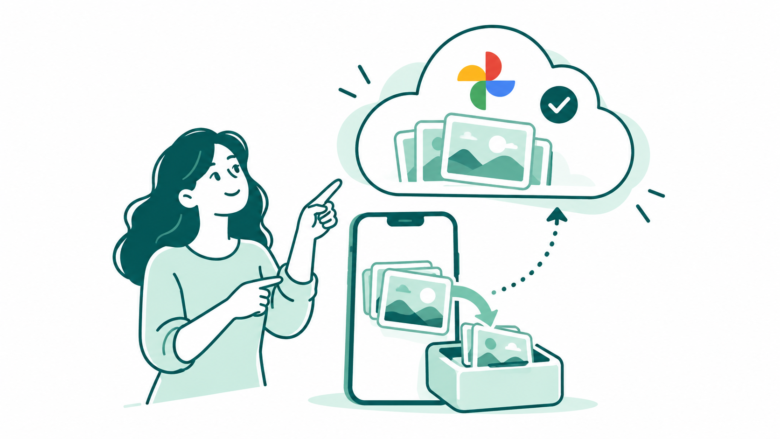
Free up space targets your phone, not your Google Account. Verify backup and quality first. On iPhone, review iCloud Photos before deleting local items.
Key Takeaways
- Google Photos Free up space removes local copies that have been backed up. It does not clear your Google Account storage.
- Check the backup account first. Review each file’s status and saved quality before cleanup.
- Keep the photos you need offline in a separate, checked local set.
- On iPhone, review iCloud Photos too. A deletion in Apple Photos can sync to other Apple devices.
Google Photos Free up space can clear phone storage. Your backed-up photos stay in Google Photos. The space it clears is on the device. Your Google Account can still be full after the cleanup.
That distinction matters when a storage warning arrives. Your phone may lack room for a new video. Your account may lack room for a new backup. These are two different problems. First find which storage is full. Then choose a tool that changes the right copy.
This guide covers Google’s Android and iPhone instructions checked on October 25, 2026. You will learn which files to keep offline. You will also learn how to check backup quality and find missing photos.
What Google Photos Free Up Space Actually Removes
Think of a photo as a file that may exist in several places. The phone can hold one copy. Google Photos can hold a backed-up copy in your Google Account. You may also have a copy on a computer or another cloud service.
Google explains the scope in its cleanup guide. Free up space removes phone copies with a safe backup. It leaves those backed-up items in Google Photos. You can view them through the service when you have the right account and internet access.
It does not promise that every picture on the phone will disappear. Google says some items under 30 days old may stay on Android. Its iPhone guide describes removing backed-up items older than 30 days. Use the estimate shown on your own device.
This is useful when backed-up media occupies room you need for new files. It is less useful if most of the storage belongs to games, downloads or other apps. Check the phone’s storage screen before expecting a large gain.
Choose Between Phone Storage and Google Account Storage
Write down where the warning appears. A message in the phone’s system settings concerns the device. A Google Account warning concerns cloud space. Photos, Drive and Gmail share that space.
Google currently describes up to 15 GB of included account storage. That is not an extra 15 GB for each of those apps. Check the total on your own account. Your plan or account type may change the limit.
Here is a simple decision table. The wording on your device may differ, but the question remains the same.
| What you need | What to inspect | What Free up space cannot do |
|---|---|---|
| Room to record new phone videos | Device storage and local media | Remove unrelated apps for you |
| Room for new Google Photos backups | Google Account storage | Reduce the cloud total by removing only local copies |
| A tidy photo feed | Archive and organization tools | Make organization equal storage removal |
| Photos during a flight | Verified local files | Keep removed phone copies available offline |
| An independent archive | A separate saved set | Turn one cloud library into several independent backups |
Use one goal at a time. If both totals are full, solve each problem on its own terms. Do not delete from the cloud merely because you intended to clear the phone.
Check the Account and Backup Before Cleanup
Start with the account shown in Google Photos. Google says photos can back up to only one Google Account at a time. A photo visible under one account does not prove it is saved under another account you also use.
Open the profile area and inspect the backup status. If uploads are pending or paused, resolve that first for the files you want to protect. Seeing a thumbnail in the app is not enough: the app can also show local items.
Next, open a few important items and inspect their backup details. Pick examples from different sources. Include a recent camera photo, a video, an old favorite and an image from another app folder.
On Android, review which device folders are included in backup. Google’s backup guide provides a Back up device folders control. Camera pictures and saved images from another app need not follow the same folder choice.
For valuable files, make the check about the actual item. A family event video may matter more than hundreds of screenshots. Check that file’s own status. A general progress label may not cover every folder.
Use Google Photos Free Up Space on Android
Google places the Android control in the profile area of Google Photos. Follow this order so the final button is a deliberate choice.
- Open Google Photos and confirm the Google Account.
- Check backup status and the important items you intend to keep.
- Tap your profile picture or initial.
- Choose Free up space on this device.
- Read the amount that the app offers to free.
- Confirm only when you understand that local copies will be removed.
Do not substitute the ordinary Trash button for step four. Those controls have different effects. The cleanup feature is for backed-up local copies. Deleting an item from the Google Photos library can remove it from the cloud and synced devices.
After cleanup, check the phone’s storage again. Then open an older backed-up item in Google Photos while online. Use that to confirm where you will find removed local items in future.
Your phone’s built-in gallery may no longer show those files. That can be the expected result rather than evidence of a lost cloud backup. Check Google Photos under the verified account before trying any recovery tool.
Use Google Photos Free Up Space on iPhone
Google’s iPhone route starts in the same profile area. Its current guide asks you to confirm deletion of the listed device items. It then directs you to Apple Photos and Recently Deleted to remove those same items there.
The Apple step deserves a pause. Apple explains how iCloud Photos handles deletion. It syncs that change to devices that use the library. A Google Photos cleanup is not a promise that your iCloud copy will remain untouched.
Before proceeding, decide which service should hold your library. You may want originals in both cloud libraries. Do not assume this cleanup keeps both copies. Check your Apple settings and use the relevant Apple storage guidance first.
Also review Recently Deleted item by item. Google’s guide refers to the same photos and videos you just removed. It is not an instruction to erase every unrelated item in that album.
Deleting from Recently Deleted removes a recovery option. Only take that step after checking the copies you intend to retain. Find the full-quality version first. Stop if you do not know which library holds it.
Compare Free Up Space, Delete, Archive and Undo Backup
Several controls sound like ways to tidy a library. They do not all change the same thing. Choose by the copy you want to affect, not the shortest label.
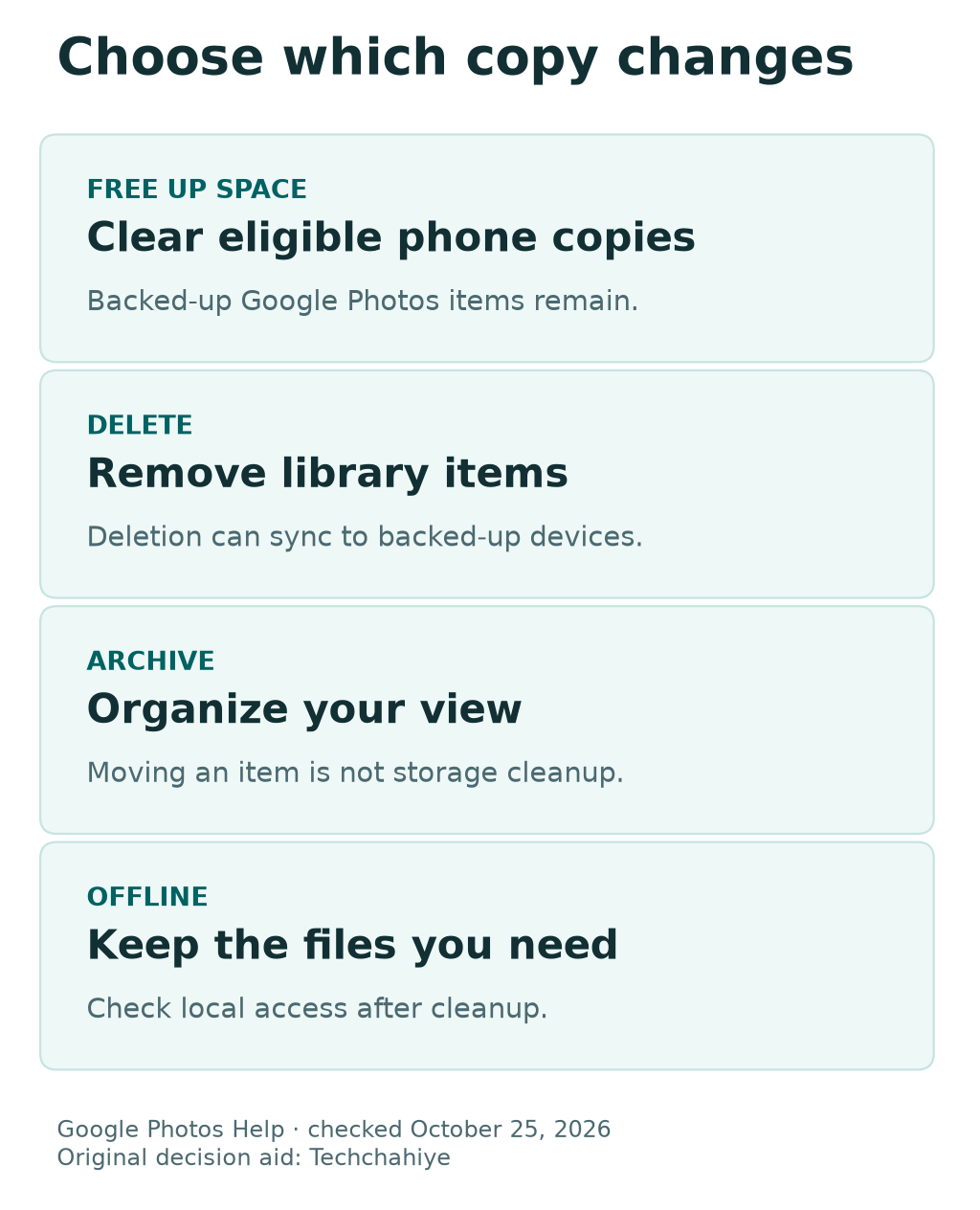
Free up space targets eligible device copies. Ordinary deletion affects the Google Photos library. It can sync to backed-up devices. Archive changes where an item appears; it is not the same as removing a stored file.
Google also documents an Undo backup option on Android. Its goal differs from device cleanup. It removes that device’s backed-up items from Google Photos. Local files stay on the device. It turns backup off for that device. It can also affect albums, search and memories.
| Control | Main purpose | Check before using it |
|---|---|---|
| Free up space | Remove eligible backed-up device copies | Is the Google backup the copy you want to keep? |
| Delete in Google Photos | Remove items from the library | Which devices and shared places will reflect that deletion? |
| Archive | Move items out of the main gallery view | Are you organizing rather than clearing storage? |
| Undo backup on Android | Remove that device’s Google Photos backup | Do you want to keep local files and stop that backup? |
Do not test these controls on a unique photo to learn the difference. Read the current prompt. If you need practice, create a photo you do not need to keep. A familiar icon does not define the scope of deletion.
Why the App May Offer Less Space Than You Expect
A large library does not mean the phone holds a large local copy of every item. Some photos may already live only in the cloud. Removing local copies cannot reclaim space they are not using.
Recent files can also behave differently. Google’s Android guide says items under 30 days old may remain on the device. Use the app’s estimate. A guessed average photo size will not give the same answer.
Pending backups are another question. Wait for important files to finish uploading. Do not delete them to force a larger cleanup. First establish a copy you can keep.
Check other storage categories too. Look for downloaded films, app data and large games. They may fill the phone while Photos uses little space. A photo-cleanup tool cannot solve every storage category.
If the result looks wrong, make a short record. Note the account and backup status. Add the offered amount and device storage total. That gives support a clearer problem than “all my photos use too much space.” Avoid changing backup, quality and deletion settings together while you investigate.
Work Through a Two-Storage Example
Here is a made-up example, not a measurement from a phone. Suppose local photos use 18 GB. The app offers to remove 12 GB of eligible backed-up copies. That would leave 6 GB of local photo files in this simplified example.
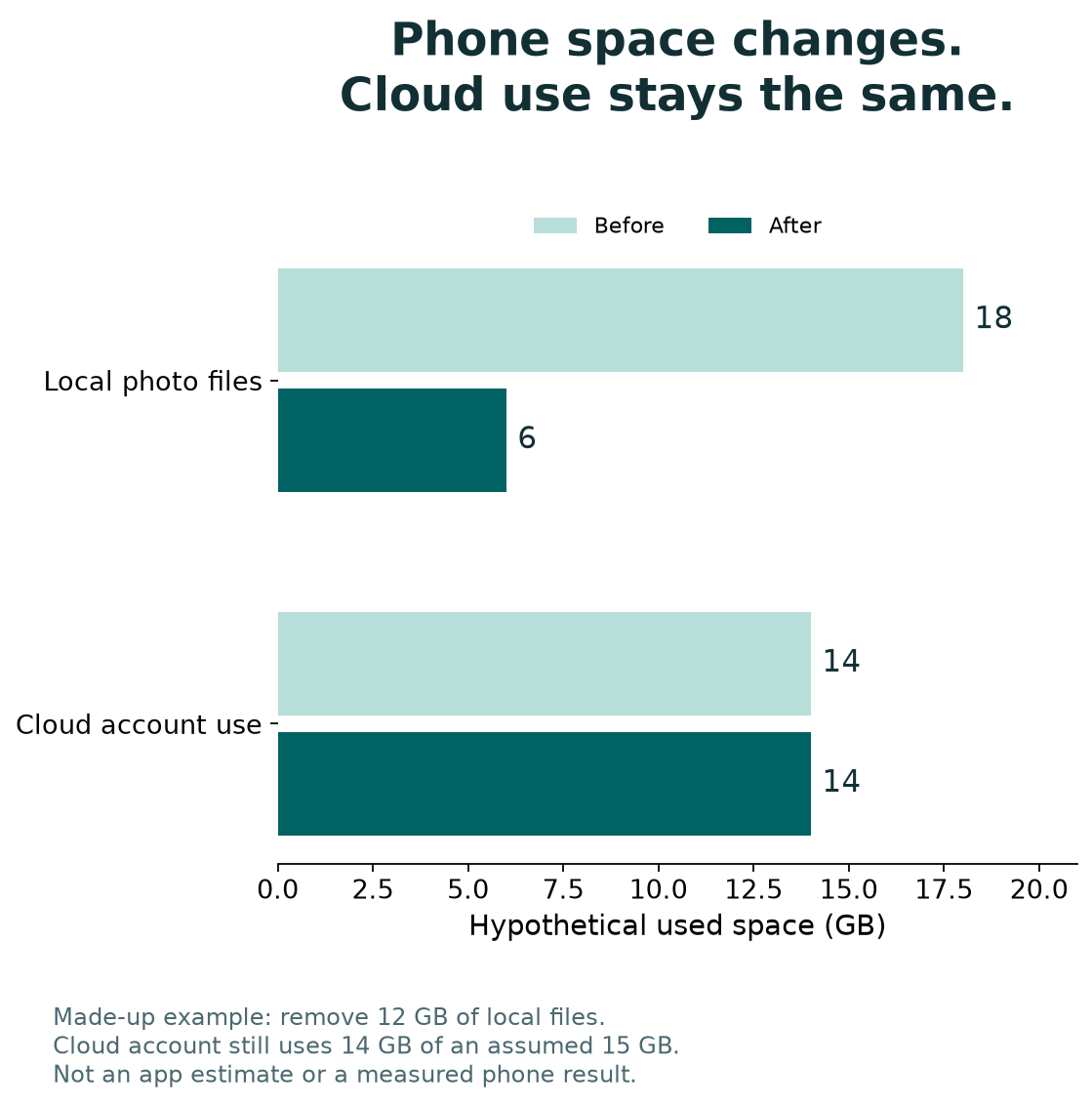
Now suppose the same person’s Google Account uses 14 GB of a 15 GB allowance. Removing only device copies does not turn that cloud total into 2 GB. The account still uses 14 GB, leaving 1 GB before other changes.
The calculations answer separate questions. For the phone, 18 minus 12 equals 6 GB of local media. For the cloud, 15 minus 14 equals 1 GB of remaining allowance. Neither calculation predicts the amount your app will actually offer.
Real device totals also include system files, caches and other apps. Therefore, use the example to understand the direction of change. Use your own screens to judge the amount.
Write both readings before and after a cleanup. Device space may improve while cloud use stays the same. That fits the purpose of Free up space. You do not need to repeat the action merely because the account total did not fall.
Check Backup Quality Before Giving Up the Original
A backed-up copy may use a different quality setting from the file on your phone. Google’s quality guide says Original quality preserves the captured resolution. Storage saver can compress files and resize larger media.
Its published limits include resizing photos above 16 MP to 16 MP and videos above 1080p to 1080p. Some files may remain at their original size. Those rules describe backup quality, not a guaranteed storage saving for each file.
A large print or video edit may need the full-resolution original. Check the backup before removing the phone copy. The fact that an image looks good on a small screen does not answer that question.
Keep a separate original when that matters to your use. For example, a photographer might save the original on a computer. They could check that file before clearing the phone. That is an illustrative workflow, not a claim that every person needs the same archive.
Do not confuse changing future backup quality with converting existing uploads. Google documents those as separate actions. A new setting does not prove an old cloud file now has a different resolution.
Keep an Offline Set Before Travel
Removed local photos are not a dependable offline library. Google explains this limit in its cleanup guide. Removed items will not be available offline. Online thumbnails can make that limit easy to overlook.
Choose the small set you will actually need without a connection. That might include a few family pictures for a visit or media you plan to edit during a flight. Download or keep those files using the appropriate device controls.
Then test the local set without relying on an active connection. Open the full item, not just its thumbnail. For a video, verify enough of the file to know it is the intended clip and version.
Make this check after the final cleanup. Otherwise, you may verify a local file and remove it later in the same session. A short final review is easier than solving the problem when airport Wi-Fi fails.
An album helps you organize which items you want. Do not treat the album’s existence as proof that every file is saved offline. Organization, backup and local availability are separate properties of a photo collection.
Check your travel photo set
Open the final local files without relying on a connection. Check the full photo or clip after cleanup, not only its thumbnail.
What to Do if Photos Seem to Be Missing
First identify the app where they are missing. The built-in gallery may no longer show the device copy. Open Google Photos online with the verified backup account. That is the expected place to look after device cleanup.
If the item is missing from Google Photos too, check the account and the library’s Trash. Google describes a 30-day window in its current deletion guide. Trashed photos and videos remain there during that time. Do not assume an older guide’s retention period still applies.
On iPhone, check Apple Photos and Recently Deleted separately. Apple also describes a 30-day recovery window there. That is a different place from Google Photos Trash and may contain a different set of files.
Avoid emptying either location while investigating a missing item. Google says Takeout cannot restore permanently deleted content. An export tool does not reverse a deletion after the recoverable copy is gone.
Record what action you used and when. Include the account, device, file date and app where it is missing. Keep the description factual. A clear record helps you trace the last action. Avoid giving unknown recovery apps broad access to your library.
Make Photo Cleanup a Small, Repeatable Routine
Build a routine around new photos, not an urgent bulk purge. Check that the current camera and app folders back up as intended. Review the files that matter before removing their local copies.
For a shared family device, name who owns the backup account and who checks the files. Do not assume that another person’s phone has an independent copy. A shared album may simply point to items held in one library.
Keep an independent copy of irreplaceable media when it fits your needs. Store it somewhere you can identify and open. A folder called “backup” has little value if nobody knows which files it contains or whether they open.
US and India readers can use the same copy-location check. Plans and regional options may differ. Read the offer in your own account before buying space. No paid plan is required merely to understand which copy a cleanup action removes.
Finally, write down your goal. For example: “Keep my Google Photos backups. Clear eligible phone copies.” If that is not your goal, choose another workflow before tapping a deletion control.
Did You Know?
Google says archiving a photo does not remove it from albums or search results. It can make the main gallery less busy without serving the same purpose as device cleanup. Choose Archive for organization and Free up space for eligible local copies.
Conclusion
Google Photos Free up space is useful when backed-up media fills your phone. Check the account, backup status and quality first. Keep needed offline files and review iCloud Photos if you use an iPhone.
Afterward, check device storage and cloud storage separately. You should gain usable phone space. The copies you chose to keep should still open. A smaller cloud total is a different task and needs its own review.
FAQs
Will Free up space lower my Google One storage use?
No. It removes eligible device copies while keeping the backed-up Google Photos items. Those cloud items can still count toward account storage. Check your account’s storage management tools if that total is full. Do not delete the cloud library when you only meant to clear your phone.
Why can I see a photo in Google Photos but not my gallery?
The local copy may have been removed while the Google Photos copy remains. Google’s guide describes this result after Free up space. Open Google Photos online under the correct account. Your built-in gallery may not show another service’s cloud-only files.
Does Free up space keep all my photos available offline?
No. Google says removed device copies are not available offline. Keep or download the files you need locally, then test them after cleanup. An album or a visible thumbnail is not enough to prove the full photo or video remains on the device.
Should I empty all of Recently Deleted on my iPhone?
Only remove items whose permanent loss you have reviewed. Google’s cleanup guide refers to the same items removed during that cleanup. Apple Photos may hold unrelated files in Recently Deleted too. Check your backups before removing recovery copies. Take extra care if iCloud Photos also syncs the library.
Can Google Takeout recover a permanently deleted photo?
No. Google’s deletion guide says Takeout cannot recover permanently deleted content. Check the relevant Trash or Recently Deleted location before the recovery window ends. If the image is absent, look for a separate saved copy. An export cannot recreate a deleted file.
References
- Google Photos Help — Free up space on your Android device
- Google Photos Help — Free up space on your iPhone or iPad
- Google Photos Help — Back up photos and videos
- Google Photos Help — Choose the backup quality of your photos and videos
- Google Photos Help — Delete photos and videos
- Google Photos Help — About your Google Photos activity and storage
- Apple Support — Delete photos on your iPhone or iPad
- Techchahiye — Android and iPhone Guide
