

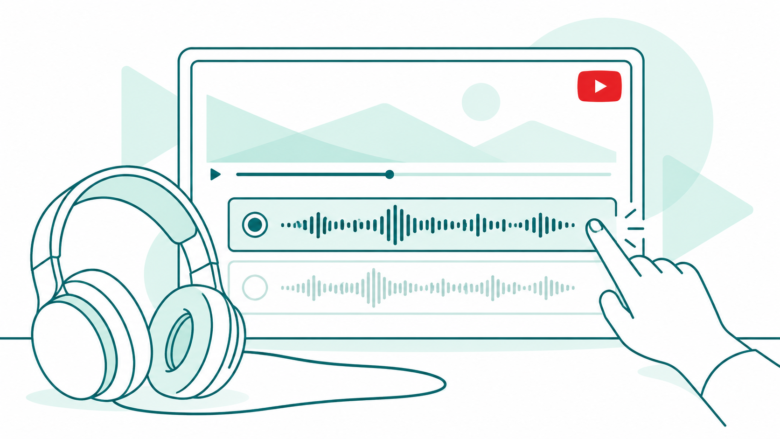
Choose the right control
Use Audio track for one video. Set Preferred languages for the languages you understand. Keep app language, location, captions and creator controls separate.
Key Takeaways
- For one video, open the player’s Audio track menu and choose the available language you want.
- Add the languages you know to Preferred languages. Original audio in those languages stays original.
- App language, location, captions and spoken audio are separate controls.
- Creators control dubs on their own channels. That switch does not change videos you watch from other channels.
To turn off YouTube auto dubbing for the video you are watching, open its settings and look for Audio track. Choose the original language from the available tracks. Want a broader choice? Add the languages you know to YouTube’s Preferred languages setting.
YouTube’s current help pages describe these controls. They do not list one viewer switch to disable every dub. The distinction matters. A tutorial for creators can send you into YouTube Studio when all you want is the creator’s own voice back.
This guide uses YouTube’s documentation checked on October 25, 2026. This guide covers the web and mobile app. It explains which settings affect audio. It also shows how to test your choice. Available menus still depend on the video and the product you use.
Turn Off YouTube Auto Dubbing for One Video
Start with the player for the video that sounds wrong. YouTube gives this route: open Settings, then Audio track. Choose the language you want. A video must offer additional audio for you to choose another track.
Pause at a point with clear speech. Open the audio menu. Read the choices before you tap a language. If the original language is available, choose it and listen to the same short section again.
This check is useful because a language name alone does not explain the problem. You may understand the translated track perfectly but prefer the speaker’s original delivery. Your aim is to choose the track, not simply make every menu appear in English.
If the audio menu is absent, record that fact. Do not assume a hidden permanent switch must exist elsewhere. The video may not have an alternative track available through that player.
Keep the scope of the result clear. Changing one video’s track confirms that you changed that video. It does not prove that every future upload from every channel will now use the same audio choice.
Set Preferred Languages on a Computer
YouTube’s desktop instructions place Preferred languages under Settings, then Playback & Performance. Under Language, choose Add or edit languages, select the languages and confirm. This preference applies to audio, titles and descriptions.
Add the languages you actually understand. YouTube says original audio stays original if its language is on your preferred list. That makes the list useful for people who switch between languages.
For example, suppose you comfortably watch English and Hindi videos. Selecting both reflects what you can understand. The app’s display language is a separate choice. Set your preferred audio languages too.
Do not add languages merely because you want to stop all translation. The setting is designed around which original languages you understand. If you cannot follow a language, a suitable dub or captions may still be useful.
After saving, choose a video whose original language is on the list. Confirm the audio offered in its player. Choose a video that fits your language list. Use that to test the change.
Set Preferred Languages in the Mobile App
YouTube’s Android instructions use the profile picture, Settings, Languages and Preferred languages. Choose the languages and confirm. Its iPhone and iPad help page should be your reference if your device uses a different route.
First check that you are using the intended account. A shared phone, tablet or TV can make preferences confusing. The person watching may not be the account holder whose settings are active.
On the phone, write down which languages you selected. Then reopen a relevant video and inspect the available audio. This checks what you saved. It is more useful than guessing how a video should sound.
If the menu differs, check the app version and current help page. Do not delete the app or clear all account data just to look for one setting. Start with the smallest action that explains the missing control.
Also avoid changing several language settings together. Change one setting at a time. Alter phone, app and audio languages at once and you may lose track of the result. One clear test is easier to undo.
Know Which Language Setting You Are Changing
YouTube uses language in several different parts of the experience. Choose the voice you want to hear. Choose the app text you want to read. The region used to find content is a third setting.
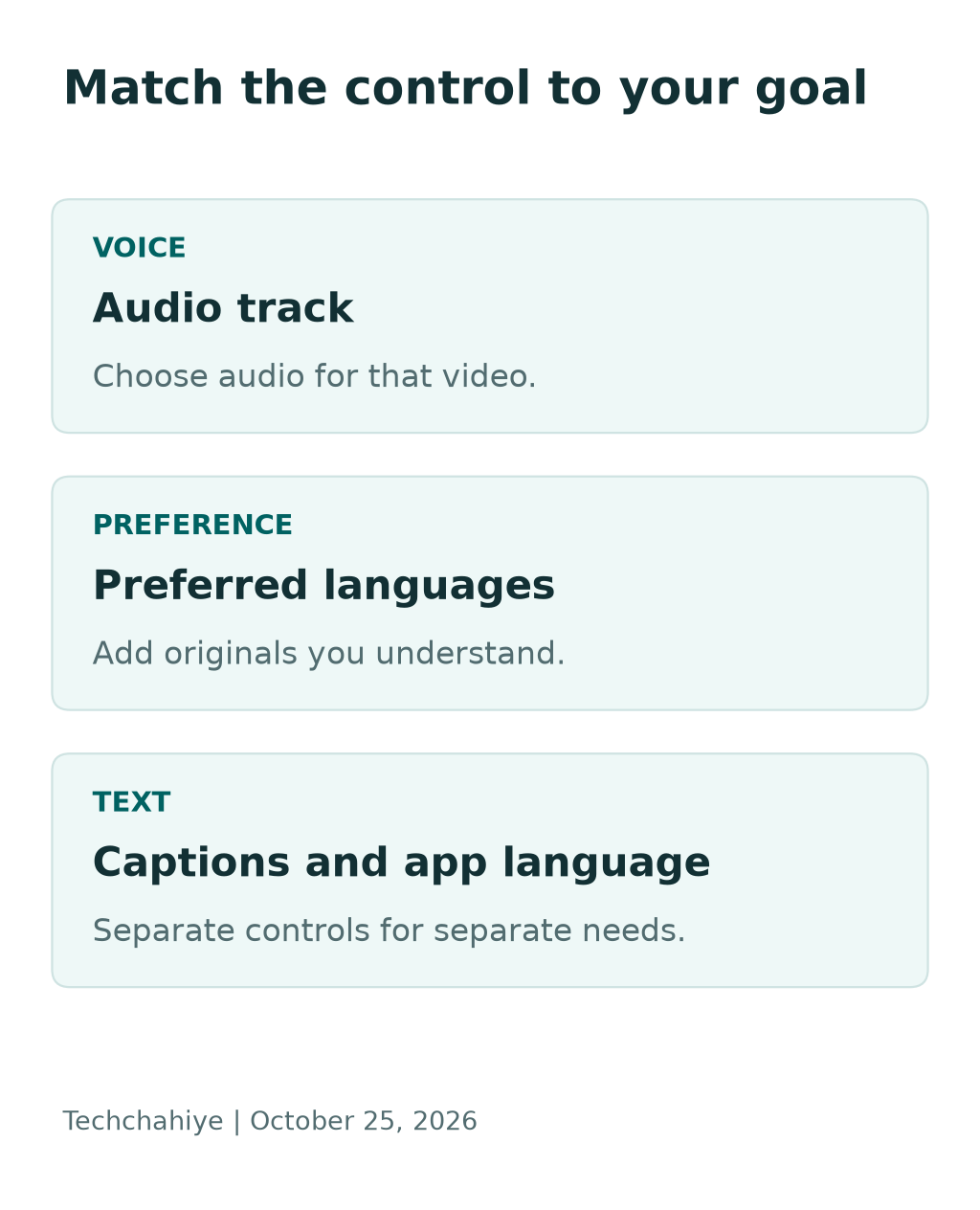
Its help page says Preferred languages does not change search results or recommendations. The location setting can affect recommendations, charts and news. Do not move your account’s location just to solve a spoken-audio problem.
| What seems wrong | Setting to inspect | What it addresses |
|---|---|---|
| The voice uses an unwanted language | Video Audio track | Spoken audio on that video |
| Original languages you understand keep changing | Preferred languages | Available audio, titles and descriptions |
| Buttons and menus use an unwanted language | App or display language | Interface language |
| Words on screen are missing | Captions controls | Available text captions |
| Regional content differs | Location setting | Regional discovery surfaces |
Use the table as a starting question. If you want to hear the original speaker, begin with Audio track. If you want to read translated text, investigate captions instead.
You may want both. A viewer learning a language might prefer original audio with captions. Another viewer may need a dub to follow the subject comfortably. Neither choice requires changing every language control on the device.
Why the Creator Suddenly Sounds Different
YouTube says automatic dubbing generates translated audio tracks. It labels videos with those tracks as auto-dubbed in the description. That provides a useful clue when a familiar creator’s voice or phrasing changes.
Read the description and check audio choices first. A new voice may be a dub. The platform may be offering a translated track. A different voice is not, by itself, evidence that the channel changed owners or the video was copied.
If you understand the original language, compare a short section in both tracks. Listen for names, units and instructions. Compare the two tracks for your task. A dub can help one viewer and confuse another.
For a casual travel video, you may value an easy-to-follow translation. Timing and wordplay can shape a performance. You may want the original voice to hear both. Choose based on what you came to watch.
Avoid treating a preference as a universal verdict about the technology. A track that helps one viewer may annoy another. The useful outcome is that you know where the choice lives and how to verify it.
Check Captions Separately From Dubbing
Captions are words displayed on the screen. Dubbing changes the spoken audio. They solve different viewing needs, even when both use translation.
If the voice is wrong, turning captions off will not choose a different audio track. If the voice is right but you need written words, the audio menu is not the whole answer. Start with the part of the experience you want to change.
Consider a made-up study example. You watch a short lesson in Spanish and want to hear the original speech. You may still choose English captions where available. That is a deliberate combination, not a failed dubbing setting.
For a technical tutorial, check written labels and the spoken explanation together. A dub may call a button by a new name. The button on screen may still show its old label. Pause and match the actual label before following an instruction.
Do not treat captions or a dub as the primary source for a risky command. Some steps have lasting effects. A guide may ask you to delete files, change security or spend money. Check the product’s own guide before you act.
What to Do When the Audio Track Menu Is Missing
A missing choice needs a specific diagnosis. YouTube says audio choices depend on the video. Not every upload has each language. There may be no other track to select.
Try the following small checks:
- Confirm the exact video and channel.
- Look for the player’s settings rather than a general device menu.
- Check whether the video description mentions auto-dubbed audio.
- Compare a video that visibly offers more than one track.
- Check the current help page for your device and app surface.
The comparison video is a diagnostic aid. It tells you whether you can find the feature somewhere in that player. It does not prove a missing track must exist on the original video.
If the problem occurs only when casting or using another screen, note that setup. A phone app and a television player can expose different controls. Avoid promising that a desktop route exists unchanged on every living-room device.
Do not download a replacement app from an unknown site to reveal an audio option. Try the built-in controls first. Find out what is missing before you give an extension broad access.
Use a Small Test to Check Your Preference
Make a short test list rather than changing settings and hoping. Pick videos with clear speech and known available audio. Record the account, device and languages you chose.
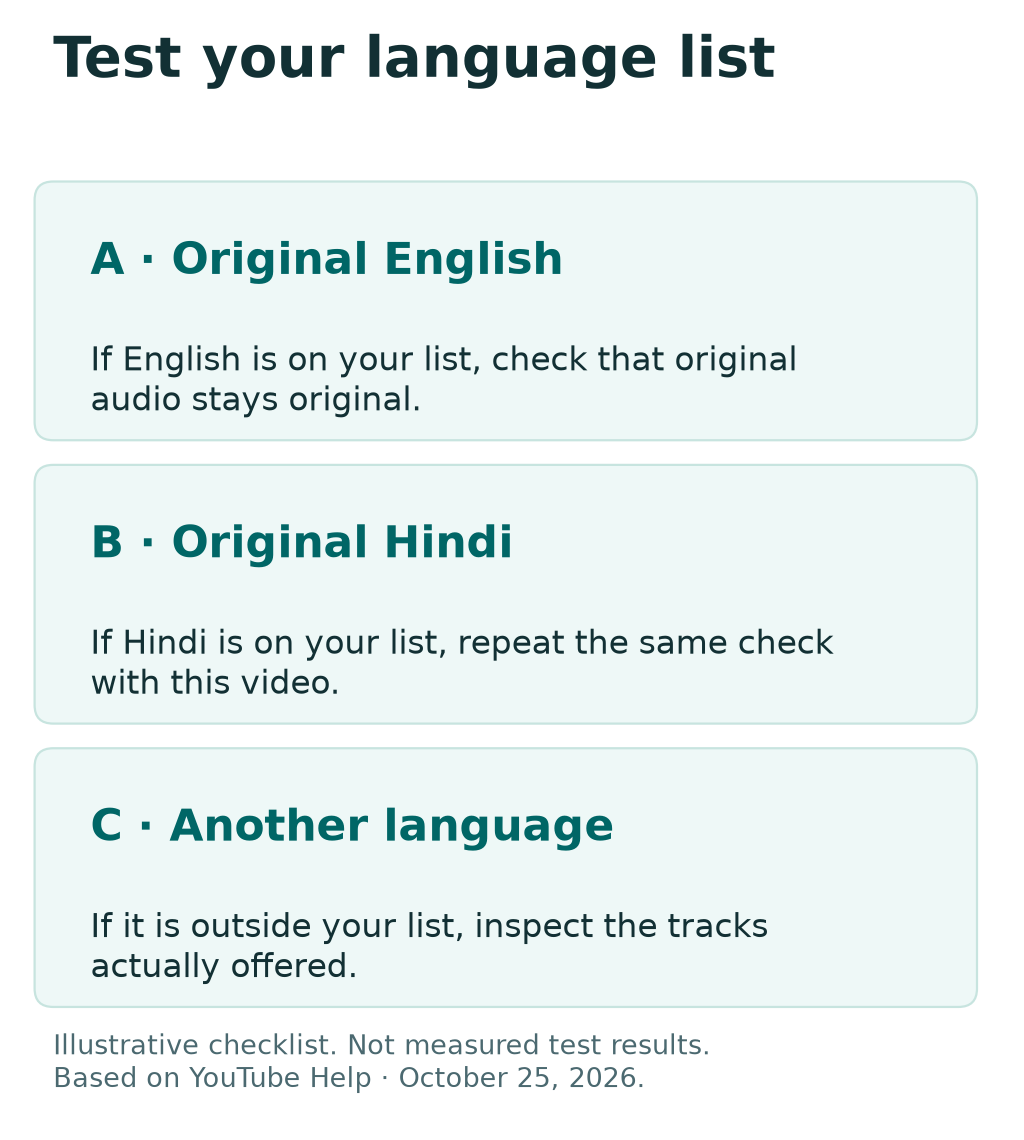
Here is a made-up three-video check. Video A starts in English, video B starts in Hindi and video C starts in a language you do not understand. If you prefer English and Hindi originals, A and B are the relevant checks for that preference.
Video C answers a different question: which translation options are offered? That video’s original language is not on your list. It cannot prove the rule failed for a language you did choose.
| Example video | Original language | What you are checking |
|---|---|---|
| A | English | Original playback for a selected language |
| B | Hindi | Original playback for another selected language |
| C | Another language | Available translation choice |
The table is an example test design, not a report of measured YouTube behavior. Replace the labels with your own videos. If one behaves differently, note the details. Do not change the whole list again yet.
This method is useful when you ask support for help. It shows what you expected, what the player offered and what you actually heard. Those facts are more actionable than saying the app “keeps translating everything.”
Creators Have a Separate Automatic Dubbing Control
YouTube lets creators manage automatic dubbing for their own channels. In the Android Studio app, open your profile picture. Go to Settings. Find Automatic dubbing under Content. Creators can turn it off or choose manual publication for review.
That control concerns the channel’s uploads. It is not a viewer preference that changes other people’s videos. If you only watch YouTube, you do not need to configure a creator workflow to choose an audio track.
For a creator, define the goal before turning the feature off. You may want no automatic dubs, or you may want to approve them before viewers hear them. Those choices have different effects on your publishing process.
If you work with a team, record who reviews each language. A fluent voice can still say the wrong thing. Ask someone who knows the language to check its meaning. Use a qualified reviewer when the content depends on precise wording.
Also check a video’s existing tracks separately from the channel’s future settings. A change to the default does not tell you what is currently published on every older upload. Inspect the video you intend to change before taking action.
Review Translations With a Clear Checklist
YouTube warns that auto dubs can get speech details wrong. Names, jargon and accents can cause errors. That makes a targeted review more useful than listening only for a pleasant voice.
For a phone tutorial, check model names and menu labels. For a recipe, check quantities and units. In a product comparison, check each limit. Make sure the dub links it to the right model.
A made-up example shows why. A review might say one device lacks a feature while another includes it. A translation that swaps the subject can sound natural but reverse the buying advice. The reviewer needs to check the meaning, not just the sound.
Keep a short issue note with the time, language and disputed phrase. That helps the person responsible find the problem. You do not need a long general complaint when one precise segment explains it.
Viewers can choose another track if one exists. Check key instructions with another source too. If you are the creator, use the management options documented for your channel. Do not imply that viewers can edit the creator’s published dub.
Keep US and India Language Choices Reader-Led
Country and language are not interchangeable. A US viewer may prefer several original languages. An Indian viewer may prefer English, Hindi, Tamil or another combination. Set the preference around what the person understands.
This matters on a shared household account. Ask each viewer which audio helps them. Where the device sits does not tell you which language they want. The right setup may differ between profiles or accounts used by the household.
For language learning, decide how much support you want. Original speech with captions can be useful for one session. A dub may help you understand the subject first. Choose deliberately and check which options that video supplies.
Do not expect a region change to create a missing track. Nor should you assume a subtitle choice changes a video’s voice. Match the control to the result you need, then test that result directly.
If you write instructions for another person, describe the goal as well as the button path. “Choose the original audio if offered” remains understandable when a menu shifts. A screenshot with no explanation is less useful once the app updates.
Know When to Stop Troubleshooting
Check the track and your language list. If both are right, stop changing other controls. More changes can make a solved problem harder to understand.
Keep a note if the result depends on one account or device. That gives you a starting point if another screen behaves differently. It also prevents you from assuming the first result applies to a setup you have not checked.
If no suitable audio exists, check the other options. Try another track, captions or another source. There is no benefit in following a long reset sequence for a track the creator has not provided.
For support, share the video link, device, app version and missing option. Avoid including private account information in a public comment. A clear example shows the scope. It may be one upload or a broader account setting.
Did You Know?
YouTube’s creator guide sets a length limit. Videos over 120 minutes may not qualify for auto dubbing. That is one of several eligibility limits. A two-hour threshold is not a guarantee that every shorter video gets a translated track.
Conclusion
To turn off YouTube auto dubbing where you are watching, check the video’s Audio track menu first. Then add the original languages you understand to Preferred languages. Keep captions, app language and location separate.
For your own channel, use the creator controls. Review the tracks viewers can play. For viewing, choose the available audio that serves you best. Use a small test that fits your goal. It gives a clearer result than changing all language settings at once.
FAQs
Is there one viewer switch that disables every YouTube dub?
YouTube’s current viewer help lists Preferred languages and Audio track. It does not list one switch to disable all dubs. Add original languages you understand and select the track you want when needed. Do not confuse a creator’s channel-wide control with the settings for videos you watch.
Will changing my app language restore the original voice?
Use the audio controls for that goal. App or display language and Preferred languages are separate choices. YouTube says Preferred languages applies to audio, titles and descriptions. Check the tracks the video offers. Making app buttons English does not change every voice track.
Why can I select another track on one video but not another?
Available audio differs by video. YouTube only offers a language choice when that video has additional tracks. Check its player and description. Another upload may have different tracks. Its audio menu does not prove your device has a fault.
Do Preferred languages change my recommendations?
YouTube says that setting does not affect search results or recommendations. Its location setting is separate and can affect regional discovery surfaces. Use Preferred languages for audio and translated text. Changing location is not the same control.
Can a creator review automatic dubs before publication?
Yes. YouTube documents manual-publication options so creators can review dubs before they go live. It also provides video-level management in desktop Studio. Check the current guide for your app and channel. A viewer can choose available audio but cannot manage another creator’s published tracks.
