


Estimate a year of photo storage
Check Google Photos and iCloud Photos from another device. Download a test file and keep a separate, verified copy of the photos you would miss most.
Key Takeaways
- Check a recent photo and video from another device signed in to the right account. Open the files and download a sample.
- iCloud Photos syncs a library across devices. Apple says items already synced there are outside the daily iCloud device backup.
- Google Photos lets Android users choose which device folders to back up. Check the backup status of photos outside your camera roll.
- Keep a second copy of the photos you would miss most. Test that you can open it without the phone or the cloud library.
Your phone is gone. The backup switch was on, so you sign in on another device and open your photo library. The last family video you wanted is missing. Had it finished uploading? Was it in an app folder that you never chose to back up? Did you sign in to the account that held it?
You can answer all three questions before you lose the phone. Take a harmless sample photo and a short video. Wait for the app to show they are backed up, open them from a second device and save a copy there. Repeat with a file from an app folder you care about. The goal is to work out what cloud backup for photos will let you recover and what still needs another copy.
Know Which Copy You Expect to Get Back
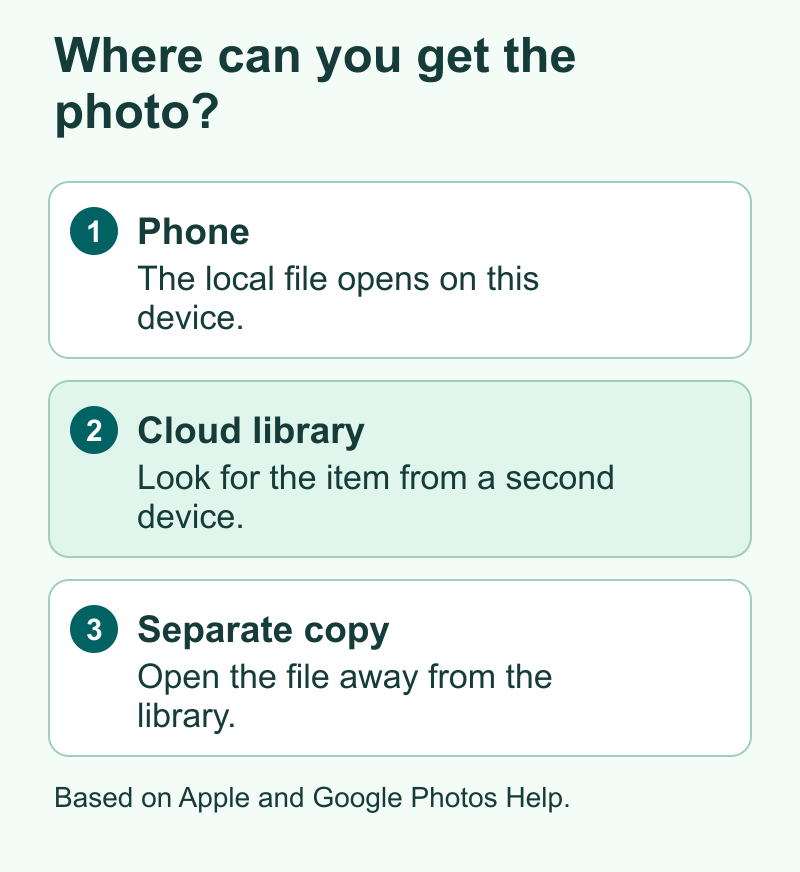
There are three places a photo can live. It can be stored on the phone, in a library that syncs online, or in a second copy you can open without that library. One photo can live in all three places. See which one you are viewing before you delete, move or reset anything.
If the photo is only on your phone, a loss or damaged storage can cut you off from it. If it is in a cloud photo library, sign-in on another device may bring it back. Edits and removals may follow you to the new device as part of the same library. If you made a separate copy before a removal, you can try that copy even when the cloud library no longer has the item.
Apple distinguishes iCloud Photos from iCloud Backup in its support guide. When iCloud Photos is on, your photo library syncs with iCloud and those items are outside the daily device backup. When iCloud Photos is off, Apple says a device backup may include library items. The setting determines the route you should expect on a new phone. If you already use iCloud Photos, check the library through that service itself.
Google calls its upload feature Backup. Its help pages explain how to check whether a specific item has finished and which Android device folders are eligible. You can check the copy from a web browser signed in to the chosen account. Treat any action that removes an item from the online library as a change to the copies available through that account.
| What you see | What it can tell you | What to check next |
|---|---|---|
| A photo is visible in the phone’s gallery | The phone can show the file now | Look for it in your cloud account on another device |
| A cloud library shows a thumbnail | The library lists the item | Open it, play the video or download a sample |
| A saved copy opens from an external drive | You can reach this copy independently | Check when you made it and which folders it contains |
| The photo is in a deleted-items folder | It may still be in the recovery period | Restore it promptly and check the library afterward |
Take a Small Test Before You Change Anything
Start with a photo you can recognize in any list. Photograph a note that says Photo Backup Test and today’s date. Record a short video with a few seconds of sound. If you use a screenshot or media folder often, choose a harmless file from it. These examples let you test the real path without risking an irreplaceable family photo.
On your phone, open the cloud photo app and note which account it uses. Check available storage and the app’s upload status. Use Wi-Fi if your settings require it, and leave enough time for the video to finish. Look at the test item’s details if the app gives a per-item status. An account-level Backup setting means the app is allowed to run. The status for that one file tells you how far it got.
Next, open the service from another phone or a computer you trust. Use a browser or the provider’s official app and confirm the account. Find today’s test photo. Open it large enough to read the date and play the test video with sound. Check a recent large video and a few older items you care about. Old photo thumbnails and a recent upload prove different parts of the library.
Download a sample from the second device. Open the downloaded copy using the device’s normal photo or video app. If you made it on a computer, locate it in Downloads so you know where to find it again. Remember whether you asked for the original or a smaller format. This matters for a video edit or a large print.
If an item is missing, pause any cleanup. Keep the copy on the phone. Check the account, free space, chosen folders and whether the item uploaded. A screenshot can help you find the settings later. Leave out private photos and account details if you share the image with anyone.
Check Google Photos on Android or iPhone
Open Google Photos on the phone you want to protect. Tap the account picture, open the Photos settings and look for Backup. Google’s help guide shows where to check the selected account. If you use personal and work Google accounts, check their full labels. An old phone can be sending copies to an account that you rarely use on a new phone.
On Android, look for the device folder controls within Backup. Your camera pictures can share a view with files from downloads, screenshots or messaging apps. Open the folder list and choose the ones you want saved. Check a test item from each important folder on the web. If a folder is filled with temporary files, decide whether to back it up or move the important pictures to a folder you already protect. That also helps you manage the amount of storage you use.
On iPhone, make sure the app has access to the photos you intend to back up and check the item’s status. Access to a few selected photos gives the app a different view of the library from broad access. Keep the permission that fits what you want saved and check the result. A phone with both Apple and Google photo services can use two different sets of sync settings, and either account may run low on space.
Check the quality setting as well. Google describes Original quality and Storage saver as separate options. Its current guide says Storage saver can compress photos and resize images above 16 megapixels. If you need the full original for an edit or print, check the downloaded file’s dimensions and preserve the original separately. A copy can be perfectly readable on a small screen while losing detail you expected for a large print.
Look at a file you need rather than trying to infer everything from a folder name. A messaging app may have stored a smaller version of a photo to begin with. A scan may be in another file app. Confirm where the actual file lives and copy it using the method that covers that location. A cloud photo service works with the photo and video items it can read.
Check iCloud Photos on iPhone or iPad
Apple’s setup guide shows how to open your account in Settings, choose iCloud and then choose Photos. Check the sync setting for that device. If the library is still syncing, look at the status in Photos and resolve storage or connection issues first. Then use a browser signed in to the same Apple Account to find the test photo and play the video.
Be careful with the difference between downloading and syncing. If you use Optimize Storage, Apple explains that full-size items are stored in iCloud while the device can keep smaller copies as space runs low. If you want a separate archive of the originals, use a method that downloads or exports what you want. Apple explains how to make copies through a Mac, iPhone, iPad or iCloud on the web.
For a few photos, download them to a trusted computer and check the files. For a larger library, learn the export options on the device you have and set aside room for the files. An edited version and an unmodified original can each be useful. If the edits matter and you also want original images, record what you kept and confirm that the copy contains both when you need both.
Think about what you would do if the phone went away along with its SIM or familiar sign-in methods. Check that you can reach the account on another trusted device or use the recovery options provided by the account. Keep that access up to date before changing phones or leaving for travel. A photo showing on your phone while you are signed in is an encouraging sign. Opening it on another device proves more about what you can do after a loss.
Practice a Recovery Without Risking a Real Photo
You can make the first test without deleting anything. Download a sample from the cloud library and open it outside the photo app. Then copy it to a folder that you can use on another device. That shows whether an online copy can get you a usable file.
If you want to practice recovering a deleted item, create a second throwaway photo for that test. Confirm it is clearly different from the test photo you plan to keep. Delete only the throwaway photo, open the provider’s deleted-items folder and restore it. Apple says iCloud Photos lets you recover recently deleted items for 30 days. Google explains its current recovery window and limits in its Trash instructions. Follow the prompts shown for the specific account and act promptly if a real photo is missing.
An empty Trash folder can mean the item was never backed up, the wrong account is open or the recovery window is over. Start with the account and location where you last saw the file. Check any local copies, an older phone, downloaded albums, an archive and another service you used. Google also points readers to Archive when a photo is missing from the main library. Look there before concluding it was deleted.
If you restored a test photo, open it after it appears and make an independent copy if you keep the test. Then write down three details. Note the account you tested, how you found the file and how you got it out. A note you can find without the phone will save time when the person recovering the library is tired or in a hurry.
Give Important Photos a Separate Place to Live
Choose what would be hardest to replace. That may be family videos, scans, photos for a project or the only pictures you have of a trip. Make a second copy of those items on an external drive or another service where an ordinary library deletion will have no effect. Put the copy in a simple dated folder. Open a few files after you copy them, including a long video and an older photo.
Use a small plan you can maintain. For example, at the end of each month create a folder with the year and month. Save original videos and favourite photos there, then check a sample from the copy. After trips or events you care about, add that folder right away. If several people share a library, agree on who keeps the second copy and what each person can access.
A cloud account and an independent drive solve different problems. A drive that is kept where your phone usually is can be lost in the same incident. A separate service might need a separate sign-in or storage plan. Choose based on where you can safely keep the files, who needs to access them and what you could still reach if a device failed.
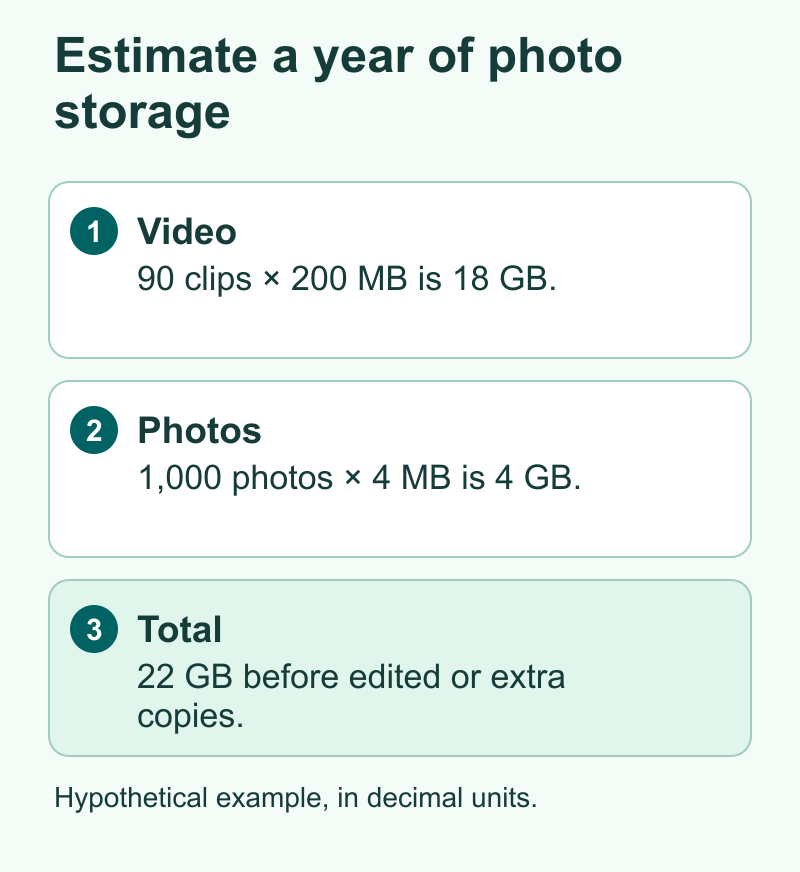
Here is a hypothetical storage estimate. Suppose your phone produces 90 videos that average 200 MB and 1,000 photos that average 4 MB in a year. That is about 18 GB for video and 4 GB for photos, or 22 GB in total using decimal units. If you hold the originals and additional copies with edits, plan for more than that. Measure several real files and check your own monthly volume before picking a drive or a paid plan. Your recording format and how often you shoot video can change the total quickly.
Test what the separate copy includes
Play one video from the copy for more than a moment. Open several images and check whether dates still make sense to you. A file can work even if its download date becomes the date you see in a file list. Test how you would find the photo later. A folder by month or event can help when file names are generic. Do the same for shared albums and edited pictures because the export may deliver different versions.
If you prepare a big download, let it finish and make sure you have all the parts before clearing space anywhere. Open a sample from each important period and scan the first and last dates. Keep the old device until the newest things you shot appear on the new one or in the independent copy. You can use that checkpoint when trading in a phone or handing it down.
Did You Know?
A cloud backup check can succeed for today’s camera photo and fail for today’s screenshot. Google Photos on Android lets you choose which device folders to back up. If a file is important to you, check the folder it came from and find that exact file on another device.
Conclusion
Take a sample photo and video, check the online copy from another device and download one to verify that it opens. Repeat for the folders you rely on. Keep a separate copy of important files and check that you can reach it. Once you have proven the route back to your photos, you can make choices about phone storage and upgrades with more confidence.
FAQs
Does iCloud device backup include my photos if iCloud Photos is on?
Apple says items already synced through iCloud Photos are outside the daily device backup. Check the synced library itself from another trusted device. If you want a copy that survives a change to that library, export and verify a separate one.
How can I tell if Google Photos backed up a specific photo?
Use the photo’s details in the app to check its backup status. You can also use another device signed in to the same Google account, find the photo there and download a sample. Check the correct account and device folder if it is missing.
Can I get back a photo after deleting it from the cloud library?
Check the provider’s deleted-items folder quickly and restore the item if it is available. The recovery period is limited. Try an independent copy or another source if it is no longer in the library’s recovery folder.
What is the difference between Original quality and Storage saver?
Google says Original quality keeps the original resolution. Storage saver uses compression and can resize some large files. Check the setting and look at an actual download if you need an original for editing or printing.
Should I back up every photo to an external drive?
Start with the photos and videos you would miss most. Make a separate copy and test it. If you need to preserve a full library, review the export options and check available space before copying everything.
References
- Apple Support on iCloud Photos sync, storage and deleted items
- Apple Support on what iCloud device backup includes
- Apple Support on making copies of information in iCloud
- Google Photos Help on backup accounts, upload status and Android device folders
- Google Photos Help on original and compressed backup quality
- Google Photos Help on recovering items from Trash
- Google Photos Help on downloading a photo or video
- Techchahiye’s guide to freeing up space with Google Photos
