

Choose the right recovery route
Check open windows and groups, then try the reopen shortcut. Use History in the right Chrome profile. Save useful links and check the work itself after pages return.
Key Takeaways
- To restore tabs on Chrome, first check whether the window or tab group is still open. Then try the reopen shortcut.
- On Windows or Linux, press Ctrl + Shift + T. On a Mac, use Command + Shift + T.
- Use History to find a closed window or individual pages. Check the Chrome profile that held the missing work.
- Continue where you left off helps with future starts. It is a setting, not a promise to recover every lost page.
- Save useful page links after recovery. A restored tab does not prove that an unsent form or draft also survived.
To restore tabs on Chrome, try Ctrl + Shift + T on Windows or Linux. On a Mac, press Command + Shift + T. These are Google’s listed keys to reopen a closed tab or window. If the result is not the window you need, check History and your Chrome profile next.
Before changing settings, decide what is missing. It might be one closed tab, a full window, a hidden group or pages from another device. Each has a useful place to look. Choose the route that fits. A blank window alone does not prove that every page is gone.
The steps focus on Chrome on a computer. Phone menus differ, so do not expect a desktop shortcut to work on a phone’s touch keyboard. The recovery examples below are hypothetical. They do not claim a test of your browser, account or lost files.
Check for an open window or hidden group first
Look for the work before trying to recreate it. Check your open Chrome windows and the tab strip. A window behind another app can look like a lost session when the visible window has only one tab. Bringing the right window forward is different from restoring a closed one.
Also look at group names or colored circles in the tab strip. Google explains that a group can collapse so that only its name or circle shows. Select that label to expand it. A collapsed group can hold several pages even when the strip looks almost empty.
If many tabs are open, use Tab Search rather than opening new copies of pages at random. Google’s tab guide describes searching by a word from the site. Pick a word you remember, such as a project name or the site’s name. Look at the results before deciding that a tab was closed.
Suppose, as a hypothetical example, you had a research group and a separate email window. After a restart, only email is visible. First check the other windows and group labels. If the research pages are already open, you can resume them without adding a second set of the same links.
This first check also avoids changing the wrong workspace. If you find the missing group, read its contents before closing anything else. Keep the useful pages in place while you decide what to save. There is no need to reset Chrome to bring a hidden window forward.
Reopen closed tabs with the right shortcut
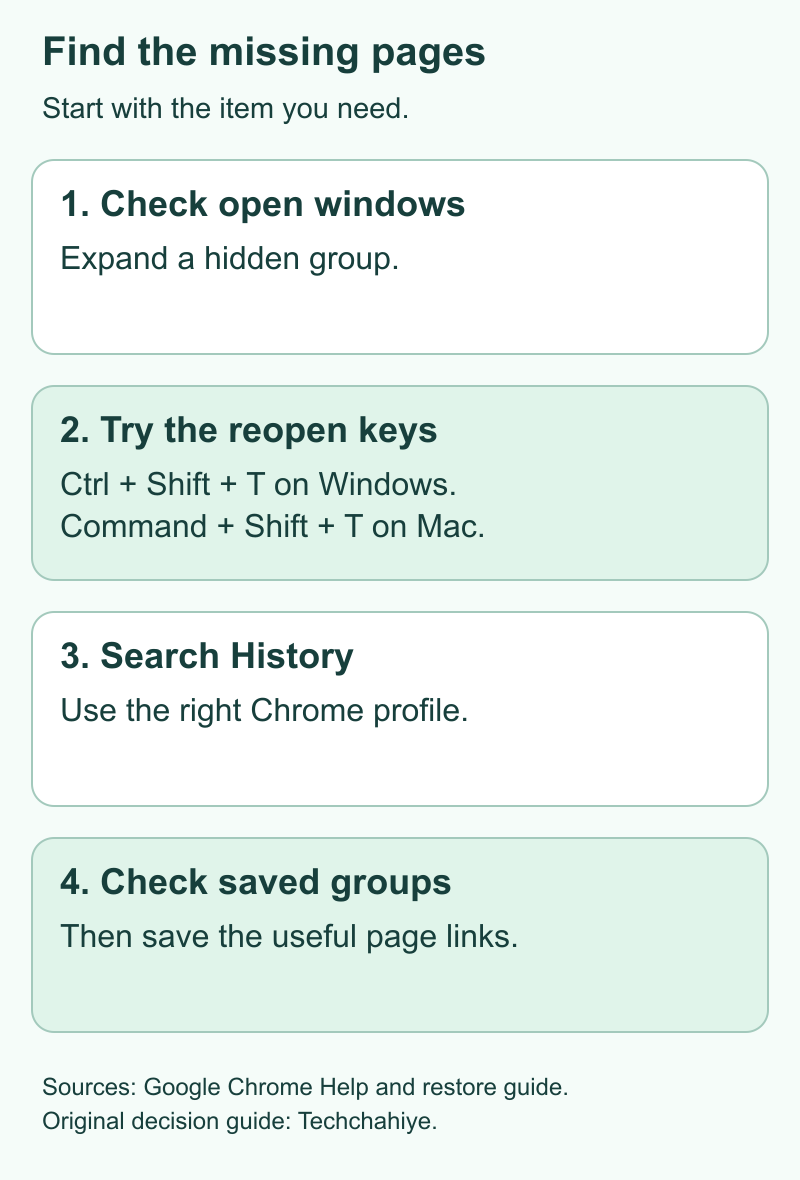
Google’s keyboard guide gives Ctrl + Shift + T for Windows and Linux, and Command + Shift + T for Mac. It says this reopens previously closed tabs in their closing order. Google’s tab guide also lists the shortcut for bringing back a closed tab or window.
| Computer | Reopen closed tabs | Open the full History page |
|---|---|---|
| Windows or Linux | Ctrl + Shift + T | Ctrl + H |
| Mac | Command + Shift + T | Command + Y |
Give Chrome focus before using the keys. That means the browser should be the app receiving your typing. If you press a shortcut while another app is active, the result may have nothing to do with Chrome. Check which app is in front rather than assuming the shortcut failed.
Try the reopen shortcut and look at what returns. You can try it again for another closed item, but watch each result. Do not press it rapidly while also opening and closing new tabs. You need to see whether it is returning the page or window you meant to recover.
If the wrong page returns, that is still useful evidence. It shows which closed item the browser reached. Move to the History menu to look for the wanted window by its contents. The keyboard shortcut is a quick route, but it is not a search box for a project name.
Avoid confusing reopen with a new-tab shortcut. Ctrl + T or Command + T opens a new tab. The Shift key is part of the reopen command. Read the keys in the table carefully, especially if you are moving between a Windows computer and a Mac.
Use History to recover a full window
Google’s restore-window guide starts with the Chrome menu. Point to History, then look under Recently Closed. A closed window may show a count of its tabs. Open the relevant entry and use Restore Window where that option is shown. Labels can differ as Chrome’s menus change.
- Open Chrome’s menu at the top right.
- Open or point to History.
- Look for the closed window or the pages you recognize.
- If the menu offers the wanted window, restore it.
- Check the returned pages before closing the recovery menu or other useful windows.
A window entry and an individual page are different results. If you remember using several related pages together, inspect the window entry first. If you only need one site, opening that page alone may be enough. Choose the smallest useful result rather than reopening everything without review.
A hypothetical example makes the distinction clearer. You may have closed a window containing a schedule, a map and a hotel page. A three-tab window entry could be relevant, but the count alone does not prove it is the right one. Read the available titles or inspect the restored pages.
If no useful window appears, move to the full History page. Do not assume there is a guaranteed hidden recovery button elsewhere. The normal controls may not contain the old set you want. You can still look for the separate page addresses and rebuild the useful part of the task.
Find individual pages in Chrome browsing history
Google says Chrome History lists visited pages from the last 90 days. It excludes deleted entries, Incognito visits and internal Chrome pages such as settings. That makes History a useful trail of addresses, with clear limits. It is not a complete saved copy of everything a tab once displayed.
On a computer, open the Chrome menu, choose History, then History again. Use the search box to look for a word from the site or page. You can also use the full History shortcut in the table above. Start with a detail you remember well.
For example, search for a publisher’s name before a vague word such as “guide.” If that yields too much, add a topic from the page. A broad search can return many visits from unrelated tasks. Narrow the query until the result looks like the work you need.
Open a likely result and inspect the address, page title and content. The same site may have several similar pages. You may need the specific lesson or booking details rather than its homepage. A familiar logo alone does not show that you found the right page.
As you find useful pages, put them together in one clear window or group. Keep a short list of what is still missing. Keep track as you go. That helps you avoid opening the same site again by mistake. Save the link once you know it belongs to the task.
Check that you are using the right Chrome profile
Chrome profiles keep browsing information separate. Google’s profile guide lists history, bookmarks and settings among that information. A work profile and a personal profile can therefore show different useful records. A search in the wrong profile may not answer whether the page is available in the right one.
Select the profile icon and read the profile name. If you have more than one profile, choose the one you used for the missing work. Then check its windows and History. Find the profile you used first. A new profile is not your first recovery step.
The browser profile and a website login also have separate roles. A page may ask you to sign in after you reopen it. That does not necessarily mean you chose the wrong page. Check the page address and the account the site needs. Do this before entering private info.
A useful hypothetical note might say, “The missing research was in my work Chrome profile.” That is more precise than saying, “It was somewhere in my Google account.” It directs your next check to the browser workspace where the pages were used. Keep the distinction clear when asking for help.
On a shared computer, open only the profiles you are allowed to use. Do not search another person’s history to find your own work. If the needed profile belongs to a managed workplace, ask its support team about access. That is an ownership question rather than a tab-restoration shortcut.
Look for a saved tab group before rebuilding it
Google’s current computer tab guide distinguishes closing a group from deleting it. A closed group can remain saved in the bookmarks bar or menu. The guide gives the Tab groups menu as one way to open a saved group again. Check for its name there if it is absent from the tab strip.
Read the action names before clicking. Close group and Delete group do different jobs. If your goal is to get pages back, choose the saved group’s opening action. Do not delete or ungroup it as a way to make its title visible.
Think of a group name as a clue to the task. A name such as “Trip plan” is easier to recognize than a row of small site icons. After recovery, check whether the group contains the actual pages you need. A saved label is useful only if its links still support the task.
Groups also need context. An old group may hold old prices or past events. Its pages may have changed, too. Opening a group takes you to those addresses. It does not bring old facts up to date. Read the important details again before acting on them.
Check tabs from another device when relevant
Google’s history guide covers browsing across devices. It needs sign-in and history sync with your Google Account. Also check which types of info you save to the account. Google’s cross-device guide explains that choice. Merely having a Google login on a site does not prove that every open tab is available elsewhere.
If the task was on your other computer or phone, check the available other-device tabs in History. Confirm which account and device you are looking at. Open the relevant address and inspect it. Keep the original device’s useful pages open while you work out what is available.
Do not change several account settings just to see what happens. First read the current state and the help for that device. Saving or syncing information has a privacy purpose as well as a convenience purpose. Choose it based on your needs, rather than treating it as an automatic recovery guarantee.
If the other device is offline or no useful entry appears, keep that result specific. It means the wanted item is not visible through that route now. It does not prove that you never visited the page. Continue with the known links, bookmarks or records from the task.
Set Continue where you left off for future starts
Google’s startup guide shows how to reopen the same pages after quitting. Open More, then Settings. Choose On startup, then Continue where you left off. Review the selected choice before changing it. This is a future startup preference, so keep it separate from finding a page already missing.
The guide lists other choices too: opening the New Tab page or a specific page set. These serve different goals. A fixed set can open a few chosen sites each time. Continue where you left off follows the pages from the previous quit. Pick the behavior you actually want.
The Home button is separate again. Google explains the two roles. Home opens the homepage. The startup page appears when Chrome starts. Did changing Home leave the next session blank? Check On startup. Editing Home again will not answer that question.
After choosing the behavior, plan a harmless check at a suitable time. Save any important work before quitting. Use ordinary pages you are comfortable reopening. Check whether the startup choice fits your routine. Keep unsent work safe while you do it. Do not use an open payment form for this test.
Keep restored pages and saved work separate
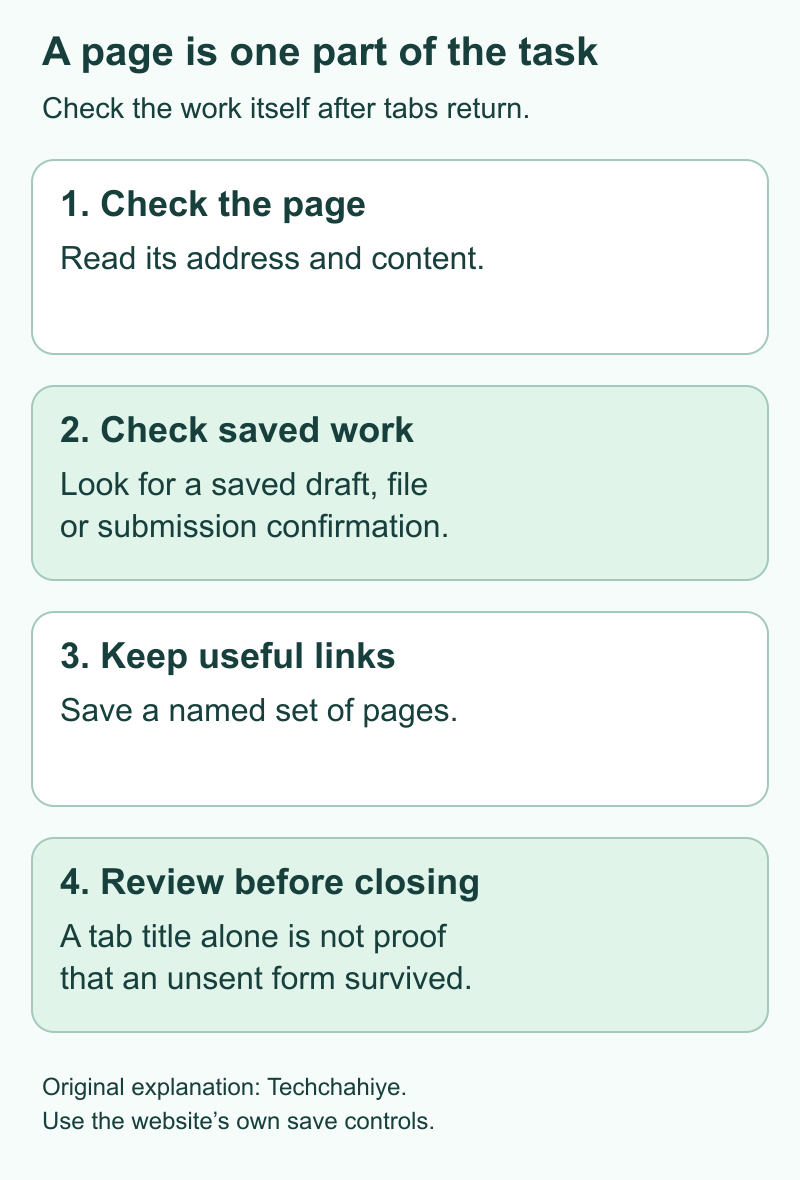
A page address is one part of a task. Text you typed into it is another. When a tab returns, inspect the document, form or editor before assuming its work is safe. Look for the site’s own saved-state message or the actual saved file. The presence of a familiar tab title is not enough.
For a hypothetical example, imagine a long form with a project summary. Reopening the form’s address may return you to the site. It does not establish that the summary was submitted or saved. Use the site’s normal draft or save controls first. Read any text that remains before typing over it.
Keep recovery steps focused. Clearing browsing data removes info. Google’s data guide says deleting history removes visited addresses from History. That is not a step that recreates missing tabs. Read what an action does first. Make sure it fits the problem you have.
If a normal recovery route no longer has the wanted pages, write down what you tried. Name your operating system and Chrome profile. Say what is missing and note any error. This gives support a clear problem to assess. Avoid claiming that a specific update caused the loss without evidence.
Save a useful page set after recovery
Once the task is back together, save the links you need. Google’s restore-window guide also covers Bookmark All Tabs. This puts the window’s pages in a bookmark folder. Give the folder a task-based name so you can find it later. Review its contents before relying on it.
Keep essential files or notes in their proper saved location too. A folder of links helps you reach pages again. It does not hold every site’s private draft. Keep a proper copy of important files, too. Use the site’s own save controls for the work itself.
Our Chrome Memory Saver guide covers memory use. That is a separate issue from getting closed pages back. The pop-up guide explains site permission choices. Both are in References. Neither is a substitute for saving a page set or finding the correct history entry.
Did You Know?
Google’s Incognito guide says the private session ends when all Incognito windows close. Chrome does not retain a record of visited sites after that session ends. Bookmarks you chose to save and files you downloaded can remain. Those saved items are different from a recoverable list of private tabs.
Conclusion
To restore tabs on Chrome, first identify the missing item. Check open windows and groups, try the reopen shortcut, then use History in the right profile. Review saved groups or other-device tabs where relevant. When the pages return, save their links. Check the work itself before you close the browser again.
FAQs
Does restoring a tab recover text I had not saved?
A reopened tab alone does not prove that text survived. Check the website’s own draft, saved file or confirmation message. If some text remains, read it before replacing it. Keep the page open while you check the site’s normal save controls. A page address and saved work are separate results.
What if the lost window is not under Recently Closed?
Search the full History page for the separate pages you remember. Also check open windows, the correct profile and any saved group. These routes may help you rebuild the useful page set. They do not guarantee that Chrome still has the exact old window or every page it contained.
Why does the shortcut bring back a different tab?
The reopen shortcut follows closed items rather than a topic you choose. Check that Chrome has focus and that you are in the intended profile. Then inspect History for the wanted window or page. Watch each result. Quick, repeated key presses can leave you with more tabs to sort.
Can work or school settings change what I can recover?
Yes, managed settings can limit the available history or startup controls. Google’s Help notes these limits for managed Chromebooks. Is a needed option missing? Ask your support team about the device’s rules. Do not change security controls or remove management as a way to restore a page.
Are bookmarks a replacement for session restore?
Bookmarks provide a separate way to save page addresses. A named folder can make a useful set easier to reopen without depending only on the last session. It does not save every page’s live state, private form text or account access. Use bookmarks for links and proper save controls for the work.
References
- Google Chrome Help — Keyboard shortcuts
- Google Chrome Help — Manage tabs on a computer
- Google — Restore a browser window you closed by accident
- Google Chrome Help — Check or delete browsing history
- Google Chrome Help — Manage Chrome with multiple profiles
- Google Chrome Help — Get your information on all devices
- Google Chrome Help — Set your homepage and startup page
- Google Chrome Help — Browse in Incognito mode
- Google Chrome Help — Delete browsing data
- Techchahiye — Chrome Memory Saver
- Techchahiye — Block pop-ups in Chrome without breaking useful sites
