

Start with the card standard
Choose a supported microSD Express card, then plan capacity from your games. Keep original files until a replacement works. Check saved progress separately from installed software.
Key Takeaways
- Your Nintendo Switch 2 SD card must use the microSD Express standard for game storage. An old regular microSD card is not a substitute.
- Choose space from the games you plan to keep, plus updates and captures. A large number on the box does not tell you usable space.
- Game installations and saved progress are different data. A card copy is not a backup of your game saves.
- Keep the original card intact until a replacement works. Formatting erases the card, so protect files before taking that step.
A Nintendo Switch 2 SD card can give a growing game library more room. The catch is the standard: Nintendo requires microSD Express for game storage. A card that worked in the first Switch may fit the slot but still be wrong for this job.
Start with the card type, then choose capacity and plan setup. This guide follows Nintendo’s support instructions, checked on October 25, 2026. It also explains how to move software and protect files when changing cards. We have not tested card speeds or opened a console for this guide. We label the capacity and cost examples as calculations.
Nintendo Switch 2 SD Card Requirements: Express Comes First
Nintendo lists support for Express cards up to 2 TB in its guide. It also requires an internet system update the first time you use an Express card. Check the exact product for the Express standard. Do not rely on a search result that says it is for Switch.
Regular microSD, microSDHC and microSDXC labels alone do not prove Express support. A high capacity is a different property from the card’s interface. A fast-looking speed claim on a shop page is not enough either. Match the full product code to the maker’s specifications before ordering.
Be careful with a listing that offers several versions in one menu. Changing capacity can also change the selected product family. Read the title, model code and final basket again after choosing. A review attached to the listing may describe a different version from the one you selected.
Nintendo says cards that meet its Express standard can work. You do not have to choose Nintendo-branded packaging. That gives you room to compare sellers and capacity. It does not remove the need to check the exact card. Save the maker’s specification page and your receipt as a useful product record.
What Can a Switch 2 microSD Express Card Store?
Nintendo lists what an Express card can hold. This includes games, update data and add-on content. Its FAQ also covers moving screenshots and videos between the card and system memory. Game save data stays in system memory. It cannot be copied or saved to the Express card.
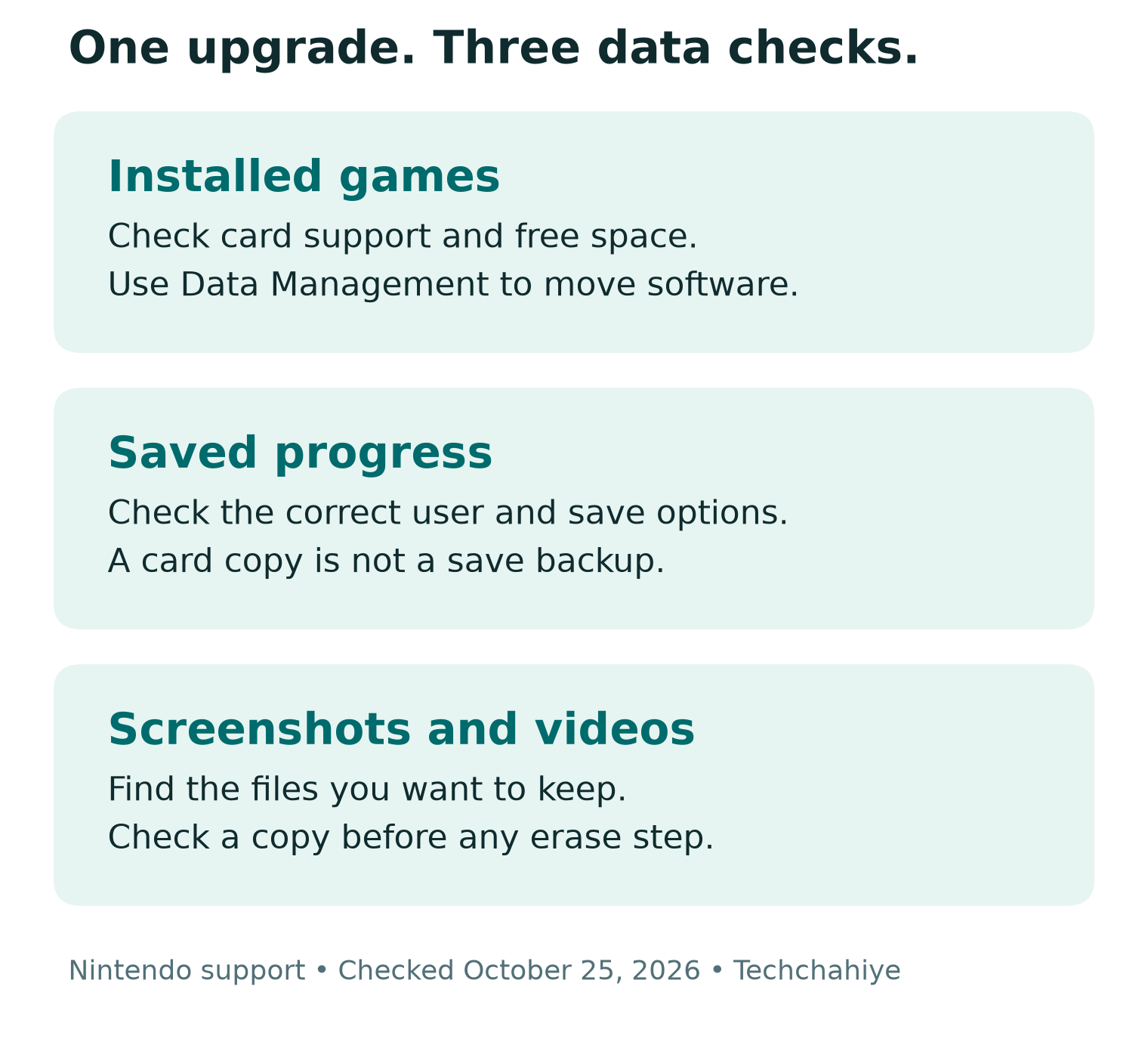
That split changes how you should think about protection. An installation is the software you need to run a game. Saved progress records where your own play has reached. Having room for more installations does not protect the progress stored elsewhere.
| Your goal | What to check |
|---|---|
| Keep more downloaded games ready | Express card compatibility and free space |
| Preserve game progress | The game’s save-data options and current backup state |
| Keep screenshots and videos | Their location and a checked copy before erasing anything |
| Move to a larger card | Nintendo’s card-transfer procedure and a working new copy |
Use these as separate tasks in a setup plan. Check a game’s progress with the correct user. Find captures in the Album. Then check software locations in Data Management. One successful check cannot stand in for the other two.
Before travel, test the games you want on the actual console. Open each title with the user who will play it. Make sure the menu loads and the expected progress appears. This checks actual play. A full-looking card cannot show that every game is ready.
Switch 2 Storage: Measure Your Library Before Buying
Open System Settings from the HOME Menu, then Data Management. Nintendo identifies this as the place to see free space in system memory and on the card. Use that screen as the starting point for a shopping list. It describes your setup better than an average game-size claim.
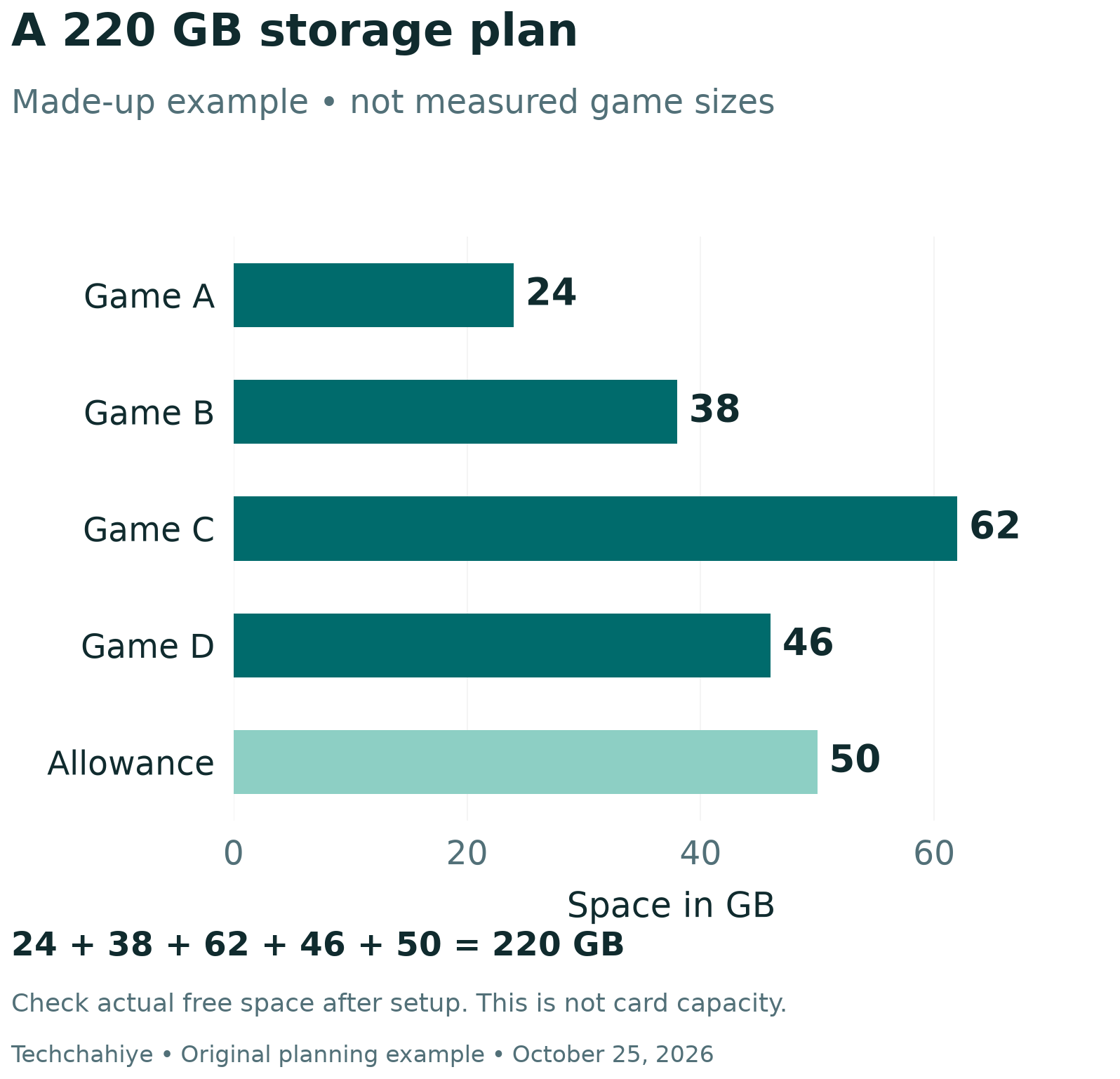
List the games you want to keep installed together. Record their installed sizes. For a new download, check the space listed for that version. Add the titles you expect to buy soon. Keep updates and captures in the plan rather than treating all available room as game space.
Here is a made-up library example. Game A needs 24 GB, Game B 38 GB, Game C 62 GB and Game D 46 GB. Together they total 170 GB. Add a chosen 50 GB planning allowance for updates and captures. The example plan becomes 220 GB. We invented these sizes. They are not measurements of named games.
| Example item | Hypothetical space |
|---|---|
| Game A | 24 GB |
| Game B | 38 GB |
| Game C | 62 GB |
| Game D | 46 GB |
| Chosen allowance | 50 GB |
| Total plan | 220 GB |
The math is 24 + 38 + 62 + 46 + 50 = 220 GB. That does not mean a card with a nearby label will provide exactly enough usable room. Check the free space the console reports after setup. Leave room to change the plan as your library changes.
You may not need a new Nintendo Switch 2 SD card at once. You can first review which software you still play. For a larger library, moving to a roomy single card may be easier than managing several small cards. Choose based on the games you keep, your download access and your budget.
Physical Games Can Still Need Download Space
Do not assume that buying a boxed game removes storage needs. Nintendo’s game-key card guide explains that these cards do not contain the full game data. They unlock a download. The packaging states the space needed. You need an internet connection to download the game.
After the download, the game-key card still has to be in the console to play. The card and the installed data do different jobs. Keep this in mind when planning both storage and what to pack for a trip. Bringing only one of them may leave your game unusable.
Check the box before adding a game to your capacity plan. Note whether it is a regular game card or a game-key card. Read the listed download size for that exact release. An online discussion about another edition may not describe the copy you are buying.
For a trip, make downloads part of the preparation. Leave time to finish them at home, then open the games before leaving. Check any game’s own online needs too. A card having enough space cannot establish that every feature works offline.
Keep a simple travel list with the game, card type and setup check. This can prevent a storage choice that solves only half the problem. You may need time to download and update a title more urgently than you need a larger card.
Switch 2 SD Card Capacity and Total Cost
Compare products that meet the same Express standard first. Then look at capacity, price, warranty terms and the seller. A cheaper regular microSD card is not a cheaper way to solve the same Switch 2 storage need. It is a different product for this task.
Use total spending as well as cost per labeled gigabyte. In a made-up US example, a 256 GB card costs $60 and a 512 GB card costs $90. Dividing price by labeled capacity gives about $0.23 and $0.18 per GB. We invented these prices. They are not current offers or cost per usable GB.
The larger card has a lower unit cost in that example, but it costs $30 more. Whether that extra room helps depends on your library. Do not let a unit-cost figure decide the whole choice. A lower unit cost does not change your budget. Check the total bill too.
For Indian buyers, check the local seller’s invoice, return terms and warranty route. Do not treat a converted US price as an Indian retail quote. Imported stock can raise separate questions about who handles a fault. Resolve those terms before paying, while the listing is still available to save.
Keep the packaging until the card works in your console. Compare its model code with the order and receipt. If they differ, ask the seller to resolve that mismatch before trusting the card with files you want to keep. A clear record makes the issue easier to explain.
Insert the Card With the Console Powered Off
Nintendo’s insertion guide starts with powering off the console. Hold the POWER Button for at least three seconds, choose Power Options and then Power Off. Sleep mode is a different state. Follow the official diagram to locate the slot behind the adjustable stand.
The guide places the card with its label facing away from the console. Push gently until it clicks into place. To remove it, power off first, press the card gently until it clicks, then slide it out. Do not force a card that does not seem correctly aligned.
Set aside a clear surface before starting. Keep the card and packaging where they will not get lost. Open the official diagram on another screen. Use it to check the card direction as you work. This is a small task that benefits from a calm setup.
Start the console and follow its messages. Allow for the first-use internet update Nintendo requires. If the system reports a problem, record the exact message. Check card support and its files before formatting. Avoid a rushed erase step.
After setup, check the storage screen. Confirm that the card appears and note the free space shown. Then try a small software move and open that title. These checks show that your setup works for a real task. They do not amount to a card-speed benchmark.
Move Games to Your Switch 2 SD Card
Nintendo’s US guide starts in System Settings. Open Data Management. Then choose Move System / microSD Express Card Data. Choose the data to move and select OK. The company notes that saves and some update data cannot move through this feature. Later updates may also use a different location from the one you selected.
Test your Nintendo Switch 2 SD card with one title first. Read the amount to move and the available space before confirming. Let the console finish the task, then return to the storage screen. Check the game with the correct user rather than relying only on a changed space total.
If your goal is to free system memory, compare the before and after figures. A small change is not by itself proof that the move failed. Some data may remain elsewhere. Read the software details and Nintendo’s guide first. Avoid repeating the move or deleting files without a reason.
Keep saved progress out of this calculation. Moving an installation through Data Management does not move progress to the card. If the right game opens but the wrong user’s progress appears, first check the selected user. Avoid treating an account or save question as a reason to erase storage.
Changing to a Larger Card: Preserve the Original
Nintendo recommends using one Express card per console. Its transfer guide uses a computer. It warns that copying may fail outside Windows. This includes a Mac. Follow the full official procedure for your situation. Do not assume a general photo-card copying tutorial covers game data.
The guide says to copy the whole folder. Keep the files inside it unchanged. It also warns against mixing data from several cards or swapping a card between consoles. Most importantly, keep the original untouched until the new card works. A copy that exists is not yet a copy you have checked.
Before starting, identify the source and destination by capacity and label. Keep only the card you need in the reader at each step. This reduces the chance of copying the wrong way. Give the temporary computer folder a clear name that includes the date and source card.
Check that your computer has room for the copy before beginning. If it does not, solve that first. Do not delete the only good copy from the old card to make room during a transfer. That removes the fallback the official process tells you to keep.
After the new card is ready, open games and inspect the captures you care about. Some software may need a fresh download, as Nintendo’s guide notes. Keep the old card until these checks finish. Only then decide what to do with the old copy under the official instructions.
Before replacing the old copy
Check the new card on the console. Open your games and inspect wanted captures. Keep the original intact until the new copy works.
If the Console Cannot Read the Card
Start with Nintendo’s basic checks. Power off, remove the card and confirm its type. Check for visible dirt or debris on the card contacts or in the slot. Nintendo advises service for visible dirt or debris in the console. Do not try your own cleaning method inside the slot.
The guide includes formatting as a later step. It warns that formatting erases card data for good. You cannot recover that information. Back up wanted screenshots and videos to a computer first. Avoid an erase step while the card holds the only copy of something important.
Keep the exact error code, card model and steps already tried. If another supported card fails, tell support. These details can help identify which part has a fault. Nintendo’s guide directs users toward service when several cards cannot be read. It does not tell readers to keep buying cards without a limit.
Protect Saved Progress as a Separate Task
Save Data Cloud needs a Nintendo Switch Online membership. Nintendo explains this in its backup guide. Not every game supports the feature. Check the game’s support state and the correct user before relying on it. A card upgrade cannot add cloud-save support to a game that lacks it.
Check the backup timestamp against the save on the console. Nintendo’s missing-backup guide shows both times. It warns that overwriting a save is final. Do not download an older cloud copy to test what happens. First decide which version contains the progress you want to keep.
If the game does not support cloud saves, follow that game’s current official guidance. Avoid a blanket promise that one backup method protects every title. Learn how your important saves work. Do this before a card change or console repair.
Did You Know?
An old Switch microSD card still has one limited use on Switch 2. Nintendo allows an import of old screenshots and videos. It puts these captures in system memory. That exception does not let it store or load Switch 2 games. Keep capture import separate from a game-storage upgrade.
Conclusion
Choose a Nintendo Switch 2 SD card by its Express standard first. Plan space from your actual library. Check the exact product and follow Nintendo’s setup guide. Keep original files until a new card works. Finally, check saves separately. More storage is not proof that your progress has a backup.
FAQs
Can I reuse my old Switch microSD card for Switch 2 games?
Only if the card meets the supported Express standard. A regular old Switch card cannot serve as game storage on Switch 2. Nintendo allows a limited import of old screenshots and videos, which is a separate use.
Does the card need Nintendo branding?
Nintendo says cards meeting its supported Express standard can work. Check the exact model and capacity limit. Read the product specs. A logo or a shop’s claim cannot replace that check.
How large should my Nintendo Switch 2 SD card be?
Add the games you plan to keep and allow room for updates and captures. Compare that plan with actual usable space after setup. The library example shows the math. It is not a fixed choice for every player.
Will moving games to the card back up my saves?
No. Saved progress stays in system memory. Check each game’s backup options and the correct user separately. For cloud saves, check game support and the backup state. Moving software does not protect progress.
Should I format a card as soon as it shows an error?
No. Check its type and the official troubleshooting steps first. Formatting erases the card. Preserve wanted files before an erase step. Keep the original card until the new one works.
References
- Nintendo Support — microSD Express Card FAQ
- Nintendo Support — microSD and microSD Express compatibility
- Nintendo — Switch 2 FAQ, including game-key cards and storage
- Nintendo Support — Insert or remove a microSD Express card
- Nintendo Support — Move software between console and card
- Nintendo Support — Transfer between microSD Express cards
- Nintendo Support — Card read errors
- Nintendo Support — Automatic save-data backup and download
- Nintendo Support — Missing Save Data Cloud backups
- Techchahiye — Gaming coverage and guides
