

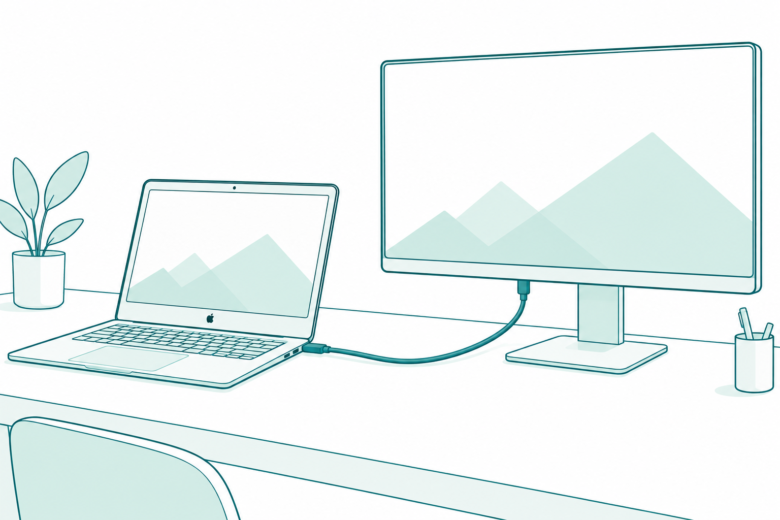
Trace one supported display connection first
Check the exact Mac chip and screen mode before choosing a dock. Get one direct video connection working. Allow the known accessory, then arrange the display. Follow the base M3 lid rules when they apply.
Key Takeaways
- To connect a MacBook Pro to a monitor, check the exact chip, display count, ports, and cable support first.
- A dock adds connection options. It does not raise the Mac’s native display limit.
- A base M3 MacBook Pro needs its lid closed for two external displays. It needs macOS Sonoma 14.6 or later and the right accessories.
- If a screen stays dark, test one display directly on the Mac. Check power, the cable, and any accessory approval prompt.
To connect a MacBook Pro to a monitor, power the display and connect its video cable to a supported port on the Mac. Then open Displays in System Settings to arrange the screen and choose its settings. Before you buy a cable or dock, check your exact Mac chip and the screen’s resolution and refresh rate.
A plug that fits is only part of the answer. You also need a video path that supports the display mode you want. A second screen can fail because of a model limit, a lid rule, a cable, or a dock. Start with those facts so you can choose the next step before you buy a new part.
This guide uses Apple support pages checked on October 30, 2026. The guide covers native display support and a clear way to connect and check a screen. It does not report tests of particular monitors or docks. It makes no claim about untested driver-based display workarounds.
Connect MacBook Pro to monitor: identify the model first
Write down the MacBook Pro’s exact model and chip before you count ports. M3 and M3 Pro are different chips. So are M5, M5 Pro, and M5 Max. A guide for one can give the wrong display count for another. “MacBook Pro” alone is not enough to choose a setup.
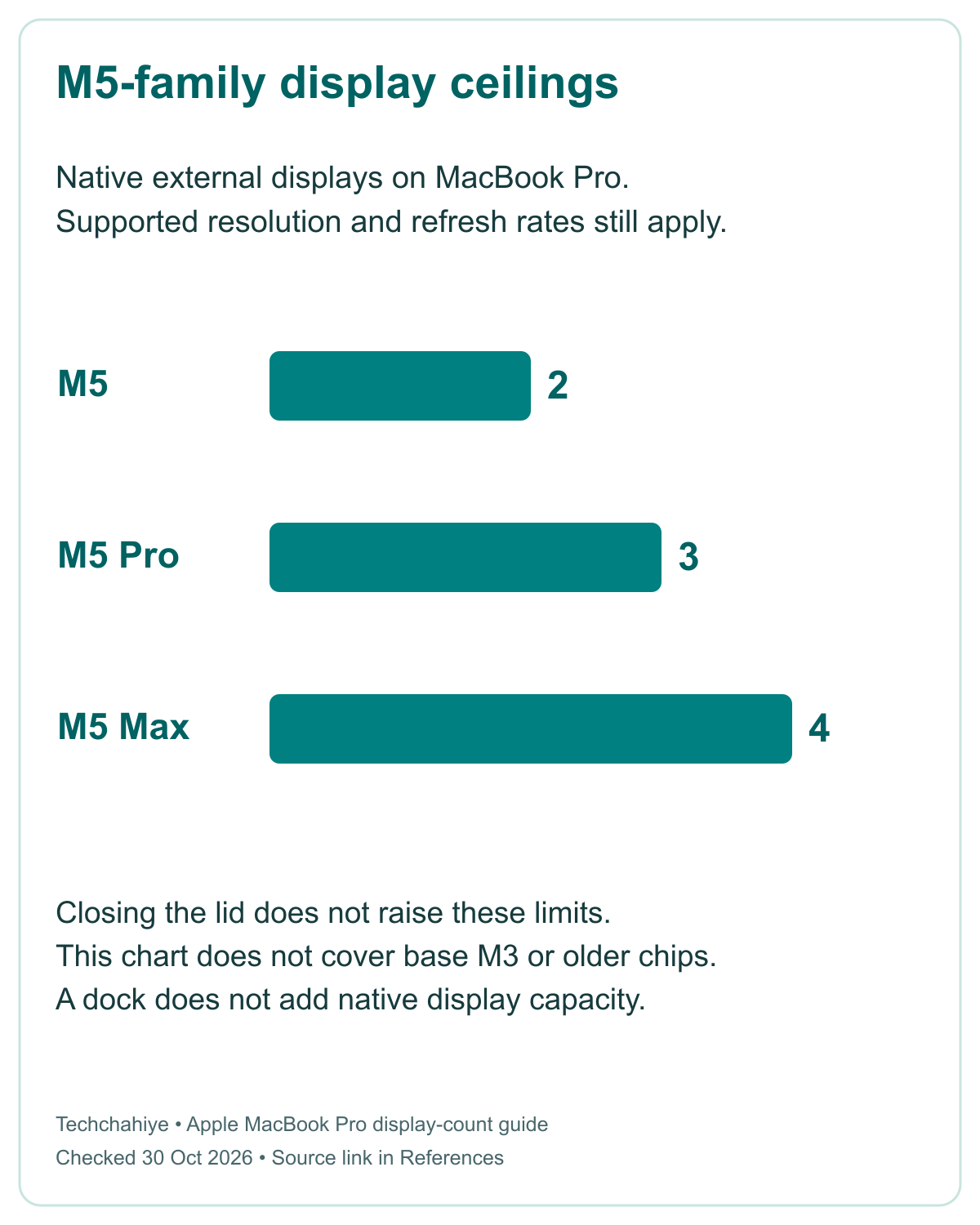
Apple’s display-count page lists support by chip family. It also gives the allowed combinations of screen count, resolution, and refresh rate. Use the row for your Mac. For older models, Apple points to that model’s technical specifications. Do not extend a newer model’s limit to an older laptop.
Compare chip-specific native display ceilings
The table below is a starting map of the native limits in that support page. Each count still depends on the supported display modes. It is not a promise that any screen can run at any setting because it fits below the count.
| MacBook Pro chip | Native external display ceiling in Apple’s guide | Lid point to check |
|---|---|---|
| M5 | Up to two | Closing the lid does not raise the ceiling |
| M5 Pro | Up to three | Closing the lid does not raise the ceiling |
| M5 Max | Up to four | Closing the lid does not raise the ceiling |
| M4 or M4 Pro | Up to two | Closing the lid does not raise the ceiling |
| M4 Max | Up to four | Closing the lid does not raise the ceiling |
| Base M3 | Up to two with the lid closed | Check the required macOS version and accessories |
| M2 Pro or M3 Pro | Up to two | Use the matching display-mode combinations |
| M2 Max or M3 Max | Up to four | Use the matching display-mode combinations |
| Other models | Check the exact model’s specifications | Do not infer support from port count |
The ceiling is not a shopping list. For example, compare a Mac’s one-screen and two-screen rows. The allowed high-resolution modes can differ. Read the one-screen and two-screen sections separately. That prevents a common error: taking the best mode in one row and applying it to every connected screen.
Choose a display mode as well as a screen count
Resolution describes the image dimensions. Refresh rate describes how often the screen can refresh each second. Both matter to the connection. Apple’s support tables pair them with a screen count and port route. Keep those pieces together when you compare what you own with what the Mac supports.
One example from Apple’s M5 section makes this clear. For one external screen, it lists up to 8K at 60Hz, 5K at 120Hz, or 4K at 240Hz over Thunderbolt or HDMI. Its two-screen row lists two displays up to 6K at 60Hz or 4K at 144Hz. Those are different configurations.
Do not read that example as a claim that the same limits apply to every chip. The base M3 section has different port and mode details. Older Intel models need their own specifications. Copy the full supported setup for your Mac. Then compare it with the setup you want.
Also distinguish a panel’s advertised ability from your current connection. A monitor may offer a high refresh rate on a suitable input. Your cable, adapter, Mac, and other attached screens must support that route too. A label on the box does not set the active mode on its own.
Make a short note for each screen. List its model and chosen input. Add the target resolution and refresh rate. This helps you ask a precise question about a dock or cable. It is much more useful than asking whether a product “works with Mac” without stating the mode you need.
Trace the cable from the display to the Mac
Apple’s connection guide starts with display power and a video cable. Connect the display to its power source. Connect its video cable to a suitable port on the Mac, such as HDMI or Thunderbolt. If the cable needs a port the Mac lacks, check a suitable adapter or a different video cable.
Identify the actual port. Apple’s port guide notes that similar shapes can serve different roles. The name of a connector does not describe every capability of a cable or adapter. Check the specifications for the path you plan to use. Keep the Mac model and display mode in that check.
Apple’s dark-display guide says to check the cable and adapter. They can cause a blank screen or limit its modes. Check a Thunderbolt or USB-C adapter’s support. Apple calls for DisplayPort Alt Mode, Thunderbolt 3, or Thunderbolt 4. Read the current source. Check the adapter maker’s exact specifications before you choose a product.
Do not treat successful charging as proof of a working video path. Apple says an accessory can still charge a Mac even if you refuse its connection request. Power and data access are separate clues. A charging icon does not confirm video support. It does not show accessory approval either.
If several items sit in the path, list each one. For example, write “Mac port, dock, adapter, video cable, screen input.” That is a route to inspect, not a tested setup recommendation. It makes the next comparison easier because you can change one link while keeping the rest clear.
Start with one screen connected directly
For the first setup, connect one display directly to the Mac where the ports permit it. Give the display power and check the video plugs at both ends. Apple says a properly connected powered display should be detected on its own. Then you can move to the settings and layout.
If the screen uses its own menu for input choice, consult its manual for that control. The correct input depends on which cable you used. Use the screen’s controls to choose its input. The Mac does not offer one universal control for that. Keep the screen’s controls and the Mac’s controls separate.
Once the first screen works, note its active mode. Add the next supported screen after that. Apple says to connect the highest-resolution display first when using several displays. Read the matching multi-screen section and port details. Check the limit before adding another device.
This order also creates a useful test if you later add a dock. If the screen works on a direct cable but fails through the dock, the route changed. That narrows your next check to the dock path and its supported modes. It does not prove the screen or Mac needs a repair.
Keep the initial setup simple until you know the native connection works. Do not install a driver from an unrelated product to see what happens. This guide covers the support Apple describes for its display path. Any separate software solution needs its own compatibility, privacy, and support check.
Allow the display to connect when your Mac asks
Apple silicon Mac laptops may ask you to allow a new accessory to connect. Apple’s dark-display page says the display stays dark if you do not allow it. Unlock the Mac so you can read and act on the prompt. Check that the accessory is the one you intended to connect.
Apple’s accessory page explains Don’t Allow. It stops the Mac from recognizing the device or giving it data access. The next connection can ask again. That behavior can look like a cable fault if you miss the prompt. Check for the request before replacing a cable that may be fine.
You do not need to make every future accessory trusted to solve this one setup. Use the approval for the device you recognize. This article does not suggest changing the global setting to Always allow. A narrower approval keeps the decision tied to the screen and accessories in front of you.
Set up lid-closed use before closing the Mac. On Apple silicon, Apple says to allow the display, mouse, and keyboard first. Set up the known devices while you can use the laptop’s own screen. Then follow the closed-lid route. Do not shut the lid early and assume a missing prompt means the connection failed.
If an organization manages the Mac, its administrator may control accessory rules. Follow that route if a managed setting blocks the device. Do not bypass a policy or install a tool to get around it. A work Mac can have limits beyond the physical ports and chip.
Set resolution and arrange the display you mean to change
Open System Settings, then Displays. Select the external display before you adjust its resolution. This matters when the built-in screen and external screen are both active. You do not want to change one while judging the result on the other. Check the display name and preview first.
Apple’s resolution guide says macOS chooses the best resolution by default. You can change the setting to make text and objects larger or smaller. More room for windows and more comfortable text are different goals. Start with the default and choose based on what you need to read.
The same guide says a scaled resolution can affect performance. It can also leave some app windows too large to fit on the screen. That is a reason to test the actual apps you use after a change. It is not a reason to choose the highest-looking number without checking the result.
In Displays, you can arrange screens. Apple’s connection guide says you can choose refresh rate there too. Some controls for a third-party monitor may exist only in its own menu. Check its documentation for those. You may not see a Mac brightness control. That alone does not prove a video fault.
Use one change at a time. First confirm a stable picture. Then check the resolution and refresh rate you want. Then arrange the screens for your workspace. This gives you a clear point to return to if the next change causes trouble.
Follow the base M3 two-display lid requirements
The base M3 MacBook Pro has a specific two-screen route. Apple’s guide requires macOS Sonoma 14.6 or later for that MacBook Pro. It also requires an external keyboard and mouse or trackpad, plus power. Do not confuse this with the separate M3 Pro or M3 Max entries.
Apple’s sequence starts with the external keyboard and pointer device. Connect power. If the display supplies power to the Mac, Apple says you do not need a separate adapter. Connect the first screen, close the laptop lid, then connect the second screen. Check the supported resolution and refresh rate for each.
For that route, Apple lists a primary screen up to 6K at 60Hz, or 4K at 144Hz. It lists the second up to 5K at 60Hz, or 4K at 100Hz. These are the base M3 closed-lid limits from the linked guide. They are not a universal rule for all MacBooks.
Keep the lid closed with both screens connected. If you open it, Apple says the second screen goes dark or disconnects. That can be expected behavior for this setup. It does not show that the second cable broke at the moment you opened the laptop. Check the lid state before troubleshooting the cable.
Apple also describes how order changes. If you disconnect the primary screen and open the lid, the other becomes primary. Both displays need to be disconnected and connected to reset their order. Keep a note of the intended primary screen if the arrangement matters to your work.
Did You Know?
Some MacBook Pro models can share a Thunderbolt port across screens. They need a supported hub or daisy chain. Apple’s display-count page says this does not raise the Mac’s display ceiling. Port sharing and display support are separate limits. Check both before treating a dock as a way to add another native screen.
If the monitor stays dark, narrow the route
Start with power and secure plugs at both ends. Then compare the requested screen count and mode with the exact model’s support. Apple’s dark-display guide says a screen can stay dark when the count exceeds the Mac’s limit. It can also be dark or limited when the cable or adapter lacks support.
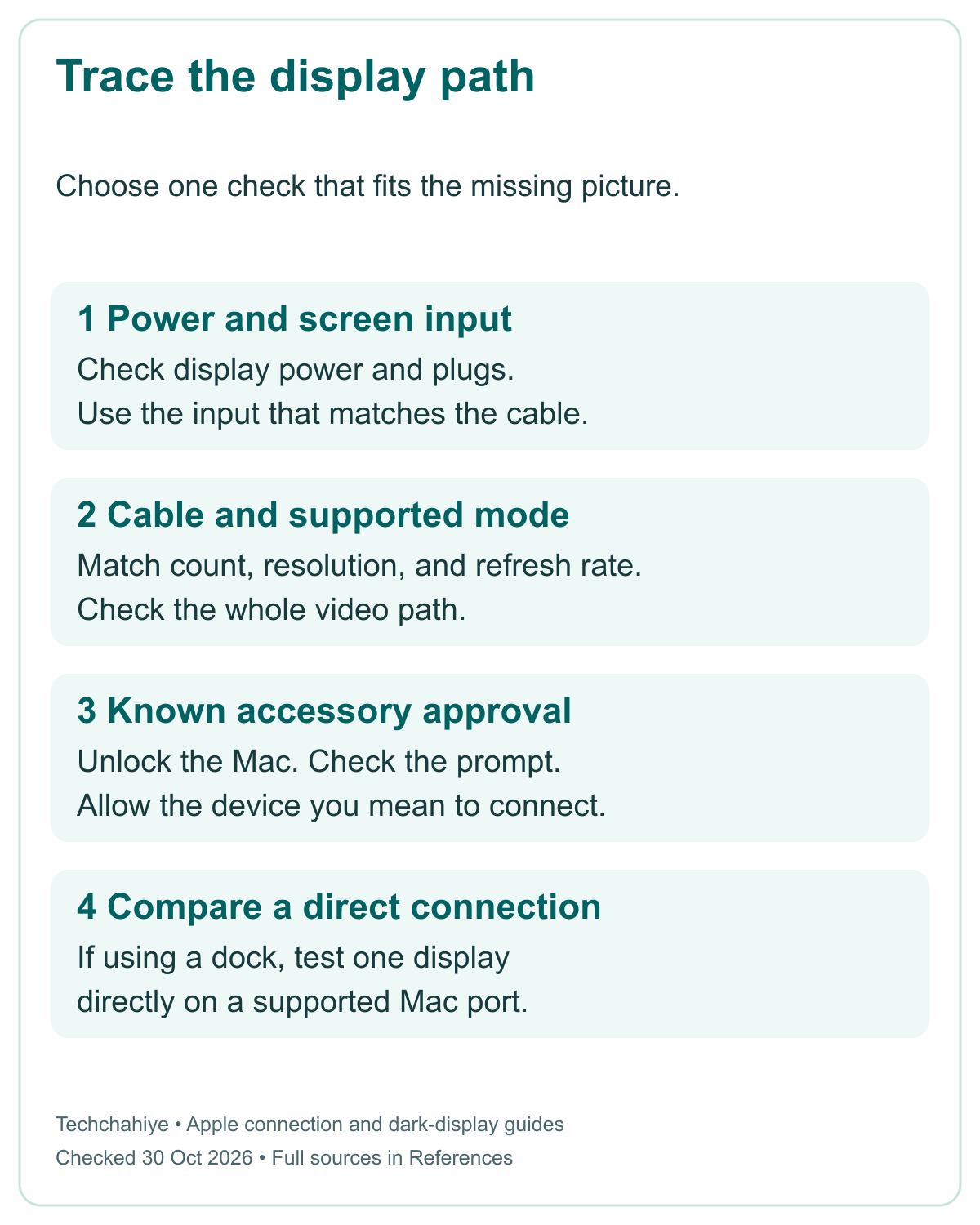
If a hub or dock sits in the path, Apple recommends connecting the display directly to the Mac. Keep the same screen if possible. Record whether the direct route works. This is a targeted check of the route. It does not prove that every port on the dock has the same limit.
Apple gives several ways to try detection again. Disconnect the display from the Mac and power, then reconnect it. You can also put the Mac to sleep and wake it. In Displays settings, hold Option to reveal Detect Displays, then click it. Choose the step that fits your situation.
Check brightness too. Apple displays may offer keyboard or Mac controls. A third-party screen may need its own buttons and menu. If the display’s controls do not work either, check its power and support information. Avoid assuming a black image always starts with the Mac’s graphics settings.
Software can affect detection and available modes. Apple recommends current compatible macOS updates. For a third-party display, check the manufacturer’s firmware guidance. Use the exact model’s page. This guide does not endorse a driver-download site or a generic updater.
Recover a picture after a resolution change
Did the picture vanish after a resolution change? Apple’s guide says to wait 15 seconds. The Mac may reset the resolution on its own. If it does not, press Esc to return to the previous choice. This advice targets a change that made the screen go black, not every no-power case.
If the old mode does not return, the guide points to safe mode. There, you can choose another resolution. Use the startup instructions for your Mac and release. Do not improvise a key sequence from an older model. Save reachable work before any restart when possible.
After you regain a picture, choose Default in Displays to use the suggested mode. Then check the exact supported mode before changing it again. A repeated attempt at the same unsupported combination gives you little new information. Keep the working choice as your starting point.
If the problem remains, give support the full connection route and result. List the chip, macOS, and display model. Add the cable, adapter, and target mode. State the lid position and the direct-connection result. That record helps distinguish a mode limit from a link or display fault.
Keep this display connection record
Mac model and chip: __. macOS: __. Display model and input: __. Resolution and refresh rate: __. Mac port: __. Dock and adapter: __. Cable model: __. Lid state and power: __. Approval prompt: __. Direct connection result: __.
Conclusion
To connect a MacBook Pro to a monitor, start with the exact chip and supported display mode. Power the screen, trace the video path, and get one direct connection working. Allow a known accessory when asked. Then adjust the correct display in System Settings. Add further screens within the model’s limits.
Keep the base M3 closed-lid rule separate from other models. If a screen stays dark, check the route and use Apple’s detection steps. A clear record can guide support or what you buy next. A dock’s port count alone cannot tell you how many native displays your Mac can drive.
FAQs
Can every MacBook Pro use two external monitors with the lid open?
No. Support depends on the exact chip and display mode. A base M3 MacBook Pro needs its lid closed for two external screens. It also needs the right software and accessories. Other models have their own limits. Use Apple’s chip-specific table rather than a rule based only on the MacBook Pro name.
Why does my MacBook Pro charge from the monitor but show no picture?
Charging does not prove that video works. Apple says an accessory can charge the Mac without data access. This can happen after you deny its connection request. Check for that prompt. Then check video support for the cable and adapter. Check the screen’s input too. Compare one screen directly on the Mac before adding a dock to the route.
Does a dock let me exceed the Mac’s native display limit?
Apple says a supported hub or daisy chain does not raise the native count. It can change how supported screens connect to ports. This guide covers native support. Check a separate driver-based solution on its own merits. Do not assume it offers the same support.
What should I do if a new resolution makes the monitor black?
Apple’s resolution guide says to wait 15 seconds for an automatic reset. If it does not return, press Esc to restore the previous selection. If that fails, follow the guide’s safe-mode route for your Mac. This applies to a screen that lost its picture after the setting change.
Do I need a separate power adapter for base M3 closed-lid use?
The Mac needs power, an external keyboard, and a mouse or trackpad. Apple says you do not need a separate power adapter if the external display supplies power to the Mac. Check that the display provides that power in your actual setup. Then follow the required macOS and connection order for the base M3 model.
References
- Apple — How many displays can be connected to MacBook Pro
- Apple — Connect displays to your Mac
- Apple — If your external display is dark or low resolution
- Apple — Use dual monitors with your MacBook Air and MacBook Pro with M3 chip
- Apple — Allow USB and other accessories to connect to your Mac
- Apple — Identify the ports on your Mac
- Apple — Change your Mac display’s resolution, macOS 27 guide
- Techchahiye — MacBook Pro Not Charging? Read the Status Before You Replace Parts
- Techchahiye — MacBook Pro Keyboard Not Working? Find the Failing Step
