

Make one clear storage decision at a time
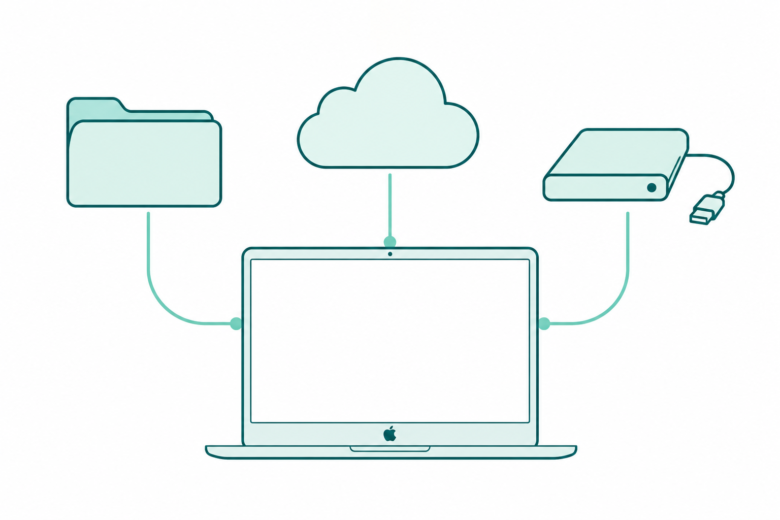
Start in Storage settings and review a large known category. Keep needed offline files and check external copies. Cloud download removal differs from moving a file. Review Trash before emptying it.
Key Takeaways
- To free up space on Mac, start in Storage settings. Review the files in a large category before deleting anything.
- Keep a copy of files you still need. Check an external copy before removing the original.
- Remove Download in iCloud Drive removes a local download. Moving a file out of iCloud Drive changes where it lives.
- System Data is a broad category managed by macOS. A large number is not a list of files you should erase.
To free up space on Mac, open System Settings, choose General, then Storage. Look for a large category with files you recognize. Review one group, keep or move what you need, and remove only what you no longer want. Check the available space again before repeating the process.
A full disk can stop a download, copy, or update. The quickest useful step is often to find one large file you can safely move. You do not need to erase the Mac or start deleting unknown system folders. First decide whether you want a file offline, on another drive, in the cloud, or gone.
This guide follows Apple support pages checked on October 30, 2026. It uses the current macOS 27 help where noted. Menu names vary by release and region; Trash may appear as Bin. The examples explain decisions. They do not report measured cleanup results from a tested Mac.
Free up space on Mac by checking the right storage view
Apple’s free-space guide gives the current route for macOS Ventura 13 or later. Open System Settings from the Apple menu, then General and Storage. On an older release, choose About This Mac, then Storage. Match the route to your Mac rather than treating a different menu name as a fault.
The view groups used space by category. Apple says the information updates as you free space. Use it to choose where to look first, then return to it after a change. You do not need to act on every category. A large known video folder may be enough for the task you need to finish.
Where a category has an Info or More Info button, open it for details. Apple’s guide names useful categories such as Applications, Documents, Messages, Podcasts, and TV. The exact categories depend on your apps and files. A missing category does not mean the files must be hidden in a fault.
Note what prompted the cleanup. An update may need temporary working room. A media collection may need a lasting place to live. A cloud plan that is full is another problem. Name the storage location before you spend time changing the wrong one.
Decide what should happen to each file
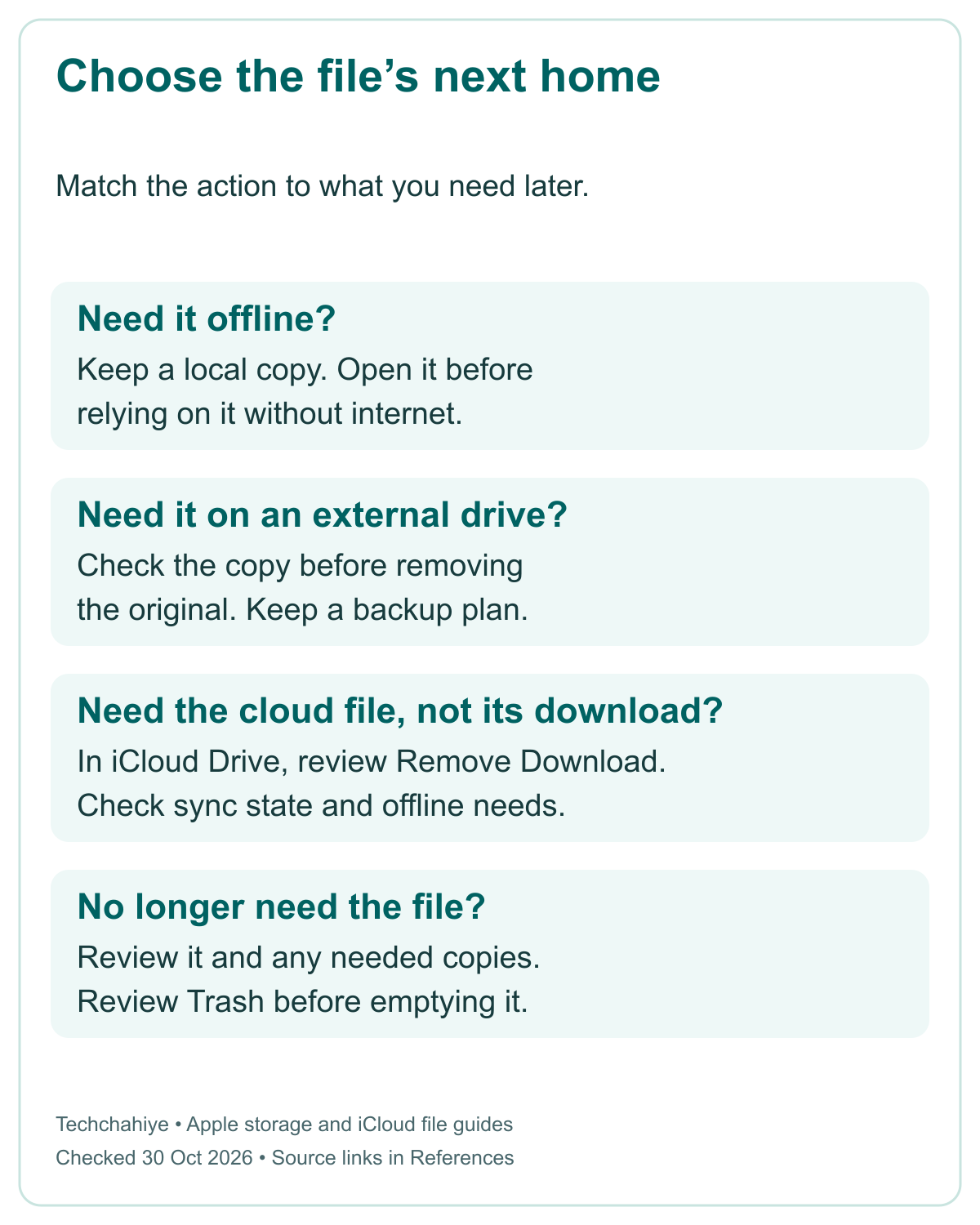
Before choosing a button, decide what you want the file to do next. A file you need on a flight belongs in a different plan from a watched download you can get again. A project archive differs from a file you no longer need. The storage choice should follow that need.
| Your goal | A useful route to review | Check before acting |
|---|---|---|
| Keep working without internet | Keep a local copy | Confirm the actual file opens offline |
| Keep a file but move it off the startup disk | Copy or move it to a suitable external drive | Open the copy and keep a backup |
| Keep a synced cloud file without its local download | Review Remove Download in iCloud Drive | Confirm its sync state and later access needs |
| Remove a known download you do not need | Review the file, then delete it | Check that it is replaceable or truly unwanted |
| Remove an app you no longer use | Follow that app’s uninstall route | Keep its needed data and license details |
| Address a large System Data total | Review known data and built-in options | Do not erase unknown system resources |
This decision is more useful than selecting the largest number and pressing Delete. A small current document can matter more than a large movie. Size helps you find candidates. It cannot decide which files you can afford to lose.
Separate a working copy from a backup too. If you move a project to one external drive and remove the original, that drive now holds the working copy. It is not a second independent copy. Plan how to protect it before you rely on it as the only place that file exists.
Review large documents and downloads first
Apple’s file-review guide lets you inspect the Documents category in Storage. You can view large files or downloads and sort by fields such as Name, Kind, Last Accessed, or Size. You can also use Show in Finder. Review the file in context before deciding what to remove.
Downloads is a useful place to inspect, not a folder that is safe to empty as a rule. It can contain old installers, files you already copied, or a document you still need. Open or identify each candidate. A name with a recent date may still be the only copy.
Sort by size when you want to find the largest useful opportunity. Sort by name or kind when you need to understand a group. Do not assume Last Accessed alone tells you whether a file matters. A tax document or finished project can remain valuable even if you rarely open it.
Start with one clear group. For example, find the source projects for old exported videos. Then review which exports you need to keep. The example does not mean every export is disposable. Some are the final deliverable you need to keep. A file’s role matters more than a general label such as “large.”
After one change, check Storage again. This keeps the result tied to a specific action. If the view needs time to update, let it settle before you delete a second group. A clear before-and-after note helps you stop once you have enough room.
Use app controls for media and old device backups
Apple’s free-space guide suggests reviewing media you can stream or download again. This can include music, movies, and podcasts. Use the app’s controls. Check whether the action removes a local copy or something else. Check that you still have access to get it again.
Storage categories can point you into an app to manage its files. That is useful for content with a library or account behind it. Deleting a random folder in Finder may skip the context you need. Follow the source for that app. Media libraries can work in different ways.
The iOS Files category can contain device backups and firmware. Apple also lists old iPhone or iPad backups as possible items to review. Decide whether you still need a backup before removing it. A backup can be old and still be the one you would need for a particular recovery.
For apps you no longer use, follow the app’s supported uninstall steps. Keep data you need before removing the app. This guide does not tell you to erase every support file with the app’s name. Those folders may hold settings or projects that deserve a separate decision.
On a shared Mac, ask each user to review their own files. Apple’s storage view can show an Other Users total. That number does not give you the context to discard someone else’s work. A shared-file or account decision needs the owner’s input and a clear plan for the data.
Move ordinary files to an external drive with a check
Apple says you can move files to another storage device, such as an external drive. This can be useful for large media or archives. Check the drive has room and works with the files and apps you need. Do not assume every external device is the right home for every library.
For ordinary documents, make the copy first and inspect it at the new location. Open a sample of the files you need, including the important ones. A completed copy dialog is a useful start. Then check the working file and the parts it needs.
Keep the original while you check. If a project uses linked media, a folder full of related files may need to travel with it. Use that app’s guidance for moving the project. A visible project file alone may not contain every source asset it needs.
Then decide whether you can remove the local original. The external device becomes part of your workflow. You will need it available when you use those files. Keep a backup plan for the external working copy. Being off the Mac does not give it a second copy.
You do not need a speed claim to make this choice. This guide has not measured a drive or cable. Check the actual product’s capacity and compatibility if you need to buy one. Start with the files you need to move. A new accessory does not promise a fixed amount of free space for everyone.
Move a Photos library only to a supported place
A Photos library has its own rules. Apple’s move guide says the external device should use APFS or Mac OS Extended (Journaled). It says not to use a device used for Time Machine backups. Avoid SD cards and USB flash drives too. It also says not to use a network, internet, or cloud location.
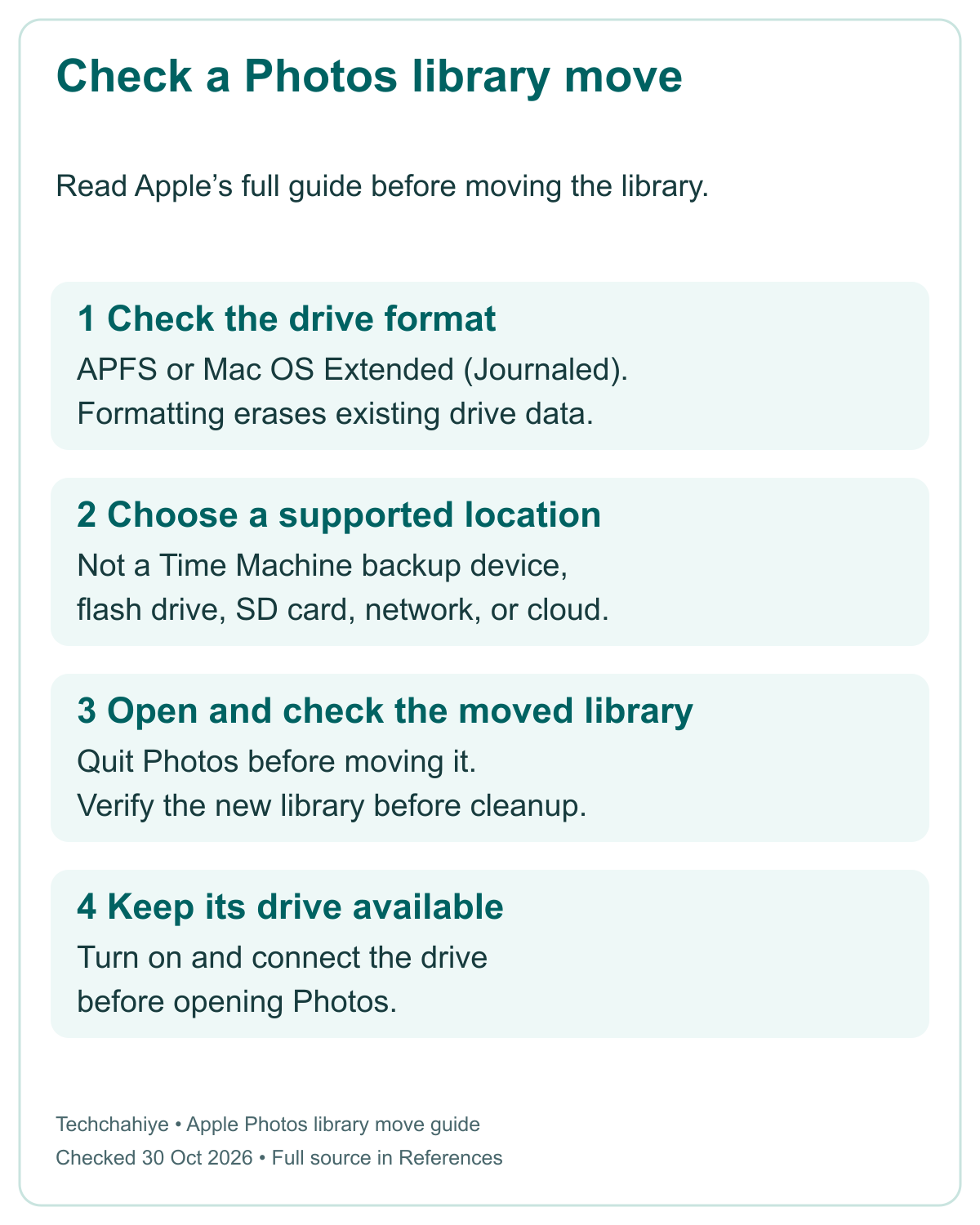
These rules make a Photos library different from a loose folder of exported pictures. Check the guide before moving the library. Formatting a drive erases its contents, so it is a separate decision. Do not reformat a device that holds needed files because its format is not suitable for this task.
Apple’s move sequence starts by quitting Photos. Find the library in Finder; the default location is the Pictures folder in your home folder. Move it to the external device. Once the move finishes, open the library from its new location. Confirm it contains what you expect before removing the original.
Check whether you use iCloud Photos or Photo Picker in other apps. If so, Apple says to set the moved library as the System Photo Library. Use its linked instructions for that step. Check which library is the system library. Do not assume it matches the one you opened.
Keep the external device on and available before you open Photos. Apple says Photos creates a new empty library at the default location if it cannot find the external one. An empty library on launch can be a path clue. Check the drive before assuming the original photos vanished.
Use iCloud download controls for the goal you mean
iCloud storage and local Mac storage are different limits. Apple’s guide says iCloud Drive shares cloud space with other uses. These include Photos and device backups. If that plan is full, a document may stay on the Mac until cloud space becomes available. A cloud icon alone is not a completed upload record.
Apple’s current iCloud Drive file guide gives a specific local-download control. In Finder, open iCloud Drive. Control-click an item and choose Remove Download if you no longer want its download on the Mac. Use Download Now when you want to bring a cloud-only item back for local use.
This can fit a file you want to keep in iCloud but do not need offline now. Check its sync state first. Also think about your next trip or work session without internet. You need the local download before relying on the file offline. Do not discover that limit after leaving your connection behind.
Keep Downloaded is another option in the current guide. It lets you keep a chosen file or folder on the Mac even when Optimize Mac Storage is on. Use it for the things you know you need locally. It also means those files remain part of your local storage needs.
Moving an item out of iCloud Drive is a different action. Apple says it copies the item to the Mac and removes it from iCloud Drive on the devices set up for iCloud. That does not serve a goal of keeping a cloud file while saving local space. Read the action’s name before choosing it.
Review automatic storage recommendations on their own terms
Storage settings can offer Store in iCloud, Optimize Storage, and automatic Trash removal. Read what each option affects. The current Apple guide explains Store in iCloud. It covers supported files, photos, messages, and attachments. The cloud plan still needs enough room; it does not add unlimited storage to the Mac.
Optimize Storage can remove watched Apple TV movies and shows. It can keep only recent Mail attachments when the Mac needs space. That scope matters. It is not a universal button that moves every large app or archive off the disk. Check which apps and files the recommendation covers before turning it on.
Apple’s automatic Trash option removes items that have been there for more than 30 days. Decide whether that fits how you review discarded files. It changes the retention of items in Trash. It is not a second backup or a review that knows whether a document still matters to you.
Do you use iCloud Drive for Desktop and Documents? Check how any other sync service handles those folders. Apple warns that another service syncing them can interfere with iCloud updating. Do not enable several overlapping folder-sync plans without reading their setup guidance. A cleanup goal should not create a confusing new file layout.
You can choose a narrower action instead of enabling every recommendation. Removing one known download may be enough. Keeping one important folder downloaded may be right even when you optimize others. Match the option to the file’s role. You do not need to enable every suggestion.
Did You Know?
Apple distinguishes free space from available space. Free space is physically open on the disk. Available space also includes purgeable caches. Some disk space can appear used and available at the same time. Do not add every category as though it were a separate pool of empty space. Some numbers overlap.
Treat System Data as a category, not a delete list
Apple’s current file guide explains System Data. It includes files that do not fit other categories. Examples include logs, caches, runtime resources, fonts, plug-ins, and app support files. Its size changes with the Mac’s state. Apple says macOS manages the category’s contents. You cannot manage it as one bundle in Storage.
That label does not tell you which file is safe to remove. Do not erase unknown Library or system folders to force the total down. Review data you recognize through Finder or the app that created it. Use the built-in recommendations where they fit your needs.
Apple says macOS clears safe caches and logs when it needs space. Its free-space article also points to safe mode. This can clear certain caches for a time. They can be created again as needed. That gives you working room for a time. It does not add permanent disk capacity.
If you need the safe-mode route for an update, follow Apple’s chip-specific instructions. Restart normally to leave safe mode. Do not use a cleanup command from an unrelated model guide. Preserve files while you complete the known task. Do not chase a category number.
Review Trash before the space-saving final step
Apple says moving local files to Trash does not make their storage available until you empty it. Open Trash and review the contents first. Put back anything you still need. In Finder, select an item and use File, then Put Back, or drag it out before emptying.
Emptying Trash permanently deletes its contents. Apple’s guide makes that limit explicit. Check your copies and backups before the final step. Do not empty the whole folder because you moved one unwanted file there; older items may also be waiting in it.
The guide also distinguishes iCloud Drive items. Apple gives iCloud Drive items their own timing. It removes them from Trash after 30 days, regardless of Finder settings. Keep that timing separate from a chosen local automatic-Trash setting. Neither is a reason to leave the only needed copy waiting in Trash.
After the reviewed deletion, check Storage again. Stop when you have enough room for the task. A hypothetical plan might identify 12 GB of unwanted downloads and 8 GB of archives to move. The sum is 20 GB of candidate files. It is not a measured promise of 20 GB in the available-space display.
Keep a short storage change record
Goal and storage location: __. Category reviewed: __. Files to keep offline: __. External copy and backup checked: __. Cloud sync state: __. Action chosen: __. Trash reviewed: __. Available space before and after: __. Remaining task: __.
Conclusion
To free up space on Mac, find a known category and make one clear file decision. Keep important local work and check external copies. Use the cloud download control that fits your goal. Give Photos libraries their own supported move process. Leave unknown system resources alone.
Review Trash before emptying it, then check the result in Storage. The best outcome is enough working room with files still where you expect them. A smaller number on a chart is useful only if the cleanup also preserves the work you need.
FAQs
Where do I check storage on a recent Mac?
On macOS Ventura 13 or later, open System Settings, then General and Storage. Apple gives About This Mac, then Storage, for earlier versions. Review a category’s Info button where available. The categories depend on your files and apps, so the view may differ from another Mac’s screenshot.
Why is space still used after I move files to Trash?
Apple says local files continue using space until you empty Trash. Review its contents before that step. Emptying permanently removes the items. Confirm needed copies first and put back anything you want. Then return to Storage and let the information update. Check the result before your next cleanup decision.
Can I remove System Data as one folder?
No. Apple describes System Data as a broad category managed by macOS. It includes several types of system and app resources and changes in size. Review known files through Finder or their apps. Do not use the category total as permission to erase unknown system or Library folders.
Does Remove Download in iCloud Drive delete the cloud file?
The control removes the local download you no longer want on the Mac. Apple’s guide provides Download Now to bring the stored item back. Check that the file has synced and keep important offline files downloaded. Moving the item out of iCloud Drive is a different action with a different effect on its location.
Can I put a Photos library on any spare USB device?
No. Apple specifies a supported drive format. It warns against flash drives, SD cards, and network or cloud locations. Do not use a device used for Time Machine backups either. Read the full move guide before acting. Open the moved library and check it before removing the original. Keep its device available when using Photos.
References
- Apple — Free up storage space on Mac
- Apple — Find and delete files on your Mac, macOS 27 guide
- Apple — Optimize storage space on your Mac
- Apple — Move your Photos library to save space on your Mac
- Apple — Store files in iCloud Drive on Mac
- Apple — Work with folders and files in iCloud Drive
- Apple — Start up your Mac in safe mode
- Apple — Delete files and folders on Mac
- Techchahiye — Factory Reset MacBook Pro: Choose the Right Erase Method
