

Match the erase method to your Mac
Check your chip and macOS, finish a backup, then choose the supported erase route. Keep Intel and Apple silicon Recovery steps separate. Stop at setup for a new owner.
Key Takeaways
- To factory reset a MacBook Pro, first back up your files. Check that the backup has finished before you erase.
- Erase All Content and Settings needs Apple silicon or a T2 chip, plus macOS Monterey 12 or later.
- Reinstalling macOS alone keeps your apps and files. It does not prepare a private Mac for sale.
- Leave a Mac for a new owner at the setup screen. Do not restore your backup onto it.
To factory reset a MacBook Pro, first check its chip and macOS version. Use Erase All Content and Settings if your Mac supports it. This removes your files, apps, and settings while keeping the installed macOS. Older Macs need a different route. You use Recovery to erase the disk and install macOS.
The erase button is the easy part. The harder choice is what you must save before you use it. A laptop can look ready to sell while the only copy of a tax file, photo library, or work project still sits inside it.
This guide helps you choose a reset method and finish with the right result. That may be a blank Mac for a buyer, or a fresh start on a Mac you plan to keep. The steps follow Apple’s support guides checked on October 30, 2026. They are instructions to review before acting, rather than a report of a hands-on reset test.
Decide whether you need an erase at all
A reset makes sense when you need to remove your data from the Mac. It is a serious step for a small app fault. Before you start, write down your goal in one sentence. For example: “I am selling this Mac and need to remove my account and files.” That gives you a clear end point.
Apple’s reinstall guide makes a key point. A Recovery reinstall keeps your apps and personal files. A reinstall may help with an operating system issue, but it is not the same as erasing the disk. The word “reinstall” alone is no proof that your private files are gone.
If the problem is a charger, cable, or worn part, a reset is also not a repair for that part. Solve a power problem before you begin a long erase or install. Read our MacBook charging guide in References. It explains the status messages and power checks.
| Your goal | Suitable starting point | Result to check |
|---|---|---|
| Sell or give away the Mac | Back up, then use Apple’s erase and handover route | Setup screen, with your account signed out |
| Start fresh and keep the Mac | Back up, erase, then set it up yourself | Files restored only when you choose |
| Repair macOS without wiping files | Review the Recovery reinstall route | Your apps and personal files remain |
| Fix a power or hardware fault | Diagnose that fault first | Stable power and a clear repair plan |
For a work or school Mac, ask its owner or IT team which return process to use. An erase is not proof that the device is free of an organization’s controls. Do not treat a reset as a way to take ownership of a borrowed computer.
Check your MacBook Pro before choosing a method
Open About This Mac from the Apple menu. Note the model, chip or processor, and macOS version. Keep that note somewhere other than the Mac you will erase. You may need it if the machine later shows a screen you do not expect.
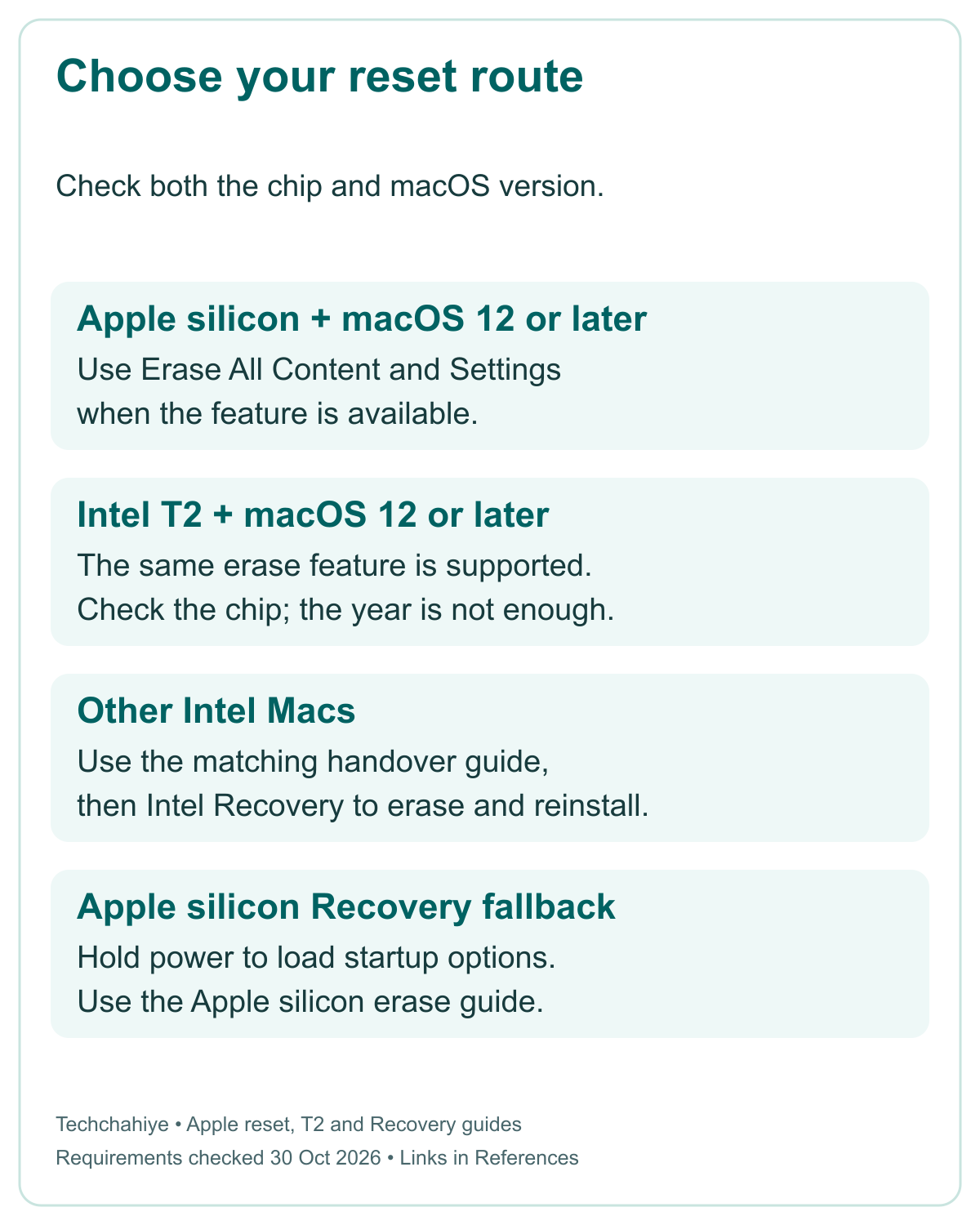
Apple lists two chip groups for this erase feature. One is Apple silicon. The other is Intel with the T2 Security Chip. Both also need macOS Monterey 12 or later. A newer-looking case or a Touch ID key is not enough evidence on its own.
Apple’s T2 list includes Intel MacBook Pro models introduced from 2018 through 2020. The 13-inch M1 model from 2020 uses Apple silicon. It does not need T2. This matters when someone says only that they have a “2020 MacBook Pro.” Check the chip, not the year alone.
On an Intel Mac, you can check for T2 in System Information. Hold Option while opening the Apple menu and choose System Information. Look under Controller or iBridge, depending on macOS. Apple’s guide says the right panel identifies the chip as Apple T2 chip when present.
Use the checks together. A supported chip with an older macOS release does not meet both rules. Also, a recent macOS release does not add T2 hardware to an older Intel laptop. Is the erase feature missing? Check both facts before you call it a fault.
Make a backup you can actually use
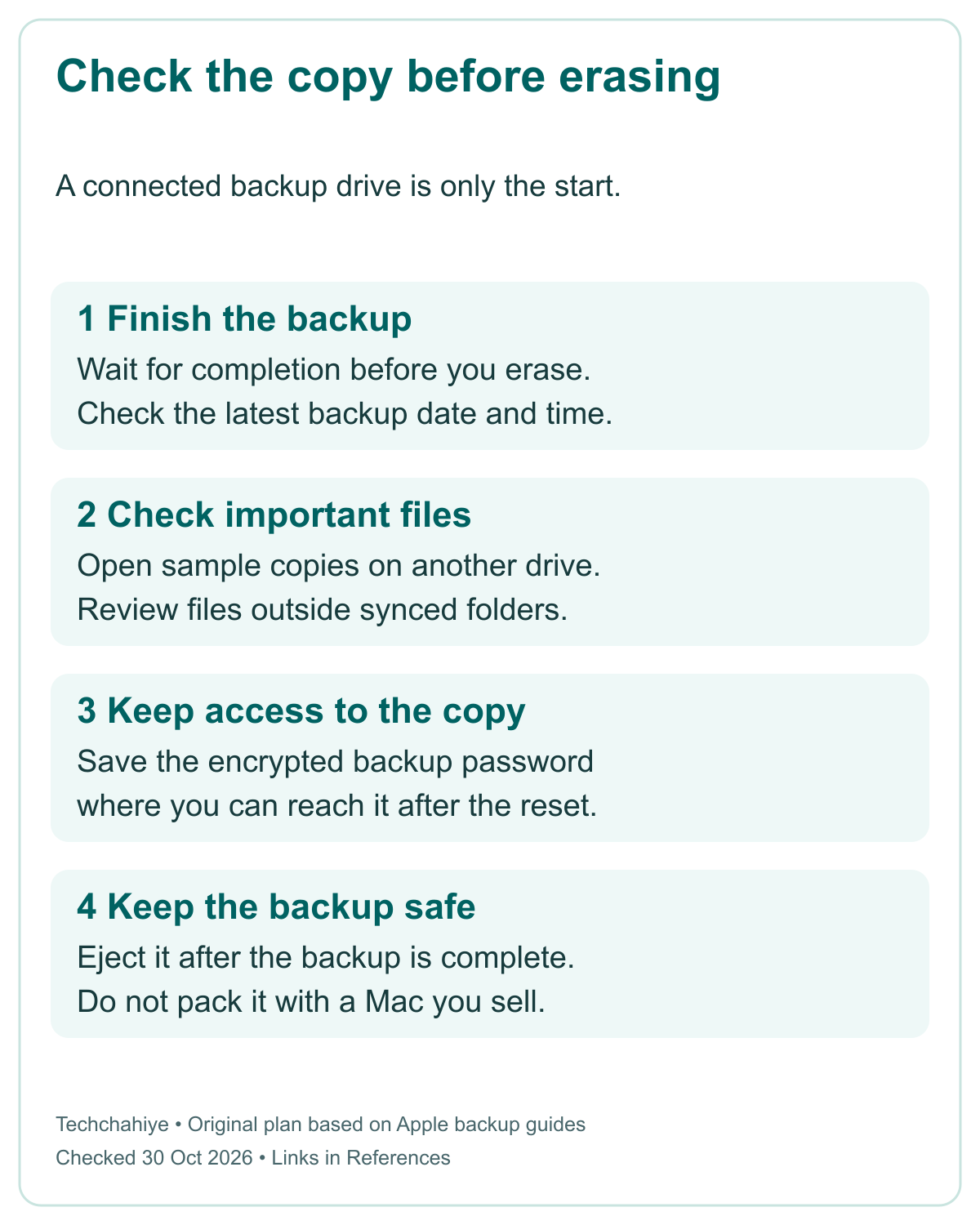
Finish the backup before you erase. A drive plugged into the Mac is not proof that the latest files reached it. Check the date and time of the last completed backup. Think about what you added since then, such as a new folder from a memory card or a document saved that morning.
Apple gives a storage rule in its Time Machine guide. Use a backup drive at least twice the Mac’s storage size. Its example pairs a 1 TB Mac with a 2 TB backup disk. That is planning guidance for backup space, not a claim that every file on the Mac occupies a full terabyte.
Time Machine can back up apps and files to a suitable external drive. On macOS Ventura 13 or later, open System Settings. Choose General, then Time Machine. You can use Back Up Now from the Time Machine menu and check progress there. Wait for completion before moving on.
Take care when setting up a new backup drive. Time Machine may ask to erase that external device. Read the device name and stop if it contains files you have not saved elsewhere. You are protecting the Mac’s data; do not lose a second set of files while preparing the backup.
Keep the backup password and check local files
If you use an encrypted backup, keep its password in a place you can reach after the reset. Apple says you need that password to restore files. A strong backup you cannot unlock will not help when you need your work back.
Apple also supports copying files to another storage device by hand. That can be useful for a small set of vital files. Open a few copied documents from the external drive as a spot check. Look beyond the desktop folders. Think about downloads and app exports. Check projects you saved in other folders too.
Treat iCloud with care. Apple’s backup guide describes it as a way to sync and store chosen data across devices. Check which apps and folders use it. Have the uploads finished? Can you open the files on another device? An iCloud account does not mean that every local file on the Mac has a cloud copy.
For example, imagine a student who sees class notes on an iPhone but keeps a video project in a local folder. The notes prove that those notes synced. They say nothing about that separate project. This is an example of the check to make, not a measured case of data loss.
Prepare passwords, power, and any unfinished repair
Know which password each prompt needs. The macOS login password unlocks your local user account. Your Apple Account password serves a different purpose. Apple’s erase guide says the process can ask for both. Confirm that you have access before starting, rather than finding out halfway through.
Use a steady power source and an internet connection you can keep available. Activation and a Recovery reinstall can need the network. Does your network use a web login page? Apple says that some such networks can block a Recovery install. If you rely on hotel or public Wi-Fi, arrange a suitable connection before erasing.
On an Apple silicon Mac running macOS 26 or later, Apple asks you to check for an unfinished repair. Check if someone repaired the Mac or you are not sure. Open System Settings, General, About, then look for Parts & Service. That option appears only when the Mac detects a qualifying repaired part.
If Restart & Finish Repair appears, follow Apple’s Repair Assistant process before the reset. If a repair shop fitted the part and you cannot finish that step, contact the shop. Do not assume that wiping the Mac will finish a parts check for you.
Once the backup finishes, eject the drive. Keep it apart from the reset work where you can. Keep a short note of the drive’s name. This is a simple way to reduce confusion when Disk Utility lists more than one storage device.
Factory reset MacBook Pro with Erase All Content and Settings
For a supported Mac on a current macOS release, open System Settings. Choose General, then Transfer or Reset, and select Erase All Content and Settings. In macOS Monterey 12, Apple places the command in the System Preferences menu in the menu bar instead.
Read the summary before you confirm. This is the point to stop if you still need a file or cannot reach your backup. Do not rush through it because you have already spent time preparing. The time spent so far does not make an incomplete backup safe.
Follow the prompts and enter the password requested for each account. The final erase confirmation starts removal of the Mac’s data, settings, and apps. Apple’s guide says the operating system currently installed stays in place. “Factory” here does not mean it returns to the macOS version shipped years ago.
Finish activation and stop at the right screen
The Mac restarts as the process completes. You may need to connect to Wi-Fi or a network cable so it can activate. Keep the power connected and allow the restarts to finish. A setup assistant then appears for the next use of the computer.
Apple notes that a Bluetooth accessory may need to be turned on again. If it fails to connect within 30 seconds, Apple’s advice is to switch that accessory off and back on. On a laptop, keep the built-in keyboard and trackpad available as you work through the prompts.
If you are selling or giving away the Mac, stop at setup. Apple’s erase guide says to hold the power button until the Mac turns off. Do not sign back in, restore your files, or build a new account for the buyer. Let the buyer use their own information when they start it.
If you are keeping it, continue setup with your own details. You can then choose what to restore. A full restore may bring back old settings too. Think about why you chose a fresh start. Save the backup until you have checked the files and apps you need.
Use the older Intel handover route when needed
Does your Mac lack this erase feature? Apple’s handover guide gives a longer route. Do not mix half of that route with half of the newer one. Can your Mac use the newer erase feature? Apple says you do not need the other handover steps.
For the older route, sign out of the listed services before erasing. Apple’s guide covers iCloud and iMessage. On a release older than Catalina 10.15, deauthorize iTunes too. Menus vary with the macOS release. Use the matching guide in References.
Then start the Intel Mac in macOS Recovery. Shut it down, turn it on, and immediately hold Command-R until the Apple logo or spinning globe appears. Use the MacBook’s built-in keyboard for this step. Apple suggests this if the Mac fails to read startup key presses.
Erase the internal volume, then reinstall
Choose Disk Utility from the Recovery options. Identify the internal startup volume, usually named Macintosh HD. Did you rename it? Check that name. Do not choose an external drive because its name looks familiar. Apple’s Intel guide uses the name Macintosh HD. Use the format that Disk Utility suggests.
That format may be APFS or Mac OS Extended (Journaled), depending on the Mac and software. Do not copy an Apple silicon format choice onto every old Intel machine. Use Erase Volume Group when shown; otherwise use Erase. Review extra internal volumes with care. Follow Apple’s guide for those too.
Quit Disk Utility when erasing finishes. Choose Reinstall macOS from Recovery and follow the installer. You may see two choices: Macintosh HD and Macintosh HD – Data. Apple’s reinstall guide says to choose Macintosh HD. Leave the lid open and allow the install to finish without putting the Mac to sleep.
For a handover, quit setup and shut down instead of entering your details. Apple’s Intel handover route also resets NVRAM. That clears some saved settings. Use Apple’s NVRAM guide in References. This step does not apply to Apple silicon.
Keep the Apple silicon Recovery route separate
Need Disk Utility on an Apple silicon Mac? The startup steps differ from Intel. Shut it down. Hold the power button until startup options load, then choose Options and Continue. Do not expect Command-R to be the main startup route for this hardware.
Apple’s Apple silicon erase guide uses APFS for Macintosh HD. It also gives separate steps for any extra internal volumes you created. Leave the External and Disk Images sections alone. Read the full guide before you delete extra volumes. Check their names and roles, not their place in a list.
After the erase, the Mac needs an internet connection to activate. Apple’s guide then directs you back to Recovery utilities to reinstall macOS. This differs from Erase All Content and Settings. That feature keeps the installed macOS.
If you are unsure which disk or volume is yours, pause. A screenshot of the listed names can help you explain the situation to Apple Support. Do not guess at a disk name. An ordinary Undo command cannot reverse an erase.
Handle a missing option or a stalled reset
If the erase command is missing, revisit the hardware and macOS checks first. Monterey uses a different menu from later macOS releases. An Intel Mac without T2 needs the older route. These are different cases with different next steps, even if both look like a missing button.
Does a prompt say other volumes need erasing? Apple says Boot Camp Windows may be the cause. Its reset guide points to Boot Camp Assistant to remove Windows and its partition. Use that documented route rather than deleting random volumes in Disk Utility.
If Recovery shows a globe with a warning, record the error. Apple links many such failures to network issues in its Recovery guide. Try a suitable different network or Ethernet where available. A failed network start alone does not prove a drive fault.
Can Disk Utility see the internal disk? If not, Apple says to shut down. Remove devices you do not need, then try again. If the disk remains missing or cannot be erased, the Mac may need service. Do not keep erasing other visible drives in the hope that one is the right one.
During a reinstall, the screen can be blank for minutes and the Mac can restart more than once. Apple’s guide says to let installation finish. Leave enough time. A promised ten-minute reset will not fit every Mac and network.
Check the final state before handing it over
For a buyer, the useful finish is the setup screen after the erase and any required reinstall. Your old desktop should not be the final state. Keep your backup drive and passwords with you. Keep any printed recovery details too. Do not pack them with the laptop.
For a Mac you keep, open the files you restored and check a few important apps before clearing any backup. Keep a list of what you chose not to restore. That helps you trace a missing file. It also separates a new install issue from an old app setting.
Keep this short reset record
Mac model and chip: __. macOS version: __. Backup drive and completed date: __. Sample files checked: __. Password stored safely: __. Erase method used: __. Final screen: __. Mac kept or handed over: __.
Did You Know?
Apple’s Recovery guide uses two startup methods. Hold the power button for Apple silicon. For Intel, hold Command-R at startup. That can save you from trying the wrong keys over and over.
Conclusion
To factory reset a MacBook Pro, match the method to the chip and macOS release first. Then finish and check a backup before you erase anything. Use Erase All Content and Settings if your Mac supports it. Otherwise, follow Apple’s matching Recovery route. End at setup for a new owner; restore files only when the Mac is staying with you.
FAQs
Does a factory reset return the original macOS version?
Not always. Erase All Content and Settings keeps the macOS version currently installed. Recovery can offer a different version based on the hardware and startup method. Apple’s reinstall guide explains those differences. Do not start an erase solely because you expect it to restore the software from the Mac’s first day.
Can I reset a MacBook Pro without the login password?
Password prompts depend on the reset route and account state. Apple’s erase process can request the local login and Apple Account passwords. Do not know the passwords? Use Apple’s account or login recovery steps first. A reset guide is not a way to bypass someone else’s account or ownership.
Does reinstalling macOS remove my personal files?
Apple says a Recovery reinstall keeps your apps and personal files. Erasing the disk is a separate action. Back up first in either case. Selling the Mac? Follow the handover guide. A finished reinstall does not prove your files and account are gone.
Is an iCloud sign-in enough to protect all my files?
No. Check which folders and apps sync. Can you open their latest files on another device? Local files outside those locations still need a backup. Apple’s backup guide lists Time Machine and manual copies as other options. Keep a usable copy before you start removing anything from the Mac.
What should I do when the setup screen appears?
If the Mac is going to a new owner, shut it down without entering your details. The buyer can complete setup with their own account. If you are keeping the Mac, continue setup and choose what to restore. Keep the backup until you have checked the files you need.
References
- Apple — Erase your Mac and reset it to factory settings
- Apple — What to do before you sell, give away, trade in, or recycle your Mac
- Apple — Mac computers with the Apple T2 Security Chip
- Apple — How to back up your Mac
- Apple — Back up your Mac with Time Machine
- Apple — Use Repair Assistant to finish a Mac repair
- Apple — How to start up from macOS Recovery
- Apple — Use Disk Utility to erase an Intel-based Mac
- Apple — Use Disk Utility to erase a Mac with Apple silicon
- Apple — Reset NVRAM on your Mac
- Apple — How to reinstall macOS
- Techchahiye — MacBook Pro Not Charging? Read the Status Before You Replace Parts
