


Start with the battery message
A charging hold can be normal. Read the menu, check the power path and test one part at a time. Use model-specific reset steps and take clear notes if the Mac needs service.
Key Takeaways
- A MacBook Pro not charging past a set limit can be normal. Read the battery menu before you change settings.
- A Mac can receive power yet fail to gain charge. Check the adapter, cable and any dock between them.
- Test one part at a time. Keep the parts that work in place so each result means something.
- Match restart and diagnostic steps to your Mac’s chip. Save your work before you shut down.
If you find your MacBook Pro not charging, do not assume its battery has failed. Start with the battery menu. A planned hold differs from a power fault. A loose cable, weak source or Mac that will not turn on needs other checks.
You may have a meeting soon and little time to spare. The useful question is not how many fixes you can try. It is which check will tell you what to do next. This guide helps you make that choice without buying parts on a guess.
Apple’s charging and battery support pages form the basis of the device steps below. Menu names can vary with macOS and your model. The decision examples are made-up examples, not tests of a particular Mac or promises of a repair.
MacBook Pro not charging: hold or power fault?
Open the battery menu in the menu bar. Note the exact message and the battery level. If the Mac still works, save open work before you start. Take a screenshot of the message if it comes and goes. A note such as “stays at 80% while plugged in” is more useful than “the charger has failed.”
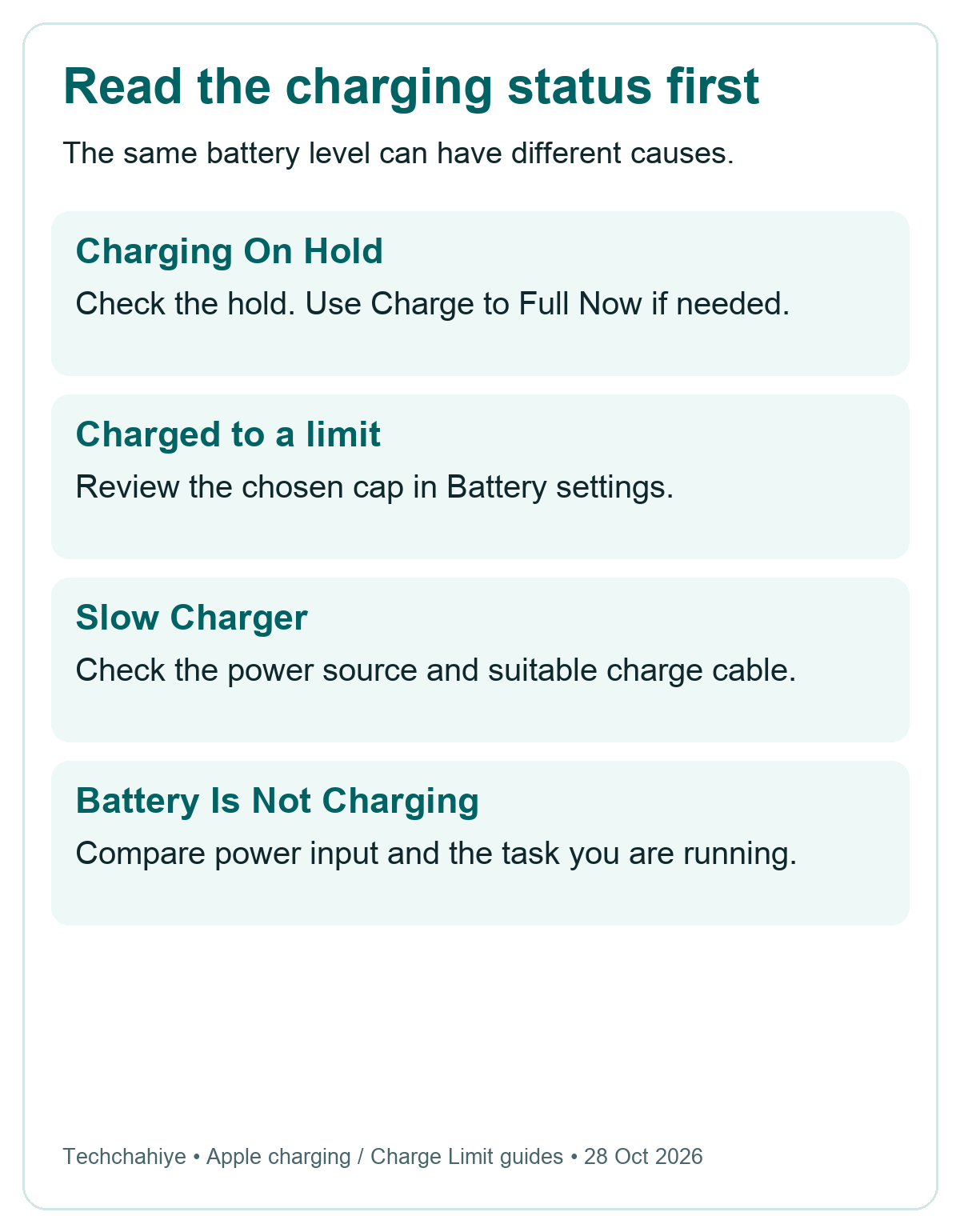
Apple lists several states that look alike at a glance. Charging On Hold means the Mac has delayed a full charge. A message about a charge limit points to a set cap. Slow Charger points to the power source. Battery Is Not Charging needs more context. None of those messages, alone, names a failed part.
| What you see | What to check first | What the result does not prove |
|---|---|---|
| Charging On Hold | Whether you need a full charge now | That the cable has failed |
| Charged to a limit | The charge limit in Battery settings | That the battery has lost that much capacity |
| Slow Charger | Power reaching the Mac | That every part of the charger is faulty |
| Battery Is Not Charging | Power source and workload | That a new battery will fix it |
| No power or visible response | Outlet, cable and adapter | Which internal part may need service |
Choose the row that fits your screen. Do not run every branch as a checklist. If a charge limit explains the level and the Mac otherwise works, a cable swap will not tell you much. If the Mac is losing charge during a heavy task, look at power input before you blame a battery setting.
If your MacBook Pro stops charging at 80%
Apple calls one feature Optimized Battery Charging. It can delay charging beyond 80% based on your routine. It works on macOS Big Sur 11 or later. The aim is to spend less time fully charged. If the menu offers Charge to Full Now and you need the full charge, use that option.
Charge Limit is a separate setting. You need Apple silicon and macOS Tahoe 26.4 or later to use it. The allowed range is 80% to 100%. Check System Settings, then Battery and the information button beside Charging. On other versions, the information button may be beside Battery Health.
A cap is a target level, not a health score. A Mac set to stop at 80% has not thereby lost 20% of its battery capacity. Read Battery Health to assess condition. Keep these two questions separate: how full is the battery now, and how much charge can it hold when full?
For a made-up example, suppose your Mac stays near 80% at your desk. You choose Charge to Full Now before a train trip and it continues charging. That result supports a planned hold as the explanation for that session. It does not test every cable or rule out a fault that occurs only later.
Avoid turning off every battery feature to make the number change. Use the temporary full-charge option when it meets your need. If charging still fails below the cap, move to the power path. The setting may explain the plateau, but it does not explain a damaged plug or a dead outlet.
Read the power path from the wall to the Mac
Draw the route in a short note: outlet, adapter, cable, dock and Mac. Your setup may skip the dock. It may use a display to supply power. Include every part that sits between the wall and the charging port. That simple map stops you from testing a different setup by mistake.
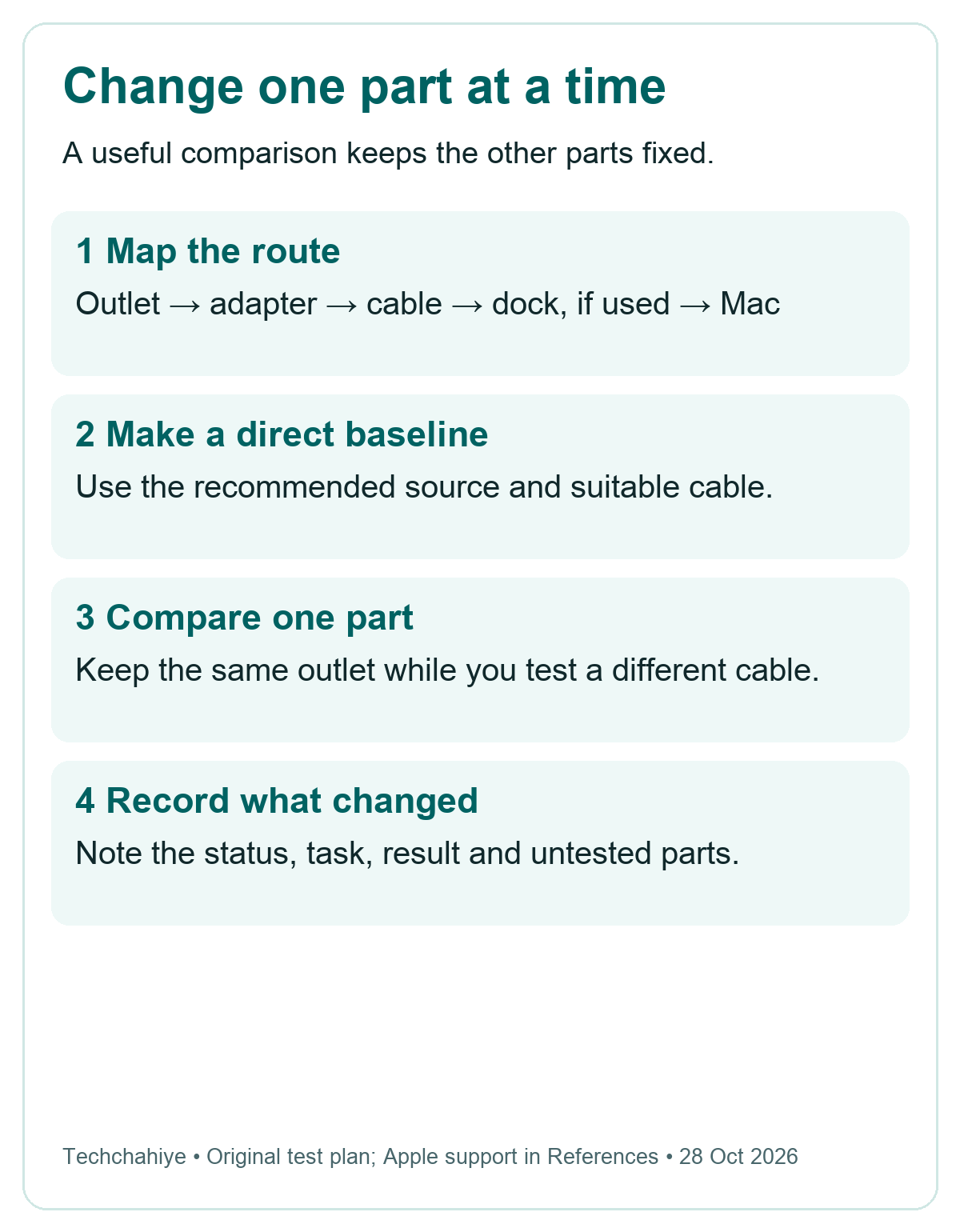
Then choose a simple baseline. If available, use the recommended adapter. Connect a suitable charge cable straight to the Mac. Leave a dock or display out of this first comparison. Keep your work saved and avoid starting a large export or game while you compare the results.
This is a way to narrow the search, not a claim that docks are bad. A direct connection removes a variable. If direct charging works and the dock route does not, focus on that route next. You still need to check its cable, power supply and stated output before naming the dock as the cause.
Label parts if you have several similar cables. “Cable A” and “Cable B” are enough. Keep a short result for each. Without labels, it is easy to retest the same cable or forget which adapter you used. You do not need a long log. One clear line per change is useful.
Check the outlet, adapter and cable in order
Apple’s USB-C guide starts with power checks and a restart. Test the outlet with a known working device, such as a lamp. Does the outlet work while the Mac still will not charge? Apple advises a shutdown. Close the lid for 30 seconds. Then open it and try charging again.
Use another suitable charging cable if you have one. Stop using a cable that works only when moved or bent. Do not keep it in a strained position to finish a charge. A brief return of power is a useful symptom to report, not a repair.
Keep the working outlet fixed while comparing cables. Then keep a working cable fixed while comparing adapters. Changing every part at once may restore charging. But which change helped? You lose that clue. That matters when you put the old desk setup back together.
If you have no spare parts, record that limit. “Not yet tested with another cable” is an honest result. It is better than calling the battery faulty because there was nothing else to try. A repair visit can include that missing comparison without first buying several items.
Watch for damage as you handle the parts. Look for damage or a change in color. Note any sparks away from the plug’s wall prongs. Contact Apple about these signs. Leave that equipment out of further tests. This guide does not involve opening an adapter, probing a port or working on the wall outlet.
MacBook Pro battery not charging while plugged in
Apple’s Mac User Guide explains that a power source can run a Mac without adding charge. A demanding task can also use more power than the source supplies. That helps explain why a laptop may seem fine during light work but lose charge during a game or video job.
Think of two questions: does the Mac see a power source, and is the battery level rising? Those are different observations. Write down both. Read the exact status during your normal work. Note how the battery behaves too. An icon or lit connector alone does not settle the issue.
A made-up example makes the distinction clear. A Mac stays at one battery level while you read a document. During a long export, that level falls on the same desk setup. Try the recommended direct charging setup with the same task later, if it is safe to do so. Compare the result before buying anything.
Do not treat that example as a wattage test. It gives no measured power draw and no diagnosis. Its value is the controlled comparison: same Mac, same task, a different power path. If both paths behave alike, the desk dock is a less useful lead than it first appeared.
A screenshot of the battery graph can help explain the sequence at a service visit. Pair it with a note of the task and charger used. A graph without that context may show a fall in charge while saying little about its cause.
MacBook Pro Slow Charger: check the wattage
Apple supports USB Power Delivery for USB-C charging. Apple recommends a source that meets the model’s wattage needs. Its adapter guide lists the options. The recommendation varies by MacBook Pro. A small plug or a USB-C shape does not identify its power rating.
To view the connected source, hold Option and open the Apple menu. Choose System Information. Open Power, then look for AC Charger Information and its wattage. You can also read the adapter’s label. Compare the exact model and cable with Apple’s adapter guide in References.
Record the observed figure rather than a box’s headline number. A dock or display may list its total power rating. Check the stated power it can send to the laptop too. Those descriptions answer different questions. Read the documentation for your exact product and port.
In a made-up shopping example, two chargers have the same connector and similar cases. One lists a different output from the other. Their looks offer no basis for choosing between them. Compare the Mac model and charging standard. Read the cable’s rating too.
Do not buy solely to gain a larger number. First establish what your Mac needs and what the present path supplies. You may need a different cable or a direct route rather than a new adapter. Conversely, a working cable cannot turn a weak source into a more powerful one.
MagSafe not charging or flashing amber
Identify your connector before using MagSafe advice. Apple distinguishes original MagSafe, MagSafe 2 and MagSafe 3. They are not all interchangeable. Does MagSafe 3 flash amber over and over? Apple says to disconnect the cable and power. Wipe the port and connector with a dry cloth. Restart the Mac, then reconnect.
Apple lists USB-C charging for MacBook Pro models from 2016 onward. Have a model that supports it? Try a known working USB-C charging route. Compare its result with MagSafe. Do not force a connector or assume an old MagSafe adapter fits a new Mac.
If USB-C works but the original MagSafe route does not, write that down as a route-specific result. It does not prove the whole Mac is fault-free. It does give service staff a useful lead. Bring the original cable and adapter so the failing route can be checked too.
Keep photos of the connector and the model details with your notes if names are confusing. The goal is to identify the actual parts, not to learn every generation of connector. Avoid ordering from a product photo alone when the model description is unclear.
Let heat and software checks answer specific questions
Apple’s general charging guide gives a suitable operating environment of 50°F to 95°F, or 10°C to 35°C. Its adapter guidance also calls for good airflow. Put the Mac and adapter on suitable clear surfaces. Let hot equipment cool before you handle it or retest.
A warm adapter is not, by itself, a verdict. Note whether power stops after a long session or fails from the start. Note whether anything covered the adapter. Was it stuck beside soft furnishings? Those details describe the conditions. They do not prove that heat caused the fault.
If the Mac runs and has stable power, check for macOS updates. Apple notes that software or firmware can affect charger communication. Save work first. Do not start a major update on a nearly empty Mac with unstable power. Wait for a sound power connection first.
A restart is a useful check, but choose the right power-reset advice. Apple says Apple silicon needs a restart or shutdown and power-on; it does not need an Intel key sequence. Intel Macs have model-dependent SMC steps. Use Apple’s matching instructions rather than a shortcut copied for another model.
Use Battery Health and Diagnostics when basic checks fail
Open Battery settings and read Battery Health. Apple uses Service Recommended for two cases. The battery may hold less charge, or it may not work as it should. It is a reason to review service needs, not proof that a cable test can be skipped. Apple advises using macOS health information over a third-party app’s verdict.
Apple Diagnostics can help find hardware problems. Prepare the Mac as Apple directs and keep AC power connected. For Apple silicon, hold the power button to reach startup options, then use Command-D. Intel models use D at startup, or Option-D if needed. Follow the prompts for your model.
Keep the result and any reference code. If the test does not settle the problem, describe what remains unresolved. “The battery still falls on the recommended direct charger” is useful. Do not treat a clear test as proof that all hardware is fine. Keep the test result with your other notes.
Stop repeating steps when the evidence no longer changes. An intermittent fault may need evaluation under the conditions that trigger it. Bring the Mac, adapter and charging cables. Keep serial numbers and account details out of public questions. Service staff can ask for details through their own channels.
Keep a short record before you spend money
Note the Mac model, chip and macOS version. Add the exact battery message and charge level. List the charger route and result. Add the health status and any diagnostic code. This turns a vague problem into a clear report. It also helps you avoid paying for a part without evidence that it failed.
| Test note | Example of a useful record |
|---|---|
| Original symptom | Charge falls during an export through the desk dock |
| Baseline | Same Mac, direct recommended adapter and suitable cable |
| Changed part | Cable B replaces cable A; outlet stays the same |
| Remaining gap | No second adapter available for comparison |
| Next action | Bring both cables and the adapter for evaluation |
The table is a made-up record format, not a report from a real device. Fill it with your own observations. If a result varies, say so. Do two results conflict? Check the conditions behind each. Keep both in your notes, even if one does not fit your first theory.
If you need the Mac for work today, separate the immediate plan from the repair decision. Save accessible work while power is stable. Arrange a fallback device or move the meeting if needed. That will not repair charging. But it can limit the disruption while you get help.
Copy this short service note
My Mac model and chip: __. macOS version: __. Exact battery message and level: __. Outlet, adapter, cable and dock used: __. One change tried: __. Result: __. Battery Health and diagnostic code, if available: __. Parts not yet tested: __.
Did You Know?
Apple says connecting chargers to more than one port does not make a Mac charge faster. The Mac uses one power source at a time. Use the supported adapter and cable for your model. A second plug is not a speed fix.
Conclusion
For a MacBook Pro not charging, start with the message, then test the power path. A planned hold, a weak source and a failed cable call for different actions. Keep each comparison small enough that the result helps you choose the next step.
If basic checks fail, read Battery Health. Run the right diagnostic steps for your model. Then seek service if needed. Take your notes and the charging parts with you. Replace a part when the evidence supports it, rather than buying your way through a list of guesses.
FAQs
Why does my MacBook Pro say plugged in but not charging?
Apple says a hold, a source with too little power or a demanding task can explain this state. Read the exact menu message first. Then compare a suitable direct charger with your usual setup. The message alone does not identify a failed battery.
Is a MacBook Pro stopping at 80% a fault?
It can be normal when Optimized Battery Charging or a charge limit is active. Check Battery settings and the menu. If offered, Charge to Full Now lets you request a full charge when needed. A charge cap is different from battery health.
Can I charge my MacBook Pro through USB-C instead of MagSafe?
Apple lists USB-C charging for MacBook Pro models introduced in 2016 or later. Use a suitable charging cable and power source for the model. A working USB-C route helps you compare results with MagSafe. The connector types are not all the same.
Should I reset the SMC on an Apple silicon MacBook Pro?
You do not need an Intel reset key sequence. Apple says to restart or shut down and turn the Mac on again. Intel models have different SMC procedures. Confirm the chip type before you follow those steps. Save open work before any shutdown.
When should I take a MacBook Pro charging problem for service?
Seek service if suitable power and cable checks do not help. Also seek help for damage or other signs of a fault. Bring the Mac and charging equipment, plus your test notes and any diagnostic code. Do not keep using a cable that works only when bent.
References
- Apple: Charge your Mac laptop computer
- Apple: Optimized Battery Charging and Charge Limit
- Apple: If your USB-C power adapter is not charging your Mac
- Apple: If your Mac battery status is Not Charging
- Apple: Use a power adapter with your Mac
- Apple: If your MagSafe cable or power adapter is not working
- Apple: If your Mac battery will not charge
- Apple: Reset the SMC of your Mac
- Apple: Battery Service Recommended on a Mac laptop
- Apple: Use Apple Diagnostics to test your Mac
- Apple: Identify your MacBook Pro model
- Techchahiye: iPhone battery drain and how to find the cause
