

Speak in short sections, then review
Use the supported desktop route. Check the chosen microphone and language rules. Review names, numbers and meaning before sharing the finished draft.
Key Takeaways
- On a computer, open Tools, then Voice typing. Click the microphone to start and click it again to stop.
- Google’s current browser list includes Chrome, Edge and Safari. Keep the browser up to date.
- Spoken text and editing commands have different language rules. English commands need an English account and document.
- Check the computer microphone, browser access and site permission as separate controls.
- Read the finished draft. Check names, numbers and meaning before you share it.
To use voice typing in Google Docs, open a document on your computer. Choose Tools, then Voice typing. Click the microphone, speak a short section and click again to stop. Read the text before you continue. These are Google’s documented steps, checked on 6 November 2026.
The useful result is a readable draft in the right place. A moving microphone icon alone does not tell you that the words, names or numbers are right. Start small, check what appeared and then build the rest of the document.
This guide explains setup, microphone access and a practical editing routine. It also separates dictation from commands and phone keyboard input. The sample exercises are examples for you to try. They are not claims about tests on your device or a measured accuracy rate.
Choose the right Google Docs voice typing route
Google’s current Docs Help lists three browsers. They are the latest Chrome, Edge and Safari versions. Its Workspace announcement describes the browser feature as a desktop tool. Use that scope when looking for the Tools menu.
An old guide may say Chrome is the only choice. Google expanded support to Edge and Safari in 2024. The announcement explains the change. The current Help page supplies today’s browser list. Do not assume every browser with a similar engine has the same support.
Use a computer browser for the steps in this guide. A microphone key on a phone keyboard is a separate route. It belongs to that keyboard or device’s dictation feature. Its settings and commands need their own instructions.
Decide what you want to capture before you start. A first draft, a personal outline and a short set of notes are different jobs. Choose a small section for the first attempt. Keep any source notes you need beside you so you can verify details afterward.
Start with a short, harmless sample
Open the document where you want the text. Put the cursor at the intended insertion point. Google’s instructions then use Tools, Voice typing and the microphone button. Speak clearly at a normal pace and stop with another click.
For a reader-run sample, use a blank practice area with no private details. Try two short sentences about a familiar task. Stop, read what appeared and check that both sentences landed in the intended place. Fix the sample before using the same route for important text.
That first sample gives you a narrow question to answer: did this setup put usable words here? It does not establish a universal success rate. A different room, microphone or speaking language can change the conditions. Keep the exercise tied to the setup you will use.
Do not dictate an entire report before looking at the page. If the input is wrong, a long draft gives you more material to sort through. A brief sample helps you notice the wrong input or language. It can reveal a misplaced cursor too.
Separate spoken words from voice commands
Dictation turns speech into draft text. Editing commands ask Docs to act on text. Google’s language list covers many languages and accents for speech input. Editing commands have narrower rules. Commands use English only. Both the account and document language must be English.
Treat those as two separate checks. Do ordinary words appear, while an editing instruction becomes text? Inspect the language settings before blaming the microphone. Use the current command list in Google Help. A phrase from another dictation app may serve a different purpose.
For example, Google’s list includes Select paragraph, Bold and Undo. Those labels describe different actions. Selection chooses material, formatting changes its appearance and Undo reverses a change. Read the visible result after each unfamiliar command. Keep a first exercise away from your only important paragraph.
Use the keyboard or mouse when that is clearer. The goal is a useful document, not an all-voice performance. If the selection is unclear, stop and inspect it. A short manual correction can be easier to verify than several spoken attempts in a row.
Plan punctuation and paragraph breaks
Google documents spoken punctuation such as Period, Comma and Question mark. It also lists New line and New paragraph. The Help page warns that punctuation support varies by language. Check that scope before building a workflow around those words.
Plan an English practice paragraph. Decide where the first thought ends before you speak. Pause and inspect the line after stopping. Did the sentence end where you intended? Did the next thought begin as a new sentence or a new paragraph? Correct the structure before adding more.
Here is a hypothetical planning exercise. You want a short note with a greeting, a request and a deadline. Speak one part at a time. Read the request for meaning, then verify the deadline against your source. Add paragraph breaks where a new reader would need a pause.
A dictated draft still needs punctuation review. Read it as a message someone else must understand. An omitted comma can merge two ideas. A misplaced break can hide the actual request. Fix those issues during editing. Treat the captured speech as a draft.
Correct words without losing your place
Google’s Help says you can move to a mistake and fix it while the microphone remains active. It also says to return the cursor to where you want to continue. Keep that second step in mind: the insertion point controls where new text will go.
For a simple routine, stop speaking before moving the cursor. Read the nearby sentence and make the correction. Then choose the next insertion point. If you prefer to stop the microphone too, use its button. Resume only when you can see where the next words should land.
Use a small example to practice this sequence. Suppose a draft says “meet on Thursday,” but your source says Tuesday. Change the day, read the whole sentence again and move to the end of the note. Check the next short addition before continuing the larger task.
Names deserve a separate pass. Compare a person’s name with the source rather than deciding it looks plausible. Do the same for an app name, a street or a model number. A readable sentence can still refer to the wrong person or product.
Use three layers to diagnose microphone access
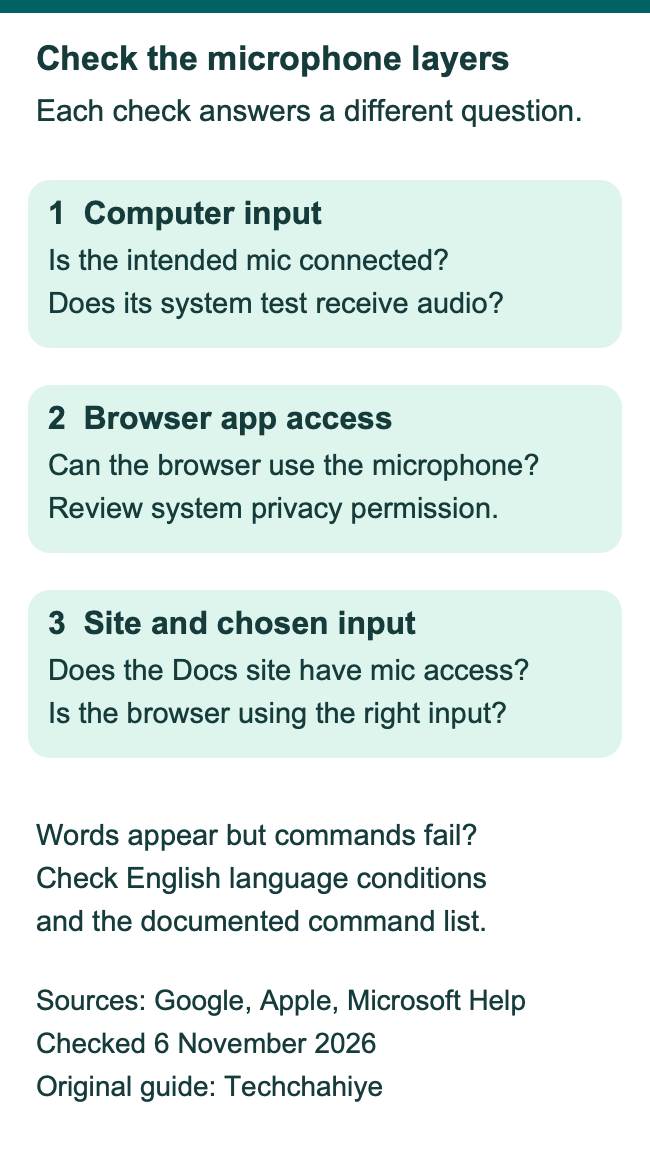
A voice feature depends on more than one permission. The computer must have a working input. The browser must be allowed to use it. The site must have the access needed for the feature. Check the layer that matches the symptom.
| What you see | Useful next check | What the check tells you |
|---|---|---|
| No system test input. | Check the connection and sound input. | Does the computer receive this mic? |
| System test works. Browser has no mic. | Check app access in system settings. | Does the browser have permission? |
| Browser has access. Docs has no input. | Check site access and chosen mic. | Does this site use the right input? |
| Words appear. Commands do not act. | Check language and command wording. | Do the conditions match? |
This table is a troubleshooting plan, not a result from a device test. Work through one layer at a time. Record what changed and try the same harmless sample again. Compare the same task before and after one change. You can then describe which step made a difference.
Check the selected microphone in Chrome
Chrome Help gives a specific route: Settings, Privacy and security, Site settings, Microphone. There you can review site access and select the default microphone. If several inputs are connected, check which one Chrome will use.
A laptop microphone and a headset microphone can be different devices. Read the input name rather than assuming the headset is active because you can hear sound through it. Audio output and microphone input answer different questions.
When Chrome asks for site access, read the destination and the choices. Choose the access that fits your task. You do not need to grant every site microphone access to use one chosen site. Chrome’s Help explains that blocked sites may not work with microphone features.
Chrome notes another limit on work or school devices. An administrator can control these settings. If an admin manages the control, ask your support team. Keep managed policies in place. Ask support about the permitted route before changing the setup.
Check microphone access on a Mac
Follow Apple’s Mac User Guide for app access. Open Apple menu, then System Settings. Choose Privacy & Security, then Microphone. Review the browser you intend to use in that list. The system’s app permission is separate from a website’s permission inside the browser.
If you allowed Docs in a browser but the browser itself lacks system access, review the system layer. If system access is already on, return to the site and input checks. Keep the two observations separate when describing the problem to someone helping you.
Apple also describes a recording indicator in Control Centre. It can show current or recent microphone use. Use the visible control and indicator to understand your own session. Do not take a screenshot from an unrelated guide as evidence of what your Mac is doing now.
Before speaking private material, decide whether this feature is suitable for the task. Apple’s guide recommends learning about the privacy practices of third-party apps and websites. Do this before dictating work details or personal records. Consider other people’s information too.
Test an input in Windows before changing Docs
Microsoft’s current instructions use Start, Settings, System, Sound. Under Input, choose the connected microphone. Its test route opens the device’s properties, starts a test and lets you stop and play the sample. Adjust the input volume if needed.
Use a short sample with ordinary words for this check. Listen to the playback before returning to Docs. Does the system test have no usable audio? Check the input first. A document’s formatting cannot fix that problem. Check the device connection and chosen input first.
A successful system test answers one question: that input reached the Windows test. It does not prove that a browser has access or that a site is using the same device. Continue to the browser and site layers if Docs still receives nothing.
Keep a short record when asking for help. Note the device name, whether the Windows sample played and which browser you used. You can describe those observations on their own. Keep the private document out of the report.
Build a draft in sections you can review
For a longer task, use an outline before dictation. Give each section one job. Take a hypothetical project update. Its sections could cover work finished, a problem and the next decision. Those headings help you notice when spoken ideas wander into the wrong section.
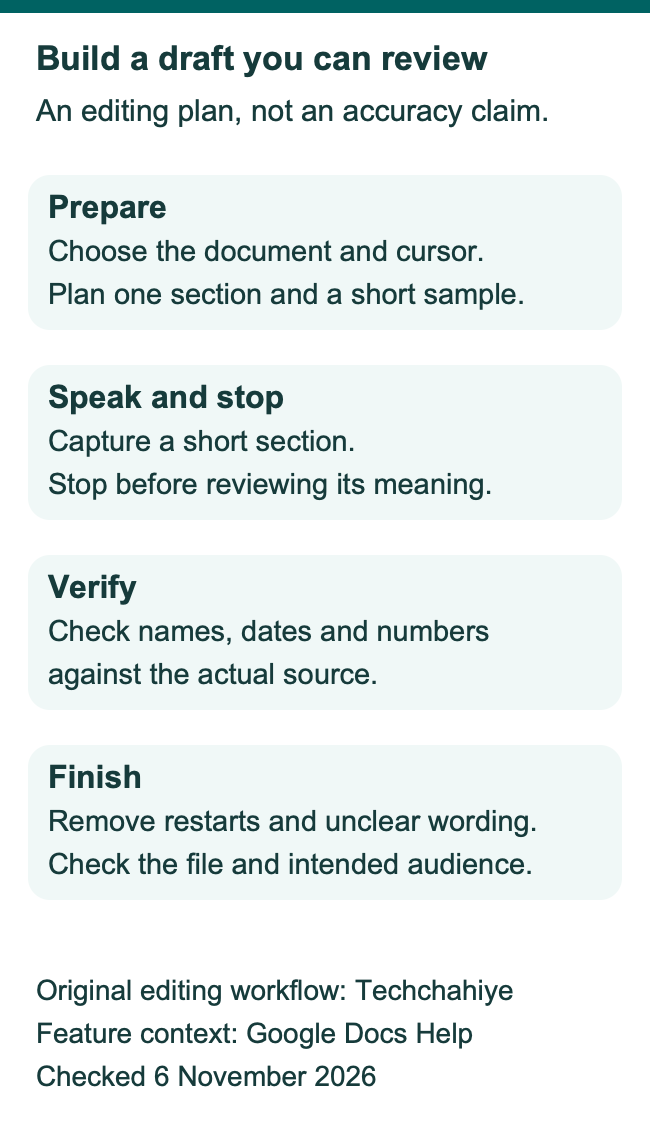
Speak the first section, stop and read it. Remove repeated starts and unfinished phrases. Check that the main point appears before background detail. Then move to the next section. This is an editing method you can adapt, not a promise that dictation will make everyone write faster.
Use source notes for facts you must get right. If the update mentions a delivery date, compare it with the actual record. If it mentions a cost, check the amount and unit. Do not ask a plausible-looking transcript to serve as evidence for the fact itself.
Keep quotations out of a rough spoken paraphrase. If exact wording matters, consult the original text. Mark the quotation during editing. Your spoken summary and someone’s exact statement serve different purposes. Separate them before sharing the finished document.
Review numbers, names and the final meaning
Give numbers their own reading pass. Take a hypothetical appointment note. “Four fifteen” might refer to a time. “Fourteen” might be a count. The source and context tell you what you meant. Read the finished text on its own. Does it express that meaning without a spoken explanation?
Dates need context too. For a reader in another country, a written month can remove doubt from an ambiguous numeric date. Choose the date style that suits the document. Keep the original source available until you have checked the day, month and year.
Next, read the draft from the recipient’s position. Can they tell who should act, what they should do and when? Replace spoken detours with direct sentences. Dictation captures a draft. Your review turns it into instructions someone else can follow.
Finish by checking the file and its audience. Make sure the text belongs in this document before you share it. If a different file holds the current version, sort that out first. A polished paragraph in the wrong copy still leaves the task unfinished.
Know when to stop and ask for help
Use the microphone button when you want a clear stop control. Google’s English command list also includes Stop listening. Check the visible state before switching to another conversation. Treat the end of a dictation session as a deliberate step.
Google says the browser controls the speech-to-text service. The browser decides how to process speech before sending text to Docs. Do not assume all supported browsers use identical processing. This guide makes no claim that your audio stays on the device or that every setup has the same privacy terms.
For an organization-managed account, a missing feature may be an admin choice. Google’s Workspace guidance explains who the admin is. Look within your company, school or group. Ask your help desk or the person who provided the account about the permitted route.
If the problem remains, report the narrow symptom. “The system test plays, but this site receives no words” is more useful than “voice typing has failed.” Include the browser, chosen input and exact message. Keep private draft text out of the report unless support needs it and you have permission to share it.
Did You Know?
Google expanded this desktop feature to Edge and Safari in May 2024. Its announcement also explains that the browser manages speech-to-text processing. An older tutorial may point everyone to one browser. Check the current support list and privacy behavior.
Conclusion
Use voice typing in Google Docs to build a draft you can inspect. Start with the supported desktop route and a short sample. Check microphone access at the computer, browser and site levels. Keep language rules separate from microphone problems. Then review the words, facts and meaning before sharing the file.
FAQs
Can I follow these steps in the Google Docs phone app?
This guide covers Google’s desktop Tools, Voice typing feature. A phone keyboard’s microphone is a separate input route. Use the instructions for that keyboard and device when working on a phone. Do not expect its commands or permission screens to match the desktop feature.
Do I need a paid add-on to use the feature described here?
Google’s Workspace announcement includes personal Google accounts and Workspace users. These instructions use the native Docs feature and do not need a third-party add-on. An organization can still restrict features or browsers. Check its rules if the option is unavailable.
Why do my words appear but an editing command appears as text?
Check the command’s exact wording and language conditions in Google Help. Voice commands need English for both the account and document. Successful speech input alone does not establish the command conditions. Use the keyboard for the edit if that is clearer while you check.
Does a good Windows microphone test prove Docs will work?
It shows that the selected input reached that system test. Browser app access, site permission and selected input still need to match. Use the result to narrow the next check. Do not repeat the same system test as a substitute for inspecting the next layer.
Should I share the draft as soon as dictation ends?
Read it first. Compare names, numbers, dates and quotations with their sources. Remove spoken restarts and check the intended audience. A transcript can look fluent while missing the point you meant to make. Share only after the written version says what you intend.
References
- Google Docs Help — Type and edit with your voice
- Google Workspace Updates — Voice typing browser expansion, May 2024
- Chrome Help — Microphone permissions and input selection
- Apple Mac User Guide — Control microphone access
- Microsoft Support — Set up and test microphones in Windows
- Google Workspace Help — Find your administrator
- Techchahiye — Google Docs offline preparation
- Techchahiye — Strikethrough in Google Docs
