

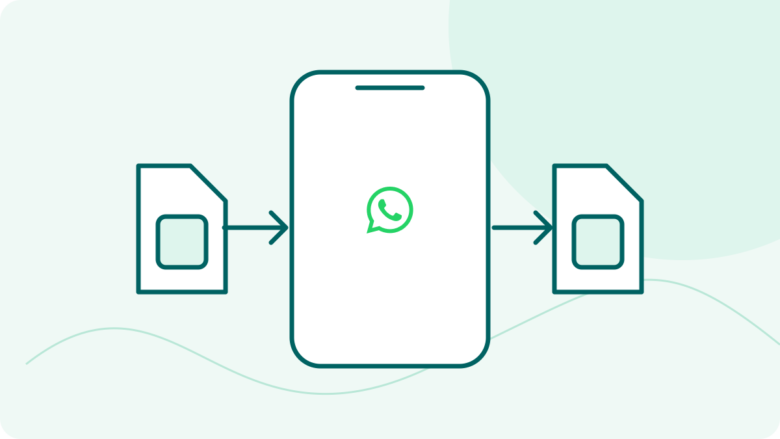
Change the number before you move phones
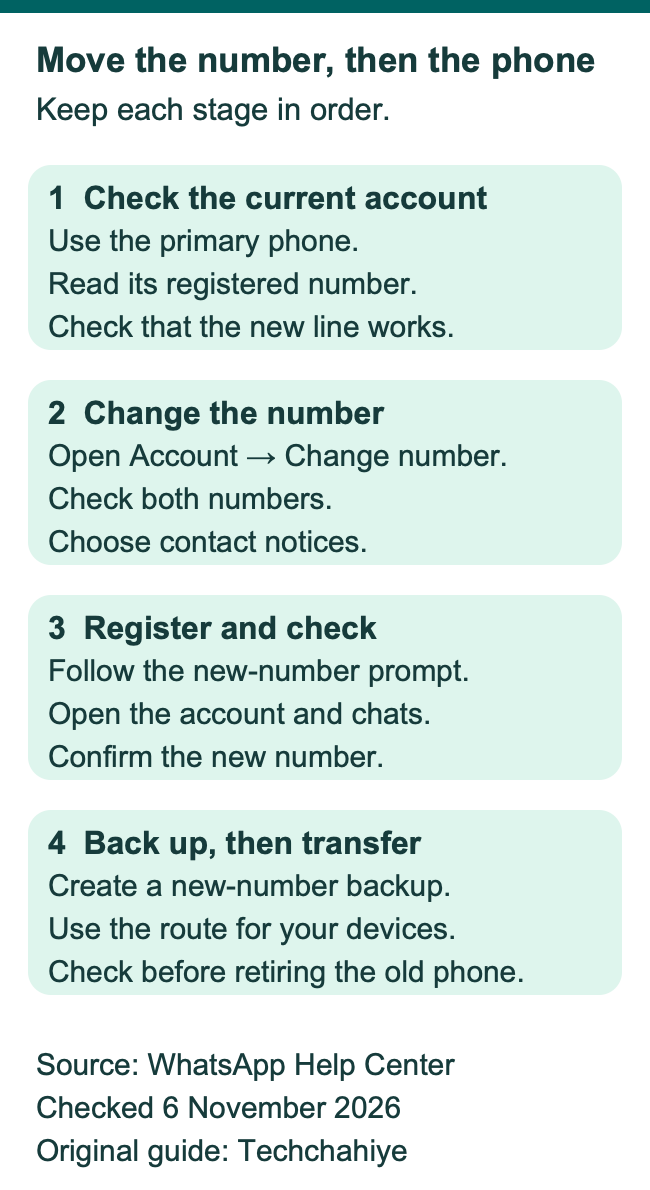
Use the primary phone. Check both numbers, review who gets a notice, then complete registration. Create a fresh backup under the new number before a later phone move.
Key Takeaways
- Use Change number on your primary phone. Open the account you use now.
- Have the new number ready to get texts or calls, then check both numbers before you confirm.
- Choose who gets a contact notice. WhatsApp says group chats get a number-change notice anyway.
- Create a fresh backup under the new number before a later phone move. Keep that move on the right platform route.
To change your WhatsApp number, open Settings on your primary phone. Go to Account, then Change number. Enter the old and new numbers. Choose your contact notices. Then follow the steps to register the new number. WhatsApp gives an official route for each phone type. This guide covers Android and iPhone.
A new SIM, a new phone and a new WhatsApp number can arrive together. Give each task its own place in the plan. First decide which account you want to keep. Then move its number. If you also need to move chats to another phone, prepare that next step before you retire the old device.
The number matters beyond the screen where you type it. It affects how contacts reach you, which number a backup belongs to and how you recover access later. A short plan helps you avoid mixing those jobs halfway through the change.
Decide which WhatsApp task you are doing
Change number moves your current WhatsApp account to another phone number. WhatsApp says account details and settings move with it. That includes your profile, privacy settings, contacts, individual chats and group chats.
Choose the route by what is actually changing. A handset change and an account-number change can be separate events.
| Your plan. | First task. | Next decision. |
|---|---|---|
| Keep the same phone and use a new number. | Use Change number on the current primary phone. | Check the account and create a new-number backup. |
| Use a new phone with the same number. | Review the supported phone-transfer route. | Match the phone platforms and available history. |
| Use a new phone and a new number. | Change the number on the old phone first. | Prepare the right backup or transfer route. |
| Keep two separate numbers in use. | Review WhatsApp’s account guidance. | Decide which account each number should belong to. |
For a hypothetical example, suppose you keep your Android phone but switch to a new mobile line. Your main task is the account-number move. Buying a replacement phone later adds a second task. Planning those separately makes it easier to see which step has succeeded.
If you lose the old phone or cannot use it, pause here. This guide starts with access to your current account. You need to open it on the primary phone. Account recovery has its own needs. A linked computer cannot take the primary phone’s place. Repeating the steps there will not fix that access problem.
Check the old account and the new line
Confirm the old number inside WhatsApp before you type it into the change form. On Android, WhatsApp’s guide points to More options, Settings and your profile photo. On iPhone, open WhatsApp Settings or your profile to find the registered number.
Use the number the account shows. A phone may have more than one line, and the number in your phone’s general settings may belong to a different line. Reading the account’s own profile helps you start with the correct identity.
Next, confirm that the new number can get SMS texts or phone calls. WhatsApp’s iPhone instructions also call for an active cellular connection. Its same-phone procedure tells SIM users to insert the new SIM before the change. Complete your line setup and make sure the number works before opening the account form.
WhatsApp requires a supported number. Its help lists unsupported types such as VoIP and toll-free numbers. Check the official needs if the line is unusual. A line may get ordinary texts but still fail this check. WhatsApp must also support its number type.
Have both numbers written correctly where you can review them. Keep that note private. The old number identifies the current account. The new line must get the code. Read each field again before moving on.
Enter both numbers in full international format
WhatsApp’s format starts with a plus sign and country code. The rest of the phone number follows. Use the format for each number’s country. The old and new numbers can need different country codes.
For US readers, WhatsApp’s own example uses country code 1. A clearly labeled format example is +1 408 XXX XXXX, where the X characters stand for the local digits. Replace those placeholders with the real number. They are an explanation of the shape, rather than a number to copy into the app.
Look for two common input mix-ups. One is putting the new number into both fields. The other is carrying over the old country code when the new line belongs to another country. Check the country and full digits for each field on its own.
Do the check before requesting a code. If you entered a wrong digit, a verification step cannot fix that field for you. Go back to the number entry when the screen shows an error. A careful reread is more useful than a series of code requests sent to the wrong new.
How to change your WhatsApp number on Android
Use the primary Android phone with the current account open. WhatsApp’s Android help documents this route.
- Open More options, the three-dot menu.
- Choose Settings, then Account.
- Tap Change number, then Next.
- Enter the old number in the first field and the new number in the second. Use full international format for both.
- Tap Next.
- Review Notify contacts and choose the people you want to notify, if you turn it on.
- Tap Done and follow the prompt to register the new number.
The contact choices are All contacts, Contacts I have chats with and Custom. The Custom choice lets you select chosen contacts. WhatsApp’s Android instructions use the checkmark to confirm that selection.
Read the new number once more before the final step. In particular, check the country code and the last few digits against the line you prepared. Are you helping a family member? Let the account owner read the screen and control this step.
Keep the phone available until the account is usable under the new number. Filling the form is one stage. Completing number setup is another. Follow the app’s prompts and inspect the account. Do that before starting a separate phone transfer.
How to change your WhatsApp number on iPhone
Open the current account on your primary iPhone. WhatsApp’s iOS help starts from Settings or your profile picture.
- Open WhatsApp Settings or tap your profile picture.
- Choose Account, then Change Number, then Next.
- Put the old number in the first field and the new number in the second. Enter each in full international format.
- Tap Next.
- Review Notify Contacts. If enabled, choose All contacts, Contacts I have chats with or Custom.
- For a Custom selection, choose the contacts and tap Done.
- Tap Done to continue and follow the prompt to register your new number.
The main job is the same as on Android, while the starting control and some labels differ. Use the iPhone route shown in the help page rather than looking for Android’s three-dot menu.
If the phone has more than one active line, keep the number entry tied to the line you intend to use. Check that line’s ability to get the setup text or call. Leave other account changes until you have completed and checked this move.
Choose contact notices with group visibility in mind
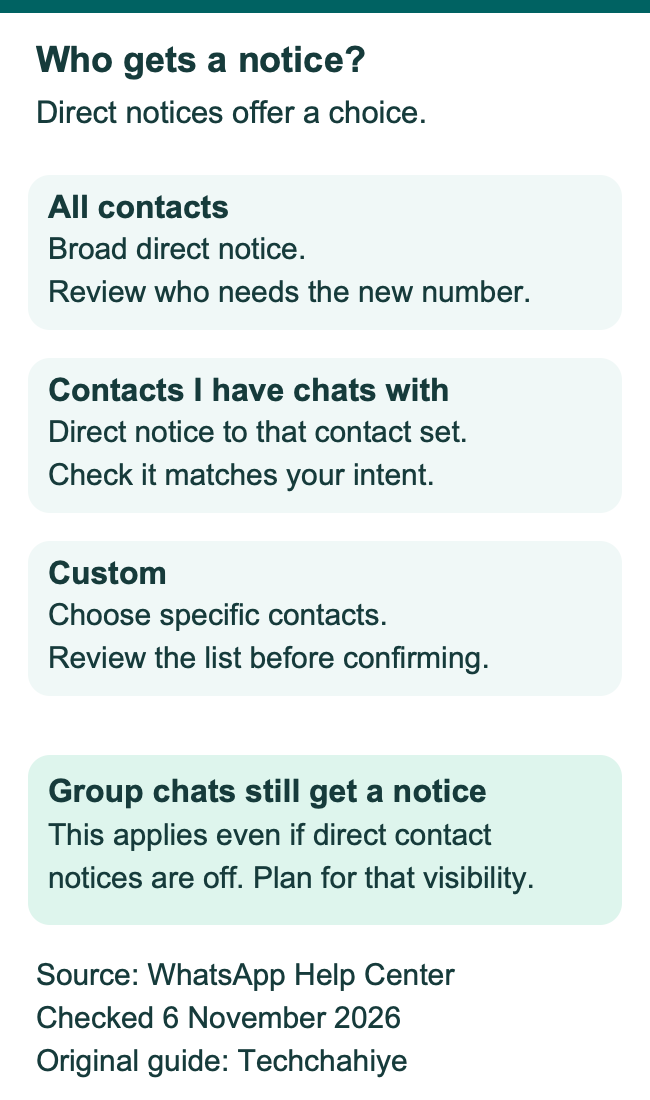
Notify contacts lets you choose the reach of a direct number-change notice. All contacts is broad. Contacts I have chats with narrows the selection. Custom gives you a chosen list to review.
Think about who needs the new number now. A family contact, a current colleague and someone in an old address book may have different needs. Choose the option that matches the people you mean to inform.
WhatsApp says group chats get a number-change notice. This happens even if direct contact notices are off. Treat that as part of the decision before you confirm. A Custom contact list does not turn the move into a private change within shared groups.
WhatsApp says blocked contacts remain blocked when you keep the same account. They do not get a notice of the updated number. Keep that statement within its scope. Think about shared groups too. Other people may already know the new number through another route.
If the new number has a sensitive purpose, review the groups you share before the move. Decide how you want to handle those relationships. The notice screen gives you a contact choice. Shared groups have their own visibility and expectations.
Tell the people who need the new number
WhatsApp recommends telling contacts before the change. Ask them to save the new number. That gives them a clear point of reference when the account move takes place.
Make the message specific enough to avoid confusion. A simple, hypothetical example is “I’m moving my WhatsApp account to my new mobile number today. Please save the new number I’ve given you.” Use a channel and wording that suit the person. Share the real number only with the people who need it.
A notice tells someone what changed. It does not prove they have updated their address book. For important contacts, confirm that they can reach you on the new number after the move. That helps when you expect a time-sensitive call or message.
Broadcast lists have an extra condition. WhatsApp says people on your broadcast list must save the new number. They need it in their phone’s contacts to get those messages. If you manage such a list, include that step in your plan. Completing the number change does not prove each person can get a broadcast. Check that contact-list step too.
Keep the communication focused on reaching you. You do not need to send setup codes, private account details or a backup file to explain a new number. What matters is which contact route to use from now on.
Complete the number setup step carefully
WhatsApp uses a fresh code to confirm control of the number. Its guide documents a six-digit SMS code. The code screen also offers a phone call when available.
Enter the code in the official WhatsApp flow for the new number. If a code does not arrive, check the phone number and the line’s ability to get it. The guide tells users to wait for the progress bar before retrying. Follow the wait shown in the app.
Avoid guessing codes. WhatsApp warns that guesses can lead to a lockout period. Repeated guesses do not help establish that you control the new line.
Keep the stage clear when you ask for help. For example, the account may still show the old number. Or you may have entered the new one but cannot get its code. Those are different states. Note the exact screen and error text. That helps you choose the right support instructions without repeating the whole move.
Can the number get texts or calls? If that fails, ask the mobile provider to fix the line first. The line may work while WhatsApp number setup fails. Use WhatsApp’s troubleshooting for that exact state. Each service can address its own part of the problem.
Make a backup under the new number
WhatsApp links a cloud backup to the number that created it. Its current number-change guide explains this limit. It recommends creating a fresh backup after changing numbers. That gives you a backup linked to the new number.
Treat the number on the account as part of backup identity. An old file date by itself does not show that a backup matches the number you now plan to register. Check the account move first. Then use your phone’s supported backup route under the new number.
The Android guide starts with a number change on the old phone. Then it calls for a Google Account backup under the new number. On iPhone, it describes an iCloud or computer backup under the new number before a later device move.
Techchahiye’s WhatsApp backup guide covers the full setup. Use it with the linked official steps. That task includes where you save the backup. It also covers any encryption credentials you chose. Keep those details available before you rely on the backup for a new phone.
This sequence has a practical purpose. If the old phone still holds the account and chats, keep it available while you verify the next stage. Create the fresh backup and check the restore or transfer. Keep the source device until those stages work.
Plan a later phone move as a separate stage
WhatsApp says to change the number on the old phone first. Then move the account and history to the new phone. After that, follow the route that matches the devices involved.
Write down the old and new phone types. Match the route to both platforms. An Android move, an iPhone move and a cross-platform move can have different needs. Use the current official transfer guidance for that exact route.
A useful plan names the stages in order. For example, a person may first complete the number change on their current Android phone. Next, they create a supported backup under the new number. Then they follow the route for the replacement Android phone. That example shows the order. It does not mean another platform can use the same backup.
Keep the old device until the new phone has the history and account you expected. Open a few important conversations and inspect the account number there. Decide which device is now primary before you begin routine use.
Changing the number also differs from keeping two separate accounts. Do you want to keep both numbers active on WhatsApp? Review the official account guidance first. Moving one account to a new number changes that account’s identity. Decide which outcome you want before using Change number.
Find the cause when Change number fails
WhatsApp’s troubleshooting page starts with the registered old number. Compare it with the account profile. If the form uses a different old number, correct the mismatch before trying again.
WhatsApp says a greyed-out Change number option can mean a linked device. Check whether this is the primary phone. Use the primary phone. A desktop session can handle everyday chats. This account move belongs on the primary phone.
The official checklist also covers the new SIM and cellular connection. It asks for enough internal storage and a supported number type. Match the check to the problem you see. A lack of storage calls for a different repair from an SMS delivery problem.
Does the account show a ban message? Follow WhatsApp’s review route if the app offers that option. Keep the exact message. A change to the phone number is not a substitute for resolving an account restriction.
Do you lack SIM access but want to keep the same number? WhatsApp says to ask the mobile provider for a replacement SIM with that number. Clarify whether your goal is to recover the current number or migrate to another one. That choice shapes the next step.
Did You Know?
WhatsApp says an accidental number change has no undo. Its help adds a limit if you resume use of the original number. A group admin must invite you again to regain group access. Read both number fields and your contact-notice choice before confirming the move.
Conclusion
To change your WhatsApp number, start with the right account on its primary phone. Check the new line and enter both numbers with care. Choose contact notices and plan for group visibility. Complete number setup, then create a new-number backup. If a phone move follows, finish that separate stage before retiring the old device.
FAQs
Do I need to change my number when I buy a new phone?
A new phone and a new WhatsApp number are separate choices. Keep the same number if that is your plan. Review the supported transfer route for the two phones. Use Change number when you want the current account to move to a different phone number.
Can I change my WhatsApp number from a linked computer?
Use the primary phone for the number change. WhatsApp says linked devices cannot make this change. That includes WhatsApp Web and desktop apps. Its help also says the option can appear grey on a linked device. Check which phone is primary.
Can I stop every group from learning about the number change?
WhatsApp says group chats get a number-change notice regardless of your contact-notification choice. Review your shared groups before the move if number visibility matters to you. The Custom option lets you choose direct notices. Group notices follow the separate rule above.
Will a backup made with my old number be ready for my new phone?
WhatsApp links each cloud backup to the number that created it. Create a fresh backup under the new number after the account move. Then follow the supported route for the new phone. Keep its account and backup credentials ready.
What should I check first when the new number will not register?
Check the full number and whether its line can get SMS texts or calls. Use a supported number and follow the wait shown before requesting another code. If the line itself fails, contact the provider. If it works, use WhatsApp’s number setup troubleshooting for the exact error.
References
- WhatsApp Help Center — How to change your phone number, Android
- WhatsApp Help Center — How to change your phone number, iPhone
- WhatsApp Help Center — About changing phone numbers
- WhatsApp Help Center — About international phone number format
- WhatsApp Help Center — How to register your phone number
- WhatsApp Help Center — Can’t change phone number
- WhatsApp Help Center — About changing phones
- WhatsApp Help Center — Phone numbers and accounts
- Techchahiye — Back up WhatsApp chats on Android and iPhone
- Techchahiye — Install WhatsApp on Android and iPhone
