


From the right app to a working account
Use the official Android or iPhone listing. Understand download, number setup, permissions, and chat restore as separate steps. Check the stage when setup stops.
Key Takeaways
- Install the official app from Google Play on Android or the App Store on iPhone. Check the developer before downloading.
- Installing the app, registering a number, and restoring chats are separate steps.
- Keep your old phone and chats intact if you are moving an existing account.
- Use a phone number you control, and keep registration codes private.
- Read permission prompts and review access later in your phone’s settings.
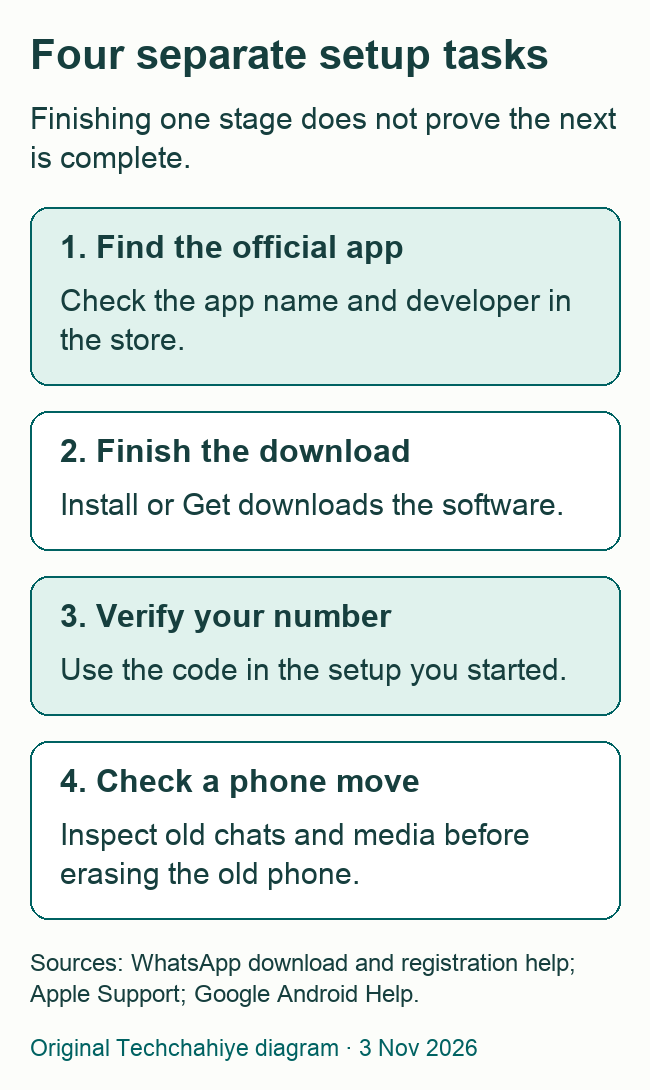
To install WhatsApp, open Google Play on Android or the App Store on iPhone. Find the official app, check its developer, and tap Install or Get. Open it when the download finishes, then follow the phone-number setup prompts.
If this is a new phone for an existing account, pause before setup. The new app does not, by itself, prove that your old chats are safe. Plan the transfer or restore while you can still use the old phone.
This guide covers the download, first setup, permissions, and common points of confusion. You can see which step comes next. Keep the download, a phone move, and chat recovery as separate tasks. This guide uses the store pages and official help as of November 3, 2026.
Find the official app first
A familiar green icon is not enough to identify an app. Start from your phone’s official store or WhatsApp’s own download page. Then check the listing before you install it.
On Google Play, the current official listing names WhatsApp LLC as the developer. In the US App Store, WhatsApp Messenger names WhatsApp Inc. The exact store links are in References so you can check the listings yourself.
Read the app title and developer together. A search can include tools for stickers, status, file transfers, or other tasks. A product that mentions WhatsApp in its name is not necessarily the messaging app you want.
Do not let a message from an unknown sender choose your download route. You can open the store yourself and find the app there. That small choice keeps the setup separate from a link someone has asked you to trust.
Google recommends Google Play for Android app downloads. Its help also explains the risks of unknown app sources. Can your phone use the store? If not, check the official WhatsApp download page for your device. Do not treat a random APK mirror as the next required step.
Install WhatsApp on Android
Use the Play Store app on the phone where you want to use WhatsApp. A store page open on a computer can show a different device context. Start on the phone to keep the download and setup together.
- Open Google Play.
- Search for WhatsApp.
- Open the official listing and check that the developer is WhatsApp LLC.
- Tap Install.
- Wait for the download to finish, then open the app.
These steps follow Google’s app-download guide and the official WhatsApp listing. The store handles the software download. The phone-number step comes after you open WhatsApp.
Keep an eye on the result. A download that is still pending is not an installed app. If you reach the app’s welcome screen, you have moved past the store stage. That gives you a clear way to ask for help. Say whether you need help with the download or the account.
If the listing says the app is not compatible with the device, check the device and software details. Clearing a chat will not change the software your phone can run. Changing a number will not do that either. Read the current support information before making wider changes.
Install WhatsApp on iPhone
On iPhone, use the App Store. Apple’s guide explains the Get and Open buttons. It also covers the sign-in check you may see during a download.
- Open the App Store.
- Tap Search and find WhatsApp Messenger.
- Open the listing and check that the developer is WhatsApp Inc.
- Tap Get or the redownload control shown for your account.
- Complete the App Store’s authentication prompt if asked.
- Open WhatsApp once the download finishes.
If the button says Open, Apple says you have already downloaded the app. Try opening it before searching for another copy. The button shows the state of the app on your phone. It need not mean there is another edition to buy.
Use your own Apple Account and the device’s normal confirmation flow. If someone is helping, they can read the instructions while you complete that part. They do not need your Apple Account password to explain how to find an app.
Is the App Store missing? Apple says to check the controls that limit app installs. On a family or managed device, work with the person who manages those controls. A missing store is a different issue from a WhatsApp registration code that has not arrived.
Understand the cost shown by the store
The official listings describe WhatsApp as a free app. They also show that it offers in-app purchases. Treat those as separate pieces of information. A free download may still have paid features inside the app.
Apple explains that Get means there is no charge for downloading that app. It also says that free apps can offer paid in-app features or subscriptions. Read any payment prompt before you confirm it. You do not need to accept an optional offer merely because it appears during a setup session.
Your internet connection is a separate cost. The WhatsApp store listings note that data charges may apply. Check your plan before a large download or restore over mobile data. Take extra care when away from home.
You can use the connection that fits your needs and plan. A stable Wi-Fi connection may be useful for a phone move. Use a connection you trust and can keep available during setup. A network name that contains “free” does not establish who runs it.
Decide whether this is a new account or a phone move
Before entering a number, ask what you want the new app to do. Are you starting WhatsApp for the first time? Are you moving the same account to a replacement phone? Are you adding access from a computer or tablet?
| Your situation | Plan before setup |
|---|---|
| First WhatsApp account | Use a phone number you own and can verify |
| Replacement phone, same account | Check the old phone, backup, and supported transfer route |
| New phone and new number | Review the number-change order before moving |
| Computer or tablet access | Use the supported companion-device route |
Moving to a new phone? Keep the old phone and its chats intact. Check the move before you erase anything. Do not make a trade-in or reset the next step merely because the new app has opened.
If you are also changing numbers, treat that as part of the move plan. WhatsApp’s changing-number help explains how the account moves to a new number. Do not start with a new number and hope old chats will appear. Plan the number change first.
Keep this setup guide focused on installation. Use the full backup or transfer instructions for the move you actually need. The steps depend on the phones. A move between two iPhones may differ from a move from Android to iPhone.
Register a phone number you control
WhatsApp’s registration help says to use an active phone number that belongs to you. It must be a supported number that can receive calls and texts. The account setup is separate from signing in to the app store.
WhatsApp lists numbers the personal app does not support. These include VoIP and toll-free numbers. Paid premium and universal access numbers do not work either. Nor do landlines. WhatsApp says landlines work only with WhatsApp Business. If you want both apps, its help says to use a different number for each. Do not buy a temporary number or borrow one as a shortcut.
Open WhatsApp and read its terms and privacy information. Tap Agree and continue if you accept the terms. Choose your country and enter the phone number in full international format. On iPhone, tap Next. Check the number before you request a code. Enter the six-digit SMS code through WhatsApp’s own registration screen.
The current help also offers registration with a Meta Account. Adding WhatsApp to that account is optional. You may see the older name Accounts Center while the new name rolls out. You can use the standard phone-number route without adding WhatsApp to a Meta Account.
For a US number, make sure the country choice and number belong together. For a number from another country, use that country’s code. Use the country code for your number. Do not choose the US only because you are visiting or reading this guide.
Keep the registration code private. It is for the setup you started, not for a person who sends you a chat asking to “confirm” something. A helper can guide you without receiving or typing your code on another device.
If you already used the number on WhatsApp, read the existing-account prompts carefully. You may see a phone-number check, a separate security check, and a chat restore. Each is a different task. Complete the step in front of you without assuming that one code proves the old chat history has arrived.
If the code does not arrive
Start with the number on screen. Is it the number you own? Did you choose the right country? Can that line receive the type of code you requested?
Do not guess codes. WhatsApp warns that guesses can lock you out for a period. If no code arrives, its help says to tap Didn’t receive a code? and choose SMS or Phone call. Wait for the progress bar to finish before trying again. Follow the options the app shows rather than restarting setup again and again.
Keep an internet connection available as well as access to the phone line. The app and the code-delivery route have different needs. Open a web page to check the phone’s internet access. That does not test whether the mobile line can receive a text.
If an option for another delivery method appears, read it before using it. Do not assume every new user can get a code by email. WhatsApp offers email codes for some existing accounts. You must have added an email address to the account first.
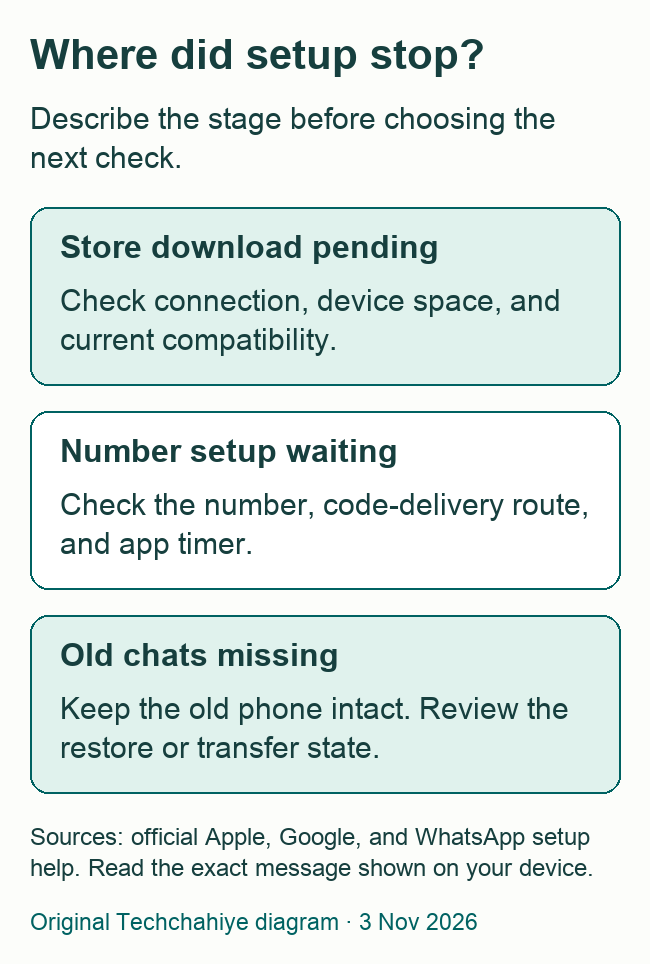
When asking for help, report the stage and exact message. For example, say: “The app has downloaded. I am waiting for the phone code.” That tells a helper more than “WhatsApp will not install.” Keep the code and personal phone details out of public screenshots.
Read permission prompts in context
Read the permission prompts that come after the download. You do not have to accept them without looking. A phone’s controls let you decide how apps may use its information and hardware.
On Android, Google’s help describes Settings, Apps, the chosen app, then Permissions. There you can review what you allowed or denied. The choices can vary by permission and software version.
On iPhone, Apple points to Settings, then Privacy & Security. Choose the relevant category to review the apps that asked for access. Apple says an app may not appear in a category until it has requested that permission.
Think about the task that led to the request. A camera, microphone, and contacts request each concerns different access. Each type of access is separate. Allowing one does not allow all the rest. Denying one does not mean the app failed to install.
For example, imagine that your chats open. A voice feature then asks to use the microphone. Review that prompt and the microphone setting. Check that feature’s permission first. Removing and adding the app again is a much bigger step.
Finish setup with a small, useful check
When setup is complete, use a conversation you mean to start. Choose a person who expects to hear from you and send a short message. Check the contact and chat before sending anything private.
If you restored an existing account, inspect conversations that matter to you. Look at a recent chat, an older one, and media you expected to keep. A familiar name on the welcome screen is not proof that all your files have loaded.
You do not need to test every feature at once. Start with the task you installed the app for. Want to call a relative? Pick a time that suits them. Do not surprise them with a call to test a button.
Keep track of a problem at the level where it occurs. Can you open the app? Can you finish number setup? Can you open the intended chat? You can then ask for help with that step. Leave the settings that work alone.
If WhatsApp will not download or open
Separate a store problem from an app problem. A download stuck before the app opens belongs to the store stage. A code prompt means WhatsApp has opened. You still need to finish the account setup.
For a store problem, check your internet access. Look at the phone’s free space too. Then check whether the app supports your phone and software. Use Apple or Google’s official download-help route for the message shown. Keep the device model and software version handy when you describe the issue.
Do not treat an old article’s lowest supported version as a fixed rule. WhatsApp changes support over time. Check the store listing and current supported-device help for the phone in front of you.
If the app opens but a feature does not work, read the feature’s prompt and relevant permission. If old chats are missing, stop treating the problem as a download failure. Check the restore or transfer state before removing the app or creating a new backup.
Keep a help note short. Name the phone model and software version. Say where setup stopped and give the exact error. List what you already tried. Leave out codes, passwords, and private chats. Do not show your full account details in a screenshot.
Add a computer or tablet after the phone setup
The official download page is not only for phones. It also has routes for a browser, computer, or tablet. Choose the route for the device you want to add. A Windows installer, a Mac app, and an iPhone store listing serve different devices.
Use the official download page as the starting point on the extra device. Read the current requirements there. Using a browser? Check that you opened the official WhatsApp Web site. Then follow its linking steps.
Keep the phone-account task separate from companion access. Adding a convenient place to type is not the same as moving a phone number to a new primary phone. Follow the linking steps for that device. Do not try to register numbers at random.
After adding access, review where the account is available. Did you use a shared computer? Decide whether it should stay linked when you finish. Review access on a borrowed screen. Do not leave someone else with a way to open your chats.
Keep the installed app current
Return to the official store for updates. If you see an update option, read it in that store. A stranger may send a chat that claims you need an urgent update. The right logo is not proof. Use the store to check for updates.
Before removing and reinstalling an app as a repair, decide what chat history you need. A reinstall is not a substitute for a verified backup or a completed phone transfer. Keep the working old phone intact while resolving a move.
If you help a relative, leave them with a short explanation of the store and app names. They should know where the official app lives and which number they used. You do not need to keep their passwords or codes to be helpful later.
After setup, review your privacy choices. Techchahiye’s WhatsApp guide hub covers more account and safety topics. Installing the right app is a starting point. You can review the settings that fit your conversations once the setup itself works.
Did You Know?
An iPhone’s Get button means the app download is free. Apple also explains that a free app can offer paid in-app purchases or subscriptions. A payment prompt is a separate choice. Do not assume you must pay to finish a free download.
Conclusion
To install WhatsApp, use its official listing in Google Play or the App Store. Check the developer, finish the download, then set up a phone number you control. Keep a phone move and chat restore separate from the download. Read permission prompts. Make a small first-use check. If you moved an account, check that it works before erasing the old phone.
FAQs
Which developer should I look for in the app store?
The current Google Play listing names WhatsApp LLC. The US App Store listing for WhatsApp Messenger names WhatsApp Inc. Check the app and developer together, using the official links in References. A familiar icon or a search result that contains the word WhatsApp is not enough on its own.
Why does the App Store show Open instead of Get?
Apple says Open means you already bought or downloaded the app. Try opening that copy before looking for another listing. If WhatsApp opens to a number-verification screen, the store stage is complete. The next task is account setup, rather than downloading a different app.
Will installing WhatsApp bring back my old chats?
The download alone is not proof that your old chats came back. Use the supported backup or transfer route for your phone move. Keep the old phone and its chats intact until you inspect the new setup. Check the restore state before you remove the app again.
Should I send a registration code to someone helping me?
No. Enter the code through the setup you started in WhatsApp. A helper can explain the screens while you keep control of your number and code. Do not read a code to an unknown caller or send it in a chat because someone claims it is part of installation.
Do I have to allow every permission at first launch?
Read each prompt and decide what access fits the feature you want. Apple and Google let you review app permissions later in phone settings. A camera request and a contacts request concern different access. If one feature fails, check its permission first. You may not need to reinstall the app.
References
- Techchahiye: WhatsApp Tips and Privacy Guide. Related account and safety hub.
- WhatsApp: Official download page. Device-specific official download routes.
- Google Play: WhatsApp. Official Android listing from WhatsApp LLC.
- US App Store: WhatsApp Messenger. Official Apple listing from WhatsApp Inc.
- Google Android Help: Download apps to your Android device. App search, Install, and official store guidance.
- Apple Support: Download apps on your iPhone or iPad. Get, Open, authentication, and optional purchases.
- WhatsApp Help Center: How to register your phone number. Phone-number setup and registration-code requirements.
- WhatsApp Help Center: About changing phone numbers. Planning a move to a new account number.
- Google Android Help: Change app permissions. Review and change an app’s permissions.
- Apple Support: About privacy and Location Services. Review access in Privacy & Security.
