

Make the first call a clear check
Check support for your Galaxy and line. Finish Wi-Fi Calling setup and keep the right address on file. Then check an ordinary call. Match any fault to the next useful step.
Key Takeaways
- Samsung Wi-Fi Calling needs a supported phone and carrier line, plus working Wi-Fi. A Wi-Fi icon alone does not show that a call used this feature.
- Try Settings, then Connections, then Wi-Fi Calling. Some Galaxy phones place it in the Phone app’s settings instead.
- Read the setup prompts and keep the emergency address current. Use an ordinary call to check the result, not an emergency number.
- Match the fix to the fault. A missing switch, a failed setup and a call that breaks up need different checks. Costs also depend on your carrier and plan.
Calls fail in one room, yet the internet works there. Samsung Wi-Fi Calling may help if your phone and carrier support it. Start in Settings, open Connections and look for Wi-Fi Calling. Turn it on and finish the prompts. Then make a normal call and check the call’s Wi-Fi status.
That switch is only one part of the job. Know which line is active and whether setup finished. Check how your carrier bills the call. You also need the right address on file for emergency use. A second app that can make a voice call is a different service.
This guide uses official US Samsung and carrier guidance checked November 3, 2026. It separates the phone steps from the carrier rules. We have not tested every Galaxy or plan. Use the labels on your own phone and your carrier’s exact device guide when they differ.
Start with the kind of call you want to make
First name the task. Do you want to call a phone number through your carrier? Or do you want to reach someone inside a chat app? That choice tells you which service to check. Changing a carrier setting is not a useful first fix for every app call.
T-Mobile draws this line in its support guide. Its Wi-Fi Calling service uses the T-Mobile number. Calls from apps such as WhatsApp use those apps’ own service and billing rules. A call button inside an app does not prove the carrier feature is on.
For this guide, use the normal Phone app and a person who is happy to help with a brief call. Choose a number whose cost you know. Do not use a premium, overseas or emergency number to find out whether setup worked. You can check the route without making the test itself a billing puzzle.
Write down the problem in one sentence. For example: “The Wi-Fi Calling switch is missing,” or “Setup completes, but voice breaks up at home.” These are sample reports, not device test results. A clear symptom helps you skip steps that do not fit.
Check the phone, active line and Wi-Fi first
Samsung US says the feature needs an active SIM or eSIM and a Wi-Fi connection. Carrier and device support can vary. Do not assume a second phone’s menu proves that your phone supports the same route. A shared Galaxy name is not an account check.
First collect three details. Note the exact model, your carrier and the line you intend to use. Keep the software version too. A support worker can use that set of facts to find the right guide. “Samsung phone” leaves too many choices open.
If you have more than one line, be clear about the one you mean. Put that line in your notes. Do not assume a successful call from one line settles a problem with the other. Keep the problem tied to the account and number you are trying to use.
Next, open a page while on your intended Wi-Fi network. This is a basic internet check, not proof that a voice service can connect. It helps split the issue. Can the phone reach the internet? Can the carrier carry this call through it?
Check these details before a support chat:
- Exact phone model and software version.
- Carrier and the line with the fault.
- Whether normal internet use works on this Wi-Fi.
- Whether the feature’s switch is present.
- Any setup message, with private details left out.
Keep account numbers, passwords and codes out of screenshots or public posts. You can describe a failed setup step without showing the whole account page. Does support need private account details? Use the carrier’s verified private route to share them.
Turn on Samsung Wi-Fi Calling and finish setup
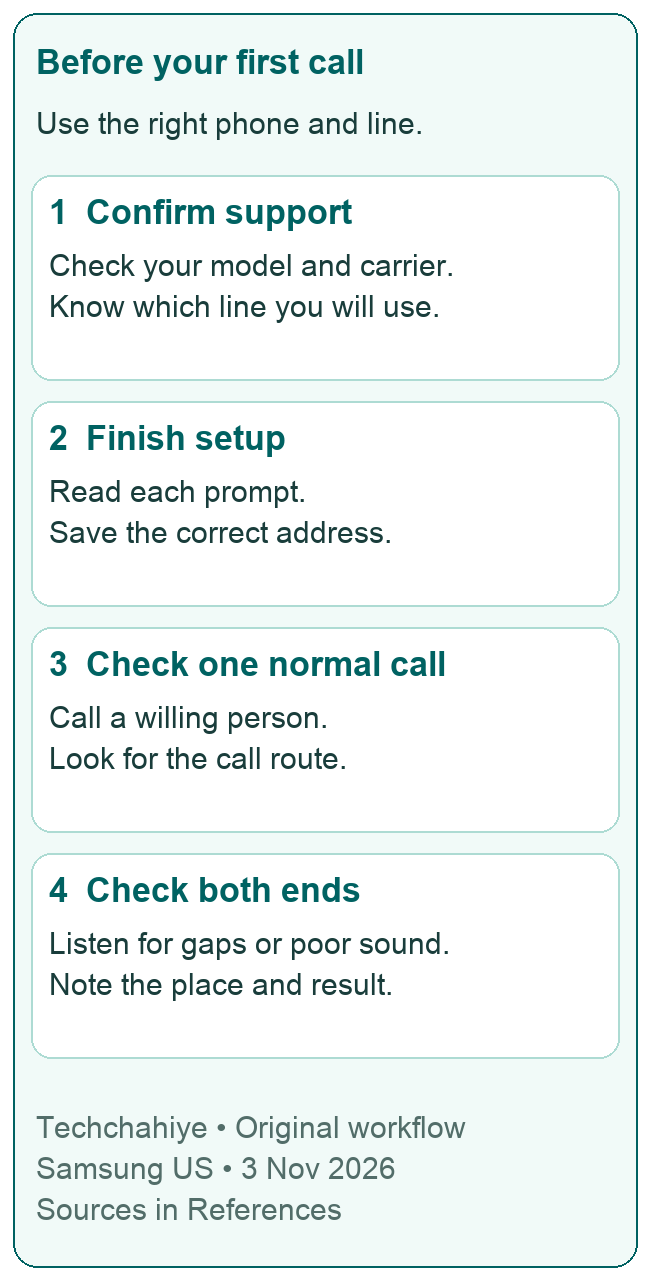
Samsung US gives the setup steps. Open Settings, choose Connections and select Wi-Fi Calling. Turn on the switch. If an emergency-information prompt appears, read it and enter the requested details. Save when asked. Finish the page rather than closing it halfway through.
Samsung’s separate call-settings guide also shows a Phone app route. Open Phone, use More options, choose Settings and find Wi-Fi calling. Menus vary. A guide that starts in a different place is not proof that you need to install another dialer.
Use a calm setup moment. You may need to read carrier terms or correct an address. Doing that while waiting for an urgent call adds pressure. Finish setup first, then keep a short note of the route that worked on your model.
Do not tap past an error as though the switch confirmed success. Record the wording and the stage where it appeared. Did you reach the terms? Did the address save? Did the page return to its starting state? That gives support something to investigate.
Avoid changing many other settings at once. If setup fails, keep the next change small. Change many things at once and you may miss what mattered. Make one relevant change, note the result and then decide what to try next. Keep a route back to your earlier setup.
Make one ordinary call and check its route
Samsung’s troubleshooting guide says to make a call and look for a sign that it is using Wi-Fi. Listen to the call too. A connected call and a clear call are two useful observations. Neither requires a long conversation to establish the first result.
Tell the other person this is a short check. Ask whether they can hear you clearly. Listen for gaps or repeated words at your end. Note where you were and which network you used. These are observations you can report, rather than a guess about a broken part.
AT&T describes Wi-Fi markings on Android call controls and a plus sign near the Wi-Fi status icon. That is AT&T’s guidance, not a universal Galaxy icon chart. Use your carrier’s current device instructions for the indicator on your setup.
Check an incoming call as a separate task if that is where the problem occurs. Ask the same person to call back at an agreed time. A successful outgoing check does not answer every incoming-call complaint. State which direction you checked when reporting the result.
Do not turn a brief working call into a promise of flawless coverage. It tells you that this call worked here, now. Keep the observation narrow. Do calls fail later or in another room? Note that pattern next.
If the Wi-Fi Calling switch is missing
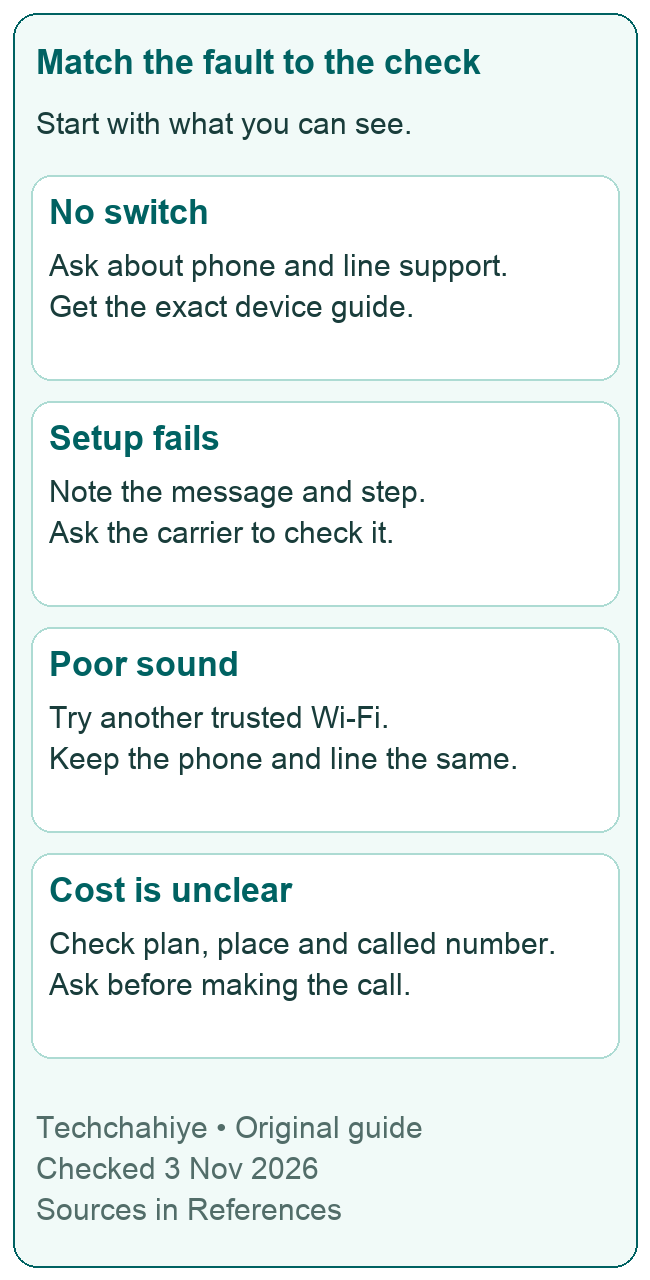
A missing switch is a support question before it is a repair project. Ask your carrier whether your exact phone and line qualify. Include where you looked. There is a difference between not finding a menu and seeing a menu that refuses to activate.
If you bought the phone from a different seller, include that fact. T-Mobile notes that some devices claim support. But it cannot promise service on phones it did not sell. That is its service limit. It does not prove another carrier has the same policy.
Avoid treating a random hidden-menu app as proof of support. A page that can be opened is not the same as a carrier service that works on your line. Get an answer about the model and account before adding software to chase a switch.
Ask two clear questions. “Does this exact model support Wi-Fi Calling on my current plan? Which setup page should I see?” Add the software version. Ask for the device guide that applies. Keep the answer with the case so you do not repeat the same search later.
If the carrier says the line is eligible, describe the missing control as the next fault. That is a more focused report than saying all calls fail. If the carrier does not support the phone, note that limit. Do not treat it as a password or Wi-Fi-signal issue.
If setup fails or the call will not connect
Match the next step to what you saw. An address error belongs with the setup stage. A call that connects and then breaks up is a later problem. A phone that cannot load a page on Wi-Fi has another starting point. Keep these cases separate.
Samsung US suggests two further checks. Restart the phone and check for software updates. Its update labels can differ by carrier. Finish an active call before restarting. Read the update prompts and allow time for the phone to complete them.
After a change, repeat the same ordinary call check. Keep the person, place and intended network the same where practical. That makes the result easier to compare. If you also move to another building, you will not know whether the phone change or the new network mattered.
You do not need a complicated log. A short entry can say: “Before restart: setup error. After restart: same error.” Another might say: “After update: outgoing call connected; incoming check still not done.” This is a sample note format, not a report of our testing.
If the fault remains, give the carrier the exact message and the steps you completed. Ask it to check support on the account. Do not copy access-point settings from an unrelated forum post. Samsung says to ask the carrier for account help. The carrier can also check the right settings.
If calls sound poor on one Wi-Fi network
Use a small comparison that answers a real question. Does the same phone and line work on another trusted Wi-Fi network? Does the fault happen in one room or throughout the building? These observations help describe where to investigate. They do not prove which device caused it.
For example, imagine a call is clear near your router but breaks up in a far room. Record that pattern. It is better evidence for a local connection check than “Wi-Fi Calling never works.” This is an illustrative case; we have not measured the range of your network.
T-Mobile says its service needs at least 2 Mbps for upload and download. It also excludes satellite internet and a cell-phone hotspot from supported access. Those are T-Mobile requirements. Do not apply that number to every carrier or treat one fast speed result as a guarantee of a clear call.
Does the fault affect only your workplace network? Ask its owner which voice services it allows. Do not alter a shared router to test a personal phone. Give the network team the service name, time and symptom. They can decide which checks fit their own network.
Keep fixes proportional to what you know. Buying a new router does not tell you what caused the fault. A successful call elsewhere is a useful comparison. Share that result with the right support team. Ask for help before you buy new hardware or a more costly plan.
Read your carrier’s rules before calling abroad
Wi-Fi Calling is not a worldwide free-call label. Verizon’s FAQ says that, on its unlimited talk-and-text plans, calls to US numbers have no charge. Calls to other countries follow its international rules. That distinction depends on the number called, not merely the fact that Wi-Fi is on.
AT&T says costs depend on where you call from and which number you call. Calls to US numbers have no added charge under its published guidance. Other destinations can depend on the account and travel add-on. Its current restriction list includes India. Do not assume a US AT&T line can use this feature there.
Before travel, ask a precise question. Give the country you will be in, the country of the number you will call and your exact plan. Ask what happens if the call uses cellular service instead. Keep the carrier’s answer and date, especially if you plan to make repeated calls.
Do not use a vague question such as “Is Wi-Fi free?” That can mix internet access, call charges and travel fees. Ask about each cost you need to understand. The place providing Wi-Fi may also have its own access terms.
If a relative lives abroad, check the number’s country before dialing from the US too. A free Wi-Fi connection at home does not settle an international call rate. You can make a short plan check before the call instead of trying to explain a charge afterward.
Keep the emergency address current
Treat the emergency-address page as part of setup. Samsung shows an Emergency address option in the feature’s settings where supported. Verizon says to update that address when your location changes. Do not leave an old address simply because ordinary calls still connect.
AT&T warns about losing Wi-Fi during an emergency call. If the link drops, the call disconnects. It also says E911 may be less reliable than regular 911 service. These limits matter when choosing how to stay reachable. A working browser does not promise emergency-call service.
Use the carrier’s verified process to check the saved address. Read the result. Make sure the carrier saved the change. A draft typed into a page is not the same as a saved account detail. If the page rejects your address, ask the carrier to help resolve it.
Do not call an emergency number as a routine setup test. The normal call check in this guide is for a willing contact. Keep emergency lines available for emergencies. Read your carrier’s terms for emergency calls. One normal call does not test every feature.
If other people use the phone, explain its service setup. A shared device should not leave them guessing which address is on file. Keep the steps simple. Show them the carrier’s current guide for that line.
Know what a network reset changes
A reset is a later step to understand, not a button to press out of habit. Samsung warns that resetting mobile, Wi-Fi or Bluetooth network settings removes saved configurations. It cannot be undone. Its troubleshooting guide says to have the needed information first.
Before any reset, identify the exact option on the screen and what it says it removes. Check that you can restore the connections you need. Do not confuse a network reset with erasing the whole phone. If the warning is unclear, stop and ask support to explain that option.
Use your notes to decide whether a reset fits the problem. It does not turn an unsupported carrier line into a supported one. It also does not answer a plan-cost question. Settle the account and model questions first. Then decide if you need a step that removes saved setup.
A support handoff can be short and useful. Give the model, software, carrier, error and ordinary-call result. Add which Wi-Fi networks you compared and whether the fault changed. Say which steps you have not tried. A clear record lets the next person continue without asking you to repeat every change.
Did You Know?
The Wi-Fi symbol and the call’s route answer different questions. One shows a network connection. The other shows the route that carries the call. Need to know which service worked? Look for the carrier’s call icon during a normal call.
Conclusion
Start Samsung Wi-Fi Calling with the supported phone, active line and working Wi-Fi. Finish setup, keep the emergency address current and check one ordinary call. If it fails, name the symptom before changing settings. Use your carrier’s device and billing rules. A focused report is the next useful step when the fault remains.
Frequently Asked Questions
Where is Wi-Fi Calling on a Samsung Galaxy phone?
Start in the phone’s connection settings. Some models offer the control through Phone settings instead. Use the route shown for your exact model and carrier. If neither place has it, ask the carrier to confirm device and account support. A missing menu is a different symptom from a setup error.
Why does Samsung Wi-Fi Calling fail even though browsing works?
Browsing shows that you can reach the internet. Voice service has other needs too. Did setup finish? Does the carrier support your line? Does the call show the expected route? Note the exact failure. A rejected setup page needs a different report from a connected call with poor sound. Give that distinction to support.
Is every call free when I use Wi-Fi Calling?
No. Use your carrier’s rules for your plan, location and destination number. A call to an overseas number can have a charge even on home Wi-Fi. Ask about the actual call you plan to make. Check internet access fees separately from the carrier’s calling terms.
Should I reset my phone if the switch is missing?
Confirm support for the exact phone and line first. A reset cannot supply carrier eligibility. Does support suggest a network reset? Read what that option removes. Make sure you can restore the settings you need. Avoid erasing data or changing several unrelated controls to chase one missing menu.
How should I check that setup worked?
Make a brief ordinary call to a willing person. Look for the call’s Wi-Fi indicator using your carrier’s guide and listen at both ends. If incoming calls are the problem, ask the person to call back. Note what worked and what failed. Do not test setup by calling an emergency number.
References
- Samsung US — Turn on Wi-Fi Calling on Galaxy phones
- Samsung US — Adjust call settings on your Galaxy phone
- Samsung US — Troubleshoot Wi-Fi Calling on a Galaxy phone
- Verizon — Wi-Fi Calling setup, charges and emergency-address FAQs
- AT&T — Wi-Fi Calling requirements, destinations, billing and emergency limits
- T-Mobile — Wi-Fi Calling device, account and network requirements
