

Choose the app and the right cleanup
Use the app’s Storage screen for Clear cache. Keep Clear data, memory cleanup and browser settings separate. Test the same task after the change.
Key Takeaways
- To clear an app’s cache, open Settings, Apps, the app, then Storage. Tap Clear cache.
- Clear cache removes temporary data. Clear data resets the app and can remove its saved information.
- Start with the app that has a problem. Then reopen it and test the same task.
- Cached files can build up again. A smaller cache today does not promise a permanent gain in free space.
- Device Care memory tools and browser data choices have their own scope. Read the action before you use it.
To clear cache on a Samsung Galaxy phone, open Settings and tap Apps. Select the app you want to check, tap Storage, then tap Clear cache. Samsung’s US app-storage guide documents this route. Its menu labels can vary with the software version and the selected app.
Read the last button carefully. Clear cache and Clear data sit near each other on many app-storage screens. The first removes temporary data. The second resets the app’s stored information and settings. That difference matters most when an app holds work you have not saved elsewhere.
A cache clear can be a useful check for one app that loads badly or stops responding. It is also a way to remove some temporary files. Choose the app and the problem first, make the small change, then see what it actually did.
Know what cache holds before you clear it
Cache is temporary data an app keeps for later use. Google’s Android storage guide describes clearing it as deleting temporary data. It also says some apps may be slower the next time you open them.
That helps explain why a cache can be useful as well as take up space. A browser, for example, can keep parts of a page so it does not have to load every item again. Google’s browser help uses images as one example of those saved page parts.
Clearing the cache gives the app a chance to fetch or build some of that temporary material again. It does not tell you why every problem happened. An app that still fails may need a different check, such as an update or help from its developer.
Think of the cache clear as one step you can assess. If a screen had been showing an old image, reopen that same screen afterward. If an app had crashed when you opened one feature, try that feature again. Check the symptom you meant to change.
Avoid judging the result only by a storage number. A lower number shows less data in that category at that point. A working app is a separate result that you need to test.
How to clear cache on Samsung for one app
Use Samsung’s per-app route so you can choose exactly where to act. Start with the app that has the symptom or the temporary files you want to remove. Leave other apps alone unless you have a reason to inspect them too.
- Open Settings on the Galaxy phone.
- Tap Apps.
- Search for or select the correct app.
- Tap Storage.
- Read the cache and data information shown there.
- Tap Clear cache.
- Reopen the app and check the task that had failed.
Check the app’s name before the final tap. Some phones contain more than one browser, gallery or messaging app. Similar names or icons can make it easy to open the wrong app’s settings. The storage screen should belong to the app you intend to check.
If your phone shows a work copy and a personal copy of an app, keep the account and profile in mind. Read the app details and any management notice. Do not guess that a change in one copy will produce the same result in the other.
After the clear, return to the app in the usual way. Allow it to load the content it needs. If a screen now opens correctly, note that result. If the same fault remains, move to a relevant next check instead of clearing unrelated apps in bulk.
Keep Clear cache and Clear data separate
Samsung warns that clearing data resets an app to its default state. Personal settings and data saved in the app can be removed. Some system apps also limit whether their data can be cleared.
| Action | What it targets | What to consider first |
|---|---|---|
| Clear cache | Temporary app data | Whether this is the app with the problem |
| Clear data | The app’s stored data and settings | Local content, backup and sign-in access |
| Device Care memory cleanup. | Running memory and background apps. | Choose which apps should keep running. |
| Browser data deletion. | The selected categories and period. | Check cache, cookies and history choices. |
| Uninstall | The app and its local state | Needed content and a supported restore route |
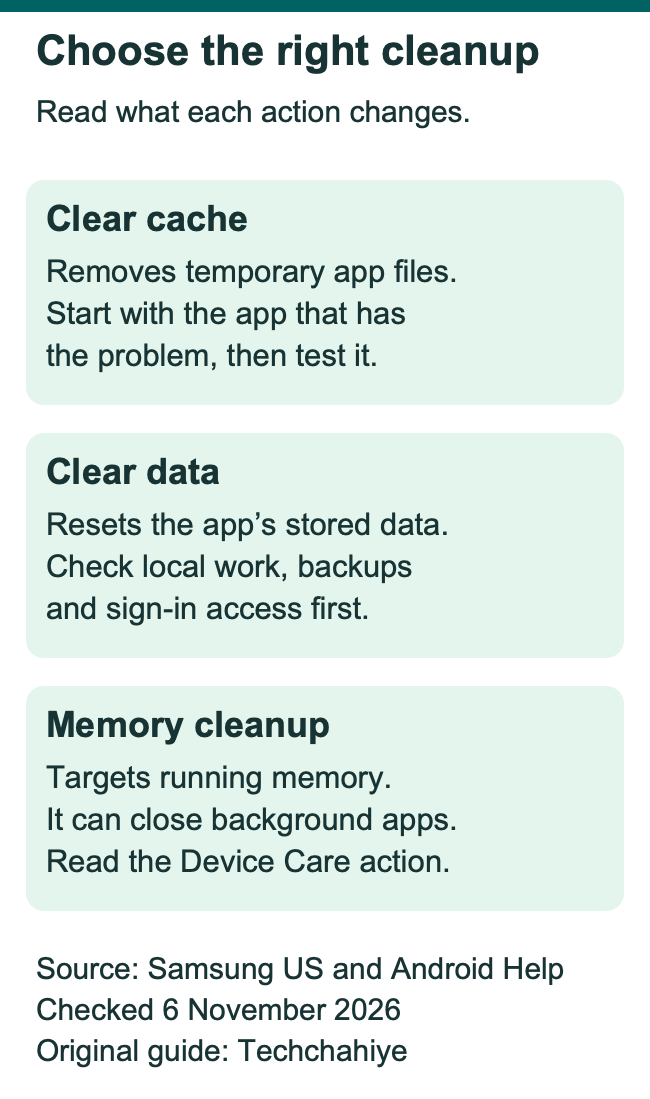
The labels describe different effects. A cache clear is the action this guide starts with. A data reset needs more preparation. Does the app hold a local draft, download or record? Find out how to save and restore that content before a reset.
A cloud account can be part of that preparation, but an account name alone does not prove a backup exists. Open the app’s own backup or sync status if it offers one. Check the content that matters to you and the method you would use to get it back.
Also confirm that you can sign in again. Samsung’s guide says to prepare your account details. Keep them available before you reset an app. Use the official account-recovery route if access is already a problem. Keep recovery codes and passwords private while getting help.
Choose the app from the symptom
A cache clear is easier to assess when the problem is specific. Write down the app and the action that fails. “The gallery stops when I open this album” is more useful than “the whole phone feels wrong.”
For one troublesome app, start with that app’s cache. Then use the same feature again. Keep the original file or message intact while you check. A short, repeatable task makes the before-and-after result easier to understand.
If several apps fail in the same way, look for a shared cause. Google’s Android app guide gives a check for web-based features. Make sure the internet connection is stable. An app-storage change will not establish whether a service or connection is working.
If touch stops responding, you may need to restart the phone to reach Settings. Use the Galaxy model’s supported restart route. Once it responds again, return to the app problem. Inspect its storage if that still fits the symptom.
A useful check has a clear stopping point. If the app works after the clear, resume the task and watch whether the fault returns. If it does not work, keep the result and try the next supported step. Repeating the clear without a change in the evidence adds little.
Expect the cache to grow again
A cache can build up as you use an app. Google’s Android app-help page calls cached-data removal a short-term storage solution. Temporary files can return over time, so a number that rises later is not by itself proof that the clear failed.
Suppose you clear a map app’s cache, then open several areas again. You are asking the app to load content for new work. You take the later storage reading after that new use. Compare it with the earlier reading in that context.
The first launch can also take longer. Google’s storage guide says some apps may be slow after cache removal. Let the app load before deciding that the change has made the original fault worse. A new error or repeated crash still deserves attention.
There is no useful universal target size for every app’s cache. Different apps perform different jobs. A photo-heavy tool and a simple calculator do not handle the same material. Use the phone’s storage details and the app’s behavior to judge what needs attention.
Avoid turning cache clearing into a fixed daily chore without a reason. If space keeps running out, inspect the categories using it. If one app repeatedly fails, review its updates and support. Those are more specific jobs than keeping every temporary-data figure close to zero.
Measure the space you can actually reclaim
Look at the app’s storage categories before expecting a large gain. Cache is only one part of its listed use. A large app-data amount can remain after you clear a much smaller cache.
Here is a hypothetical example using megabytes. These are made-up inputs for the calculation. They are not Galaxy phone measurements or a promise about your app.
| App storage category | Example amount before | Example amount after cache clear |
|---|---|---|
| App files | 300 MB | 300 MB |
| App data | 1,200 MB | 1,200 MB |
| Cache | 200 MB | 0 MB |
| Total in this example | 1,700 MB | 1,500 MB |
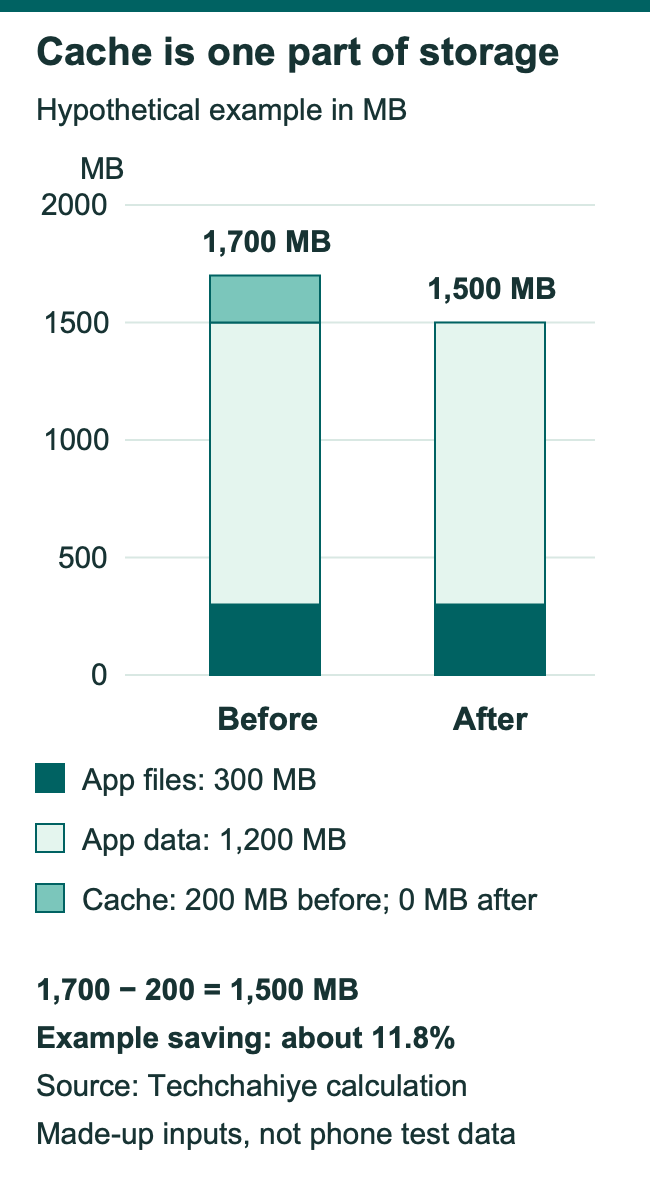
The example removes 200 MB from 1,700 MB. It leaves 1,500 MB because the other categories stay in the calculation. Removing the cache would then reclaim about 11.8% of the example app’s total listed use at that moment.
Your actual screen may use different categories, units or rounded values. Record the values it shows and compare like with like. Read the units first. Convert MB and GB amounts to the same unit before you subtract them.
Then review the phone’s total free space if that was your goal. Other activity may change it while you work. A download, an app update or new media can use space too. Keep the time and scope of the comparison clear before crediting every change to the cache clear.
Separate storage cleanup from memory cleanup
Storage and working memory have different jobs. Google’s Android guide describes storage as where you keep data such as photos and music. Memory is where apps and the system run.
Samsung’s Device Care help offers an overview of battery, storage and RAM. Its memory tools can close background apps and free working memory. That is a different target from the temporary files listed on one app’s Storage screen.
If your goal is to inspect saved files, use the storage information. If you are reviewing running apps, inspect the memory tools and their labels. A result in one area does not give you a full account of the other.
Samsung’s storage guide places file categories under Device care and Storage. It separately places Clean now under Device care and Memory. Available screens can vary by model, carrier and software. Read the menu on your device instead of using a screenshot from a different phone as an exact map.
Keep apps you rely on in view before using a broad background cleanup. A call, navigation session or active task has a purpose. Choose a time when you can check the effects and return to the work you need.
Use browser controls when your goal is website data
A browser has data choices inside the app as well as an app-storage screen in Android. If your goal involves a website, read those browser choices. Cache, cookies and history describe different kinds of information.
Google’s current Android Chrome help uses More, then Delete browsing data. More options lets you choose the data types to remove. Read the chosen period and categories before confirming. A broad deletion can affect much more than the cached page images you meant to refresh.
For example, Chrome lists cookies and site data as one choice. Cached images and files form another choice. It also lists saved passwords and site settings as separate categories. Select only the categories that match the task. Clearing one category is not a reason to erase every other one.
Google says clearing cache and cookies can remove some site settings. A site may ask you to sign in again. If you plan to remove those items, make sure you can regain the access you need. That check belongs before the deletion.
For another browser, follow that browser’s own help. Samsung’s app-cache route explains the Android storage action. It should not be stretched into a promise about every account, cookie or browser setting. Match the tool to the information you intend to remove.
Know what to do when the button is missing or dimmed
First check that you opened Settings, Apps and the chosen app’s Storage screen. A similarly named storage page elsewhere may describe the whole phone. Read the app name at the top before looking for the per-app controls.
Samsung says the software version and selected app can change the available steps. Some system apps have limits on data controls. If the choice is absent, check support for that app and model. A missing button alone does not identify a phone fault.
Read the cache amount too. If the category already shows no cached data, there may be little or nothing to remove there. Read the context for a disabled control. A more forceful tap or an unrelated setting change will not explain it.
Keep any message shown with the control. A managed phone may have its own restrictions, and a particular app may handle its files in a different way. Use the relevant administrator or app support route if the screen points to one.
Do not install a tool or reset the phone because a generic guide shows a button you cannot find. Give support the model, software version, app name and the screen you reached. Those details help establish which controls should be available in that case.
Continue app troubleshooting when a cache clear does not help
A cache clear is one check in a wider app-support process. Google’s Android guide lists more checks. They include a phone restart, an app update and a system update check. Use those supported steps when the same symptom remains.
For app updates through Google Play, open the profile menu and Manage apps & devices. Review the available update for the affected app. After a supported update completes, test the same task again. Keep track of whether you changed the app, system software or stored data.
If the app still fails while others work, Google directs readers toward the app developer. Send a clear description of the fault. Include the app version, phone model and the steps that lead to it. Leave personal messages and account secrets out of shared evidence.
A reinstall can remove local app content. A data reset can do the same. Prepare the needed backup and access first. Use the app’s own instructions for either step. Choosing a larger reset because a small step failed is a new decision with a different effect.
Does the problem affect normal use across apps? Follow Samsung’s device support route. A repair handoff also needs its own data preparation. Cache clearing alone does not prepare a phone for someone else to service it.
Choose a longer-term storage plan when space stays low
If the phone remains short of room, review which categories occupy it. A cache clear can remove temporary data, but it may leave the much larger files you actually need to assess. Start with the storage view and choose one category to review.
Look at downloads and offline media within the apps that own them. Google’s Android storage guide explains where to remove downloads. Use the app that supplied the content. Keep the items you still need offline. Check them before travel or time away from a reliable connection.
For photos and other personal files, check the saved copy before removing the phone’s copy. A cloud account and a finished backup are different things. Open the content through the recovery route you plan to use. Confirm what you can get back from there.
Set a goal that matches the task. You might need room for one update or a large recording. Compare the actual space needed with what your review has freed. A long list of cleared caches can still leave that goal unmet.
Keep the useful files and remove only items you have chosen. The aim is a phone that can do the work you need, with a clear plan for important content. A short-term cache cleanup can fit that plan without taking the place of it.
Did You Know?
Google’s Android app-help guide says cached data builds up again over time. A cache that returns after you use an app is an expected possibility. Check whether the original app problem is gone, as well as how much space the change freed.
Conclusion
To clear cache on Samsung, choose the app in Settings, open Storage and tap Clear cache. Then reopen the app and test the same task. Keep Clear data as a separate reset decision that needs preparation. If the problem or storage shortage remains, move to support. Choose the app or device route that matches it.
FAQs
Does clearing cache sign me out of every app?
A per-app cache clear targets that app’s temporary data. It is different from resetting the app with Clear data or deleting browser cookies. Read the exact action and selected app before you confirm it. If a sign-in prompt appears later, use that service’s normal access route.
Why is my Samsung app’s cache large again?
Apps can build cached data again as you use them. Google describes cache removal as a short-term way to free space. A later increase alone does not prove the clear failed. Check when you used the app and whether the issue you meant to fix has returned.
Should I clear data if clearing cache does not work?
Review the app’s support steps and your saved content before resetting its data. Samsung warns about Clear data. It removes the app’s personal settings and stored information. Confirm a usable backup or sync route and sign-in access first. A failed cache clear does not remove those preparation needs.
Can I clear every app’s cache with one button?
Samsung’s standard guide gives a per-app Clear cache route. It does not provide a general one-button cache clear for every installed app. Start with the app that has the problem. Keep a whole-device reset as a separate decision. It has a broader effect than clearing temporary files.
How much space will clearing cache free?
The amount depends on the temporary data present in the selected app. Read its cache figure before you act, then check the result. The calculation above uses hypothetical amounts to show why other storage categories remain. Your app’s size and the phone’s total free space can differ.
References
- Samsung US — Clear the app cache and data on your Galaxy phone or tablet
- Samsung US — Free up storage space on your Samsung phone or tablet
- Samsung US — Keep your Galaxy phone or tablet from slowing down with Device Care
- Google Android Help — Free up storage on your Android device
- Google Android Help — Fix an installed Android app that is not working
- Google Chrome Help — Delete browsing data in Chrome on Android
- Google Account Help — Clear cache and cookies on Android
- Techchahiye — Restart a Samsung phone or handle a frozen screen
- Techchahiye — Samsung Maintenance mode before a repair
- Techchahiye — Samsung account password reset
