

Prepare the file before the network gap
Turn on supported offline access, choose the files you need and check their status. Keep device, browser profile and account straight. Confirm the latest work after reconnecting.
Key Takeaways
- Set up offline access while you still have internet access. A saved link alone is not a ready offline file.
- On a computer, Google supports Chrome or Edge with the Google Docs Offline extension. Do not use private browsing for this setup.
- Choose the files you need and check their offline status. On a phone, use the Docs app’s Make available offline control.
- Keep the browser profile, Google Account and device tied to the copy you prepared.
- After reconnecting, check that the latest work reached Drive. Do that before clearing data or retiring the device.
To make Google Docs available offline on a computer, turn on Offline in Google Drive settings. Then open the file and choose File, Make available offline. Check its status beside the title before relying on it. On Android or iPhone, use More beside the file in the Docs app, then Make available offline.
Do this before a flight, a long commute or a planned network outage. The useful result is a file you can open and edit on the device you will use. A bookmark, an app icon and a copy on another computer do not establish that result.
Google documents separate computer and mobile routes. This guide explains both. It also covers account mix-ups, device storage and the return to online work. The setup steps follow Google Help, checked 6 November 2026. Use the plan below to check your own files.
Choose an offline file, an export or a desktop copy
Start with the kind of file you want to use. Different forms of “saved” can lead to different tools and results.
| Your task. | Suitable starting point. | What to check. |
|---|---|---|
| Edit a Google Doc in a computer browser without a connection. | Google Docs offline access. | Supported browser, correct profile and ready file. |
| Edit a Google Doc in the phone app. | Make available offline in the Docs app. | The file appears under Offline. |
| Read a separate PDF or Word copy. | File, Download while you can prepare it. | The downloaded file opens in the chosen reader. |
| Use ordinary files from a desktop Drive folder. | Drive for desktop’s file settings. | The file’s streaming or mirroring mode. |
Google’s Drive help draws a useful boundary. For native Docs, Sheets and Slides files, it points to offline access on the web. The desktop streaming and mirroring choices have their own scope. A Drive folder in Finder or File Explorer is not the whole setup for editing a Google Doc offline.
For the full desktop-file comparison, use Techchahiye’s stream-versus-mirror guide. Keep this guide focused on the native document you intend to open in Docs.
Prepare the computer while you are online
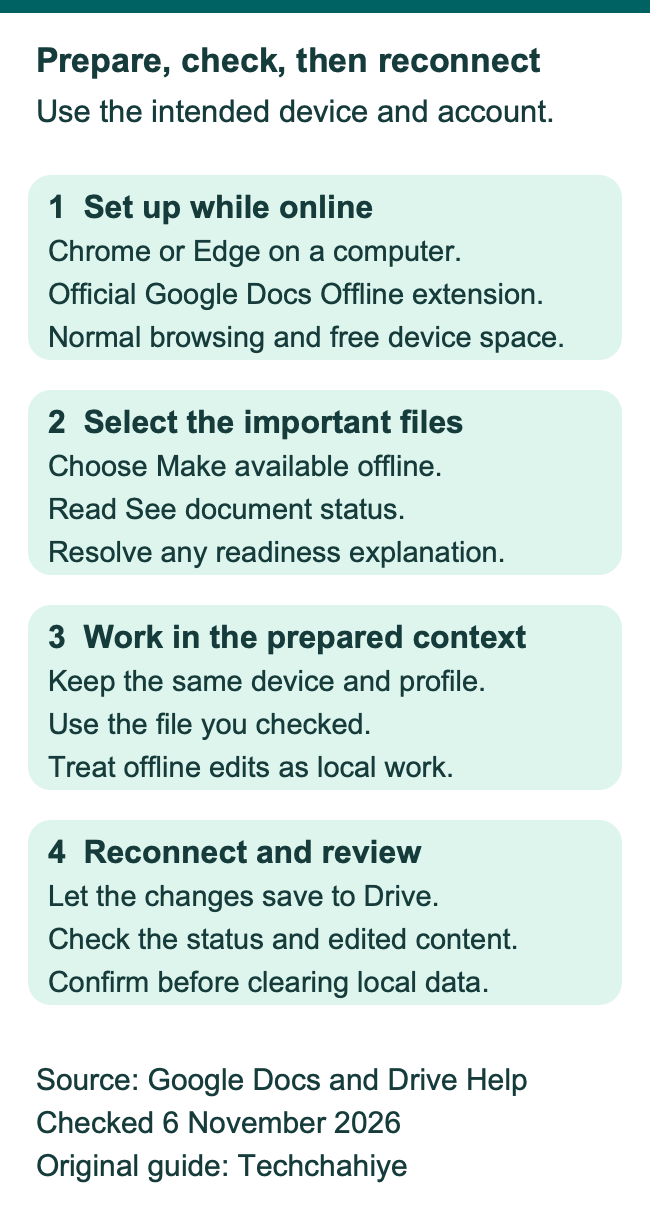
Google lists five conditions before turning on offline access. Connect to the internet for setup. Open Chrome or Edge in a normal window. Enable Google Docs Offline and allow enough free device space.
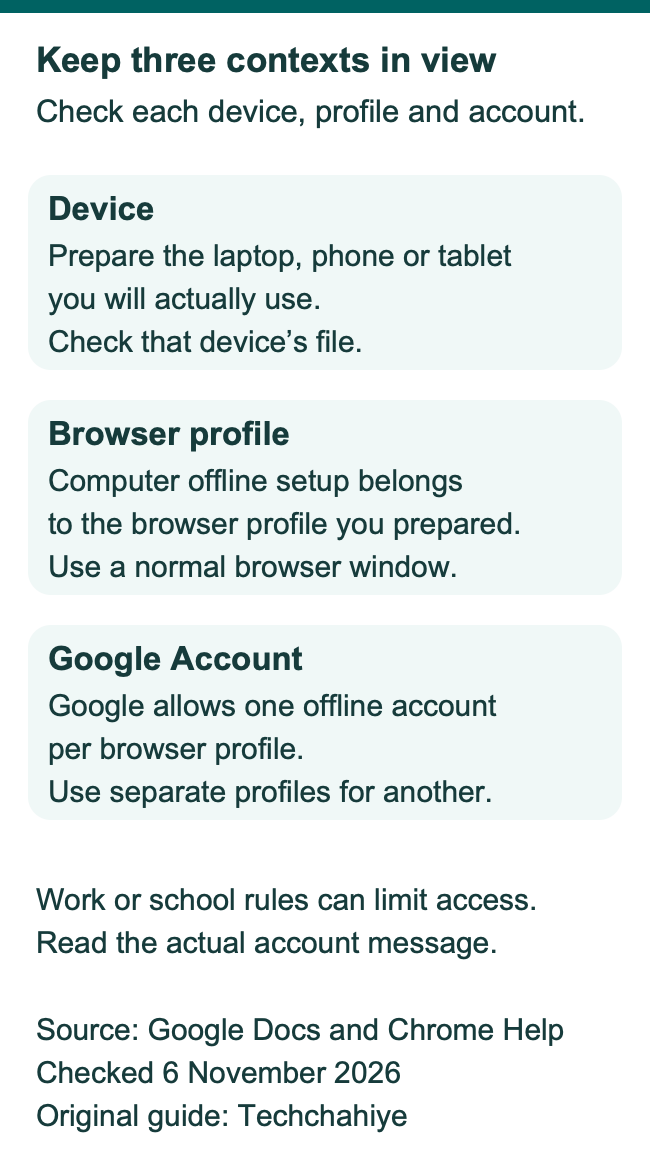
Use the computer and browser profile you plan to take with you. Setting up a file on a home desktop does not show that your travel laptop has it. Likewise, preparing it in one browser profile does not show that a file is ready in another.
Install the official Google Docs Offline extension from the linked Google source. Google’s Edge instructions send users to its Chrome Web Store listing too. Read the actual permission prompt and follow your work or school rules. This guide does not recommend a look-alike extension from a search ad.
Avoid private or incognito browsing for this workflow. Google excludes it from the supported setup. Do you use a private window for a second account? Choose the proper browser profile before this offline setup.
Check free storage on the device as well. A file saved for offline work needs a local copy. Space in your Google Account is a different resource from space on the laptop.
Turn on offline access in Drive
Google’s computer guide starts from Drive settings. Use the account that owns or can edit the files you need.
- Open Google Drive in Chrome or Edge while online.
- Open Settings, then Settings.
- Turn on Offline.
- If asked, follow Google’s route to install or enable Google Docs Offline.
- Open Google Docs and prepare the specific files you need.
Google also documents offline setup from the Docs, Sheets or Slides settings. Another route starts beside an open file’s title. Open See document status, then choose the option to turn offline access on. Use the visible route that fits your current screen.
Read the setting rather than guessing from the app’s appearance. Google notes that offline may already be on in some setups. Your next task is still to check the actual file. An enabled general setting does not prove that every document you might need is ready.
Make the important files available on purpose
Google says some recent files can save offline when there is enough storage. Do not let “recent” stand in for a deliberate trip list. Select the files that matter to the task.
From the Docs home screen, find the file and open More beside it. Choose Available offline. Google’s help describes a check mark on the file when it is available. You can also open the file and choose File, Make available offline.
Drive offers a related route. Right-click the native Google file and choose Make available offline. You can select several files first if you need a set. Match the file names to your plan before applying the choice.
Here is a hypothetical class trip set: an itinerary, a report draft and the group’s contact sheet. Those are example roles, not a recommended public place for private details. Choose the files you need on that device. Follow the rules for any private information in them.
Give the set clear file names. Inspect those files instead of relying on what you recently opened. It also makes later cleanup a clear choice about known files.
Check the file before leaving the network
Open the actual file on the chosen computer. Beside its title, open See document status. Google says the status explains when a file is not ready for offline editing.
Read that explanation before changing unrelated settings. The file may still need setup, storage or a supported browser context. Use the status to narrow the problem. Check it while the network still works.
For an extra reader-run check, prepare a harmless sample file through the same route. Temporarily disconnect when it is safe to do so, open the sample, add a short test line and reconnect. Check that the line reaches the online file. Use this small test to check your own setup.
Then check the real files too. A sample can test the route you followed. It cannot prove that a different file, account or device is ready. Keep the test small and avoid using the only copy of important work for an experiment.
Make a Google Doc available offline on Android
Use the Google Docs app on the Android phone or tablet. Google’s mobile guide gives a file-specific route.
- Open the Docs app.
- Find the file you need.
- Tap More beside it.
- Tap Make available offline.
- Open Menu, then Offline, and select the file there.
The app has a recent-files choice too. Open Menu, then Settings, then Make recent files available offline. Use that if it fits your routine. Keep it separate from deliberately selecting a particular file for a planned task.
Check which Google Account the app is using. Two accounts may hold files with similar titles. Check which copy you prepared. Open the one you need from Offline and inspect its content while you still have time to fix a mismatch.
A Google Doc in a phone browser is a different context from the Docs app. Use the app route above when following these mobile steps. Do not search for a computer-only extension control inside the phone app.
Prepare files on iPhone or iPad
Google’s iPhone and iPad instructions also use the Docs app. Open More beside the chosen file and tap Make available offline. To find the saved files, use Menu, then Offline.
For recent files, open Menu and Settings, then turn on Make recent files available offline. That is a convenience setting. For a particular file, use its own Make available offline choice and check it in the Offline list.
If you opened the file from an email link, identify which app holds it. The link may take you to a browser or to Docs. Start in the Docs app when comparing your screen with Google’s iPhone instructions.
For a hypothetical workday, you prepare two files. A meeting brief goes on the iPad. A different file goes on the laptop. Check each device’s own copy. Using the same account connects the devices. Each still needs its own ready offline set.
Keep the prepared device until its changes reach Drive. That gives you one clear source to check when you reconnect.
Keep browser profiles and accounts straight
Google says only one account per browser profile can have offline access enabled. Another account may already use that profile for offline files. Google can show an account-conflict message in that case.
Use a separate browser profile for another account’s offline setup. Google’s Chrome help explains the profile boundary. Profiles keep account settings, history and other browser details separate. Choose a clear profile name so you can tell work and personal contexts apart.
Do not confuse an account switch in a website with a complete browser-profile switch. When diagnosing an offline problem, note both. The useful record is the browser profile, Google Account and file you prepared.
A school or work account can also have an admin restriction. Google’s offline help says an administrator can disable offline sync. If that message appears, ask the admin about the permitted route. An extension reinstall cannot overrule the account’s policy.
This is an access question, not a reason to move work into an unapproved personal account. Keep the file and its permissions within the rules that apply to it.
Check the return to online work
Google’s help says offline edits save on the device. They save to Drive after you reconnect. That gives the work two stages: local editing and the later cloud update.
After reconnecting, open the file in the same app or browser profile. Inspect its save status and the last section you changed. Do that before clearing browser data or removing the profile. Check before handing the device to someone else too.
Google’s Drive help warns that new changes can overwrite earlier changes. It also points to version history for reviewing edits. Do not assume disconnected copies behave like live group edits. Review the combined result after reconnecting.
For a shared draft, tell the group which section you will work on offline. When back online, review the combined file before calling the task finished. Choosing sections is an agreement with the group. It does not lock the file against other edits.
Google says you need editing access to browse earlier versions. Check that access before relying on version history. Use the history to inspect changes first. Restoring a whole version is a broader action than reading an earlier paragraph.
Separate device space from cloud storage
Offline files use space on the device. Google lists available local storage as a setup need. A cloud storage upgrade does not by itself prove the computer can hold another offline copy.
Read the message and the device’s storage view together. If the laptop is nearly full, choose which local files you can remove or move through your normal process. Do not delete source work merely to make a setup error go away.
There is no single free-space amount in this guide that guarantees every Doc will be ready. Files and devices differ. Google’s help also addresses files that keep failing to sync. It says the file may need to be smaller. It suggests copying smaller sections into new files.
If you use that approach, name the parts clearly and keep the original until you check the result. Decide which file now holds the latest work. Use clear names when splitting a draft. Readers should know which copy to edit next.
Know how an export differs from offline Docs
A downloaded PDF or Word file is a separate copy. Google’s download route is File, Download, then the chosen file type. Prepare and open it before the network gap if that is the form you need.
A PDF can suit reading a fixed handout. A Word copy needs an app that can edit that format. Editing the separate copy does not prove the Google Doc changed. Plan how to bring any needed edits back to the source.
Use file names that make the purpose clear. A hypothetical title is “Brief — reading copy.” It marks a fixed export rather than the shared live draft. Put the actual date or version in the name when that helps your group identify it.
Keep sharing rights in view. Offline access is not permission to bypass a file owner’s restrictions. If you cannot open or edit the source, use Google’s access guidance and ask the owner for the access the task needs.
Fix the specific offline problem you see
Start with the supported browser, normal window, correct profile and official extension. Google’s troubleshooting lists those checks before the deeper resets. They help separate a setup mismatch from a problem in one file.
If the account reports that an admin disabled offline sync, use the admin route. If another account owns offline access in the profile, review the profile setup. For a large file that keeps failing, read its status and check its size.
Google lists several resets for setup failures. These include reloading, turning offline off and on, and clearing site data. Treat data clearing as a later reset. First reconnect and check that important edits have reached Drive. Is the only current text still on the device? Preserve that work before resetting local storage.
Keep an exact error record when asking for help. You can show the status and relevant menu without exposing a private file. Note the browser, account type and whether one file or every file fails. That helps support staff choose the right next check.
Did You Know?
Google says Docs, Sheets, Slides and Drive use the same computer offline setting. Turning it on through one can enable the rest. Turning it off through Docs, Sheets or Slides also turns it off for the others. Review that scope before changing a setting for one app.
Conclusion
Make Google Docs available offline before you need the offline copy. Prepare the chosen device and account. Select the important files and read their status. Use the Docs app on phones and tablets. After reconnecting, check that the latest work reached Drive. Do that before cleaning up local data.
FAQs
Is a bookmark enough to open my Google Doc offline?
A bookmark saves an address. It does not establish that the document is ready on the device. Turn on supported offline access, select the file and check its status. On a phone, find the prepared file in the Docs app’s Offline list.
Can I use Safari for the computer offline setup in this guide?
Google’s current offline instructions name Chrome and Microsoft Edge. Use one of those for the documented computer route. Do not apply a browser list from another feature, such as voice typing, to offline access. The supported context belongs to each feature.
Why does offline setup say another account already uses this computer?
Google allows one offline account per browser profile. Check which profile you opened and which account already uses it. Google’s help recommends separate profiles for separate offline accounts. A work or school policy can impose another limit, so read the actual message.
Will an offline edit appear in Drive right away?
While disconnected, the edit saves on the device through the supported offline setup. Google’s help says it saves to Drive after reconnection. Check the status and the edited content once online. Do not treat a visible local change as proof that another device already has it.
Does offline access replace a backup or a checked export?
It serves a different job: letting you work with a prepared file without a connection. A separate export is its own copy, and version history has its own access rules. Choose the form you need, open it in the chosen app and check where the latest work lives.
References
- Google Docs Help — Work offline on a computer
- Google Docs Help — Work offline on Android
- Google Docs Help — Work offline on iPhone and iPad
- Google Drive Help — Use files offline
- Google Chrome Help — Manage browser profiles
- Google Docs Help — Save or download a file
- Google Docs Help — Find changes and earlier versions
- Google Drive Help — Understand access to files
- Techchahiye — Google Drive stream versus mirror
- Techchahiye — Google Docs dark mode by device
