


Choose the scope before the timer
Use a chat’s setting for one conversation. Use Default message timer for new chats. Check kept messages and group rules. Keep lasting details in a suitable place.
Key Takeaways
- Open a chat, tap its contact or group name, then choose Disappearing messages. Pick a timer or Off.
- The choices are 24 hours, 7 days and 90 days. A new choice applies to new messages, not the whole earlier chat.
- Default message timer sets the starting choice for new individual chats. Check an existing chat on its own.
- Group rules can limit timer changes to admins. A kept message and a forwarded copy also need separate checks.
- A timer helps manage chat history. It does not promise to remove every copy of what you share.
To set disappearing messages in WhatsApp, open the chat and tap its name. Choose Disappearing messages, then pick 24 hours, 7 days, 90 days or Off. Follow the prompt to apply the choice. For new chats, use Settings, Privacy and Default message timer instead.
The hard part is choosing the right scope. You may want future chats to start without a timer. Or you may want one current conversation to stop using it. Those jobs use different controls. Changing one does not prove that the other now matches your plan.
This guide covers Android and iPhone using WhatsApp’s current help. It explains the timers, group limits and kept messages. It also shows why expiry should not be your only plan for a message that matters.
Choose the control that matches your goal
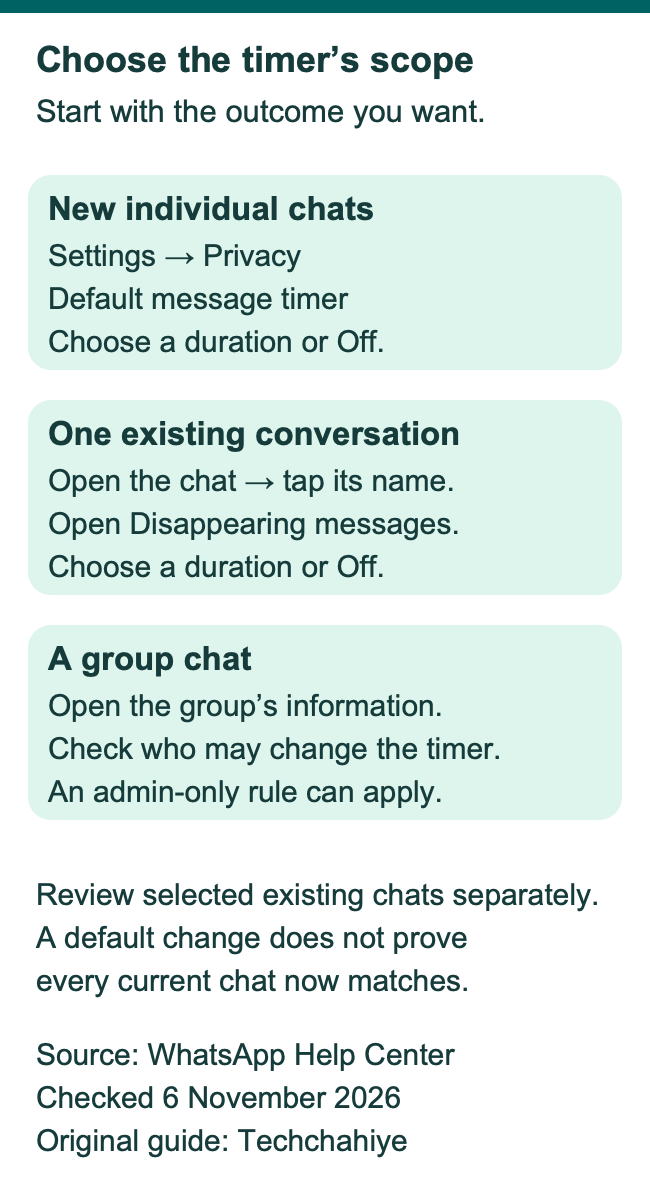
Start with the outcome you want. Are you setting a starting rule, changing one chat or handling a group? Name that task before opening a menu.
| Your goal. | Where to start. | What to check. |
|---|---|---|
| Set a rule for new individual chats. | Settings, Privacy, Default message timer. | The duration or Off. |
| Change one existing conversation. | Open the chat and tap its name. | That chat’s Disappearing messages setting. |
| Change a group timer. | Open the group’s information. | Timer choice and who may change it. |
| Keep one timed message. | Review the kept-message feature. | The message’s state and sender’s choice. |
WhatsApp’s guide also offers a way to apply a timer to selected existing chats. Review that selection as its own action. A default for new chats is not the same as a checked list of current conversations.
For a hypothetical example, you want new chats to have no timer. You also have a family chat using seven days. Set the default to Off, then open that family chat and review it. The first task sets the starting rule. The second tells you what that current chat uses.
Understand when the clock starts
WhatsApp says the duration runs from the send time. It is not a promise that each person gets that much reading time after opening it. Keep that distinction clear when sending a deadline or a plan.
Here is a hypothetical example with no clock change during the period. A message goes out at 2 p.m. on Friday with a 24-hour timer. That gives a 24-hour window from Friday’s send time. It does not create a fresh 24-hour window when someone opens the chat on Saturday.
The three choices serve different habits. Twenty-four hours is a short window. Seven days leaves a week. Ninety days keeps a much longer trail. Choose for the kind of chat and how often people read it. No one timer suits every conversation.
WhatsApp also notes that an unopened message can disappear from the chat. A preview may remain until the person opens WhatsApp. A preview on a phone is a different surface from the message in the chat itself.
Set or turn off the timer in an Android chat
Use the chat you intend to change. WhatsApp’s Android help gives the following route for an individual conversation.
- Open the chat.
- Tap the contact’s name at the top.
- Tap Disappearing messages.
- Tap Continue if that prompt appears.
- Choose 24 hours, 7 days or 90 days to use a timer. Choose Off to stop it for new messages.
- Use the back control to apply the change, as shown in WhatsApp’s help.
Return to the same chat and read its current setting. That is more useful than testing a different contact or looking only at the app’s default. Keep the chat name in view so that the result belongs to the conversation you meant to change.
If you are using a group, read the group section below too. The menu route can look familiar while your right to change it differs. An admin-only rule calls for the group’s admin, not repeated taps on the same control.
Set or turn off the timer on iPhone
WhatsApp’s iPhone help uses the same main chat controls. Start with the specific conversation you want to change.
- Open the chat.
- Tap the contact’s name.
- Choose Disappearing messages.
- Tap Continue if asked.
- Select 24 hours, 7 days or 90 days. To stop the timer for new messages, select Off.
- Use the back control to apply the choice.
Check the result in that same conversation. A setting on an iPhone belongs to the chat or default you selected. Do not assume that changing the new-chat default also changed each old chat.
If someone sends you a screenshot of Android’s menus, use it for context. Follow the iPhone route in the official help for the actual controls. The labels matter more than matching the shape or position of another phone’s icons.
Choose a default for new individual chats
The default timer gives new individual chats a starting rule. WhatsApp lists it under Settings, Privacy and Default message timer. You can choose the same three durations or Off.
On Android, start from More options, then Settings and Privacy. On iPhone, open Settings or your profile picture, then Privacy. Open Default message timer and read the chosen option before changing it.
WhatsApp’s current instructions then offer a choice about existing chats. You can select the chats where you want to apply the timer. If you do not want to change existing chats, use the back control as the help describes. On iPhone, its selected-chat route uses Apply.
Read that selection rather than rushing through it. For example, a new-chat rule for casual plans may suit one set of conversations. Applying it to every current chat would be a broader decision. Keep the selected names tied to the outcome you want.
A useful check has two parts. Reopen Default message timer to confirm the starting rule. Then inspect any current chat you chose to change. Those screens answer different questions.
Respect the group’s timer rules
WhatsApp says group members can change disappearing messages by default. A group admin can restrict that power to admins. That is why a setting available in one group may be unavailable in another.
Open the group chat and tap its name to see the group’s information. Open Disappearing messages. If prompted, choose Continue. Select a duration or Off, then apply the choice using the control shown for your phone.
If the group limits the change to admins, ask an admin to review the rule. Explain the actual need. For example, travel plans may need to stay until everyone has read them. Give the group a clear reason to choose a different timer.
Treat this as a shared history choice. A group for a weekend event and a long-running study group may need different records. Discuss which details should live elsewhere. Decide that before relying on a timer to manage the chat.
A group timer is also separate from your new-individual-chat default. Inspect the group itself. A broad setting title can confuse this check. Start with the group you mean to change.
Know what Off does to earlier messages
WhatsApp says the latest duration controls new messages. It does not change the rule for messages already sent or received. Read that as a limit on what a timer change can do.
Suppose a conversation used seven days yesterday. Today you choose Off. Do not treat that choice as a way to keep every earlier timed message. The new setting applies to new messages. Check the state of an earlier message on its own.
The same distinction works in the other direction. Turning on 24 hours is not a tool for clearing an entire old conversation. Existing messages do not all gain the new timer because you changed the current setting.
This helps explain a common mixed result. A chat can hold older messages with one history rule and newer messages with another. Compare when you changed the setting with when you sent the message. That is a better starting point than assuming the app ignored your choice.
Understand kept messages before relying on expiry
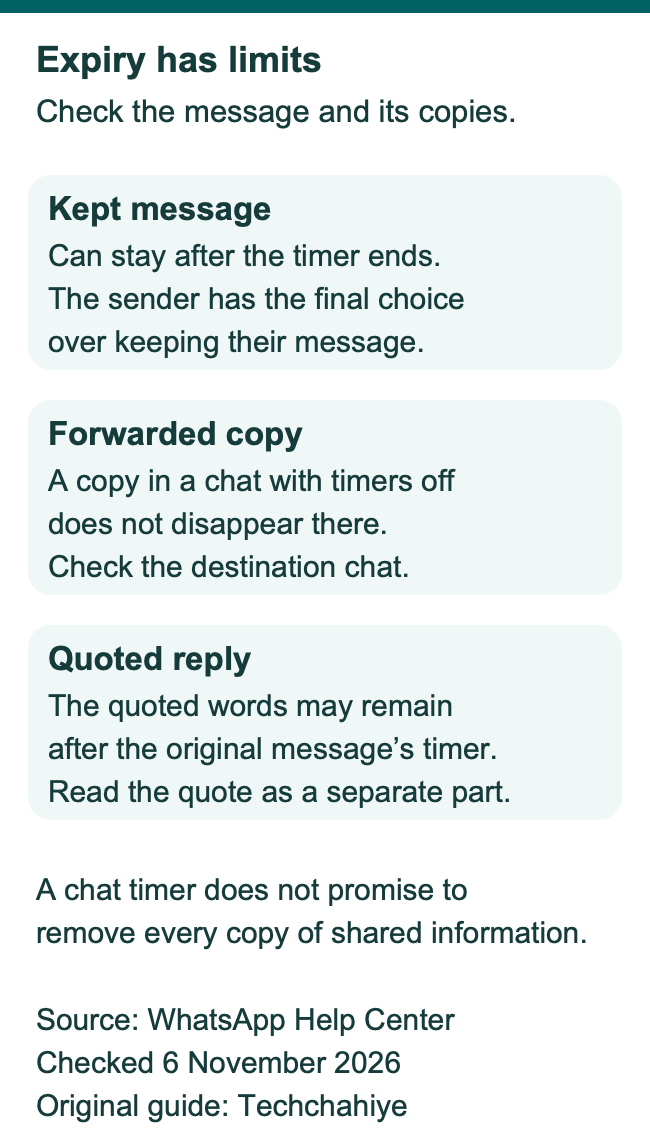
A kept message can stay in a conversation after its normal timer ends. WhatsApp says people can keep a disappearing message before its duration passes. The kept-message feature has its own rules and sender controls.
WhatsApp’s help says a kept message is visible to everyone in the conversation. The sender gets a notice when someone keeps a message they sent. The sender has the final choice over keeping it. If the sender unkeeps it, others cannot keep it again.
Do not assume the sender can wait forever to unkeep a message. WhatsApp’s help places a time limit on that choice. Check the current message and kept-message help when timing matters. Group admins can also limit who may keep messages.
For a practical review, ask which message you mean and whether someone kept it. “This message is still here” does not, by itself, show a broken timer. A kept state is one documented reason to inspect.
WhatsApp also says turning disappearing messages off removes the option to keep them. Do not confuse choosing Off for future messages with choosing Keep for one timed message. Those are different actions.
Check forwarded copies and quoted replies
Expiry in one chat does not prove that every version of the words has gone. WhatsApp gives two clear examples in its help: forwarding and quoted replies.
Someone may forward a timed message to a chat with timers off. The forwarded copy does not disappear there. The receiving chat has its own history rule. A timer in the source chat does not follow every copy into every destination.
A quoted reply can also keep the original text after its duration passes. Read the reply and the original message as separate parts of the conversation. Words inside a quote are a separate copy. Their presence does not prove the original timed message remains.
These limits matter before sending private information. Decide whether you want to share the information at all. The timer cannot replace that choice. Someone can also remember or write down what they read. That is a basic limit of sharing words. It is not a special WhatsApp test result.
Give important details a suitable home
Use a timer for the kind of chat where an expiry rule makes sense. Keep lasting information in a place chosen for that purpose, with the right people able to access it.
For a hypothetical group trip, the chat can handle changing meal plans. A shared itinerary can hold the confirmed address and booking reference. That avoids making the only copy of an important detail depend on a casual chat timer.
For work or school, follow the record-keeping rules that apply to the group. This guide does not decide which business records you must keep. Ask who owns the record and where it should live. Do that before changing a shared chat’s timer.
Explain that plan to the people involved. They should know which source holds the final information. Use the timer to support a clear habit. Explain its role before people lose a message they expected to keep.
Keep backups separate from message expiry
WhatsApp says a backup made before a message disappears can include that message. Its help also says a restore deletes disappearing messages from that copy. A backup is not a promise of a permanent copy of every timed message.
Use the backup date to understand what a copy might contain. Then keep the service’s restore rule in view. A message might enter a backup. Whether it remains after restore is a separate question.
If you are moving phones, plan the backup or transfer first. Techchahiye’s separate WhatsApp backup guide covers that workflow. Keep the timer task focused on chat behavior, rather than using it to experiment with a restore.
If important chats are already missing, avoid a hasty new backup. The existing backup guide explains why its date and contents matter. First identify whether you are dealing with a timer, a deleted chat, a new phone or the wrong account.
Review media and other message types
WhatsApp’s current disappearing-message help has a specific media note. It says media sent in a chat with disappearing messages on will disappear and will not save to your photos. Read that statement within the feature’s stated scope.
It does not establish that every copy of an image everywhere has vanished. A file someone already has elsewhere is a different object. Use the forward and quote limits above as reminders to check the actual path of the information.
WhatsApp also lists an exception for payment or order-related messages in certain countries. Do not assume every message type in every country supports the timer. Inspect the specific message and current help if the option seems missing.
Keep “view once” separate too. WhatsApp gives that feature its own help page. It has its own media rules. A chat timer and a view-once item use different controls. Read the help for the feature you selected.
Find the cause of an unexpected result
Begin with the narrowest question: which chat, which message and which setting? Write down the selected timer and when you changed it. Keep private chat text out of a support screenshot if the setting alone explains the issue.
If a chat still uses a timer, compare it with Default message timer. You may have changed the new-chat rule. This existing chat can still need its own change. Inspect the current chat rather than switching the default back and forth.
If one message remains, check its send time, kept state and whether you are looking at a quote or forwarded copy. If a group control is unavailable, check the group’s admin rule. Each observation points to a different cause.
If you chose a timer for several existing chats, review the selected names. A chat you did not select needs its own review. Make one focused change, then confirm that same screen. That keeps the result tied to the action you took.
Did You Know?
WhatsApp says disappearing messages also apply to messages you send to yourself. A self-chat is not a lasting notebook because you are its only reader. Check its timer before trusting it with the only copy of a detail you need later.
Conclusion
Choose the scope before changing WhatsApp disappearing messages. Use the chat’s setting for one conversation. Use Default message timer for new individual chats. Check group permissions and kept messages. Review earlier messages by their own rules. Give lasting details a suitable home.
FAQs
Does the timer start when the other person reads my message?
WhatsApp says it runs from the send time. Do not plan around a fresh reading window when someone opens the chat later. Choose the duration with that limit in mind. Keep a lasting detail elsewhere when people may not read it in time.
Will switching Off bring back a message that already vanished?
Off is a setting for new messages, not a recovery command. It does not prove that an earlier timed message will remain or return. Identify when the message went out and which rule applied. Use the separate backup or recovery help for a genuine missing-history problem.
Why can another person change the timer in our chat?
WhatsApp says either person can change it in an individual conversation. Groups have their own rule. Members can normally change it, but an admin can limit that power. Check which type of chat you are in before trying to fix the setting.
Does a kept message disappear at the normal deadline?
WhatsApp says a kept message stays visible after its duration ends. The sender has the final choice over keeping it. Review the message’s state and the sender controls in current help. Keeping one message is different from setting a whole chat to Off.
Does turning off the default timer change every existing chat?
The default sets the starting rule for new individual chats. WhatsApp also offers a separate existing-chat selection. Review that selection or open the chat itself. Do not treat a default change as proof that each conversation now uses the rule you want.
References
- WhatsApp Help Center — About disappearing messages
- WhatsApp Help Center — Turn disappearing messages on or off, Android
- WhatsApp Help Center — Turn disappearing messages on or off, iPhone
- WhatsApp Help Center — Disappearing messages in groups
- WhatsApp Help Center — About kept messages
- WhatsApp Help Center — About view once
- Techchahiye — Back up WhatsApp chats on Android and iPhone
- Techchahiye — Change your WhatsApp number
