

Find the right way to cross out text
Use the Format menu or a device shortcut. Text styles, checked tasks and suggested edits make different kinds of lines. Find the right control for each.
Key Takeaways
- Select your text, then choose Format, Text, and Strikethrough on a computer.
- Use Alt + Shift + 5 on Windows or a Chromebook. On a Mac, use Command + Shift + X.
- A crossed-out word stays in the document. Use clear labels when its status matters.
- Find the cause of a line before you remove it. Text styles, checked tasks and suggested edits use different controls.
To add strikethrough in Google Docs, select the words you want to cross out. On a computer, open Format, choose Text, then select Strikethrough. Google lists that route in its current formatting help. You can also use a keyboard shortcut for the device you are using.
The line leaves the words visible. That makes it useful for an old date, an option you ruled out, or a rough list. Readers can still see what changed. For a shared draft, also decide whether you want a simple visual mark or a change that someone must review.
Start with a short selection. A single word is enough to check the result before you format a whole section. Then follow the route below for your device and the kind of line you see.
Add strikethrough from the desktop menu
The menu is a good place to start when you use the feature rarely. It gives you a named command and avoids the need to recall a key combination.
- Open your document in Google Docs.
- Select the exact text you want to cross out.
- Open Format at the top of the editor.
- Choose Text, then Strikethrough.
- Read the marked text and the words on either side.
Google’s screen reader guide also documents the Format and Text route. The named command is useful when a shortcut is hard to press or a keyboard uses a different layout.
Keep the selection as small as the meaning allows. If only a date is out of date, select the date. Crossing out the whole sentence could make the rest of its message look out of date too.
For example, imagine a meeting note that says “Room 4, Tuesday.” The room stays the same, but the day changes. Crossing out Tuesday and adding Wednesday preserves that distinction. This is a made-up example. Docs does not check your calendar through this text mark.
After you apply the mark, click away from the selection. Read the sentence as a reader would. A colored selection can make a thin line hard to judge. Click outside it to see the final look.
Use the shortcut for your device
Google publishes different shortcuts for desktop and mobile platforms. Match the device and app before you follow a saved tip.
| Where you are editing | Google’s listed strikethrough shortcut |
|---|---|
| Windows computer | Alt + Shift + 5 |
| Chromebook | Alt + Shift + 5 |
| Mac computer | Command + Shift + X |
| Android with a hardware keyboard | Alt + Shift + 5 |
| iPhone or iPad with a hardware keyboard | Option + Shift + 5 |
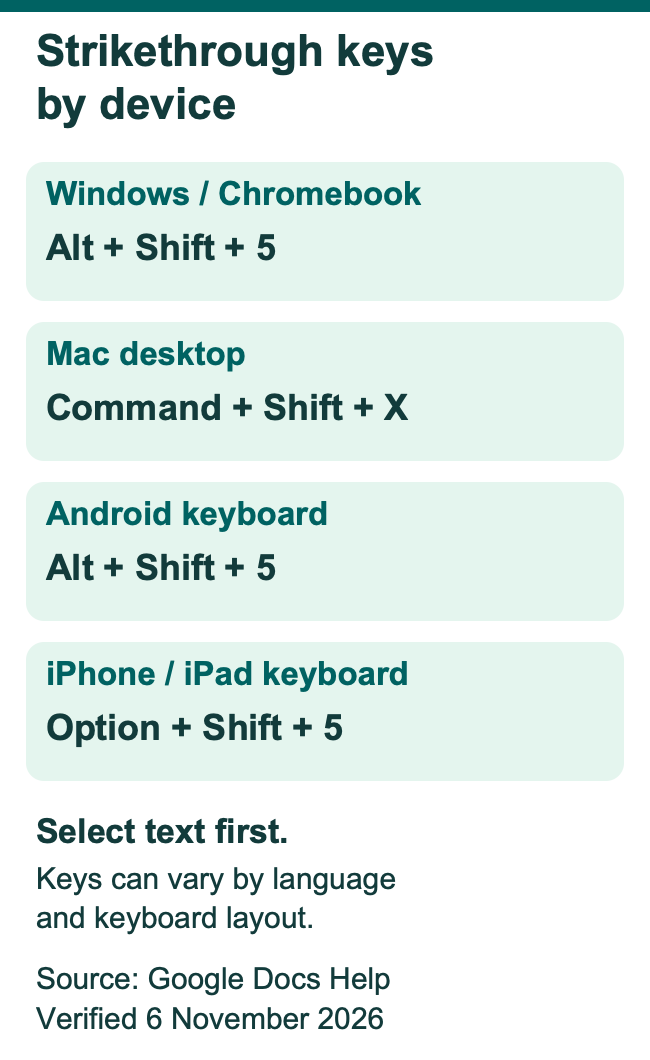
Select the text before you press the keys. Hold the modifier keys, press the final key, then release them. A keyboard shortcut describes keys pressed together. You do not type the plus signs.
The mobile rows refer to a physical keyboard connected to the device. They are useful for a tablet with a keyboard case. A phone’s touch keyboard and formatting controls use a different route.
Google notes that shortcuts can vary with language and keyboard layout. If the command fails, use the menu. On a computer, you can also open Google’s shortcut list with Ctrl + / or Command + / on a Mac.
For a shared help note, include the platform beside the keys. “Mac desktop” and “iPad keyboard” make a better pair of labels than a single “Apple shortcut.” They point readers to the correct row from the start.
Find text formatting in the phone or tablet app
On a touch screen, begin with the text selection. Google’s mobile help starts with the document and its Edit button. Select the text with the blue handles. The Format control then gives access to text settings.
On Android, open Format after you make the selection. On iPhone or iPad, open Format and its Text controls for font settings. Look for the strikethrough control in the text formatting choices shown by your app.
Keep the selection visible while you work. A short word is easier to select on a phone than a sentence that wraps across several lines. Drag the handles until the first and last letters match the words you intend to mark.
If you cannot find the named control, avoid guessing from an unrelated app’s toolbar. Google Docs, Google Chat, and a phone’s notes app have different controls. If you have a computer, use its Format menu to finish the same file.
After the change, close the formatting panel and read the text at your usual screen size. Check any small dates or numbers with care. The text should still be clear enough to read through the line.
Remove a line while keeping the words
For a normal text style, select the crossed-out words. Apply the Strikethrough command again. Use the same menu or the shortcut for your device. This changes the text style while leaving the words in place.
Take care with a selection that mixes crossed-out and plain words. It is easier to control the result when you select only the marked part. Work through each intended change, then check the complete sentence.
If you made the wrong change, try Undo. Google lists Ctrl + Z on Windows and ChromeOS, and Command + Z on a Mac. Use it promptly when you can still identify the action you want to reverse.
Google also lists a Clear text formatting command. That has a wider purpose. Reserve it for text whose whole text style you want to reset. Do you want to keep the font, bold words and other styles? Use the Strikethrough control on its own.
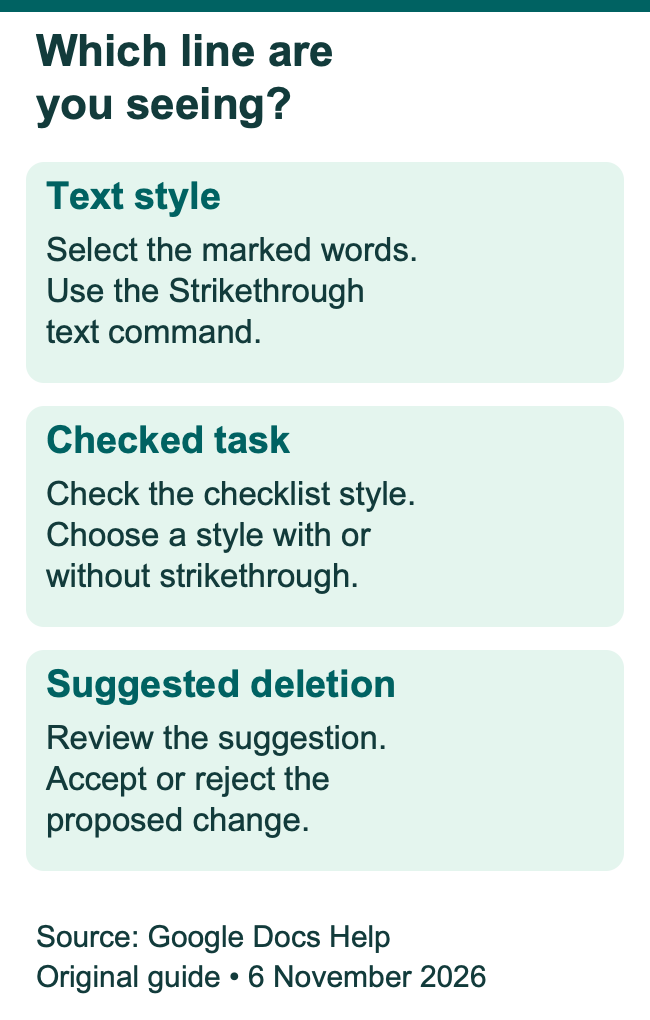
A line that stays after this step may come from a different feature. Check for a checkbox beside the paragraph or a suggestion beside the text. Those clues lead to the next sections and help you change the right thing.
Keep new typing free of unwanted lines
Before you add the next sentence, place the cursor where it belongs and check the text you type. The look of the next word matters more than a toolbar icon on its own.
Suppose you crossed out an old room number and now need to add a note below it. Type a short word and inspect it. If the new text has a line, select that new text and turn the style off. You can then continue from a clear starting point.
This small check is useful after pasting text too. Read the pasted words before you add more. If they bring a line you do not want, fix their text format first. Then review any emphasis or links that you meant to keep.
For long notes, finish one logical change at a time. Mark the old value, add the current value, and read the pair. This helps you spot an unwanted line at once. It is harder to find one after many later edits.
Choose a visual mark or a suggested edit
A text style marks the words you selected. A suggestion creates a proposed change for review. The two can look similar because a proposed deletion also crosses out text.
Google’s Suggest edits guide describes two visual clues. Additions use a new color. A proposed deletion has a line through it. A reviewer can accept or reject those changes. That review step is the useful distinction when several people work on a draft.
Choose a simple text mark when keeping an old value visible serves the document. For an illustrative plan, you might keep a rejected venue beside the chosen venue. Give the reader enough words to understand why both names remain.
Choose Suggesting when another person should approve a proposed deletion or replacement. Keep that review in its own feature. Our guide to tracking changes covers that task. Find its link in References.
Before removing a line in a shared draft, inspect the context. A note beside the text and an accept or reject control point to a suggestion. Ask which outcome the author wants if their intent is unclear. Removing a text style and deciding a proposed edit serve different editing goals.
Check whether a completed list creates the line
Google Docs supports checklists with and without strikethrough. Google’s list help gives the computer route. Open Format, then Bullets & numbering. Choose Checklist.
If a line appears when you tick a box, check the list style. The checklist style may already mark each finished task. Check it before you add a text style. Adding a second manual text mark makes the list harder to maintain.
In a packing list, the line could mean “in the bag.” For a work list, a plain checked item may be easier to read during a meeting. Choose the style around the reader’s job.
Explain what the list means to each reader. A checked item could mean drafted, reviewed, or fully done. A brief label such as “Checked means reviewed” removes that guesswork. The format provides the mark, while your words define the status.
When someone reopens a task, check its box and text together. Review the list’s chosen style before trying to repair each word through the text menu.
Resolve access problems before changing settings
Editing rights control what you can change in a shared file. Google’s access guide distinguishes Viewer, Commenter, and Editor roles. A viewer can read. A commenter can comment and suggest. An editor can change the content.
If text controls are unavailable, check your role and the Google Account you are using. A link shared with a work account may open while you are using a personal account. The file owner can confirm which account has access.
Ask for the access needed for the task. If your job is to propose a correction, commenting or suggesting may be enough. If your job is to apply final formatting, explain that to the owner when you request editing access.
Keep the original collaboration plan in mind. Making your own copy can produce a separate draft with a separate set of changes. Confirm which file the group will use before spending time formatting it. A working text command in the wrong copy still leaves the shared file unfinished.
Fix a shortcut that does nothing
Start with the selection and the platform. Select the words you mean to change. Match your device to the shortcut table above. Use the desktop menu once to check whether Docs can apply the format.
If the menu works, focus on the keyboard route. Google warns that some combinations vary by language or keyboard. You have a working way to format the text while you check the keys listed in your editor.
If the menu is unavailable too, inspect your access and editing mode. A file open for viewing gives you a different set of actions from a file you can edit. Changing browsers will not grant a missing permission.
Also check what you selected. Text inside an image is part of that picture. Select editable document text for the text command. Use image tools for words inside a screenshot. Use text formatting for a typed sentence.
For a support request, record the device, operating system, browser or app, and the exact result. Give a helper these details: “Mac desktop. Text selected. Menu works. Shortcut does nothing.” That tells the helper where to start.
Avoid changing several settings in one attempt. Keep the successful menu route available, then check one cause at a time. That keeps the original text easy to review while you find the issue.
Make the meaning clear when the line is hard to see
Use words to explain important status. Google’s accessibility guide explains the risk. A screen reader might skip a change in visual style. Add words to convey the meaning. A label can also help someone reading a small phone screen or a faint printed copy.
Here is a made-up travel note. Write “Old departure time” beside the crossed-out time. The new time can then have a “Current departure time” label. A reader can understand the change even if the line is hard to see.
Use the same care with choices. A list of crossed-out names gives little reason for their status. A heading such as “Options ruled out” tells the reader how to interpret that group. Keep the current choice in its own clearly named place.
Google also recommends comments and suggestions for review notes. These give collaborators a place to explain a change. Keep long review notes in a comment. They can crowd the message when placed between marked words.
Choose the shortest clear explanation that fits the document. A personal list may need little extra context. A handoff to someone who missed the discussion needs enough detail to act on it correctly.
Review the result before you share or print
Read the final sentence with the selection removed. Check that the line covers only the intended text. Then read the current value, answer, or task status on its own. The reader should be able to find it without working through every discarded choice.
For an illustrative event plan, check names, dates, times, and locations together. An old venue beside a new date can still look like a valid combination. A short label and a clear current plan reduce that risk.
If you will send a downloaded file or a printed copy, review that final version too. Open the file you will send or inspect the print preview. Check the mark at the size the reader will use. This is a practical review step, with no promise that every app or printer displays each font in the same way.
Keep the source document available while you review. If you spot an unclear line, correct the text and create the output again. Review the updated output so you know which version contains the correction.
Did You Know?
The Mac and iPad shortcuts differ in Google’s help. Mac desktop uses Command + Shift + X. The iPhone and iPad help page lists Option + Shift + 5. The device and app matter when you save a shortcut.
Conclusion
Strikethrough in Google Docs starts with the text you select. Use the menu or the correct device shortcut, then read the result. If a line comes from a checklist or a proposed deletion, use that feature’s controls. Add a clear status label when the reader needs more than a visual mark.
FAQs
Can strikethrough hide private information?
Crossed-out text remains readable. Remove private information through an appropriate document handling process before sharing a file. Treat a line as a visual editing mark. For work files, follow your team’s sharing rules. Produce a version with only the information your reader should receive.
Can I cross out one word inside a longer paragraph?
Yes. Select the specific word, then apply Strikethrough. Check both ends of the selection before you use the command. This lets the surrounding sentence keep its own meaning and format. Read the whole paragraph afterward. Check that the mark conveys the change you meant.
Will removing strikethrough remove bold or italic text too?
Use the specific Strikethrough command when you want to change that style alone. Clear text formatting has a broader purpose. Check the marked text after either action, especially if it has several styles. Keep the surrounding words in view so you can compare the result with the rest of the paragraph.
Can a checklist keep checked text easy to read?
Yes. Google Docs offers checklist styles with and without strikethrough on a computer. Choose the style that suits the list. A checked item can stay plain when readers need to review it often. Explain what a checked box means if several people use the list for different stages of work.
Does a strikethrough shortcut need an extra extension?
Google lists strikethrough among Docs’ own formatting shortcuts. Start with the menu and the platform’s listed keys. An extension is unnecessary for that documented command. If a shortcut fails, check your selection, keyboard and access. Use the menu while you find the cause.
References
- Google Docs Editors Help — Change how paragraphs and fonts look on a computer
- Google Docs Editors Help — Keyboard shortcuts on a computer
- Google Docs Editors Help — Change how paragraphs and fonts look on Android
- Google Docs Editors Help — Change how paragraphs and fonts look on iPhone and iPad
- Google Docs Editors Help — Keyboard shortcuts on Android
- Google Docs Editors Help — Keyboard shortcuts on iPhone and iPad
- Google Docs Editors Help — Suggest edits
- Google Docs Editors Help — Add a numbered list, bulleted list, or checklist
- Google Drive Help — Learn more about access to Google files
- Google Docs Editors Help — Make documents more accessible
- Google Docs Editors Help — Use Google Docs with a screen reader
- Techchahiye — How to track changes in Google Docs
