

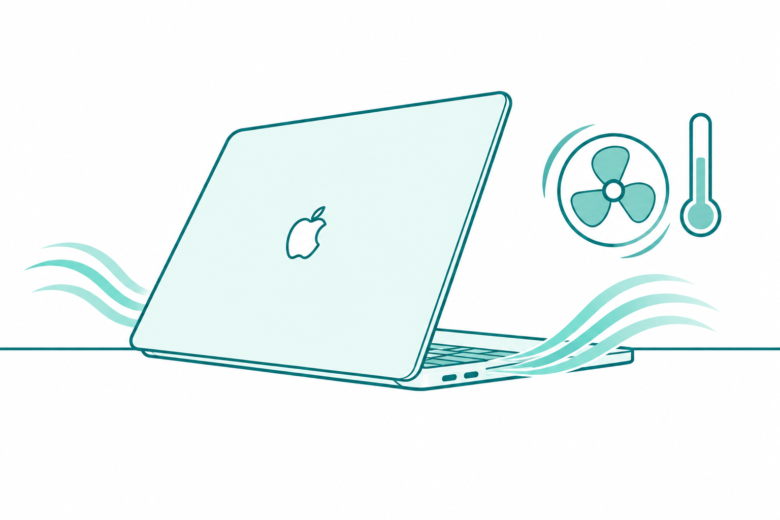
Start with the room, the desk, and the task
Check the surrounding air and keep the Mac on a clear hard surface. Compare fan activity with the workload. Use Activity Monitor for a specific clue, then follow the right steps for your chip.
Key Takeaways
- A warm MacBook Pro or a loud fan alone does not prove overheating. Compare the workload, room, and airflow first.
- Apple lists an ambient operating range of 50–95°F (10–35°C). That is room temperature, not a CPU sensor limit.
- Use a hard, stable surface. Keep vents clear and leave the keyboard uncovered.
- Use Activity Monitor to understand CPU work. Do not treat kernel_task as the cause of heat or force it to stop.
If you think your MacBook Pro is overheating, move it to a hard, clear surface and check the room temperature. Then compare the fan noise with what the Mac is doing. A video export can make fans run faster. Loud fans during light work need a closer look. Save your files before you quit apps or restart.
The useful question is what changed. Did the noise start with a game, after moving your files, or while the Mac sat on a blanket? A good answer helps you choose one step. It also keeps you from erasing a Mac or buying a cooling accessory before you know the problem.
This guide follows Apple support pages checked on October 30, 2026. It explains what their advice means for a MacBook Pro. It does not report hands-on temperature tests, fan-speed measurements, or a repair diagnosis. Menu names can vary with macOS. Follow the steps for your actual model.
MacBook Pro overheating: separate three different signals
Start with the room, the outside of the laptop, and the sensors inside it. Those are three different places to measure heat. A number from one place does not describe the other two. Keep that distinction in mind before you compare a sensor app with an operating range.
Apple says a Mac laptop can get warm in normal use. Its internal sensors detect temperature changes. Fans respond by moving air to cool critical parts. Noise can show that cooling is working. It does not tell you which task caused the heat, or whether a part needs repair.
| Signal | What it can tell you | What it cannot prove alone |
|---|---|---|
| Room temperature | Whether the surrounding air is within Apple’s stated range | The temperature of the processor |
| Warm case | That the outer surface feels warm to you | An exact internal sensor reading |
| Louder fans | That the cooling system is moving more air | A failed fan or a harmful temperature |
| High CPU activity | That processes are using processing power | Which physical part needs replacement |
| A repeatable fault during light work | That further checks or service may be useful | The repair needed without a diagnosis |
Apple also says third-party temperature apps do not measure the external case temperature. The case is much cooler. Its guidance says not to use those apps to diagnose possible hardware issues. You can record what you saw for context. Do not turn one sensor reading into a hardware verdict.
For example, a room reading of 80°F and an internal sensor reading are different measurements. The room may be within the allowed range. The processor has its own temperature. These readings describe different places. This example sets no target for your sensor.
Check the room before you chase a CPU number
Apple lists a surrounding-air range of 10–35°C, or 50–95°F, for using a Mac laptop. It also lists relative humidity from 0% to 95%, without condensation. These are operating conditions around the computer. They are not targets to set in a fan app or limits for a processor sensor.
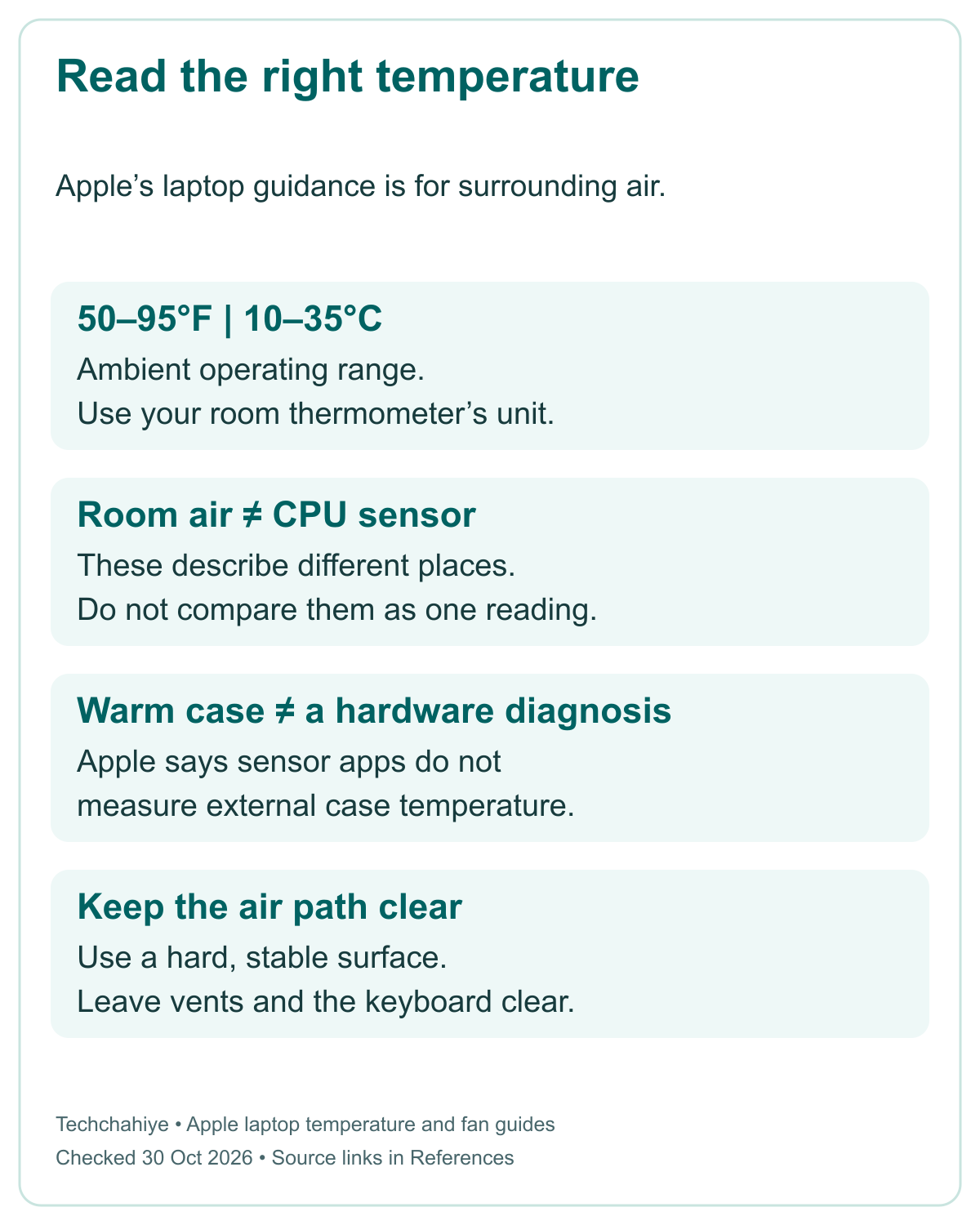
For a US reader, the Fahrenheit range may be the easiest to compare with a room thermometer. Use Celsius if that is how your local weather or thermometer reports it. The same stated range applies to the distinction here. Do not compare outdoor weather with a CPU reading and call the difference an error.
Apple warns against leaving the laptop in a parked car. The air inside can exceed its operating range. A cool morning outside does not show what the closed car will be like later. If the surroundings are too hot, change the setting before you try to tune software around it.
Keep the comparison simple. Note where you use the Mac. Check whether the air around it fits the guidance. You do not need a spreadsheet of sensor readings to take the first step. Moving from an unsuitable surface or room is a clear action you can check directly.
Do not turn 95°F into a promise that every workload will be comfortable below that point. A range for the environment is not a guarantee about fan volume, speed, or how warm the case feels. Apple’s fan guide says warmer surrounding air can make fans start sooner and run faster.
Give the Mac a hard, clear work surface
Use the MacBook Pro on a stable surface that allows good airflow. Apple suggests a hard, flat surface such as a desk or table. It advises against using a laptop in bed, on a pillow, or under bedding. Soft material can interfere with the air path and change how the fans behave.
Leave the keyboard uncovered. Keep objects out of any vents. These are easy checks to make before changing a setting. You do not need to open the case, remove a part, or buy a stand. A clear desk is enough to make this first comparison useful.
Check the whole path around the laptop. A hard tray still needs space around the machine. Do not cover one side with a folded cloth or push an object against an opening. Follow the handling guidance for the model. This article does not map every MacBook Pro vent or suggest putting tools into it.
Then compare the same task in the clearer setting. Keep the app and task the same if possible. If you move the Mac, close a game, and change power settings together, you will not know which change mattered. One clear change produces a more useful note.
A stand may fit your workspace, but this guide makes no cooling claim for one. Nor does it rank pads by a made-up temperature drop. Decide whether you need an accessory on its own merits. First try a suitable surface. Check whether the air path is now clear.
Match fan noise to the task
Apple gives examples of work that can make fans run faster. Video compression is one example. A demanding game is another. Spotlight can also index files after a transfer. Fans may be easy to hear in a quiet room. The sound of moving air is part of the cooling process.
That context changes your next step. If you started an export and the fans rose with it, note the connection. Save the project and watch what happens as the task ends. This is different from a fan that runs hard while you are doing little. Do not assume both cases need the same fix.
After a transfer, indexing can run in the background. You do not need to open an app to start it. Apple names this as an example, not a fixed countdown. There is no universal number of minutes in its fan guide. Do not promise that all noise after a migration will end within a chosen time.
Write down the actual pattern. “The fans rose during the video export” is useful. “The fans stayed loud during light work on a clear desk” is useful too. A bare complaint that the laptop is hot leaves out the workload and setting that could guide the next check.
Also separate expectation from evidence. A quiet room can make an ordinary fan sound more obvious. A different task can change the load. Neither observation proves a fault. Look for a clear cause. Then check whether the behavior lasts after you address those conditions.
Use Activity Monitor to understand the load
Apple suggests Activity Monitor for heat during light work. Use it to check long periods of fan activity too. Open Activity Monitor and select CPU. Look at the work that is actually running. This is a way to gather a clue before changing or removing software.
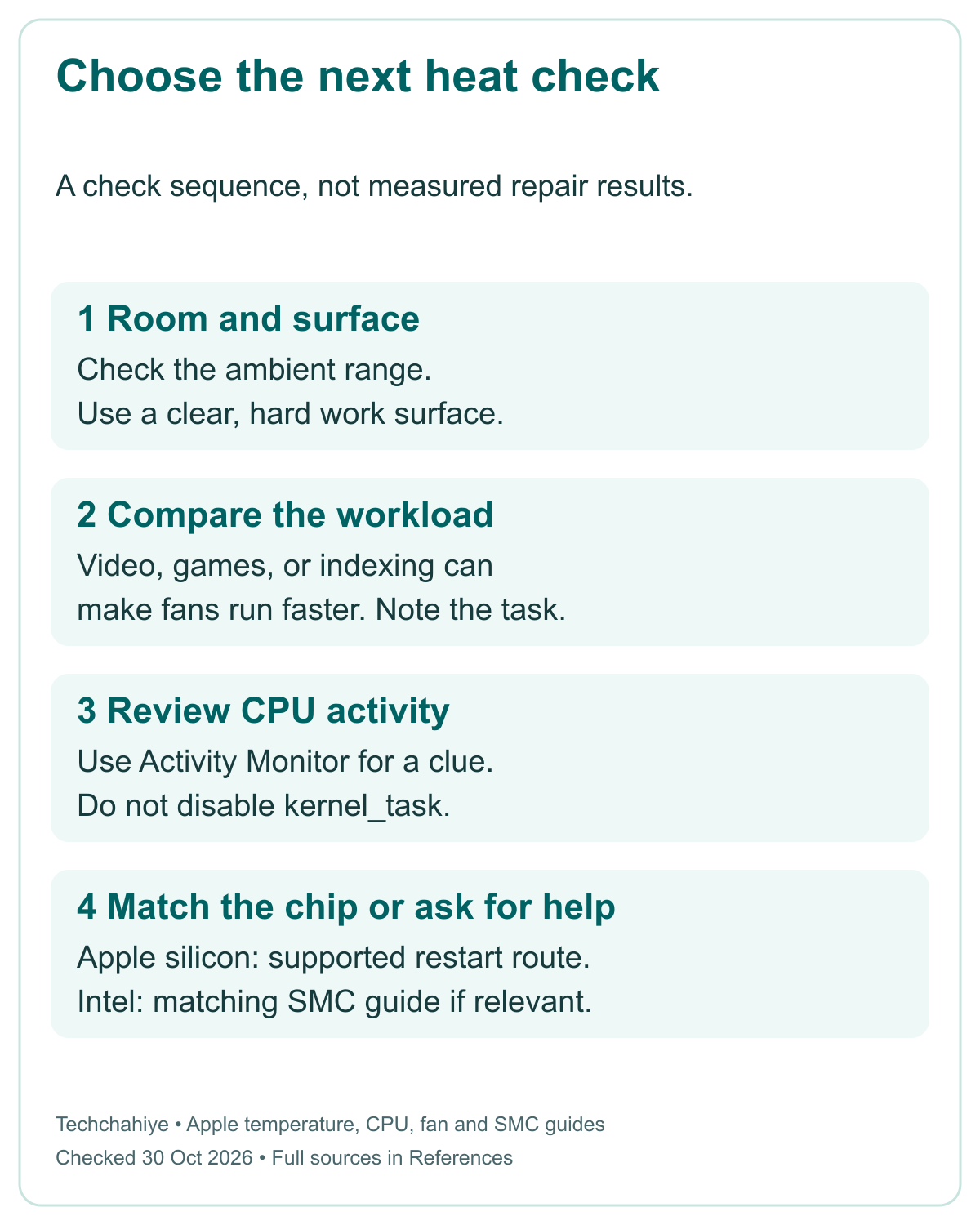
Apple’s CPU guide explains the summary at the bottom of the window. System is the share used by macOS processes. User is the share used by apps you opened and their processes. Idle is the unused share. Those labels describe CPU activity, not a heat score.
You can also choose Window, then CPU Usage, to see current processor activity. CPU History shows recent activity. The support page checked for those controls is the macOS Tahoe 26 guide. Your release may use different wording. Use its matching help. A missing label does not prove a fault.
A hypothetical comparison shows why context helps. Suppose an export app uses CPU while it creates a video. That fits the task you started. Suppose instead an app you thought was idle keeps doing work. You now have a specific app to investigate. These are examples, not measurements from a tested laptop.
Do not decide which process is safe to stop from its name alone. A process may support another app. A number may change as tasks run. Record the name and what was happening. Then use the app’s own help or Apple’s process guidance if you need to act on that clue.
Quit a known app carefully before forcing it closed
If an app you recognize is stuck or doing work you do not need, save its open files first. Try its normal Quit command. This gives the app a chance to close safely. It is a more useful first choice than ending unfamiliar system processes to make a CPU chart look quiet.
Apple’s Activity Monitor guide distinguishes Quit from Force Quit. Quit waits until it is safe. If closing could cause data loss or interfere with another app, the process does not quit. Force Quit stops it at once. Open files can lose unsaved work, and other processes may have problems.
In Activity Monitor, select the app or process. Use the Stop button. Then choose the option that fits. Check the name before acting. This guide is not a recommendation to stop every busy entry. Limit the action to a process you understand and a task you can end.
After the app closes, compare the result without starting several other tasks. Keep the observation factual. An app closing followed by less fan activity is a useful lead. It does not establish a failed battery, a blocked internal part, or the need for a new computer.
If you cannot tell what an entry does, leave it alone and seek help with its identity. You can still check the room, desk, and workload. A safe observation is better than a destructive experiment. Do not remove system files or use a terminal command copied from an unrelated repair story.
Did You Know?
Apple says kernel_task can help control CPU temperature. It can make less processing power available to demanding tasks. It responds to conditions that make the CPU too hot; it does not cause those conditions. Its activity falls as the CPU cools. A large kernel_task entry is not a reason to try to disable it.
Use the next step that matches your Mac’s chip
Apple’s fan guidance separates Intel Macs from Macs with Apple silicon. For unexpected heavy fan use on Apple silicon, it suggests a restart. Closing and opening the lid is another option. Save work first. Use these steps for that problem. Do not keep interrupting a task that works as expected.
For an Intel Mac, Apple points to resetting the System Management Controller, or SMC. Its current SMC guide says most people do not need to reset it. The reset may help certain Intel power or thermal issues. The correct instructions also depend on whether the Mac has a T2 chip.
Use the source in References to identify the right route. Do not mix the key sequence from one model group with another. This guide deliberately does not give a universal keyboard shortcut. A command that applies to an older Intel laptop is not a general MacBook Pro heat fix.
For Apple silicon, the SMC guide says to connect power and restart, or shut down and turn the Mac on again. The SMC resets on its own. You do not need extra steps. You can skip the search for an Intel key combination. It does not apply to your chip.
Keep your repair history clear. Note whether you changed the setting, restarted, or used the exact Intel instructions. If you later contact support, that record saves repetition. A quiet period does not prove a repair. Keep that limit clear in your notes.
Keep software current without interrupting an installation
Apple’s temperature guide includes checking Mac software updates. Its update page says Software Update offers software compatible with your model. In System Settings, open General, then Software Update. Back up before installing. An older release may use a different route, so follow its help if the menu differs.
Do not force an upgrade that Software Update does not offer for your Mac. A compatibility limit is separate from heat troubleshooting. Do not use an unsupported installer for this task. Avoid patchers and fan-control tools too. Follow Apple’s offered update path for the actual machine.
Let an installation finish. Apple’s update guide says not to put the Mac to sleep or close its lid during that task. The lid-close fan check does not fit an update in progress. Keep the lid open for the install. Read the task on screen before choosing the next action.
After an update, record whether the original pattern still occurs. Do not write that an update fixed a fault before you have checked the same use case. Keeping the app, workspace, and task comparable makes the result easier to explain. It still does not replace a hardware diagnosis.
Know when to stop experimenting and ask for help
Apple says to seek help for ongoing temperature problems. Contact Apple Support, an Apple Store, or an authorized service provider. Use that route if the simple conditions and workload checks do not explain what you see. You do not need to open the laptop to earn the right to ask for a diagnosis.
Bring a short record rather than a list of guessed repairs. Include the Mac model, chip, macOS version, task, surface, and room conditions. State whether the fans settle when the task stops. Also note any repeatable loss of response or other on-screen message. Quote the exact message instead of naming a fault yourself.
If support asks you to run Apple Diagnostics, use the startup route for your chip. Apple’s Diagnostics guide distinguishes Apple silicon from Intel. Keep any reference code. A test result can help the next conversation. No code does not rule out every possible fault.
Avoid spending first and diagnosing later. Find the cause of the behavior first. Do not assume a new battery, cooling pad, or fan app will solve it. Our battery-cycle guide in References explains battery measurements. A cycle count is not a direct test of airflow or a fan.
Keep a short heat and fan record
Mac model and chip: __. macOS: __. Task: __. Room temperature and unit: __. Surface and airflow: __. Fan pattern: __. Known app or CPU clue: __. One change tried: __. Result and exact message or reference code: __.
Conclusion
For a MacBook Pro overheating concern, start with the environment and the task. Use a clear hard surface within Apple’s ambient range. Compare fan activity with the task. Use Activity Monitor for a specific clue. Save files before quitting apps. Then use the restart or SMC route that fits your chip.
Keep kernel_task and sensor readings in context. Do not turn them into a diagnosis or disable the system’s response to heat. If the cause stays unclear and the problem lasts, ask for help. Take your short record with you. That gives the next person a useful starting point while keeping your work intact.
FAQs
Does a loud MacBook Pro fan mean it is overheating?
Not by itself. Apple says fans can run faster during intense work. Examples include video compression and demanding games. Spotlight indexing after a transfer can also make fans run faster. Check the room, surface, and current task. Unexpected heavy fan use during light work deserves more investigation. Noise alone does not identify a failed part.
Is 95°F the top CPU temperature allowed for a MacBook Pro?
No. Apple’s 50–95°F range describes the ambient air around the laptop during use. It is not a CPU sensor range. Apple also says third-party sensor apps do not measure case temperature. Those readings describe different places. Do not use them alone to diagnose hardware.
Should I force quit kernel_task to reduce heat?
No. Apple’s explanation says kernel_task responds to conditions that make the CPU too hot. It helps manage temperature by reducing the processing power available to intense tasks. It does not cause the underlying conditions. Review airflow and room conditions. Check the known apps doing work. Leave kernel_task alone.
Can I use the same SMC reset on every MacBook Pro?
No. Apple’s instructions depend on the chip and model group. The Intel routes differ for machines with and without a T2 chip. For Apple silicon, use the supported power and restart or shutdown route. It needs no extra SMC steps. Identify the Mac and use the matching official instructions in References.
Will a cooling pad or factory reset solve the problem?
This guide makes no such promise. Start with the workload and free airflow checks. A factory reset removes apps and data and is not an early step in Apple’s temperature advice. An accessory cannot diagnose a fault. Ask for support if the problem continues after the relevant checks.
References
- Apple — Keep your Mac laptop within acceptable operating temperatures
- Apple — About fans and fan noise in your Apple product
- Apple — If kernel_task is using a large percentage of your Mac CPU
- Apple — View CPU activity in Activity Monitor on Mac, Tahoe 26 guide
- Apple — Quit an app or process in Activity Monitor on Mac, Tahoe 26 guide
- Apple — Reset the SMC of your Mac
- Apple — Update macOS on Mac
- Apple — Use Apple Diagnostics to test your Mac
- Techchahiye — MacBook Battery Cycle Count: Read It Alongside Battery Health
- Techchahiye — MacBook Pro Not Charging? Read the Status Before You Replace Parts
