

One family plan, three places for controls
Most controls and time limits apply to the console. The app adds play-time rules and GameChat approvals. Nintendo Account handles purchase restrictions for supervised users. Save changes and let the correct console receive them online.
Key Takeaways
- Switch 2 parental controls use three places. These are the console, phone app, and Nintendo Account settings. Each handles different rules.
- Play-time limits apply to the console. Viewing activity by user does not create a separate time allowance for each player.
- A time warning and Suspend Play When Time’s Up have different effects. Check which one you want.
- Children under 16 and supervised users need app-based controls for GameChat. Nintendo eShop purchase rules are separate account settings.
To set up Switch 2 parental controls, first decide what you want to manage. Game content and in-game communication have console controls. Daily time limits and GameChat controls need the Nintendo Switch Parental Controls app. Purchase restrictions belong in the parent’s Nintendo Account settings. One screen does not cover all three jobs.
This split matters on a shared console. You may want a time warning, a firm stop, an approved chat friend, or a purchase block. Those are separate choices. Name the rule first. Then choose its control and check the result.
This guide follows Nintendo’s US support pages checked on October 30, 2026. Menu labels can change with updates. It explains the documented controls and their scope. Discuss the rules with your child too. Settings cannot remove every risk from a game session.
Choose the right place for Switch 2 parental controls
Nintendo uses three control locations. These are the system, smart-device app, and Nintendo Account. The console can restrict game content and in-game communication. The app adds time limits, activity views, and Switch 2 GameChat management. The account handles eShop purchase and viewing restrictions for supervised accounts.
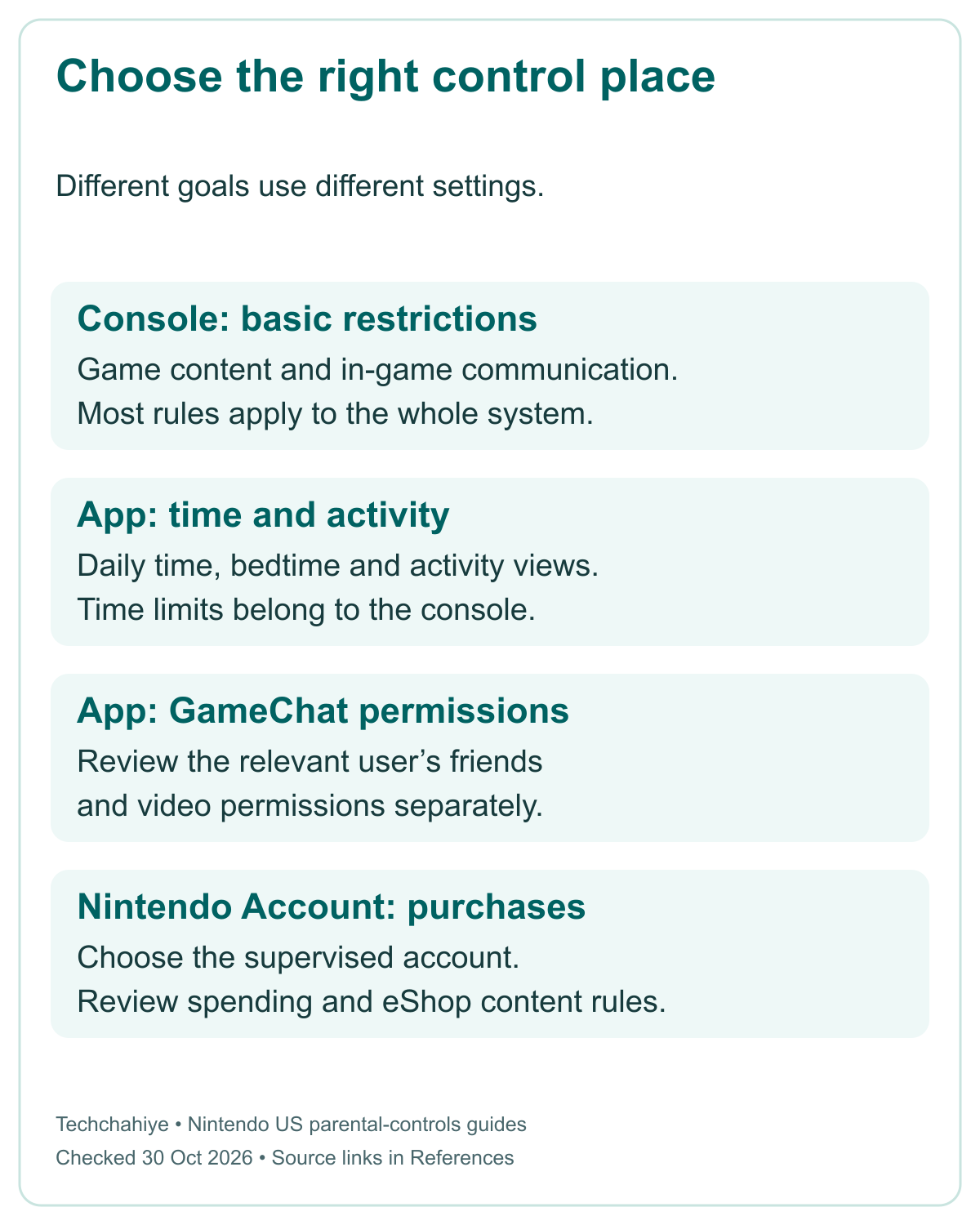
Choose a goal before you open a menu. If the issue is spending, changing the daily timer is not the relevant action. Is the issue an unapproved GameChat friend? A content-age preset does not finish that chat setup. Each choice has a distinct purpose.
| Your goal | Where Nintendo manages it | Scope to remember |
|---|---|---|
| Restrict game content by rating | Console or parental-controls app | Most restrictions cover the whole system |
| Limit in-game communication | Console or app | Separate from GameChat approvals |
| Set daily play time or bedtime | Smart-device app | Time allowance applies to the console |
| Review play activity | Smart-device app | Per-user views do not mean per-user time limits |
| Approve GameChat friends and video | Smart-device app | Set controls for the relevant user |
| Restrict eShop purchases | Nintendo Account family settings | Choose the supervised account |
Check the app and phone requirements
Nintendo’s FAQ lists a free iOS and Android app, though data fees may apply. It requires a Nintendo Account for a user aged 18 or older. You need internet to link and use the app with the console. Check the current app requirements before planning to use an older phone.
The support page lists iOS 16 or newer and Android 8 or newer on the check date. These are app requirements, not promises for every device sold with those systems. Use the current store listing and Nintendo’s guide if your phone cannot install or update the app.
Plan for a shared console before setting a timer
Most controls apply to the whole console rather than each player. Nintendo recommends choosing them with the youngest player in mind. An adult using that same system can encounter the same restrictions. This is a shared-device rule, not proof that the wrong Nintendo Account has taken control.
Play-time limits also belong to the console. They do not give each user a fresh allowance. A family that wants separate turns still needs a plan for those turns. The app can show activity by user. Its timer still does not create a per-person schedule.
For example, imagine a household agrees to a two-hour console limit on a certain day. That is a hypothetical household choice, not a health recommendation. It is not two hours for each of three profiles. Agree on how the group will share the time before the first player uses the console.
Nintendo says current console and app updates allow activity review by individual user. Games that do not ask players to choose a user show combined play information. Keep that limit in mind when reading a report. A combined number does not identify which child played each minute.
Make the rule easy to explain. State which console it covers, whether the end is a warning or a stop, and who can approve an extension. This gives the setting a clear household purpose. It also makes it easier to spot a mismatch between the plan and the saved option.
Link the app with the console’s own code
Nintendo’s linking guide starts with its official app. You also need a parent’s Nintendo Account. On the phone, open the app and follow Start and Next. The setup asks about app usage data. Read the choice and decide for yourself. This guide does not tell you to send that data.
Sign in to the intended parent account and confirm the displayed account nickname. The app then shows a Link Code. Check the account before proceeding, especially on a phone used by more than one adult. The nickname is a useful way to confirm the account you mean to use.
On Switch 2, open System Settings from the HOME Menu. Choose Parental Controls, then Set Up Parental Controls and App Has Been Installed. Enter the six-digit Link Code shown in the phone app. Nintendo’s guide then has you choose Link and confirm on both devices.
The Link Code connects this console to the app. Keep it separate from the parental-controls PIN. The PIN has a different purpose and length. Do not copy a sample code from a guide or share your live code in a public troubleshooting post. Use the code your own app displays.
Does Change Settings appear instead of Set Up Parental Controls? Use Nintendo’s branch for that screen. It can reflect an existing setup. Do not unlink a managed console to match a new-console screenshot. First identify the parent account and current arrangement.
Save a rule and let the console receive it
Once linked, Nintendo says to open Parental Controls in the app’s lower-right corner. Choose the setting you need. Its setup page lists several options. They include Play-Time Limit, GameChat, Restricted Features, and Allow List. PIN and Shared Parental Controls have their own options too. Read the option’s scope before changing it.
After a change, use the red Save button on that screen. Leaving a page is not the same as confirming the setting. Then let the console connect online. Nintendo says app restrictions activate when the console next connects to the internet. A saved phone choice is not proof that an offline console received it.
Check the result on the intended system. Have more than one linked console? Check its name before changing a rule. A correct setting on the wrong system does not solve the current session’s problem. Keep a short note of which system you changed.
Use one clear test of the rule you meant to set. For a timer, review the time option and chosen end behavior. For a chat rule, review the specific user’s approved friends. You do not need to change every category to verify one setting. A narrow check makes later problems easier to describe.
Avoid treating a delayed update as a reason to remove all controls. First check that you saved it, selected the right console, and let that system connect online. Does the app or console show an error? Keep its exact wording and use Nintendo’s support for it.
Choose a warning or a firm stop at the time limit
The app’s Play-Time Limit sets a daily allowance for the console. Nintendo’s setup page lists No Limit through six hours, with Vary by Day for different days of the week. A school-day plan can differ from a weekend plan. The specific allowance is the family’s choice.
The key switch is Suspend Play When Time’s Up. When on, Nintendo says software stops at the limit. When off, the system shows a notification but software remains playable. A child continuing after a warning does not necessarily show a broken timer. Check which behavior you saved.
Nintendo’s FAQ says suspension puts the system into Sleep mode. Play cannot continue until the restriction lifts or the daily period passes. It says players can usually resume from the same spot. Do not turn that into a guarantee about every game state. Encourage ordinary saving where the game provides it.
You can extend today’s limit by five, 15, or 30 minutes, or by an hour. Nintendo also provides a way to turn the limit off for the day. Use a temporary extension when that matches the decision. It has a different purpose from changing the recurring weekly plan.
Talk about the end before it arrives. A clear rule might allow time to finish a short session or save, where possible. That is a family plan, not an automatic exception the console invents. Match the saved control to the agreement. Keep a warning and a firm stop distinct.
Set bedtime and the next morning as a pair
Nintendo’s current setup page lists a bedtime window from 4 p.m. to 11:45 p.m. It also provides a morning start time from 6 a.m. to 9 a.m. Use the options shown in the current app. These windows describe the feature, not a recommendation about a child’s sleep needs.
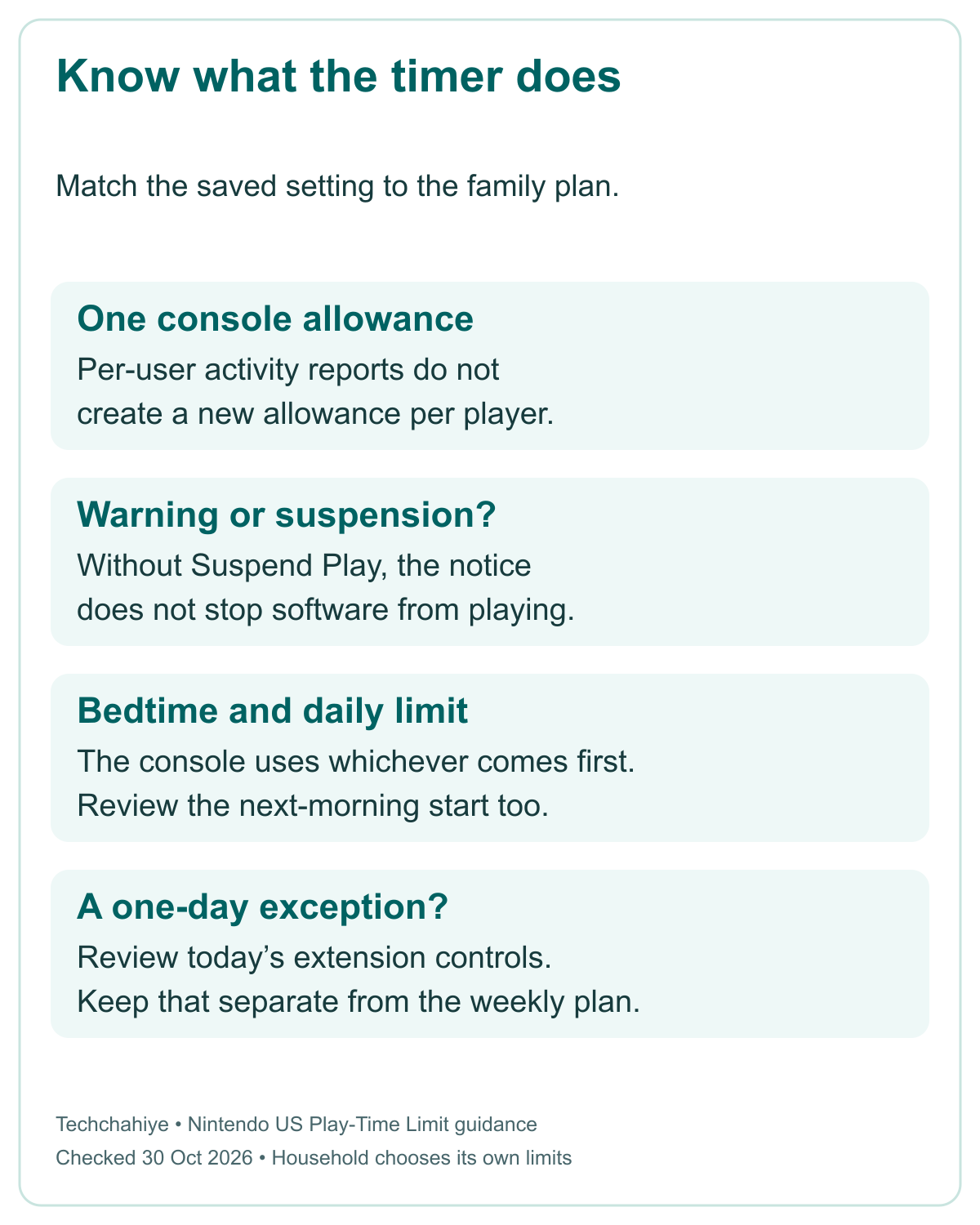
The page says the system uses whichever comes first when both a daily limit and bedtime are on. So a remaining daily allowance does not override bedtime. The two settings answer different questions. One sets total time. The other sets the latest end time.
For a hypothetical example, suppose a family chooses a 9 p.m. bedtime and a two-hour daily limit. If the player has used only one hour by 9 p.m., bedtime still arrives first. The unused hour is not permission from the system to continue that night. This illustrates the rule, not a tested session.
Review the next-morning setting too. A plan is incomplete if you consider only tonight’s stop and forget when play can begin again. Keep the whole schedule visible when discussing it. App choices may change after an update. Follow Nintendo’s current on-screen guide.
Do not use the console’s date or time as a workaround for a family rule. If the plan needs to change, use the parent’s supported controls. This preserves a clear record of what changed and why. It also avoids making unrelated time-dependent features part of a timer problem.
Did You Know?
Nintendo lets you review some activity by user. The daily time limit still applies to the console. Viewing and restricting are separate features. A report by user does not give each player a fresh time allowance.
Review game content without overlooking communication
Nintendo offers Child, Pre-Teen, Teen, and custom restriction choices. Check the actual restrictions behind the preset. A label alone does not tell you which communication features remain available. For US readers, also check that the rating organization matches the region you intend to use.
The setup page separates content restrictions and in-game communication. A game that fits a chosen age-rating rule may still have social features worth discussing. Use the controls Nintendo provides and read the game’s own information. Do not infer that a rating preset answers every online-interaction question.
The app also provides an Allow List for selected games. Read the current option before making an exception. A single-game exception is a narrow change. Lowering the whole system’s restriction level is broader. Keep a note of why a game has an exception so another guardian can understand it later.
Switch 2 also differs from the older Switch in this area. Nintendo says Switch 2 cannot post screenshots and videos straight to social media. That older Switch posting restriction may not apply here. Its absence does not mean the new console’s controls failed.
Review the game and the rule together when a family asks for a change. Keep the content question, communication choice, and time limit separate. You can approve one while keeping the other rules. Review each goal on its own terms. A blanket label hides those distinct choices.
Set GameChat controls for the correct user
Nintendo sets an extra GameChat rule for children under 16 and supervised users. They need the linked app and GameChat-specific controls. These controls are user-specific. Set them for the child who will use the feature. The general console time limit does not finish that separate setup.
GameChat parental controls also need a phone number on the parent’s Nintendo Account. Nintendo’s setup guide explains this step. Follow its account instructions yourself. Do not post the number, a sign-in code, or account credentials in a public support request. This guide does not ask for them.
For a friend request, the app lets the parent review the user and ask the child who the friend is. The parent can decide whether to approve and add a note. That note can preserve the reason for approval. A recognizable screen name alone need not be the full explanation.
Video has its own choices. Nintendo lets a parent ask for approval each session or disallow video chat. During video use, the app also offers camera views such as face only, no background, and no filter. Read the choice and review the actual session before assuming a view fits your intent.
The parent can withdraw a friend’s GameChat permission. The controls also let them end video permission for the current session. These controls make a focused change. You do not need to delete the child’s account for that. Keep the specific contact or session decision separate from all other console access.
Set eShop purchase restrictions in Nintendo Account
Purchases need a separate account check. Nintendo’s eShop guide covers supervised accounts. A parent or guardian in the family group can set their restrictions. Sign in to the parent’s Nintendo Account in a browser. Open Family group and choose the account to manage.
The guide separates Spending Restrictions from Age-Based Content Restrictions. The spending option disables purchases and auto-renewal options. This covers Switch 2, Switch, and the Nintendo Store. It includes physical orders. The age-based option controls viewable eShop content based on the player’s age. Check each for its intended purpose.
Save changes after choosing a setting. Do not assume that linking the phone app created a purchase block. A timer controls time. A content rule controls access. The supervised account’s purchase restriction controls spending. Their similar family purpose does not make them the same setting.
Is the account missing? Check that you supervise it. Also check your family-group role. Use Nintendo’s linked supervision instructions. Do not create a second account as a shortcut. Keep each adult’s password private too.
Share responsibility through the supported family setup
Nintendo supports up to two parents or guardians sharing control responsibility. Each uses their own Nintendo Account and smart device. Both must have the Parent/Guardian role in the same family group as the children. This gives a household a supported route without sharing one adult’s sign-in details.
Its shared-controls guide starts with one phone already linked to the console. In the app, open Parental Controls, Settings, and Shared Parental Controls. Review the systems and choose the eligible family member. The second guardian signs in on their own phone and confirms the sharing prompt.
Both adults can then change settings on linked systems covered by that arrangement. Nintendo also offers notifications about changes by the other guardian. Agree on who handles an extension or friend request. Two people having access does not itself create a shared household decision.
The app can link up to eight Switch 2 or Switch consoles. Confirm the system before changing a rule. With several devices, keep the rule types clear. Some cover a system; others cover an account. Keep the arrangement in a private household note. Do not post screenshots of child activity in public.
Keep a private family settings note
Console: [ ]. Parent accounts and roles checked: [ ]. Daily allowance and day schedule: [ ]. Warning or suspension: [ ]. Bedtime and morning start: [ ]. GameChat users reviewed: [ ]. Purchase restrictions checked: [ ]. Exception and reason: [ ]. Saved and received online: [ ].
Conclusion
Switch 2 parental controls work best when each goal has a matching setting. Use the console or app for content and communication rules. Use the app for time and GameChat. Review purchases in Nintendo Account. Keep the scope clear on a shared system and save each intended change.
Then check the result on the right console and user. Check whether a timer warns or suspends. Review bedtime and chat permissions too. Review the plan with the other guardian and player. Keep the rules clear and check them as needs change.
FAQs
Can I give each user a separate daily time limit?
Nintendo sets the Play-Time Limit for the console. It restricts the users equally. Per-user activity views do not create separate allowances. Games without user selection show combined activity. Plan how players share the console time and keep that plan separate from the reporting view.
Why can play continue after the time warning?
Check Suspend Play When Time’s Up. Nintendo says an off setting shows a notification while software remains playable. Turning it on stops software at the limit. Save the intended setting and let the console connect online to receive it. A warning alone is not the same as suspension.
Does linking the app block purchases?
No. Nintendo manages purchase restrictions in the parent’s Nintendo Account for the supervised account. Use Family group and review Spending Restrictions separately from Age-Based Content Restrictions. Save the change. An app timer does not create that spending rule. Neither does a content preset.
Do children need separate GameChat permission?
Nintendo requires app-based GameChat controls for children under 16 and supervised users. Choose the relevant user and review friend and video permissions. The general console restrictions do not finish that setup. Nintendo also requires a phone number on the parent’s account for these controls.
Can two guardians manage the same console?
Yes, through Nintendo’s shared-controls setup. Each needs their own account and phone, with the Parent/Guardian role in the same family group. Use Shared Parental Controls to review and confirm the arrangement. Both can change settings, so agree on how requests and exceptions will be handled.
References
- Nintendo US — Parental Controls overview and FAQ
- Nintendo US — Set up and adjust parental controls on Switch 2
- Nintendo US — Link Switch 2 with the Parental Controls app
- Nintendo US — Set Nintendo eShop restrictions
- Nintendo US — Share responsibility for parental controls
- Techchahiye — Nintendo Switch 2 battery life: runtime and charging
