


Use the count as one clue
Read Cycle Count in System Information. Then check the exact model, Battery Health, and runtime under your normal work. Partial battery use adds up across charging sessions.
Key Takeaways
- Find your MacBook battery cycle count in System Information. Choose Power, then read Battery Information.
- Partial battery use adds up to a cycle. Plugging in does not count as a full cycle each time.
- Match the count to the exact Mac model. Apple’s table includes limits of 300, 500, and 1,000 cycles.
- Read Battery Health and check real use too. A low cycle count alone does not prove a good battery.
Your MacBook battery cycle count shows how much full-cycle use the battery has logged. Hold Option as you open the Apple menu, choose System Information, then select Power. Look for Cycle Count under Battery Information. Read that number with the Mac model and Battery Health before drawing a conclusion.
A seller may call 200 cycles “like new.” Another Mac may show a much larger number yet still last through your usual work. Neither number tells the whole story. You need to know what a cycle means, which model’s limit applies, and how the laptop behaves when you unplug it.
This guide uses Apple’s battery documents checked on October 30, 2026. The calculations are simple teaching examples. They are not tests of a real Mac or a forecast of how long your own battery will last.
Find the MacBook battery cycle count
Use the built-in System Information app first. You do not need to buy a battery app to read the count. Apple’s cycle-count guide gives the steps. Hold Option and open the Apple menu. Choose System Information, then Power under Hardware. The count appears with the battery’s details.
Take a screenshot or note the value and date. Add the model name from About This Mac and the macOS release. A note such as “245 cycles on October 30” gives you a useful starting point. A loose number copied into a chat is easy to mix up with another laptop.
If you are checking a used Mac, ask to see the value on that Mac. A picture sent by a seller is a lead to check, not proof that it came from the computer in front of you. Compare the model name too. Avoid posting a screenshot with a full serial number in a public listing or help thread.
Do not confuse Cycle Count with a nearby capacity value. The count records cycles. A capacity figure has a different unit or a percentage. Note the label beside the number rather than copying the largest number in the panel.
Cannot find the panel? Check that you opened System Information. About This Mac alone is not the full view. Start again from the Apple menu with Option held down. For a Mac that cannot start, you may need help before you can gather these details. Do not guess a count from its age or appearance.
What counts as one battery cycle?
A cycle adds up battery use that equals one full charge. You can reach it over more than one day. Apple’s lithium-ion guide uses an example of 75% one day and 25% the next. Together, those amounts equal one cycle. Charging between those uses does not turn each day into a separate full cycle.
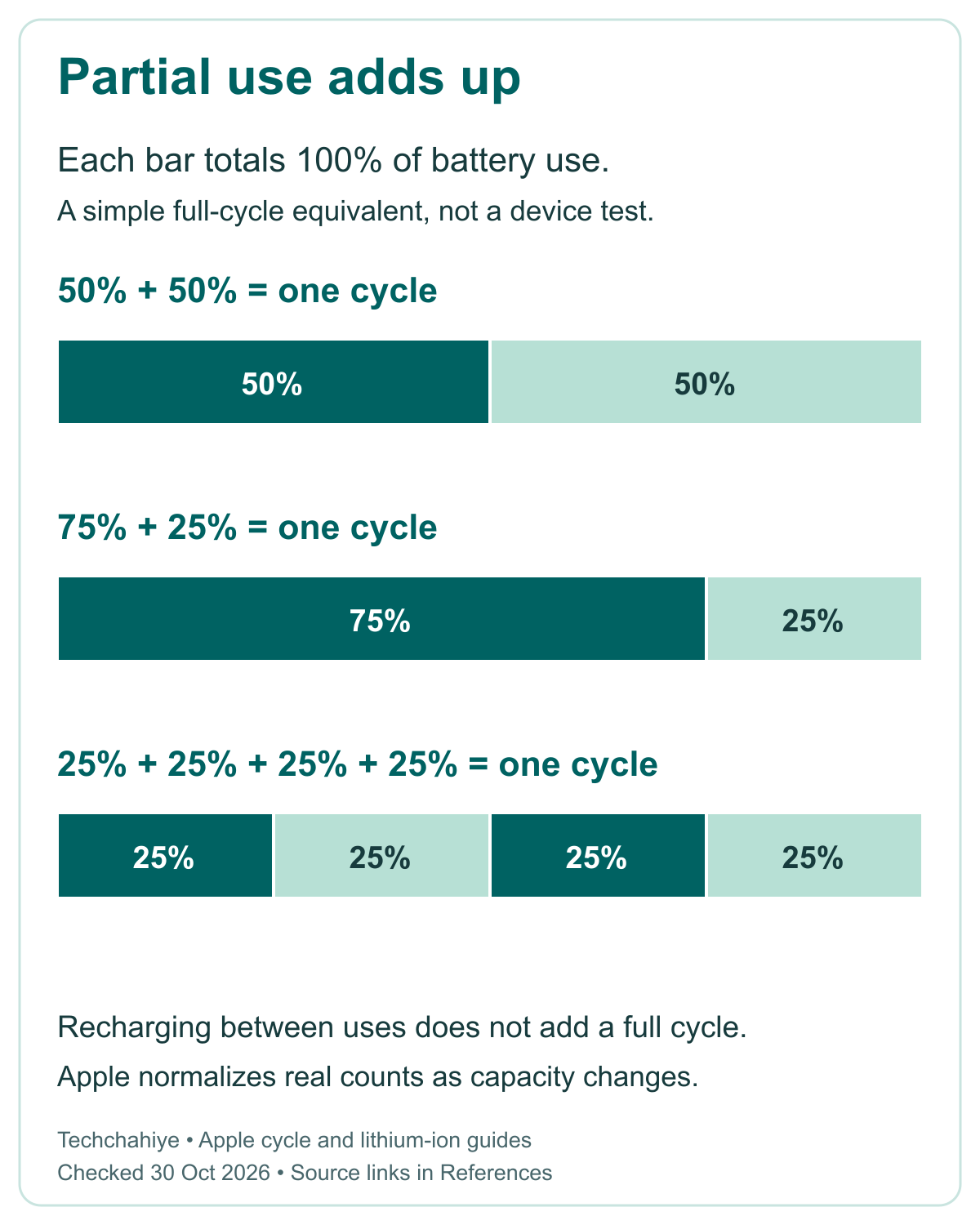
Think of the count as a record of battery use, rather than a count of plugs. In a simple example, you use half a charge on Monday and half on Tuesday. You recharge on both days. The two halves add up to one full cycle, even though you connected the charger twice.
Apple also adjusts a full cycle as capacity falls over time. This means the system’s count is not a simple diary of visible percentage points from the menu bar. Use the built-in count as reported. Do not expect a hand tally from a few screenshots to match every update exactly.
Use the examples as arithmetic, not a battery test
The table below shows the basic idea with made-up patterns. It assumes each stated amount of use adds up as shown. It leaves out the system’s detailed counting and capacity changes. Its purpose is to explain why short top-ups do not each consume a whole cycle.
| Example pattern | Simple sum of battery use | Cycles in the example |
|---|---|---|
| 50% on two days | 50 + 50 = 100% | 1 cycle |
| 25% on four days | 25 + 25 + 25 + 25 = 100% | 1 cycle |
| 75%, then 25% | 75 + 25 = 100% | 1 cycle |
| One full charge used each day for five days | 100% multiplied by 5 | 5 cycles |
These examples do not mean you should drain the Mac to zero. Apple says you can charge its lithium-ion batteries whenever you want. There is no need to run a battery down by 100% before charging it. Changing your workday to chase a tidy number in a table offers no useful benefit.
Find the limit for your exact Mac model
Apple’s cycle-count table gives model-specific limits. Many recent MacBook Air and MacBook Pro models have a listed limit of 1,000 cycles. Older models include limits of 500 or 300. That is why a claim such as “all MacBooks are good for 1,000 cycles” is too broad.
Match the full model name and year to the table in References. Screen size alone is not enough. For example, Apple lists the MacBook Pro 15-inch Late 2008 at 500 cycles. It lists the 15-inch Early 2008 at 300. Two laptops with the same screen size and calendar year can still have different limits.
For a current example, Apple’s table lists the 14-inch M5 MacBook Pro at 1,000 cycles. It also lists the M1 MacBook Air from 2020 at 1,000. Those entries do not remove the need to check another model. Use the actual model row rather than treating one example as a rule for all Macs.
Apple calls a battery consumed at its listed limit. It suggests a new battery at that point for best performance. It also says you can keep using the battery after that point, though runtime may fall. The limit is a service-planning point, rather than a switch that turns the laptop off on the next charge.
Keep that distinction when you talk with a seller or repair shop. “It has reached the model’s listed cycle limit” is a clear statement. “It will die tomorrow” is not a conclusion that the count supports. A current Battery Health alert or a real fault needs its own check.
Keep charge level, capacity, and cycle count separate
The battery menu’s charge level tells you how full the battery is now. Maximum Capacity, where macOS shows it, compares what the battery can hold with when it was new. Cycle Count tracks full-cycle use. These values answer different questions. Give each one its own label in your notes.
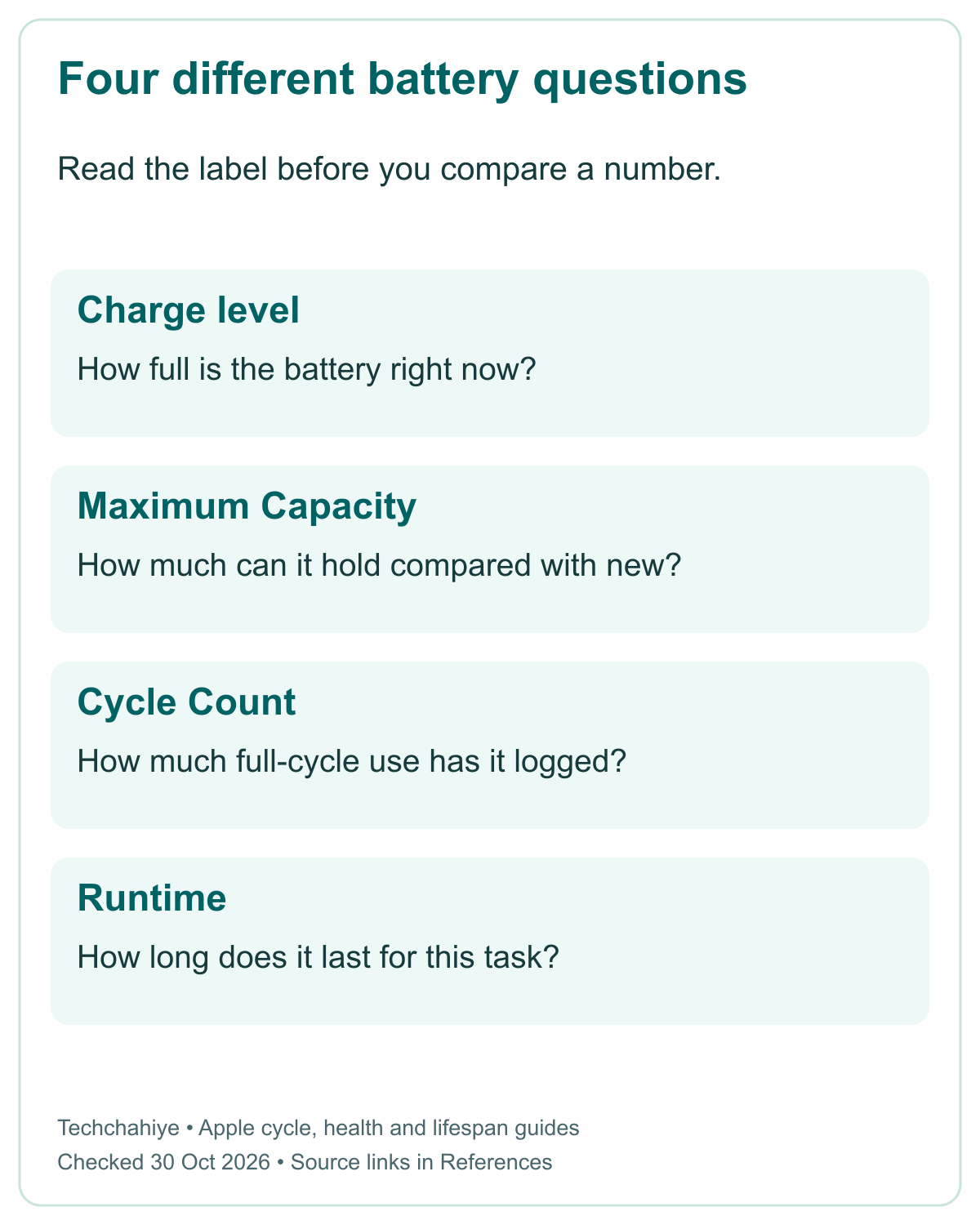
Apple’s Mac User Guide defines Maximum Capacity relative to the battery when new. A 100% charge today does not mean the battery has 100% of its original capacity. You may have filled a battery that now holds less. This is why a full icon cannot settle a battery-health question.
Suppose a made-up Mac shows 100% charge and 88% Maximum Capacity. The first number says it has reached its current full charge. The second compares its capacity with when new. Neither number is the cycle count, and neither tells you an exact number of hours of video or office work.
Do not turn a capacity figure into a runtime promise
A laptop’s tasks and settings also affect the time between charges. Apple uses two terms. Battery life means runtime per charge. Lifespan means time until the battery needs replacement. A video call and a text document can use different amounts of power. The same starting charge does not make their loads equal.
If two Macs show the same capacity percentage, you still need to compare their models and tasks. A larger or newer battery is not the same unit as a health percentage. Avoid ranking used laptops from one screenshot without that context. The number is a useful fact, but it is not a full comparison.
Use Battery Health to choose the next check
Open Battery in System Settings and look for Battery Health. Apple’s service guide describes Normal as a battery working normally. Service Recommended has two possible meanings. The battery may hold less charge, or it may not work as it should. It does not identify one single cause from the label alone.
On an older Mac or macOS release, Battery Health may be absent. Hold Option as you open the battery menu. Apple says this can show older health labels. Do not treat a missing newer panel as a clean health result. Record the older status you can actually see.
Apple advises using macOS health information over a third-party app’s verdict. An app may offer other figures, but its label is not a final diagnosis. If two apps disagree, first record macOS’s own condition and the exact symptom. More dashboards do not settle a conflict without a clear question.
| Count and condition | Useful interpretation | Next step |
|---|---|---|
| Low count, Normal, runtime meets your needs | No problem shown by these checks | Keep using it and keep a dated note |
| Low count, Service Recommended | A low count does not rule out a fault or wear | Review service needs and actual symptoms |
| Near the model limit, Normal | Plan around wear, rather than a sudden deadline | Check whether runtime still suits your work |
| At or above the limit, short runtime | Service planning is useful | Seek a model-specific battery evaluation |
The table is a decision aid, not a substitute for a repair check. It does not certify a battery as safe or predict a failure date. See physical damage or a clear fault? Seek help for that symptom. A low cycle count does not explain it away.
Why a low count is not the same as a new battery
Cycle Count records use; it does not record every condition the battery has faced. Apple’s lifespan guide warns that heat can harm capacity. It also gives guidance for long-term storage. A laptop used rarely can still spend time in poor storage conditions.
For example, imagine two used Macs with the same count. One owner used the laptop often for light work. Another left it in storage for long periods. The count does not describe those histories. You would still want Battery Health, current behavior, and a direct check of each machine.
A seller may also have had the battery replaced. Ask for service records where available. Read the count as a property of the battery now in the Mac, rather than a complete history of the computer. Do not infer a fraud or a repair from the number alone; ask for evidence that explains it.
Avoid a single pass-or-fail cutoff such as “under 300 is good.” On one old model, 300 is the listed limit. On another Mac, it is well below its listed limit. Even after you match the model, the health status and current runtime still matter.
Check runtime with a useful comparison
If your concern is a short workday away from an outlet, check that problem directly. Write down the usual task, screen brightness, connected devices, starting charge, and time. Save your work before making a comparison. You do not need to force the battery empty to learn something useful.
Try a normal session with the same task and similar settings. Note whether the battery falls much faster than it usually does. A single session is a clue, not a lab result. An update or a different call app can change the load. Record those differences too.
Apple suggests dimming the screen to a level you find comfortable. Close apps you do not need. Unplug devices you are not using. Start with one relevant change. Dim the screen, close apps, and unplug a drive at once? Runtime may improve, but you lose track of which change helped.
Do not compare a seller’s idle desktop with your own video-call workload. Ask what the laptop was doing during a claimed runtime figure. A useful comparison names the task and conditions. A claim of “all-day battery” without those details gives you little to check.
If the real problem is that the Mac will not gain charge, use a charging guide. A suitable power source, cable, or charging hold may explain that state. A cycle count is not a test of the adapter. Our separate MacBook charging article in References covers that path.
Care habits that do not turn into a second job
Use the Mac for the work you bought it to do. Apple says partial charging is fine, so there is no need to drain it daily to keep the cycle math simple. The count is a maintenance clue. It should not become a target that makes the laptop less useful.
Pay attention to heat and airflow. Apple’s battery guide gives a MacBook operating range of 50°F to 95°F, or 10°C to 35°C. That refers to the surrounding environment, not a target for a chip-temperature app. Keep the Mac on a suitable surface with room for air to move.
For long storage, Apple suggests about half charge. Switch the device off. Keep it in a cool, dry place. Its guide says to bring it back to 50% every six months if storing it for longer than six months. This is storage advice, not a rule to hold your daily work Mac at 50%.
Charging controls vary by model and macOS. Apple’s Mac User Guide describes two charging controls. It lists Optimized Battery Charging and Charge Limit. Check which ones your Mac offers. These controls affect charging behavior. They do not turn the cycle-count field into a health score or guarantee a fixed battery lifespan.
Plan service from evidence, not a countdown
Seek a battery evaluation when health status, runtime, or a fault affects how you use the Mac. Bring a dated count, model name, and a short description of the symptom. Note whether the issue happens on battery power, while charging, or in both cases.
Apple Diagnostics can help identify a possible hardware problem. Its startup steps differ by chip family. Apple silicon uses startup options and Command-D. Intel Macs use D at startup, with Option-D as another route. Use Apple’s full preparation steps and keep any reference code the test gives you.
A diagnostic result adds evidence. It does not replace your description of a fault that comes and goes. “It shuts down during a call after unplugging” is useful context even if a short test does not explain it. Keep that note with the result rather than assuming one clean test rules out every issue.
Do not buy a battery solely because another person’s laptop needed one at the same count. Confirm the model, symptoms, available service options, and quote for your country. US and Indian service arrangements can differ. This guide makes no price or coverage promise from the cycle count.
Keep a short battery check record
Mac model and macOS: __. Date: __. Cycle Count: __. Model limit: __. Battery Health: __. Maximum Capacity, if shown: __. Usual task and runtime change: __. Diagnostic code, if any: __. Checks not yet done: __.
Did You Know?
Apple says a full cycle can take several days to complete. In its own example, using half a charge on one day and half on the next totals one cycle. That is why two charging sessions do not always add two to the counter.
Conclusion
Read your MacBook battery cycle count in System Information. Then match it to Apple’s exact model row. Add Battery Health and a note of real runtime. That gives you a sounder basis for a used-Mac decision or a service visit than any single count. Keep the labels clear, avoid forced full discharges, and act on a real symptom when it needs help.
FAQs
Is 1,000 cycles the limit for every MacBook?
No. Apple’s table includes limits of 300, 500, and 1,000 cycles for different models. Many recent Macs use 1,000, but older models vary. Find the full model name in About This Mac and match it to the table. A screen size or rough year alone may not be enough.
Does plugging in my MacBook add one cycle?
No. A cycle adds up battery use equal to a full charge. Partial use can span more than one charging session. Apple’s example of 75% one day and 25% the next totals one cycle. You do not need to drain the battery to zero before charging it again.
Does a low cycle count prove a used Mac has a good battery?
No. Check Battery Health, current runtime, model details, and service records too. Cycle Count does not tell you the whole storage or heat history. A low count with Service Recommended still needs a closer look. Inspect the Mac rather than relying only on a seller’s screenshot.
Can I use my MacBook after its listed cycle limit?
Apple says you can keep using the battery beyond its cycle limit. Battery life may fall. It recommends replacement at that point for best performance. Read health status and check whether runtime meets your needs. The published limit is not a precise date for failure or shutdown.
Why can a fully charged battery still show lower Maximum Capacity?
Charge level and Maximum Capacity measure different things. A full charge fills the battery to its current capacity. Maximum Capacity compares what it holds with when it was new. Neither percentage is the cycle count. Read the labels together and avoid turning one figure into an exact promise of runtime.
References
- Apple — Determine battery cycle count for Mac laptops
- Apple — Why Lithium-ion?
- Apple — If you see battery Service Recommended on your Mac laptop
- Apple — Change Battery settings on a Mac laptop
- Apple — Maximizing Battery Life and Lifespan
- Apple — Identify your MacBook Pro model
- Apple — Use Apple Diagnostics to test your Mac
- Techchahiye — MacBook Pro Not Charging? Read the Status Before You Replace Parts
- Techchahiye — Factory Reset MacBook Pro: Choose the Right Erase Method
