

Before you buy
Decide whether you want more games ready to play or a place to archive them. Check the exact drive and cooling parts. Protect saved progress, then check a small move after setup.
Key Takeaways
- A PS5 SSD upgrade needs a drive that fits the console and your goal.
- Use a supported internal M.2 drive to add space for playable PS5 games.
- USB extended storage can hold PS5 games, but you must copy them back to play.
- Check cooling, save protection and the full cost before buying a drive.
A PS5 SSD upgrade can give you more room to keep games ready to play. The key is choosing the right kind of storage. An internal M.2 SSD and a drive plugged into USB do different jobs. Start with that choice before comparing sale prices or speed claims.
If your aim is to stop deleting one game to install another, added internal storage may fit. If you want a place to keep games you rarely play, USB storage may serve that goal. Buying the wrong type can leave you with plenty of space but the same daily problem.
This guide uses PlayStation support guidance checked on October 25, 2026. It explains how to choose and plan an upgrade. It does not claim hands-on drive tests. Use Sony’s guide for the physical fitting steps. Choose the guide for your exact console model in References.
Choose What Your PS5 SSD Upgrade Must Solve
Define your PS5 SSD upgrade goal in one sentence. For example, “I want four large games ready for weekly play.” That is a clearer goal than “I need the fastest drive.” Your goal decides which storage type is useful and how much space you need.
Next, check Settings > Storage on the console. Sony’s storage guide explains that this screen shows what uses space. Look at games, media and saved data separately. A large capture collection calls for a different cleanup plan from a large game library.
Do not buy from the headline capacity alone. Two people with the same console may need different upgrades. One rotates a few games each month. Another shares the console with family members who keep separate favorites. List the games that must remain available, then total their displayed sizes.
Also decide how much waiting you will accept. Moving a game before a rare weekend session may be fine. Moving it every evening may defeat the point of buying it. The best choice is the one that removes your repeated task at a cost you can justify.
Internal M.2 and USB Storage Are Different Tools
Sony’s storage guide covers supported M.2 drives. You can play PS5 and PS4 games from them. It treats saved progress separately from those installations. Keep this distinction in mind when a listing describes a drive as “extra PS5 storage.” Ask what that storage lets you do.
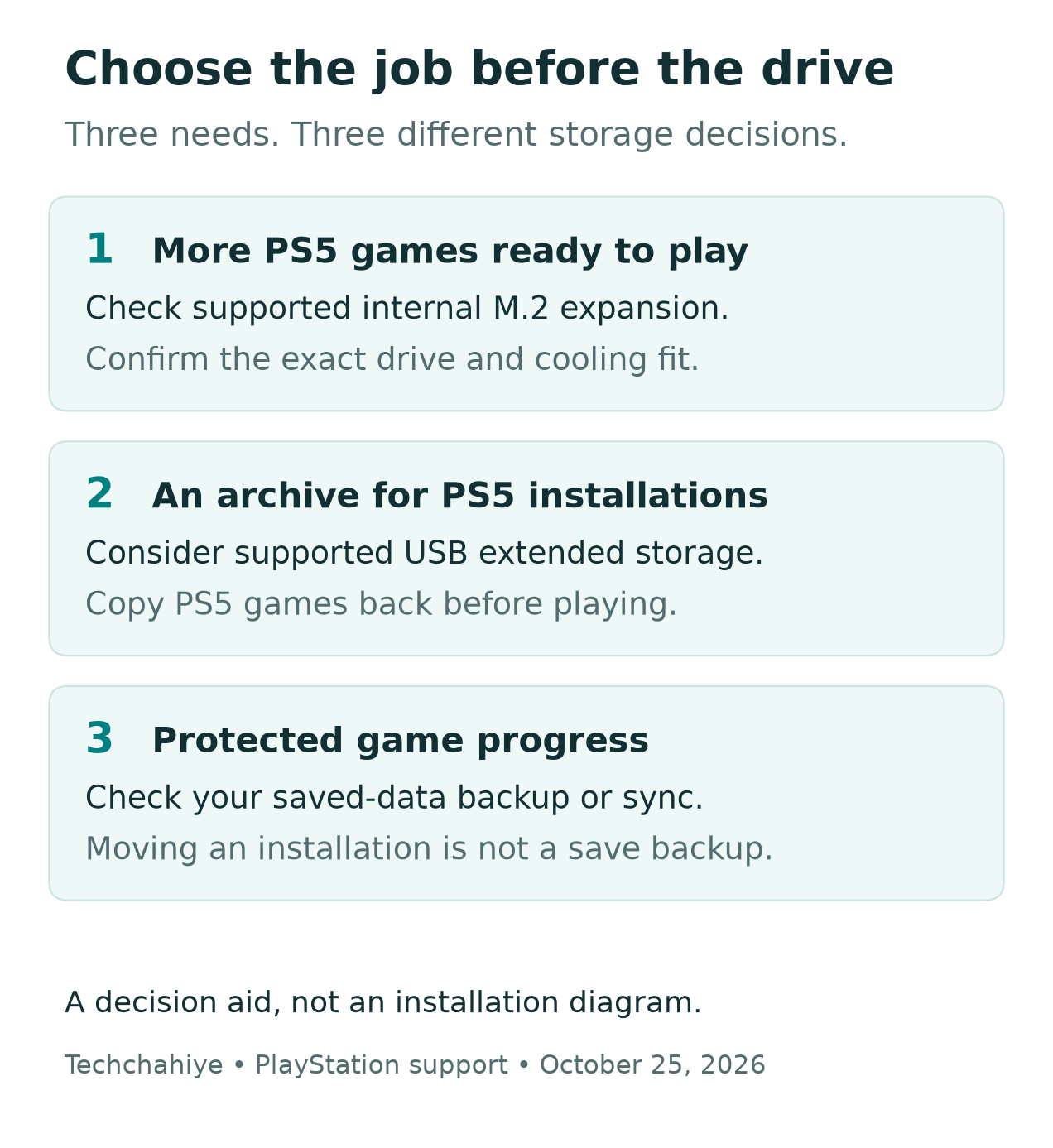
Sony’s USB guide says PS5 games stored on USB extended storage must be copied back before play. PS4 games can run from that USB storage. This makes a USB drive useful as a game archive, but it does not turn the USB port into an internal expansion slot.
| Your main goal | Storage route to consider | Question to answer first |
|---|---|---|
| Keep more PS5 games ready to launch | Supported M.2 expansion | Does this exact drive meet the console requirements? |
| Keep rarely played PS5 games nearby | USB extended storage | Am I willing to copy a game back before playing? |
| Keep a PS4 library available | Supported storage for PS4 games | Which location suits my current setup? |
| Protect game progress | Saved-data backup or sync | Is my latest save actually protected? |
Treat these as separate needs in your budget. A game archive is not a save backup. A save backup is not extra room for a full game installation. Calling all three “storage” can hide the decision that matters most.
Check PS5 SSD Requirements Before the Price
Sony lists PCIe Gen4x4 M.2 NVMe, Key M, with 250 GB to 8 TB capacity. It recommends sequential reads of 5,500 MB/s or faster. Supported drive lengths are 30, 42, 60, 80 and 110 mm. Sony does not support M.2 SATA. The full drive and cooling structure must fit.
The full assembly can be up to 25 mm wide and 11.25 mm thick. Sony divides that thickness into up to 8.0 mm above the board and 2.45 mm below. These are physical limits, not a reason to choose the tallest heatsink you can find.
Make a short buying checklist from those requirements. Check the exact model code on the maker’s page. Compare it with the seller’s listing. One product family may include several sizes or cooling options. The family name alone is not enough.
If a listing omits a key measurement, ask for it before ordering. Do not assume a drive fits because a review mentions a similar model. Match the exact item in your cart with the required specs. Save the product sheet with your receipt for later support.
For a historical example, Techchahiye covered Samsung’s portable X5 in 2018. That product used Thunderbolt 3. The report shows why the word SSD alone is not a useful fit check. It is an old launch report, not a PS5 approval or a current price guide. Find it in References.
Read the Heatsink Listing as Part of the Drive
Sony requires effective heat dissipation for this use. A built-in heatsink and a bare drive are different buys. Check what comes in the box. A photo may show an optional accessory that does not come with the selected version.
Compare complete assemblies. The bare circuit board’s dimensions do not tell you whether a separate cooler will fit. Ask the maker for the combined measurements if the listing is unclear. A low drive price can become less attractive once you add the required cooling part.
Avoid treating a large metal cover as proof of good cooling. It still needs to be suitable for this console and drive. Similarly, a small cooler is not automatically unsuitable. Read the maker’s fit and cooling guide. A photo cannot show how well the cooler works.
If you prefer fewer parts to manage, compare a version with cooling already fitted. If you choose separate parts, include assembly in the plan and budget. This is a practical preference, not a claim that one design wins every temperature test. We have not measured either approach here.
PS5 Storage Upgrade: Plan Capacity From Your Games
Use your own console’s numbers for a capacity plan. Download sizes change with patches, language packs and add-ons. One terabyte does not hold a fixed number of games. Their sizes differ and change. Build the plan from the library you actually want installed.
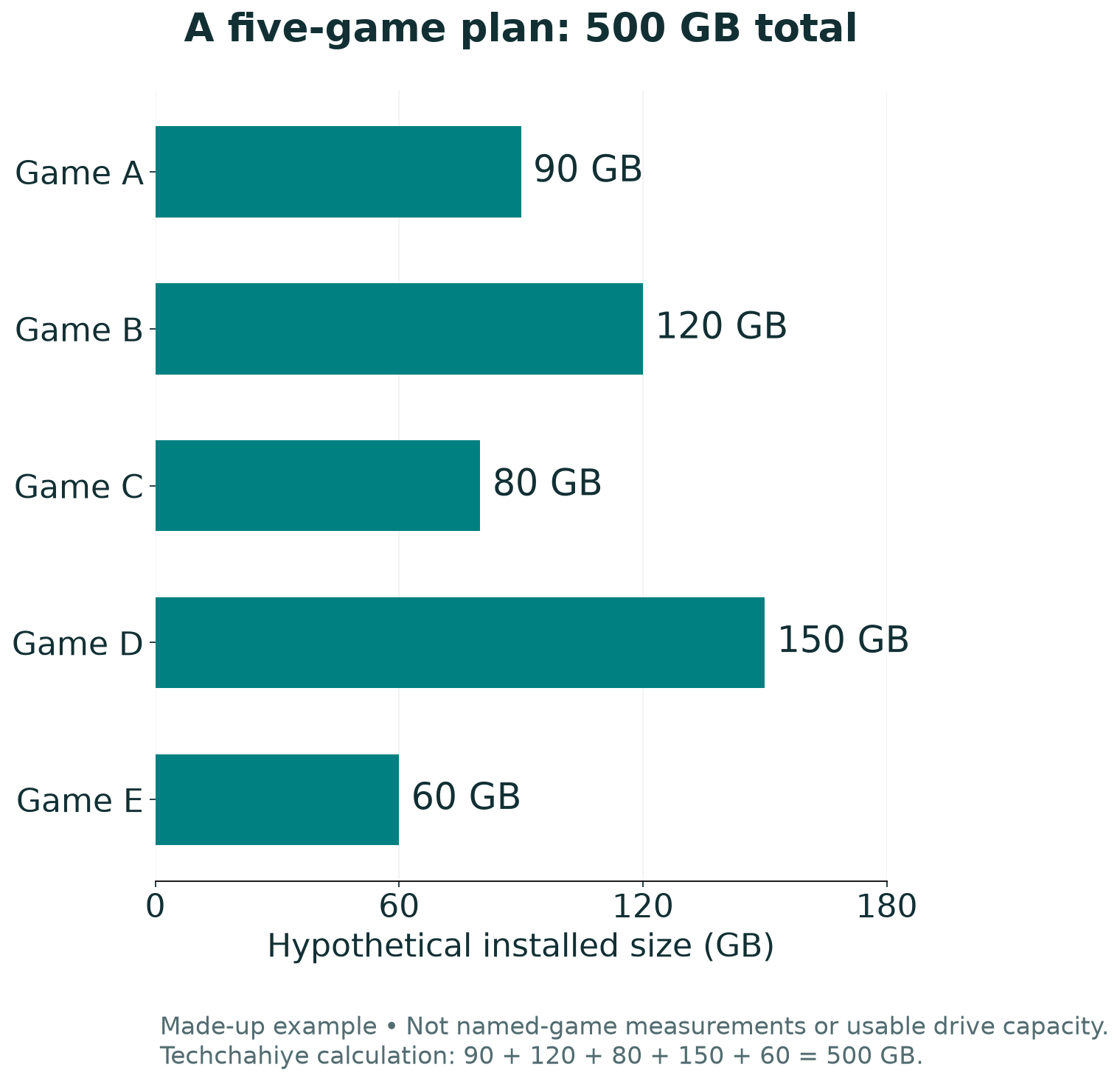
Here is a made-up example, not a measurement of named games. Suppose five installations show 90, 120, 80, 150 and 60 GB. Their total is 500 GB. That is this example’s starting workload. Future updates or another game would add to it.
| Hypothetical installation | Displayed size used in the example |
|---|---|
| Game A | 90 GB |
| Game B | 120 GB |
| Game C | 80 GB |
| Game D | 150 GB |
| Game E | 60 GB |
| Calculated total | 500 GB |
Replace every row with your own numbers. Then add the extra room you want for your next game and updates. There is no universal spare-space percentage in this example. Choose a margin that fits your pattern of buying, keeping and removing games.
Do not treat the capacity printed on a box as a promise of that exact amount of free game space. Check the console’s reported free space after setup. Compare that real result with your plan before moving the whole library. That gives you a useful baseline for later decisions.
Compare Total Cost Without Guessing Future Prices
Compare complete PS5 SSD upgrade costs in your own market. Include the drive and any separate cooling part. Add tax, delivery and a fitting service if you choose one. A headline discount can hide a missing component. It can also compare a current sale price with a list price you would never otherwise pay.
For a hypothetical US example, suppose a complete 1 TB option costs $100 and a complete 2 TB option costs $160. The extra nominal terabyte costs $60. Dividing price by advertised capacity gives $100 per TB and $80 per TB. These are made-up prices, not current offers.
The lower unit cost does not automatically make the larger drive your best buy. If you only need the smaller option, spending $60 more still raises your bill. However, your library may already exceed that plan. A larger size could avoid another drive change soon.
For India, repeat the same comparison with rupee quotes and local terms. Do not convert a US sale price and assume it is an Indian delivered price. Use the actual checkout cost and the support route offered for that item. Keep currencies and tax treatment consistent within each comparison.
Check the Seller and Exact Product Code
Check the capacity, interface and cooling version before paying. The title, selected option and invoice should all match. A listing may keep the same photographs when you change an option. Read the selected item’s details again at checkout rather than relying on the first image you saw.
Keep a record of the return window and the seller’s stated handling of an opened drive. Do this while you can still choose another seller. A clear paper trail is useful if the delivered model differs from the order. It does not replace the maker’s compatibility information.
Ask specific questions. “What is the total height with the included heatsink?” is better than “Does it work?” Request the exact model code if a seller answers with only a brand name. If the reply is vague, do not guess the missing spec. Keep the question open.
For a used drive, request its exact identity and the seller’s account of its condition. Treat screenshots of health data as supplied evidence, not a guarantee. Unclear support or return terms add risk to the choice. Consider that risk alongside the price gap.
Keep a receipt and product record
Save the exact drive code, cooling version, seller, receipt and stated return terms.
PS5 SSD Upgrade Prep: Identify Your Console
Sony says the model code starts with CFI. It is on the bottom when the console stands upright. Use that code to choose the correct cover and fitting instructions. A tutorial for another model may show a different cover arrangement.
Sony’s cover guide groups the steps by model. It shows which way to place the console and where the clips sit. It says to turn the console off, unplug it and let it cool first. Keep the right model’s diagrams open before you start. Do not rely on your memory of an old video.
Prepare a clear work area where small parts will not get lost. Keep children away from loose parts. If a cover does not move as the matching guide shows, stop and check the model again. More force is not a useful substitute for confirming which panel you are handling.
Decide in advance who will do the work. If you do not feel able to do the work, seek suitable help. Share the console model and exact drive code when asking for a quote. That makes the proposed job clearer than a request to “add memory.”
PS5 SSD Upgrade Prep: Protect Your Saves
Think of the game installation as the program and the save as your progress. Sony’s storage guide shows these as different data types with different storage routes. Moving a large game does not prove you have a save backup. Check your progress separately.
Sony’s cloud-save guide is for PlayStation Plus members. It explains how to check save sync status. Review that result for the games you care about. Do not assume the latest session has synced because the subscription is active. Check the displayed state before starting hardware work.
Sony also provides a USB console-backup route. Sony excludes games on M.2 or extended USB storage from that backup. It also warns that restoring a backup erases the data currently on the console. Backup and restore are separate operations; do not restore simply to check a backup.
Choose the protection route that fits your account and data. Confirm what it covers, where it keeps the data and how you would use it. If anything important remains unclear, resolve it first. Buying storage can wait more easily than lost progress can be recreated.
Prepare Software and Follow the Right Fitting Guide
Sony’s system-software guide provides the normal update path through Settings > System > System Software. Check for an available update before the upgrade. Use the official update route. Updating and reinstalling system software are different actions; the latter erases console data.
For the hardware stage, follow the matching Sony M.2 installation guide from start to finish. It covers the slot, spacer, fitting and closure for the relevant model. This article is a buying and planning guide. It is not a replacement diagram for an open console on your desk.
Read any erasure warning before accepting a format prompt. A drive that already holds files is not an empty drive simply because it is new to this console. Back up those files elsewhere if you still need them. Pause if you cannot identify which storage the prompt refers to.
Do not turn a small upgrade into several unrelated changes at once. Finish this job and verify it before changing other settings. If a fault appears, a clear record of one change is easier to investigate. Keep the packaging and product code. Check that the new storage works before you put them away.
Verify Your PS5 SSD Upgrade Before a Large Move
Start with a limited move, then check the result. Record the storage location and free space shown by the console. Launch the game you moved and confirm it reaches the point you normally use. That is a check of your own setup, not a benchmark against another drive.
Use the console’s storage controls to manage the game install location. Sony’s support pages explain the relevant menus. Read the destination before confirming a move. This matters most when console storage, an M.2 drive and a USB drive are all present in the same setup.
If a problem occurs, write down the exact error and the point where it happened. Was the drive missing from storage, did a move fail, or did one game behave differently? Those are different symptoms. Give support the console model, drive code and result rather than saying only “SSD broken.”
Avoid making a large claim from one successful launch. A single game opening does not prove every title or update will behave the same way. Equally, one failed download does not prove the new drive caused it. Keep your conclusion matched to the check you performed.
Did You Know?
Sony’s cloud-save guide lists separate allowances of up to 100 GB for PS5 saved data and 100 GB for PS4 saved data. These are save-storage allowances for PlayStation Plus members. They are not space for keeping full game installs ready to run.
Conclusion
A useful PS5 SSD upgrade starts with your library and the kind of access you want. Choose the storage route first. Then confirm the exact drive, cooling assembly, full price and model-specific fitting instructions. Protect progress separately from the games you plan to move.
After setup, compare the console’s reported free space with your plan and test a small move. Keep the first result simple and clear. You can then judge the upgrade by how it helps each day. The biggest number on the box cannot tell you that.
FAQs
Can a USB SSD run PS5 games directly?
No. Sony says PS5 games on USB extended storage must be copied back to console or supported M.2 storage before play. A USB SSD may suit an archive plan, but it does not serve the same role as internal expansion. Decide whether that copying step fits how often you play.
How much space should I buy for a PS5 SSD upgrade?
Start with the displayed sizes of the games you want to keep installed. Add room for your next games and updates based on your own habits. The worked example in this guide is hypothetical. It is not a promise about how many games a given drive will hold.
Does a faster advertised drive guarantee faster games?
No. A sequential-read claim is not a measured result for every game on your console. Check that the drive meets the required specs first. Then compare independent tests only when their methods and game versions are clear. This guide does not claim original performance measurements.
Will moving a game protect my saved progress?
Do not treat a game move as proof of a save backup. The installation and saved progress are separate data. Check the saved-data route you use and confirm its current state. Cloud sync and a console backup cover different things. Sony explains each in the linked guides.
What should I save for support if the upgrade fails?
Keep the console model, exact drive code, cooling details and receipt. Add the full error message and the step where it appeared. Note any small checks you performed and their results. Use the provider’s official private help route for account details. Share a serial number there only when needed.
References
- PlayStation — M.2 SSD requirements and model-specific installation
- PlayStation — Manage PS5 console storage and data locations
- PlayStation — USB extended storage on PS5 consoles
- PlayStation — Find console model and serial numbers
- PlayStation — Remove and attach console covers
- PlayStation — Update PS5 system software
- PlayStation — PS5 PlayStation Plus cloud storage
- PlayStation — Back up and restore PS5 console data
