

Start with the smallest useful check
Restart Steam and your computer. Compare browser and client access, then test the network or the affected game. Protect local saves before changing files or choosing a cloud copy.
Key Takeaways
- Steam stuck on loading user data? First check whether Steam is down or only your computer has trouble.
- Restart Steam and your computer before changing files or account settings.
- Does the library open but one game fail? Check that game’s files first.
- Protect local saves and resolve cloud conflicts before playing on another device.
If Steam is stuck on loading user data, start with a full restart, then check whether you can reach Steam in a browser. Next, test a different network if you have one. If Steam opens but one game will not launch, verify that game’s installed files. Keep your local saves intact throughout the checks.
The message alone does not identify a single cause. A sign-in can stall. A connection can fail. A game can stop loading. Each problem needs its own checks. Treat this guide as a way to narrow the problem, rather than a promise that one setting will fix every case.
Valve’s client help starts with a restart. It also covers app and network checks. Its cloud guide covers failed syncs. Read that warning before you keep playing. The steps below use a simple rule. Start with the smallest change that fits what you see.
Steam Stuck on Loading User Data: Find the Failing Step
First work out which part has stopped. Does the Steam window never reach your library? Does the library load, but a game stays on a loading screen? Or does Steam show a cloud warning beside an otherwise working game?
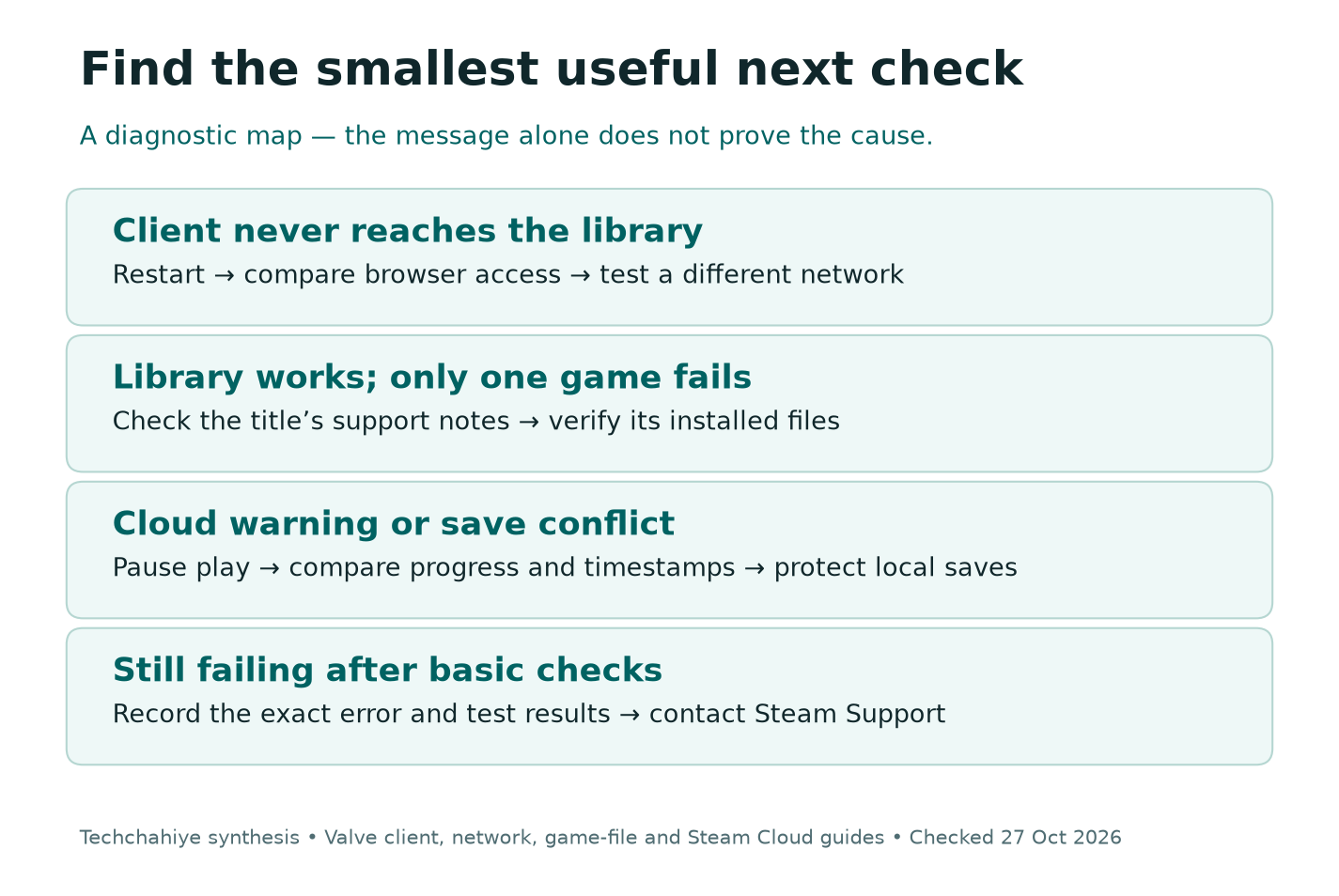
Write down the exact message. A photo of the screen can help when the message disappears after a restart. Note whether the problem began after a Steam update, a game update, a router change or a power cut. That timing is a clue, although it does not prove the cause.
Use this table to choose a starting point. These are diagnostic suggestions, not confirmed explanations for your computer.
| What you see | First useful check | Avoid doing first |
|---|---|---|
| Steam cannot reach the library | Restart and test browser access | Delete the userdata folder |
| Several Steam sites time out | Check for a wider connection or service issue | Reinstall a large game |
| Only one game fails to start | Verify that game’s installed files | Reset the whole computer |
| A cloud conflict appears | Compare saves and their timestamps | Pick a copy without checking progress |
| A download reports an installation error | Read the full error and check storage | Assume an account ban |
For example, imagine the Steam store opens in your browser. A second game also runs. That makes a complete Steam outage less likely. It does not rule out every connection issue, but it gives you a reason to focus on the affected game first.
Steam Client Not Loading: Restart Before Repairs
Use Steam’s Exit option if the client responds. Close any running game first and allow a visible save or sync operation to finish. Then reopen Steam and check whether the library appears.
If the client will not respond, restart the computer through the operating system. Save other work before you do so. Avoid repeatedly cutting power to the machine while storage is active. A normal restart gives the system a chance to close its files and processes.
Valve recommends restarting both Steam and the computer as a basic troubleshooting step. A restart clears some short-term system state. It can also free resources that another process holds. It is a useful first check. It involves less work than changing account data or the whole app.
After the restart, open Steam once. Let it complete any visible update before opening games. If a new error appears, record that message too. Do not keep applying fixes for the old screen if the actual fault has changed.
If Steam works now, stop. Launch one familiar game, confirm that your latest save is present, and close it normally. There is no benefit in clearing caches or replacing files after the problem is gone.
Check Steam Connection Problems Beyond the Client
Open the Steam store or Steam Support in your usual browser. This checks whether another route to the service works. It does not test every connection that the desktop client uses.
Valve’s sign-in help explains this point. The client and browser use different ways to reach an account. A working website does not prove that the desktop connection is healthy. Do several Steam pages fail at once? That is a useful clue. You can use it to decide which part to check next.
Does your browser show a sign-in page? Check its address before you enter account details. Use Valve’s own sites. A page offering a special unlock tool, free games or a remote repair session is not a required part of this process.
Try an unrelated site as well. If ordinary sites also fail, handle the broader internet problem first. A Steam restart cannot fix a disconnected router. It cannot complete a public Wi-Fi sign-in page either.
Write down what works and what fails. For example: “The Steam store opens. The desktop client does not.” Avoid a vague note like “internet is fine.” The first two sentences describe a test. The vague note can hide a difference that matters.
Test the Network Without Changing Everything
If possible, compare your usual connection with another network you control. You might test a personal hotspot briefly, while watching your mobile data allowance. You only need to test whether the library opens. Avoid a large game download for that check.
Valve recommends a different-network test when diagnosing connection problems. Does the client work on the other network? If it still fails at home, check your home network next. That result is a clue, not proof that the router or internet provider is at fault.
A wired connection can also help separate Wi-Fi trouble from a wider issue. Valve’s network guide notes that wireless and powerline connections may have intermittent failures. Compare the two results. Do not assume that a faster download speed will fix sign-in.
If you restart the router, let it reconnect fully before trying Steam again. Avoid a factory reset as an early step. A factory reset can remove your household’s settings. A normal restart is a much smaller change.
Do you use a work or school network? Ask its admin whether the rules permit Steam. Do not try to bypass access rules. Valve notes that managed networks and proxies can block the connections Steam needs.
If you use a VPN or proxy, record that fact when asking for help. Keep security tools and network changes separate in your notes. Changing several things together makes it hard to tell which one affected the result.
Verify Steam Game Files When One Title Fails
If you can browse the library and other games run, start with the affected title. Valve provides a built-in file check for missing or damaged installed game content.
- Restart the computer and open Steam.
- Find the affected game in your Library.
- Open the game’s Properties from its menu or gear icon.
- Select Installed Files.
- Choose Verify integrity of game files and let the process finish.
Valve says this check can take several minutes. Do not run it for several games at once. Its guidance also advises against running other demanding storage tasks during verification.
A file that does not verify is not always a sign that the repair failed. Valve says some local settings files should differ. The check should leave those files alone. Read the final result and test the game before starting another repair.
This check concerns installed game files. It is not a universal fix for a client that never reaches the library. A file check has limits. Check that the game supports your computer. Check its own online service and any separate launcher login too.
For a game that still fails, read its official support notes and system requirements. A publisher may have a title-specific issue that does not affect Steam as a whole. Keep that possibility separate from the loading-user-data message.
Clear the Download Cache Only When It Fits
Valve says clearing the download cache can help with games that will not download or start. It also states that installed games remain in place, but you will need to sign in again afterwards.
Before you start, make sure you know the correct account name and have access to Steam Guard. Do not turn off account protection to make a troubleshooting step easier. If you cannot sign back in, resolve account access first.
Open Steam, choose Settings, then Downloads, and find Clear Download Cache. Read the confirmation before accepting it. An update may move the control. Follow its current label. Do not rely only on an old screenshot.
After the client asks you to sign in, use your own account and complete the normal Steam Guard check. Then test the original problem. Do not repeat cache clearing several times without a new reason.
This is different from manually deleting a folder named userdata. The built-in download-cache control has a stated purpose and documented effect. Removing account folders by hand is a broader action and can put local information at risk.
Resolve a Steam Cloud Sync Error Before Playing
A cloud warning is a separate decision point. Valve explains that a game developer chooses which files Steam Cloud stores. Do not assume that every file, every game or every recent session has a cloud copy.
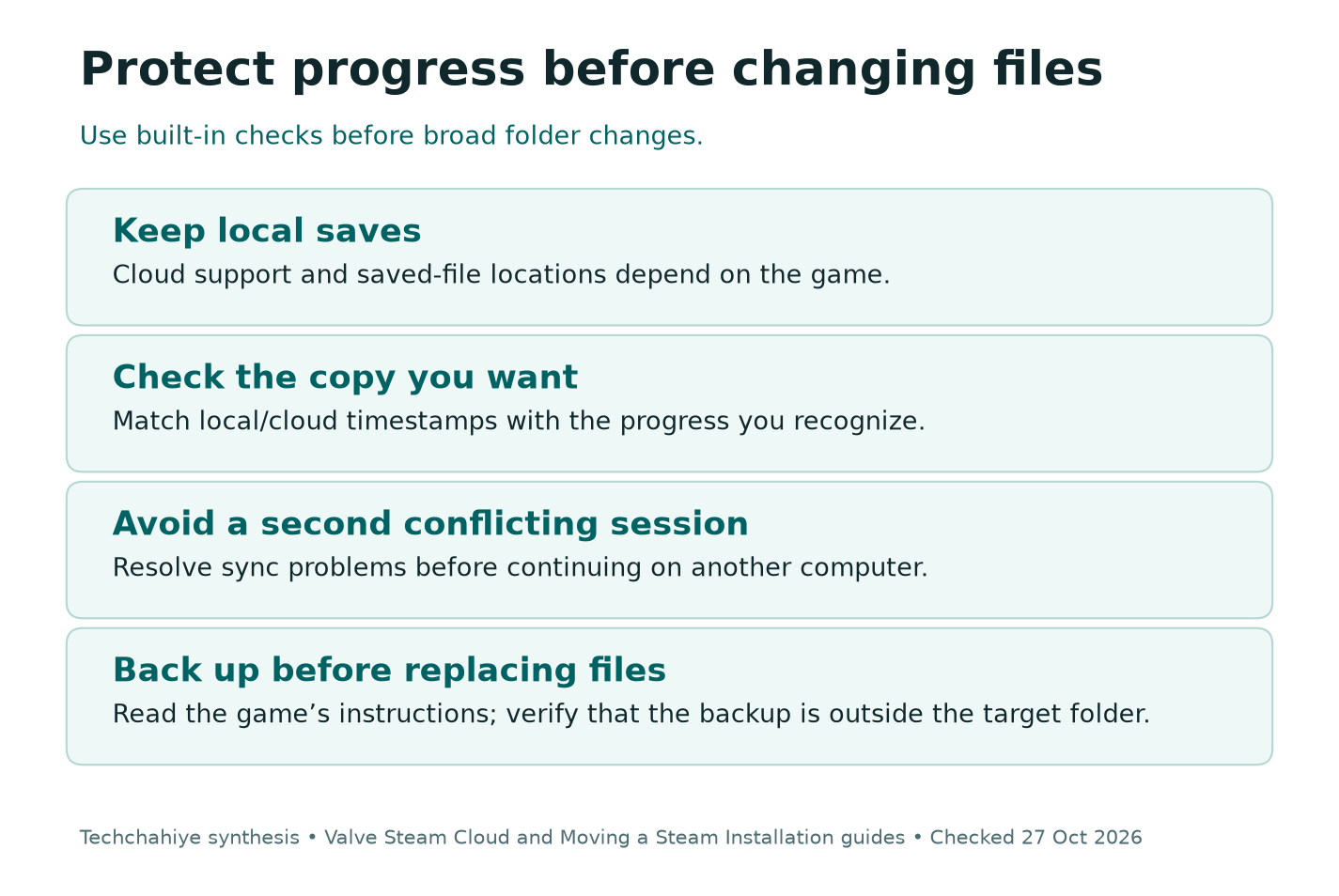
Check the game’s store page for Steam Cloud support. Then look at the sync status beside the game. Does Steam say it cannot sync? Solve that first. Keep using the same computer until you resolve the sync.
Does Steam show a conflict? Read the local and cloud timestamps. Compare them with the session you played. A more recent timestamp is a useful clue, but the progress you recognize matters too. Do not choose a copy only because Steam calls it a cloud save.
Consider a hypothetical example. You finish a mission on a laptop, close it without a working connection, and later open the game on a desktop. The desktop may not have the laptop’s latest progress. Starting and saving there could make the conflict harder to understand.
Where possible, return to the device that holds the progress you want. Keep that local save safe. Follow the game’s backup steps before you replace files. Valve warns about playing through a failed sync. It can cause file conflicts and lost progress.
Do Not Delete Userdata as a First Fix
Online advice may tell you to remove Steam folders until the client starts again. That is too broad as an opening move. First find the exact folder. Check what it stores. Then verify that you have a backup.
Valve’s cloud documentation describes a userdata folder organized by account and game identifiers. Game saves may also live elsewhere, depending on the developer. A copy of one Steam folder may not include every save.
Keep backups separate from the folder you plan to change. If your only backup is inside the location you delete, it will not help. Check that you can find and read the copied files before relying on them.
You do not need to carry out manual file surgery to complete the earlier checks in this guide. Start with a restart or a network check. Use Steam’s game-file check where it fits. These are more focused steps.
Support may ask you to change files. Follow the steps for your own system and issue. Stop if the location or file name does not match. Guessing is a poor way to protect a save that took many hours to build.
Reinstall Steam Without Confusing It With Uninstalling
Valve describes a repair for client files. It involves installing Steam again in the same place. It says this can preserve installed games. The guide also has a warning. Other ways to uninstall may remove games and userdata.
Those actions are not interchangeable. Do not erase the Steam folder on that basis. Do not pick a random removal tool either.
Before a repair, find the current install folder. Back up the data you need. Then read Valve’s current steps. On macOS, use the separate Mac removal and reinstall guide linked from Steam Support. Do not apply a Windows file path to a Mac.
Download the installer from Steam’s official site. Avoid third-party repair packs. Do not trust claims that they can rebuild your account or bypass loading. Do not send anyone your password or login files. That is not a normal part of installing Steam.
If you are unsure whether the process will preserve your saves, stop and ask Steam Support first. Try simpler checks first. Not every loading message calls for a reinstall.
Make Each Test Tell You Something
Change one thing, retest, and note the result. You can use a short record like the example below. This is an illustrative troubleshooting log, not a report of a test we performed.
| Check | Example result | What to do next |
|---|---|---|
| Restart computer | Client still stops at the same screen | Compare browser and network access |
| Open Steam store in browser | Store works | Keep investigating the client connection |
| Try another network | Library opens | Investigate the original network path |
| Launch a second game | Second game works | Focus on the affected title |
| Verify game files | Game now starts | Stop repairs and confirm save progress |
Keep your notes short enough that you will use them. The goal is to stop repeating a failed step and to make the next decision clearer.
Also note what you did not test. “No second network available” is a valid limitation. It is more useful than treating an untested network theory as a confirmed diagnosis.
What to include in a support note
Record the exact message and operating system. Note the start time. Say whether the library opens. Add each check’s result. Omit passwords and Steam Guard codes.
When to Contact Steam Support
Contact Steam Support if the basic checks fail. Ask for help with account access or a save at risk too. Use the official help site and choose the closest matching issue.
Include the exact error and your operating system. Note when it started. Say whether the library opens. Add the restart and browser-check results. Include network and game-file checks if you tried them.
Do not post passwords or Steam Guard codes. Keep login files out of screenshots too. Valve’s Steam Guard guide warns against sharing login details. That includes files and details sent to someone who claims to offer help.
Do several unrelated apps fail? Tell your computer or network support provider too. Steam may be where you notice the fault, without being its source. Storage errors, repeated crashes or a failing connection deserve a wider check.
There is no need to keep stacking fixes while waiting for an answer. Keep the current state and your notes. Avoid changes that would erase useful clues or your saves.
Did You Know?
Valve says a file check may leave some files as they are. Local settings files can differ from the standard copy. That result alone does not prove damage to your account or all your games.
Conclusion
For Steam stuck on loading user data, the best first move is to narrow the fault. Restart, compare browser and client access, then test the network or the affected game. Use built-in repairs where they fit. Protect local saves and cloud progress before you replace files. Stop changing settings once Steam works again.
FAQs
Does loading user data prove a Steam account ban?
The message alone does not establish an account ban. Record any separate account notice and check it through Steam’s official support flow. An account restriction is a separate issue. The loading screen alone does not tell you which problem you have.
Can I clear the cache without deleting my games?
Valve says the built-in Clear Download Cache option does not affect installed games. You will need to sign in again. Check account and Steam Guard access first. Use the named control. Do not delete folders that look like cache files.
Why does Steam work in a browser but not in the app?
Valve explains that the desktop client accesses your account differently from a browser. A working store page is useful evidence, but it does not test every client connection. Record that difference. Compare networks before you blame the account or the whole Steam service.
Should I play when Steam Cloud cannot sync?
Resolve the sync issue first when you want to protect recent progress. Valve warns that playing through a failed sync can create a conflict and risk lost data. First find the device with the save you want. Then choose the right copy before you move to another computer.
Should I reinstall every game if Steam keeps loading?
No. If the client cannot reach your library, reinstalling games is not a focused first step. If only one title fails, try its file-verification option and official support guidance. Keep a record of the result before considering a larger repair to the Steam installation.
References
- Valve — Steam Client Troubleshooting
- Valve — Troubleshooting Network Connectivity
- Valve — I Can’t Sign In to the Steam Client
- Valve — Verify Integrity of Game Files
- Valve — Clear Download Cache
- Valve — Steam Cloud
- Valve — Moving a Steam Installation and Games
- Valve — Steam Guard
- Techchahiye — Chrome Memory Saver
