

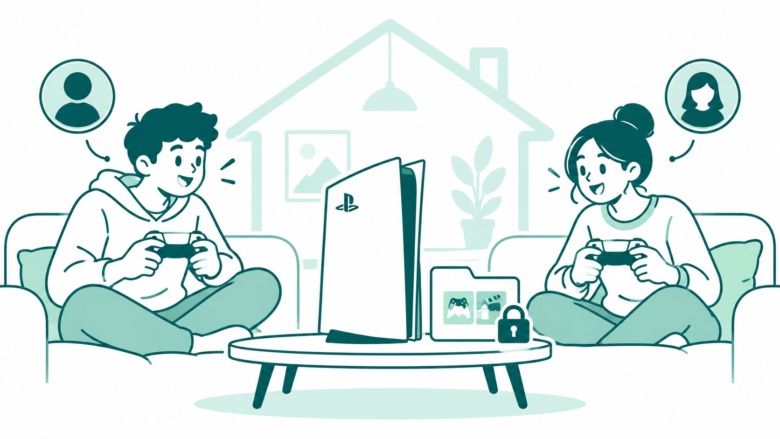
Owner, console, player: check all three
Review Console Sharing and Offline Play on the account that owns the game. Enable it on the intended PS5, check the edition and download, then test access from the player’s own account.
Key Takeaways
- PS5 game sharing uses Console Sharing and Offline Play. An account can enable it on one PS5 at a time.
- Use the account that owns the digital games to review the setting. Keep each player’s own account separate.
- Sharing access does not make every Plus benefit available to every account. Online save storage stays account-specific.
- For a locked game, check ownership, the console and the edition. Do that before changing files or buying again.
PS5 game sharing starts with one setting: Console Sharing and Offline Play. Use the account that owns the games. Open Settings, then Users and Accounts. Choose Other, then Console Sharing and Offline Play. Review which PS5 should have that role before choosing Enable.
Sony allows that setting on one PS5 console at a time for an account. People on that console can play eligible games and media. The owner must have bought and downloaded the content. It also shares some PlayStation Plus benefits.
This guide uses Sony’s US support pages, checked on October 27, 2026. It focuses on the correct console, game access and common checks. The examples are fictional household plans, not results from a hands-on console test.
Start With the Owner, Console and Player
Three details make the setup easier to understand. First, identify the account that owns the game. Second, choose the PS5 where that account’s Console Sharing setting should be enabled. Third, identify the person who will play on their own account.
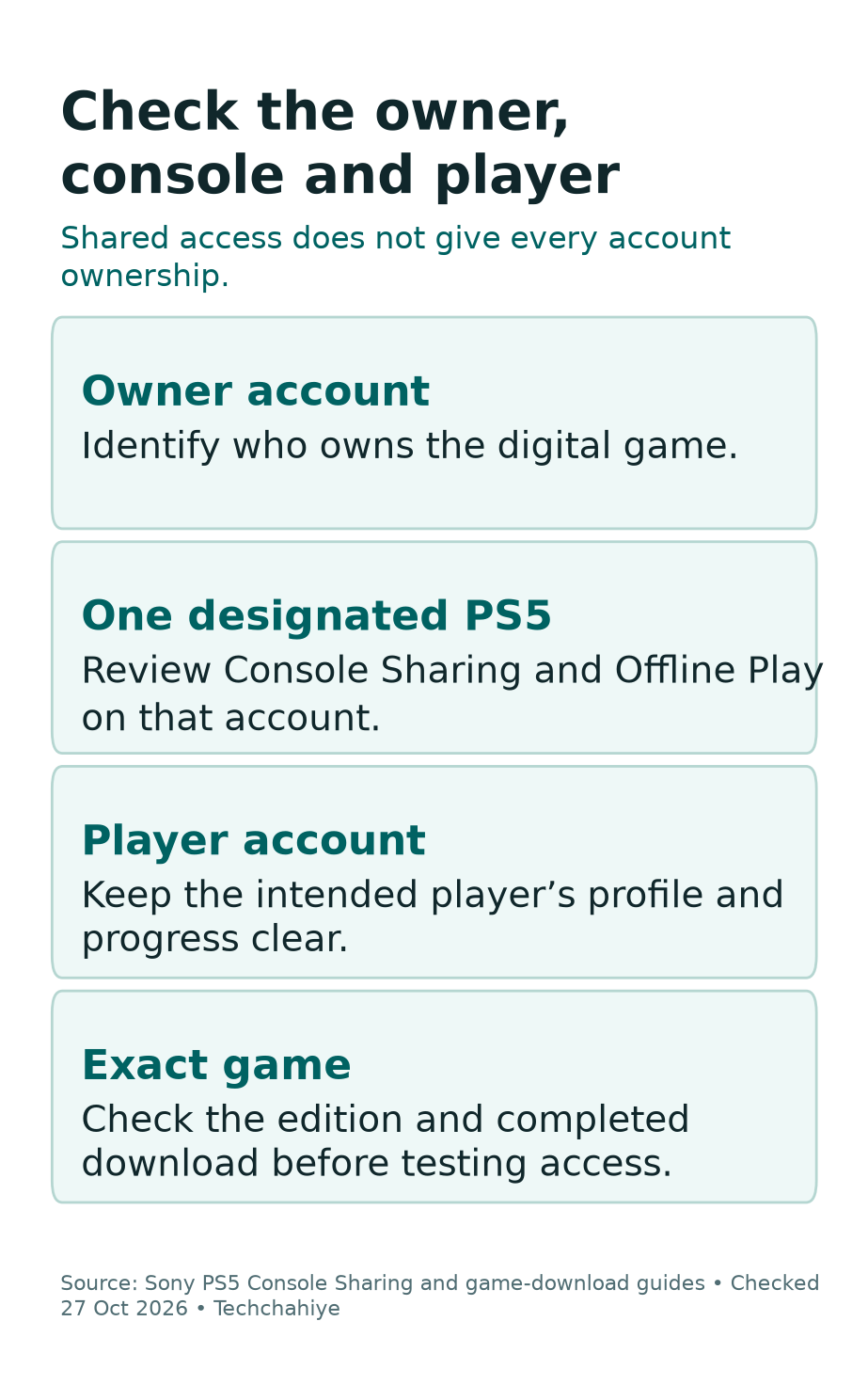
These are separate roles. A console can hold a downloaded game without every local account owning it. A player can use shared access. That does not add a paid game to their own account’s history.
Before changing a setting, make a short note for the household. Record the intended console and the owner of the game you want to test. Keep passwords and sign-in codes out of that note.
For example, imagine two people use one living-room PS5. One account owns a digital game. The other person wants to play using their own profile. Check the owner’s sharing setting on that console. Then test the game from the intended player’s account.
Do not solve a simple access question by having everyone use the owner’s profile. That makes it harder to tell whose progress and settings you are using. Start with a clear account plan instead.
How to Enable PS5 Console Sharing and Offline Play
Sign into the owner’s account on the intended PS5. Open Settings, then Users and Accounts. Choose Other, then Console Sharing and Offline Play. Sony’s page offers Enable or Disable for this setting.
Read the current state before changing it. Sony enables sharing by default on the account’s first PS5 used to sign into PlayStation. That does not prove the first console is still the one you want to use now.
Does the account already use sharing on another PS5? Sony says to turn it off there first. Then activate the intended console. Plan that move with anyone who still uses the earlier console.
After enabling the intended PS5, test one known digital game. Make sure you have downloaded the game and it is ready, then open it from the player account you meant to support. Note the actual result rather than assume every library item now has the same access.
Keep the test small. You do not need to move a whole library or delete a local user to check one title. Confirm the setting, the account and one game first.
Understand the One-PS5 Sharing Limit
Sony’s limit is one PS5 with Console Sharing and Offline Play enabled at a time for an account. It is not a setting you can leave enabled on every PS5 you visit.
This matters when you replace a console or move one to a different room. Turning on sharing elsewhere changes the plan for the earlier console. Talk through which device should serve the household before making repeated changes.
Use console names and locations that people recognize in your own note. “The living-room PS5” may be clearer than “the new one” a year later. Keep device identifiers and private account details out of public help posts.
Sony says the account’s other console activation limits remain separate. A primary PS4 is a separate topic with its own setting. Do not treat a PS4 menu and a PS5 menu as two names for the same screen.
Avoid plans built around unlimited simultaneous access. This guide explains the supported console setting. Do not assume unlimited access across accounts and devices. Check the specific game and account situation before buying for a group.
Download the Correct Game Before Testing Access
A sharing setting does not replace the game download. Sony’s PS5 download guide starts at Games home, then Game Library and Your Collection. Choose the game and select Download.
Check the account and exact product first. If the owner has several editions or bundles, identify the version you intend to use. A similar cover image is not enough to confirm that you have installed the right title.
Some libraries show both PS4 and PS5 versions. Check the version details first. A missing save, add-on or launch option may involve the edition. Each version may need its own review.
Take this fictional example. A player expects a PS5 edition’s features. But they open a PS4 version with the same cover art. Changing Console Sharing again would not answer that version question. Confirm the product before altering the setup.
If you cannot find a game you believe the account bought, review transaction history. Sony’s support guidance uses that check for missing content. It helps you check whether you have an access issue. The paid item may belong to another account or product.
What the Setting Shares and What It Does Not Prove
Sony says the enabled PS5 supports shared access. That includes offline use of games and media. This covers the owner’s bought and downloaded content. The setting also shares some Plus benefits. That is the core purpose of the feature.
Still, inspect the game you want to use. The setting does not prove that every network feature inside a title will work offline. Read the game’s own requirements for online modes, extra accounts and content.
It also does not turn another person’s access into ownership on your account. Keep a note of who bought a game if your plans depend on that access over time. This is useful when a household later replaces a console or changes memberships.
| Question | First check | Avoid assuming |
|---|---|---|
| Who owns this digital game? | Owner’s library and transaction history | Every player owns a copy |
| Which PS5 shares that owner’s access? | Console Sharing and Offline Play | All consoles have the same role |
| Is the game ready? | Correct version and download state | A visible tile means a finished install |
| Does a mode work offline? | The game’s own requirements | The setting removes every network need |
| Does another player have cloud saves? | That player’s Plus access | Online storage is a shared benefit |
Treat the table as a way to choose a check. It is not a compatibility list for every game. Each title and account can add details that matter to the final result.
PlayStation Plus Sharing Has Separate Limits
Sony’s Plus sharing page lists shared benefits. It also lists features that stay with the member’s account. Do not treat a successful shared game launch as proof that every Plus feature works for another user.
Online storage is on Sony’s list of benefits that cannot be shared. That means each player’s save plan needs its own check. Another account may have a paid plan. That does not prove your progress has an online backup.
Sony also says another account cannot redeem Plus games through sharing. Nor can it buy items at a Plus discount through that shared access. Check the account making the claim or buying the game. Access to a game on a console is a different task from claiming it on your own account.
For a household, discuss what happens when the member’s Plus plan ends or changes. Some shared access depends on the active plan and the content involved. Use the actual account and game details rather than assume a permanent entitlement.
Our cancellation guide explains renewal and paid-through dates. Does the benefit your household relies on still exist? Check that point. A setting can remain enabled while the underlying plan or game access has changed.
Keep Each Player’s Progress and Settings Clear
Use the intended player’s account when you check a game. Does a familiar title open with unexpected progress? Stop and review the profile before a new session. The controller in your hand does not identify the account on screen.
Make a simple habit of checking the player name at the start of a session on a shared console. This is especially useful when several people use the same screen during the evening.
Do not assume cloud progress follows the Console Sharing setting. Review the right account’s save options separately. Our PS5 cloud-storage guide covers PS4 and PS5 data paths. Use it to check saves before switching consoles.
Plan to move to another PS5? Check the latest save before changing access settings or clearing data. A game installation and a save copy are different items. Keep the copy with the progress you want intact while you verify the move.
For children, review the relevant family and age controls. A blocked title may involve those settings rather than the owner’s sharing choice. Use the child’s own account and Sony’s parental-control route. Avoid bypassing a limit through an adult profile.
If a Shared PS5 Game Shows a Padlock
Start with ownership. Check which account has the right to the content. Does that account have Console Sharing enabled on this PS5? Then check the exact game version and any plan-based access it uses.
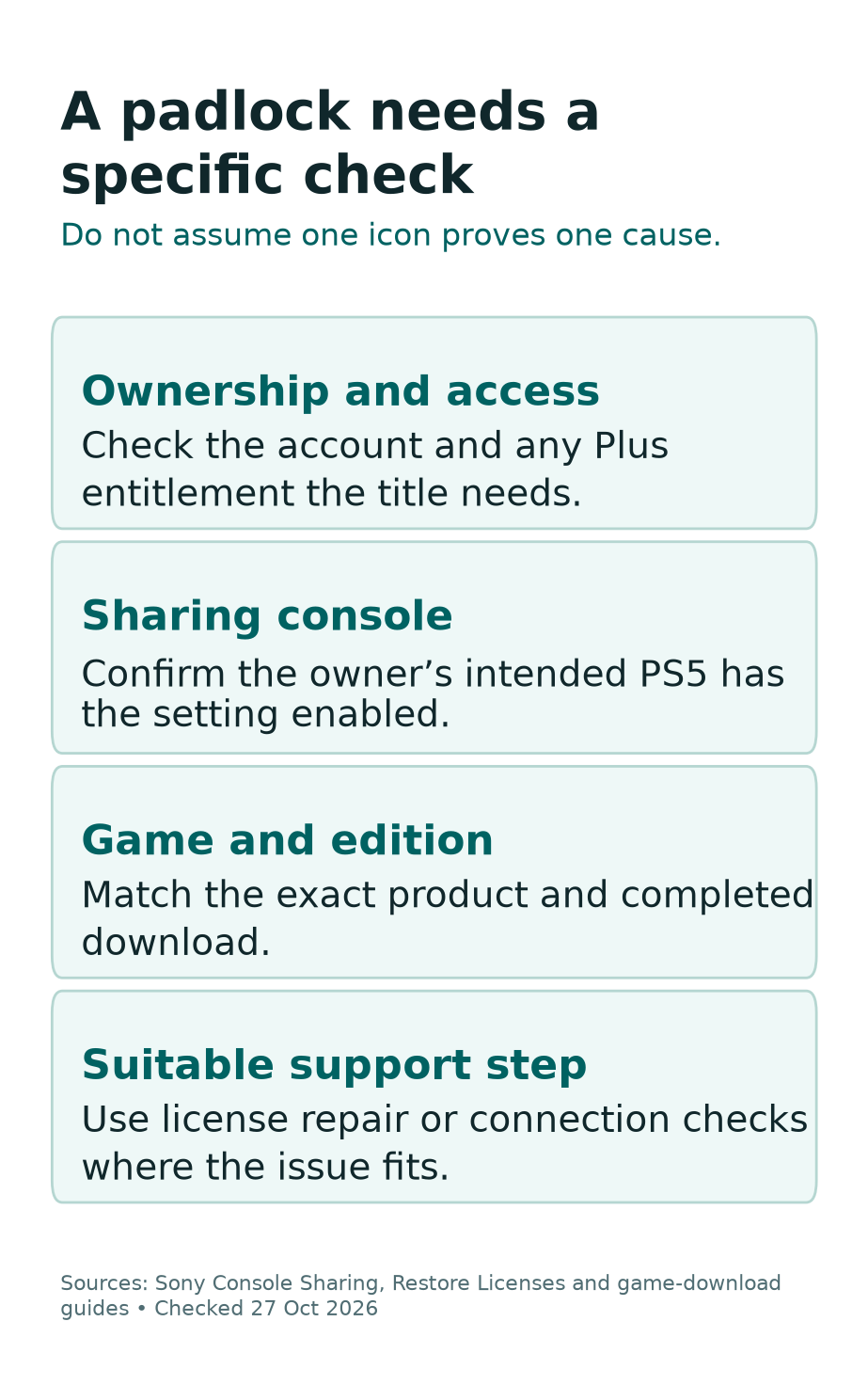
A padlock is a symptom, not a complete diagnosis. An expired Plus plan is different from a license-check problem for a game the account bought. The same icon does not make the next step identical.
Sony’s license-restoration guide can help with some access issues. On PS5, its route is Settings, Users and Accounts, Other, then Restore Licenses. Use the account that owns the content. Select the relevant licenses. Sony says restoring licenses does not affect your data.
Use that route where it fits the issue. Restoring a license does not extend an expired plan. It does not grant a game the account never bought. Check entitlement before expecting a repair tool to solve it.
See a connection error? Check PlayStation’s status page and the console’s connection. Do not call the service down based only on one locked title. Record the actual error text so you can follow the relevant support guidance.
If the Game or Add-On Is Missing
Look in the right owner’s collection first. If the item is missing, check the transaction history for that account. Compare the product name and edition with the content you expected.
Sony notes that hidden games can affect what appears in libraries across consoles. Review whether you have hidden the title before buying it again. A missing tile is not enough evidence that the account lost a paid game.
For add-ons, match the game and edition before the download. A pack for another version or product may not answer the problem you see. Use Sony’s game and add-on support guide for the exact content.
Keep installation and access problems separate. If a download has not finished, solve that download issue first. If it is complete but locked, return to the account, license and sharing checks.
A useful support note includes the game name, version, error message and the check that failed. Add whether another known game works. That comparison helps you explain the scope without changing the entire console setup.
Moving Sharing to a Replacement PS5
Before the move, choose the account’s designated shared PS5. Agree on the device with the household. Check whether the earlier console is still in use by another person. The setting’s one-console limit makes that a practical part of the plan.
Is sharing active on the previous PS5? Sony says to turn it off there before activating a new one. If you still have the old console, use the supported local route and verify the result there.
Then sign into the owner’s account on the intended PS5. Review Console Sharing and Offline Play. Enable it where appropriate. Download the right game and test access from the intended player’s account.
Check saves separately before clearing or selling an old console. The sharing change does not prove the latest progress reached the new device. Confirm the game and progress you need while you still have both devices available.
Do not treat a full console restore as a casual access test. Sony’s backup restore process has data-erasure consequences. Use it only for the broader backup task it serves, after reading its warnings.
Use Remote Deactivation Only for the Right Situation
No longer have access to a console? Sony provides remote deactivation of all devices through Account Management. Its guide limits remote deactivation of all devices to once every six months.
That is why remote deactivation should not be your first response to one missing game. It affects a wider device setup and has a cooldown. Check the local setting, account and game first when you still have the console.
Before using the remote route, read the current device-management guidance. Note which consoles you and your household still use. Make a plan to review the intended sharing setup afterward.
Do not use a third-party service that offers to reset the limit or asks for account credentials. Use Sony’s official account and support routes. If a limit or account state is unclear, ask about that exact state rather than guess at a workaround.
Did You Know?
A PS5 can hold the game files while a particular account lacks access to launch them. Storage, ownership and Console Sharing are separate checks. That is why downloading the same title again is not always the useful first response to a padlock.
Test the Setup With One Clear Result
Choose one game whose ownership and edition you understand. Check the owner’s sharing setting on the intended PS5. Confirm the download is ready, then launch the game from the intended player account.
Look for the expected player and progress before continuing. If the title has a network-only feature, review that feature on its own terms. Do not use one successful launch to claim every mode works offline.
Record the outcome in plain language. “This account opened this edition on this console” is more useful than “sharing works.” If something fails, include the exact message and the stage where it appeared.
Once the setup works for your actual use, stop changing it. There is no reason to keep moving the sharing role between consoles as a routine test. Review it again when the household’s device or account needs change.
Keep a useful access-test note
Record the owner account safely, intended console, game edition and player account. Note the actual launch result or exact error. Omit passwords, sign-in codes and payment details.
Conclusion
Start PS5 game sharing with the right owner and one designated console. Use separate player accounts. Confirm the game edition and download, then test access from the person who will play.
If a game has a padlock, check entitlement and the console setting before changing files. Keep Plus benefits, cloud saves and remote deactivation as separate tasks. Clear checks make the setup easier to use and much easier to troubleshoot later.
FAQs
How many PS5 consoles can have game sharing enabled for one account?
Sony allows Console Sharing and Offline Play on one PS5 at a time for an account. Review the previous console before moving the setting to a new one. Primary PS4 activation is a separate limit.
Does PS5 game sharing give another account ownership?
Shared access is different from that account buying the game. Keep track of the owner and the content’s access route. A tile in a library does not establish a new paid game on every player’s account.
Can everyone on the console use the owner’s cloud save storage?
No. Sony lists online storage among the Plus benefits that cannot be shared. Each player should check their own save and cloud access. Do that even when shared game access works.
Will restoring PS5 licenses delete my saves?
Sony says restoring licenses does not affect your data. Use its Restore Licenses route for suitable license problems. It will not create an entitlement or extend an expired Plus plan.
Should I remotely deactivate all devices to fix one locked game?
Start with the local account, game and sharing checks if the console is available. Sony’s remote all-device deactivation has a six-month limit. Use it for the situation it serves, after reading the current guidance.
References
- PlayStation: PS5 Console Sharing and Offline Play
- PlayStation: Share Plus benefits
- PlayStation: Restore licenses
- PlayStation: Find and download games and add-ons
- PlayStation: Troubleshoot downloaded games
- PlayStation: Transaction history
- PlayStation: Deactivate a console
- Techchahiye: PS5 cloud storage and saved progress
- Techchahiye: Cancel PlayStation Plus and check expiry
