

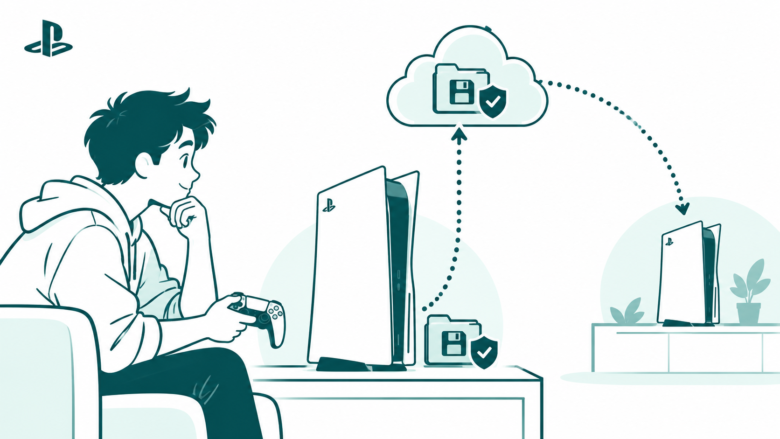
Protect the latest save before the move
Check the account, game version and sync status on the source console. Then download or sync the intended copy on the destination. Cloud saves do not expand game-install storage.
Key Takeaways
- PS5 cloud storage holds saved progress. It does not add space for full game installs.
- You need PlayStation Plus. Sharing some Plus benefits on a console does not share online save storage.
- Check the sync status of the exact game before playing on another console.
- PS4 saves and PS5 saves follow different transfer paths. Choose the right version before you copy data.
PS5 cloud storage helps you keep a copy of your saved progress online. Before switching consoles, check that the save you want has reached the cloud. An installed game does not prove that step is complete. Nor does internet access on the console.
Start with the account, the game version and the latest save. Then choose whether you need to upload, download or check sync. That order can prevent an old save from becoming the starting point for your next session.
This guide uses PlayStation’s US support pages, checked on October 27, 2026. It explains the storage limits and the transfer choices. The worked examples are fictional planning cases. They are not timing tests or claims that we recovered a lost save.
What PS5 Cloud Storage Actually Holds
Cloud save storage holds progress data for supported use through PlayStation Plus. It is separate from the storage that holds a game’s install files. Downloading a save does not install the game itself.
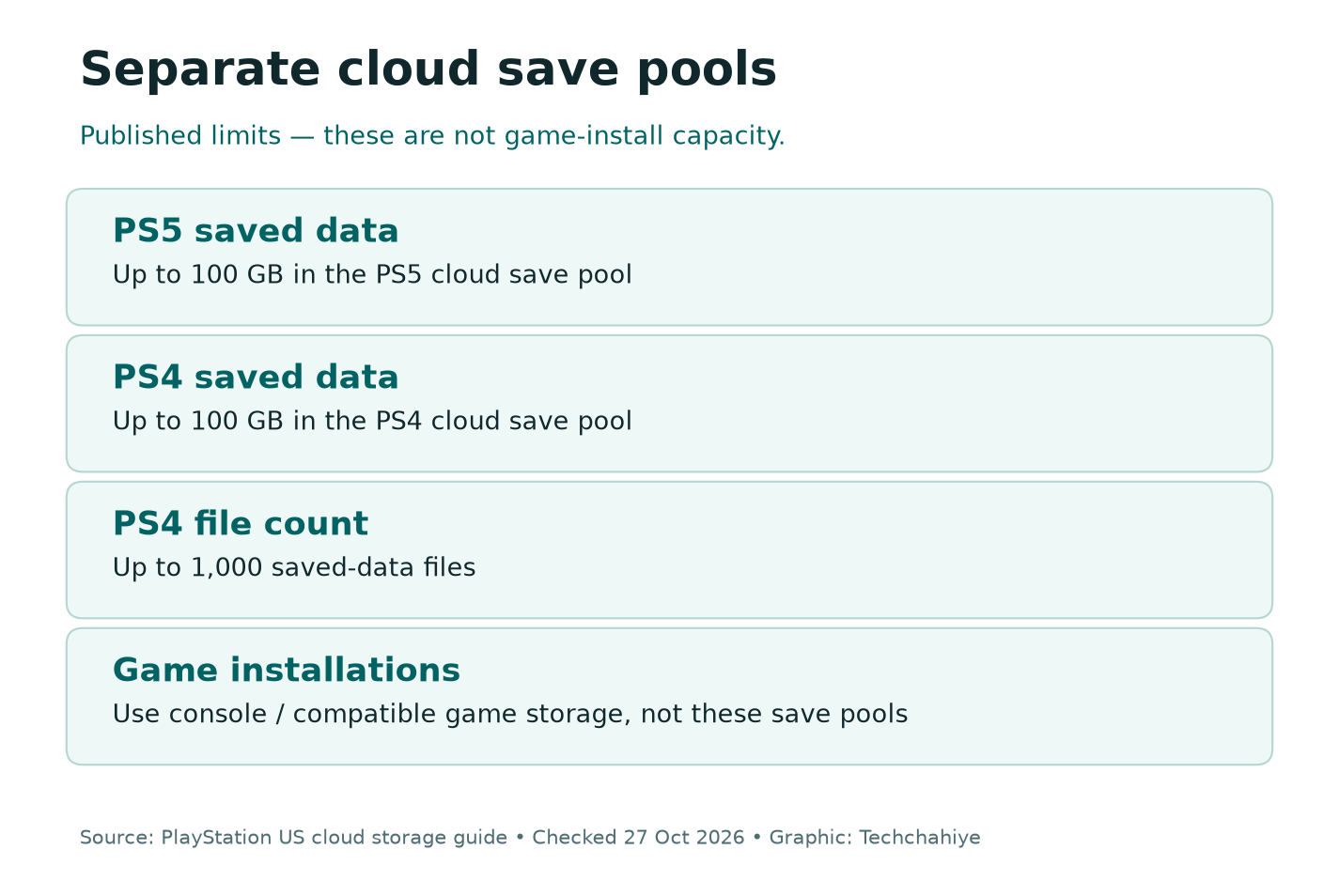
Think of a game and its save as two items on your checklist. You need access to the right game version to play. You also need the progress you intend to resume. Having only one item does not finish the move.
Sony lists up to 100 GB for PS5 saved data and up to 100 GB for PS4 saved data. It also lists a limit of 1,000 PS4 saved-data files. Those figures describe save storage. They are not an extra 200 GB for PS5 game installs.
Keep those two pools separate when reading a storage screen. A full PS4 save pool is a different question from the space used by PS5 saves. Check the label before deciding what to remove.
If your real problem is a large game that will not install, start in Settings, then Storage. Review the space for games and apps. Cloud saves will not replace the console storage or compatible M.2 storage needed to run a PS5 game.
Check the Account and PlayStation Plus First
Sign into the account that owns the progress you need. This matters on a shared console where more than one person plays the same game. A familiar game tile does not prove who has signed in.
Next, check that this account has the required PlayStation Plus access. Sony lists online storage among the Plus features that cannot be shared. Another member may share some console benefits. That does not give every account cloud save access.
For example, imagine two people use one PS5. One has Plus and the other can use some shared game benefits. The second person should check their own saves. They should not assume the other account holds an online copy. Check each account on its own terms.
Use your own sign-in route on the console. Do not ask another person to send a password or a sign-in code so you can inspect their saves. They can check the status from their own account.
Is the expected cloud option missing? Check account access before changing game files. Buying another drive will not fix an account-benefit issue. Reinstalling a game will not add a subscription benefit to the wrong account either.
Turn On PS5 Cloud Save Sync
Sony’s support route begins in Settings. Open Saved Data and Game/App Settings, then Saved Data (PS5). Choose Sync Saved Data and Auto-Sync Saved Data. Review Enable Auto-Sync and the setting for each game you care about.
Do not stop at a single global toggle. If one title matters most, check that title’s state too. A broad setting is useful, but the next session depends on the specific game and save you need.
Sony says auto-sync can run when you close a game or put the console in rest mode. Its guide requires automatic updates for cloud sync. For rest-mode access, open Settings, then System. Select Power Saving. Next, review Features Available in Rest Mode. Check Stay Connected to the Internet.
Use the settings that fit your console and household. The important point is to know whether the console can complete the sync when you expect it to. Do not treat a powered-off or disconnected console as proof that an upload finished.
After changing a setting, perform a small check. Close the game and inspect its sync state. Record what the console shows. You do not need to change every game’s settings to test one title.
Check PS5 Save Sync Status Before Playing Elsewhere
For a PS5 game, Sony provides a View Sync Status route under Sync Saved Data. You can also highlight the game on the home screen. Press the options button. Choose Check Sync Status of Saved Data.
Use that check before moving to another PS5, sending a console for repair or clearing local data. It is more useful than guessing from a recent play time. The upload needs to include the progress you expect to resume.
Write down the last point you recognize in the game. It might be a chapter, a save slot or another clear marker. Compare that with the save information available to you. A clock time helps, but it is not the whole story.
Consider this fictional example. You finished a chapter late at night, then unplugged the console for a trip. On the other console, the cloud copy shows an earlier session. Stop before starting a new run. The new console cannot display progress that never reached the cloud.
If you still have access to the original console, check it first. Keep the local copy intact while you work out the state. Do not delete it merely because the other console shows something older.
Upload a Save From the Source Console
Upload means sending console data to the cloud. Download means bringing a cloud copy to a console. Read those labels in that direction before confirming an action.
Sony offers a game-level route from the Games home screen. Highlight the game, press the options button and choose Upload/Download Saved Data. You can also manage saves through Saved Data and Game/App Settings.
Start on the console that has the progress you want to keep. Confirm the account and the PS5 or PS4 game version. Then review the save information before choosing the upload route.
Wait for the transfer to finish and check its result. If a warning appears, read it before moving on. Do not assume a button press is the same thing as a completed transfer.
Make a moving-day checklist. Include the source account, game version and cloud status. Record all three while you still have the source console. A photo of a non-sensitive status screen can help you remember what you checked.
Keep account details out of any public help post. If you need support, share the error text and the steps you tried. A password or verification code does not help someone explain a save-transfer problem.
Download PS5 Saves to the Other Console
On the other PS5, sign into the same account used for the cloud copy. Open Settings, then Saved Data and Game/App Settings. Select Saved Data (PS5) or Saved Data (PS4), as needed.
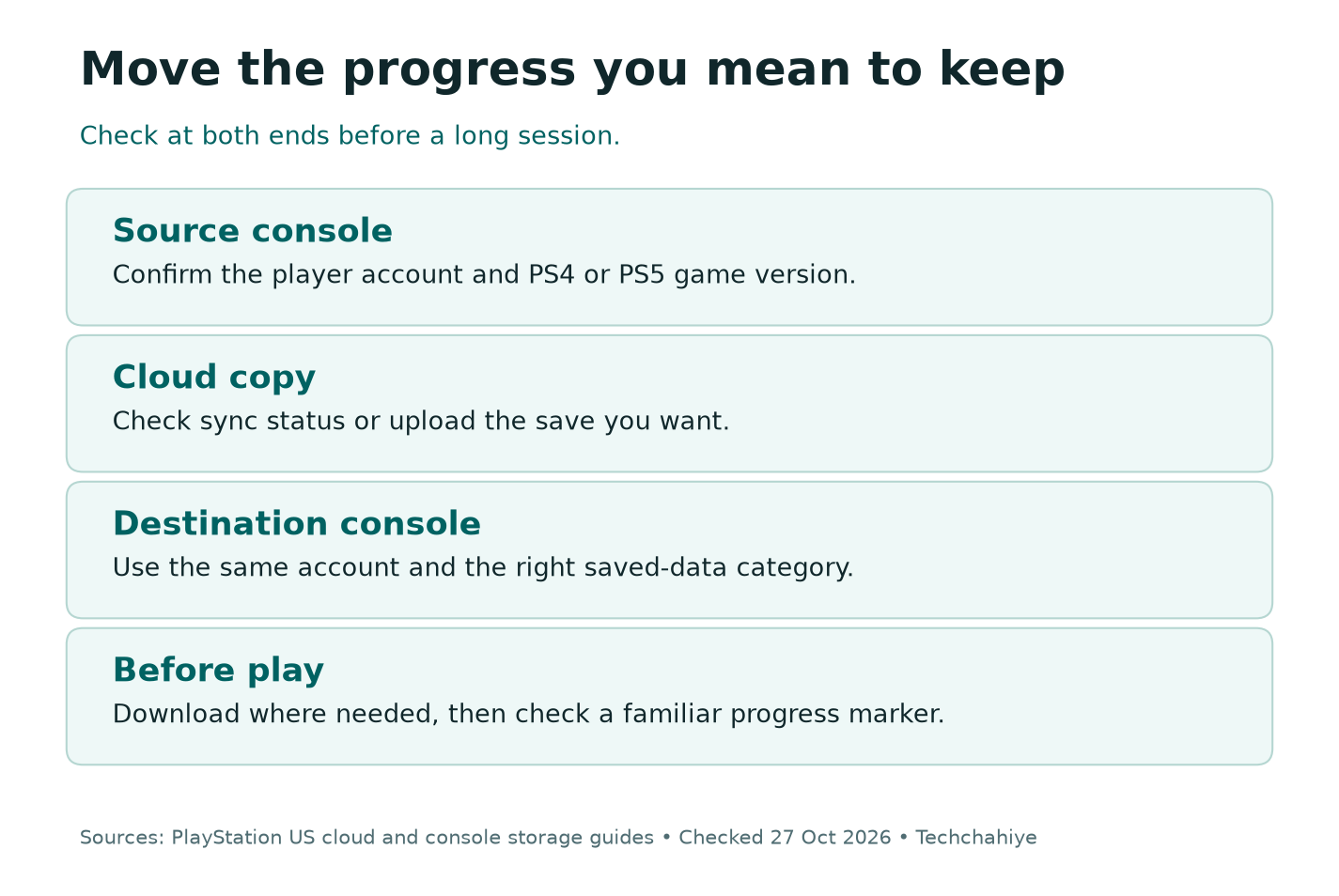
Sony’s download route is Download or Delete from Cloud Storage. Open the Download to Console Storage tab. Select the saved data you need, then choose Download. Read any warning about the copy already on the console before confirming it.
The word Delete appears near some save-management choices. Slow down and check which tab and storage location you are using. A download task should not turn into a cleanup task because two labels look similar.
Once the transfer finishes, open the intended game version. Look for the expected progress. Do this before spending a long session on the other console. A quick check now is easier than sorting out two different sessions later.
If the save does not appear, close the game and review the account and version again. Do not create a new save simply to make the warning go away. First find out whether the game is looking for a different data type.
PS4 Saves on PS5 Need a Separate Check
Playing a PS4 game on PS5 does not turn its saved data into PS5 saved data. Sony’s settings split these categories. Choose the one that matches the version you are playing.
There is also a sync difference. Sony says PS5 game data syncs between console and cloud to the most recent data. For PS4 games, auto-upload sends data to cloud storage. You must then download it to PS5 console storage by hand.
That difference can explain a common moving-console surprise. You installed a PS4 game on the new PS5. But the expected progress is missing. Check whether you downloaded the PS4 save before blaming the game install.
A separate PS5 edition may use a game’s own import or migration feature. Do not assume the system’s cloud download converts a PS4 save into the PS5 edition’s format. Check the publisher’s current instructions for that title.
Keep a note of which edition you used on the old console. Product names can look similar, especially when both editions appear in a library. Check the version details rather than rely on the cover image alone.
| Task | Correct starting point | What it does not prove |
|---|---|---|
| Resume a PS5 game | Saved Data (PS5) and sync status | That you have installed the game files |
| Resume a PS4 game on PS5 | Saved Data (PS4) and cloud download | That a PS5 edition can import it |
| Free game-install space | Settings and Storage | That progress has a safe online copy |
| Move a full console backup | Back Up and Restore | That it is a simple one-game download |
Handle an Old Save or Conflict With Care
If the console offers a choice between copies, stop and compare them. Look at the account, game version, dates and progress you recognize. Do not select a copy only because its timestamp is later.
A later timestamp can follow an unwanted new session. An older-looking entry may be the progress you meant to keep. The right choice depends on what happened in the game, not on a general rule that newer always means better.
For a fictional example, a player loads an old cloud save on a second console and plays for ten minutes. That session may now be recent, but it still began behind the progress on the first console. The timeline alone does not resolve the choice.
Avoid playing on both consoles while you investigate. That can create more changes to compare. Keep the copy you trust intact. Check the source console where possible. If the save system is unclear, use the game’s support guidance.
This guide cannot promise recovery after an overwrite or deletion. Cloud sync is useful, but it is not proof that every past version remains available. Do not erase the only known good copy as a test.
Free PS5 Cloud Space Without Guessing
If cloud storage is full, first inspect what is there. Review the correct PS5 or PS4 category, then identify the games and saves you still need. A small save may represent a long campaign, so size alone is a poor measure of value.
Before deleting anything, decide whether you may return to that game. Does a useful local copy remain? Do you have another suitable backup route? Check both points. Do not assume downloading the game again will restore deleted progress.
Treat a local deletion and a cloud deletion as different actions. Read the storage location in the screen heading. If you are trying to free console space, removing an online copy may solve the wrong problem.
For PS4 data, remember the file-count limit as well as the GB limit. Sony lists up to 1,000 PS4 saved-data files. A file-count issue and a byte-capacity issue may need different reviews.
Keep cleanup small and deliberate. Remove only items you have checked, then read the new storage state. A broad delete-all action is unnecessary when you only need to understand one full pool.
USB Backup Is a Different Tool
Sony’s storage table allows individual PS4 saved-data copies to a suitable USB drive. It does not list that same per-save USB route for PS5 game saves. For PS5 console data, Sony provides a separate Back Up and Restore process.
Do not confuse a USB backup drive with USB extended storage used for game installs. Sony says the extended-storage format cannot serve as the backup-data destination. Check the drive’s purpose before planning the backup.
The backup guide uses Settings, System, System Software, then Back Up and Restore. Read the full current instructions before using it. This is a larger console-data workflow, not a substitute label for Download Save.
Sony gives a vital warning. Restoring a backup erases the current data on the console. Do not choose Restore Your PS5 to test whether one missing save might be there. Protect the current console’s data and understand the restore result first.
A backup can be useful before a major console change. Still, confirm the backup completed and what it contains. A USB drive sitting beside the console is not evidence that a usable backup exists.
Did You Know?
More space for game installs does not create more cloud save space. Sony’s storage table treats M.2 game storage and online saved data as separate routes. Choose the tool based on what you need to move: the game, its progress or a broader console backup.
Make a Repeatable Two-Console Routine
A short routine can reduce confusion when you play in two places. Finish the game session, close it and check the relevant sync state. Move to the next console only after the copy you need is available.
At the destination, confirm the account and edition before play. Download PS4 saves manually where needed. Open the game and look for a familiar progress marker. Then begin the new session.
When returning to the first console, use the same check again. Do not assume the earlier download created a permanent one-way link. You have made new progress since then, and that progress needs its own transfer check.
If you are offline, plan around the copy already on the device. Avoid treating a missing network connection as a reason to pick an unfamiliar save. Check the game’s own offline behavior before a trip.
For a household, keep the routine personal to each account. Sharing a console does not make all saves interchangeable. Each player should know where their latest progress lives. They should also know which account holds the cloud benefit.
A short save-transfer checklist
Record the account, game edition and last progress marker. Check the source sync status. At the destination, choose the same account and correct data type. Verify progress before a long session.
Conclusion
Use PS5 cloud storage to move saved progress, then verify it in the right game version. Start with the account and check the source copy. Read the sync status before switching consoles.
Keep game installs, PS4 saves, PS5 saves and full USB backups separate in your plan. If a warning appears, stop and compare the copies before you overwrite or delete anything. One careful check can prevent a much harder decision later.
FAQs
Is PS5 cloud storage free without PlayStation Plus?
Sony requires PlayStation Plus for this cloud save feature. Sharing some Plus features does not give other accounts online storage. Check the subscription on the account whose progress you want to protect.
Does PS5 cloud storage give me more room for games?
It holds saved data, not full game installs. Need space for game installs? Review console storage, compatible M.2 storage or USB extended storage. PS5 games on USB extended storage need to move back before play.
Why is my PS4 save missing on my new PS5?
Check the account and game version. Sony says PS4 saves need a manual cloud download to PS5 console storage. A separate PS5 edition may also need the publisher’s own save-import process.
Can I copy an individual PS5 save to a USB drive?
Sony’s table does not provide the individual USB-copy route for PS5 saved data that it lists for PS4 saves. Its PS5 Back Up and Restore process is separate. Read its restore warnings before use.
Should I choose the newest save when sync shows a conflict?
Compare the progress you recognize, the game version and the timestamps. Newest is not always the copy you meant to keep. Avoid more play on other consoles while you work out which copy has the right progress.
