

Check the card before you rely on the camera
Find out whether an indoor security camera can save and play clips without a plan. Test local storage and check remote access.
Key Takeaways
- Find the exact model and hardware version. Look for local video storage and playback in its official guide.
- Pick motion clips or continuous recording based on what you need to see later.
- Make a test clip and open it from local storage after setup. Check that you can save a copy when you need one.
- Check which features require internet access, a vendor account or a paid plan. These are three separate questions.
An indoor security camera can record without a subscription when it has local storage. Some models save to a microSD card in the camera. Others use a hub in your home. Check that the exact device can save clips and play them back before you pay. Once you have it, make a sample clip and play it from the local storage view.
A live view in the phone app can look like proof that a camera records. It proves only that you can see what is happening at that moment. If you want to check what happened while you were out, you need a way to look back. Work through the checks below for the way you plan to use the camera.
Find the Exact Indoor Security Camera Model
Start with the full name from the box or product listing. Look for a hardware version as well. Two items can look the same in a shop photo and come with different card limits or app options. Open the maker’s support site and pick the right country and version. If the listing leaves out the version, ask the seller or wait until you can check the label on the box.
A product page may show a family of cameras that share a name. Use the maker’s own model picker when it is available. The regional Tapo pages for the C210, for example, show a two-pack in the U.S. and a single unit in India on the pages checked in November 2026. Those pages are a way to find the hardware version and card notes. Apply the card limit from the version you have in your hand.
Find the part of the page about storage. You are looking for a place where the device writes video in your home. It might say local storage, microSD or hub storage. Next, look for a help page that shows how to watch a clip from that source. Both checks matter. A product photo may show a card slot even though the action you need is tied to a different mode or setup.
Separate the three kinds of access
Write down how you want to use the camera. You might need to watch a live feed at home, review footage from work or save a clip to your phone. That list gives you a set of questions to take to the store. Look for answers for each action in the manual or the maker’s current plan comparison.
| Action | What to verify | What to try after setup |
|---|---|---|
| Watch live | Whether the app can show a feed on the home network | Open the live view while near the camera |
| Look back | Whether the model stores clips or a full timeline on local media | Open the local tab and choose an earlier time |
| Save a copy | Whether you can export local clips and under what conditions | Open the saved clip outside the camera app |
| Check from away | Whether the model supports remote access to local clips | Try the official app over mobile data |
If you want to see video with no paid plan, look for those options under the free features. If you want video to work when the internet goes down, look for a clear answer about offline use. For example, a camera can record to a card at home and still need the internet for remote playback. A vendor account may also be part of setup. The phrase local storage alone tells you where clips are kept.
Pick Motion Clips or a Full Timeline
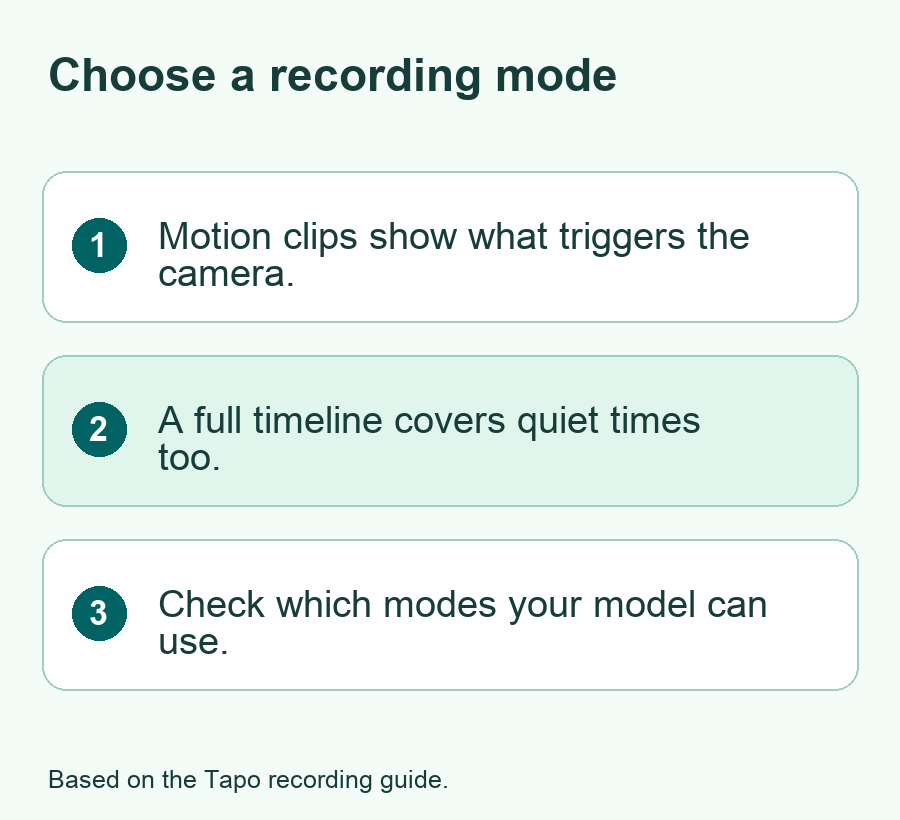
Ask what you want to find when you open the app later. Did someone come through the door? A clip that starts when the camera spots motion might answer that. What happened for the full ten minutes around an alert? A continuous timeline makes it easier to look at the time before and after a trigger. These modes serve different needs.
Motion recording leaves gaps between the events the camera spots. The size of those gaps depends on where you place it and what the model counts as an event. If a person is far away or crosses only a small part of the frame, test how the device handles that scene. An empty timeline can mean the camera saw no trigger. It can also mean an alert or storage setting needs a closer look.
Continuous recording fills more space because it saves video when the room is still. A camera needs support for that mode and time slots set to use it. Tapo’s continuous recording guide says many models save it to a card or a Tapo Hub. Its battery-powered cameras and doorbells lack that mode. Check the instructions for the device you own before you choose a mode or buy a card for it.
If you need a full timeline at night and motion clips in the day, look for a recording schedule. On supported Tapo models, the schedule lets you set a mode for each time block. Choose a full timeline, clips from a trigger or no recording. Set the hours for the times you need to see. Also check the camera’s clock so the video lands under the date and hour you expect.
Check how long you want clips to last
A bigger card can hold more, but the number of days depends on the video size and the recording mode. Read your model’s card guide before you buy one. Check its maximum capacity, the type it supports and any notes about cards meant for frequent writes. A card has to be a supported kind before its size can help you.
If the maker gives a recording estimate, read how it got that number. A full timeline at one video setting will use space at a different rate from a day with just a few clips. Your motion settings and the number of people in the room can also change the amount saved. Treat an estimate as a rough first check. Look at the actual date of the oldest clip after the camera has been in use for a while.
Here is a made-up example. Say the camera has 100 GB of usable room and saves about 10 GB a day at your settings. Dividing space by daily use gives about 10 days of video. If it saves 20 GB a day, the same math gives about five. Those rates are sample inputs. The way to get a useful number for your camera is to check how much it saves over a normal day or to see how far back its timeline goes.
Set Up Local Recording and Make a Sample Clip
Follow the model’s quick start guide. It should tell you where the card goes, when to insert it and how to set up the app. For a hub, follow the steps to add and check the storage there. If the setup asks to format a card, use an empty card or make a copy of anything you need first. Formatting clears the old files. Wait for the app to show that the card or hub is ready before you count on it.
Next, open the camera settings. In Tapo’s current help, the local recording switch is under Storage & Recording. Turn it on for a camera you own or have permission to set up. Check the recording schedule and choose a short time window for a test. If you’re testing motion recording, check that motion detection is active and that the test area is in the part of the frame that the device watches.
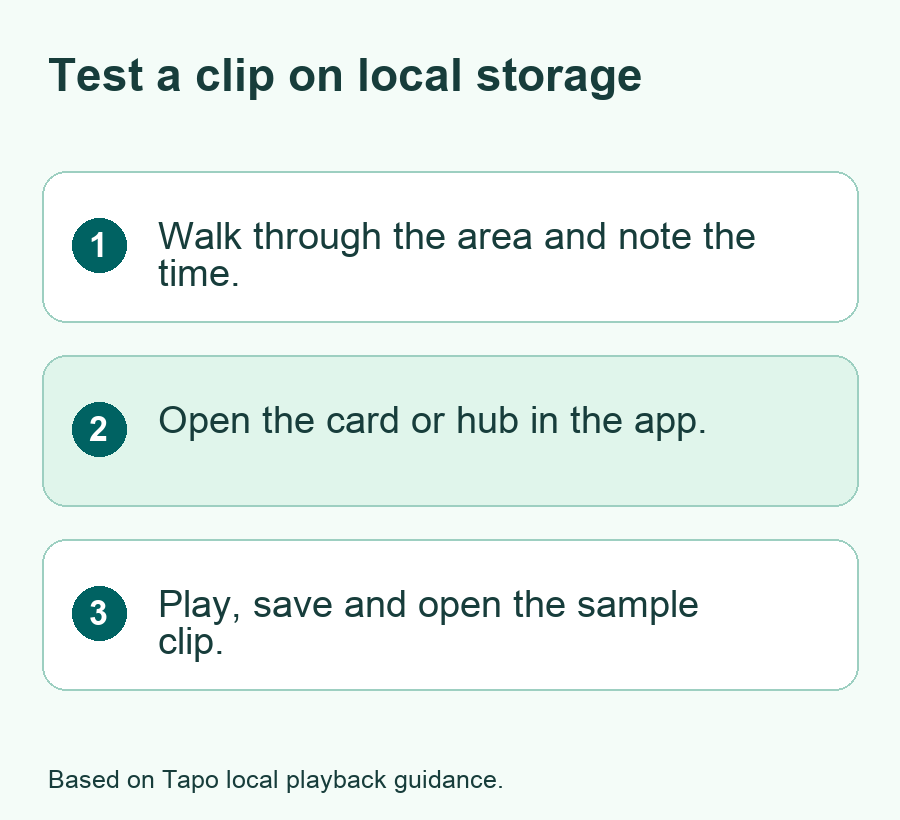
- Note the time on your phone and the room you plan to walk through.
- Walk through the chosen area once. Move as a person normally would in that room.
- Wait for the app to show the event or timeline. Open the camera and go to Playback & Download if the app uses those labels.
- Select local storage or the card icon and the right date. Play the clip or move to the time you wrote down.
- Save one clip using the app if it offers that control. Open the saved copy in your phone’s file or photo app.
Use the same test for continuous mode. Choose a few quiet minutes and look up their time in the local timeline. Then find the time when you walked through. A quiet clip helps show that the camera records even when there is no motion. In motion mode, use at least one more test near the edge of the part you want the camera to watch.
If the app has both a cloud tab and a card tab, do the test with the card tab open. Some cameras offer a trial during setup. A trial clip that plays from the cloud tells you little about the card. After a trial ends, repeat the local playback check if you plan to use the camera with no paid plan. Confirm the features you need before you let the return window pass.
Try a second test after dark if you need to see the room at night. Walk through the same area and open the new clip. Check whether the light from a window or lamp makes it hard to see the part you care about. If you move the camera, make another clip before you rely on the new view. Keep the settings that worked so you can tell what changed later.
Test What Happens When You Leave Home
Start the first check on your home Wi-Fi. Use the normal way you watch a clip. Once that works, try again from your phone’s mobile data if you need to see local clips away from home. Keep the camera on its usual network during this test. Look up a clip you already played at home so you know the clip exists.
If live view works but local playback fails away from home, look up the model’s remote playback limits. Some export controls have different rules from playback. Open the manual before you change your router or sign up for a plan. Write down whether you could view the clip, download it or only watch the live feed. Now you know what will work while you are out.
If your main concern is an internet outage, check the vendor’s offline guidance for the model. Look for guidance that says what keeps recording when the local Wi-Fi still works but the internet does not. A router with no internet and a router with no power are different cases. The camera itself also needs power. If you want to test an outage, pick a safe time and a network you control. Skip that test if it would interrupt work or a service someone needs.
Fix Missing or Short Clips
Start with the clock and the recording mode. Make sure you picked the local source and the correct date. Check the power at the time you expected it to record. Then open the schedule. A gap can be part of the plan you chose. If motion mode was active, check where you walked and which areas you asked the camera to watch. Test one change at a time.
If you can’t find any recording, check that the camera sees the card. Open the storage view and look for the card status. Tapo’s playback guide lists card setup, the local recording switch and the schedule as checks. Review those in order. If the app tells you to format a card that holds clips you need, stop and look for a way to export them before you go on.
If the camera once showed older clips and now doesn’t, look for a loop recording setting. Tapo says its loop option can write over the oldest video when more room is needed. Save any clip you need before the camera reuses its space. If the app has a way to save a clip, check that you can open the copy before you count on it. Store it where only the right people can see it.
Think About Who Can See the Room and the Clips
Put the camera where it solves a clear problem. Choose a view that covers the area you want to check without taking in parts of the home you want to keep private. Let people who live there know what the camera sees and when it records. Decide if you need sound. Check the device’s controls for that setting and for any shared access you have set up.
Local storage stays in your home, which matters when you choose how to keep your clips. It also means a card can be lost with the camera. If a clip matters, keep a second copy in a place you control. If you need an off-site copy, compare that need with the details of any service you would pay for. Review access and how long it stores video before you choose one.
Did You Know?
Tapo’s help says Privacy Mode stops streaming and recording on its cameras. If the local card looks fine but the timeline went blank after a setting change, check that mode and the schedule. The app can save you a trip to the card slot when a setting is the real reason there is no clip.
Conclusion
Start with the exact indoor security camera model. Check that it can both save and play clips on local storage without a subscription. Pick motion clips or a full timeline and make a test recording. Open it from the card or hub view. Then check any remote access or saving options you need. One clip that you can find, play and save gives you a clear test to run before the return window ends.
FAQs
Does a microSD card come with an indoor camera?
It depends on the pack. Tapo’s guides describe the card as sold separately in its standard local recording setup. Check the box contents for the model and seller. Buy a card only after checking the exact model’s capacity and type limits. A bundle can include a card that another pack leaves out.
Can an indoor camera save clips after my free trial ends?
A model with local recording can keep clips on supported local media if that feature is set up and active. Check the playback source to see where the clip lives. Look up which cloud features end with the trial, then play a new clip from the card or hub after it ends.
Why can I see the live feed but find no saved clips?
Live view and recording are two different actions. Check that the camera sees its storage, local recording is on and the time is in its schedule. If the schedule uses motion clips, make a fresh test in view. Then open local playback and go to the time of the test.
Will a battery camera record all day?
Check the exact model’s mode list. Tapo says its battery-powered cameras and doorbells do not support continuous recording. If you need a full timeline, look for explicit support for that mode and check the power and storage it requires. Then test a quiet time in the local playback view.
What should I do before I remove or replace the card?
Save the clips you want to keep and play the saved copies. Follow the maker’s steps for removing the card safely. Check that the new card matches the model and set it up in the app. Then make a fresh recording so you can see whether the new card works.
