


Work out how much room your family needs
Compare Google One storage plans by space, family access and Gemini features. Check your local renewal price before you choose.
Key Takeaways
- Check the space each person uses in Gmail, Drive and Photos. Start with the smallest plan that fits the household.
- Google One can share one pool of space across a family. Each person keeps their own account and files.
- Pick one Gemini task you need to do. Check that the plan covers it for the person who will use it.
- Open the plan page while signed in. Compare the local renewal price and billing term before you pay.
Choose a Google One plan in two passes. First, find the smallest storage tier that gives your family room to grow. Then check what you’d gain by paying for Gemini. You can stop after the first pass if space is the whole problem. That saves you from paying more each month for an AI feature you may never open.
It helps to bring two tabs to the task. Open Google One to see how much space you use. In the other tab, open your account’s plan choices. If you share a plan, ask each person to check their own account too. In ten minutes, you’ll have a better basis for the choice than a plan table full of perks.
Start With the Space Your Accounts Use Today
Google says each personal Google Account comes with up to 15 GB at no charge. Gmail, Google Drive and Google Photos share that space. Think of it as one shelf for three apps. Moving a file from a folder into a different Drive folder won’t make more room on the shelf.
Sign in to the account that gets the storage warning. Open Google One and look for the storage breakdown. Write down the total in use and the part that comes from each app. Check the account icon while you do this. A second Gmail address may look like the right one if you’ve set the same picture on both.
Next, find the source of the growth. If most of it comes from Photos, check which phone backs up to that account. If Drive leads the list, sort files by size and look for old exports, large clips or copies of the same project. If Gmail uses the most room, large mail attachments may explain the jump. Open a few examples before you make a change.
Look for one-time spikes and steady growth
A one-time spike calls for a different plan from steady growth. Say you uploaded a large set of raw clips last week. You may have a safe copy on another drive and need the shared folder only until a friend gets the files. That is a short-term use. If your phone sends new clips to Photos every week, you have an ongoing need. Both uses matter when you decide how much spare space to leave.
Keep any copy you need before you remove files. Look at the dates, owners and backup settings. People often keep the sole copy of a scan or a school project in a folder they meant to sort later. Save a good copy and open it in its new home before you clear the old one. Move in small steps if the folder holds work that other people use.
Ask each person in the plan to write down two things. The first is the space they use now. The second is how much they expect to add in the next few months. A rough estimate based on actual use is fine. If a new baby, a long trip or a school video project is coming up, make extra room for it in the estimate.
Work Out How Much Shared Storage Your Family Needs
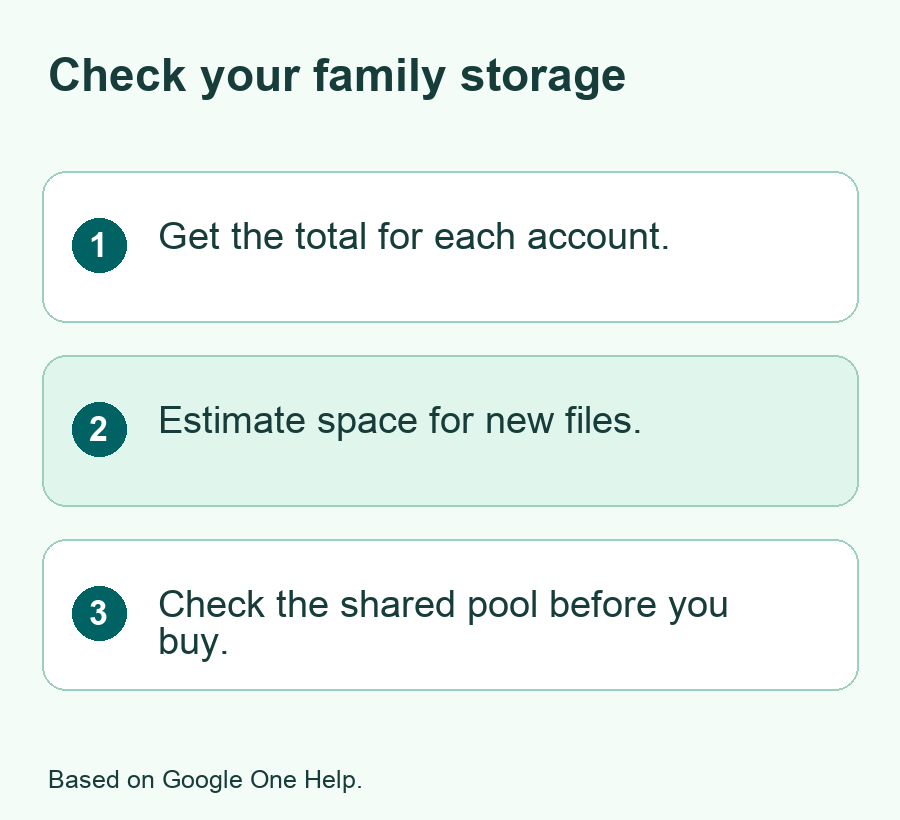
Google One family sharing can add up to five family members to the plan manager’s group. Each person signs in with their own Google Account. Google says members use their personal space first. Once that space fills, more files can count toward the family’s shared pool. You can see how much each person uses in the pool. They still decide who can view a given photo, file or folder.
That setup can simplify a bill for people who live in the same country and meet Google’s family group rules. It also helps if one person needs much more space than the rest. The plan does not give each person a fixed slice. A large backup can use much of the room the others expected to have. If you all take photos, agree on when to check the storage page together.
Work through a small example
Here is a hypothetical family with three accounts. One uses 60 GB. One uses 22 GB. The third uses 8 GB. Assume each person has a full 15 GB of personal space, and that their files follow Google’s personal-space-first rule for family members. The two invited members would add 7 GB and 0 GB to the shared pool. Use the plan manager’s actual storage page for the rest of the estimate. It can show how the manager’s use counts on the current plan.
Next, say the invited member who uses 22 GB expects to add 15 GB of phone videos in the next year. They would use about 22 GB of shared space by then, up from 7 GB. If the manager has 60 GB in use and adds 25 GB, the three people now have a reason to compare the 100 GB and 200 GB options. Under a simple estimate where all 85 GB for the manager and 22 GB for the invited member count toward the pool, that is 107 GB. The smaller tier would be tight under those assumptions. Check the real view before you pay for the larger one.
You can do a faster version of that math by adding everyone’s total use and a cushion. An account under its personal allowance can make that shortcut look too high. A good way to break a tie is to open the Family storage view on an existing shared plan and use the actual shared totals there. If you’re starting from scratch, keep a note of which numbers were estimates. Set a reminder to check your real use after the first month.
Compare Google One Plans in the Right Country
Open the Google One plan page after you sign in to the account that would pay. Match the currency to your billing country. Check the tier and the amount of storage on the card. A plan name can stay the same when the page offers a different capacity in another market or for another account. The signed-in page is the useful place to confirm what you can buy.
Google’s plan help lists a 100 GB and a 200 GB paid tier. Its India help also lists a 30 GB option in some places. Google calls that plan Lite and says it lacks family sharing. If you see Lite and want one bill for the whole family, rule it out before you compare prices. As checked in November 2026, Google also lists forms of AI Plus with 400 GB or 2 TB, and forms of AI Pro with 5 TB or 10 TB, depending on the plan. These are examples of capacities to check, not a list of every offer on your account.
| What you need | Where to start | What to confirm |
|---|---|---|
| A little more room for one account | A small storage tier | Space, local price and renewal term |
| More room for a household | A tier that supports family sharing | Same-country group and a buffer for shared use |
| Space plus one recurring AI task | The lowest AI tier that supports the task | Which app, person and plan have access |
| Several people using AI tools each week | The next tier only if you hit a limit | Whether each person gets a limit or shares one |
Compare the price after the deal ends
Write down the regular price, the term and the first date the full rate will apply. If the page shows an offer, note what happens at renewal. If you’re choosing between monthly and annual billing, compare the full-year cost in the same currency. Google’s India plan help lists quarterly billing for some tiers too. Multiply a monthly price by 12 or a quarterly price by four to see the annual cost at the same rate. Include taxes where the order page shows them.
Say your chosen storage tier costs 3 units a month in a made-up example. The AI tier costs 10. The difference is 7 a month, or 84 for a full year at those rates. Ask what task you expect to do often enough to justify that gap. If you go from daily use to a couple of tries a year, check whether the free tools can do those tasks. Also check whether you can go back to a cheaper plan at the end of the term if it doesn’t work out.
Check the Gemini Feature You Need Before You Upgrade
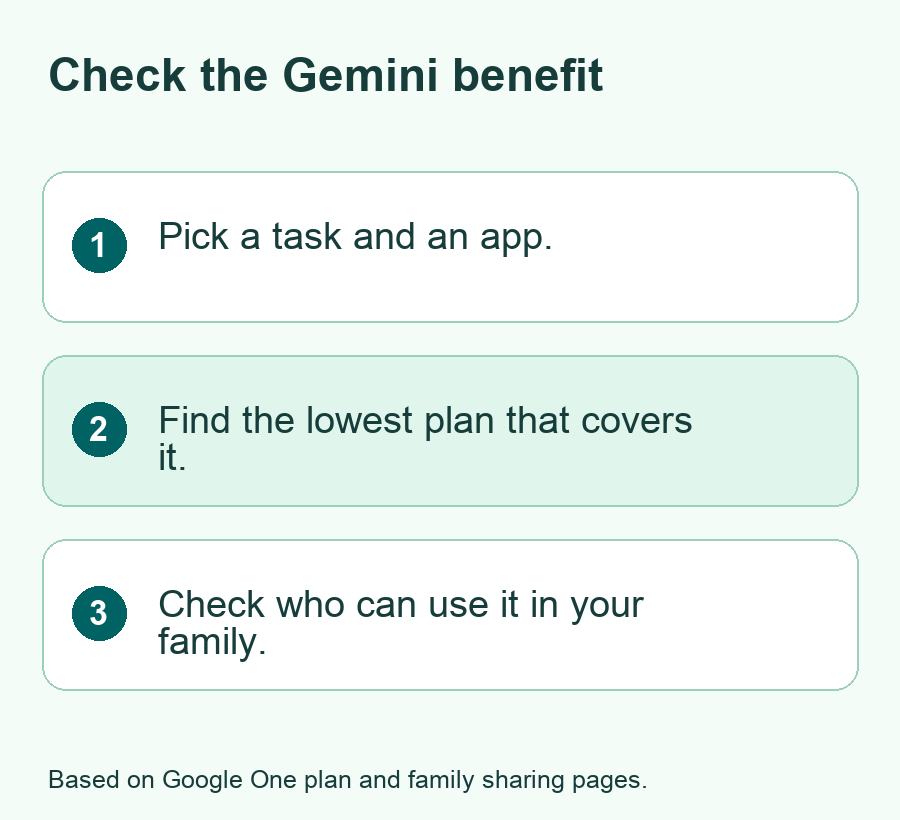
Pick a real job first. You might want to use Gemini with a sheet you update each week. You might want help in Gmail or a way to work with a long set of notes. Name the app, the feature and who needs it. That gives you something specific to find under the plan details.
Google’s plan page lists Gemini and other AI products by tier. It also calls out limits and features that depend on where you live or what kind of account you use. A plan may raise an app’s usage cap or add a tool in one part of Workspace. The list on your plan page is the place to check the scope. If you use a work or school account, look at its own settings and ask the admin if needed. A plan you buy for a personal address won’t put the same tools in a different account.
If you need Gemini in Google Sheets, find the exact Sheets feature in the table or help page. Look for the way to open it in the app. If the description mentions a limit, ask how often you’ll run into it. Try an example sheet first, using data you can share. You can then see whether the tool actually helps you clean up a weekly task. Use the same check for Gmail, Docs and Gemini Notebook.
Check which benefits each person gets
Google’s family sharing help lists some AI benefits that eligible family members can use, and some plan perks that stay with the manager. It also notes that Google Flow and Google Antigravity can use a shared limit across the family. A shared tool and a shared limit are two different facts to check. If two people plan to use a tool each day, write down how both will use it before choosing a tier.
You can make a small list with each person’s task. One person may want storage for photos and have no plan to open Gemini. Another may want to use a paid app feature every day. If the benefit goes only to the plan manager, check that the right person manages the plan before you buy it. If that isn’t possible, price what each person needs on their own and compare the total to the family plan.
Set Up Sharing and Check the Result
After you choose the plan, open Google One in the manager’s account. Google Help says the manager can make a family group and turn on sharing in the family settings. Check Google’s current instructions for your phone or computer. Invite eligible members with the address each person uses for the files that need space. Ask them to read the invite and join from that account.
Once they join, return to Google One and open the storage view. Find the Family storage section if your plan shares space. Look for the members you expected to see. Then ask one person to open the same screen in their own account and confirm they can see the plan. An account that still uses only its free allowance may show little or no shared use even after it joins.
For an AI plan, each person who needs the tool should open the right app while signed in. Use a simple test that doesn’t contain private details. In Gemini, for example, try the task you wrote down during the plan check. If you were looking for an option inside its own app, check for that option there. Record any error or missing option before making another change.
Fix a Missing Invite or Feature Before You Pay More
If the invite doesn’t work, start with the account and country. Google says invited family members must live in the same country as the manager. An account may have a family group already. Check whether the invite went to the right address and whether the person is signed in with it. Review the rules on joining and leaving groups before you make a switch that affects other shared services.
If someone can’t see the extra space, check that the manager enabled sharing and that the plan supports it. Open the account’s storage page to see if personal space remains. Check the plan’s member list too. These checks separate a missing benefit from a member who joined but hasn’t used space from the pool. If the records look wrong, use Google One support and give it the plan and account details through its own tools.
If the Gemini feature is missing, confirm its exact name and the app where you should see it. Check which languages and countries the feature supports, and whether there is an age or account rule. Sign in with the right account and update the app if the official instructions call for it. A higher plan is worth looking at only after you find out that the tier is the actual limit.
Did You Know?
Google’s storage help says a file in a shared Drive folder counts toward the original owner’s Google storage. People who can view the shared file don’t each use a separate amount of room for it. If one large shared folder shows up in several people’s Drive views, check who owns those files before you count them in a family plan estimate.
Conclusion
The best Google One plan for your household starts with its storage needs. Check what you already use, leave room for likely growth and confirm the plan supports family sharing if you need it. If you’re considering Gemini, pick one task and check that the tier gives the right person access in the right app. Write down the regular local renewal price before you pay. Then test one storage or AI task from each account that needs the benefit.
FAQs
Does sharing a Google One plan give other people access to my photos?
Family sharing gives other members access to shared space. They can see how much of it each person uses. They can’t open your photos or files because you share a plan. Send a link, share an album or change a file’s access only when you want someone to see it.
Does everyone get the full storage amount shown on the plan?
The amount on the plan is shared across the group. Family members use eligible personal storage first, then draw on what is left in the shared pool. Check the Family storage view to see how the group uses it. If one person adds a large backup, it can leave less space for everyone else.
Can I share a Google One plan with a family member in another country?
Google’s family rules say invited members need to live in the same country as the family group manager. Check this before buying a plan for a relative abroad. You can still share a file with someone through Drive using its normal sharing controls. That action is separate from sharing your storage plan.
Can I use Gemini on its own before buying an AI plan?
Google offers access to Gemini that doesn’t require a paid Google AI plan. Try it with the sort of task you want to do. Then compare the free access with the specific paid feature or limit you need. Features tied to a certain app or type of account may have their own rules.
What should I check before dropping to a smaller storage plan?
Check the amount in use on your account and the amount any invited members need. Compare it with the new tier before you confirm. Save copies of files you need and clear space safely if the new tier is too small. Read Google’s rules for what happens when an account goes over its limit.
References
- Google One Help — How your Google storage works
- Google One Help — Start or stop sharing with your family
- Google One Help — Sign up for Google One
- Google One Help — Update your Google One plan and fix upgrade issues
- Google One — Google AI plans with cloud storage, U.S.
- Google One — Google AI plans with cloud storage, India
- Google — Introducing Gemini 4 Hydrogen
- Techchahiye — Cloud Backup for Photos
