

Make a site from a small set of notes
Build a Gemini Notebook study site from class notes. Try an interactive exercise, check answers and review access before sharing.
Key Takeaways
- Start with one lesson and a few notes you have a right to use.
- Ask Gemini Notebook to make a site with one clear learning task and a way to check answers.
- Open the site and try every button. Check answers against the notes before you use them to study.
- Review the full notebook before you share a site link. People who view it need access to the notebook.
To make a study site with Gemini Notebook, add your class notes to a new notebook. Open its chat on the web and ask it to make a site from those notes. Give it a task such as sorting the steps in a process or working through a timeline. Open the result in Studio and test it against the source before you study from it.
A good study site has a reason to click. If you only need to read a short summary, a plain note can do the job. Try a site when you want to hide an answer, put items in order or see how a change affects a result. Pick one topic where that action could help you learn.
Check That You Can Build a Gemini Notebook Study Site
Google said on 16 November 2026 that site building would roll out globally on the web. Google’s help says users must be at least 18. Start on a computer in a web browser and sign in with the account you want to use for the notebook. Check whether that account gets the feature. An account managed by a school or workplace may have its own access rules.
You may still see people call the app NotebookLM. Google changed its name to Gemini Notebook in July 2026. That explains why search results can use both names. For this task, you want the notebook with your sources and its own chat. Look for the Studio panel in that notebook. It is where Google’s site help says you can find the result after it builds.
If your course permits you to use an AI tool, check what you can upload and share. Use notes you wrote or material you have permission to use. Keep names, marks, private mail and other personal data out of the notebook when those details are not part of the lesson. Start with a clean copy if the file also contains details about other people.
Pick One Question the Site Should Help You Answer
Choose a task you can check with your source. You might want to put five events in order or work out which part of a plant cell does which job. Keep the first site small enough that you can test all its parts. A short task can make a better practice tool than a large site split into many tabs.
Here is a made-up study plan. You have two pages of notes on the steps in the water cycle and one class diagram. You can ask for a site where you put four steps in order and open a note for each one. The site helps you recall the order first. Then you can check why each step fits. The task is small enough to compare with the notes in a few minutes.
| Study task | Site idea | Way to check it |
|---|---|---|
| Learn dates or steps | A timeline with items you can reveal | Match each date and step to the source |
| Tell two ideas apart | A side-by-side view with examples | Check each example against your notes |
| Apply a rule | A few questions with answer cards | Solve them yourself before you open the answer |
| Review what you missed | A checklist of topics to try again | Make sure the checklist uses the terms from class |
Avoid moving on to the site until you know which source answers your main question. If the source has a gap, either find a source you can use or leave that part out. A tool can produce an answer even when your notes do not support it. A short set of clear sources makes that easier to spot.
Add Notes You Can Check Later
Start a new notebook for one lesson. Add the source with the full explanation, such as a text file, an allowed handout or a set of notes. Google Notebook Help lists the source types that work. It also explains that you need access to import a Drive file. If the document belongs to a classmate, make sure you have permission to use it for the task.
Name the sources so you can tell them apart in the notebook. A name like Lesson 4 Notes is easier to find than a generic scan name. Put the lesson date or unit in the title if it helps. When you ask for the site, use those names to say which notes it should draw on. This is also useful when you want to check one answer later.
Review the files before you ask for the site
Open each source in the notebook and find a detail you know well. Check that a heading or paragraph you need appears as expected. If a table in a PDF is hard to read, add a short plain text note with the details you have a right to use. Give it a name that says where those details came from. Then check the text before you use it to build the exercise.
If you uploaded two versions of the notes, keep track of which one to use. Google says you can select sources in the notebook to focus a chat. Choose the version from the right class date. If you do not know which version is right, sort that out before you ask the site to give a correct answer. It is easier to fix an input than to look for its effects across the finished site.
Use the words your course uses for each idea. If two pages use different terms for the same thing, make a note of that. You can ask the site to show both terms with a short note on where each one appears. That helps you answer in the words your teacher expects. If two terms mean different things, ask for a clear example of each before you try to sort them in the exercise.
Check how long you will need the sources. Google says a Drive source can become unavailable if you lose access to the file or if someone deletes it. If you rely on a link your school will remove after a class ends, check how long you have permission to use it. Keep your own notes with the names of the parts you studied. That gives you a way to review from work you own even if a link stops opening.
Google lists up to 50 sources for free users in its source help. You can start with two or three for one lesson. A longer set may make sense for a project that covers many weeks. For a quick study site, pick a small group of useful notes and take out the ones that would distract from your question.
Ask Gemini Notebook to Make a Site From Those Notes
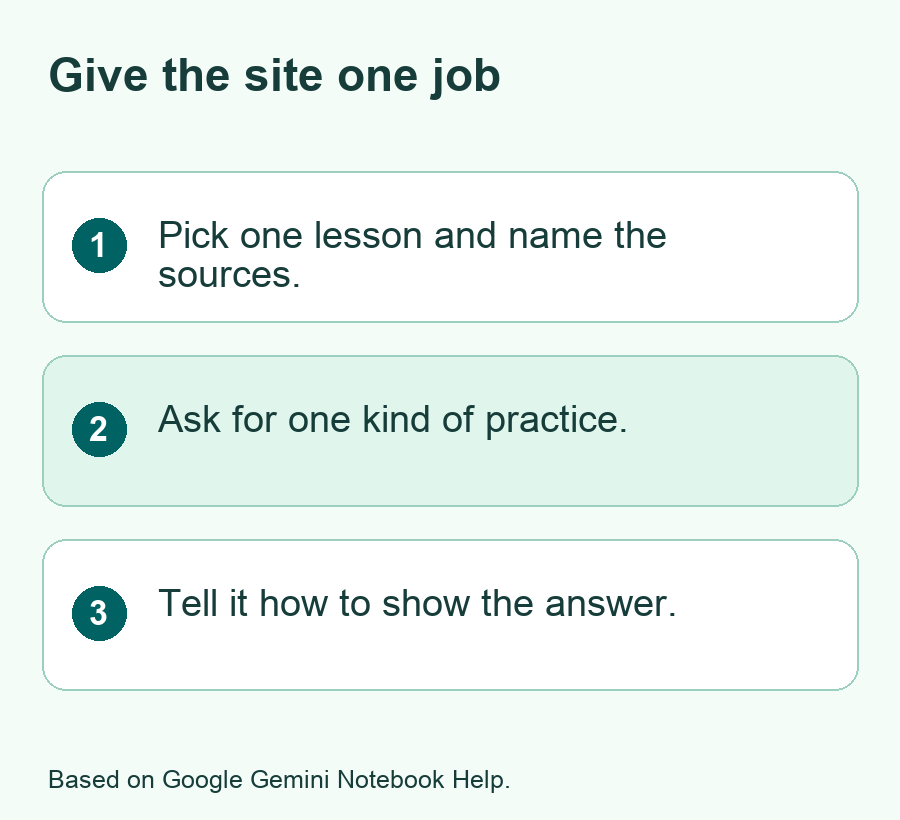
Open your notebook on the web. Find its chat. Google’s site guide says you can ask for a site in the chat and say what you want it to do. Use a request that names the source, the learner task and the way to check an answer. You can add a rule about what to do when a source leaves out a fact.
For the water cycle example, try a request along these lines. Make me a study site based on my Lesson 4 Notes and class diagram. Let me put four stages in order. Show an answer only after I try. Give a short reason for each stage. Flag a detail if you can’t find it in my notes. Keep the words large enough to read on a phone.
That is a sample request. Write the terms from your own class in its place. If you need a harder version, ask it to use new examples built with the same rules from the notes. Say which facts should stay the same. If the topic has a wide range of answers, ask the site to show how it picked one instead of treating other answers as wrong.
Keep the first draft small
Use four or five items and one kind of interaction in the first version. Once it works, add a second part such as a review checklist. If you start with a dozen features, it can be hard to tell which one led to a wrong answer or an awkward screen. Small tests give you a clear point to start from when you want to make a change.
Look for the output in Studio. Google says you can select the generated site there and use its More menu to open it in a new tab. Open that view and try it at the size you plan to use. Check how long it takes to reach the main task. The first screen should give you a clear way to start.
Check the Site Against the Notes
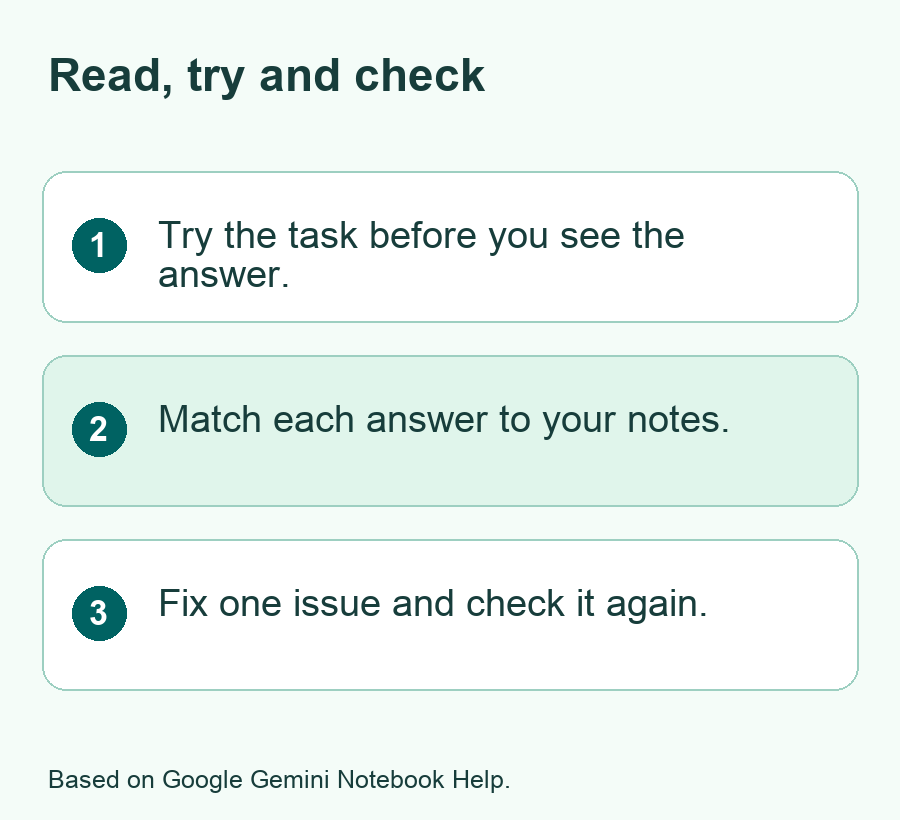
Open the notes next to the site. Try a correct answer and an answer you know is wrong. Read each bit of feedback and see if it matches the notes. Check the dates, names and units first. These details can change what a student has to learn. A site that looks tidy can still put an item in the wrong order.
- Try the exercise without looking at the answer.
- Compare the result with the source you chose.
- Open each hint and make sure it helps with that item.
- Check that you can go back and try again.
- Write down any fact, button or label that needs a fix.
For a timeline, read the first and last item too. If the lesson covers dates, see if any events have the same date or if an event belongs to a span of years. Check what the site does with those cases. If it treats a rough date as exact, revise the request to keep the range or say why the date is not exact.
For a quiz, check that the feedback fits the answer you picked. If one clue gives away the next answer, change its order or wording. If a question can have two right answers, either show why both work or make the question more specific. You can ask for a simpler version first, then try a harder task once the logic works.
Fix one thing and run the same test again
If you find a wrong answer, look for its origin. The source may be out of date. The request may not name the right source. Or the output may have added a detail on its own. Keep a note of what you want to change. Ask for a new version with one clear fix and try the same steps again. Compare what changed before you replace the version you used to study.
If the buttons are hard to use, open the site in its own tab. Try the exercise with a keyboard if you need that option. Make sure the text stays in view when you zoom in. If the site has no clear way back, ask for a simple list of tasks and a way to restart. Read the notes on their own when the site gets in the way of the lesson.
Check how you will use the site the next time you study. Try one task with the hints closed and write down why you missed a step. Go back to the part of the notes that explains it. In your next session, try that part again. If you already know it well, add a new question that changes the example while keeping the same rule. That gives you a reason to use the site more than once.
Share Only What Your Class Can See
Use a notebook that holds only material you can share with those readers. Google says a guest needs access to the full notebook to view a site through the share link. Look through all the sources and notes before you set that access. Keep private notes in a separate notebook. Make a fresh copy for the class if it needs a smaller set of material.
Google’s help also distinguishes sharing with people you choose from making a site public. For public sharing, it lists a consumer account and a notebook owner or editor role. Check what your account allows and what your school expects. If the lesson is for four classmates, start with that group rather than sharing a public link. Check how the link opens in the right account before you send it to everyone.
If you need to send a downloaded copy, use the option Google describes in the Studio menu. Read through that file first. Remember that a shared copy can move outside the app’s link settings. Ask a test reader to open the approved copy and finish one task before you share it more widely. Tell them which lesson it covers and where to check the original material.
Did You Know?
Google’s help says an interactive site can reopen with the choices you made before. It also says each person on a shared site sees their own inputs. The site owner cannot see what someone else types into that shared site. That makes a personal practice exercise a different use from keeping a class record of answers.
Conclusion
A Gemini Notebook study site can help when you want to do something with your notes, such as place events in order or test an answer. Start with one lesson and ask for one kind of exercise. Try it against the source and fix anything that makes it hard to learn. Check the entire notebook before you send a link to someone else.
FAQs
Can I make a Gemini Notebook site on a phone?
Google announced the first rollout on the web and said a mobile version was coming. Use a web browser for the setup described here. Check Google’s current mobile help before relying on app support. You can try opening the finished site on the screen where you expect to use it.
Do I need to write code to build a study site?
You can ask for the site in the notebook’s chat using plain words. Name the type of exercise and the notes it should use. You still need to open the result, try the main controls and check the answers. The prompt is a starting point for a tool you can review.
Can I use notes from different classes in one site?
You can add multiple sources that you have a right to use. Start with one lesson while you test the workflow. If you later add another class, name the sources and say which one to use for each part. Check that the site does not mix definitions or rules from different courses.
Why does the site link tell a classmate to request access?
Google says the person viewing a shared site needs access to its notebook. Check the account that has permission and ask your classmate to open the link with that account. Review everything in the notebook before you grant access. Keep notes private if the classmate does not need to see them.
Can my teacher see which answers I enter on a shared site?
Google says each person sees only their own inputs in a shared site, including the owner. Use your course’s normal method when a teacher requires you to turn in answers. A study site can give you personal practice, while your class may use a separate tool for grading or feedback.
