

Quick answer
A future Play system date does not prove future patches or a hack. Check Settings, finish any offered update and restart, then save the result. We have not verified a vendor cause or universal fix for the January 2027 label.
Key Takeaways
- Some phones show January 1, 2027 in the Google Play system update field. That date alone does not prove a hack or a future security patch.
- Check the field name first. The Android version has its own field. Security and Play system updates have their own dates.
- Check for updates in Settings. Follow any restart prompt and note the result.
- A date that looks wrong and an update that fails need different checks. Avoid a factory reset to change the label.
Does your Google Play system update show January 1, 2027? Check for updates in the phone’s Settings first. Then note the result and any error. The future date alone does not tell you which fixes your phone has. It also does not prove that someone has hacked it.
As of October 24, 2026, we have not found a vendor statement that explains the cause or gives a fix date. That gap matters. A claim that the phone is fully safe, or that a reset will fix the label, would go beyond the evidence.
This guide helps you tell a strange date and an update failure apart. You can use it on a personal Android phone in the US or India. Menu names may differ by model and software. For a work phone, check with your IT team before you change settings.
What the January 2027 Report Actually Shows
Android Authority reported this issue on October 21, 2026. Its team saw January 1, 2027 on one of its own Galaxy Z Fold8 phones. The report also cites user posts from other devices. It says the site asked Samsung for comment.
That is evidence of a visible date on a specific handset. It is not a full list of affected phones. It does not show how common the issue is. Nor does it prove a cause, a security impact or a fix that works for all owners.
Start with two questions. What does your phone show? Does the phone check for updates? Do not treat every slow app, weak signal or battery drop as part of this story.
You may see posts that call this a server error or a harmless label bug. Those are possible explanations. We have not found a vendor statement that confirms either cause. Keep that distinction when you share the story with someone else.
Read the Full Update Field
Open the screen again and read the words next to the date. A screenshot cropped to “2027” leaves out the most useful clue. Look for Google Play system update, Android security update, or another exact label.
Also check whether the date appears in Settings or on a web page. A browser ad that claims your phone needs a patch is not your phone’s update tool. Close the page and check Settings yourself. Do not use an ad’s download button as a shortcut.
If you saved an old screenshot, note when you took it. A picture from before a restart is a record of that earlier state. It cannot tell you what the phone runs now. Take a fresh image after the check, with personal details cropped out.
Google Play System Update vs Android Security Update
These labels describe separate update layers. Google lists separate records you can check. These include the Android version and build number. There are also security and Play system update fields. You should not expect them all to show the same date or number.
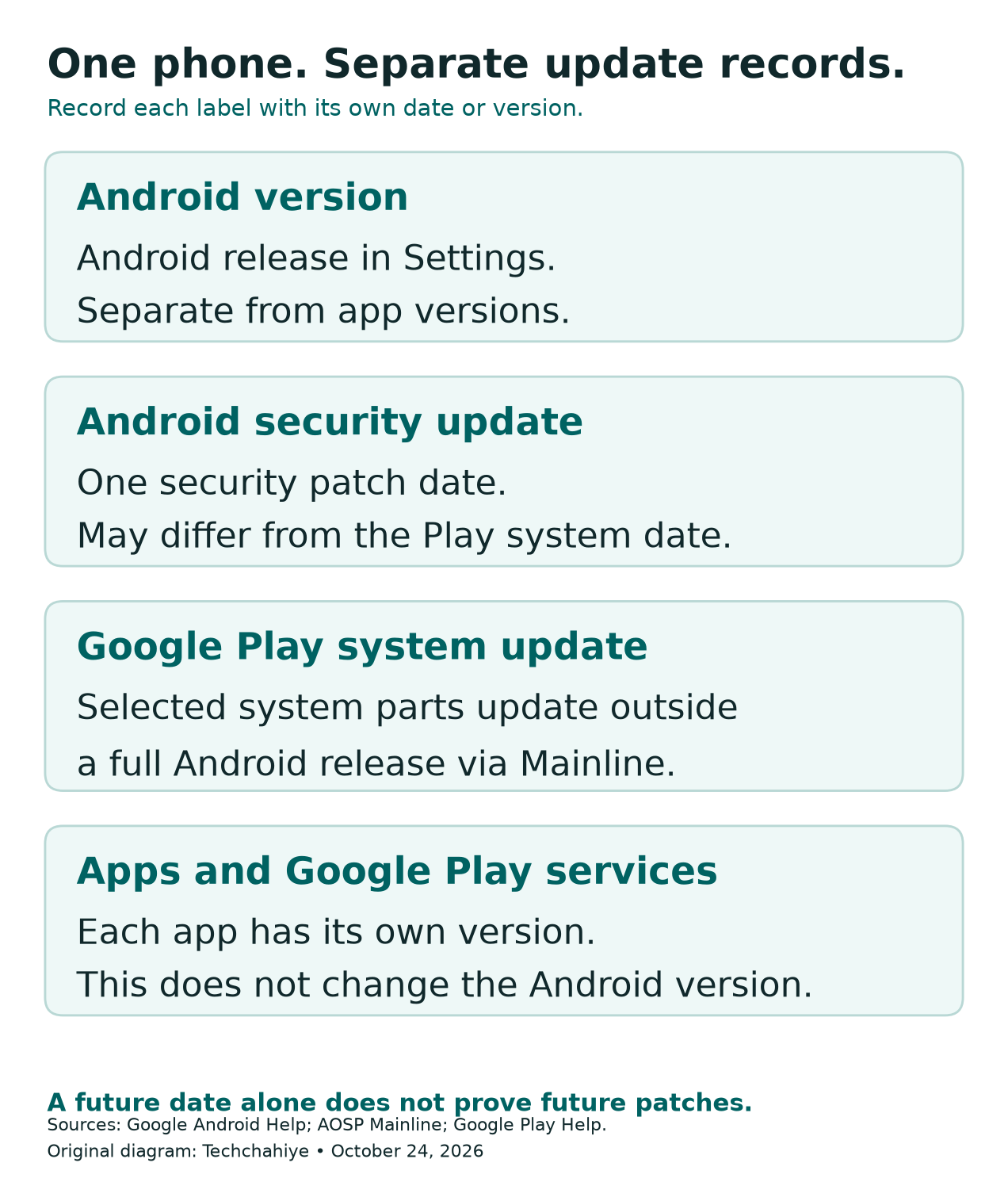
Mainline can update selected system parts outside a full Android release. The Android Open Source Project explains this design. Google Play system updates are one route for those parts. That is why a small system update can arrive without a new Android version.
Think of these as separate entries in a service record. One entry can change while another stays the same. That does not let you rank the whole phone’s health by the most recent date.
| What you see | What to record | What it cannot prove alone |
|---|---|---|
| Android version | The version shown in Settings | That each app is current |
| Android security update | Its own patch date | That the Play system date must match |
| Google Play system update | The date and update result | That all future fixes are present |
| App or Play services update | The app name and version | That the Android version changed |
Play Services Is Another Separate Check
Google Play services connects apps to other Google services. Google gives Sign-In and Maps as examples. It is different from the Play Store app. A Google Play services update is not a new Android release either.
This helps when you search for support. “Play update” can mean several things. If your problem is the date in Software information, say that. If the Play Store will not update an app, name the app and error. Those details lead to different support paths.
Do not compare two unrelated version numbers. A Play services app version is not a calendar date. Neither is a build number. Copy each field with its label so a helper can read it without guessing.
Check a Samsung Google Play System Update
Samsung gives a route for Galaxy phones in its support guide. Open Settings, then About phone and Software information. Look for Google Play system update there. It appears in a One UI 7 support article. Your newer software or carrier model may use different wording.
- Open Settings on the phone itself.
- Tap About phone, then Software information if those options appear.
- Find Google Play system update and note its current date.
- Open that entry and follow the offered update steps.
- If the phone asks for a restart, save your work and follow that prompt.
- Return to the same field and record the new result.
If that route is missing, search within Settings for “Google Play system update.” A missing search result does not prove a fault with the phone. Consult the help page for your exact model if you cannot find the entry.
For other brands, start with Google’s Android guide. It uses Settings, then About phone or About tablet. It explains where to see version details and how to check for updates. Use the maker’s model guide when your menus differ.
Keep the Check Small and Clear
Do one check, then read the result. If the phone offers an update, let it finish. When the screen says no update is available, write that down. For an error, copy the full wording rather than tapping through it.
This is not a promise that a restart will remove January 2027. The point is to finish any pending step and see the saved state. If the date stays the same, you have learned something useful without wiping the phone.
Avoid changing several settings at once. For example, do not clear app data, change the clock and reset the network in one attempt. If the screen changes after that, you will not know which action mattered. A clear record helps more than a long list of guesses.
Before You Install a Play System Update
Choose a time when you do not need the phone for a call or a trip. Keep your charger close and use a stable Wi-Fi connection. Google’s Android update guide advises at least 75% charge before an update. Follow a stricter prompt if your device shows one.
Leave time for the process to finish. Samsung warns that calls do not work during a full system update. This includes calls to emergency services. A Play system update is a different layer. Still, plan around any restart to avoid an untimely break.
Check what the phone is asking you to install. Read the page title and the source of the prompt. An update offered through Settings belongs to a different flow from an APK file sent in a chat. An APK is an Android app install file. Its name alone does not prove who made it.
You do not need to find a “January 2027 patch APK” for this guide. We have not verified a universal download that fixes the date. Use the built-in updater and official device support rather than an unverified package.
If the Download Cannot Finish
Read the error before you act. A storage warning asks for a different response from a lost connection. Use the amount of free space the device asks for; do not rely on a made-up space target for every phone.
Google says a failed Android update download can retry over the next few days. Samsung also notes that a lost network connection can cause a system download to fail. These general points do not establish the cause of this date issue. They help you describe a separate download problem.
If repeated attempts show the same error, stop repeating the same tap. Save the error, the time and the network type. Ask the device maker what to do next. A support case with that record is more useful than “it will not update.”
Choose the Next Step From the Symptom
The table below is our practical sorting aid. It is not a vendor diagnosis or a tested fix. Use it to decide which evidence to gather next, without treating the future date as the cause of every fault.
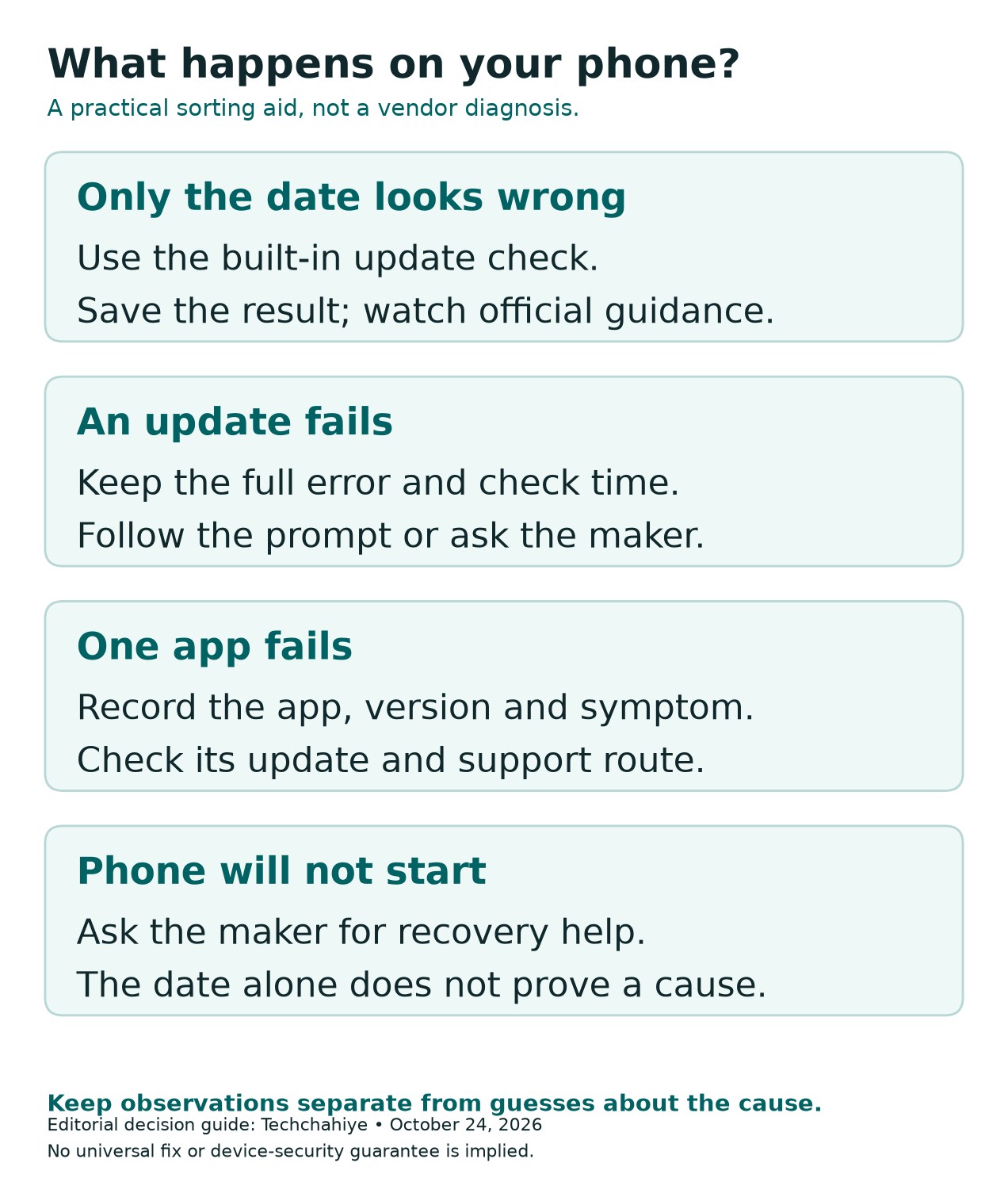
| What happens | Useful next step | Keep in your notes |
|---|---|---|
| Future date, no error, phone works | Use built-in checks. Watch for official guidance. | The field name and result |
| Update download fails | Follow the error prompt. Seek support if needed. | Full error and time |
| One app crashes | Check that app’s update and support details | App name and version |
| Phone cannot start normally | Ask the maker for recovery help. | Last action before the failure |
When Only the Date Looks Wrong
If the phone works and the updater shows no error, our advice is to keep a record and watch for official guidance. We cannot verify a fix that changes the label today. The date alone is no reason for repeated resets.
Keep normal update checks separate. Do not turn off updates because the year looks odd. Equally, do not assume the future label means you can ignore later updates. Read new prompts on their own terms.
Set a sensible follow-up for yourself rather than checking every few minutes. For example, you could look again when a new update prompt appears. That is a personal routine, not an official fix deadline. Save the old record so you can compare like with like.
When an App Fails as Well
A new symptom deserves its own notes. Name the app, the action that fails and the exact error. “The bank app closes after sign-in” is more useful than “Google broke my phone.” Keep passwords and account numbers out of public posts.
Google’s app update guide gives a separate route in the Play Store. Tap your profile, open Manage apps & device, then view available updates. Update the affected app if a new version appears. A new app version does not prove the Play system date changed.
If the app still fails, use its official help channel. Mention the timing of the system update as context, not as a proven cause. That leaves room for the app team to check other causes too.
What to Do If Google Play System Update Is Not Updating
First define “not updating.” It may mean no new download appears. It may mean a download fails. Or it may mean the date stays the same after a successful restart. These are different outcomes, so put the exact one in your notes.
If no update appears, check your exact model and software. Compare them with the maker’s support page. Do not use a stranger’s screenshot as a release schedule. For a failed update, keep the error. For an unchanged date, keep both before and after records.
There is no one latest date we can promise for every Android phone. Google says update schedules vary by device, maker and carrier. Samsung also says changes can vary by model, country and provider. Check the model’s own release notes for context.
US and India: Compare the Right Model
In the US, include whether the phone is a carrier model or factory unlocked when you ask for help. In India, include the exact model and software build too. Those details matter more than where another person’s screenshot went viral.
A relative with the same retail phone name may still have a different model or software branch. Compare full model details before you conclude that your device missed an update. Do not change regions or buy a new SIM merely to chase the date in a post.
If you use an imported phone, use the support information for that model. Tell support where you bought it. This is a way to frame the question, not a claim that imports caused the January 2027 label.
Avoid Fixes That Create More Work
Do not factory-reset the phone to make the date look normal. We have not verified that as a fix for this issue. A reset also makes it harder to compare the state you first saw with the state you report later.
Be careful with advice to clear Google Play services storage. Google warns that this can remove saved data. This includes some payment or travel items. You may need to sign in or verify payment methods again. Its help page treats this as a later troubleshooting step.
That is too much disruption for a label you have not linked to an app failure. If official support suggests a step for your case, ask what it removes. Find out what you should save first. Keep those instructions with your support record.
Also avoid a “fix” that asks you to turn off protection, share a one-time code or pay an unknown helper. None of those steps forms part of the checks in this article. Open official support yourself. Do not trust a link from a stranger who offers help.
Use Play Protect for an App Concern
Google Play Protect checks for harmful app behavior. Google recommends keeping it on. It is separate from the update-date field. A scan result does not prove that every system patch is current.
If you suspect an app problem, open the Play Store, tap your profile and select Play Protect. Read the status and any warnings there. Follow Google’s help for the warning you actually see. Do not install a second unknown “security update” app to investigate the first one.
A clean result and a strange date can both exist. Write down each result on its own. Take a real security warning on its own terms. Follow official guidance for that warning. Do not dismiss it as part of a date glitch.
Make a Useful Support Record
A short record can save a long chat with support. Keep the model, Android version and build number together. Add both the security patch and Google Play system dates. Then add what you tried and what happened.
Use the template below in a private note. Fill it from the phone rather than copying a sample. You do not need to put an IMEI, serial number, email address or account details in a public forum to describe the date.
- Model and country where you bought it:
- Android version and build number:
- Android security update date:
- Google Play system update date:
- Check time and exact result:
- Restart requested, and result after restart:
- Any separate app problem or error:
For example, a hypothetical owner might write: “Date still shows January 1, 2027. Settings found no new update. No app error.” That is a clear report of observations. It does not claim the phone has a 2027 patch.
Another hypothetical owner might write: “Download fails with this error before restart.” That person needs help with a failed download as well as the date. Keep those two facts separate when you contact support.
Techchahiye’s Android and iPhone guide covers normal phone care. It includes updates, backups and safety habits. Find it in References. Use that checklist for normal upkeep, while keeping this date issue in its own support record.
Before sharing a support screenshot
Keep the field name, date and error in view. Crop out account details, codes and other private data. Save the original in your own notes.
Did You Know?
Android Mainline began with Android 10, according to the Android Open Source Project. It can update selected system parts without a full Android release. That is one reason a phone has more than one update record to check.
Conclusion
A Google Play system update date of January 1, 2027 is a reason to check the exact field and update result. It is not proof of future protection or a hack. The cause and a universal fix remain unverified in the sources we reviewed.
Use Settings, finish any offered update and restart, then save the result. If only the date looks odd, watch for official guidance. If a download fails or an app breaks, report that symptom with its own details. Clear evidence gives support a better starting point than a risky reset.
FAQs
Does January 2027 mean my phone has next year’s patches?
No, the displayed date alone does not establish that. Record the Android security update field separately from the Play system field. We have not verified a vendor explanation that ties this future date to a set of future fixes. Use official release details for your exact model.
Will changing my phone’s clock fix the update date?
We have not verified that as a fix for this issue. The date discussed here appears in the Google Play system update field. Do not change the clock to make that field look different. Save its current value and follow the built-in update process instead.
Should I install a Google Play system update APK?
Do not use an unverified APK to chase this date. We have not verified a universal package that fixes it. Check through Settings and the device maker’s support route. A file name, social post or download site’s claim does not prove that a package suits your phone.
Is every Samsung, OnePlus or Motorola phone affected?
That claim goes beyond our evidence. Android Authority observed the date on its own Galaxy Z Fold8 and cited other user reports. That does not measure all devices or brands. Check your own field and avoid treating a list of posts as a full affected-device list.
What should I do if the phone works but the date stays wrong?
Keep a record and check official guidance. Finish any update or restart that Settings offers, then note the result. We have not verified a reset-based fix for the date alone. If a new error appears, record it separately and ask the device maker for case-specific help.
References
- Android Authority — Did your phone just get a Google Play system update from the future? You’re not alone
- Google Android Help — Check and update your Android version
- Android Open Source Project — Mainline
- Samsung US — One UI 7 software update concerns for Galaxy phones and tablets
- Samsung US — How to update your Galaxy phone or tablet
- Google Play Help — Keep your device and apps working with Google Play services
- Google Play Help — How to update apps on Android
- Google Play Help — Use Google Play Protect to help keep your apps safe and your data private
- Techchahiye — Android and iPhone Guide: Updates, Battery and Safety
