

Check the move before you reset
Find saved Google passwords after switching phones. Check your account and autofill, recover local entries, and test passkeys before erasing the old device.
Key Takeaways
- Check the Google account you used on the old phone. Account-saved passwords can follow you when you sign in to the same account on a supported device.
- If you can see a login in the manager but it does not fill, check which service the phone uses for autofill and whether the entry matches the site.
- Some passwords live only on the old device or in another manager. Keep access to that device while you check how those items can move.
- Test passkeys separately. Use a supported transfer or add a new passkey through the service while you can still sign in.
Your apps are on the new phone. Then you try to sign in and the password you always used fails to appear. Did you lose the login, or is the new phone looking in the wrong place?
Start by opening Google Password Manager under the same Google account you used on the old device. Search for a login you know you saved. If you see it, check the phone’s autofill setting. If it is missing, open the old phone and look at where it was saved. Those two checks tell you whether you need to change a setting, move a record or recover an account.
Check the Account Before Changing Settings
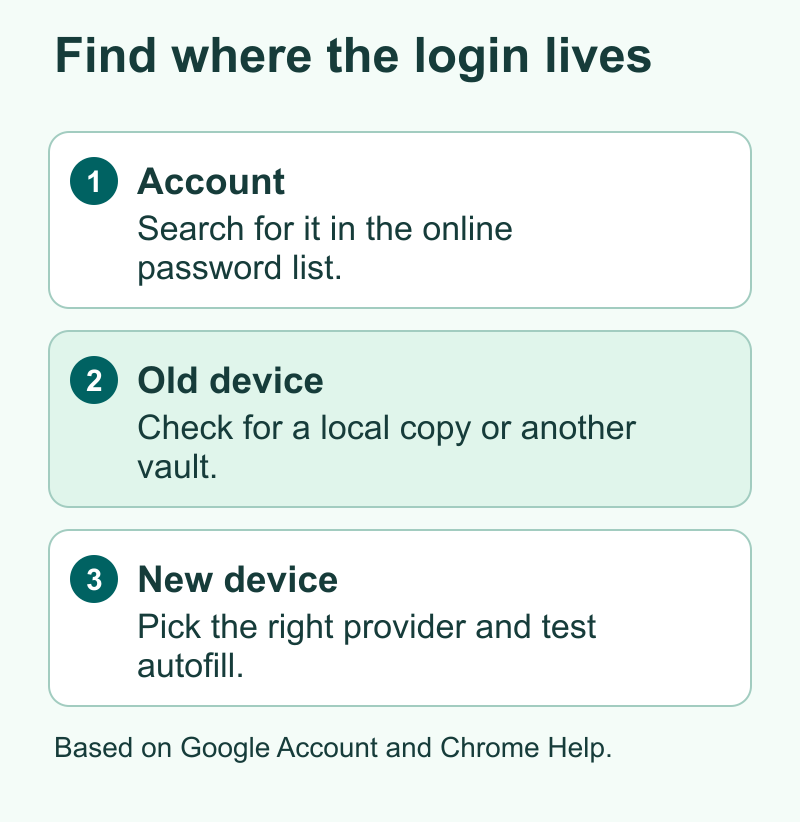
A phone can hold multiple Google accounts, and these accounts can have different saved logins. Start on the old phone or on a computer where the password still appears. Open the manager and look at its current Google account. If you usually see a password in Chrome, check the profile you use in Chrome rather than assuming it matches every app on the phone.
On a trusted device, open the web Password Manager under that same account using Google’s official address in the References. Search for a site you use often. Check its saved username and site address without revealing the password. Try a second login that you remember saving recently. This is better evidence of what is in the account than a count of apps that appeared during phone setup.
In the new phone’s manager, compare the account and the same entries. If you use personal and work sign-ins, make sure the account labels match. A work or school profile may have its own sign-in and device rules. Check those before moving a credential to a different profile or account.
If you cannot sign in to the Google account on another device, start with Google’s official account recovery process. Keep any device that is still signed in until you restore access. Never share a code, password or prompt with someone offering to retrieve the vault. Someone who can recover access using your code can gain access to the same saved items.
| What you find | Likely next check | What to keep available |
|---|---|---|
| Login appears online in the right Google account | Sign in to the same account on the new phone and check autofill | A trusted device for account verification |
| Login appears on the old phone only | Check whether it is saved locally or in a different manager | The old phone and the app where the login appears |
| Login appears on the new phone but offers the wrong username | Compare the account and exact site address | The known working sign-in |
| Password works but another sign-in step fails | Check the account’s second factor and recovery methods | An approved device, code or other recovery method |
Check Autofill on the New Phone
Autofill is the service that offers to enter a saved username and password. A saved entry can be present in the manager while a different manager handles that field on your phone. If a login appears when you search for it, start by checking which tool the phone uses to fill passwords.
On Android, check the preferred password or autofill provider. You can search the phone’s settings for autofill if the device maker puts the option in a different place. Google’s help also explains how to check which provider Chrome on Android uses. Select the provider you intend to use and try the same sign-in again. You may have more than one manager. Check which one saved this login before you change which one fills your apps.
On iPhone or iPad, Google’s Chrome help shows how to reach Google Password Manager inside Chrome. Start by checking whether the password works there. Do you need to fill a login in another app? Open the iPhone’s password autofill settings and see if your version of iOS lets you choose Chrome. If Apple Passwords has the record, check that provider before assuming Google saved it. Use the configuration that matches where you want future logins to go.
For an individual site, inspect the exact address. A password saved to one service or subdomain may appear differently in a related app. If the displayed address looks wrong, open the site from a trusted bookmark or the app’s official listing. Then check the saved entry and expected username. A saved password is useful when it fills at the website you meant to visit.
You may have one user for work and one for home at the same site. Check the user the phone offers before you fill the field. Two saved items can look similar if only the site name is visible. A quick check of the username can prevent you from changing the wrong password when the issue is an account selection.
Find Passwords That Stayed on the Old Device
Google’s Chrome documentation describes two paths. A password saved to your Google account can be used on other supported devices signed in to that account. Chrome can also store passwords locally, such as when you are not signed in to Chrome. A local entry can still work on the old device and be missing from your online list.
On the old phone, go to the app or browser where a password used to fill. Check the manager’s account, profile and saved list. Verify a known item and see what the app says about its storage. Also look at Apple Passwords, a separate vault or another browser you may have used. Keep the old phone unlocked only as needed and protect its screen and accounts while you check.
If the records are local, look for a transfer option on the old device. Read the manager’s help to see whether you can save them to an account or export a file. You may decide to save one or two logins again after signing in on the new phone. If you have hundreds, use a documented transfer that fits both products. Check which destination account will receive the items before you continue.
If the old phone is gone and a password never made it to an account, try other authorized copies first. A laptop browser or another device may have the entry. If you cannot find it, use the account’s reset process. Start with the sign-in you need right now and make sure the reset address really belongs to the service. Save the updated credential where you can reach it on the new phone.
Move Records Between Password Managers Carefully
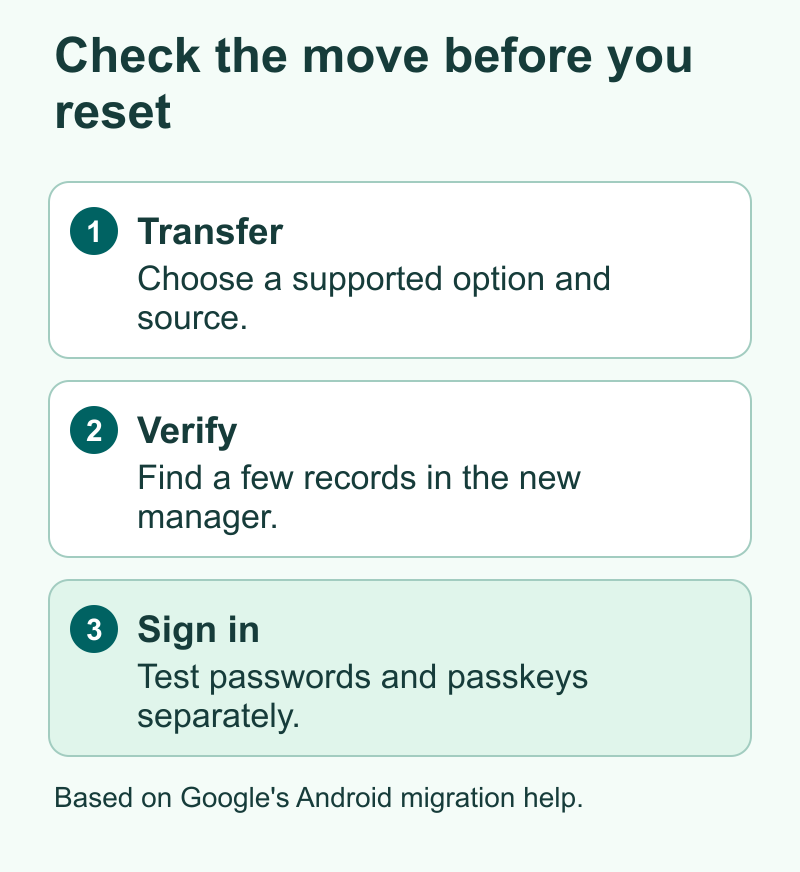
Google offers a way to move passwords and passkeys on supported Android devices. Both managers have to support the move. Google named four apps at launch. They were Google Password Manager, 1Password, Bitwarden and Dashlane. Check current app versions, availability and which direction they support. Use the help pages for the manager sending the items and the one that will receive them.
Start in the app that will receive the items. Choose the option to import records from another manager if it is available. Select the intended source and review what it offers to move. The old app may ask you to unlock it and approve the export. Check item types, the credential list and the account that will hold the items after the move. When it finishes, open the receiving manager and search for a few records before changing your old setup.
Some procedures still use a CSV file. This is a plain text table that can contain site addresses, usernames and passwords. Google’s help explains the file requirements for importing passwords. If you use this route, work on a trusted device and keep the file out of email, chats and shared folders. Check the import, test the records and follow the provider’s guidance to remove the export file when you are done. A password CSV does not carry a usable passkey.
Try the move with a few accounts when the tools let you choose. Check a newer login, a site where you have two users and one entry that uses a passkey or second factor. When several accounts share a provider, check that each item kept the right username. If a transfer leaves out important notes or puts an app name in an unexpected field, see what you can keep separately before moving the rest.
Do not cancel a paid vault or erase the old device while you still rely on it for credentials. Continue using the previous working route until the new route passes a few real sign-ins. Review any cloud or app setting that causes new passwords to keep saving to the older manager if you want one place to look after the move.
Check Passkeys and Verification Separately
A passkey is different from a text password. It uses a supported manager or device to answer a sign-in check. You normally confirm using the device lock or another method specified by the manager. If the account entry appears on the new phone, take an extra step and try the passkey at the site that registered it.
Google shows how account-saved passkeys work on supported devices. Some setups can ask for a Google Password Manager PIN. On Android, Google says the manager uses your screen lock. Its help page shows where you can manage the separate Google Password Manager PIN. If you get a prompt, read which PIN or lock it asks for. A device PIN, a password manager PIN and a carrier PIN have different jobs.
If a passkey does not work on the new phone, try the sign-in route that still works. Check which manager or device first saved it. If a supported direct transfer was available, review its results and try the new account again. If the passkey stayed with another device or manager, check the service’s options for adding a passkey from the new phone. Test that route first if you want to retire the old one.
After a password works, you can still reach another check. A code app, hardware key or approval on a different device may be needed. Those methods move according to their own rules. Check the services that matter most, such as your personal email, work account and any app you will need on a trip. Keep approved recovery methods accessible while you test. Resetting the password cannot guarantee access to the other factor.
Make a Five-Minute Handoff Checklist
Assume you have both phones today and will return one tomorrow. Pick a low-risk login and find it in the online vault. Next check the email account you need for resets. Try a login with a passkey if you use one, then check a service that asks for an extra verification step. Keep the old phone nearby while you check each. You can use a note with the service names and test results and leave passwords out of it.
If you need SMS on your old number, test voice, text and data on the new phone before you hand the other one in. Changing a device and changing a phone number can affect account verification together. In India, check any temporary text delay your carrier announced during an eSIM switch. In the U.S. or elsewhere, check your carrier and the account apps you rely on. Use the account’s supported alternatives if a needed text cannot arrive.
Once sign-in works, check where any new password updates will go. A browser can ask to save a password while a different app remembers the old one. Update the entry in the manager you plan to use, test it from the new phone and then see which manager offers it. That habit helps prevent a repeat of the same problem the next time you change devices.
If you are helping someone else with their new phone, have them sign in and unlock the vault themselves. You can point out the account name and steps without seeing private information. A checklist with only the results gives the owner a way to finish testing after you leave.
Clean Up Only After the New Setup Works
Use a short list when you find two entries for the same service. Compare the site and username first. If both entries refer to the same account, find out which one works and which manager holds it. An old login with an address you have stopped using may still be needed to reach a different account, even if the service name matches. Take care with the account you select when you change anything.
Once you can sign in to your important accounts, check that the new phone’s saved list is the one you expect. If you kept personal and work records apart before, make sure they stayed apart. Open the site you just tested on both the phone and a trusted computer if you need that access. A failed check gives you a place to look before you wipe a device.
Finally, test what will happen at your next password change. On a low-risk account, use its normal change process and see where the browser offers to store the new password. Confirm the entry updated in the place you wanted. If a different manager also offered to save it, review your preferred provider so you know where the next login will be.
Did You Know?
Your password vault and your password autofill setting answer different questions. A search in the manager shows which logins it holds. The fill prompt shows what the current app and provider can offer for that sign-in page. Check the saved list first, then fix filling if the login is already there.
Conclusion
Find the login under the same Google account, then check whether the right manager is filling it. Use the old phone to find local entries or another vault if a record is missing. Transfer supported records and test both passwords and passkeys before you erase or return a phone. Keep your account recovery options ready until the new setup works the way you need.
FAQs
Why did Google Password Manager show an empty list on my new phone?
Start by checking the Google account and Chrome profile you selected. Then look at the online list from a trusted device. If records were saved locally or another manager provided them, they may still be available on the old phone.
Can I see Google-saved passwords without an Android phone?
You can review account-saved passwords from a browser using Google’s web Password Manager. Sign in with the Google account where you saved them. Device-only passwords may still need the original device.
Why won’t a password fill even when it is saved?
Check which provider fills the app or browser and whether the saved entry matches the site and username. Try opening the site through its known address. Select the right saved account if the prompt offers more than one.
Does a password CSV move my passkeys too?
A password CSV is for text passwords. Some supported Android apps offer a direct transfer for passwords and passkeys. Check both managers and test individual sites after the move.
Can I erase my old phone as soon as my apps finish installing?
Wait until you can access your important accounts and their extra verification methods on the new setup. Keep the old device while you check local records, passkeys and account recovery.
References
- Google Account Help on Google Password Manager and finding saved credentials
- Google Account Help on using passwords and passkeys across devices
- Google’s official web Password Manager
- Chrome Help on local and Google-account password storage
- Chrome Help on managing passwords on iPhone and iPad
- Chrome Help on Android password and passkey imports and exports
- Google’s announcement about direct password manager transfers on Android
- Chrome Help on the Google Password Manager PIN
