

Match the restart to the phone’s screen
Use Restart while touch works. For a frozen screen, follow the Galaxy model’s forced-restart steps. Unlock and test the original task before calling it fixed.
Key Takeaways
- If the screen works, open the power menu and tap Restart. Confirm if the phone asks.
- On many Galaxy phones, hold the Side and Volume down buttons to open that menu.
- For a frozen phone, Samsung documents a forced restart with the same two buttons held longer.
- After the phone starts, use your screen-lock PIN or password when prompted. Then test the problem that led to the restart.
- Repeated boot loops, damage or a phone that still will not start need a more specific support check.
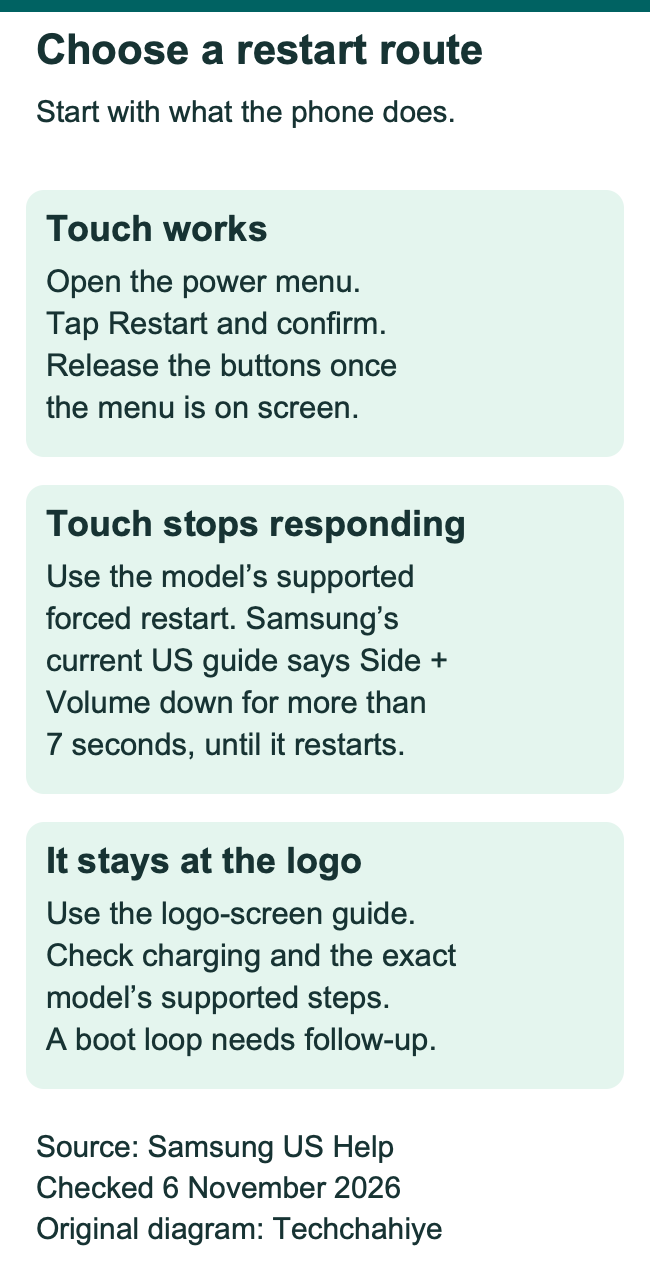
To restart a Samsung phone that responds to touch, open its power menu and tap Restart. On many Galaxy models, press and hold the Side and Volume down buttons until that menu appears. Tap Restart, then confirm. Samsung’s US getting-started guide documents this route.
If touch stops responding, the next step is a forced restart. Samsung’s current US boot-loop guide gives a button hold. Press Side and Volume down together for more than seven seconds. Hold them until the device restarts. Check the model’s own guide if its button layout differs.
The screen’s state helps you choose the route. A normal menu restart suits a working screen. A forced restart helps when touch has stopped responding. A phone that keeps showing a logo needs a closer look at the boot problem. Start with the route that matches what the phone is doing.
Choose the restart route from what you can see
Look at the phone before pressing a button. Can you open an app, pull down the panel or tap a menu? Is the screen stuck on one image? Does the Samsung logo appear and vanish again? These are useful clues about where the process has stopped.
| What the phone does | Start with | What to check next |
|---|---|---|
| Screen and touch work | Power menu, then Restart | Unlock and test the original task |
| Touch has frozen | Model-supported forced restart | Whether the lock screen returns |
| Side button opens an assistant. | Side plus Volume down, or Quick panel. | Review Side-button settings later. |
| Phone stays at the logo. | Samsung’s logo-screen guide. | Check charge, model and startup. |
| Phone keeps rebooting by itself | Boot-loop troubleshooting | Recent app or software changes |
| Phone has visible damage. | Samsung support or service. | Check its condition before more use. |
A restart is a useful first step for some software problems. It does not identify every cause of a slow or unresponsive phone. If a fault returns, the next useful action is to narrow down when it happens.
For example, suppose the phone works until you open one game. A restart may let you use the phone again. If that same game brings the problem back, focus on the app. Look for that pattern after the first reboot. It gives you a clearer next step than another reboot alone.
How to restart a Samsung phone with the power menu
Use the normal Restart choice when the phone can respond to touch. Before you begin, finish a call or save work you can still reach. If the phone shows an update in progress, follow that screen’s instructions. A restart is easier to plan while the device is responding.
- Find the Side button and the Volume down button on your model.
- Press and hold both until the power menu appears.
- Release the buttons when you can see the menu.
- Tap Restart.
- Tap Restart again if a confirmation appears.
- Let the phone start, then unlock it when asked.
The button names and positions vary across Galaxy devices. Samsung’s Side-button guide says model and software version affect the available settings. Older phones may have a dedicated Power button. Use the diagram or manual for the model you own.
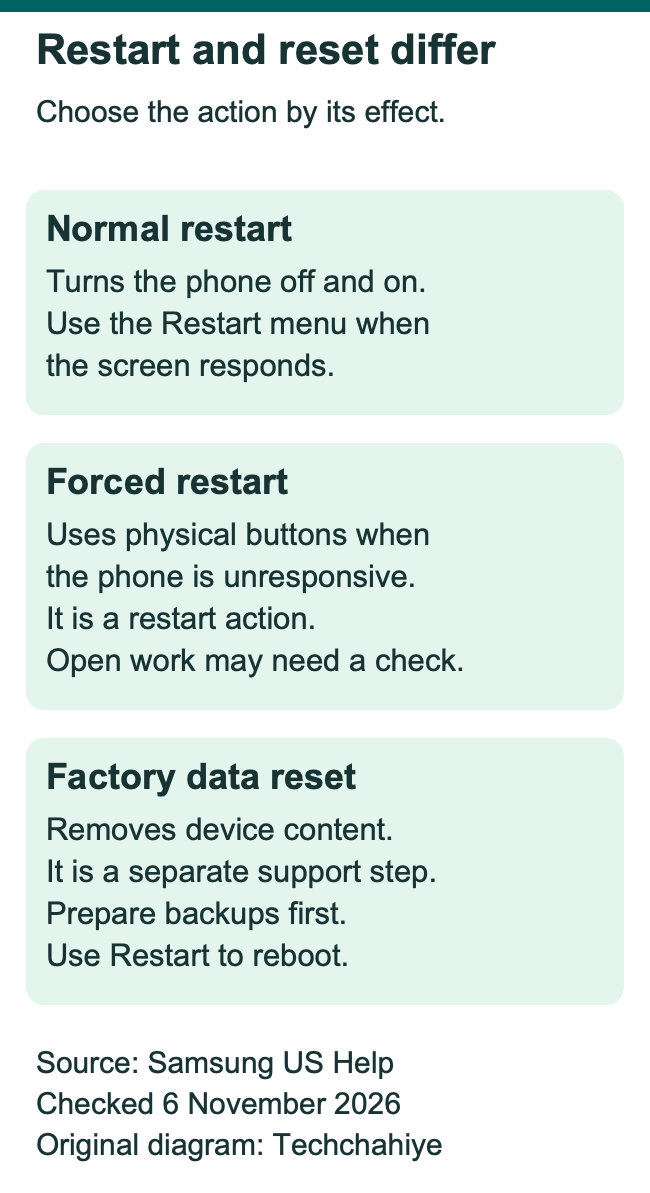
If the menu appears, choose the action you intended. Restart cycles the phone off and back on. Power off leaves it off until you turn it on again. Choose Power off when you actually need the device to stay off, such as before a supported handling task.
After a normal restart, wait for the lock screen. Then use the screen-lock credential the device requests. Open the app or feature you meant to check. Seeing the home screen proves the phone started. Testing the original task tells you whether the symptom has changed.
Open the power menu from the Quick panel
The Quick panel offers a touch-based route when you would rather use the screen. Samsung’s Device Care guide gives a screen route. Swipe down with two fingers, then tap the Power icon. Choose Restart and confirm.
Some current Galaxy layouts separate the Quick panel from notifications. Samsung’s newer boot-loop guide describes opening it from the top right of the screen. Use the panel layout your phone actually shows. Look for the Power icon instead of assuming every downward swipe opens the same view.
Once the menu is open, read its choices and tap Restart. Keep emergency options separate from this task. Read each icon before you tap it. Take time with an unfamiliar phone when you help another person.
If touch works but a side button is hard to use, this route may let you perform a normal restart. It does not test or repair that button. After the phone starts, decide whether the button itself needs support.
Learn where the Power icon sits while the phone is working. That is useful preparation for a later app problem. You can then open the menu from a known place. There is less need to search through other settings.
Know why the Side button may open an assistant
The Side button can have several jobs. Samsung documents short, long and double presses. Their choices depend on the model and software. A long press that opens an assistant can reflect the selected button setting.
To review it, Samsung’s US guide uses Settings, then Advanced features, then Side button. The current guide lists a Power off menu choice for a long press, alongside assistant choices. Read the options on your phone before changing one.
You can still use the Side and Volume down combination or the Quick panel to reach the power menu. That means you can restart first and review the shortcut later. Change that shortcut to suit your needs. Check the app problem as a separate task.
A brief button action and a sustained hold can produce different results. For example, Samsung also uses the Side and Volume down buttons for screen capture. A screenshot alone does not show that the restart route is unavailable. Review how long you held the buttons and what appeared.
For a foldable phone, check its model guide for the open and closed states. Samsung’s Side-button guide has a note for Z Flip users. Open the phone for those shortcuts. Check that model detail first. A demo for a different device may use a different route.
Force a restart when touch has stopped responding
Use the model-supported forced restart when you cannot reach the menu. Samsung’s US boot-loop guide says to hold the Side and Volume down keys together for more than seven seconds. Keep holding until the device restarts.
Its US logo-screen guide gives a related instruction of about ten seconds. Each guide addresses a specific situation. The figures do not promise one exact restart time for every Galaxy phone. Match the phone and the symptom to the relevant support page.
- Locate the two buttons without pressing other keys.
- Press and hold Side and Volume down together.
- Keep the hold steady while the phone responds.
- Follow the model guide’s cue for the restart, such as the Samsung logo appearing.
- Let the device finish starting before trying the original task again.
A forced restart interrupts the running session. Check any work you did not save before the hold. Keep that limit in mind if the screen still allows a normal save. A frozen device may leave you with fewer choices.
Do not move from one unfamiliar button combination to another. A different combination may open a different startup screen. If a menu appears that you do not recognize, read it and consult the model’s support page. Avoid choosing an erase or reset option to leave that screen.
Handle a phone that stays at the Samsung logo
A phone at the logo has reached a different point from an app that freezes after you unlock it. Samsung has a dedicated US guide for a device stuck there. Use that scope when the phone never reaches the normal lock screen.
That guide says to check for at least 5% charge before its reboot step. For a fully flat battery, it calls for at least 15 minutes of charging. Use an appropriate Samsung charger. Those figures belong to that troubleshooting route. They are not a guarantee of how fast a phone will start.
A flat battery can also make the first screen response unclear. Samsung’s newer boot-loop guide covers this too. A fully flat battery may show no charging indicator at first. Follow its charging guidance. Inspect the cable and charger. A blank display alone does not identify the fault.
The logo-screen guide says some devices may show a Maintenance boot screen. It gives Normal Boot as the route to ordinary startup. Select it with the volume and Power or Side buttons. Read the matching guide if that screen appears.
This is a startup menu. Samsung also has a repair feature called Maintenance mode. The similar names can cause confusion. Keep the task tied to the actual screen you see. A repair privacy setup has its own steps and purpose.
Unlock the phone and test the original problem
Have your screen-lock PIN or password available before a planned reboot. Samsung’s Device Care help says the phone may ask for that credential after it starts. So a usual fingerprint gesture may be only part of your unlock routine.
The screen lock and the Samsung account password serve different jobs. Read which credential the phone requests. If the device asks for a PIN at the lock screen, changing an online account password does not answer that prompt.
Once you can use the phone, repeat the task that had failed. If the camera froze when you switched to video, try that same action. If a call had no sound, test a relevant call or audio route. Use a task you can check without putting important work at risk.
Keep the result precise. “The camera now opens and records a short clip” describes what you checked. That result says what works now. It cannot promise that the fault will never return. A problem that returns later still deserves a closer look.
For an app that handles local drafts or downloads, check that the content you need is present. A restart ends the session, so return to the work you meant to finish. Check any action you did not finish. Confirm its status before you assume the app saved or sent it.
Investigate a problem that returns after every restart
A repeat fault needs a pattern, rather than an endless sequence of reboots. Note whether it starts on the lock screen, after one app opens or after a recent change. Those details help you choose the next support route.
Samsung’s current US boot-loop guide gives further checks. They include software updates and Safe mode. Open Settings, then Software update. Its guide lists Download and install for One UI 8.0 or earlier. For One UI 8.5 or later, it lists Check for updates. Use the label your phone shows, then follow its instructions.
For a problem tied to one app, check the app’s own update and support options. Google’s Android app guide includes updating an app through Google Play. It also advises contacting the developer when one app fails while other apps work.
Safe mode can help assess downloaded apps. Samsung describes it as a diagnostic mode that runs core apps. If the problem stops there, that suggests an installed app may be involved. It is a clue for further checks, rather than a reason to remove unrelated apps at random.
Keep any app removal focused on a plausible cause. Consider when the symptom began and what changed before it. Preserve the app’s needed local content before a step that removes its data. A basic restart and an app reset have different effects.
Review automatic restart settings when the timing is a surprise
A phone can also restart under a feature you enabled. Samsung’s Device Care help gives this route. Open Settings, then Device care. Choose Auto optimization, then Auto restart. Its current guide lists Restart when needed and Restart on schedule.
Review those options if a reboot seems to happen at a regular time. Compare the selected days and time with what you observed. A matching schedule gives you a concrete setting to assess. It does not explain every unexpected reboot a phone might have.
Think about when you need the phone ready for use. You may depend on it for work, travel or account access. If you choose an automatic restart option, plan for the credential you may need afterward. Samsung says you may need your credentials to unlock after a restart.
An automatic option is a convenience choice. A recurring crash is a problem to investigate. If reboots happen outside that pattern, note each time. Record what the phone was doing then. Include whether it was charging, in an app or idle.
There is no universal restart schedule that suits every owner. Use the supported options your phone offers and your actual needs. A feature that exists in one model’s menu may differ on another carrier, software version or Galaxy model.
Know when to move from restarting to support
A restart can refresh the running system. It cannot repair a broken display, damaged button or charging port. Samsung’s boot-loop help directs users with damage toward service. Keep the device’s condition in view when normal startup still fails.
Before contacting support, note the model name and exact symptom. Add the software version if you can reach it. State whether a normal restart worked. Did the forced-restart buttons cause a response? Where does startup stop? That gives support a clear starting point.
Back up important content while the phone still works well enough to do so. If the phone needs repair, review Samsung’s supported steps to prepare it. Our Maintenance mode guide covers that handoff task. It explains the role of a backup too.
Treat Factory data reset as a separate decision. Samsung warns that it removes device data and places it later in its boot-loop process. Choosing it to solve a basic restart question can create a much larger recovery task. Read the data and account requirements before considering that route.
If the phone still cannot start, move to support. Give them the results of your checks. Use the relevant Samsung support or service route for the model and symptom. Keep the notes from your checks so the next person can work from what happened.
Did You Know?
Samsung’s Device Care guide lists two choices for supported devices. They are Restart when needed and Restart on schedule. Does the phone reboot at a familiar time? Review that setting. It may explain the timing.
Conclusion
To restart a Samsung phone, use the power menu when touch works. Use the model-supported forced restart when the screen has frozen. Then unlock the phone and test the original task. If it stays at the logo or keeps rebooting, follow the matching support route. Keep important data safe before a larger step.
FAQs
Will restarting a Samsung phone delete my photos?
A normal restart cycles the phone’s running system. Factory data reset is the separate process Samsung warns will remove device data. Use Restart for this task, and save open work when you can. If a prompt mentions erasing data, pause and read it before you proceed.
What if holding the Side button opens an assistant?
Use Side and Volume down together to open the power menu, or open it from the Quick panel. Samsung also lets supported models change the long-press action in Side-button settings. Check the options on your own phone. Its model and software can affect the menu.
Can I restart a Galaxy phone without using the touchscreen?
A supported forced restart uses physical buttons when touch has stopped responding. Samsung’s current US guide uses Side and Volume down. Hold them together for more than seven seconds, until the device restarts. Check your model’s instructions. Let it finish starting, then test the problem again.
Why does my phone ask for a PIN after it restarts?
Samsung says you may need your screen-lock PIN or password after a reboot. Have that credential ready for a planned restart. Read the prompt carefully so you use the right code. Your Samsung account password serves one purpose. Your screen-lock credential unlocks the phone itself.
How often should I restart my Samsung phone?
Base the choice on your needs and the options the device supports. Samsung provides manual restart and, on supported devices, automatic restart settings. A repeated freeze or crash needs further checks even if a reboot briefly helps. Review the symptom instead of relying only on a schedule.
References
- Samsung US — Get ready to start using your new Galaxy phone or tablet
- Samsung US — Customize the Side button or Bixby button on your Galaxy phone
- Samsung US — Samsung Galaxy device will not start or is in a boot loop
- Samsung US — Galaxy phone or tablet stuck at Samsung logo screen
- Samsung US — Keep your Galaxy phone or tablet from slowing down with Device Care
- Google Android Help — Fix an installed Android app that is not working
- Techchahiye — Samsung Maintenance mode before a repair
- Techchahiye — Samsung account password reset
