

A supported game still needs the right setup
Switch 2 plays compatible Switch games, with limits that vary by title. Read Nintendo’s latest notes for the game, then check its gear. Original Joy-Con connect wirelessly but need a way to charge. Review digital access and optional upgrades separately.
Key Takeaways
- Switch 2 backwards compatibility covers compatible physical and digital Switch games. It is not a promise that every title and feature works.
- Check the exact game’s current Nintendo page. Read its compatibility details and any required update or accessory notes.
- Original Joy-Con can connect wirelessly to Switch 2, but they cannot attach to it. Keep a way to charge them.
- Game support does not settle every setup choice. Also check your controller, digital copy, and any paid upgrade. Check each before replacing equipment.
Switch 2 backwards compatibility covers many Switch games. You can play compatible physical and digital copies. The important word is compatible. Nintendo says the hardware differs and some games may have limits or lack support. Check the exact game and the gear it uses before buying or retiring your old setup.
A game can work while one of its special features still needs an older controller. A charger can work directly but fail through the dock. A digital game can be supported but still need the right account and virtual game card. One broad yes-or-no answer hides those useful distinctions.
This guide uses Nintendo’s US game and support pages checked on October 30, 2026. It gives a practical way to review a library and its accessories. It does not report tests of every Switch game or promise that a future update will fix a current limit.
Check Switch 2 backwards compatibility by exact game
Nintendo tells buyers to check each game’s status first. Do this before buying a Switch title for Switch 2. It gives the same advice before buying the console to use an existing library. Use the full game name and the correct edition. Similar titles can have different features or requirements.
The current Nintendo game page is the useful starting point. Look for Nintendo Switch 2 Compatibility Information and open its details. Read the full status and dated notes. A title appearing in a store search is not a complete report on every feature or accessory it needs.
Keep the check date beside the result. Nintendo says testing and updates may expand support. Some games may take longer to become playable. Others may have partial issues or lack support. A saved screenshot is a record of that date, not a guarantee for every later release.
For an existing library, start with the games you care about most. That may be a regular multiplayer title, a long save, or a game with a special controller. A short list helps you decide what to buy. A broad headline about a library does not cover each item.
Separate four questions before moving the library
The first question is whether the game software works. The second is whether the controller supports the part you want to play. The third is whether its accessories fit and have a charging route. The fourth is whether your physical or digital copy gives you access on this console.
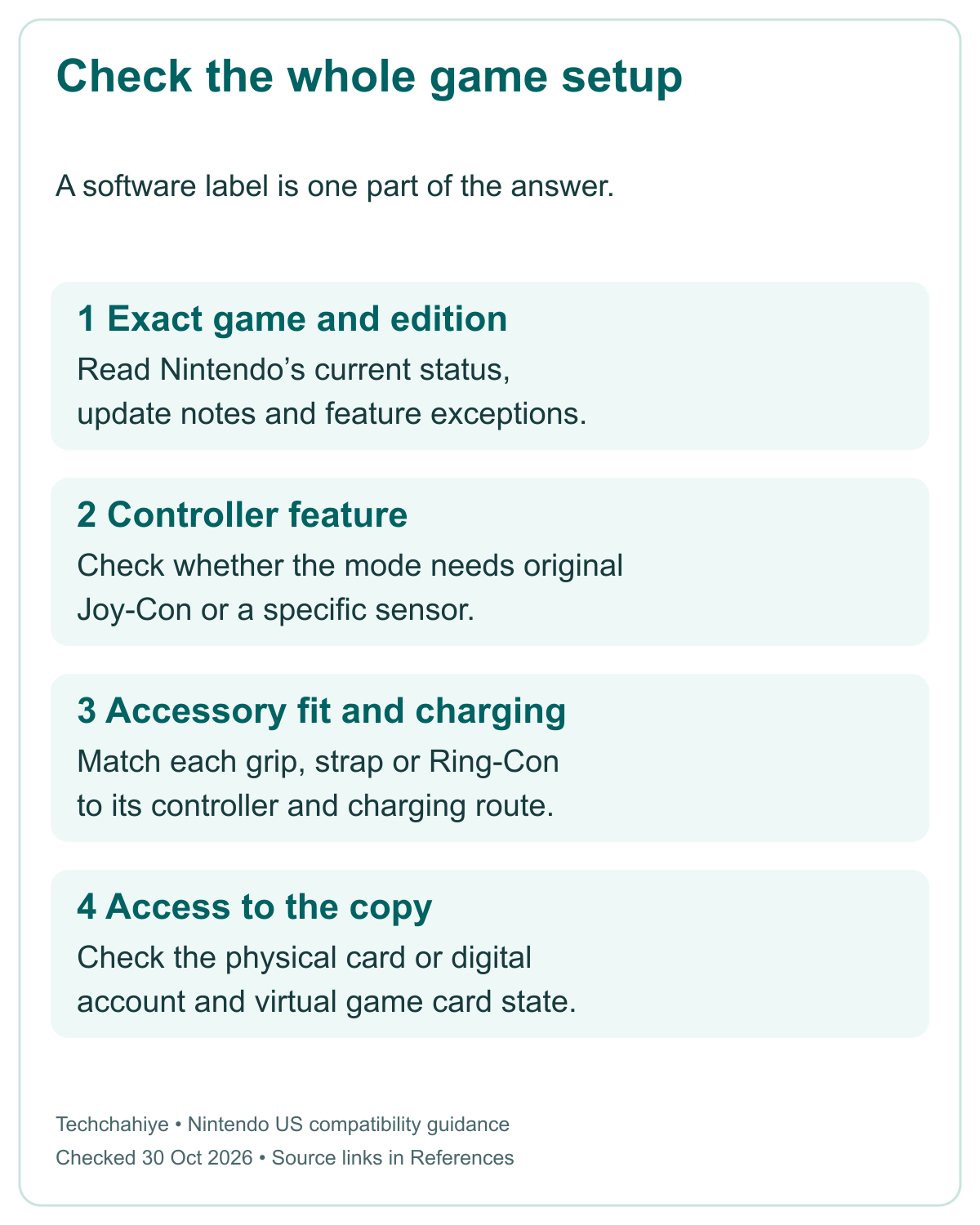
These questions can have different answers for the same title. Do not treat a successful launch as a test of a leg-strap mode. Do not treat an old Joy-Con charging grip as a charger for Joy-Con 2. Check the exact combination rather than inferring support from a shared product name.
| Check | What to review | What one result does not prove |
|---|---|---|
| Game software | Current title status and update notes | Every special mode uses the included controllers |
| Controllers | Original Joy-Con, Joy-Con 2, or Pro Controller | A wireless controller can attach to the console |
| Physical accessories | Fit, sensor needs, and supported model | Similar-looking grips and straps are interchangeable |
| Charging and TV setup | Adapter, dock, and cable requirements | A charger that works directly supports TV mode |
| Physical game card | Compatible title and correct card | All physical games work without qualification |
| Digital access | Account, download, and virtual game card | Your account has access to the title on this system |
This table is a review plan, not a new compatibility list. Use Nintendo’s current entry for the actual product. List what you can keep and what needs another check. Note any different accessory or play mode you need.
Read the game status and the accessory note together
Nintendo Switch Sports shows why the layers matter. Its US store page displayed a supported status on the check date. The details said an update fixed earlier issues. The note had a June 19, 2025 date. That is the dated note observed on October 30, 2026, not a new update announced that day.
Nintendo’s compatibility guide adds a separate controller detail. Joy-Con 2 do not fit the older leg strap. For Soccer Shoot-Out, it says to use an original Switch Joy-Con. The software status and this physical-fit rule can both be true. Read them together before choosing your setup.
The store page also notes that some Soccer play needs the leg strap. Check what comes with the version you own or intend to buy. Do not assume the console box includes every game accessory. Use the current product listing and the requirements for the mode you want.
This example does not establish support for another sports or motion game. It shows how to read two sources for one title. A software label answers the software question. A specific controller or fit note answers the accessory question. Keep both in your library plan.
Keep original Joy-Con for features that need them
Nintendo says original Switch Joy-Con can pair wirelessly with Switch 2. They cannot attach to the newer console. You also need a supported way to charge them. Nintendo names a Switch console as one charging route. Others include an original Joy-Con charging grip or two-way charging stand.
The distinction matters when deciding what to sell or put away. An old controller still needs charge. Without a charging route, you may lose access to a game feature. Note how you will charge it before removing the old console from your setup. Wireless use and physical attachment are different forms of support.
Some games need the right original Joy-Con’s IR Motion Camera. Nintendo’s list gives examples in 1-2-Switch, Game Builder Garage, and WarioWare: Move It! Joy-Con 2 lack that camera. For the listed features, Nintendo points to an original right Joy-Con connected wirelessly.
Read the feature-level wording. In Game Builder Garage, check Free Programming mode. The note covers the IR Motion Camera Nodon and IR-Light Nodon. It is not a claim that every part of the game fails with Joy-Con 2. A precise note helps you keep the controller needed for the feature you use.
Before a group session, confirm the old controllers have charge and can connect. Then check the game’s required controller arrangement. Controller counts vary by game and audio setup. Check those limits for your session. Use the title and system guidance for that session.
Check Ring-Con, leg straps and Toy-Con by physical fit
Ring Fit Adventure needs specific hardware. Nintendo says Joy-Con 2 cannot attach to its Ring-Con or fit its leg strap. Its compatibility page says original Switch Joy-Con can be used with the Ring-Con on Switch 2. Keep the original controllers with that accessory plan.
The same reasoning applies to other fitted accessories. Nintendo’s table lists older straps, grips, wheels, and charging grips. These do not take Joy-Con 2. Some still work with the original Joy-Con used wirelessly. Match each accessory to its controller model. Do not treat the kit as one interchangeable set.
Nintendo Labo needs title-by-title care too. The official page says the Switch 2 console cannot fit some Variety Kit Toy-Con pieces. It names the Fishing Rod, Motorbike, Piano, and House, plus a different RC Car antenna fit. The resulting experience differs from the original setup.
For the Vehicle Kit, Nintendo says the newer console cannot fit the included screen stand. For the Robot Kit, it says original Joy-Con can be used, while Joy-Con 2 cannot attach to the Toy-Con Robot. These examples show why a game starting is not a complete test of a cardboard accessory’s fit.
Do not force the console or controllers into a piece designed for another size. Check the official fit note before trying a workaround. This article has not tested modified accessories. Use the stated fit limits when deciding what to keep or buy.
Did You Know?
Original Switch Joy-Con can work wirelessly with Switch 2. They still need a Switch console or suitable older charging accessory. The controller’s wireless link does not make it attach to the new console. Keep its charging plan beside the game feature that needs it.
Treat the dock, power adapter and cable as a separate setup
Nintendo says the original Switch dock is not compatible with Switch 2. Nintendo also lists the old adjustable charging stand as incompatible. A game library working on the newer system does not make the older dock part of that support. Plan TV play with the hardware meant for the console.
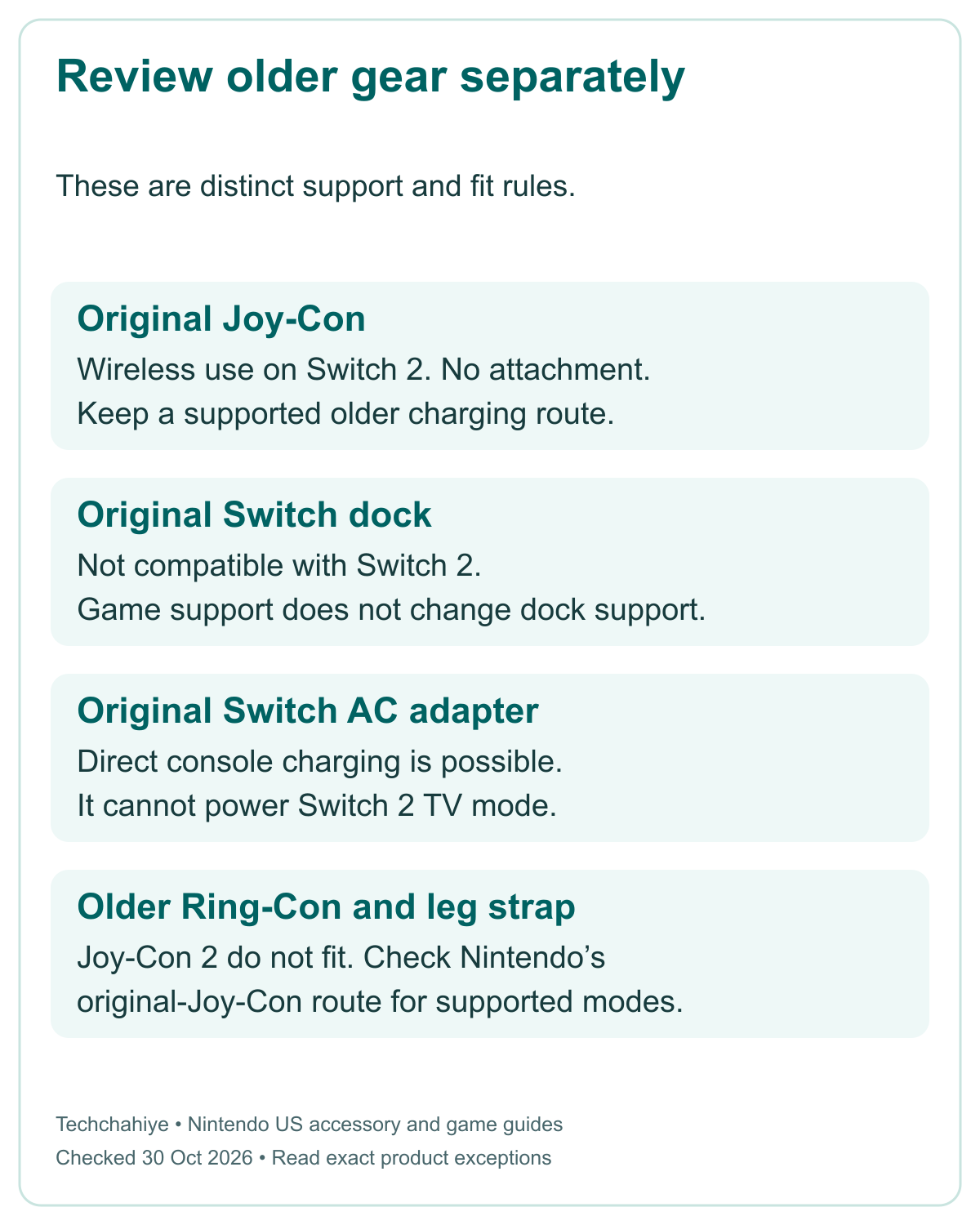
The old Switch AC adapter has a narrower exception. Nintendo says it can charge Switch 2 when plugged directly into the console. It cannot run Switch 2 in TV mode because its power output differs. A direct charge is not evidence that the same adapter supports the docked route.
Nintendo also advises using the HDMI cable included with Switch 2. Its table says the old included cable is not compatible. The cable standards differ. Follow the stated TV-setup guide. Do not assume the old cable meets the new console’s output needs.
Write down the adapter and dock models when troubleshooting. “My old charger works” leaves out the connection path. Note whether it connects directly or through the dock. State whether the issue is charging or TV output. That detail helps separate a power issue from a game issue.
You do not need a claimed game-performance boost to justify the right power path. This guide does not report tests of third-party hardware. It gives no measured frame rates or charge speeds. Use the official setup requirements first. Then investigate a specific supported product if your setup needs an alternative.
Keep storage compatibility brief and distinct from game support
Switch 2 uses microSD Express cards for expanded game storage. Nintendo gives a conventional microSD card a limited role. It can be used for older screenshots and videos. It does not become a supported game-storage card because it came from a Switch with games installed on it.
This is separate from whether the game itself works. A compatible title can still need space for its download or update. An unsuitable old storage card is a different issue. It does not prove the game lacks support. Check the title and storage device as separate entries.
Do not buy a card on a vague “Switch compatible” label. Check that the exact card is microSD Express. Read the console’s current storage guidance too. Techchahiye’s dedicated Switch 2 SD-card guide covers that decision in detail. Keep this library review focused on which games and gear you can use.
Distinguish a free update from a paid upgrade
Nintendo says some Switch games offer free updates or paid upgrades for Switch 2. They can add content or improve performance. That is a title-specific offer. The features differ by game. Not every Switch 2 Edition is free.
Start with the version you own. Check which product the page describes. Is it the original game, a Switch 2 Edition, an upgrade, or separate DLC? Then read the offer’s actual requirements. A similar title image does not establish that one license includes every version.
Keep software compatibility and upgrade value separate. A game may be playable in its original form while an optional upgrade offers other features. Decide whether those verified features matter to you. This guide does not report side-by-side tests. An upgrade does not promise one frame rate across a library.
Use current regional pricing if you plan to buy something. No price in this guide stands in for the actual checkout offer. US and other regions can have different offers and terms. Check the correct region and product before paying for something you may already own or not need.
Check digital access without confusing it with software support
Nintendo’s support says your Nintendo Account can be used on Switch 2. Linking it to a user gives access to supported services, downloads, and virtual game cards. Use the account that owns the game. A fresh user on the console is not by itself evidence of digital ownership.
Nintendo uses virtual game cards for digital games and DLC you buy. Its guide explains how they work. Load the relevant card on a console to play it. Nintendo says a loaded card can be used offline and by other users on that console. Read the full guide for exceptions and the setup you need.
You can link up to two consoles to load the cards in this setup. To move a card between them, both consoles need internet. They can be on or asleep. That does not let one bought copy run everywhere at once. Keep the loaded location clear when switching systems.
Family lending has its own rules and does not prove general compatibility. Nintendo says some games do not support it. A lender cannot play a game while someone else borrows it. Is a game unavailable? Check its card and lending state before calling it unsupported.
An existing Switch Online membership can continue on Switch 2. Nintendo ties it to the subscribed account. Keep plan-specific features separate. A continuing subscription does not grant every tier or every game offer. Review the feature you intend to use and its current membership requirements.
Build a short keep, check and replace list
For each priority game, record the exact title and format. Add the current compatibility result, update note, controllers, physical accessories, and charging route. For a digital copy, add the owning account and virtual game card state. Keep account details private; a checklist does not need a password.
Mark each item as ready, needs a check, or needs different gear. For example, an original Joy-Con may remain useful for a listed camera feature. Its old charging grip may belong in the keep column. The original dock needs a different decision. Nintendo says it cannot serve Switch 2.
Check a real session before parting with old gear you still need. Check a game launch and the special feature separately. Also check that you can charge its controller. Record which ones you completed. Do not describe a launch as proof that you tested the whole game or every accessory.
Save-data transfer is another distinct job. A supported game does not prove its saves have moved. Use Nintendo’s game-specific and transfer guidance before erasing a source console. Keep the original data and gear while you resolve the route. Check the result for that game before erasing anything.
A private library and accessory review note
Exact game and edition: [ ]. Physical or digital copy: [ ]. Current status and check date: [ ]. Required update: [ ]. Special mode: [ ]. Controller model and charge route: [ ]. Accessory fit: [ ]. Digital card location: [ ]. Save-transfer check remains separate: [ ]. Keep, check or replace: [ ].
Conclusion
Switch 2 backwards compatibility is most useful when you check the exact title and setup. Read the current game status. Then review controller features, fit, charging, and digital access. Keep those answers together. A broad software label can leave out a practical accessory limit.
Make a short list of the games you use most. Keep the old controllers and charging gear your games still need. Choose the proper dock and storage route for Switch 2. Check the features you care about. Do this before selling gear or paying for an upgrade.
FAQs
Will every original Switch game work fully on Switch 2?
Nintendo says Switch 2 plays compatible physical and digital Switch games. Some titles may lack support or have partial issues. Check the exact game’s current page and its detail notes before buying. Do not treat the whole library as one tested result or promise that a later update will resolve every limit.
Can original Joy-Con attach to Switch 2?
No. Nintendo says they can connect wirelessly but cannot attach to the console. Keep a supported charging route. This can be an original Switch console or a suitable older charging accessory. Some features still need original Joy-Con. Check wireless use and charging separately.
Does a supported game work with every Joy-Con 2 accessory setup?
No. Software support does not change a physical-fit or sensor need. Nintendo lists games and features that need original Joy-Con. These include the Ring-Con setup and some IR Motion Camera functions. Check the exact mode and accessory. A successful game launch is not a test of every included feature.
Can I use the old Switch dock and charger?
Nintendo says the old dock is incompatible with Switch 2. The older AC adapter can charge the console directly, but cannot support Switch 2 TV mode. Use Nintendo’s specified dock, power, and HDMI setup. A charger working in one route does not prove it works in the other.
Does compatibility include a free Switch 2 Edition upgrade?
Not as a general rule. Nintendo says some games have free updates or paid upgrades. Read the offer for the exact title and edition you own. A game being playable does not establish the price or contents of an upgrade. Check your account and the current regional product details before buying.
References
- Nintendo US — Compatibility of Switch with Switch 2
- Nintendo US — Important game compatibility information and accessory exceptions
- Nintendo US — Nintendo Switch Sports product and compatibility details
- Nintendo US — Virtual Game Card Guide
- Techchahiye — Nintendo Switch 2 SD Card: Choose and Set Up Storage
- Techchahiye — Nintendo Switch 2 Bluetooth headphones: setup and limits
