

Check the audio route before you pair again
Switch 2 can use one Bluetooth audio device and save up to 10. The console does not support Bluetooth mic input. A pair of Joy-Con 2 counts as two wireless controllers. Local wireless features can disconnect Bluetooth sound.
Key Takeaways
- Nintendo Switch 2 Bluetooth headphones can play audio. The console does not support Bluetooth mic input.
- You can use one Bluetooth audio device at a time. The console can save up to 10 devices for later use.
- Bluetooth audio limits wireless controllers to two. A pair of Joy-Con 2 counts as two controllers.
- Local wireless communication can disconnect Bluetooth audio. Check the play mode before treating that as a headphone fault.
To set up Nintendo Switch 2 Bluetooth headphones, put the headphones in pairing mode. On the console, open System Settings, choose Bluetooth Audio, then Pair Device. Select the device’s name and check the volume. Before you start, make sure at most two wireless controllers are connected.
The limits matter as much as the pairing steps. Headphones that play a game’s sound do not gain Bluetooth microphone support. A saved device is not always connected. A local multiplayer feature can change the audio route. Knowing which part failed helps you choose a useful check.
This guide uses Nintendo’s US support pages checked on October 30, 2026. It covers pairing and the limits Nintendo documents. It does not rank or report tests of particular headphones. Headphone delay and sound can vary by device.
Nintendo Switch 2 Bluetooth headphones: check the limits first
Start by separating three jobs: audio playback, microphone input, and controller connections. The console has rules for each. A successful audio connection answers only the playback question. It does not prove that the headset mic works. It also does not let you add more wireless controllers with Bluetooth sound.
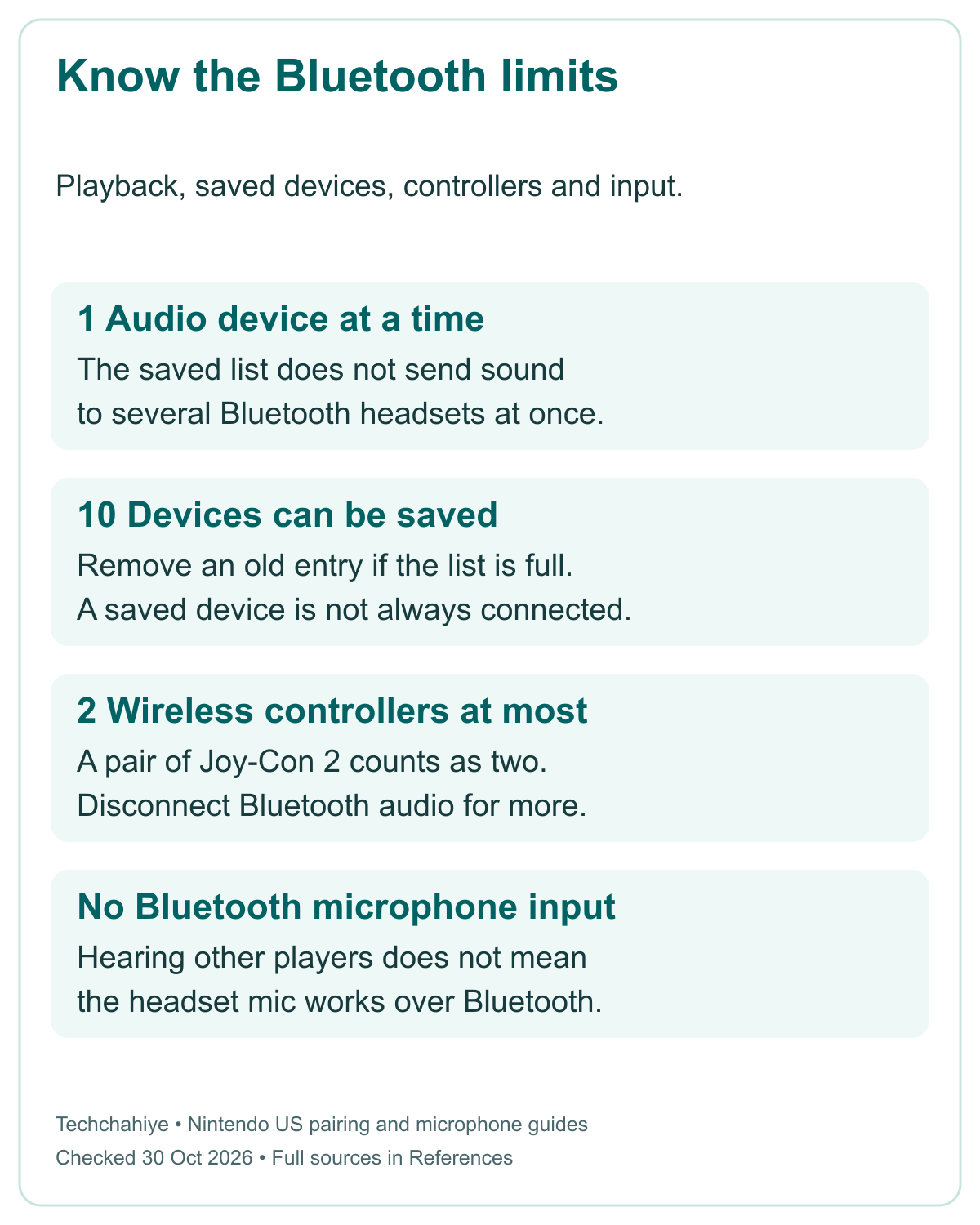
Nintendo’s pairing guide says only one Bluetooth audio device can be paired at a time for use. It can save up to 10 devices. Think of the saved list as remembered choices. It is not a way to send the same game sound to 10 headsets at once.
| What you want to do | Nintendo’s documented limit or route | What to check |
|---|---|---|
| Listen through Bluetooth headphones | One audio device at a time | Select the intended device name |
| Keep devices in the saved list | Up to 10 saved devices | Remove an old entry if the list is full |
| Use a Bluetooth headset microphone | Not supported | Use a supported audio-input route instead |
| Connect controllers with Bluetooth audio active | Up to two wireless controllers | Count Joy-Con 2 as individual controllers |
| Use local wireless communication | Bluetooth audio disconnects | Identify the local wireless feature |
| Avoid a delay that remains on a device | Try another device or wired headphones | Do not assume every headset has identical delay |
These limits can affect a buying decision. If your main goal is voice input from a wireless headset, the microphone rule is central. If you want a larger local group, count the wireless controllers too. You do not need an untested “best headphones” list to find those constraints.
Prepare the headphones and console for a new pairing
Nintendo says to check the console’s system version before pairing. In System Settings, choose System, then System Update. The console checks for an available update. Follow the on-screen process for the actual device. This guide does not name a version as current without checking it on your console.
Turn on the audio device and use its own instructions to enter pairing mode. Power and pairing mode are different states. Some headphones reconnect to a phone when you turn them on. That does not show that the console can find them for a new pairing.
Check that the headphones have enough charge. Keep them near the console for the first setup. Nintendo also says to keep the path clear. Avoid metal or electronic gear between the headphones and console. Start nearby. Keep the first test simple so you can tell what changes.
Count the wireless controllers before you search. The limit with Bluetooth audio is two. Need to disconnect a controller? Nintendo says to hold its SYNC Button for at least one second. Be clear which controller you are disconnecting so you keep a way to use the menu.
Do not reset the whole console because a device has not appeared yet. First check its pairing state, charge, controller count, and play mode. These are direct checks of the route. A factory reset would be a much broader change than the problem calls for at this stage.
Pair a new audio device through System Settings
Use Nintendo’s pairing sequence for a device the console has not saved. Keep the headphone manual nearby. Use it if a button or light is unclear. The console cannot put every brand’s headphones into the right mode for you. That step happens on the audio device.
- Make sure at most two wireless controllers are connected.
- Turn on the audio device and put it in pairing mode.
- Open System Settings from the HOME Menu.
- Select Bluetooth Audio, then Pair Device.
- Wait for the search and select the intended device name.
- Once connected, check the console volume and listen at a comfortable level.
Nintendo says searching can take several seconds. Give the search time to complete before changing another setting. If you see several similar names, use the audio device’s manual or its known name to choose. A name in the list is a candidate, not proof that it is your own headset.
Does the list already hold 10 devices? Nintendo says to remove at least one before adding another. Choose an entry you no longer need on this console. Removing its saved pairing means you will need to pair that device again if you want to use it later.
After pairing, test sound before changing game settings. Note whether audio reaches the headphones at all. A silent connection, a low level, and a delay are different symptoms. Name the first symptom. Use it to choose a check in the next section.
Reconnect a saved device without starting from zero
For a saved device, first turn it on and make sure it is not already connected to another device. Nintendo says it may reconnect to the console on its own when in range. If it does, you can skip new pairing steps. Check where the sound is going before removing the entry.
To connect it manually, open System Settings and Bluetooth Audio. Select the device in the saved list, then Connect Device. The list tells you which choices the console remembers. It does not mean the headphones have charge, are nearby, or can connect to connect right now.
Are the headphones playing phone sound? Use the phone or headphone controls to end that link. Then try the console again. This is a test of whether the audio device is available. It is not a promise about multipoint features on a headset this guide has not tested.
Nintendo’s saved-device guide names several checks. These include a restart, charge, the controller count, and local wireless use. It also suggests moving closer and clearing nearby obstructions. Choose the check that matches what changed. A device that worked yesterday may be in a different state today.
If the saved entry still will not connect, Nintendo says to remove it and pair again. Do that as a focused step for the intended device. Keep the difference clear. Reconnect uses the saved link. Remove and pair creates it again. Neither requires erasing your games or account.
Choose Disconnect or Remove Device for different reasons
Disconnect is useful when you want to stop using the headphones now but keep them in the console’s list. Nintendo says you can turn the audio device off to disconnect it. You can also select its name in Bluetooth Audio and choose Disconnect.
After disconnection, Nintendo says sound moves to the console speakers, or TV audio in TV mode. Keep that change in mind if you were relying on private listening. Check the new output and volume. Do not assume that turning off the headset stops the game from making sound elsewhere.
Remove Device is the route for deleting a saved pairing. In Bluetooth Audio, choose the device, select Remove Device, then Unpair to confirm. The name leaves the known-device list. To use it again, pair it as a new device.
Remove an entry when you need room in the saved list. You can also do so for a fresh pairing in Nintendo’s fault checks. Do not remove every device as a first response to one quiet headset. A smaller change keeps the other saved devices. It also makes the result easier to track.
Keep a simple note if you use headphones across several devices. State which device you disconnected and which saved entry you removed. The next person can then see what changed. A planned unpairing need not look like a new fault.
Keep a short headphone setup record
Audio device: __. Pairing mode confirmed: __. Wireless controller count: __. Local wireless feature active: __. Saved entry or new pairing: __. Sound output and volume: __. Selected microphone input and test result: __. Remaining symptom: __.
Did You Know?
Nintendo counts a pair of Joy-Con 2 as two wireless controllers for Bluetooth audio. The controller limit is not a count of players. One person can hold two Joy-Con 2. That uses the full two-controller limit with Bluetooth audio.
Check local wireless before blaming a disconnection
Nintendo says Bluetooth audio disconnects during local communication. Its new-pairing page gives examples. These include local multiplayer or GameShare across consoles. If sound stops at the moment you start one, check that feature before you diagnose a failing headset.
Identify the play mode you are using. “Multiplayer” alone is too broad a description for a useful fault report. Note whether the consoles are using a local wireless feature. Note the exact feature. A general internet link or online-play menu is a different clue.
The local feature may still be active. If so, a Bluetooth reconnect may not be the right fix. Choose an audio route that fits your session. Nintendo’s delay guide offers another path: wired headphones through the audio jack. Check what your actual accessories support.
Need more than two wireless controllers? Nintendo says to disconnect the Bluetooth audio device. This is a session-planning choice as well as a troubleshooting fact. Choose what the session needs. That may be Bluetooth listening or more wireless controllers.
Do not invent a distance or timer that overrides this rule. Moving closer can help a connection check. It does not remove Nintendo’s local-wireless limit. A clear rule saves you from repeating a pairing sequence that cannot meet the current play mode.
Treat microphone input as a separate setup
Nintendo’s US GameChat guide confirms the mic rule. Switch 2 does not support Bluetooth microphone input. A Bluetooth headset lets you hear other players. Its mic cannot send your voice through Bluetooth. Audio playback working does not change that limit.
For a GameChat input check, open System Settings. Choose Audio, then Audio Input. Nintendo says to choose the correct Input Microphone and use Test Microphone. This checks the input route you selected. It is more useful than repeatedly pairing a Bluetooth headset to fix an unsupported mic path.
Nintendo’s troubleshooting covers separate microphones or headsets through supported wired routes. It names the console USB-C port, a USB port on the dock, and the audio jack on the console or Switch 2 Pro Controller. Follow the guide and the accessory’s support details for your actual device.
That list is not a guarantee that every USB or wired headset has the same features. Keep output and input tests separate. First check whether you hear sound. Then check the chosen microphone with the system test. Do not infer full headset support from a plug fitting or a saved Bluetooth name.
For a voice problem, record what the microphone test shows and which input you chose. If a friend cannot hear you, “Bluetooth sound works” is only part of the report. The selected input and its test result give support a clearer next step.
Check volume at the console, headphones and game
Nintendo warns that volume can change across devices. Review the level when you move back from a phone or another system. Start at a comfortable level. Do not assume the last device’s setting carries over as you expect.
The US volume guide says to use the console’s Volume + and – buttons. It also says to check volume controls on the audio device itself, if it has them. Many devices have their own controls. Use that device’s manual if a touch gesture or button changes something other than volume.
Some games have separate sound or music settings. Nintendo includes those in its volume checks. If menu sounds are clear but one game’s audio is quiet, inspect that game’s settings. Keep the test specific. Do not change every system control before you have compared another source of sound.
The system also has a Lower Max Headphone Volume setting. Nintendo’s guide says it changes the possible output level. Read the option and decide how you want it set; this guide does not tell you to disable it as a routine fix. The goal is usable sound at a comfortable level.
Is the level still unsuitable? Nintendo suggests another audio device or a wired option. Devices can differ in possible volume and quality. Compare another device if you have one. Listen at a safe, comfortable level.
Handle delay without a fake zero-lag promise
Nintendo says some devices can have delay during normal system use. Its delay guide starts with the latest system software and a console restart. It also says to power the audio device off and on and confirm enough charge. Use those checks for a delay symptom.
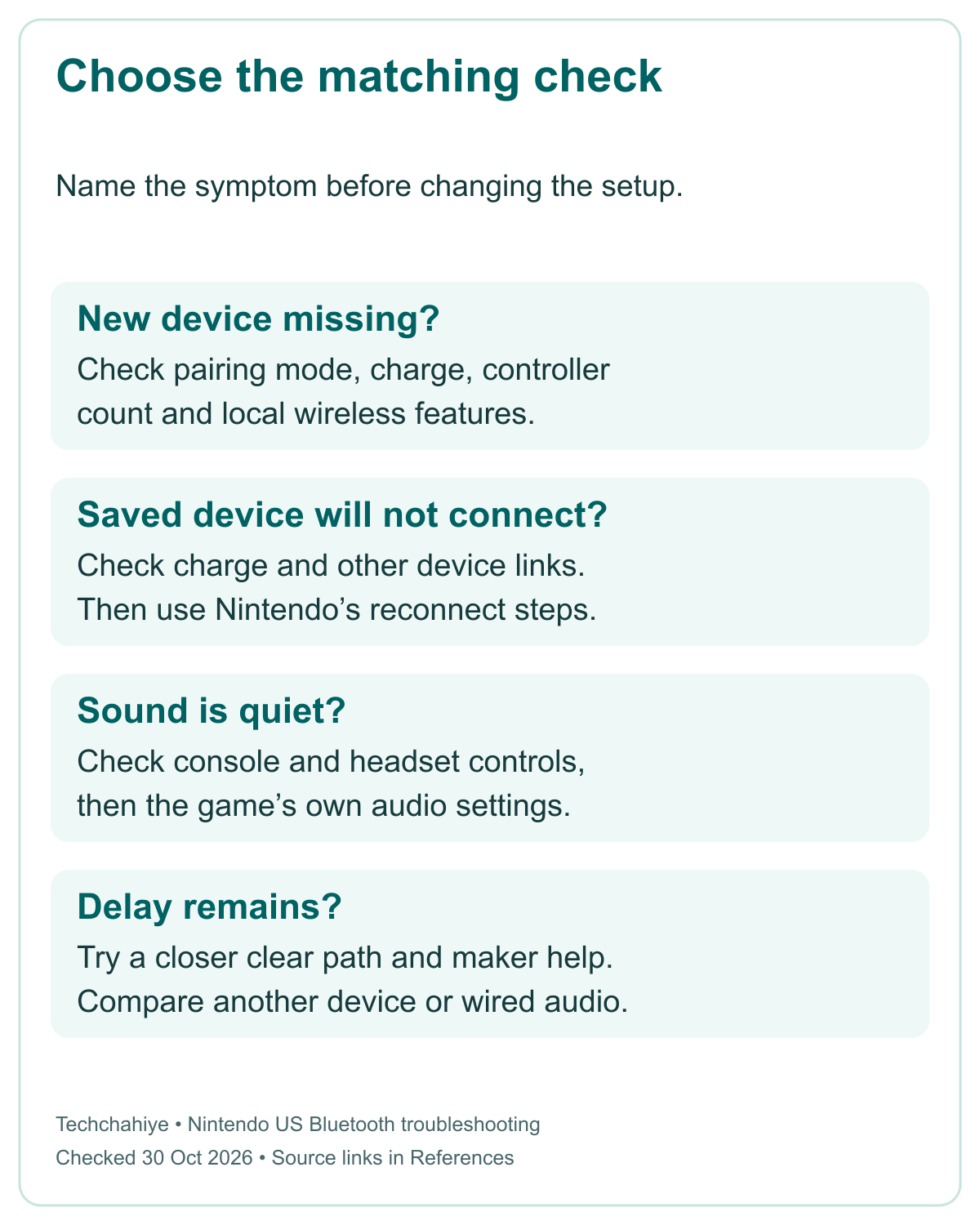
Then try the device closer to the console with no metal or electronic equipment in the path or around it. Keep the same game and scene if you want a useful comparison. You are checking whether the situation changes. This article has not measured a before-and-after number in milliseconds.
Nintendo also points to the audio device maker’s own troubleshooting. If needed, remove the saved pairing and pair again. Does delay remain? Try another Bluetooth device or wired headphones through the audio jack. That is the fallback Nintendo describes.
Do not promise that a restart or a particular codec makes all delay vanish. This guide has no verified per-headphone latency tests. If timing matters for your game, compare the options you actually have. Try the same scene on a wired route. Note what you hear and which route suits that game.
Conclusion
To set up Nintendo Switch 2 Bluetooth headphones, first check the limits. Keep sound, mic input, and controller counts separate. Pair a new device in Bluetooth Audio. Use Connect Device for a saved one. Check volume after changing devices. Count each Joy-Con 2 when planning wireless controls.
If something fails, name the symptom first. Is the device missing? Does sound seem quiet, delayed, or absent? Could the problem be mic input? Use the matching Nintendo steps. Respect the local-wireless and Bluetooth mic limits. Use that result to choose your next step. Keep the device limits in mind before buying a new headset.
FAQs
Can I use my Bluetooth headset microphone on Switch 2?
No. Nintendo’s US support says the console does not support Bluetooth mic input. A Bluetooth headset can let you hear other players without using its mic. Check a supported input route in Audio settings and use Test Microphone. Successful playback does not prove that the headset’s microphone works through Bluetooth.
Can two people listen through two Bluetooth headsets at once?
Nintendo’s pairing guide allows one Bluetooth audio device at a time. The console can remember up to 10 devices. It cannot send Bluetooth sound to several headsets at once. Choose the intended device from Bluetooth Audio when you want to switch. This guide makes no claim for untested third-party splitters.
Why does audio stop when I start local multiplayer?
Nintendo says Bluetooth audio disconnects during local communication. Its troubleshooting names local wireless multiplayer and GameShare across consoles. Check the feature you started before treating the change as a headset fault. That local wireless feature still has the same limit after you pair again.
Do two Joy-Con 2 count as one wireless controller?
No. Nintendo says a pair counts as two wireless controllers for Bluetooth audio. The limit is two controllers, not two players. Need more wireless controllers? Its guidance says to disconnect Bluetooth audio. Plan the audio route for the session you want to play.
What can I do if Bluetooth sound still has a delay?
Follow Nintendo’s delay checks. Update and restart the console, then check headphone charge. Try a closer clear path and the maker’s help. A fresh pairing can be another step. Nintendo says delay can remain on some devices during normal system behavior. Try a different device or wired headphones if the delay is still unsuitable.
References
- Nintendo US — Pair and manage Bluetooth audio devices on Switch 2
- Nintendo US — Unable to pair a new Bluetooth audio device to Switch 2
- Nintendo US — Unable to connect to a saved Bluetooth audio device
- Nintendo US — Bluetooth audio device has a delay on Switch 2
- Nintendo US — Bluetooth audio volume is too low or high
- Nintendo US — Microphone doesn’t work during GameChat
- Techchahiye — Nintendo Switch 2 SD Card: Choose and Set Up Storage
