


Name the symptom before changing settings
Check which keys and apps fail. Review power, the connection, and the input settings that match the symptom. Use a temporary keyboard to save work. Then follow Apple's cleaning or service route when needed.
Key Takeaways
- Is your MacBook Pro keyboard not working? Check whether all keys fail, some fail, or the wrong characters appear.
- Keep the input paths separate. Built-in, wired, and Bluetooth keys use different routes.
- Check Slow Keys, Mouse Keys, and the selected input layout before you assume a key has failed.
- Use an external keyboard or Keyboard Viewer as a temporary aid where possible. Save your work before restarting.
If your MacBook Pro keyboard is not working, start by naming the symptom. No response from any key needs a different check from one stuck key or the wrong punctuation. Connect the Mac to power if its built-in keys do nothing. Then test a simple text field and review the input settings that fit the symptom.
You may need to finish a message now and arrange a repair later. Keep those two goals separate. A temporary way to type can save your work, but it does not prove the physical keyboard is sound. Choose a step that narrows the fault. Keep your files and change one setting at a time.
This guide follows Apple’s support pages checked on October 30, 2026. Menu wording can vary with macOS. The plans suggest checks you can make. They do not report tests on a real MacBook Pro.
MacBook Pro keyboard not working: choose the right branch
Open a plain text document if you can use the pointer. Try a few letters, a number, and a punctuation mark. Do not use a password field as your only test. A hidden character gives you little help when you need to tell a missing press from the wrong symbol.
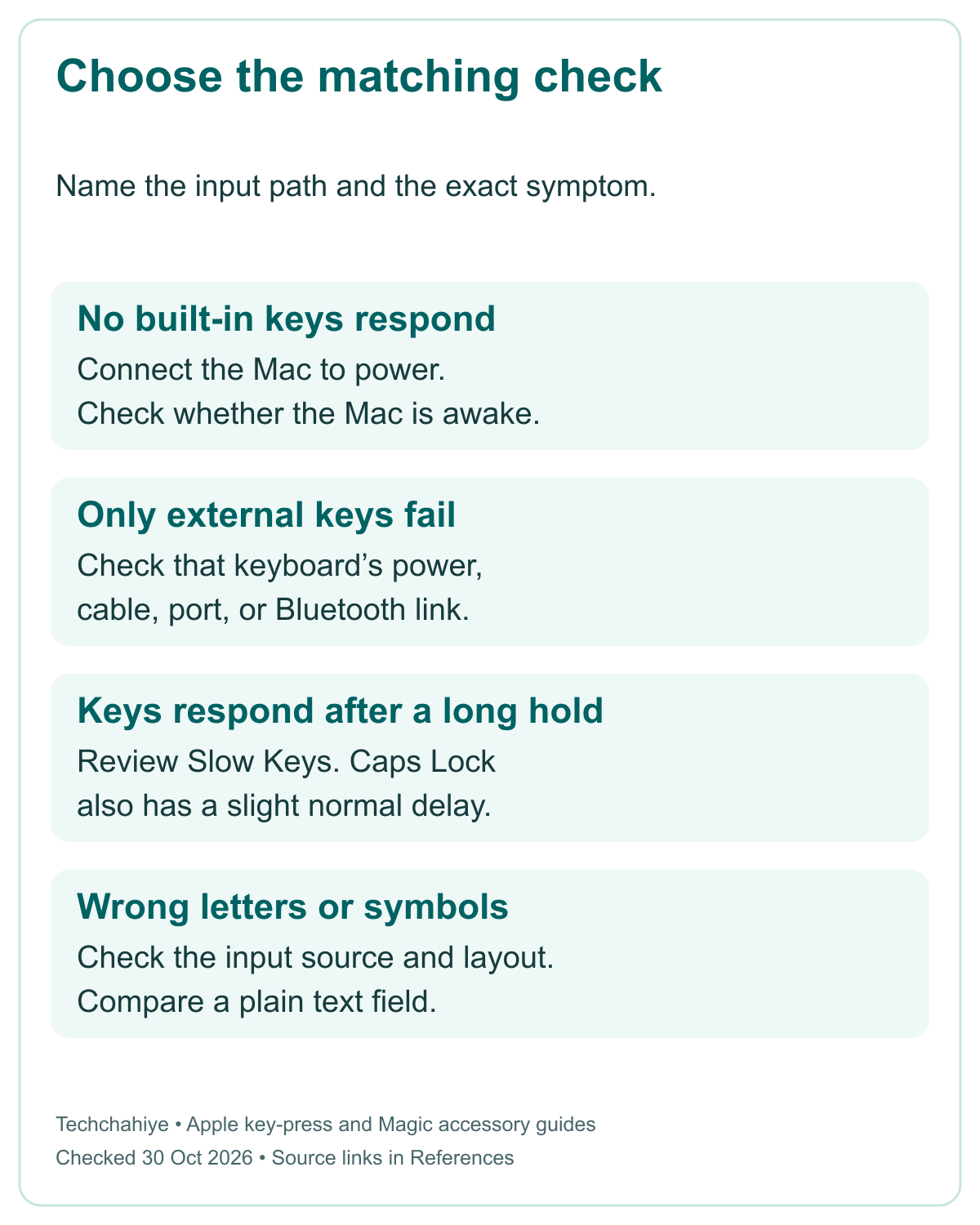
Note whether the fault affects every app or only one app. Also note whether the trackpad works and whether the screen responds. A single app that ignores text is a different lead from a Mac that does not respond to either the pointer or keys. Save any work you can reach before you restart an app or the Mac.
| What you see | First useful check | What it does not prove |
|---|---|---|
| No built-in keys respond | Connect the Mac to power and check its state | That the whole keyboard needs replacement |
| Only an external keyboard fails | Check its connection, charge, or port | That the MacBook’s built-in keyboard has failed |
| Some keys respond only after a pause | Review Slow Keys and normal key delays | That every delayed key has a hardware fault |
| Letters or symbols are wrong | Check the input source and layout | That the printed key label matches the active layout |
| One key feels different or sticks | Review Apple’s model-specific cleaning guide | That cleaning will fix damage inside the Mac |
Use the row that fits your case. You do not need to run every branch. Turning Bluetooth off will not test a built-in key, for example. Changing a language layout will not fix a loose USB plug. A clear first choice saves you from changing things that were working.
If no built-in keys respond, check power first
Apple’s key-press guide says a Mac laptop may show a low-battery alert you cannot see. Connect it to an electrical outlet, or connect an external keyboard to help reveal the alert. This is a useful early check before you treat silence from the keys as a confirmed keyboard fault.
Check whether the Mac is awake and whether the pointer moves. If the screen is also blank or the Mac will not power on, follow the power problem first. Our charging guide in References covers the power status. It also helps you compare chargers and cables. Keep that issue separate from a single bad key.
If the pointer works and you can save files, do that before a restart. Note the exact stage where typing fails: after login, inside one app, or before you can enter the account. That detail matters if you later need help. A workaround may work after login. Do not assume it works on every startup screen too.
Try a suitable external keyboard if you have one. Record its result without making it a final verdict. If it types while the built-in keys do not, you have narrowed the input path. You have not yet proved which part or setting caused the difference.
Compare a wired or Bluetooth keyboard separately
For a wired keyboard, Apple says to check the plug. Try another port or another Mac too. Connect it firmly. If a hub sits between the keyboard and Mac, a direct connection can make the comparison simpler. Keep the same keyboard while you change one part of that route.
Then, if available, connect another keyboard to the same Mac. This asks a different question: can this Mac receive input from another device? Note both results. “Keyboard A fails on this port; keyboard B works” is more useful than a list of five changes followed by “it works now.”
For a Bluetooth keyboard, check that it has power and that Bluetooth is on. Use the MacBook’s trackpad to open Bluetooth settings if its keys do not work. Apple’s advice for Magic accessories includes turning the accessory off and back on. That action applies to the separate keyboard, not to the built-in keys.
Pair a rechargeable Magic Keyboard with its cable
Apple’s Magic accessory guide describes a cable check for supported rechargeable models. Connect the correct cable to the Mac, wait one minute, then disconnect it. The connection pairs the accessory and charges its built-in battery. Cable type varies with the keyboard model, so match the actual port.
Older Apple wireless keyboards can use replaceable batteries instead. Do not force a charging cable into a model that has no matching port. Read the model’s controls and charge state. A flat accessory battery differs from a failed laptop keyboard. Both can stop you from typing.
If a keyboard works by cable but loses its wireless connection, keep that result. Apple’s Magic guide lists wireless interference as one possible cause. It may explain an unstable Bluetooth link. It is a lead to investigate, not proof that a nearby device caused the fault. Avoid changing every wireless setting on the Mac at once.
Check Slow Keys when presses seem delayed
Slow Keys changes how long you must hold a key before the Mac accepts it. Apple’s key-press guide places it under System Settings, Accessibility, then Keyboard. If someone turned it on by mistake, normal quick taps can seem to do nothing.
Check whether you need the setting before changing it. Some people rely on it. If it is not part of your usual setup, turn it off for a comparison and try the same plain text field. If you need the feature, review its settings rather than treating it as a fault to remove.
Keep the test small. Use the same app and keys before and after the change. If quick taps now work, record that result. You have evidence that the input timing affected that test. You have not tested every key or ruled out a second problem that appears only later.
Do not mistake every delay for Slow Keys. Apple says Caps Lock and Media Eject have a slight built-in delay to avoid accidental presses. Hold Caps Lock long enough for its indicator to turn on. One key with this behavior is different from letters that all need a long hold.
Check Mouse Keys when certain keys behave strangely
Mouse Keys lets keyboard input control the pointer. Do keys give unexpected results? Apple says to open System Settings. Choose Accessibility, then Pointer Control to check Mouse Keys. This is separate from Slow Keys, even though both sit in accessibility settings.
You can also open Accessibility Shortcuts with Option-Command-F5, where that shortcut is available. Apple’s key-press guide lists this as another way to turn off Mouse Keys. Are key presses unreliable? Use the working pointer to reach settings. You do not need to repeat the shortcut.
As with Slow Keys, keep a setting you intentionally use. The goal is to spot an unexpected change, not to remove access features from someone else’s setup. If you share the Mac, confirm the intended setup with the other person before treating it as a mistake.
After a change, test the same affected keys in the same field. If the pointer no longer reacts to those presses and text entry returns, you have a useful clue. Note which setting changed. Does a setting explain the symptom? Leave other language and repeat settings alone.
Fix the input layout when keys type the wrong symbols
The selected input source tells macOS how to map presses to characters. A physical key’s printed symbol does not force every layout to use that symbol. Letters work, but punctuation is wrong? Check the layout before you clean the keyboard.
Apple’s guide says to open System Settings, then Keyboard. Under Text Input, choose Edit and turn on Show Input menu in menu bar if needed. Open that menu and choose the layout you intend to use. Test the same punctuation marks again.
For example, imagine a Mac shared by two people who type in different languages. One person changes the input source, then the next person sees unfamiliar symbols. That is a made-up example of a setting mismatch. It is not evidence that every wrong-character problem has that cause.
Check your app’s active text field as well. Some shortcuts act on the app instead of inserting a character. Compare a plain text document with the original app. Does typing work in one app but fail in the other? Keep that result in your notes. It is not a whole-keyboard failure.
If you switch to another layout for a test, switch back when needed. Apple’s Keyboard Viewer guide makes that point too. A brief test should not change your daily input setup. Put it back when needed.
Use Keyboard Viewer to keep working
Keyboard Viewer can show an on-screen keyboard after you can access macOS. Apple’s guide says to open the Input menu and choose Show Keyboard Viewer. If the menu is missing, use the Keyboard settings path described above to display it.
You can click the viewer’s keys with the pointer to enter text. It also shows the layout for the selected input source. That makes it useful for checking where a symbol sits, as well as for a short typing task while you arrange a repair.
Treat this as a workaround with limits. Clicking an on-screen key does not test the physical switch under the laptop’s keycap. If the viewer types correctly and the physical key does not, note the difference. Do not describe that result as proof that all software settings are correct.
For longer work, an external keyboard may be more practical. Keep the Mac stable on a desk and save your files. If the laptop is due for service, arrange another way to reach needed documents. You should not need to erase the computer merely to learn whether another keyboard can type.
Clean an affected key only with the matching instructions
Apple gives a compressed-air method for key problems. It covers an unresponsive key or one that feels different. The guide covers MacBook models from 2015 onward. It covers MacBook Pro models from 2016 onward too. Confirm that your model falls within the guide before following it.
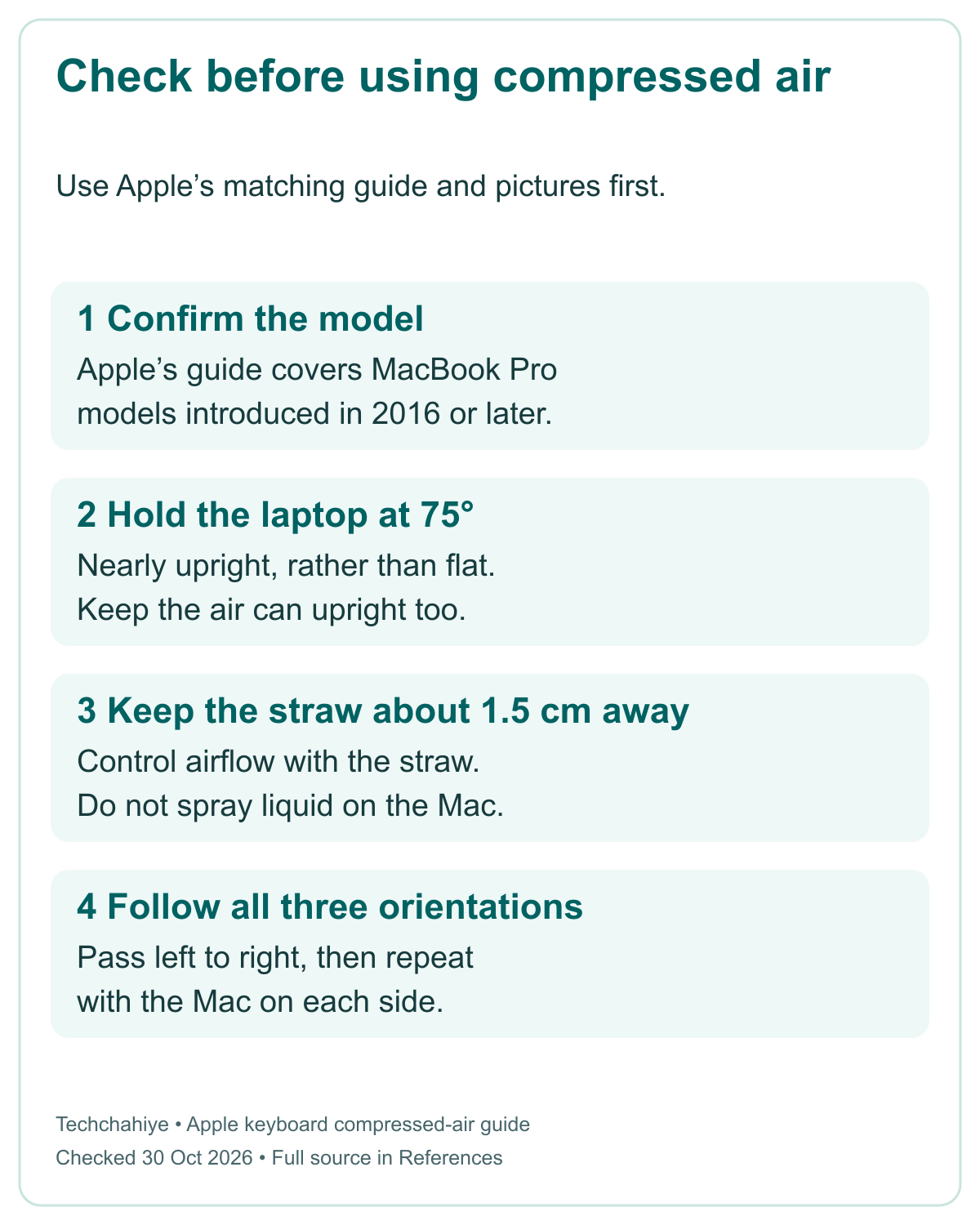
The guide uses a 75-degree laptop angle. That is almost upright, rather than flat on the desk. It also says to keep the air-can straw about 1.5 cm from the keyboard. Using NIST’s exact inch definition, that is about 0.6 inch. The calculation is 1.5 divided by 2.54, rounded to one decimal place. Keep the can upright; Apple says not to invert it while spraying.
Follow the three orientations in Apple’s guide
Apple’s sequence starts with a left-to-right pass across the keyboard or affected keys. It then rotates the laptop onto its right side for another pass, and onto its left side for the last pass. Read the complete guide and its pictures in References before you start.
This is a surface cleaning method, not a guide to removing keycaps or opening the case. Do not turn a stubborn key into a parts-removal experiment. If the key still fails after the documented cleaning, Apple’s advice is to seek service.
For general exterior cleaning, Apple says to shut down the Mac and unplug its power adapter. Use a suitable soft, lint-free cloth and keep moisture out of openings. Do not spray liquid onto the computer. Use the separate compressed-air keyboard guide for that method. Other spray products are not the same.
Has liquid entered the Mac? Apple says to seek help promptly. Use Apple or an authorized service provider. Do not treat a spill as ordinary dust under a key. A key that starts working again does not establish that liquid left no damage inside.
Treat Touch ID as a separate symptom
Touch ID failing does not always mean the keyboard stopped working. Apple’s Touch ID guide explains that macOS may need the password after a restart or logout. In that case, the password prompt is normal. It does not prove a fingerprint sensor fault.
Check whether ordinary typing works. Also note whether Touch ID fails for every feature or only one feature. Does the fault affect only some uses? Apple says to check the matching Touch ID setting. Keep fingers and the sensor clean and dry, following Apple’s cleaning guidance.
An external Magic Keyboard with Touch ID has model and software requirements of its own. Do not assume that any Mac which accepts its letter keys can also use its fingerprint feature. Read the exact keyboard’s needs in Apple’s Touch ID guide. Check those before you seek a repair.
Keep login trouble separate too. Will the Mac not accept a password? The layout, account access, or another issue may explain it. This guide does not bypass account security. Use Apple’s account help when the problem is access rather than input from a key.
Use a clear record when you need service
Write down the Mac model, macOS version, and the exact affected keys. Say whether the problem affects the built-in keyboard, an external one, or both. Add the result in a plain text document and in the app where you first noticed it.
Apple Diagnostics may help identify a hardware issue. Use Apple’s preparation steps and the route for your chip. Apple silicon starts from startup options, then Command-D. Intel uses D at startup, with Option-D as another route. Does the startup key itself fail? Tell support. A failed shortcut is not a diagnostic result.
Apple lists a change in macOS Tahoe 26 and later. It can ask you to choose a test, including a keyboard test. Follow the options your Mac actually shows. Keep any reference code and describe an intermittent fault even if a short test does not explain it.
Does the fault involve an external keyboard? Bring it, or note the exact model. Explain which port, cable, or wireless route you tried. That helps a service visit begin from evidence. It also helps you avoid replacing a keyboard on a guess.
Keep this short input-fault record
Mac model and macOS: __. Built-in or external keyboard: __. Exact affected keys: __. Plain text test: __. Original app test: __. Power or connection check: __. Input setting checked: __. Cleaning, if applicable: __. Diagnostic code and remaining gap: __.
Did You Know?
Apple builds a slight delay into Caps Lock to reduce accidental presses. Holding that key a little longer can be the expected action. That does not explain a whole keyboard that ignores letters. Compare the actual symptom first.
Conclusion
For a MacBook Pro keyboard not working, find the failing step before choosing a fix. Check power for silent built-in keys. Check the connection for external keys. Review input settings for delayed or wrong characters. Use a temporary input method to save work. Then follow the matching cleaning or service route when the evidence points there.
FAQs
Why do my MacBook Pro keys work only when I hold them down?
Slow Keys may be on. Check Accessibility, then Keyboard in System Settings. If you do not need the setting, turn it off for a test. Use the same text field. Keep it if you need the feature. Caps Lock also has a slight normal delay, so check whether letters behave differently.
Can a low battery make the built-in keyboard seem unresponsive?
Apple says a Mac laptop may show a low-battery alert you cannot see. Connect the Mac to power or try an external keyboard to help reveal the alert. Will the whole Mac not wake or start? Follow that power issue first. It does not prove a keyboard fault.
Why does my MacBook Pro keyboard type the wrong symbols?
Check the selected input source and keyboard layout first. Apple’s guide explains how to show the Input menu from Keyboard settings. Choose the intended layout and test the same symbols in a plain text field. A printed key label alone does not tell you how every active layout maps that press.
Does a working external keyboard prove a built-in key fault?
No. It narrows the input path, but it does not name the failed part or rule out a setting. Record the result and compare the same app and field. Use the working keyboard to save files if needed. Seek service when the remaining checks do not explain the built-in keys’ behavior.
Should I factory reset my MacBook Pro to fix one key?
A factory reset is not a useful first check for one key. Start with the symptom, relevant input settings, and Apple’s matching cleaning guide. Try a plain text field or another keyboard where possible. Keep your files. Get a clear diagnosis before you choose an erase. It removes your apps and data.
References
- Apple — If your Mac doesn’t respond to key presses
- Apple — Use the Keyboard Viewer on Mac
- Apple — How to clean the keyboard of your MacBook or MacBook Pro
- Apple — How to clean your Apple products
- Apple — If you can’t connect your Magic Keyboard, Magic Mouse, or Magic Trackpad to your Mac
- Apple — If Touch ID isn’t working on Mac
- NIST — SI Units: Length
- Apple — Use Apple Diagnostics to test your Mac
- Techchahiye — MacBook Pro Not Charging? Read the Status Before You Replace Parts
